Supported syncing
For more information about sync modes, refer to the sync modes docs.
Connect to Vitally
Go to the Destinations overview page and click the Add destination button. Select Vitally and click Continue. You can then authenticate Hightouch to by entering the following fields into Hightouch:- Region: Either EU or US.
- Analytics API Token: This is required for syncing analytics objects and events.
- REST API Token: This is required for the REST endpoints.
-
Log into your Vitally account, click the wheel icon on the bottom sidebar.

-
Under Data Management, select the Integrations option.

-
For the Analytics API Token, select the Vitally Analytics API card. Otherwise, skip to step 6 for the REST API Token.

-
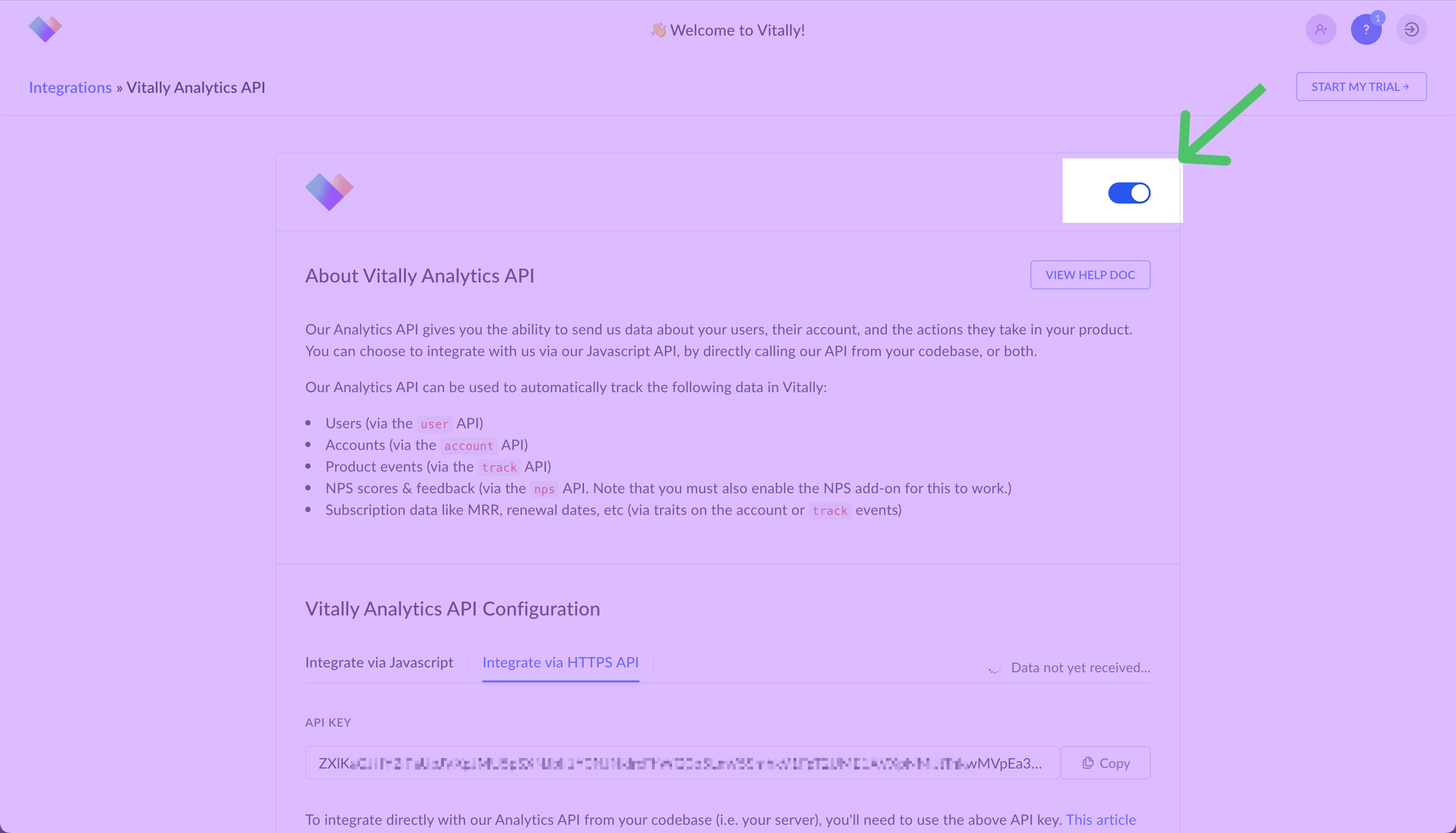
Toggle on the integration.
-
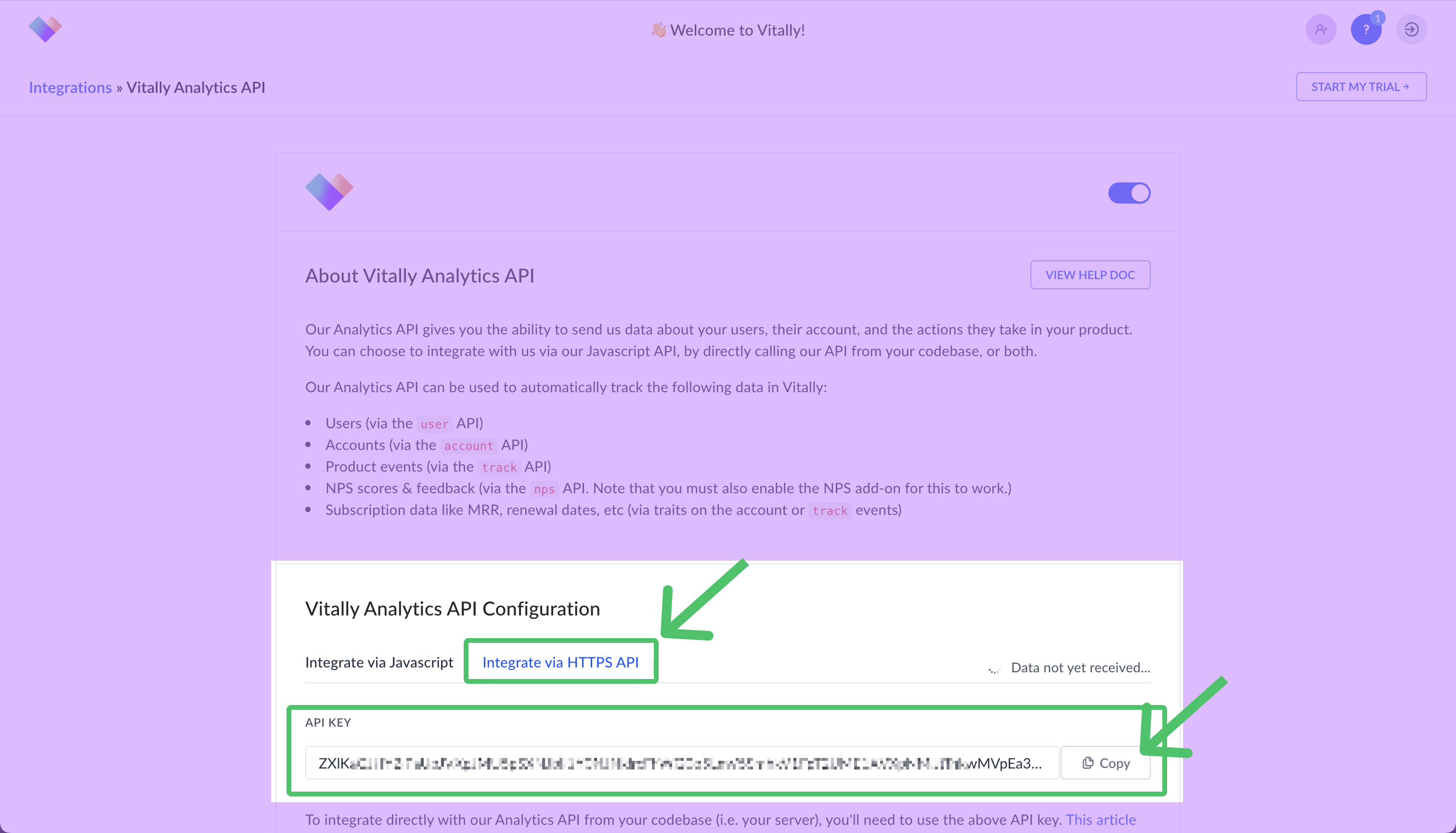
Click the Integrate via HTTPS API tab and copy the API KEY. This is the Analytics API Token you need to enter in Hightouch.
-
For the REST API Token, select the Vitally REST API card.
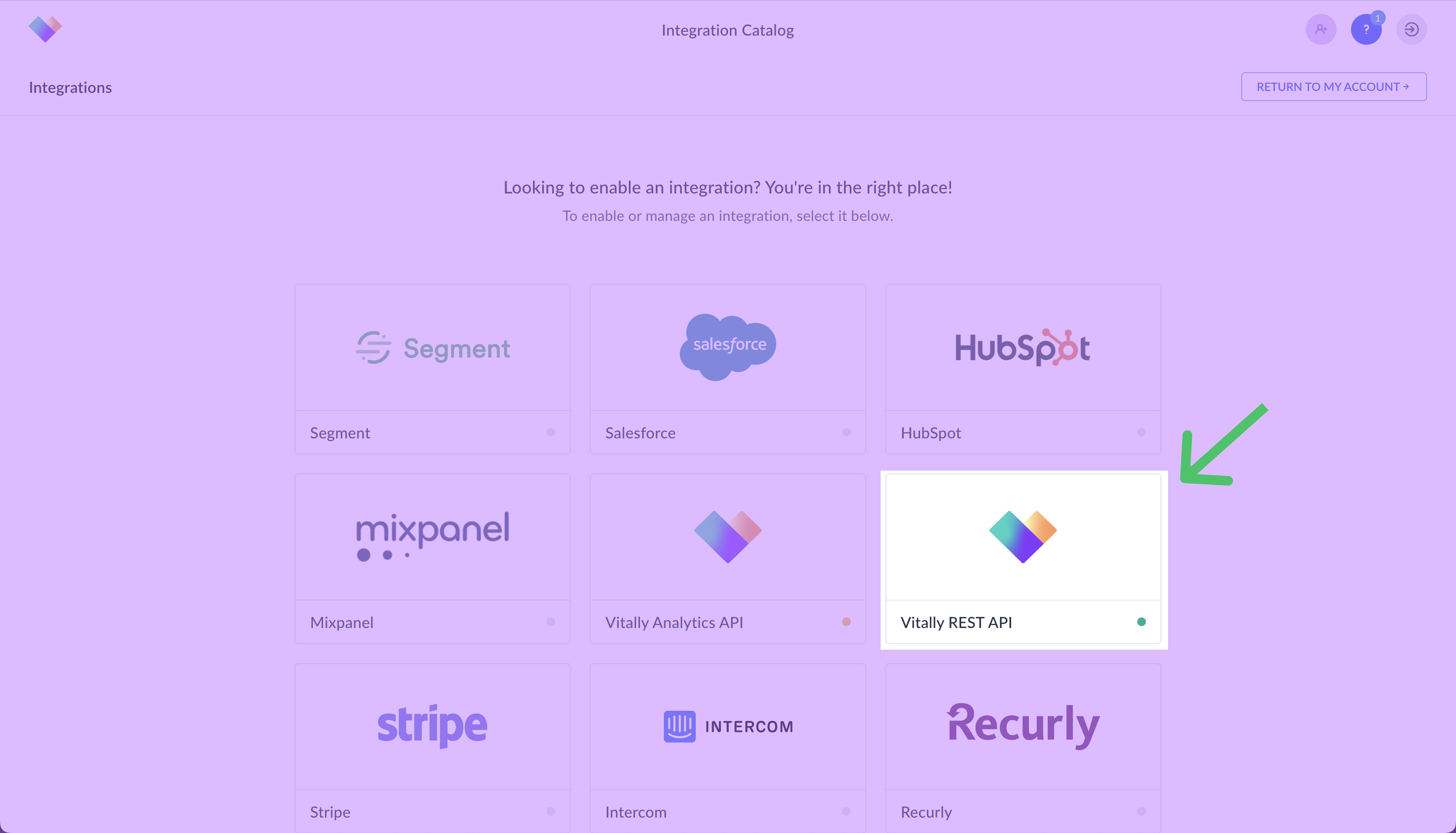
-
Toggle on the integration and click to generate the API Key.
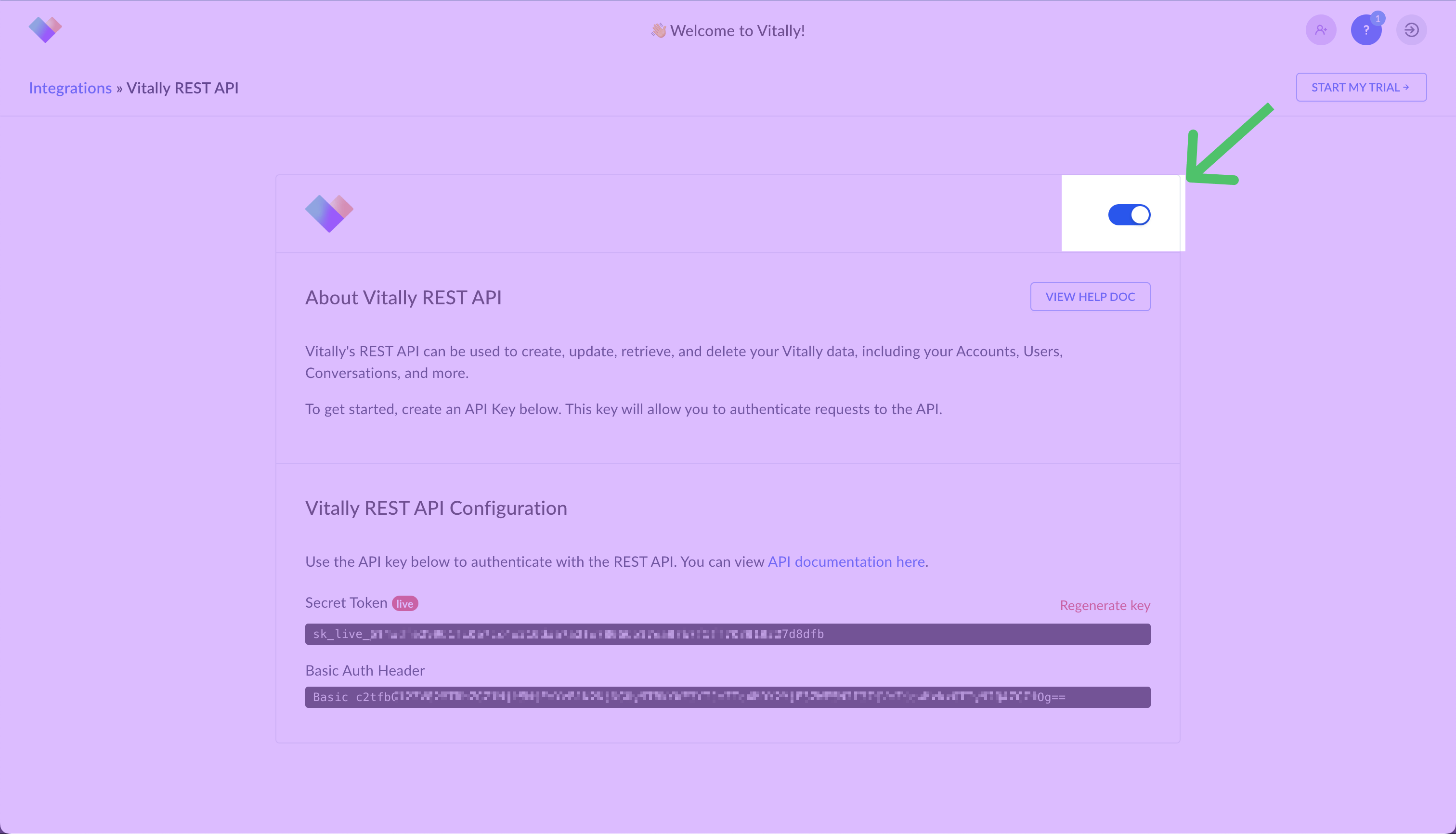
-
Copy the Basic Auth Header once it’s generated to use in Hightouch. This is the REST API Token you need to enter in Hightouch.
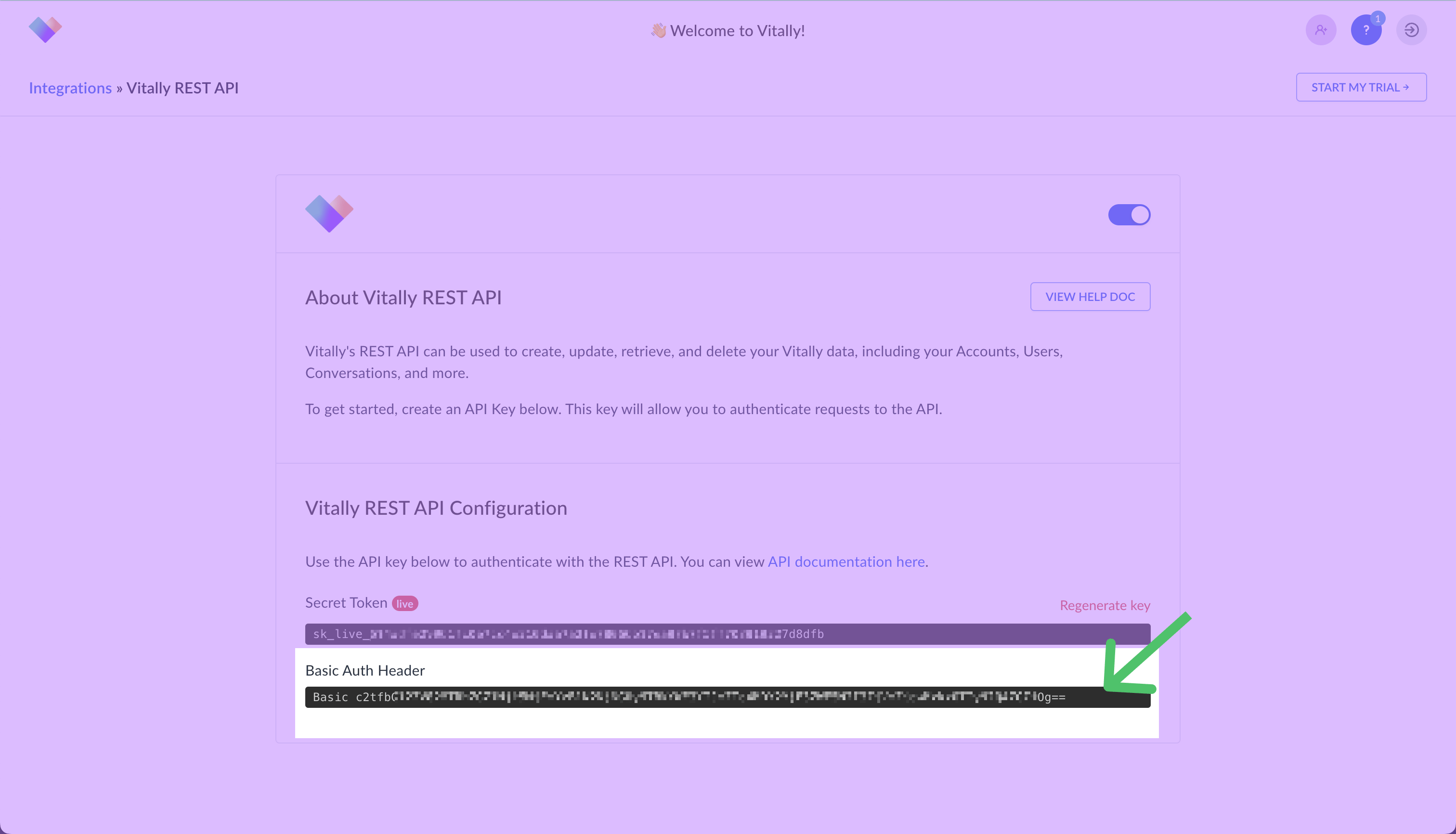
Sync configuration
Once you’ve set up your Vitally destination, have a model to pull data from, and have a clear idea of the data you want to sync, you can set up your sync. Go to the Syncs overview page and click the Add sync button to begin. Then, select the relevant model and the Vitally destination you want to sync to.Syncing REST objects
Hightouch supports syncing to account, organization, and user objects in Vitally.Record matching
To match rows from your model to objects in Vitally, you need to select the model column that contains values that match the External ID field in Vitally. When syncing users, you can also match on Email. Refer to the record matching docs for more information.Field mapping
Hightouch lets you sync object fields via field mapping. You can map data from any of your model columns to any of an object’s default fields. Ensure the data type of your model column matches the data type of field you want to sync to in Vitally. For example, a Vitallytext field expects a model column with the string data type.
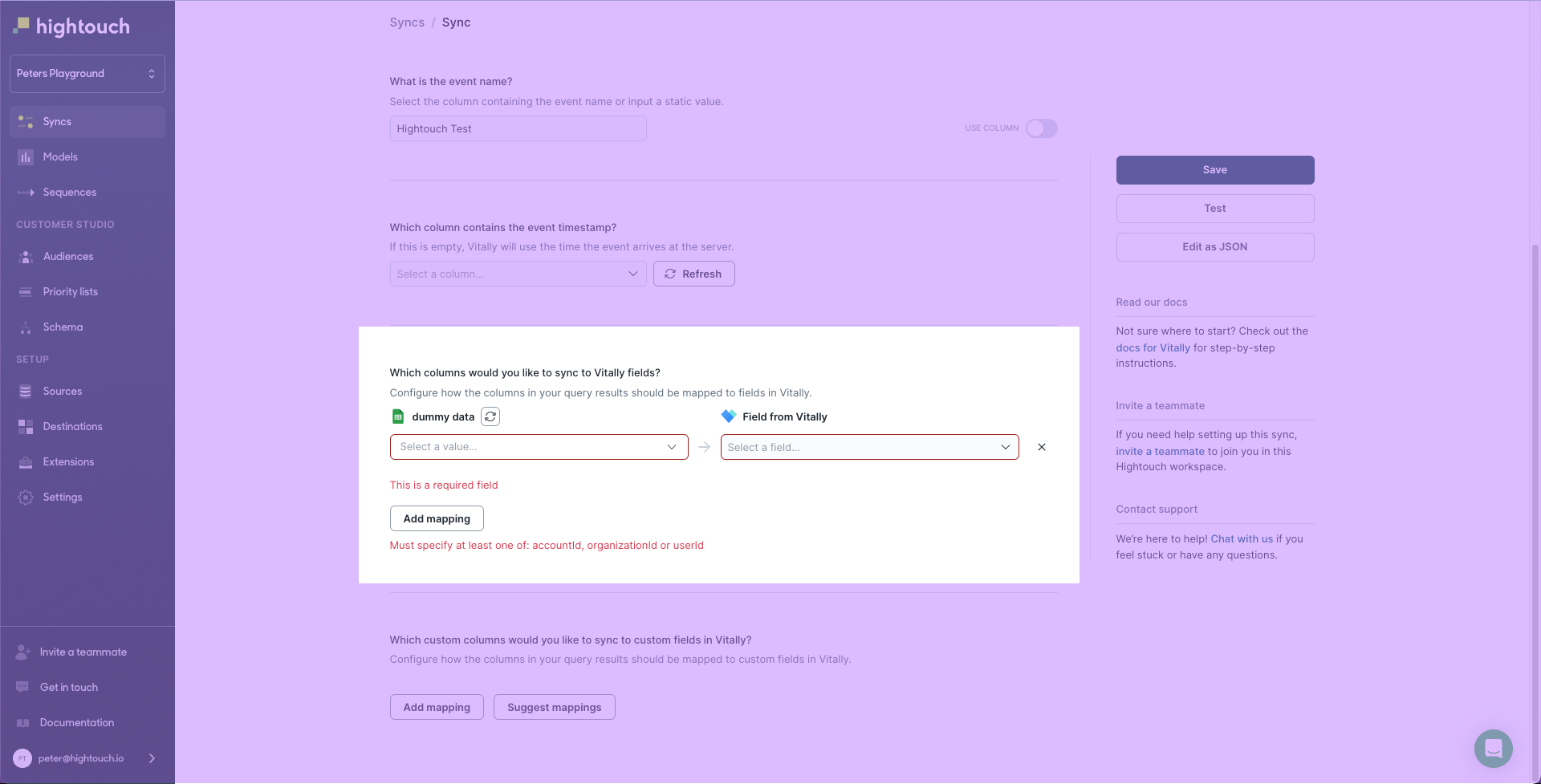
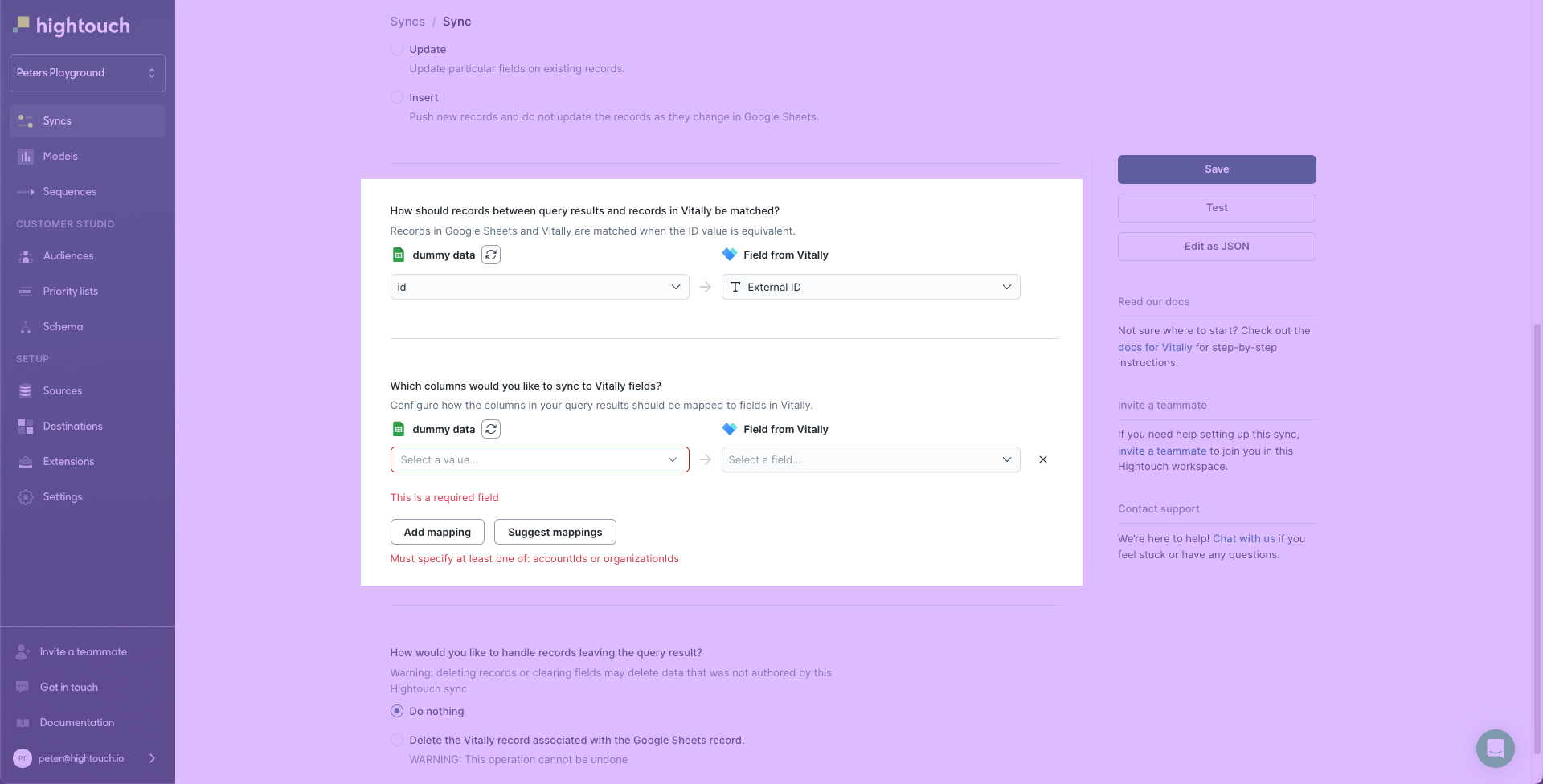
When using Upsert or Update mode to sync users, if you match on Email,
you need to map both the External ID and either Account IDs or Organization IDs.
Otherwise, Hightouch displays a Required field error and a Must specify at least one of: accountIds or organizationIDs error.
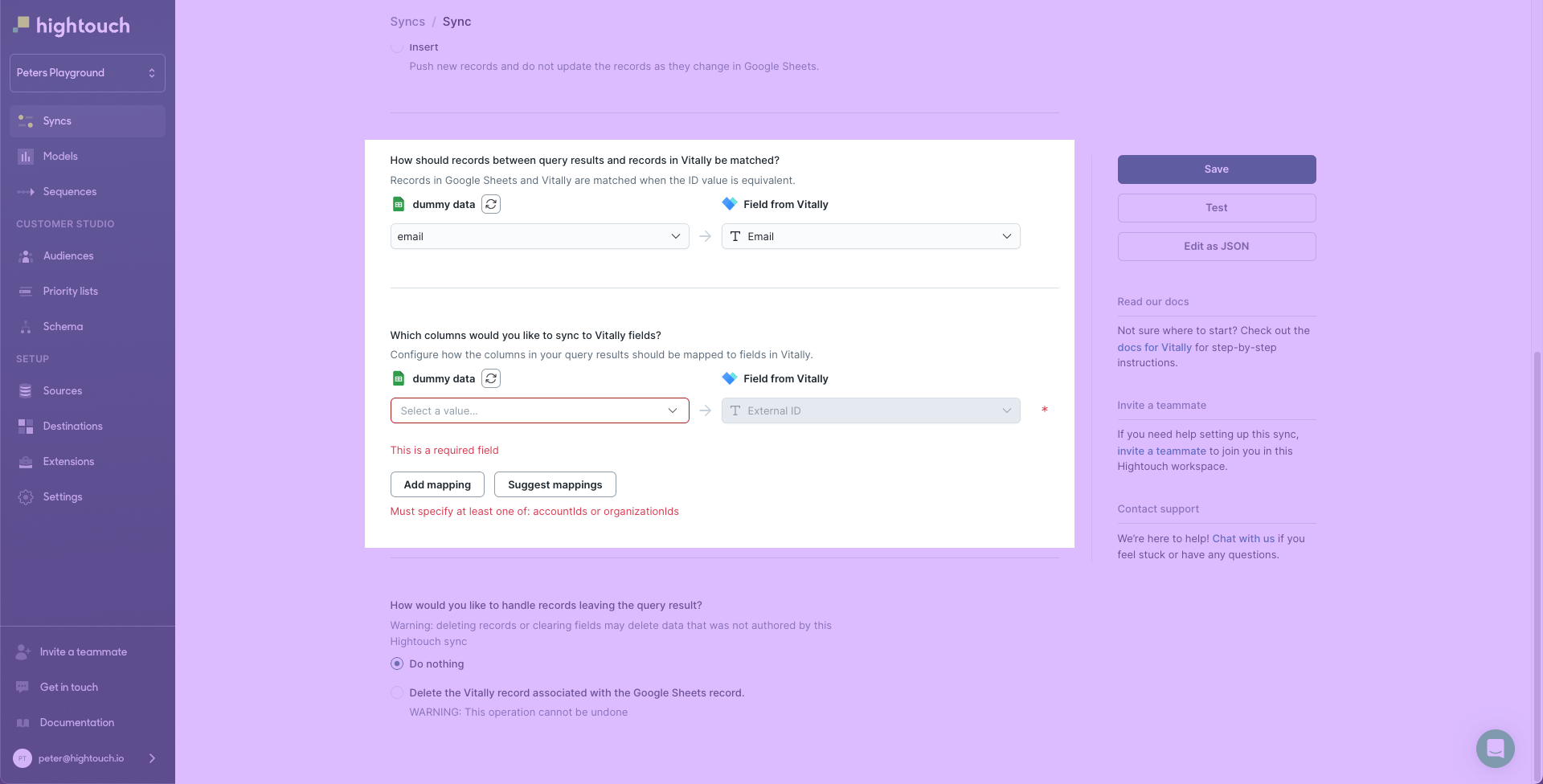
Must specify at least one of: accountIds or organizationIDs error.
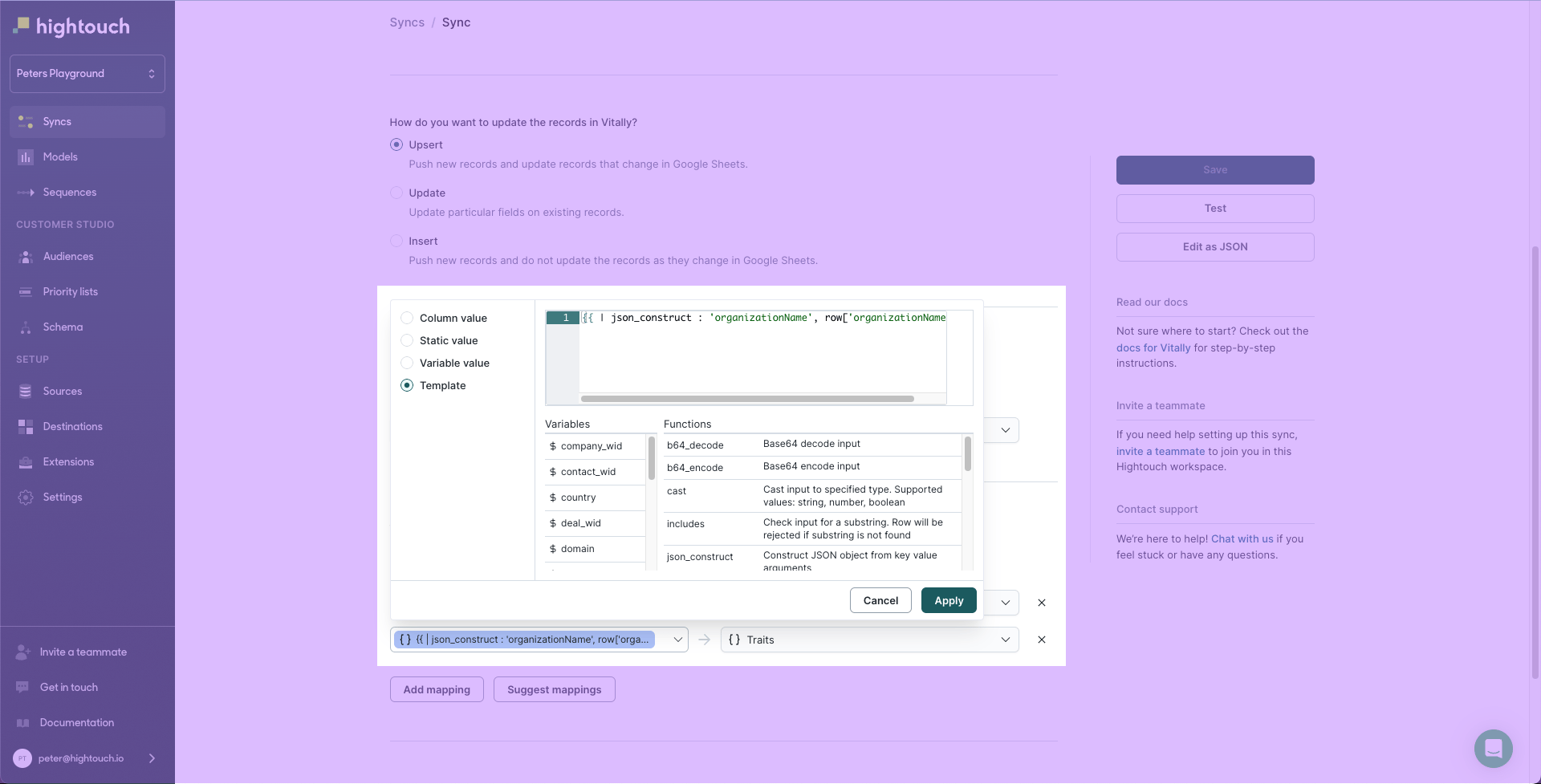
object data type rather than a string.
You can create an object of all the fields you want to update, and then map them to traits.
An example traits attribute for an organization object could look like this:
organizationName and the value is the row’s organizationName column.
Delete behavior
The delete behavior you select dictates what to do when a row no longer appears in your model’s query results. You have the following options:Syncing analytics objects
Hightouch supports syncing to account, organization, and user objects in Vitally with the analytics API.Record matching
To match rows from your model to objects in Vitally, you need to select a model column that contains the corresponding ID for each supported object.- Account ID for account objects
- Organization ID for organization objects
- User ID for user objects
Field mapping
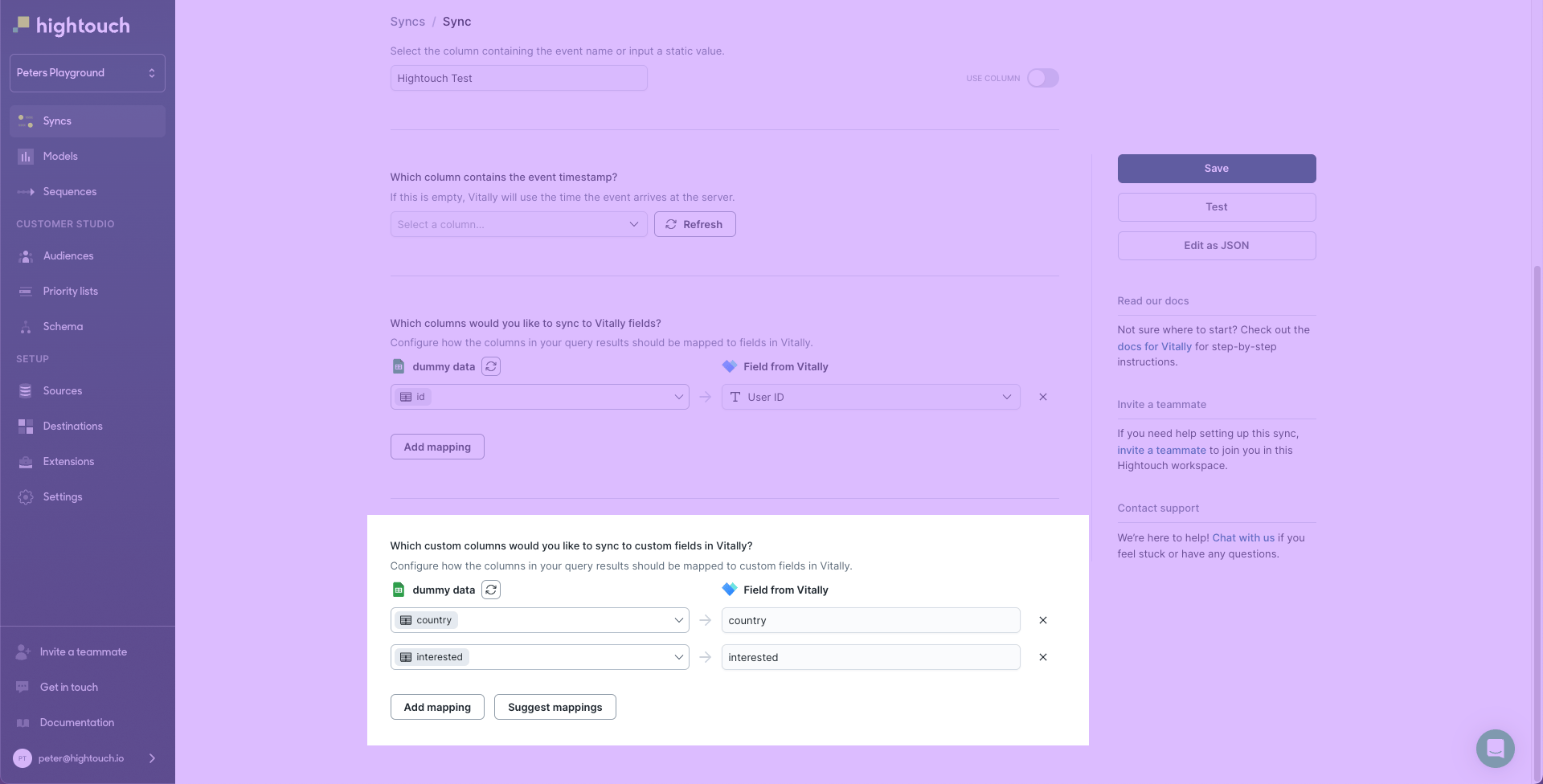
Hightouch lets you sync analytics object fields via field mapping. You can map data from any of your model columns to the default object fields. Ensure your model columns data types match the data types of the fields you want to sync to.Traits mapping
Hightouch allows you to map traits for the analytics objects. Any mappings from this section will be synced as additional attributes in the traits parameter.Syncing events
Hightouch supports syncing product events in Vitally. Vitally’s API requires the following event parameters:event: the name or type of eventtimestamp: the time the event was generatedmessage_id: a unique ID for the event
user_id: the ID of the user that ‘owns’ the eventaccount_id: the ID of the account that ‘owns’ the event
Event name
Providing an event name is required to send an event to the Vitally’s API. You can either provide a static value or select to use a column from your model. Hightouch syncs the static or column value as theevent parameter the API requires.
Event timestamp
You can optionally select a column that contains timestamps of when events occurred. If this field is empty, Hightouch uses the time the event arrives at the server. Hightouch syncs the timestamp as thetimestamp parameter the API requires.
Field mapping
Field mapping is where you select which event parameters you want to send to the Vitally’s API. The API requires you to map at least one of the following fields in order to save your sync.- Account ID
- Organization ID
- User ID