

Hightouch supports ClickHouse v20 and newer for the Basic sync engine. The
Lightning sync engine requires ClickHouse v25 or
newer.
Overview
Hightouch lets you pull data stored in ClickHouse and push it to downstream destinations. Most of the setup occurs in the Hightouch UI, but you need access to ClickHouse for information like your host, port, database name, and credentials.You may need to allowlist Hightouch’s IP addresses to let our systems connect to your warehouse. Reference our networking docs to determine which IP addresses you need to allowlist.
Connection configuration
To get started, go to the Sources overview page and click the Add source button. Select ClickHouse and follow the steps below.Choose authentication method
You can select to use either a password or connection string. A connection string is useful if you need to pass additional configuration options. Hightouch connects to ClickHouse over the HTTP API using the@clickhouse/client driver. Sources created before June 2026 use the legacy ClickHouse JDBC driver; Hightouch automatically routes those sources to the JDBC transport. The Lightning sync engine requires the new HTTP transport and is therefore only available for new sources or sources re-created after this transition.
If you select connection string, enter the connection string and skip to the connection test section of this page.
Choose connection type
Hightouch can connect directly to ClickHouse over the public internet or via an SSH tunnel. Since data is encrypted in transit via TLS, a direct connection is suitable for most use cases. You may need to set up a tunnel if your ClickHouse instance is on a private network or virtual private cloud (VPC).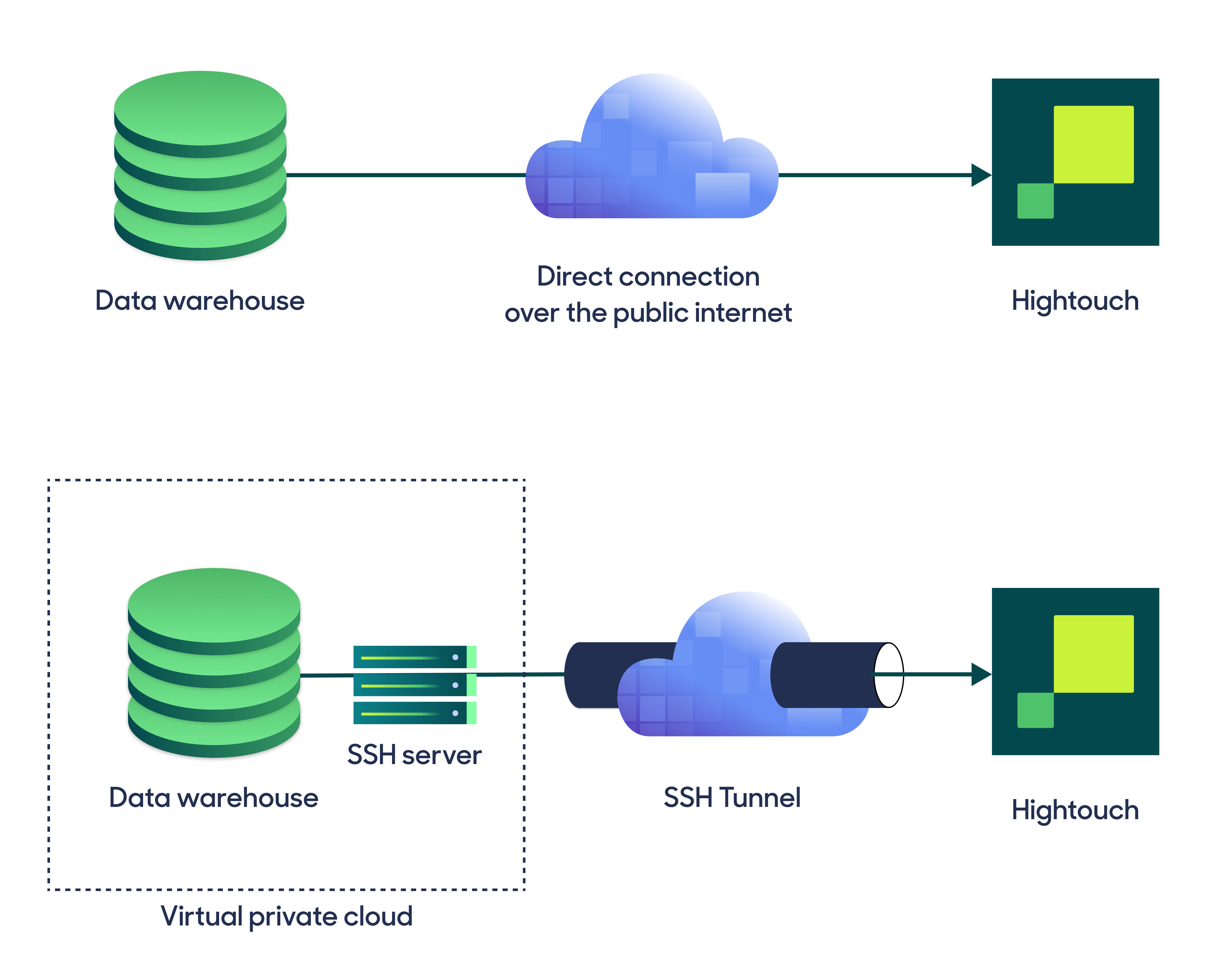
Configure your source
Enter the following required fields into Hightouch:- Host: The hostname or IP address of your ClickHouse server.
- Port: The port number of your ClickHouse server’s HTTP API. The default is 8123, but yours may be different.
- Database: The name of the database to use when Hightouch executes queries in ClickHouse.
- Username: This can be your personal ClickHouse login or a dedicated user for Hightouch.
- (Optional) Password: The password for the user specified above.
Choose your sync engine
For optimal performance, Hightouch tracks incremental changes in your data model—such as added, changed, or removed rows—and only syncs those records. You can choose between two different sync engines for this work. The Basic engine requires read-only access to ClickHouse. Hightouch executes a query in your database, reads all query results, and then determines incremental changes using Hightouch’s infrastructure. This engine is easier to set up since it requires read—not write—access to ClickHouse. The Lightning engine requires read and write access to ClickHouse. The engine stores previously synced data in a separate schema in ClickHouse managed by Hightouch. In other words, the engine uses ClickHouse to track incremental changes to your data rather than performing these calculations in Hightouch. Therefore, these computations are completed more quickly.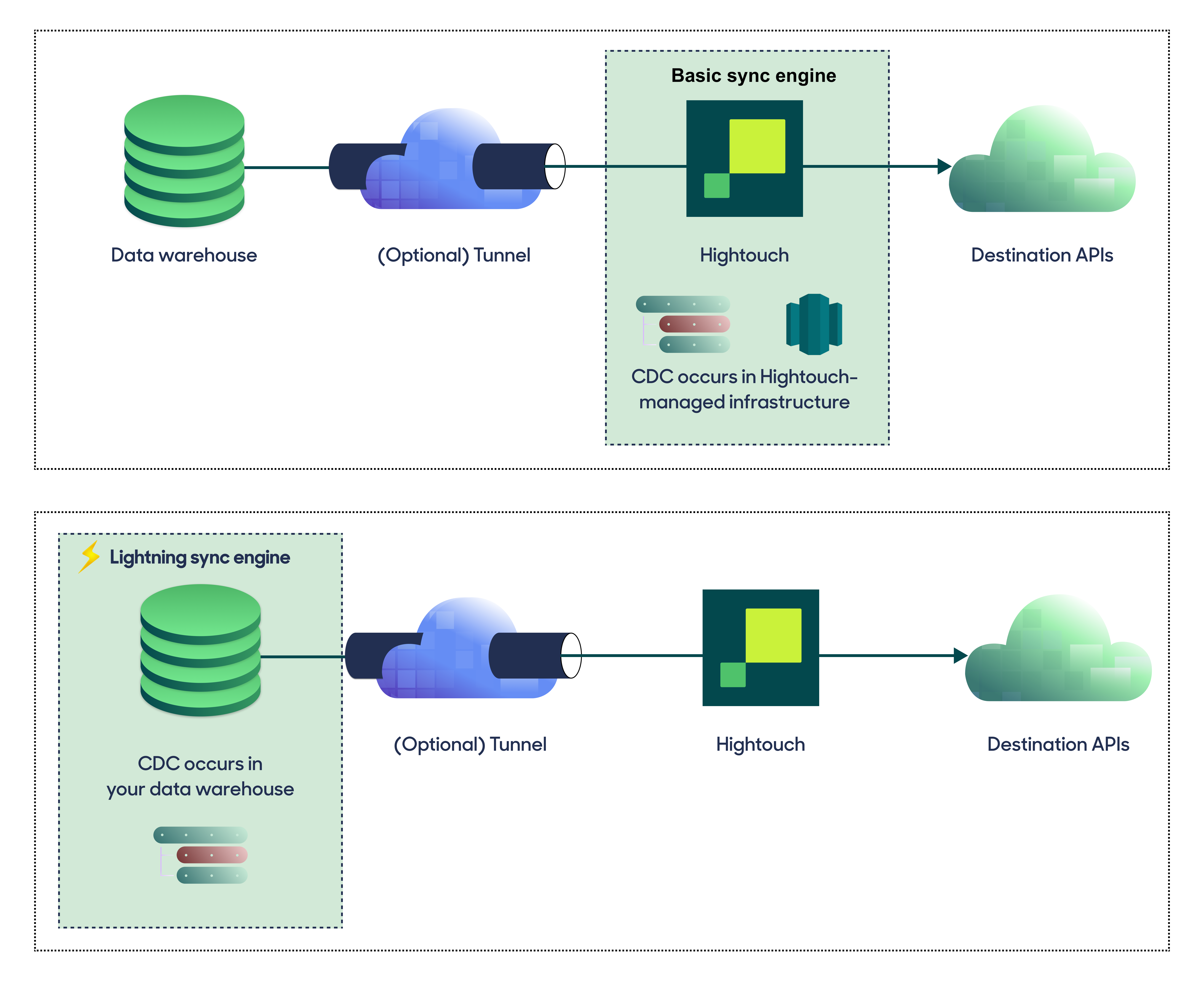
Basic versus Lightning engine comparison
Lightning engine setup
To set up the Lightning engine, you need to grant Hightouch write access to ClickHouse and create the databases Hightouch uses for change data capture and Warehouse Sync Logs. ClickHouse calls schemas “databases,” so the planner and audit schemas are databases:UPDATE, lightweight DELETE, and the _block_number / _block_offset MergeTree columns, all of which require ClickHouse v25 or newer.
The Lightning engine isn’t available on sources running the legacy JDBC
transport. If you have an existing ClickHouse source and want to use
Lightning, re-create the source so Hightouch connects through the new HTTP
transport.
Test your connection
When setting up ClickHouse as a source for the first time, Hightouch checks that you have the correct permissions. Once the test passes, click Continue to finish setup.Create models
Once your source configuration has passed the necessary validation, your source setup is complete. Next, you can set up models to define which data you want to pull from ClickHouse. The ClickHouse source supports writing queries in the SQL editor as its modeling method.Tips and troubleshooting
If you run into an issue this page doesn’t cover, .Table selector fails to populate
If the table selector fails to populate, it may be that the ClickHouse user configured for the connection lacks necessary privileges. In order for Hightouch to automatically inspect the schema and populate the table selector, the user configured for the connection must haveSELECT permissions
on INFORMATION_SCHEMA.COLUMNS.