

The minimum supported PostgreSQL version is
9.5 since Hightouch relies on ON CONFLICT for updating rows.Supported syncing
Connect to PostgreSQL
You may need to allowlist Hightouch’s IP addresses to let our systems connect to your Postgres instance. Reference our networking docs to determine which IP addresses you need to allowlist.You can also securely connect to your Postgres instance using AWS PrivateLink or GCP Private Service Connect. AWS PrivateLink and GCP Private Service Connect are Business Tier features.
- Host: The hostname or IP address of your PostgreSQL server. You don’t need to include the
https://. - Port: The port number of your PostgreSQL server. The default port number is 5432, but yours may be different.
- Database: This specifies the database to use when Hightouch executes queries in PostgreSQL. This is different than the host, but your host address might contain your database name.
- User: The user that has access through Hightouch to the database and tables you want to sync to. It’s best to create a new user specifically for Hightouch access. Do not use the root user.
- Password: The password for the user specified above.
SELECT query.
Required permissions
The user you use to authenticate must have the following permissions:- Add, update, and delete (if applicable) rows in your sync’s table.
- View the following tables which are used for gathering metadata to set up the sync:
INFORMATION_SCHEMA.COLUMNSINFORMATION_SCHEMA.TABLE_CONSTRAINTSINFORMATION_SCHEMA.CONSTRAINT_COLUMN_USAGE
SSH tunneling
Hightouch can connect directly to PostgreSQL over the public internet or via an SSH tunnel. Since data is encrypted in transit via TLS, a direct connection is suitable for most use cases. You may need to set up a tunnel if your PostgreSQL instance is on a private network or virtual private cloud (VPC). Hightouch supports both standard and reverse SSH tunnels. To learn more about SSH tunneling, refer to Hightouch’s tunneling documentation.Sync configuration
Once you’ve set up your PostgreSQL destination and have a model to pull data from, you can set up your sync configuration to begin syncing data. Go to the Syncs overview page and click the Add sync button to begin. Then, select the relevant model and the PostgreSQL destination you want to sync to. Hightouch supports Upsert mode, with the option to delete removed rows, and Insert mode using theCOPY FROM STDINstatement. This statement loads queried rows into your table faster than upsert mode. However, using this statement, PostgreSQL rejects the entire batch if any row contains a primary key or unique value that already exists.
Record matching
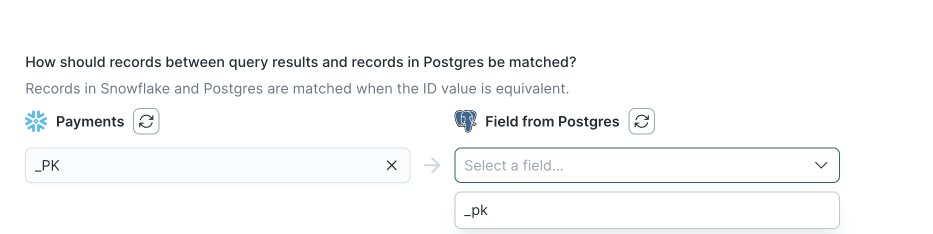
Hightouch requires you select a unique identifier in the table you are syncing to. The model column you select must match aUNIQUE, PRIMARY KEY column within PostgreSQL. If a field that satisfies these conditions still doesn’t appear in the dropdown menu, ensure that you assigned the required permissions to the Postgres user.
You can see columns that fit this criteria as available options in record matching section.
Column types
Hightouch works out of the box with all standard column types, including:BIGINTINTTEXTVARCHARTIMESTAMPTZBOOLEANDECIMAL
Array support
Hightouch supports arrays of standard JSON objects (JSON or JSONB) but doesn’t support arrays ofUSER-DEFINED type JSON objects.
Because insert mode uses the COPY FROM STDIN statement, it doesn’t support the array of JSONB column type (jsonb[]). Instead, use a JSONB column type, which natively supports arrays.