
Supported syncing

For more information about sync modes, refer to the sync modes docs.

Connect to Help Scout

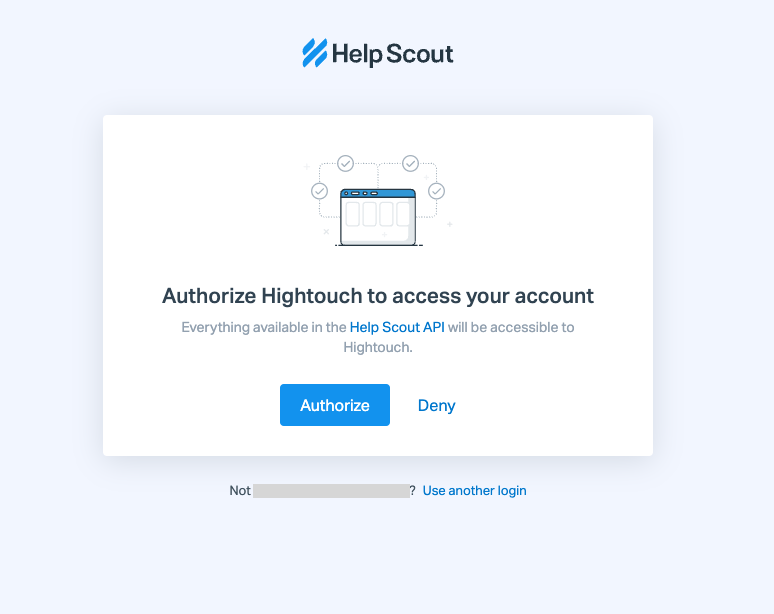
Go to the Destinations overview page and click the Add destination button. Select Help Scout and click Continue. You can then authenticate Hightouch to Help Scout via OAuth. Click Log in to Help Scout, log in to your Help Scout account, and then click Authorize. Authorizing Help Scout in Hightouch Once you’ve finished, Hightouch displays an Authorization successful message. To finish connecting, give your Help Scout destination a descriptive name.
Sync configuration

Once you’ve connected your Help Scout destination and have a model to pull data from, you can set up your sync configuration to begin syncing data. Go to the Syncs overview page and click the Add sync button to begin. Then, select the relevant model and the Help Scout destination you want to sync to.

Syncing customers

Hightouch supports creating new customers and updating existing ones.

Record matching

To match rows from your model to customers in Help Scout, you need to select a model column and corresponding Help Scout field. You can match on any of the following Help Scout fields:
  • Email
  • Customer ID (only with update mode)

Field mapping

You can sync any model columns to both native and custom Help Scout customer fields. In insert mode, you can add new custom fields to the customer. Update and upsert mode only allow replacing existing fields on the customer. In other words, the fields you sync to must already exist in Help Scout. For information on creating or editing customer fields, please refer to Help Scout’s docs.

Delete behavior

The delete behavior you select dictates what to do when a row no longer appears in your model’s query results. You have the following options:

Tips and troubleshooting

To see the exact API requests and responses from each sync run, use the live debugger. To get notified by Slack, PagerDuty, SMS, or email when a sync fails, set up sync alerts. If you run into an issue this page doesn’t cover, .
Last modified on April 10, 2023