

Supported syncing
For more information about sync modes, refer to the sync modes docs.
Connect to Webflow
Go to the Destinations overview page and click the Add destination button. Select Webflow and click Continue. You can then authenticate Hightouch to Webflow by entering your API Token from your Webflow project. To generate an API token in Webflow:- Go to Apps & Integrations and scroll down to the API Access section.
- Click Generate API Token.
- Copy the generated token to your clipboard.
For the most accurate instructions, see Webflow’s API Token Documentation.
Sync configuration
Once you’ve set up your Webflow destination and have a model to pull data from, you can set up your sync configuration to begin syncing data. Go to the Syncs overview page and click the Add sync button to begin. Then, select the relevant model and the Webflow destination you want to sync to.Syncing collections
Record matching
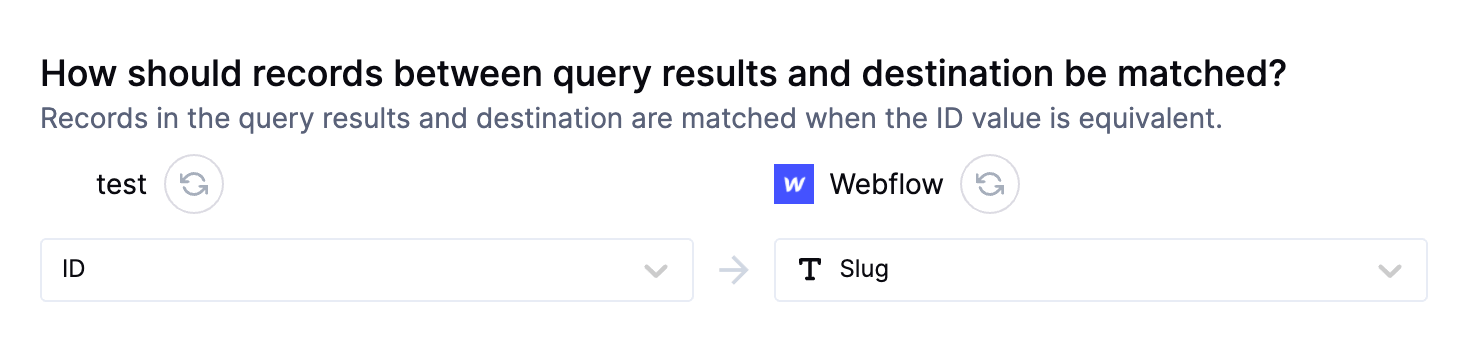
To match source rows to Webflow collection items, you need to select a source column and corresponding Webflow field. You can match on any Webflow field that is set to plain text type. Using theSlug field is recommended.
Field mapping
You can sync columns from your source to Webflow’s collection properties.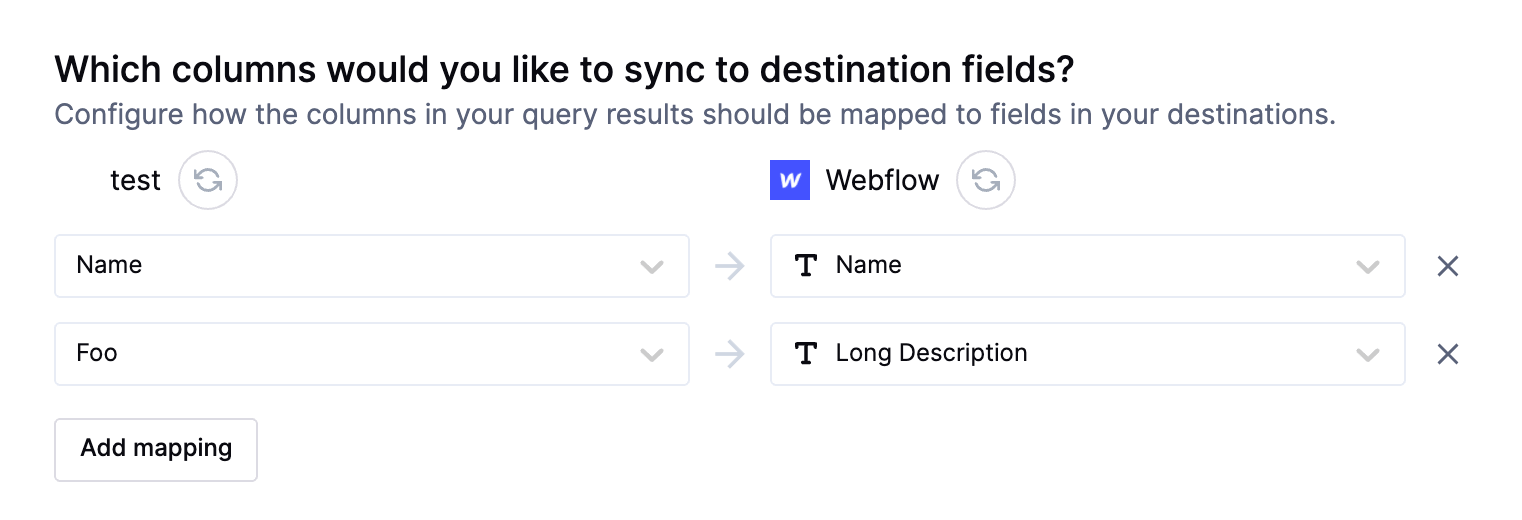
Delete behavior
The delete behavior you select dictates what to do when a row no longer appears in your model’s query results. You have the following options:
Clear fields is only available in Update mode, whereas Delete record is only available in Upsert mode.