

Supported syncing
For more information about sync modes, refer to the sync modes docs.
Connect to Kustomer
Go to the Destinations overview page and click the Add destination button. Select Kustomer and click Continue. You can then authenticate Hightouch to Kustomer by entering the following required fields into Hightouch:- Region
- API Key
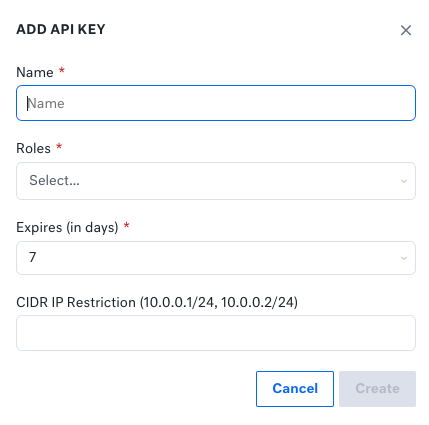
org.permission.bulkorg.permission.companyorg.permission.customer
Sync configuration
Once you’ve set up your Kustomer destination and have a model to pull data from, you can set up your sync configuration to begin syncing data. Go to the Syncs overview page and click the Add sync button to begin. Then, select the relevant model and the Kustomer destination you want to sync to.Syncing companies
Sync data from any source to Kustomer companies.Record matching
To match rows from your model to companies in Kustomer, you need to select a model column and corresponding Kustomer field. You can match on any of the following Kustomer fields:- External ID
- Company Name
Field mapping
Hightouch lets you sync company fields via field mapping. You can map data from any of your model columns to default and custom company fields. Kustomer requires the Name field, so you must map it to complete your configuration. Ensure your model columns data types match the data types of the fields you want to sync to. You must suffix custom field names with their data type. For example, if you were syncing to a custom field called Age that accepted numerical values, the Kustomer field name would be AgeNum.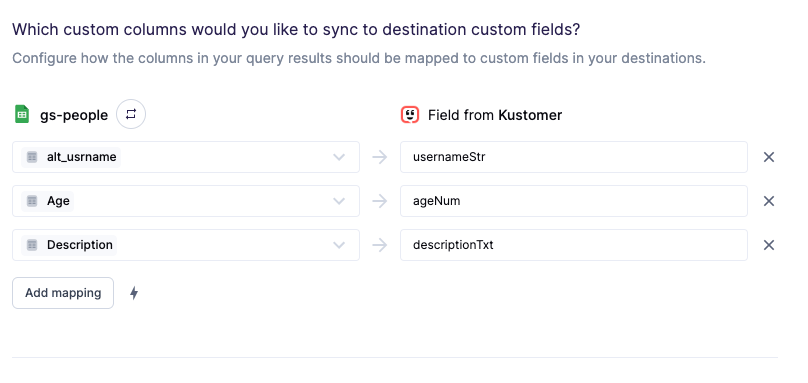
Split retries
Kustomer counts all companies in a batch as rejected if the request contains a single invalid company. To pinpoint which companys are getting rejected with which errors and reduce the number of valid companys that get retried, you can enable split retries.Syncing customers
Sync data from any source to Kustomer customers.Record matching
To match rows from your model to customers in Kustomer, you need to select a model column and corresponding Kustomer field. You can match on any of the following Kustomer fields:- External ID
- Home Email
- Work Email
- Other Email
- Work Phone
- Mobile Phone
- Home Phone
- Fax Phone
- Other Phone
Field mapping
Hightouch lets you sync customer fields via field mapping. You can map data from any of your model columns to default and custom customer fields. Ensure your model columns data types match the data types of the fields you want to sync to. You must suffix custom field names with their data type. For example, if you were syncing to a custom field called Age that accepted numerical values, the Kustomer field name would be AgeNum.