

Supported syncing
- All: All mode creates one file with all the rows in the query results, every time the sync runs.
- Insert: Insert mode creates one file with the rows that were added since the last sync.
- Diff: Creates three files, one for rows added, one for rows changed, and another for rows removed since the last sync.
The order of rows and columns in uploaded files may differ from how they appear in your model. This is expected behavior and applies to all sync modes. Learn more about row and column ordering.
Before you begin
To get started, you need:- an S3 bucket
- AWS credentials configured in Hightouch with programmatic access enabled and permission to write to the S3 path you want to use
For small file transfers, Hightouch only uses the
s3:PutObject action.
For large files, multi-part uploads may be necessary, hence the other required actions.
You can use the following JSON sample to create your IAM policy:
Connect to Amazon S3
Go to the Destinations overview page and click the Add destination button. Select Amazon S3 and click Continue. You can then authenticate Hightouch to Amazon S3 by entering your Bucket Name. The Bucket Name should just be the name of the bucket, not a URL.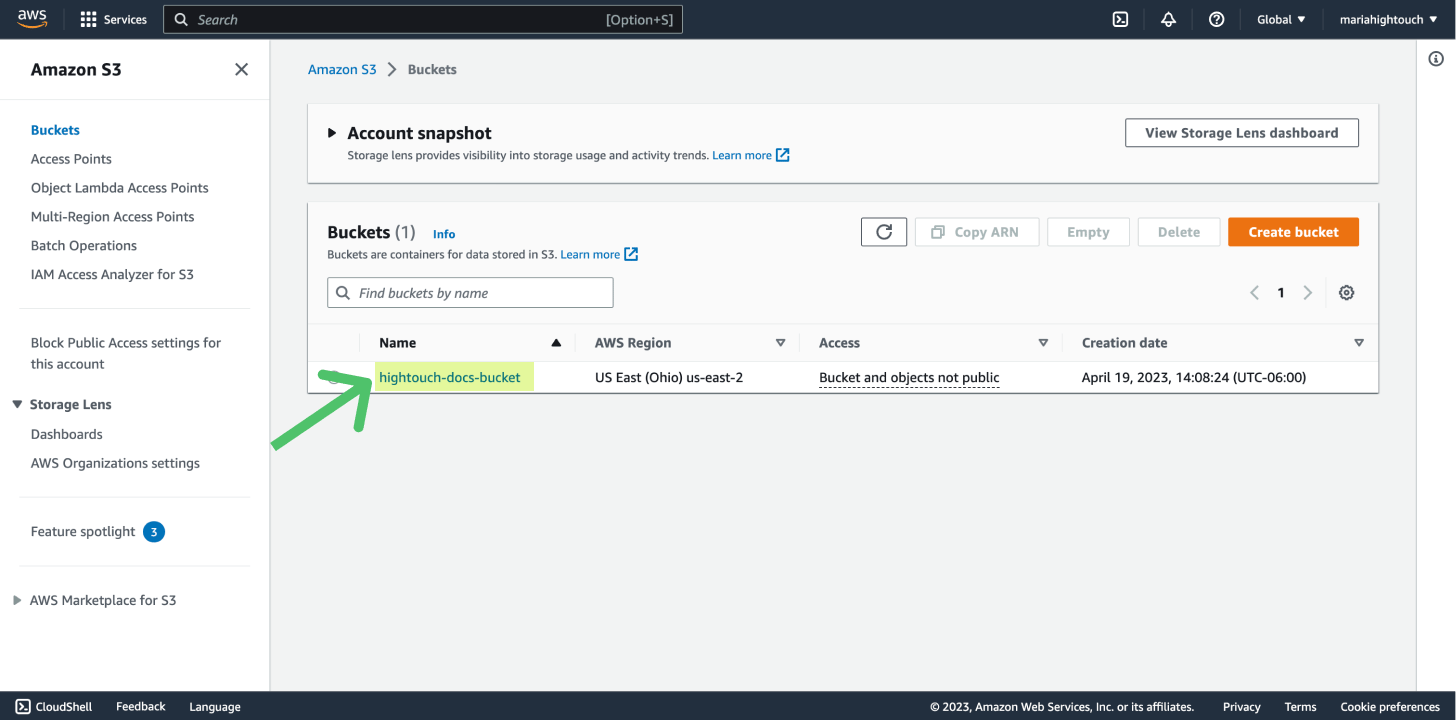
PGP encryption
The S3 destination supports PGP encryption. Given a PGP Public Key, all files transferred to the destination will be encrypted. To use PGP encryption, provide your public key in the PGP Public Key text area including the header and footer in the following format:The PGP Private Key is required to decrypt the files synced to your
destination. You don’t need to insert this value in Hightouch.
Sync configuration
Once you’ve set up your S3 destination and have a model to pull data from, you can set up your sync configuration to begin syncing data. Go to the Syncs overview page and click the Add sync button to begin. Then, select the relevant model and the S3 destination you want to sync to.Select file format
Hightouch supports syncing CSV, JSON, NDJSON, XML, and Parquet files to Amazon S3.Enter filename
The filename or object key field lets you specify the parent directory and the name of the file you want to use for your results. You can include timestamp variables in the filename, surrounding each with{}.
Hightouch supports these timestamp variables:
YYYY: Represents the full year in four digits.YY: The last two digits of the year.MM: Two-digit month format (01-12).DD: Two-digit day format (01-31).HH: Two-digit hour format in 24-hour clock (00-23).mm: Two-digit minute format (00-59).ss: Two-digit second format (00-59).ms: Three-digit millisecond format.X: Unix timestamp in seconds.x: Unix timestamp in milliseconds.
upload/{YYYY}-{MM}-{DD}-{HH}-{mm}-result.json to dynamically include the year, month, date, hour, and minute in each uploaded file.
Hightouch would insert each file in the upload directory, which would need to already exist in your bucket.
You can also use other variable values to include sync metadata in the filename:
{model.id}{model.name}{sync.id}{sync.run.id}
If a file already exists at the path you entered at the time of a sync,
Hightouch overwrites it. To keep different versions of the same results file,
you can enable
versioning
in your bucket, or your app can copy the data to another location.
Set filename offset
By default, Hightouch uses the timestamp of the sync run to fill in timestamp variables. You can optionally include an offset in seconds. For example, if you want the filename’s date to be 24 hours before the sync takes place, enter-86400 (24 hours * 60 minutes * 60 seconds). If you want the filename’s data to be one hour after the sync takes place, you would enter 3600 (60 minutes * 60 seconds).
CSV options
If you’re syncing to a CSV file, you have additional configuration options:- Delimiter: Your options are comma (
,), semicolon (;), pipe (|), tilde (~), and tab - (Optional) Whether to include a CSV header row in the exported files
- (Optional) Whether to include a byte order mark (BOM) in the exported files, the BOM is
<U+FEFF>
Columns to sync
You can export all columns exactly as your model returns them or choose to export specific ones. If you need to rename or transform any column values you’re syncing, you can use the advanced mapper to do so. If you choose this option, Hightouch only syncs the fields you explicitly map.
customer_id, email, first_name and last_name, columns. These columns are mapped to new fields in the destination file as id, email, and name—a templated concatenation of first_name and last_name—respectively. Hightouch exports these fields to new fields in the file and ignores all other columns from your results.
Batch size
By default, and depending on your sync mode, Hightouch sends one file to your S3 bucket for each export. (In diff mode, Hightouch sends three files.) By enabling batching, you allow Hightouch to send multiple files if your model query results are large. This can help avoid file size errors from S3.Empty file results
You can select how Hightouch should handle empty results files. Empty result files can occur if your model’s query results haven’t changed since the last sync. You can select whether to skip empty files. If you skip empty files, it means Hightouch won’t export any files if your model’s query results haven’t changed since your last sync.Indicator file
For diff mode syncs or syncs with batching enabled, you can include an indicator filename. By doing so, an empty file will be uploaded after all files have been uploaded to indicate successful completion of the sync. The indicator file will not be written in the cases of a sync failure or an empty query result.Gzip compression
You can enable gzip compression to reduce the size of your exported files. Note that Hightouch does not automatically add the.gz extension to your files. You
can add this or any other extension to your filename.
Tips and troubleshooting
To see the exact API requests and responses from each sync run, use the live debugger. To get notified by Slack, PagerDuty, SMS, or email when a sync fails, set up sync alerts. If you run into an issue this page doesn’t cover, .Common errors
Access denied
The ACCESS_DENIED error is a permissions-related error. Ensure your Hightouch AWS credentials have read/write access to the S3 bucket specified in your destination. The minimal permissions required ares3:GetObject, s3:PutObject, and s3:ListBucket.