

Git Sync is only available on Business tier plans.
- Create and edit multiple Hightouch models and syncs in code
- Review changes through Git commits and file diffs
- Roll resources back to a previous version
- Keep staging and production workspaces aligned through shared YAML files
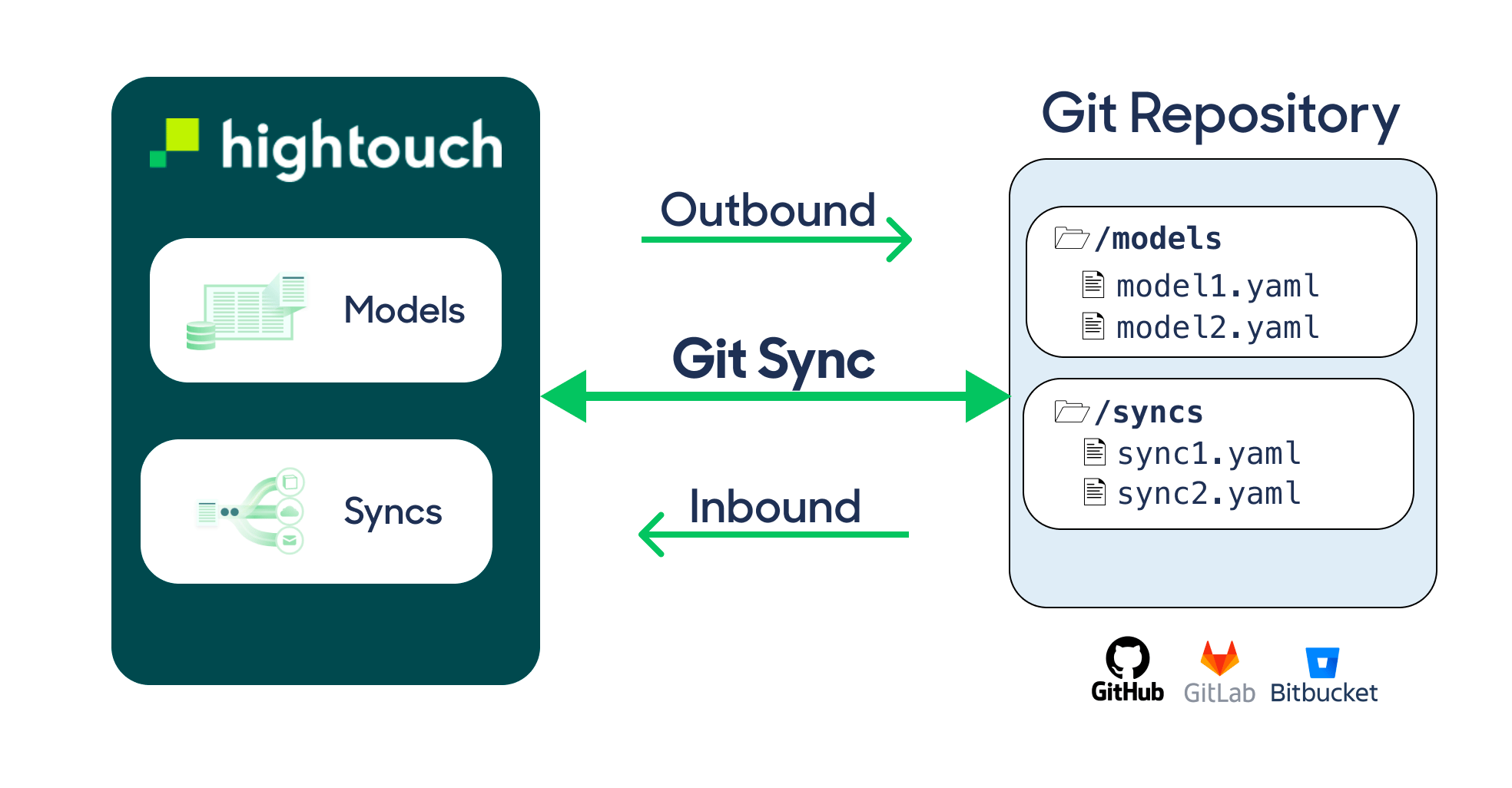
- Changes made in the Hightouch UI are written to YAML files in Git. These changes are marked as
OUTBOUND. - Changes made to YAML files in Git are applied back to Hightouch. These changes are marked as
INBOUND.
Inbound changes made in your Git Sync repository don’t require approval from
another team member, even if your workspace uses approval
flows.
Hightouch can connect to Git repositories for two different purposes. Git
Sync uses a Git repository to version-control Hightouch resources, which is
separate from Git repositories used to leverage dbt
models.
Setup
Create or choose a Git repository
Use a Git repository to store the YAML files that represent your supported Hightouch resources.If you are creating a new repository, GitHub repositories are the easiest to start with because they can use the Hightouch GitHub app.
Authenticate to Git
After you have a repository, configure your Git credentials in Hightouch.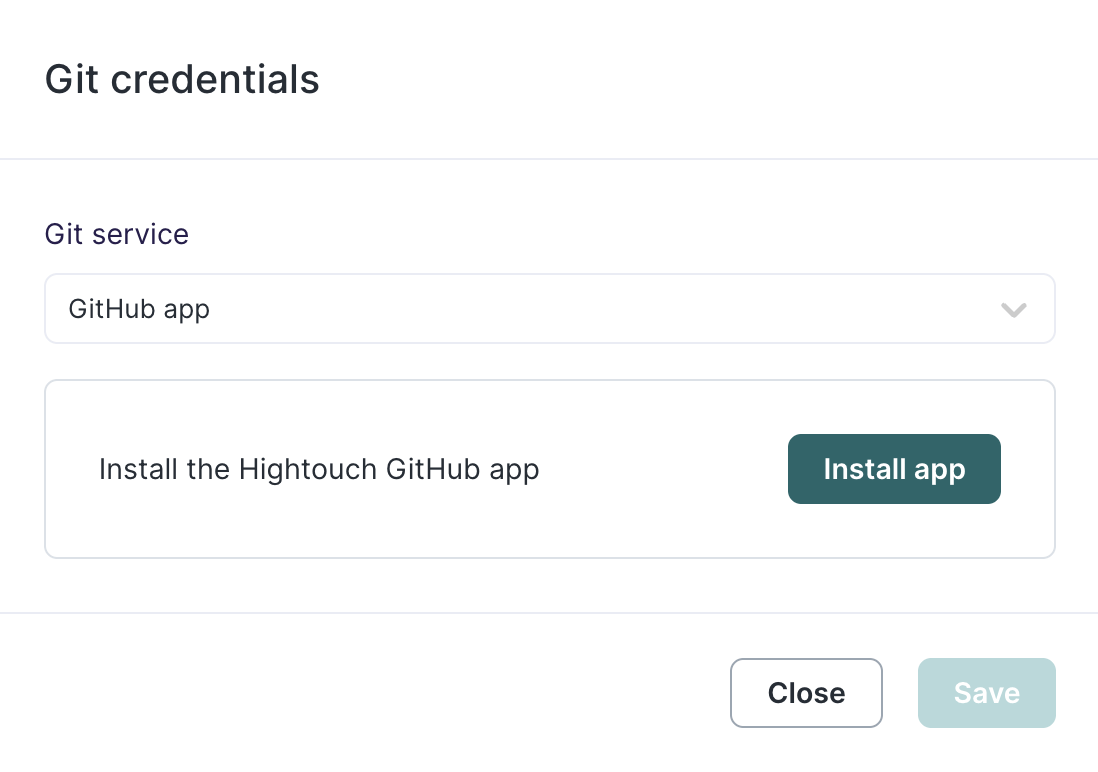
- Go to the Git Sync configuration page.
- Under Configuration > Git credentials, select Set up.
- Choose your Git provider and authentication method.
Authenticate to a GitHub Enterprise repository
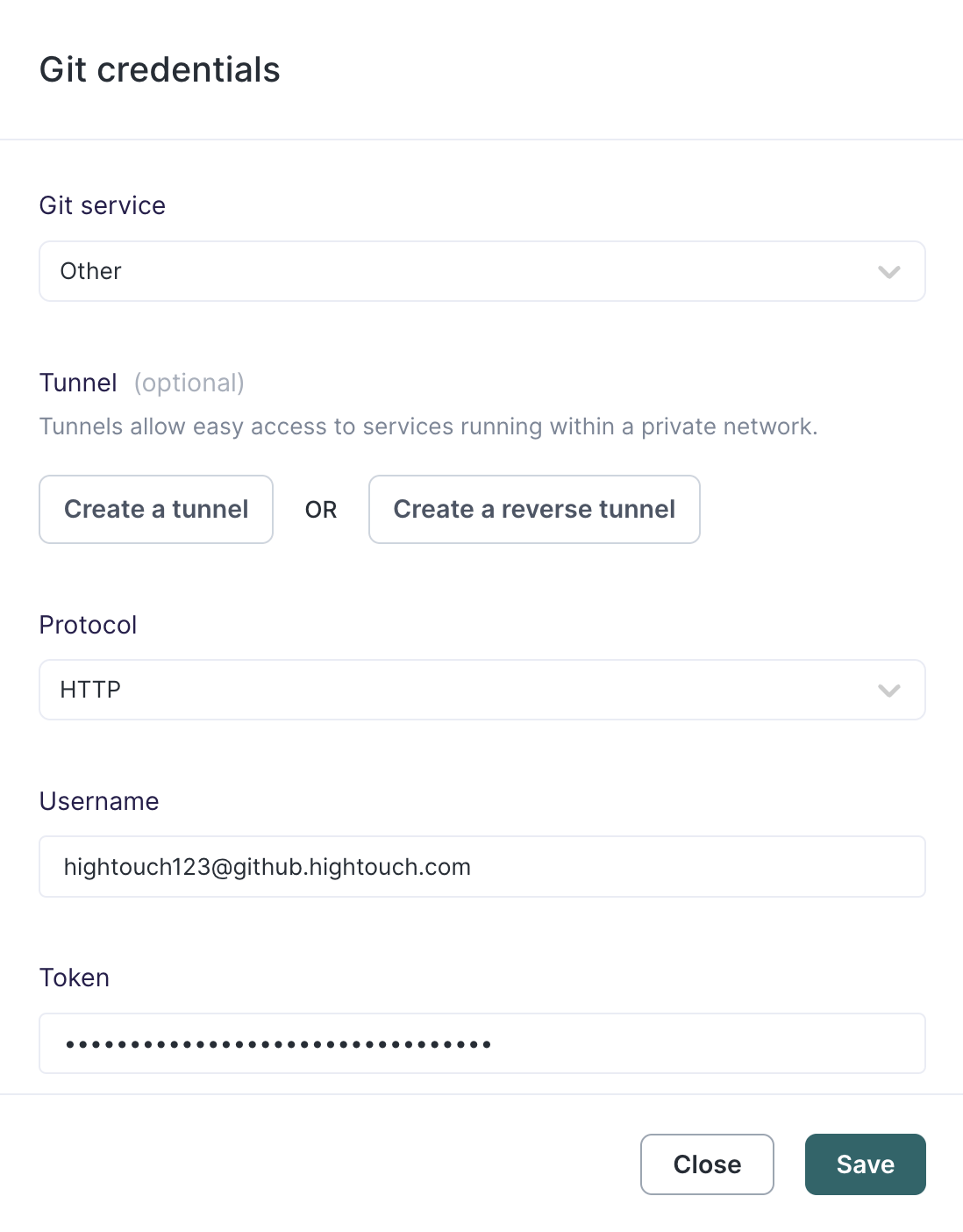
If you use GitHub Enterprise with a self-hosted server:- Under Git service, select Other.
-
For Username, enter your full GitHub Enterprise username. For example,
hightouch123@github.hightouch.com. - For Token, enter a GitHub access token tied to that username.
-
Make sure the token has access to the repository or repositories Hightouch should use.
Authenticate to an AWS CodeCommit repository
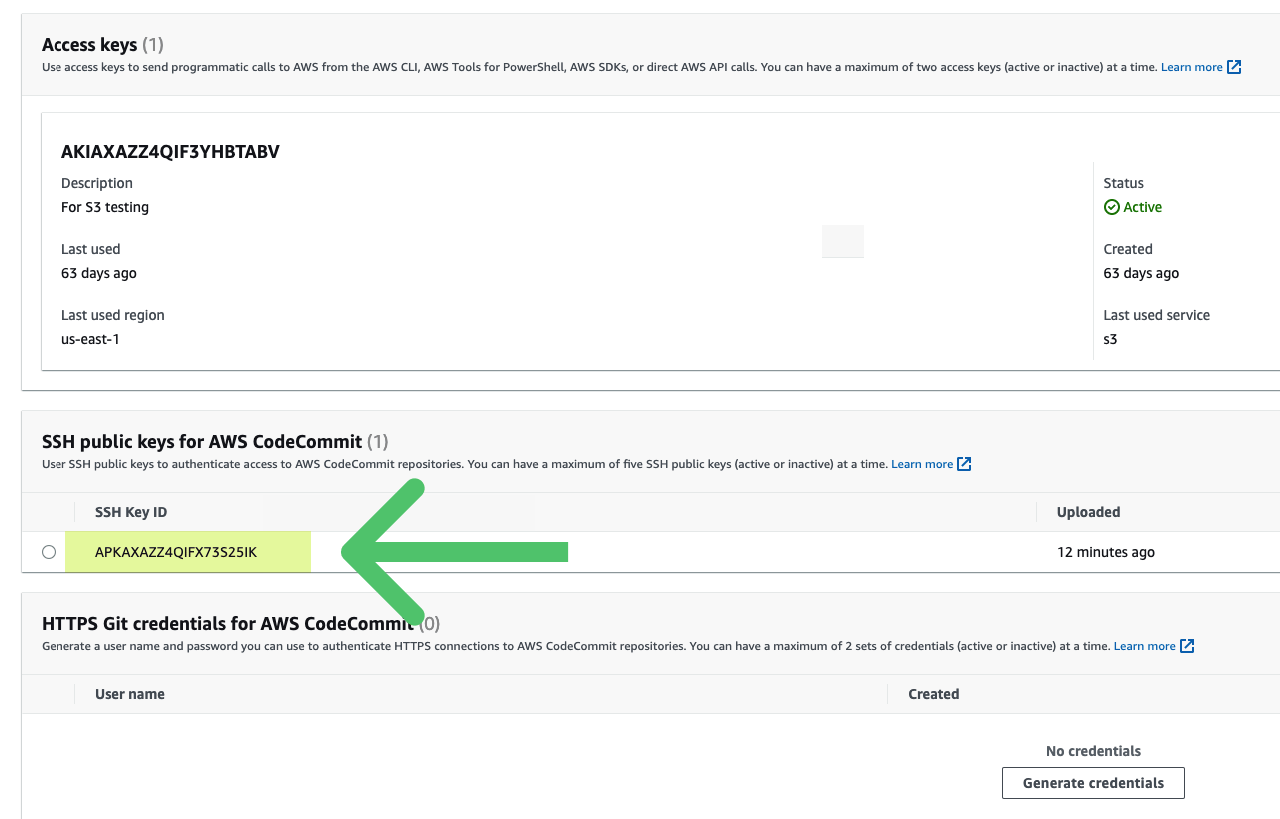
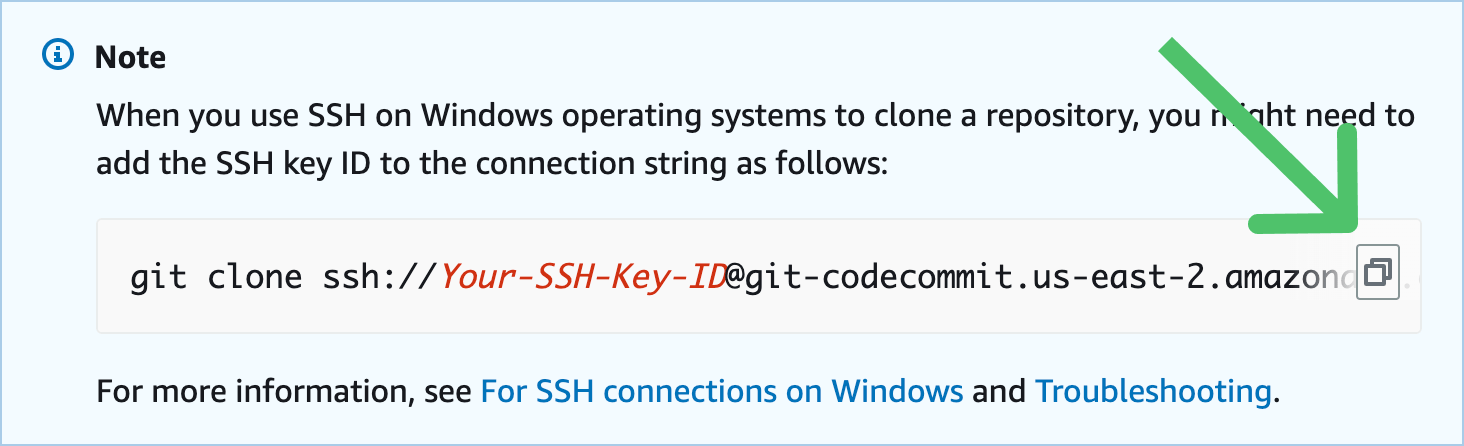
If you use AWS CodeCommit, you must use SSH to authenticate.- Configure your AWS CodeCommit repository for SSH by following AWS’s setup instructions.
- In Hightouch, select Other as the Git service.
-
Select SSH as the Protocol.
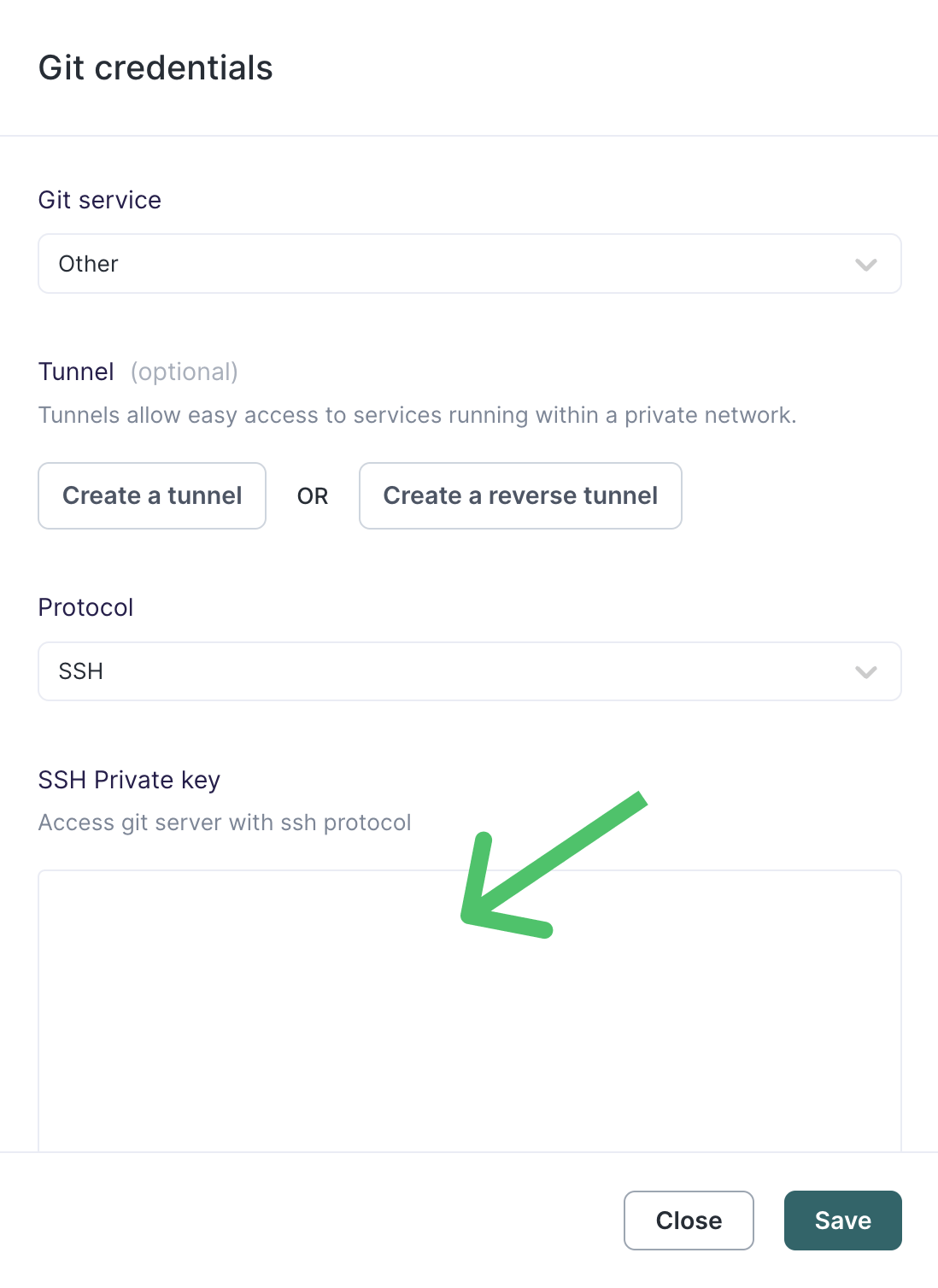
- Under SSH Private key, enter the private key you generated when configuring AWS CodeCommit.
- Select Save.
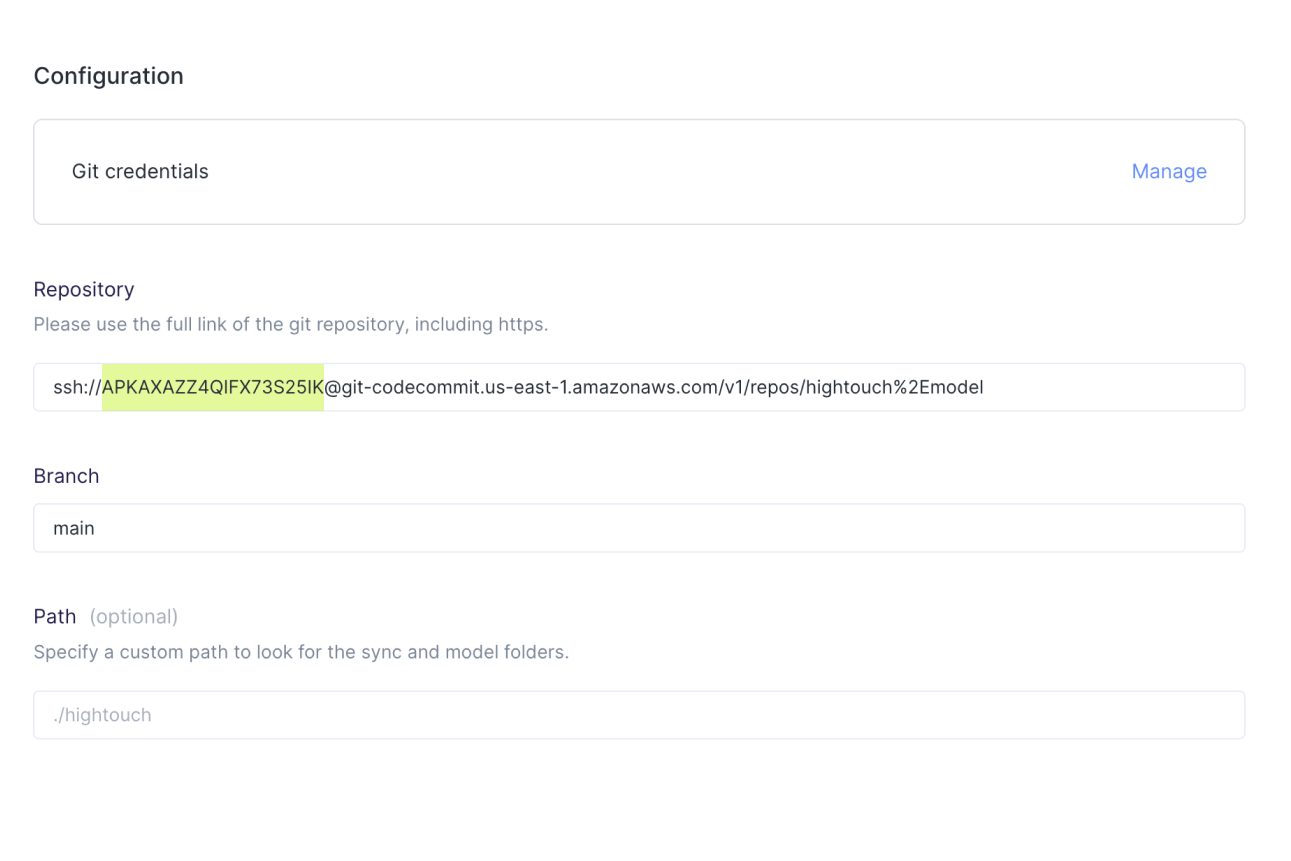
- For Repository, enter the full SSH URL, including the AWS SSH key ID.
Configure Git Sync
After you authenticate to Git, enable Git Sync for your workspace.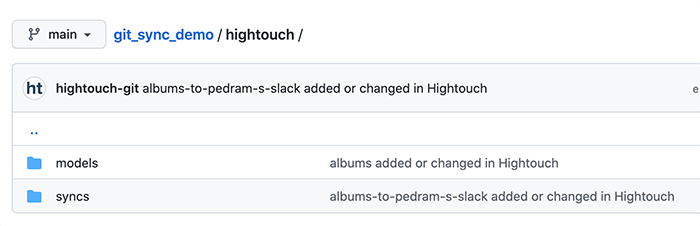
- Go to Integrations > Extensions.
- Open the Version control with Git extension.
-
On the Configuration tab, enable Git Sync.
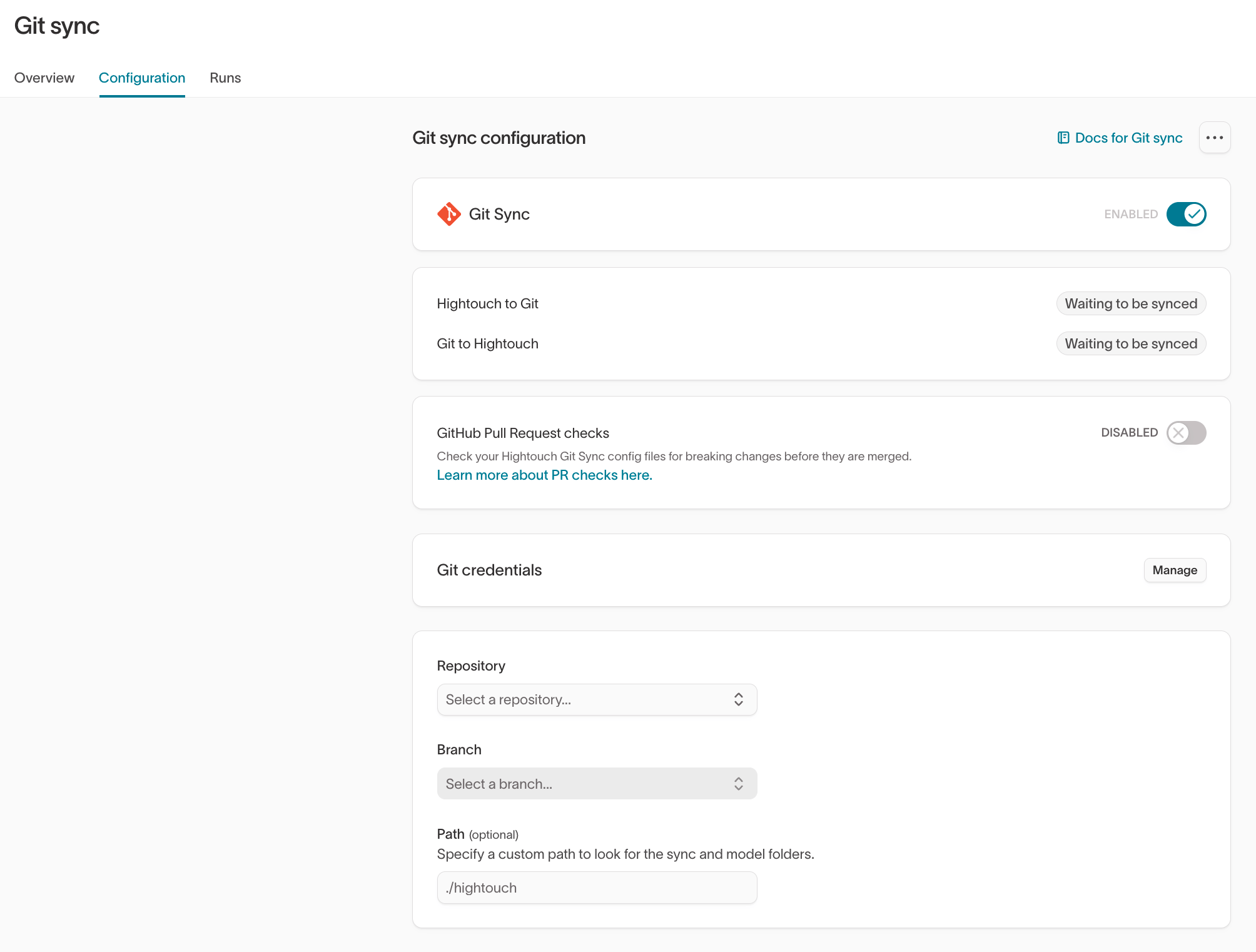
- Select the Repository and Branch Hightouch should read from and write to.
- Optionally, enter a Path where Hightouch should create folders for Git Sync files.
- Select Save.
models, syncs, and other supported folders inside that subfolder. If you don’t enter a path, Hightouch saves Git Sync files in the root of your repository.To start the syncing process immediately, select Full resync.This pushes all supported workspace resources to Git, then pulls changes from Git back to your workspace. Because this happens in that order, a full resync can overwrite Git changes that have not synced to Hightouch yet.For more information, see What does the Full resync button do?.
Use Git Sync with branch protection
If your repository uses branch protection, you may need to let the Hightouch Connect app bypass specific branch rules. The Hightouch Connect app can only push to a protected branch if you add it to the bypass list under GitHub rulesets. To configure this in GitHub:- Go to Settings > Rules > Rulesets.
- Add the Hightouch Connect app to the Bypass list.
- Configure the rest of the ruleset to enforce your branch protection requirements.
GitHub supports branch protection in both Settings > Branches and Settings > Rules > Rulesets.The Hightouch Connect app only works with branch protection when you add it to the Bypass list under Rulesets and define the rest of your branch protection rules there. It does not work as a force-push app under Branches.
Connect staging and production workspaces
You can use Git Sync to keep staging and production workspaces aligned through the same Git repository. When multiple workspaces connect to the same repository, alias files handle environment-specific source and destination IDs.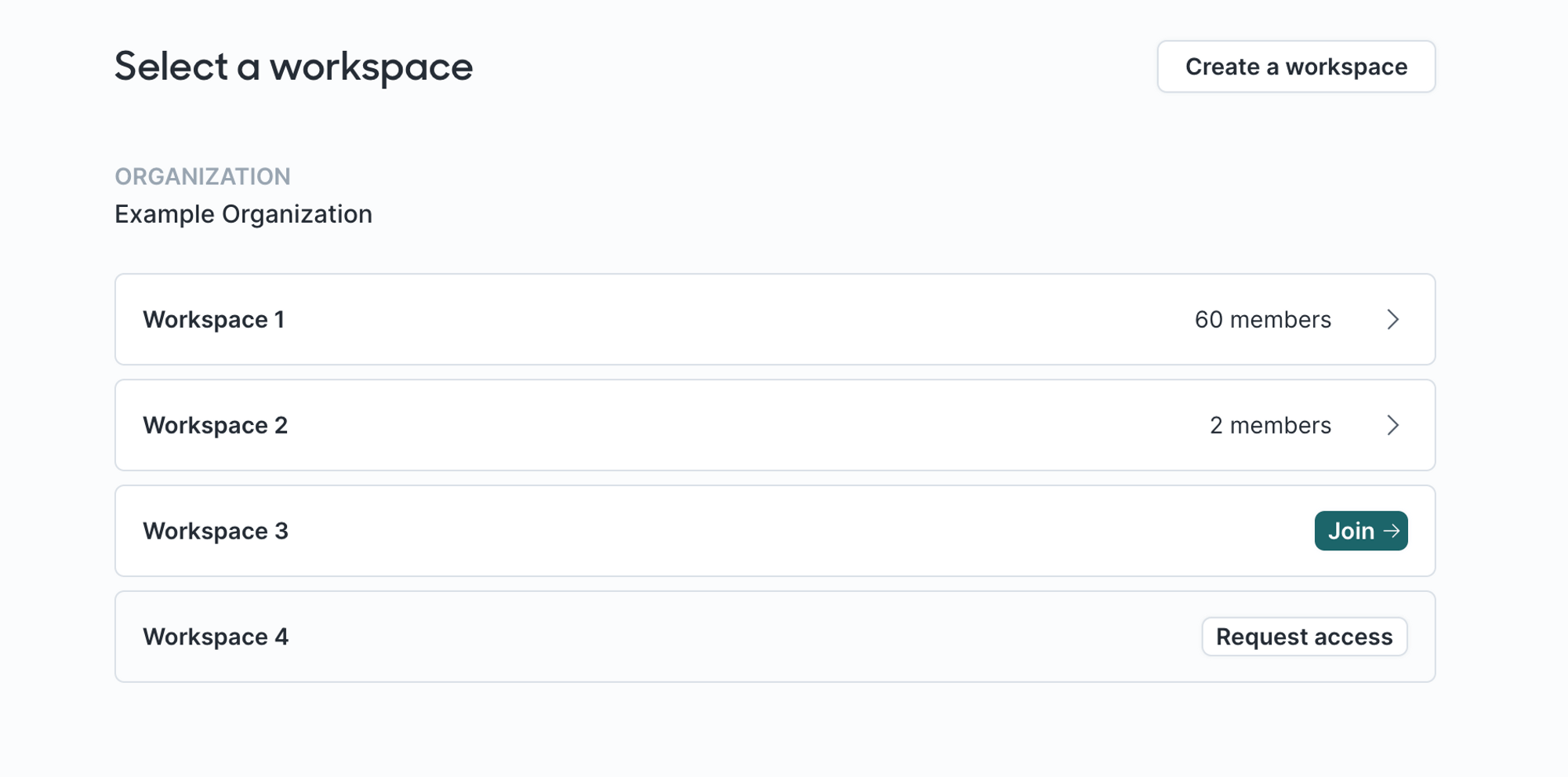
Use the same branch
For most teams, the simplest setup is to point both workspaces to the same repository and branch, such asmain.
- In each workspace, go to the Git Sync configuration page.
- Select the same repository and branch.
- Share model and sync YAML files between both workspaces.
- Create alias files for each workspace to map shared aliases to the correct source and destination IDs.
aliased-postgres in their model files. The staging alias file maps aliased-postgres to staging-postgres, while the production alias file maps it to production-postgres.
Use separate branches
For a more controlled promotion workflow, use a separate branch for each environment.- Point your staging workspace to a development branch, such as
develop. - Point your production workspace to your production branch, such as
main. - Test and iterate in staging. Changes sync to the development branch.
- When ready, open a pull request to merge the development branch into the production branch.
- After the pull request is merged, Git Sync picks up the changes in your production workspace.
Understand what syncs across environments
Git Sync can version-control and replicate the following resources across environments:- Models
- Syncs
- Event contracts (domains, event schemas, and components)
- Customer Studio schema models, including parent, related, and event models
- Customer Studio schema relationships
- Customer Studio traits, audiences, and syncs from audiences
- Workspace-level settings, such as approval flows, spaces, and environments
- Column-level schema settings configured in the UI, such as redaction, column suggestions, and display configuration
Schemas
Git Sync represents supported Hightouch resources as YAML files in your Git repository.Model schema
Models use the following schema:Model field reference
A model’s slug is its YAML filename. For example,
To update an existing model, keep the same filename. If you rename the file, Git Sync creates a new model instead of updating the existing one. You can change
ab-01-a.yaml has the slug
ab-01-a. Syncs and relationships refer to models by slug, not by name.To update an existing model, keep the same filename. If you rename the file, Git Sync creates a new model instead of updating the existing one. You can change
name without affecting the slug.Sync schemas
Sync schemas vary by destination. Because each destination has different configuration options, we recommend creating syncs in the Hightouch UI first. You can then use the generated YAML file as a starting point for updates or new syncs. The YAML filename is the sync name.Sync field reference
Customer Studio Schema
Git Sync supports version-controlling your Customer Studio schema—including parent models, related models, event models, and relationships. For full setup instructions, see Configure Schema Git Sync.Git Sync for Customer Studio schema must be enabled by Hightouch. to turn it on.
Parent model schema
Parent models live in theschema/parent-models directory. They have the same schema as regular models, with the following additions:
Related model schema
Related models live in theschema/related-models directory. They have the same schema as regular models.
Event model schema
Event models live in theschema/event-models directory. They have the same schema as regular models, with the following addition:
Model relationship schemas
Model relationships live in theschema/model-relationships directory.
The schema for model relationships depends on whether the relationship is direct or through other relationships.
Direct relationships look like this:
Git Sync limitations for Customer Studio schema
Git Sync currently supports version-controlling model definitions and relationship structure. However, certain schema configurations set in the Hightouch UI are not synced across environments. For example, Git Sync does not copy:- Column-level settings (for example, redaction, column suggestions, or display configuration set in the UI)
- Column aliases
mergeColumns setting is synced, because it’s part of the relationship YAML.
If you migrate a schema to another environment using Git Sync, you may need to reconfigure these settings manually after deployment.
Field names are also case-sensitive in YAML. If a column name changes only in casing (for example, user_id to User_Id), Git Sync treats these as different fields. Make sure column references in your YAML files match the exact casing used in your warehouse.
→ For full setup instructions, see Configure Schema Git Sync.
Event Contract Schema
Event contracts are synced as domains, event schemas, and components. The Events CLI can generate typed SDK wrappers from this checkout instead of calling the API. A repository uses exactly one of two on-disk layouts:- Legacy:
events/contracts/ - Current:
events/domains/
Domains
Domain metadata has a simple schema:- Legacy:
events/contracts/<domain-slug>.yaml - Current:
events/domains/<domain-slug>/domain.yaml
onUndeclaredSchema is omitted. Undeclared-event enforcement is configured per event source, not in Git Sync YAML.
sources uses event source slugs (the slug on the source’s settings page), not write keys or UUIDs. Inbound treats a missing sources key as “leave membership alone”, so YAML written before this field existed will not detach sources. An empty list (sources: []) detaches every source from the domain. A non-empty list is a replace-set.
Events
Event Schemas are YAML files that define the allowed format of events sent to Hightouch. Each file represents a single version of a single event within a domain. File locations:- Legacy:
events/contracts/<domain-slug>/<event-slug>.yaml - Current:
events/domains/<domain-slug>/<event-slug>.yaml
domain in the current layout — it would collide with domain.yaml.
The schema for an event is as follows:
Components
Components are reusable schema pieces. They’re located atevents/domains/<domain-slug>/components/<component-slug>.yaml.
sources uses the same event-source slugs as domain membership. A missing key leaves the component’s source whitelist unchanged. An empty list (sources: []) means the component applies to all sources (no whitelist). A non-empty list is a whitelist: the component is omitted from source-scoped reads (for example GET /events/domains?source=) for any other source, and $refs to those omitted components are ignored in the returned event schemas.
Manifests
Hightouch creates a manifest file at the root of your Git repository for each connected workspace. Manifest files list all sources and destinations in a workspace, making it easier for you to find their IDs to add to sync and model files or reference in aliases. Manifest filenames follow this format:manifest-<your-workspace-id>.yaml. A manifest file follows this format:
production-postgres and the Salesforce destination’s ID is production-salesforce.
Aliases
Managing multiple Hightouch workspaces from the same Git repository can be difficult because source and destination IDs can differ between workspaces. Alias files let you create custom IDs for sources and destinations in a given workspace allowing model and sync files to work across different workspaces. Hightouch creates an empty alias file in your Git repository for each connected workspace. Alias filenames follow this format:aliases-<your-workspace-id>.yaml.
You can then add sources and destinations to the alias file following this format:
Aliases should be unique across sources and destinations in the same
workspace. In other words, you can’t use the same alias for multiple resources
in the same alias file.
Example alias usage
Consider a workspace,acme-staging, with a model stocking-list.yaml file like this:
acme-production is connected to the same repository but can’t use this model during Git Sync. That’s because the acme-production workspace doesn’t have a source with the ID staging-postgres. Instead, acme-production uses a Postgres source with the ID production-postgres.
You can use aliases so that both workspaces can use the same model stocking-list.yaml file.
- Add an alias to the
acme-stagingworkspace alias file:
aliased-postgres that points to the source with the ID staging-postgres.
- Add an alias to the
acme-productionworkspace alias file:
aliased-postgres that points to the source with the ID production-postgres. For the next step, it’s important that both alias files use the same alias name. Since these aliases exist in different workspaces, they are still unique within their respective workspaces.
- Update the
sourcevalue ofstocking-list.yamltoaliased-postgres.
aliased-postgres to their respective Postgres slugs and Git Sync completes for both staging and production workspaces.
Validate changes
You can use Hightouch CI checks to validate changes in your Git Sync repository before merging them. To enable CI checks, turn on GitHub Pull Request checks in your Git Sync configuration page. After CI checks are enabled, Hightouch runs a check on each pull request made to the connected Git repository. If a breaking change is detected, such as deleting a model used by a sync, the CI check fails. Open the failed check details to see which sync is affected. If the pull request does not affect any Hightouch syncs, the CI check passes.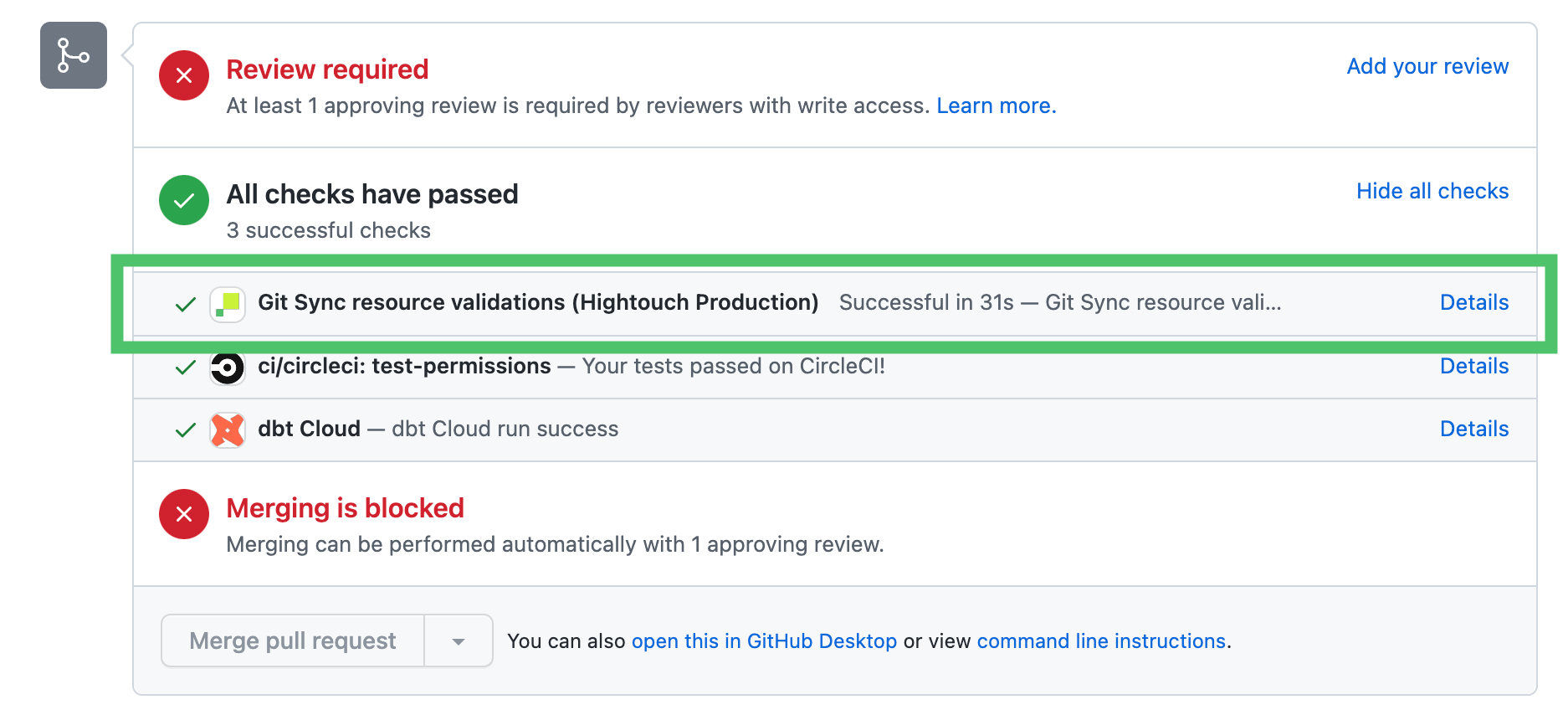
Custom YAML validation in CI
In addition to Hightouch’s built-in CI checks, you can add your own YAML validation step to your CI pipeline to catch syntax errors and missing required fields before a pull request is merged. Here’s an example using a simple validation script withyq (a YAML processor available in most CI environments):
Review change history
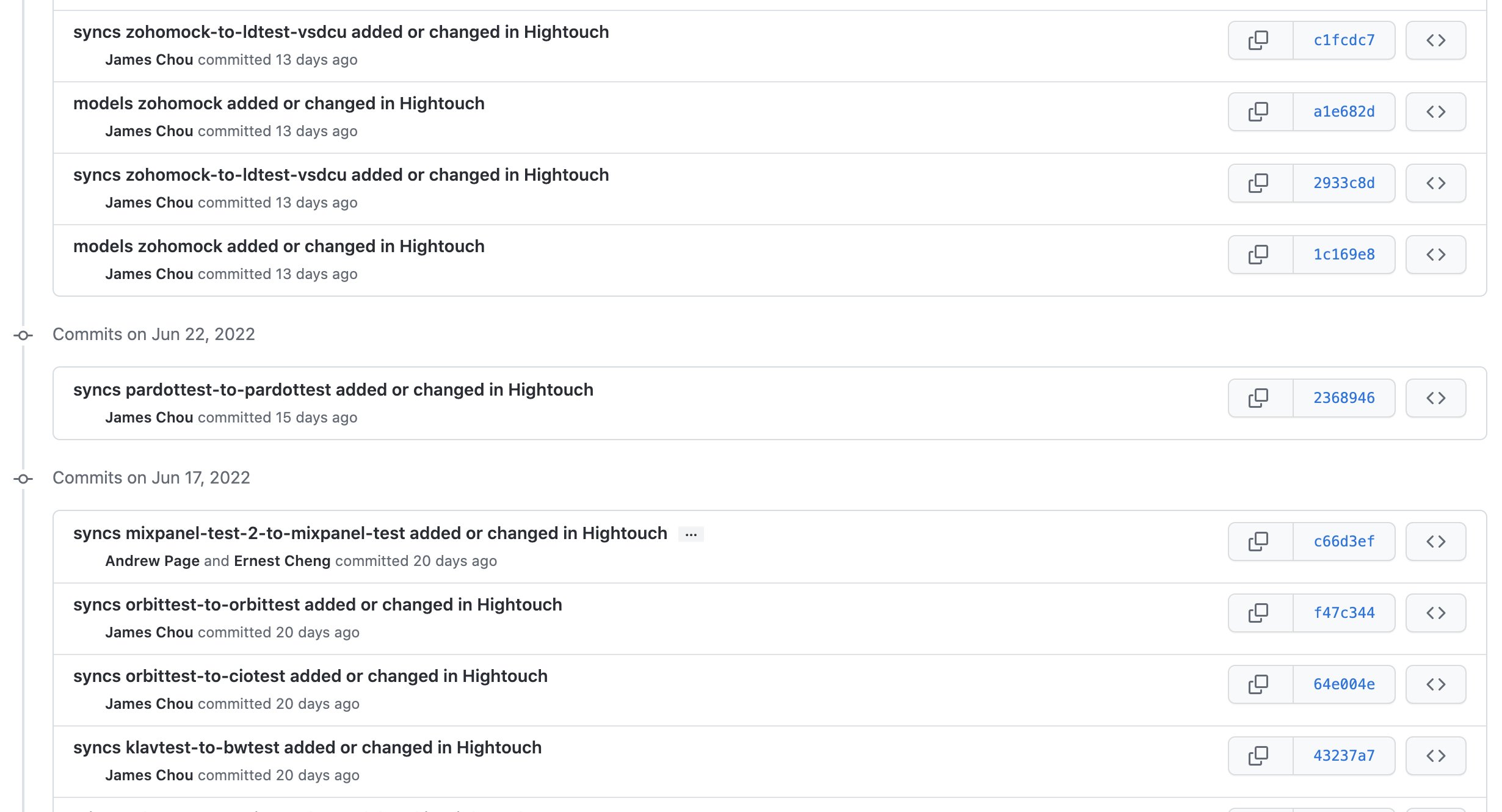
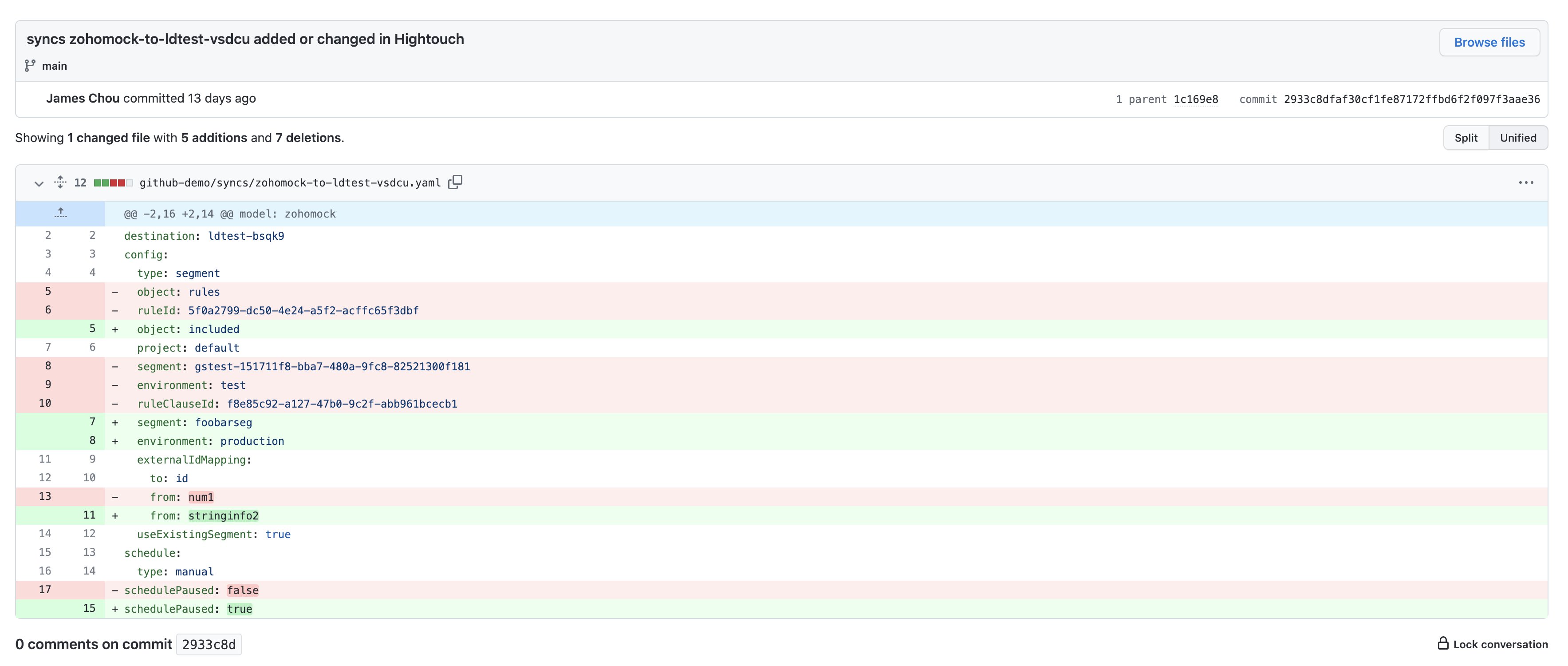
You can use your Git repository to see who created or modified supported resources and when.To show the correct user for Hightouch-created commits, the user’s Hightouch
email must match their GitHub email.
Use tunneling for private Git repositories
If your Git repository is hosted on an on-premise server without public internet access, use tunneling to connect Hightouch to your Git server.- Go to the Tunnels tab on the Settings page.
- Create a tunnel or reverse tunnel that connects to your Git server. For more information, see the tunneling documentation.
- Go to the Git Sync configuration page.
- Under Configuration > Git credentials, select Manage.
- Add your Git credential and select the correct tunnel.
We recommend using the SSH protocol and
ssh_privatekey to connect to private Git repositories.Basic authentication can have issues forwarding authentication headers through an SSH tunnel and HTTP redirects. For more information about SSH authentication, see the GitHub SSH documentation.Hightouch does not support ssh_privatekey with passphrases.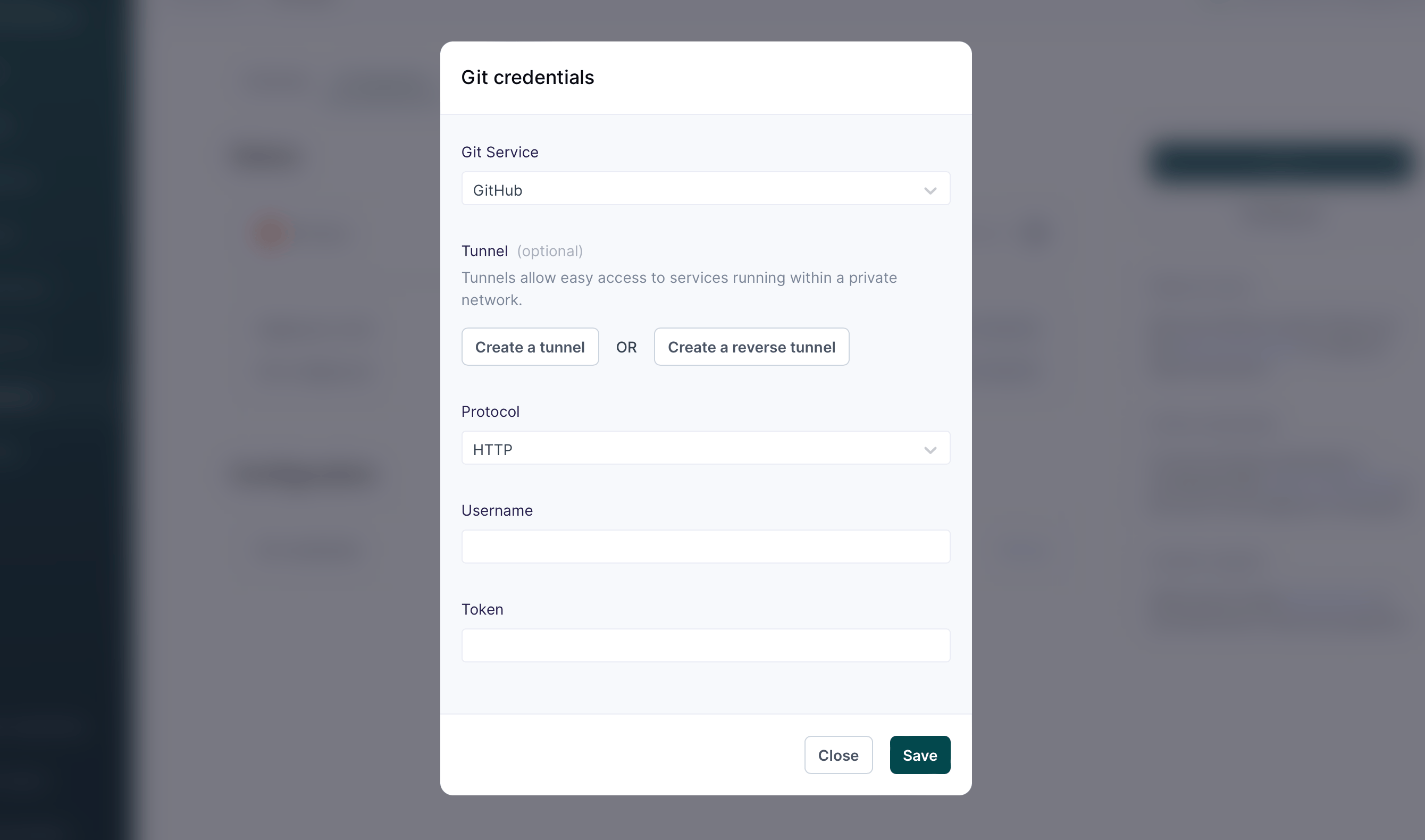
Next steps
After Git Sync is configured, you can use Git workflows to manage supported Hightouch resources. For example, you can:- Create a new model by copying an existing model file and updating the name and query
- Create a new model and sync in the same pull request
- Use CI checks to validate changes before merging them
- Use aliases to share model and sync files across staging and production workspaces
FAQ
What does the Full resync button do?
Selecting Full resync runs an outbound sync for all supported resources in the workspace. This pushes all supported resources from Hightouch to Git, then pulls changes from Git back to your workspace.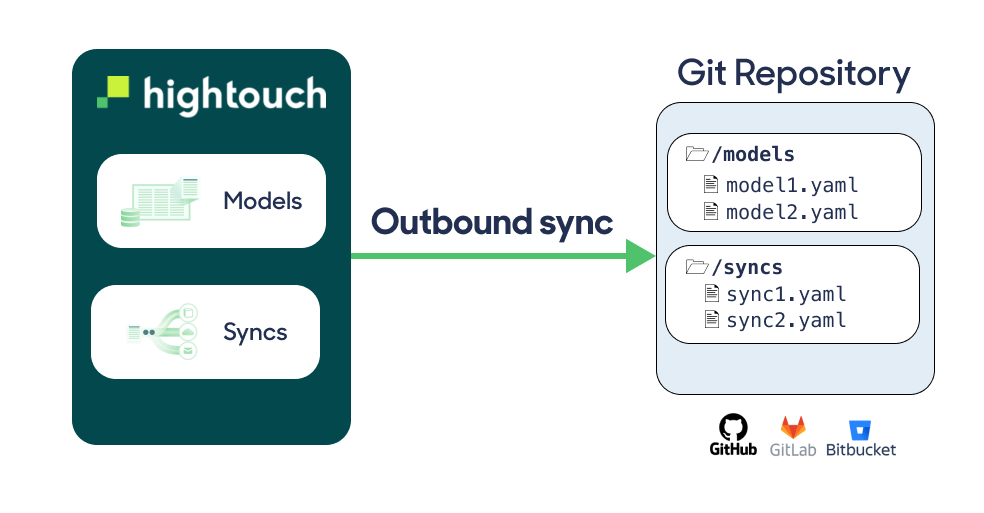
Recreate a deleted YAML file
Git Sync does not support deletions from Git. If you delete a YAML file in Git, the corresponding model or sync remains in Hightouch. The file is not recreated in Git until the next change is made in Hightouch or you trigger a full resync. To recreate a deleted YAML file, select Full resync. You can also recreate the file manually by adding a YAML file with the same filename and schema as the original file. Hightouch recognizes that the file refers to an existing model or sync and associates it with the existing resource.Protected branch update failed
If you selected a protected branch, Git Sync setup might fail with this error:- Select a branch that is not protected, then open pull requests in GitHub to merge updates into the protected branch.
- Follow the instructions in Use Git Sync with branch protection to let the Hightouch Connect app work with your protected branch.