Overview
Contracts define the events and fields Hightouch expects from an event source, so you can catch incomplete or inconsistent data before it reaches your warehouse. The contract system has three parts:- An event contract defines the name, type, description, and validation schema for a single event (for example,
Order Completed). - A component is a reusable piece of event schema that can be added to one or more event schemas or nested within other components (for example,
User Identity). - A domain is a collection of event contracts and components that can be applied to one or more event sources (for example,
E-commerce Events).
Example use cases
Team-level ownership with domains. A large retailer with multiple corporate divisions wants each division to own its own event schemas while sharing one workspace and a common set of event sources. By creating a domain per division, each team manages its own event contracts and components independently, while the shared sources are validated against every domain applied to them. Shared field groups with components. Every event needs the samecart_metadata or device_info block. Instead of redefining those fields in each event schema, define them once as a component and import it into every event that needs it. When the shape changes, update the component in one place and roll it out to importing schemas on your own schedule using component versions.
Reducing duplication across similar sources. A common pattern is to set up two event sources with two collections of event schemas that are largely the same but differ by a few properties—for example, production vs. staging, or iOS vs. Android. Instead of maintaining duplicate schemas, define the shared fields in components and put source-specific fields in components scoped to specific sources. A single set of event schemas can then serve both sources.
Auditing component usage before making changes. A data engineer wants to answer “where is this field group used?” before changing it. The component’s Usage tab lists every schema that imports the component, so you can assess the impact of a change before publishing a new version.
Create a domain
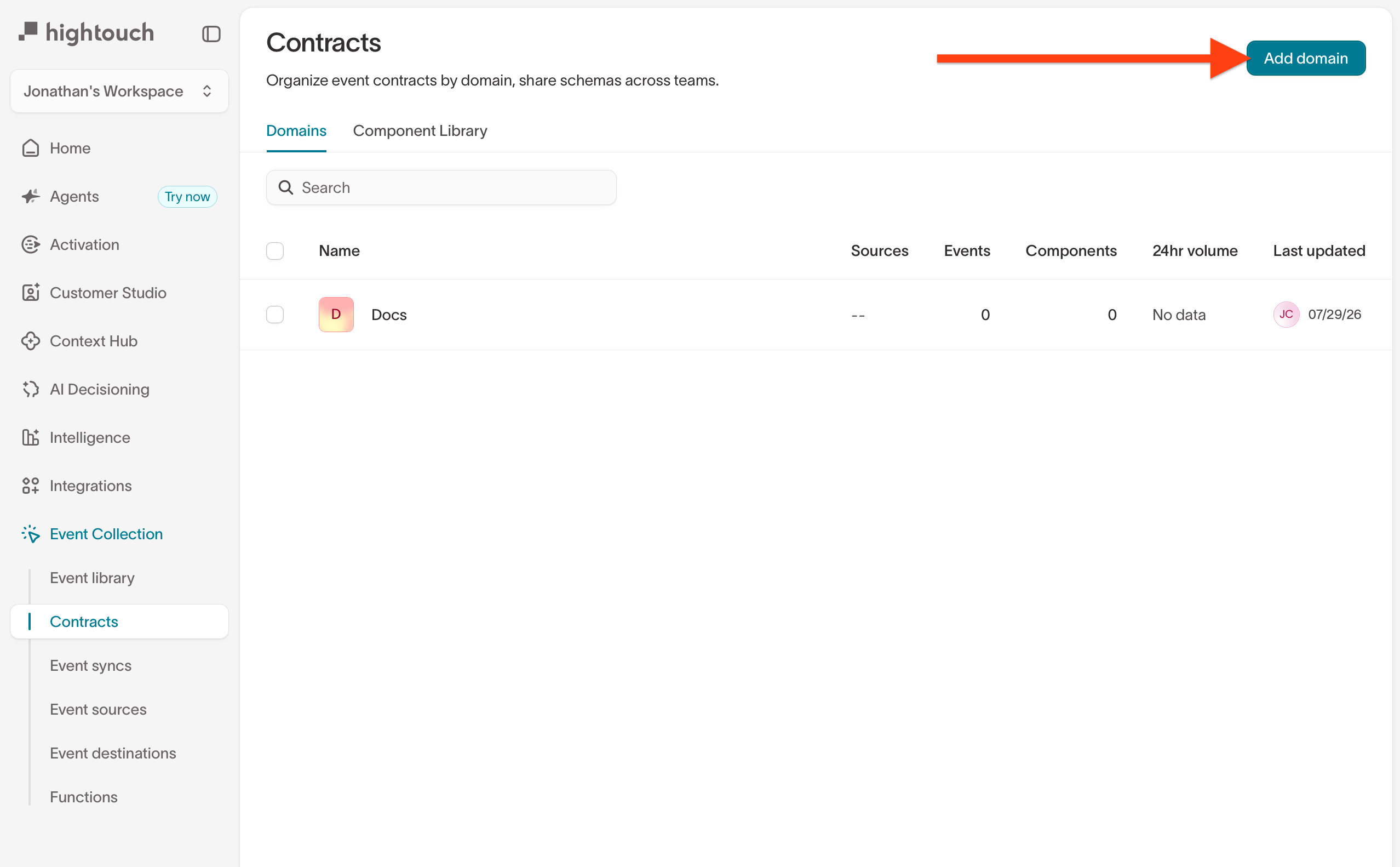
- Go to Event Collection → Contracts.
- Click Add domain.
- Provide a domain name and optional description.
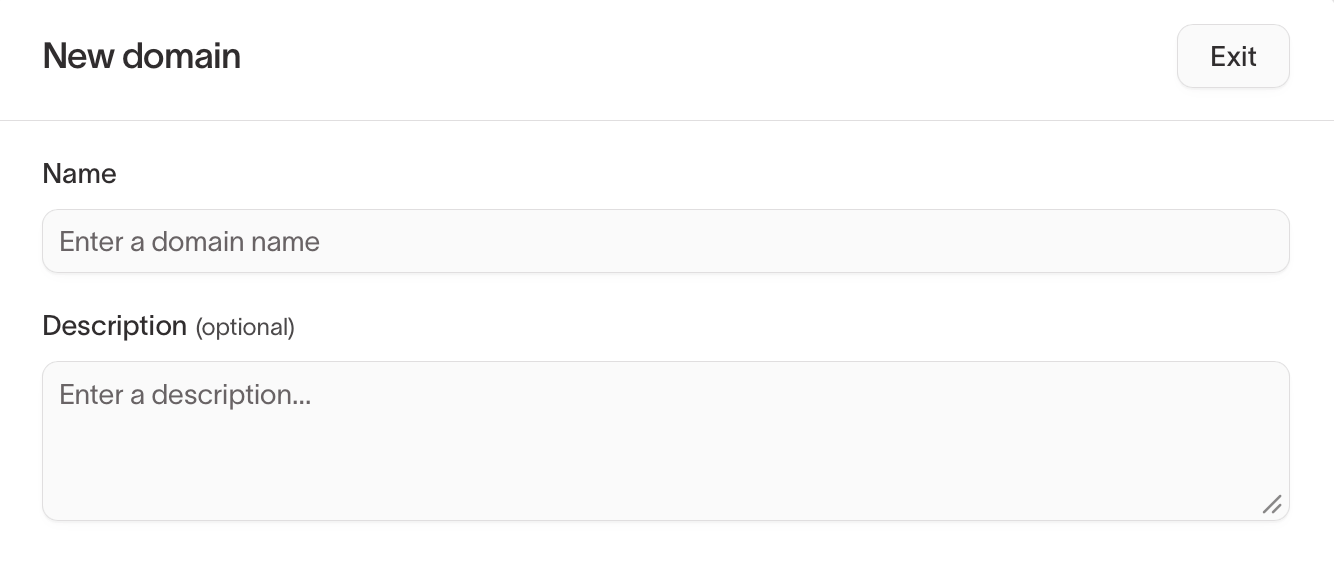
- Click Create domain.
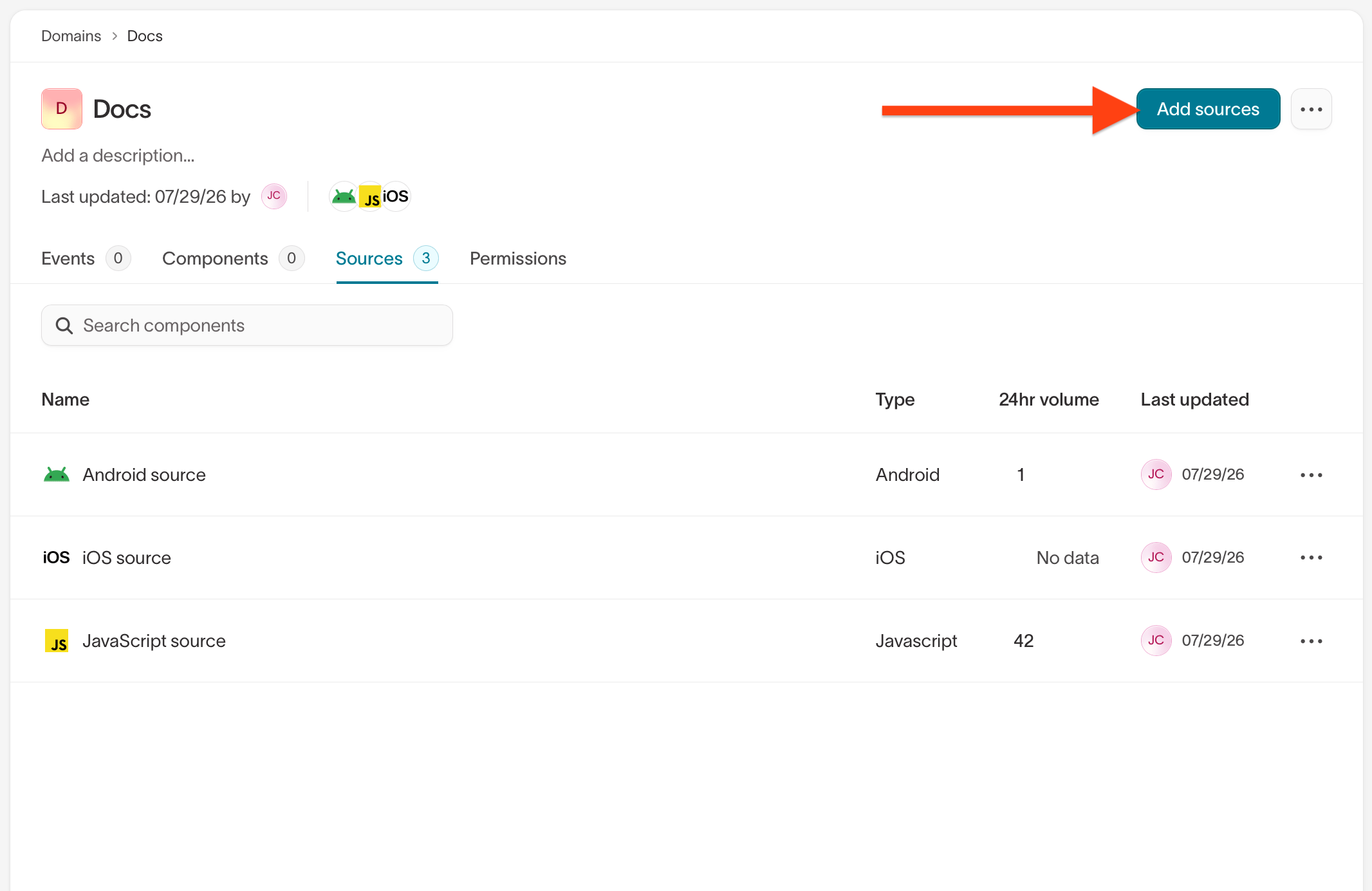
Manage domain sources
Add an event contract
- Open your domain.
- Click Add event.
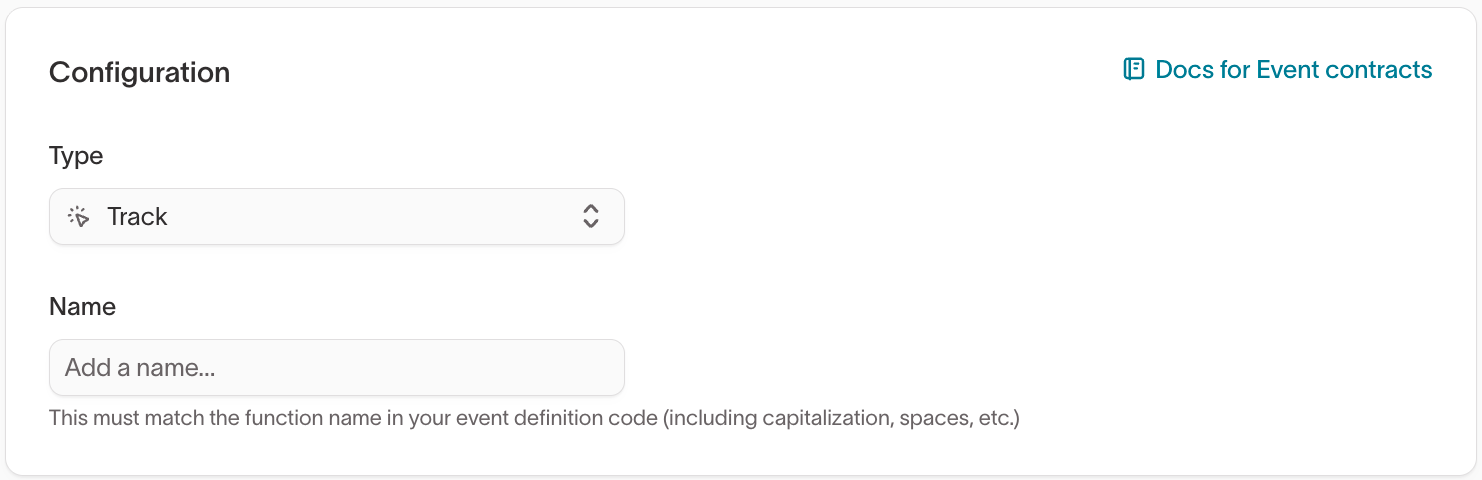
- Configure the event in the Configuration section:
- Type (for example,
Track) - Name — must exactly match the event name sent in your code (including capitalization and spacing).
- Type (for example,
Define the event schema
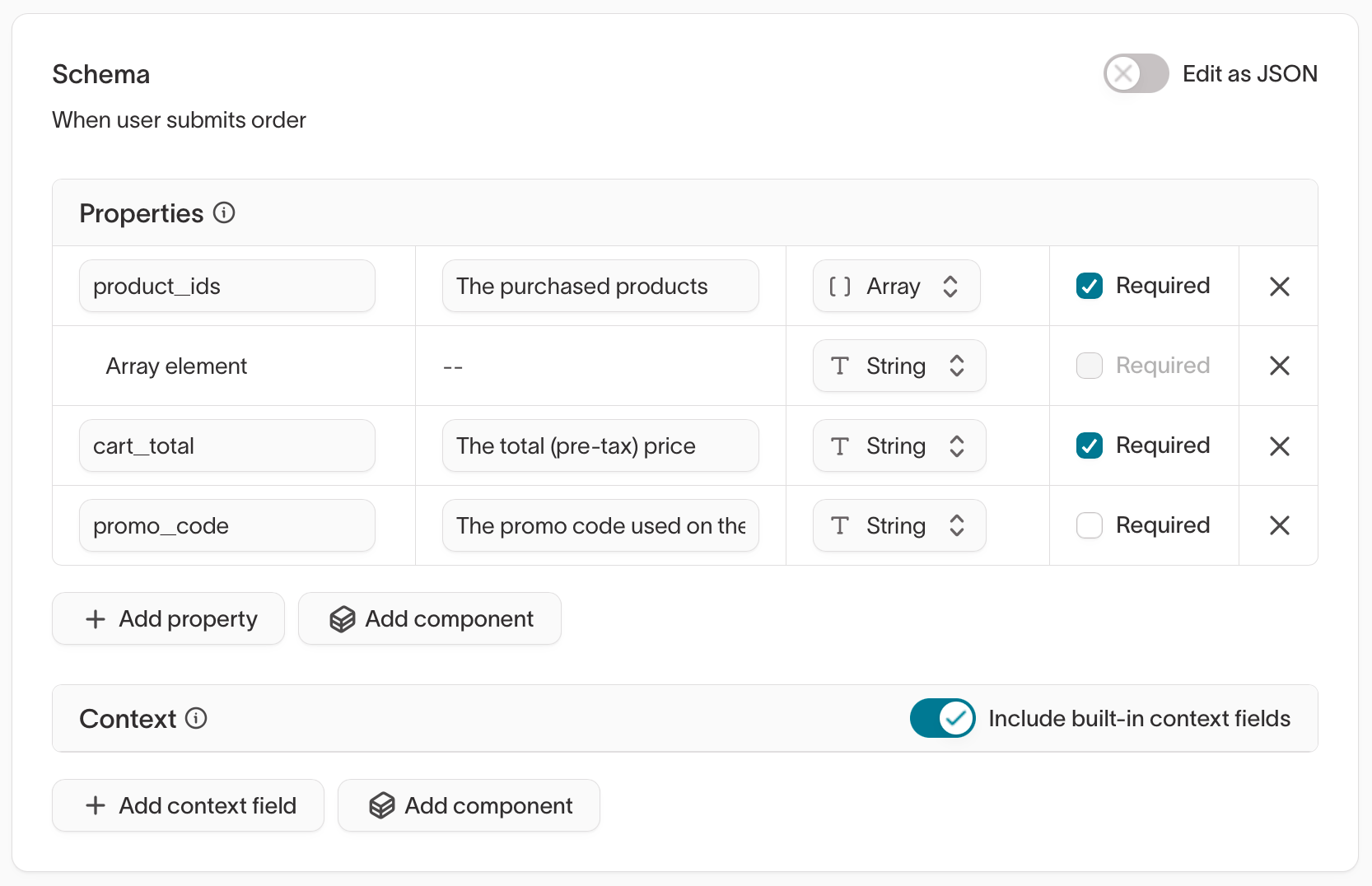
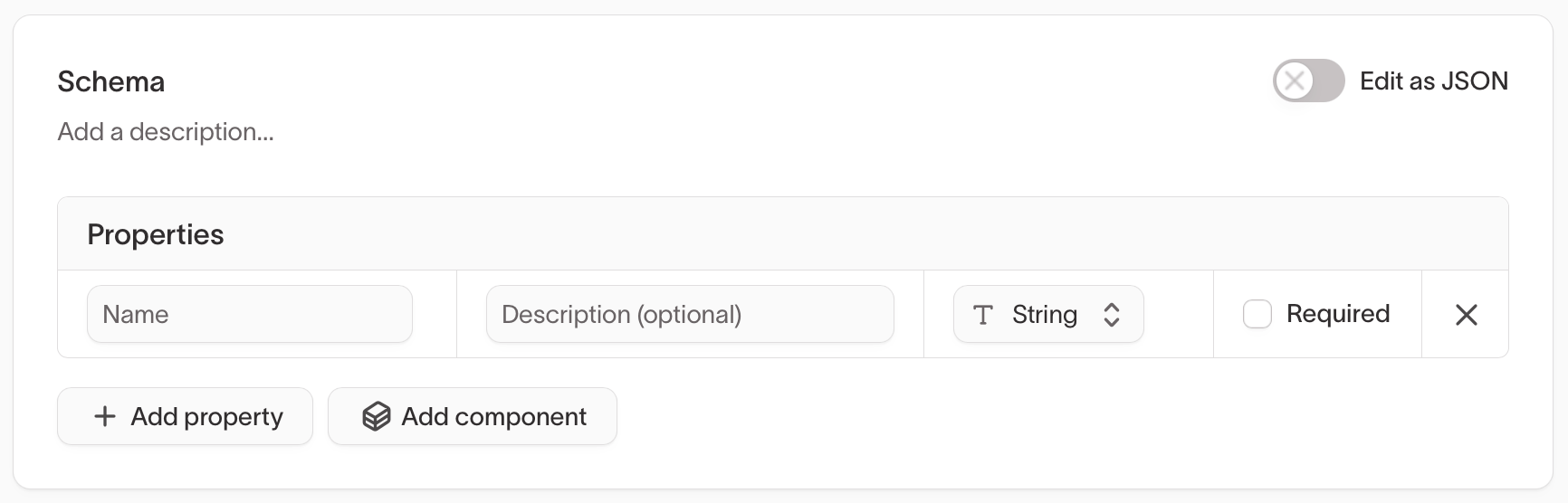
- Use the visual schema builder
- Toggle Edit as JSON to directly modify the schema
- Create multiple schema versions
Define event properties

- Add fields using Add property
- Set field types (for example,
String,Number,Array) - Mark fields as Required
- Define nested objects or array element types
- Import reusable components for use in the event schema
Configure context validation

context object, which contains metadata such as device information, page details, or SDK-provided fields.Under Context, you can define validation rules for context fields.Include built-in context fields

Import components into the event schema

- Add component button: Import all fields from a component for use at the top level of the event schema.
- Component property type: Use a component as the type (similar to
Object) for a specific property in the event schema.
Manage schema versions
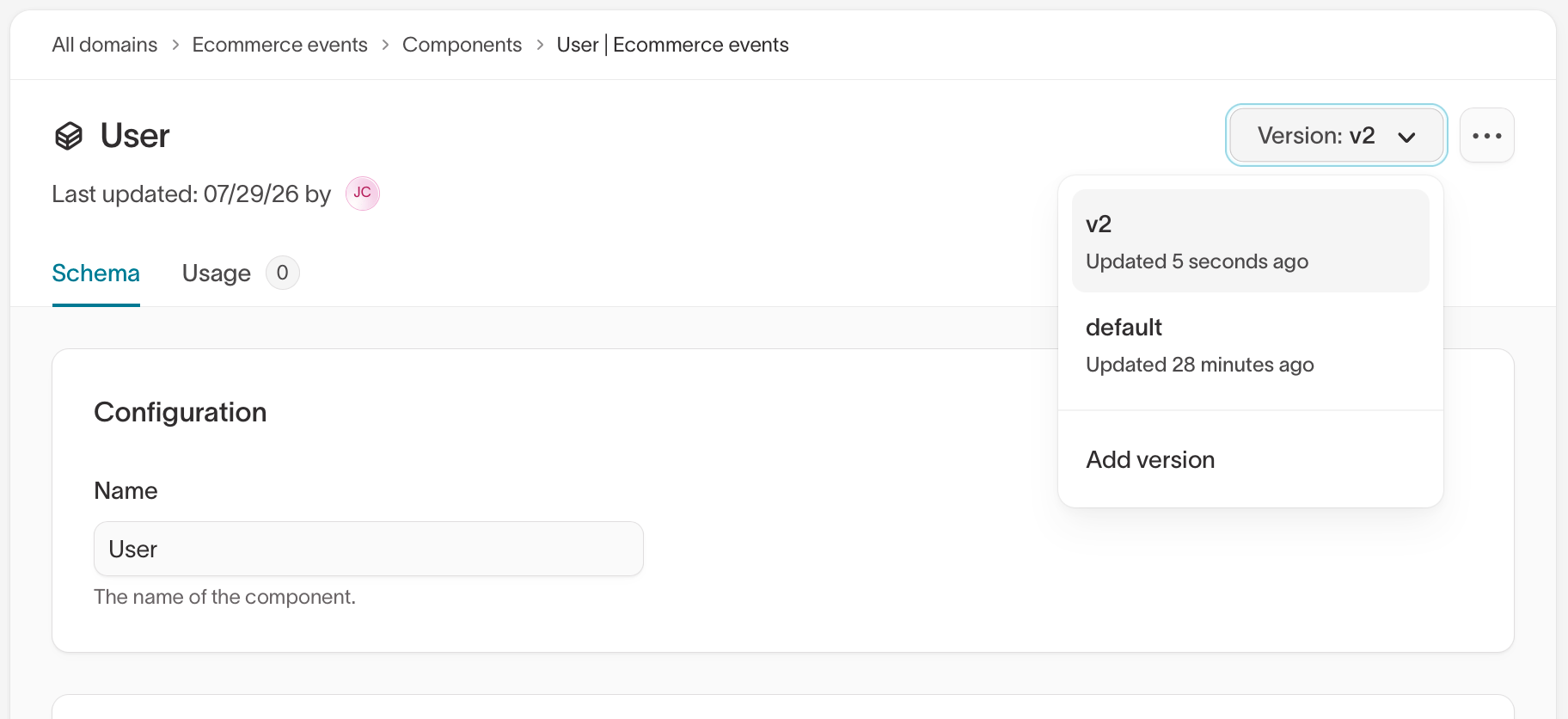
Contracts support multiple versions of the same event schema.Versioning is useful when it is difficult to migrate your codebase to use the latest payload. For example, when an iOS app takes a while to be updated across all devices.After creating your first event contract, you can create additional versions of the
schema. The first version is the “default” version, which applies to events that
do not specify a version in the payload. It is recommended that your events
follow an incrementing pattern (for example, v1, v2, v3), although not strictly
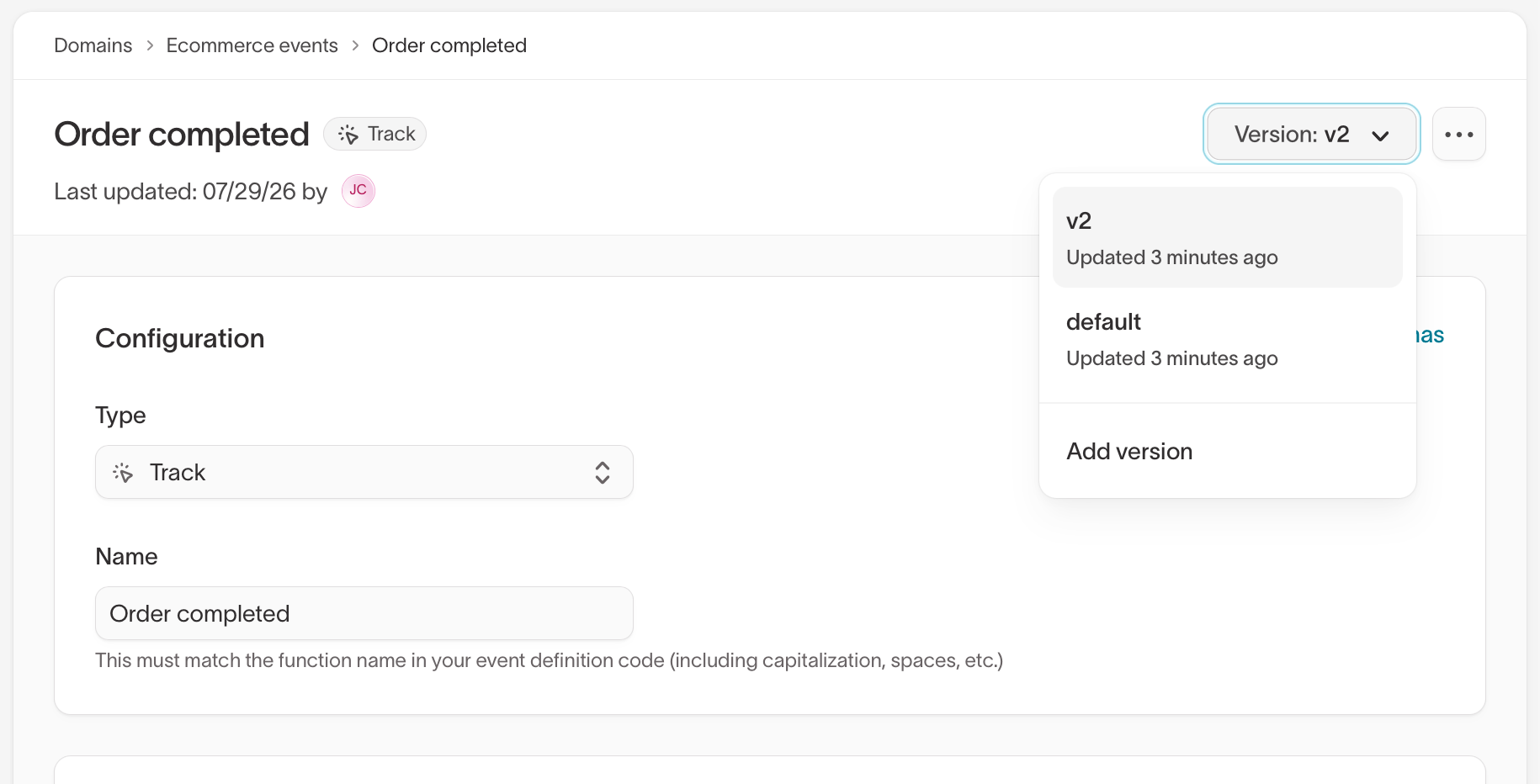
required.In the event detail page, you can:
- Create a new version using the Add version button in the version dropdown
-
Switch between versions using the version dropdown (for example,
v2,default) -
Edit versions independently
Enforcement behavior for fields
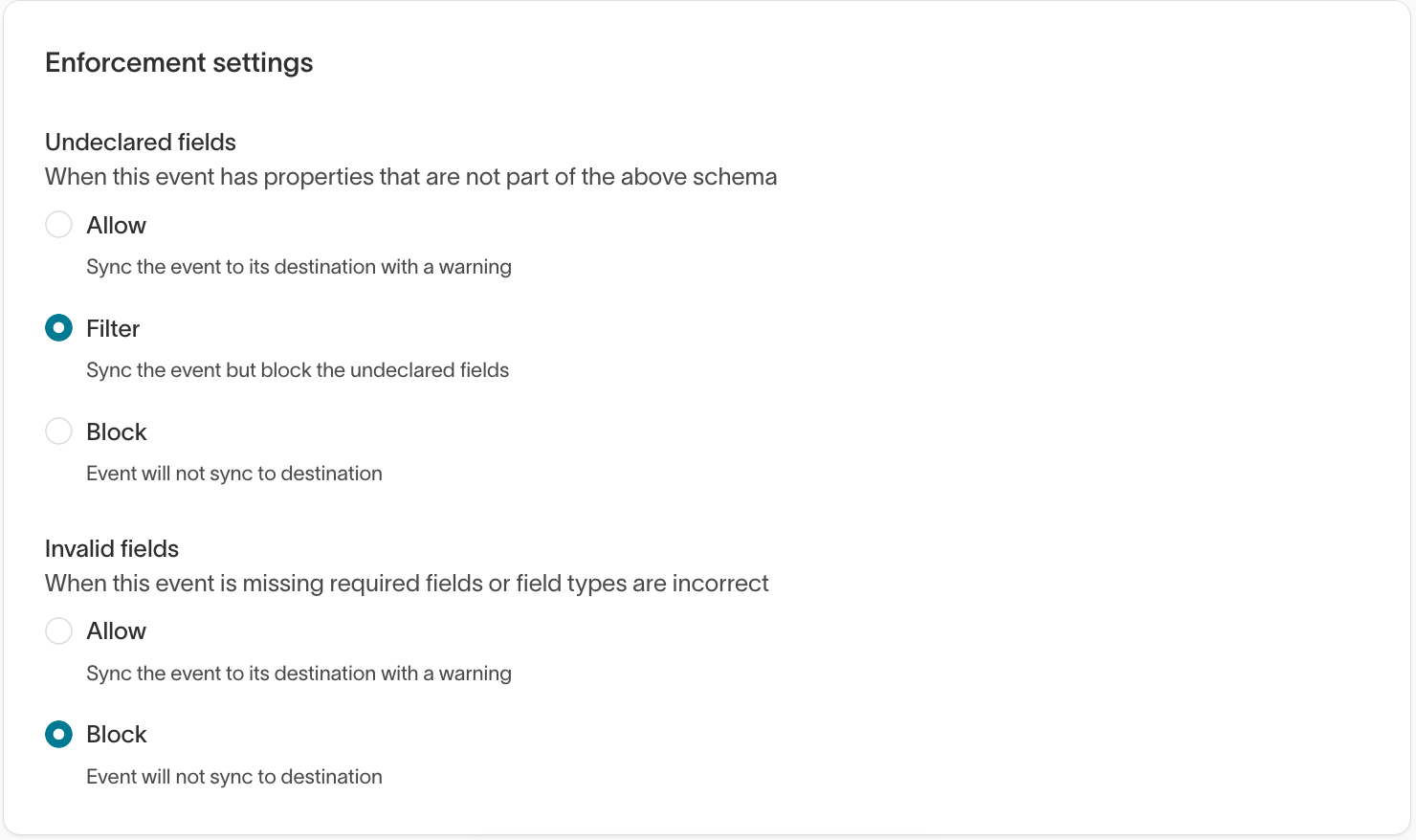
- Undeclared properties (fields not defined in the schema)
- Invalid fields (missing required fields or incorrect types)
Undeclared fields
For undeclared fields within an event, you can choose:- Allow — Sync the event with a warning.
- Filter — Sync the event but remove undeclared fields.
- Block — Prevent the event from syncing.
Invalid fields
For invalid fields, you can choose:- Allow — Sync the event with a warning.
- Block — Prevent the event from syncing.
Add a component
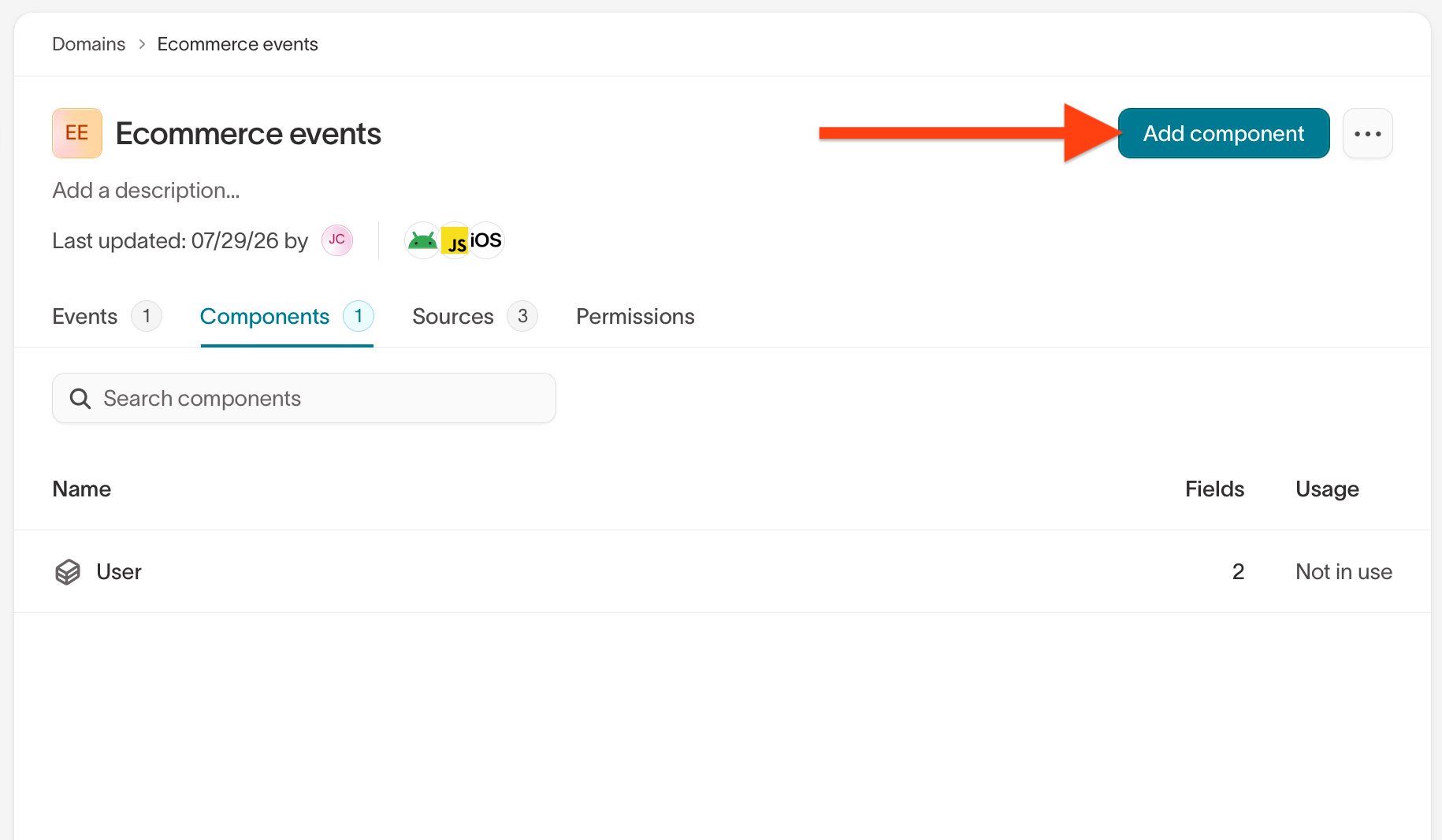
- Open your domain and select the Components tab.
- Click Add component.
- Configure the component in the Configuration section:
- Name — a descriptive name for the component. This doesn’t have to match any property names in the event schema(s) that import the component.
Define the component schema
Manage component versions
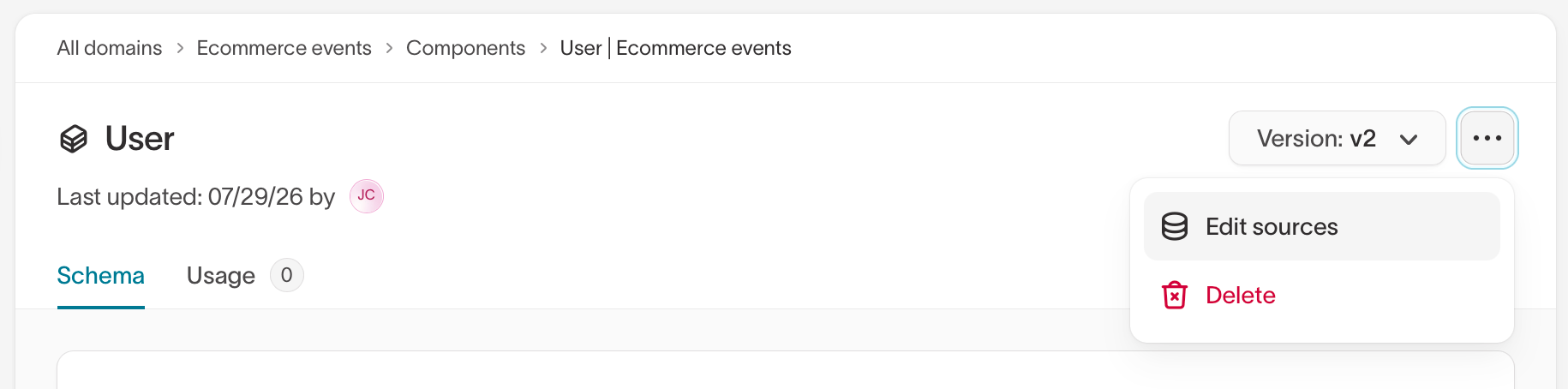
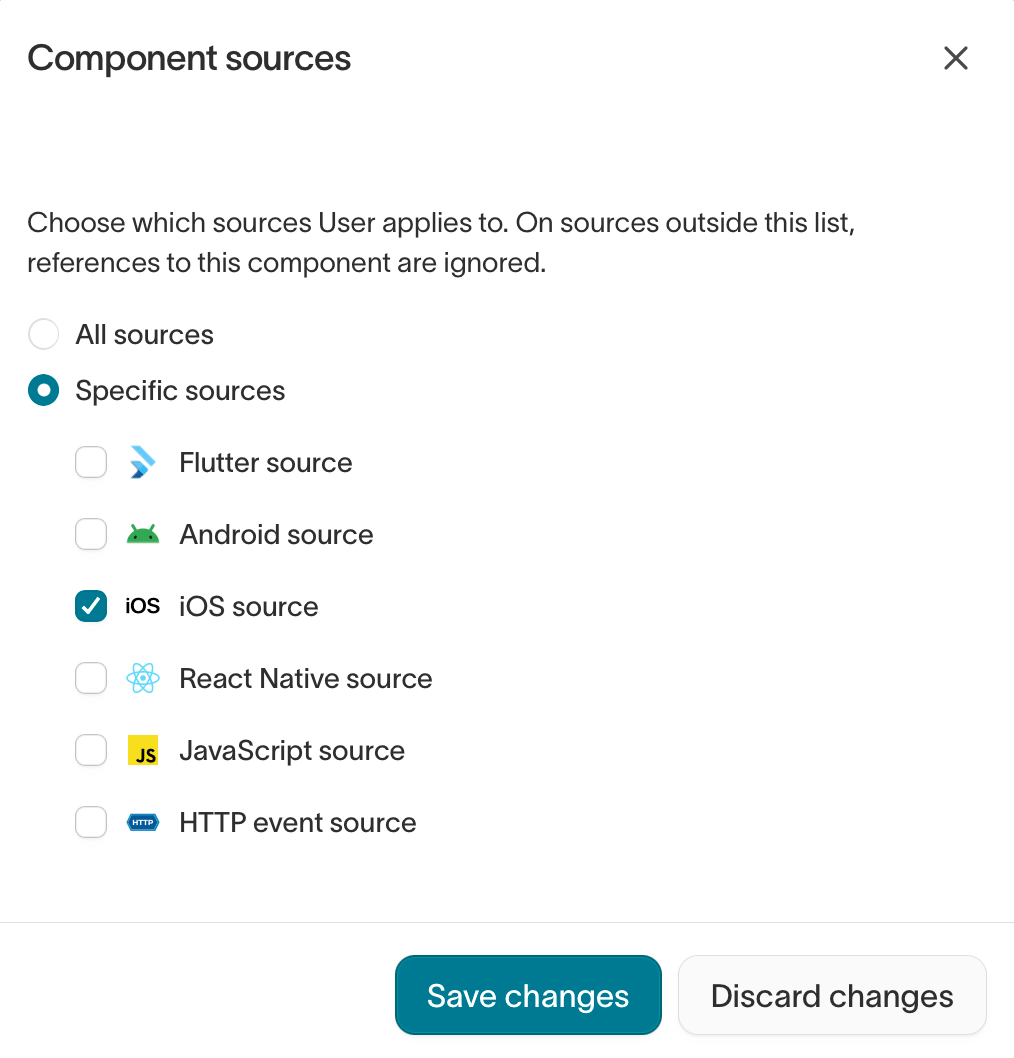
Manage component sources
By default, components will apply to all event sources in the domain they are used in. However, you can limit components to specific event sources by clicking the Edit sources button in the component detail page.