

Approval flows are only available on Business tier plans.
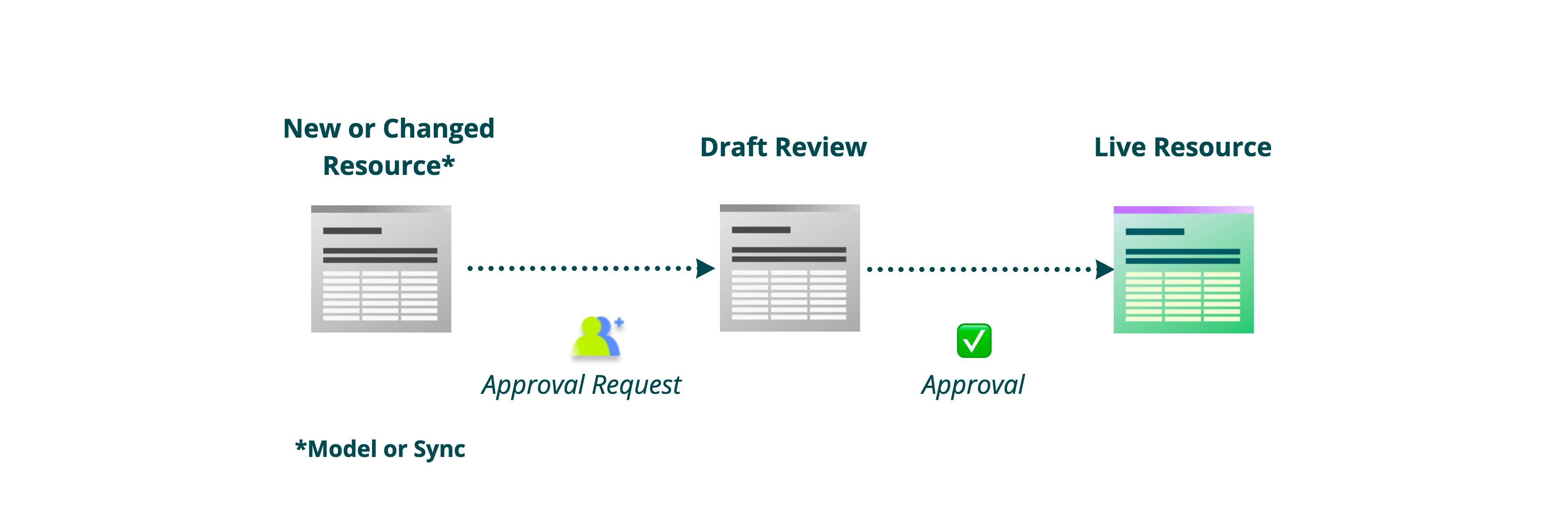
Approval flows apply only to models and syncs. Audiences are published
immediately. Journeys and Native Delivery
campaigns have their own Journeys and Campaigns toggles under
Require approvals, with separate settings from this approval flow.
Get started
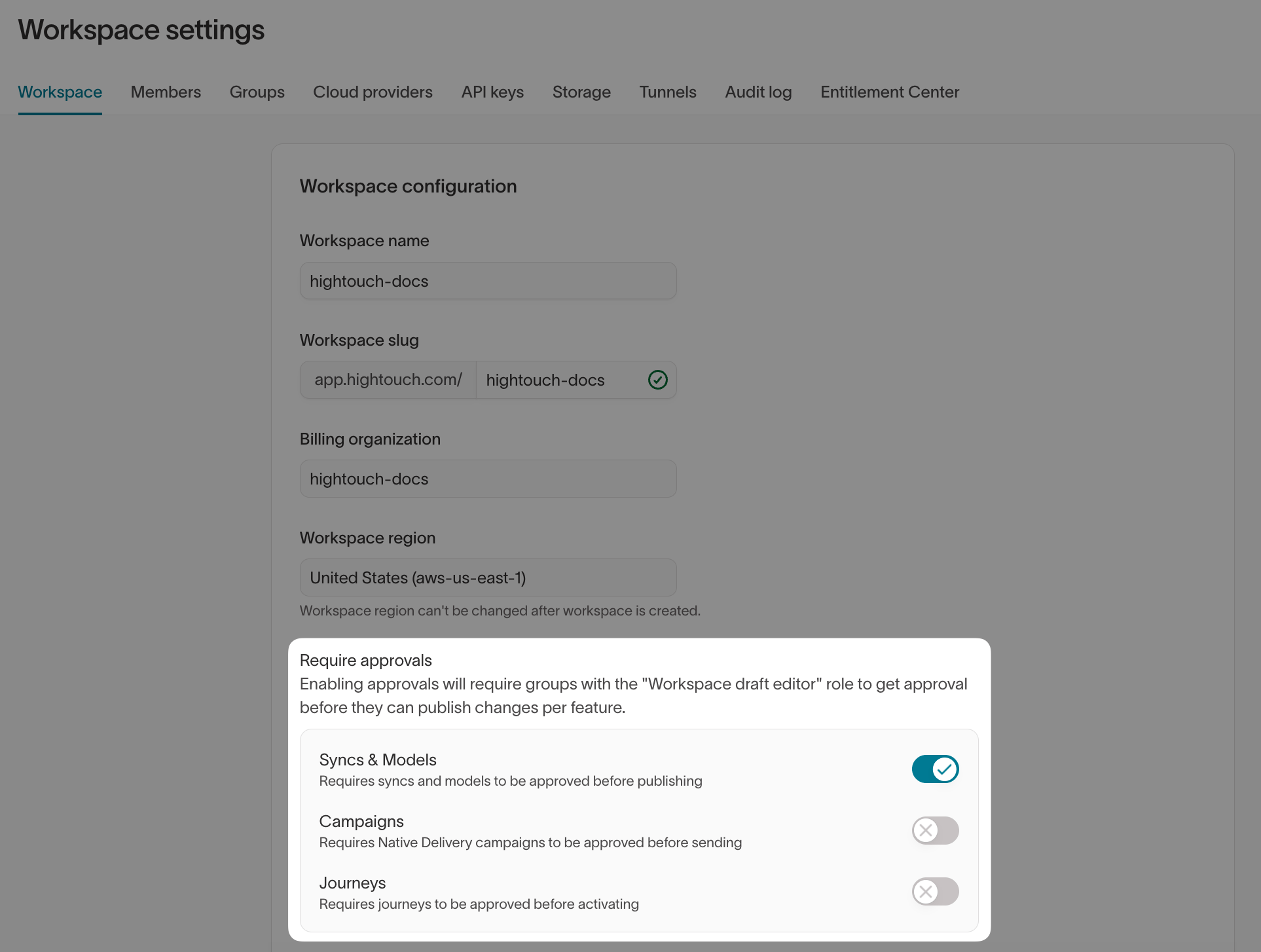
To enable approval flows:- Go to Settings.
- Open the Workspace tab.
- Under Require approvals, turn on Syncs & Models.
- Select Save.
Draft models & syncs permission can save changes as drafts or submit them for approval — not just the built-in Workspace draft editor role.
Whether a user must get approval depends on their role:
- Users with draft-only roles must submit changes for approval before publishing.
- Users with publishing permissions can submit changes for approval or use Publish now to publish directly.
- Users with the
Approve models & syncspermission can review, approve, decline, or withdraw approval requests.
Require approval for a user
To require a user’s model and sync changes to go through approval, assign them a role that enforces drafts.Use the Workspace draft editor role
- Go to Settings > Members.
- Find the user.
- Change their role to Workspace draft editor.
Create a custom draft role
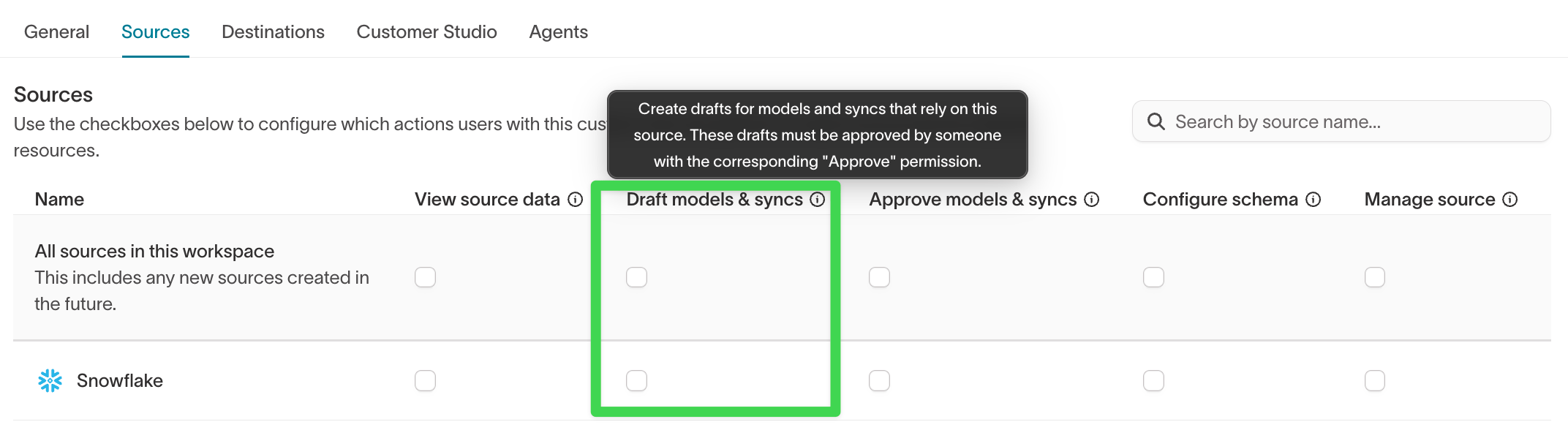
- Go to Settings > Roles.
- Create a custom role.
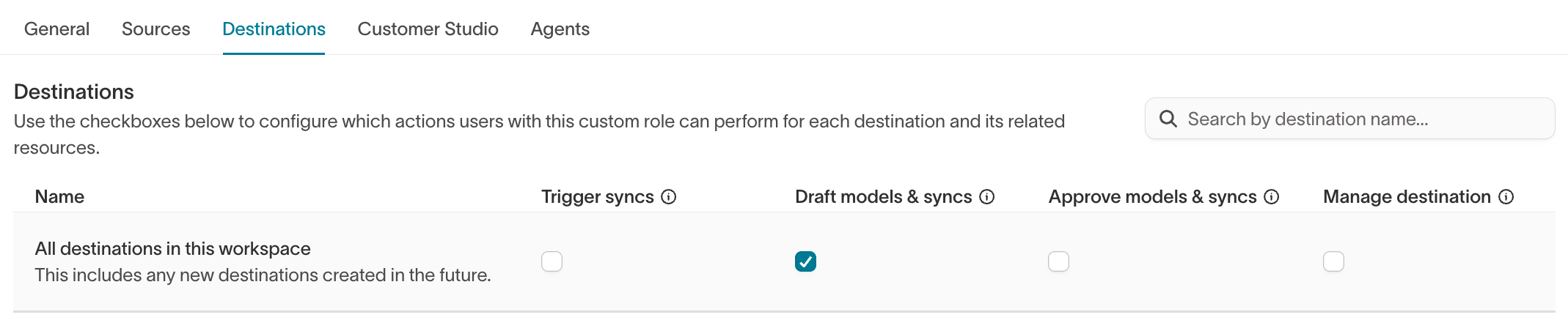
- Open the Sources or Destinations tab.
- Select
Draft models & syncsfor the relevant resources.
Who can publish directly
Some roles can bypass approval and publish directly. For example, users with the Admin or Workspace editor role can save drafts, submit approval requests, or select Publish now. Any role without theDraft models & syncs restriction can self-publish.
The Workspace draft editor role is the built-in role whose changes must be
approved. It is not the only role that can create drafts. Any role with the
Draft models & syncs permission can create and edit drafts. Roles that can
publish directly can also save drafts voluntarily but still have access to
Publish now.Create new resources
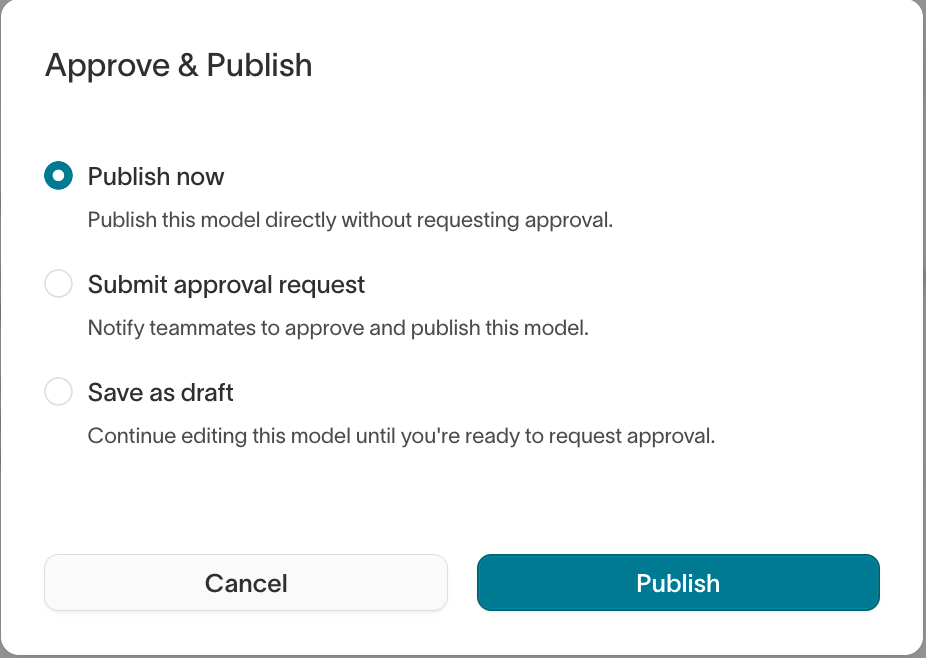
When you create a new model or sync, the available actions depend on your role:- Publish now publishes the resource immediately. Only available to roles that can bypass approval.
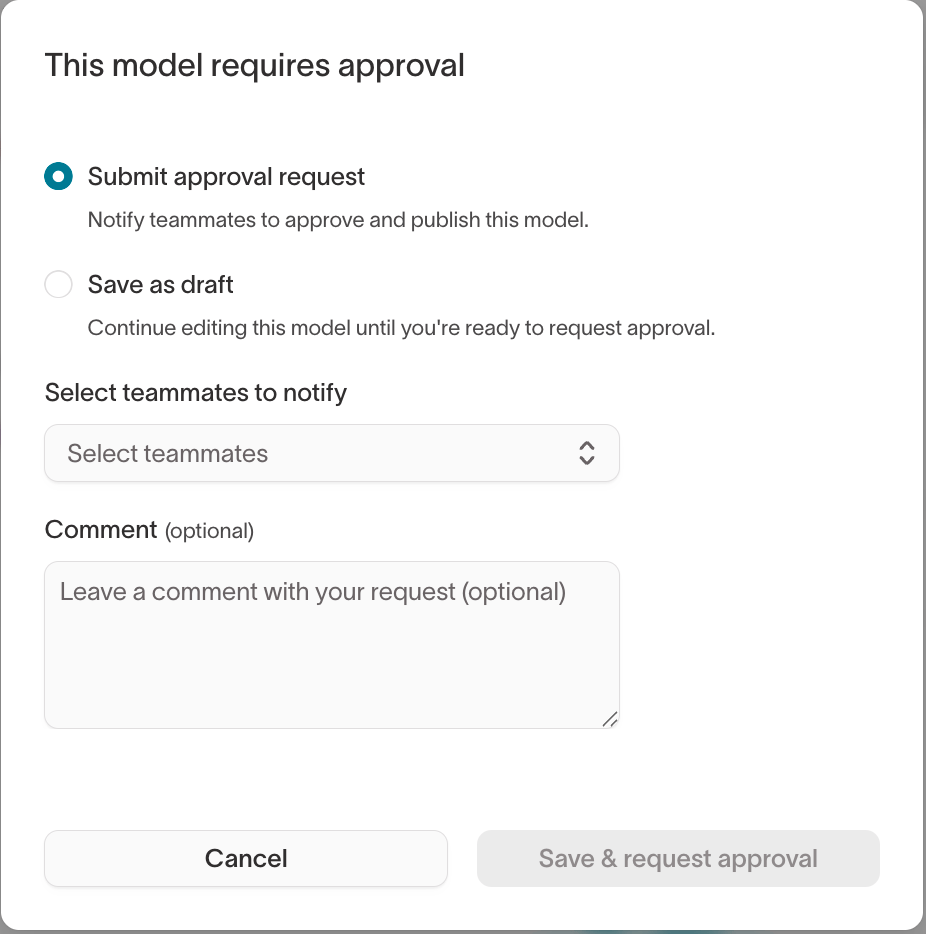
- Submit approval request sends the draft to one or more approvers for review. You can include a comment.
- Save as draft saves the resource without notifying anyone. You can keep editing and submit it for approval later.
Edit existing resources
Editing existing models and syncs uses the same approval options as creating new resources. The following changes require approval:
If a sync uses a model with unpublished changes, the sync refers to the draft version of the model instead of the published version. Both the model and the sync must be published before the sync can run.
Approve requests
Approvers can view approval requests by selecting View request on the corresponding resource.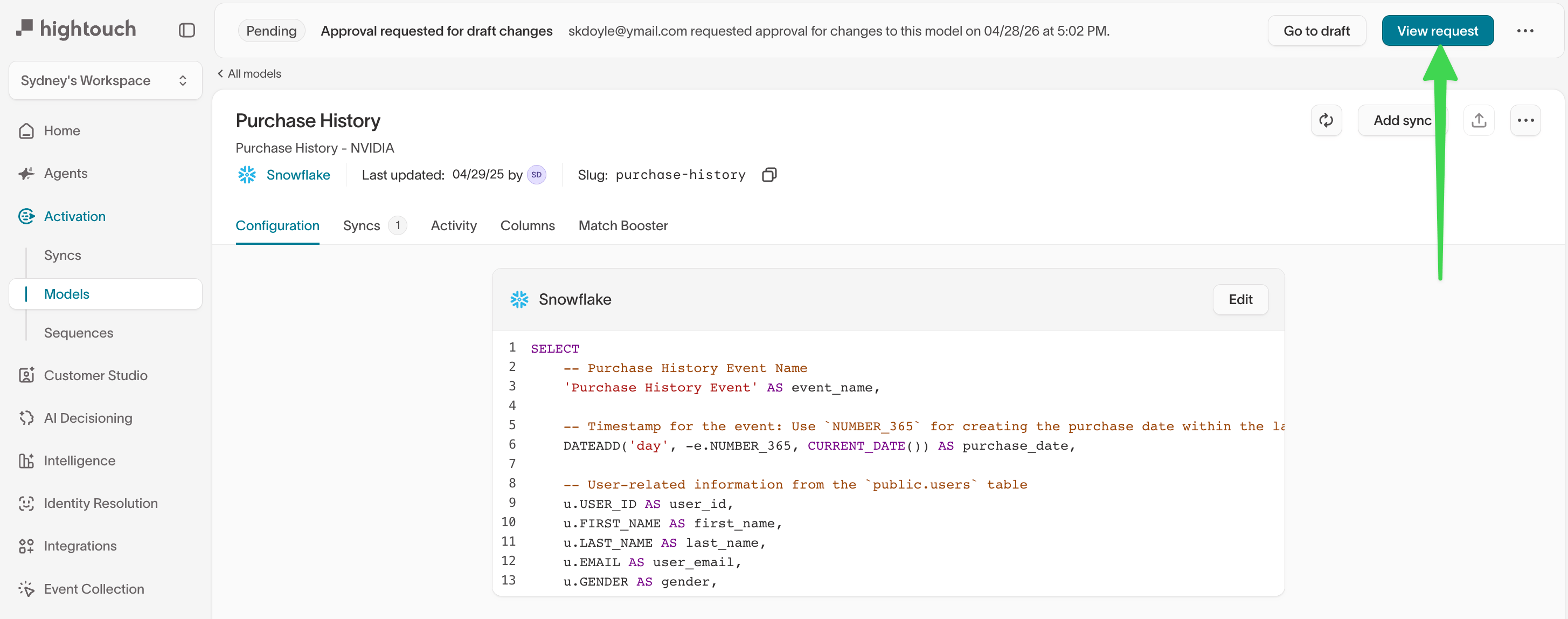
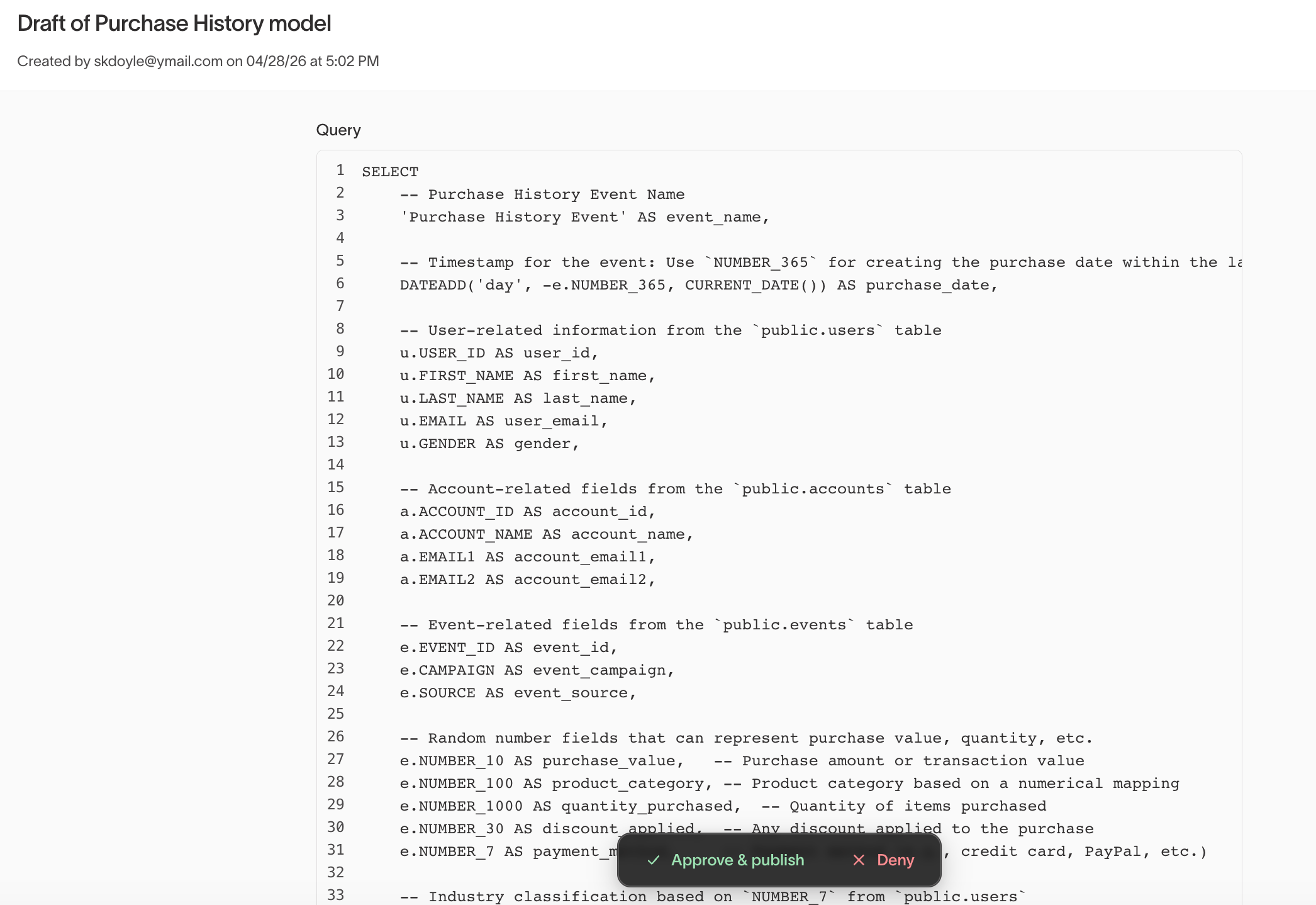
- Approve & publish publishes the new resource or drafted changes.
- Delete draft deletes the draft. New resources or drafted changes are discarded and cannot be recovered.
- Withdraw request removes the approval request but keeps the draft. Users can continue editing and submit it again later.
Who can approve requests
TheApprove models & syncs permission controls who can approve requests. By default, all roles except Workspace draft editor and Workspace viewer include this permission:
- Admin
- Workspace editor
- Model + sync editor
- Sync editor
- Source admin
- Destination admin
- Audience editor
Approve models & syncs permission for the relevant sources or destinations. Users with this permission can use Approve & publish, Delete draft, and Withdraw request when reviewing a draft.