

Schema Git Sync must be enabled by Hightouch. to turn it on.
Before you begin
- A working Customer Studio schema
- A Git repository
- Git Sync enabled
- Permission to configure Git Sync and Customer Studio schema
Decide whether you need Schema Git Sync
You don’t need Git Sync to use Customer Studio. You can create and manage your entire schema directly in Hightouch. Use Schema Git Sync when your team needs one or more of these workflows:- Review schema changes through pull requests.
- Test schema changes in staging before applying them to production.
- Keep the same schema structure across multiple Hightouch workspaces.
- Keep a versioned history of schema configuration in Git.
Schema Git Sync stores models and relationships in Git. Some Customer Studio
settings remain workspace-specific, including column privacy settings, display
configuration, column suggestions, merge-column selections, and column
aliases.
Understand what Git Sync manages
Schema Git Sync stores these Customer Studio resources in Git:- parent models
- related models
- event models
- relationships between models
Users as a parent model, Purchases as a related model, Product Viewed as an event model, and the relationships connecting them is represented as separate YAML files in Git.
You don’t need to create these files yourself. Create and configure the schema in Hightouch first, then use the generated YAML to review or edit configuration in Git. For YAML fields and supported configuration, see Customer Studio schema in Git Sync.
Choose how environments share schema configuration
If you use separate Hightouch workspaces for staging and production, decide whether they should share the same schema.Use the same schema when staging and production should match
For most teams, staging and production should use the same parent models, related models, events, and relationships. Point both workspaces at the same schema configuration when:- they represent the same Customer Studio setup
- differences are limited to environment-specific sources or destinations
- you want to test a schema change before promoting it to production
Use separate configuration when the schemas are different
Use separate branches or paths when the schemas themselves should be different — for example, when your staging workspace contains an experimental parent model or relationship that you don’t want production to read yet. Don’t create separate schema configuration just because staging and production point to different warehouse resources. Git Sync can map environment-specific sources and destinations without duplicating the schema.Connect each workspace to Git
Configure Git Sync from Integrations > Extensions > Version control with Git.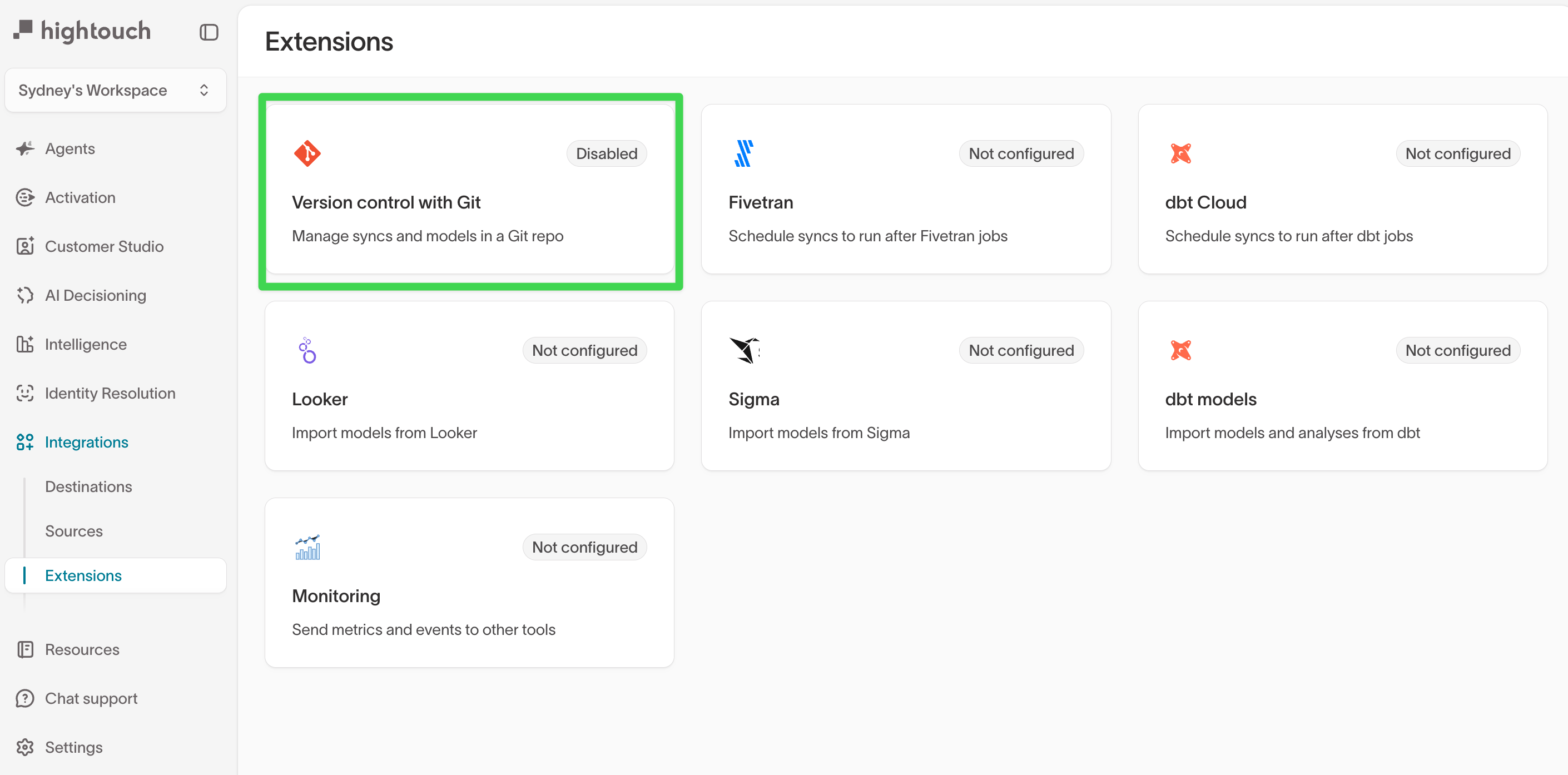
- Authenticate to your Git provider.
- Choose the repository.
- Configure the branch and path the workspace should use.
- Enable Git Sync.
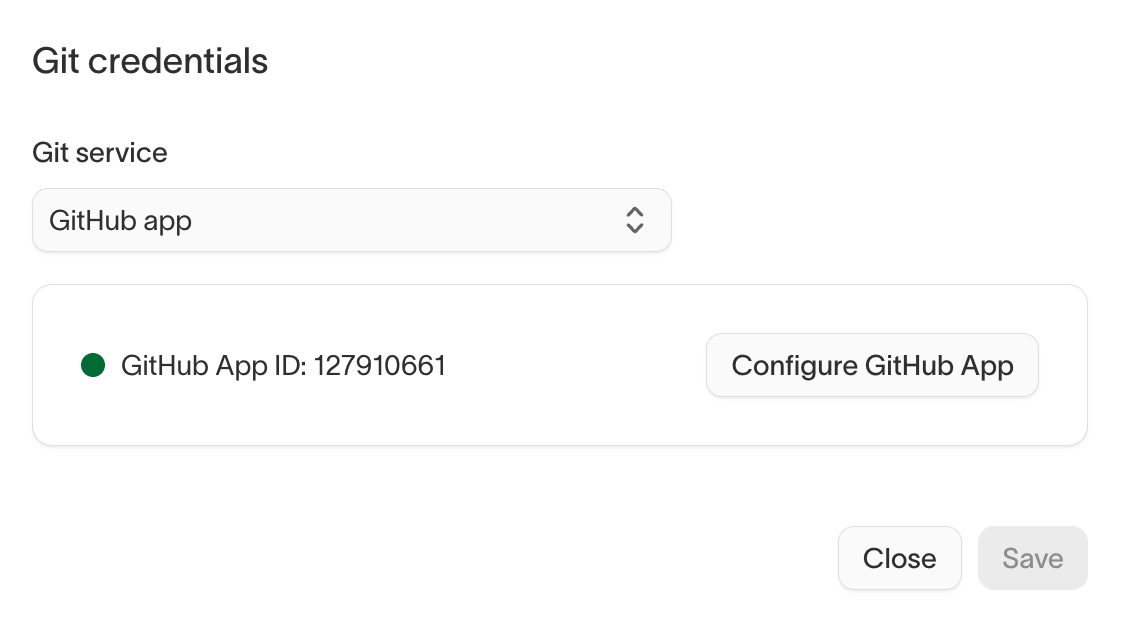
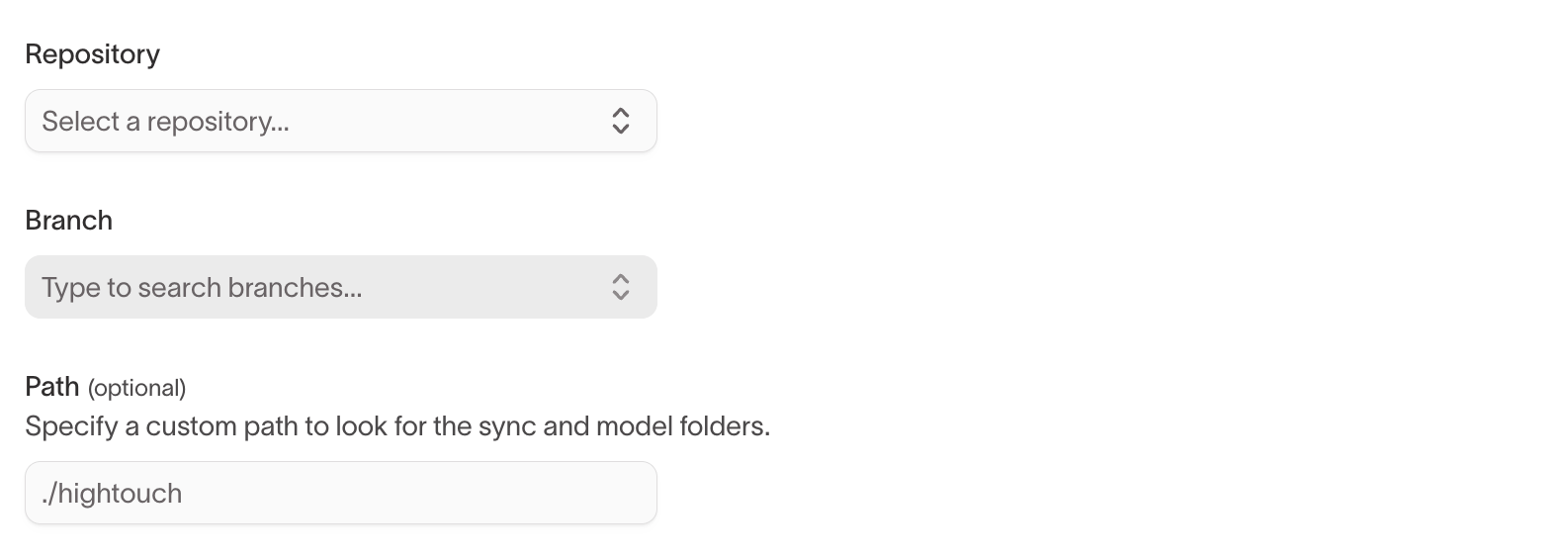
Branches don’t need to exist before setup. Hightouch can create them when you
configure Git Sync.
Map environment-specific resources
Staging and production often use different warehouse sources or destinations — for example, asnowflake-dev source in staging and snowflake-prod in production. The Customer Studio schema can still stay identical.
Git Sync uses alias files to map each shared source or destination reference to the corresponding resource in each workspace. Hightouch creates one alias file per connected workspace, named for that workspace (for example, aliases-staging.yaml):
main-database in the shared schema configuration, and each alias maps it to the warehouse source for that workspace. Hightouch creates the alias file automatically. Edit the mappings only when equivalent resources have different identifiers between environments.
Source and destination identifiers can differ between environments when
aliases map them correctly. Model identifiers must stay consistent when
workspaces share the same schema files.
Sync your existing schema
When Schema Git Sync is enabled, Hightouch performs an initial sync of the supported schema configuration to Git. The generated repository includes files for your models and relationships under the schema directory. After the initial sync, schema changes made in Customer Studio are written to Git automatically. You can monitor Git Sync from the Runs tab or inspect the resulting commits in your repository. For large schemas, the initial sync can take longer than later incremental updates.Review and apply schema changes
A schema change can affect existing audiences, traits, syncs, and journeys. Review which audiences, traits, syncs, and journeys the change could affect before you apply it to production. A common workflow is:- Make the schema change in staging.
- Build an audience that uses the changed model, field, or relationship.
- Confirm the audience count and sample records match the expected results.
- Review the generated Git changes.
- Merge the change through your normal Git workflow.
- Validate the same audience in production.
Changes to validate before production
Revalidate dependent audiences, traits, syncs, and journeys when a change alters how existing data is identified or connected:- changing what one row in a parent model represents
- changing a primary key
- removing or renaming a field used by audiences, traits, syncs, or journeys
- changing the fields used to connect two models
- changing whether a relationship is one-to-one or one-to-many
- deleting and recreating a relationship
- renaming a model or changing its identifier
Configure settings that Git Sync doesn’t store
Not every Customer Studio setting is stored in Git. After you apply structural schema changes to another workspace, review any workspace-specific settings affected by the change. Depending on the change, you may need to:- refresh available warehouse columns
- configure column privacy
- restore display names or descriptions
- configure filter suggestions
- set merge columns
- update traits or audiences that depend on changed fields
- validate any affected relationship paths
Validate the schema in each environment
After your initial setup, or after promoting an important schema change, test the result in Customer Studio. At minimum:- Confirm the expected parent, related, and event models appear.
- Confirm relationships connect the correct models and fields.
- Build an audience that uses the changed part of the schema.
- Compare the result with a warehouse query or the validated result from another environment.
- Confirm sensitive fields have the intended privacy settings.
- Test through relationships end to end if you use them.
Troubleshoot resource mapping errors
If Git Sync can’t match a schema resource in Git to a resource in the Hightouch workspace, a run can fail with an error such as:- Model identifiers — Shared models use the same identifiers in each workspace.
- Aliases — Source and destination aliases point to resources that exist in the current workspace.
- Branch or path — The workspace is reading the intended Git configuration.
- Environment setup — Required sources and destinations exist before the schema references them.
Next steps
- Define your schema to create or update Customer Studio models and relationships.
- Git Sync to configure authentication, repository settings, and other version-controlled Hightouch resources.
- Connect staging and production workspaces for a multi-environment setup.