

Before you begin
- A sync with a model and a destination selected. Configure record matching first if the sync updates existing records.
How field mapping works
A mapping relates one column in your model to one field or property in your destination. When the sync runs, Hightouch reads each mapped column and writes its value to the field you paired it with.Columns, fields, and properties: Hightouch generally uses “column” for an
attribute in your source or model. Destinations may call the same attribute a
“field” or a “property.”
Map columns to fields
The mapping section asks which model columns to sync to which destination fields. You can start from either side — whichever matches how you think about the data.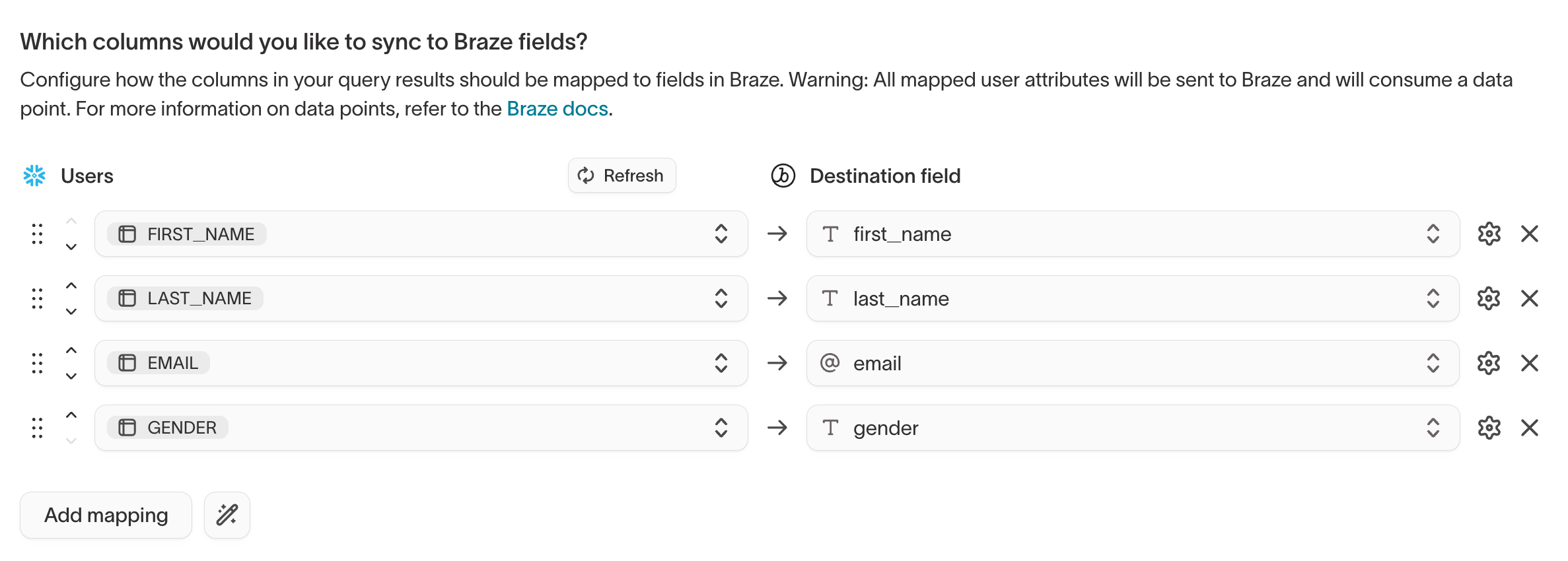
- Click Add mapping.
- Choose a model column and the destination field it should populate, in either order.
- Repeat for each field you want to populate.
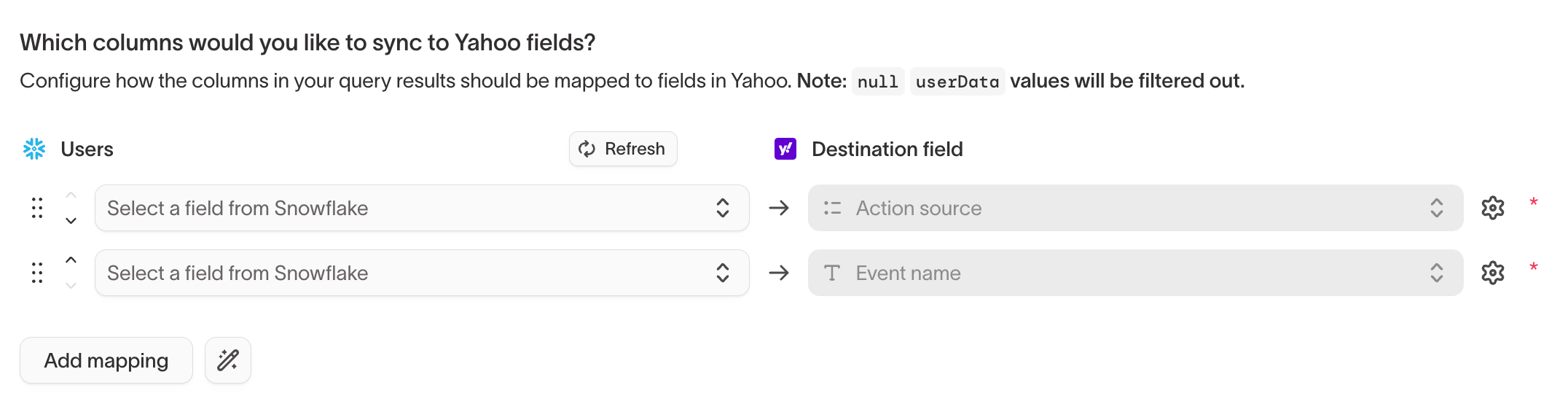
email_address column with an Email field. Review each suggestion before you save, since name matching can pair the wrong fields.
Create a destination field
Some destinations let you populate a field that doesn’t exist yet. Where this is supported, enter the new field’s name in the destination input and select the option to create it.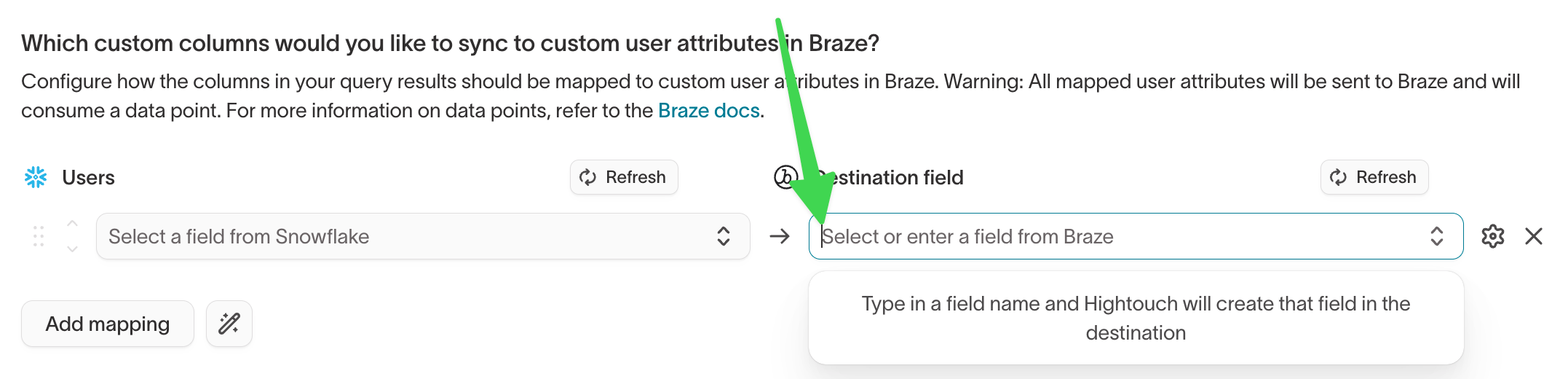
Advanced mapper
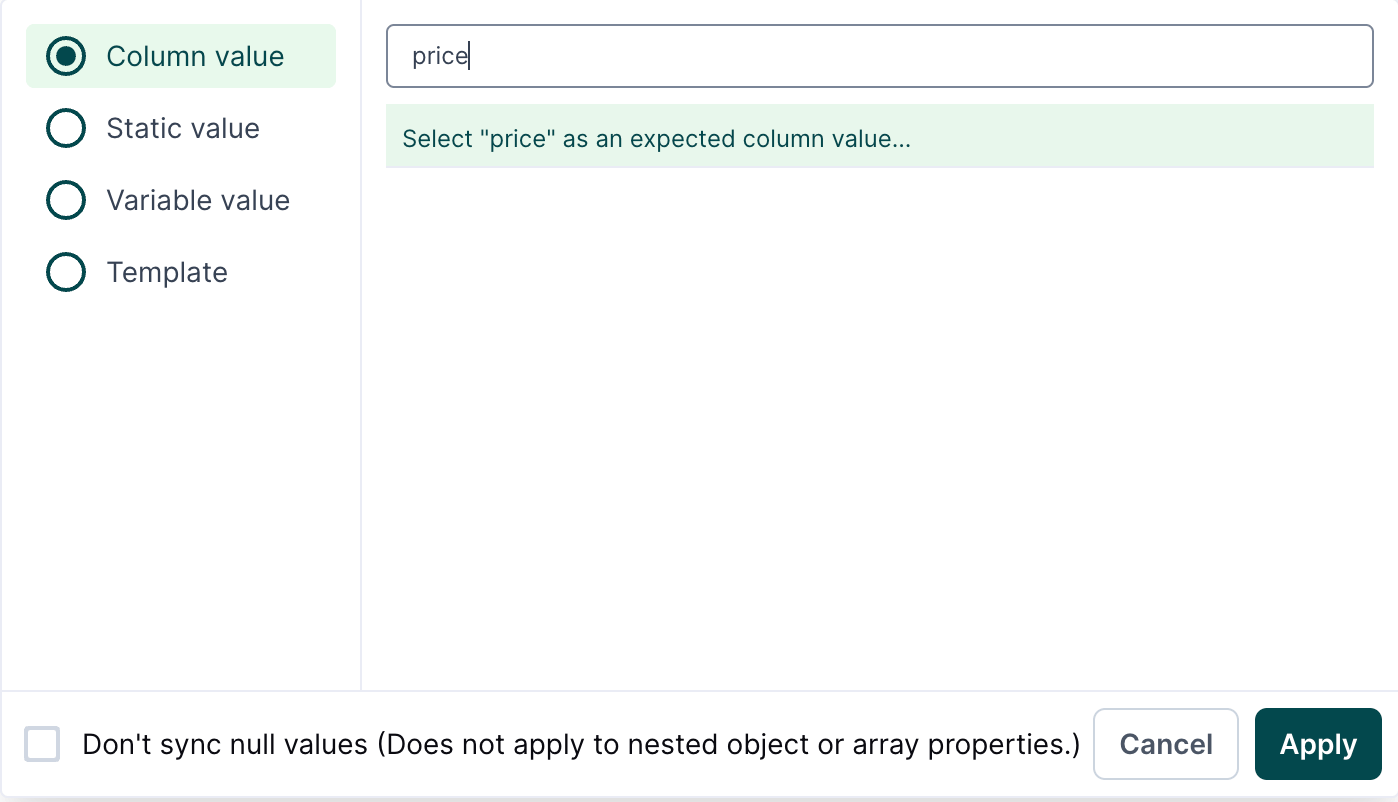
The advanced mapper sets a destination field from something other than a single column. Open it by selecting a field’s value input, then choose how to supply the value.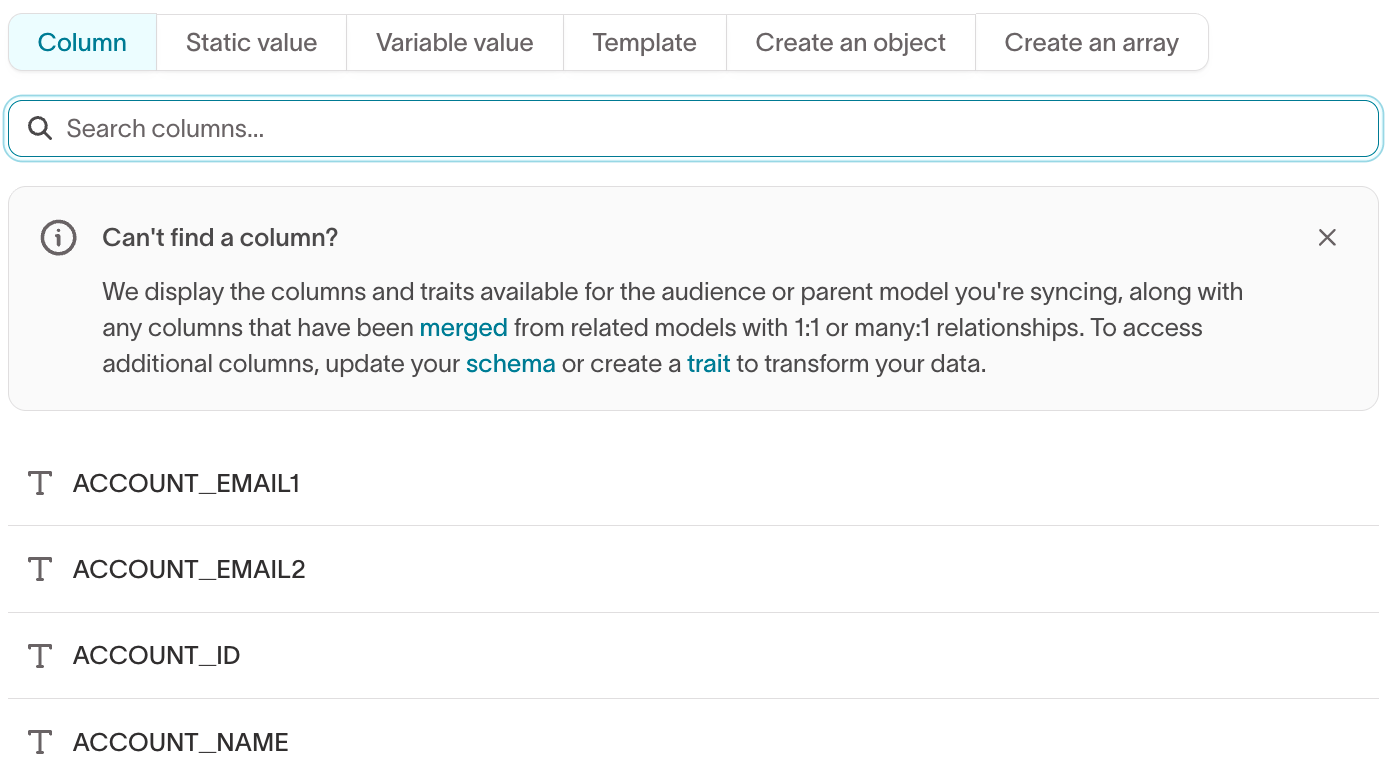
The value types a destination offers depend on what its API accepts. If selecting a field’s value input doesn’t open these options, the destination doesn’t support the advanced mapper. if you need it for a destination that doesn’t have it.
Column values
Mapping a column value is the same as basic mapping: search for the model column you want and select it for the destination field.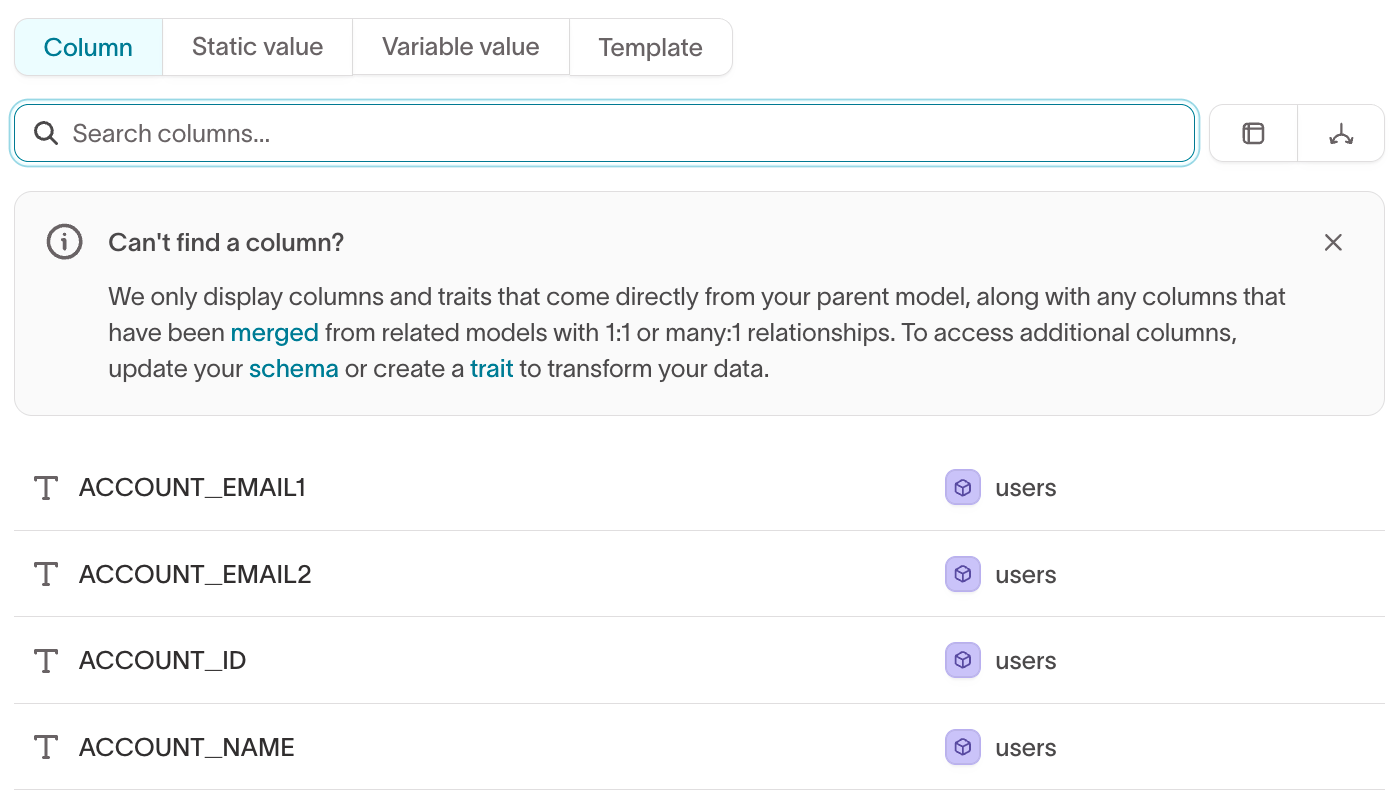
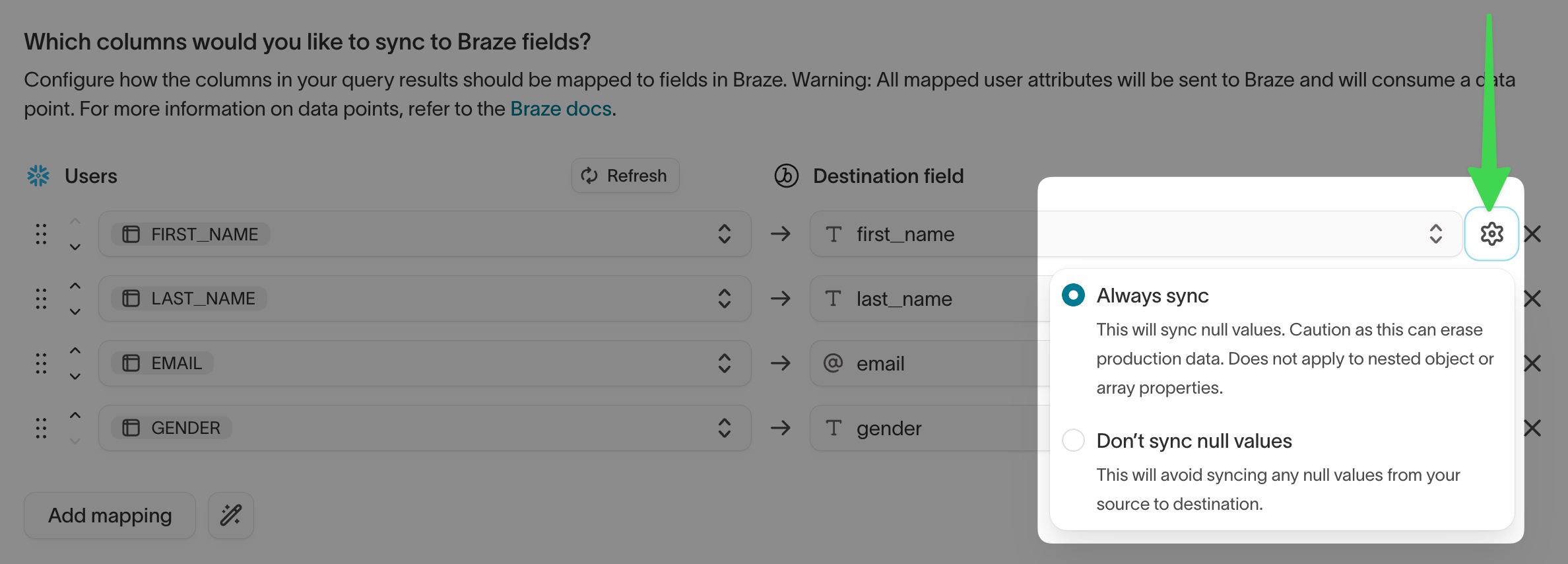
Don’t sync null values
By default, Hightouch syncsnull values from your model to the destination, which can overwrite an existing destination value with an empty one. To change this, select the settings icon on a column mapping and choose how Hightouch handles nulls:
- Always sync — Send
nullvalues to the destination. This is the default and can erase existing data. - Don’t sync null values — Skip
nullvalues so the sync never writes an empty value to the field. - Only write to empty fields — Write the value only when the destination field is currently empty, so the sync never overwrites an existing value.
Static values
A static value sets a field to the same constant for every record. For example, you might set every record’sregion field to EMEA.
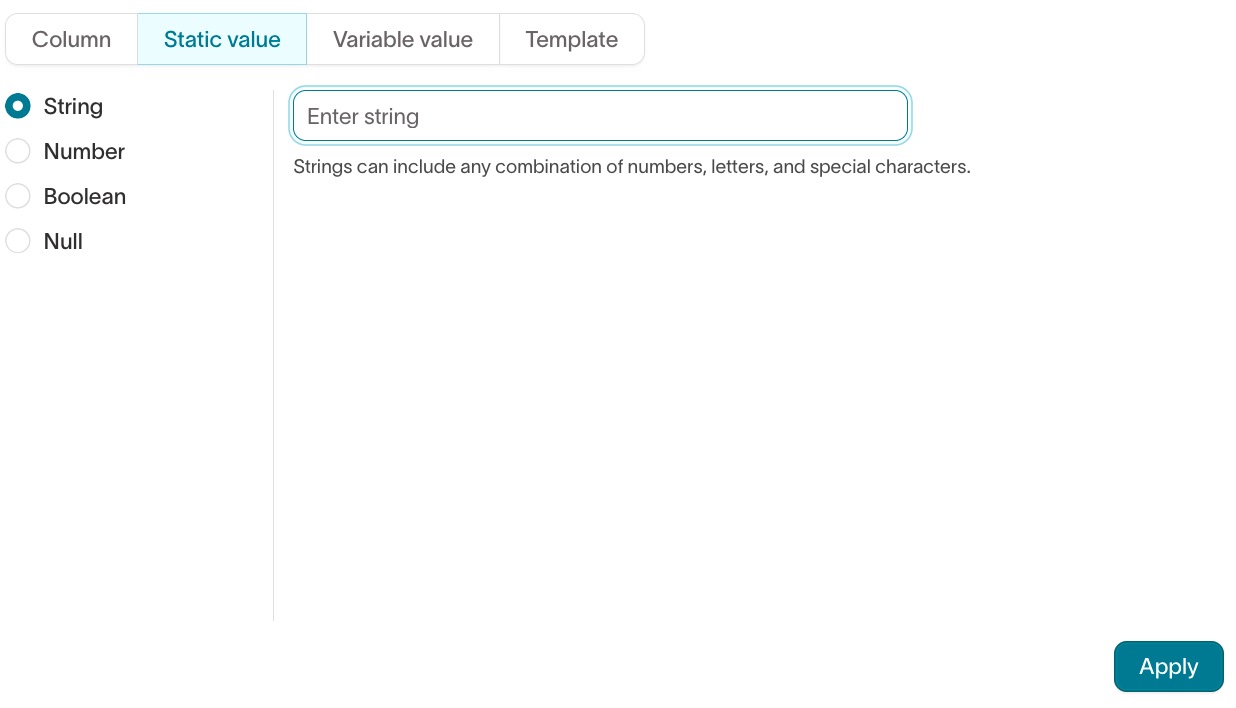
- In the advanced mapper, select Static value and the value’s data type: String, Number, Boolean, or Null.
- Enter the value.
- Click Apply.
- Select the destination field to map the static value to.
Variable values
A variable value sets a field from sync metadata rather than from your data. For example, you might send the sync run’s timestamp to anupdated_at field. The available variables are:
model-id(string)model-name(string)current-timestamp(date/time)sync-id(string)sync-run-id(string)operation(string)
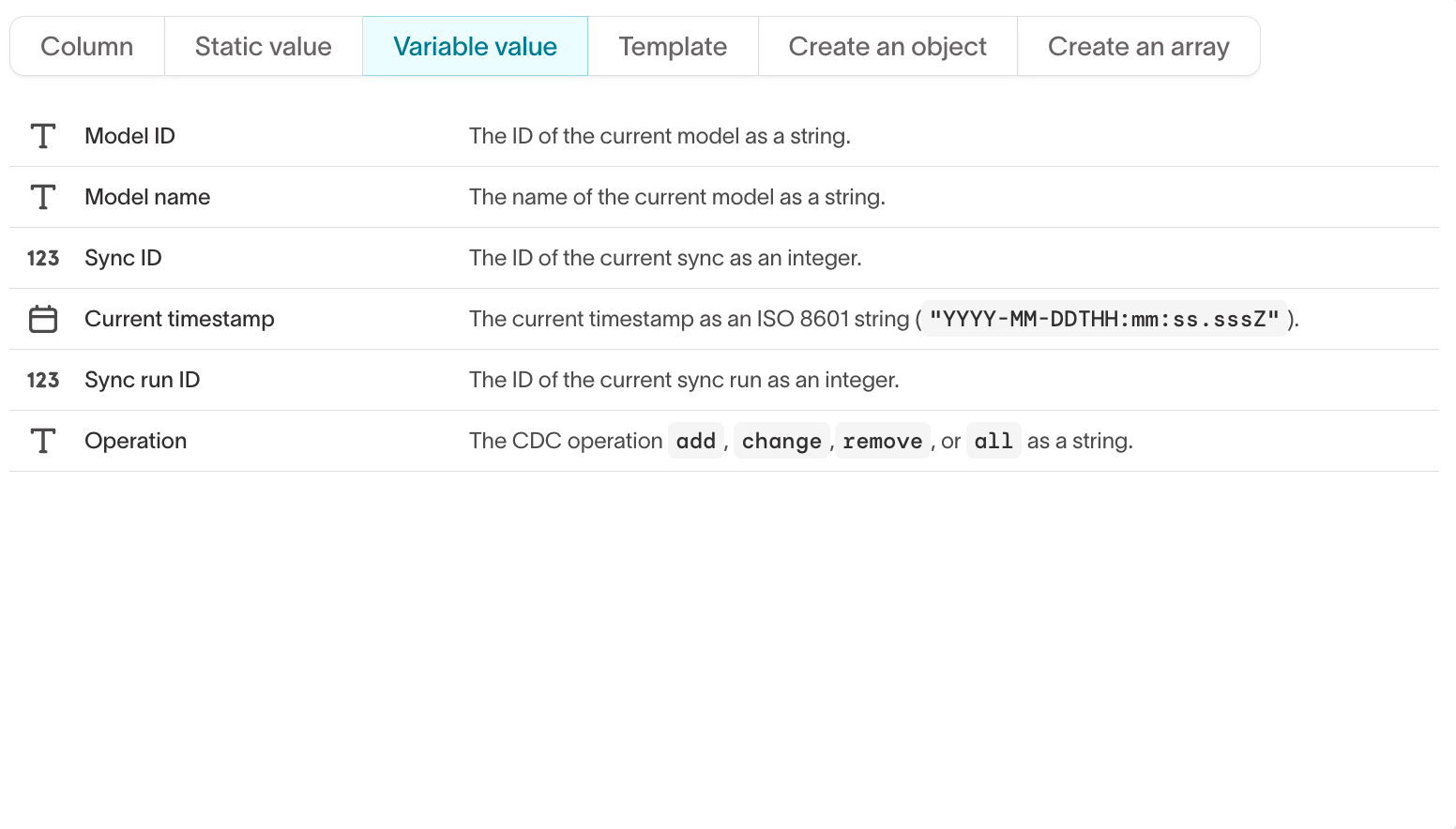
- In the advanced mapper, select Variable value and the variable you want, such as current-timestamp.
- Click Apply.
- Select the destination field to map the variable to.
Template mapping
The template mapper is convenient when your destination requires data in a specific format, and you want to avoid baking this specificity into your model. For example:- Webflow requires slugs not to have any special characters. You can use the template mapper’s
regex_replacefunction to remove them. - You want to validate email addresses before sending them to Mailchimp or another email service provider.
- You want to enable lead routing in your destination using Liquid conditionals without touching your central dbt model.
- In the advanced mapper, select Template.
- Build your expression in the editor. Insert model columns from the Columns tab, sync metadata from the Metadata tab, and functions from the Filters tab.
- Click Apply.
- Select the destination field to map the template to.
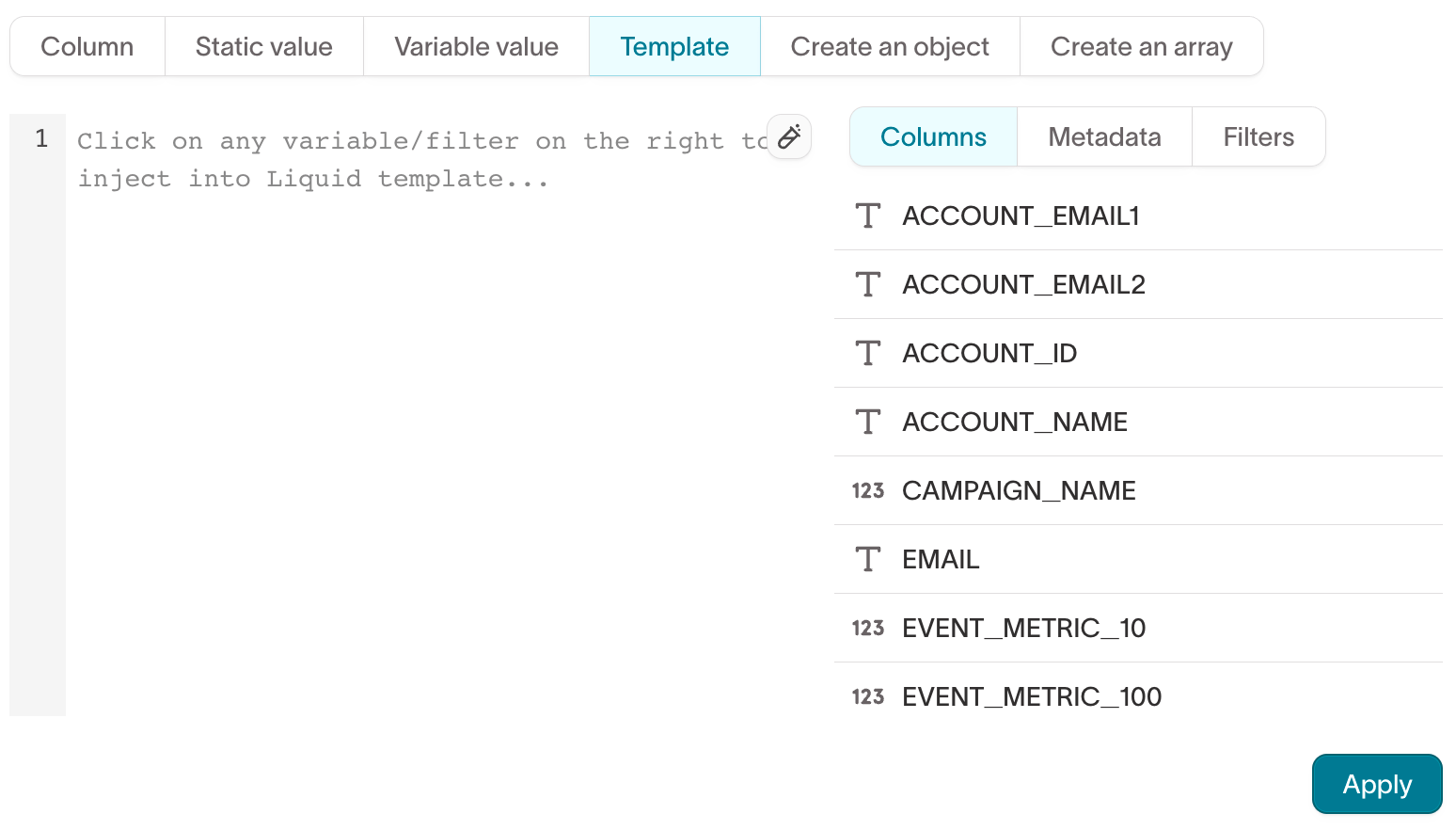
{{ row['last_name'] | includes: "Stark" }} checks whether a row’s last_name column contains "Stark". If it does, the row is processed; if it doesn’t, the row is rejected.
Reference columns and metadata
Reference a model column with{{ row['column_name'] }}. To reference sync metadata instead, open the Metadata tab to see the available context variables, such as Model ID, Sync ID, and Operation.
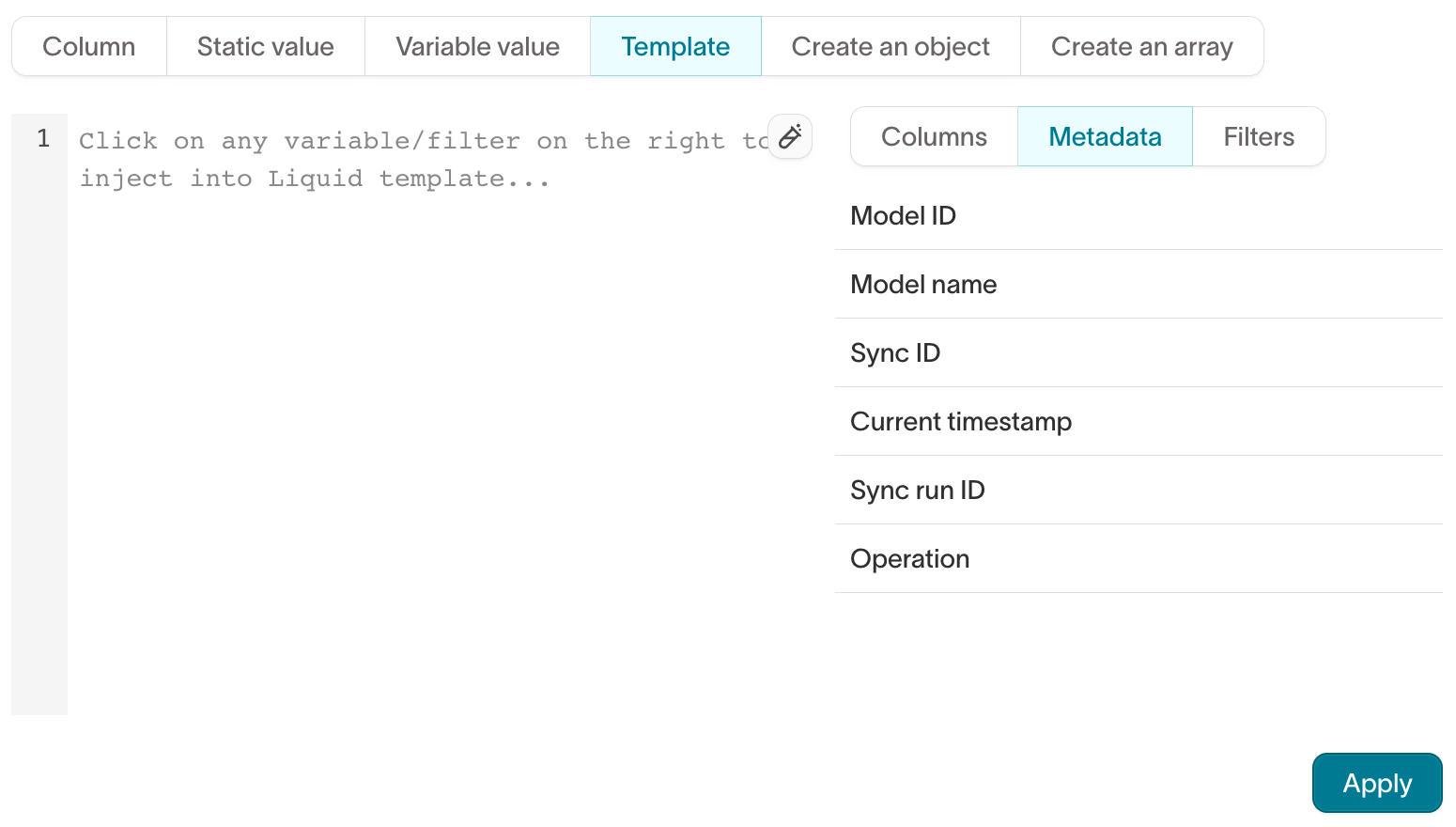
context object. For example, {{ row['id'] | concat: context['sync_run_id'] }} concatenates a row’s ID with the current sync run’s ID.
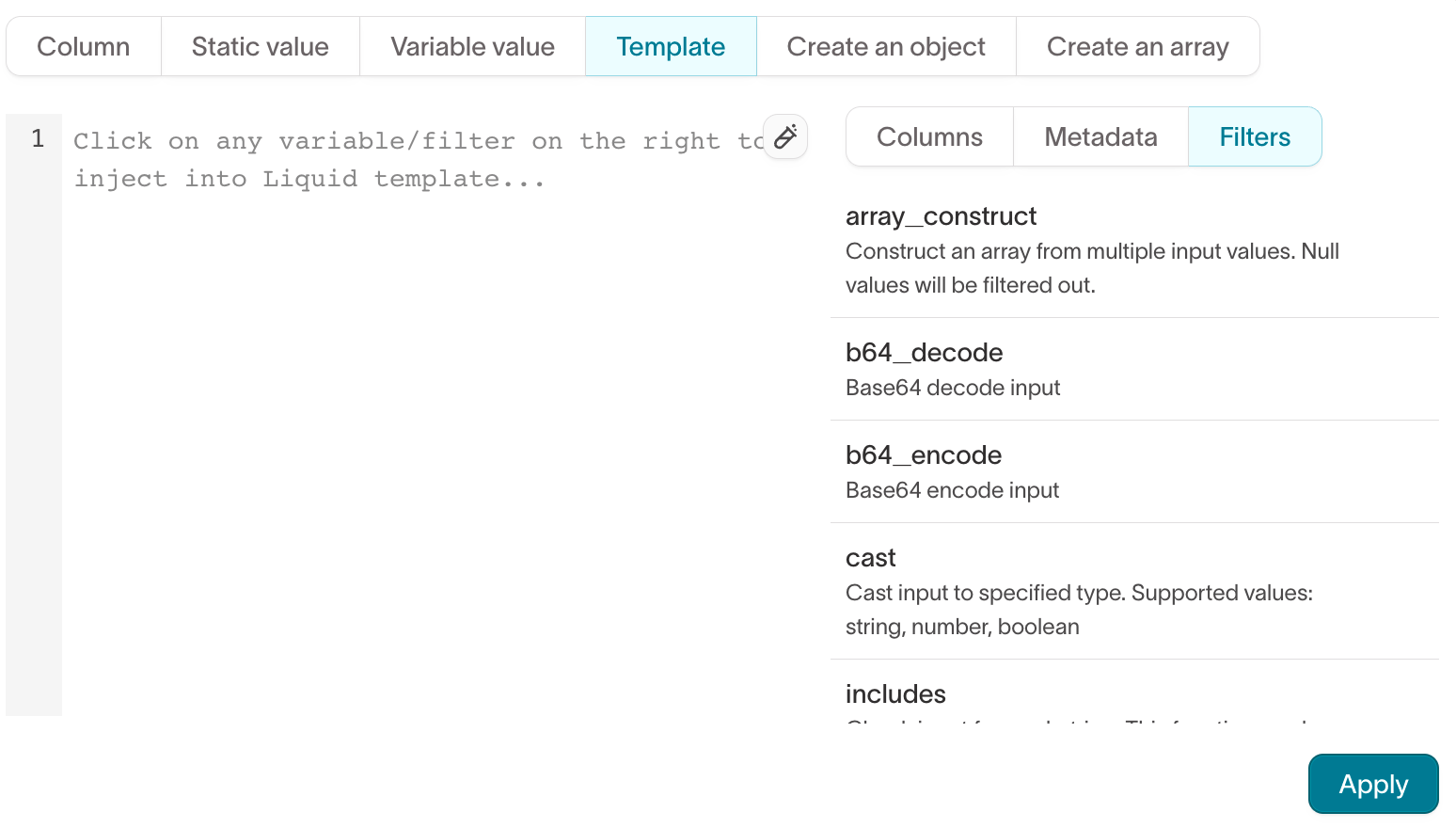
The Filters tab lists every available function, including built-in Liquid filters and Hightouch-specific functions. Select a filter to insert it into your template.
Test Liquid templates
Use the Liquid template tester to preview how your expression evaluates against real rows from your model before you save the mapping. The tester runs your template against up to five sample rows and shows the rendered output for each, so you can catch formatting issues, missing values, or logic errors without triggering a sync. To open the tester, click the Test template icon in the top-right corner of the template editor. The tester displays the output for each sample row and indicates whether the template parsed successfully. You can edit the template in the tester and apply it when you’re satisfied.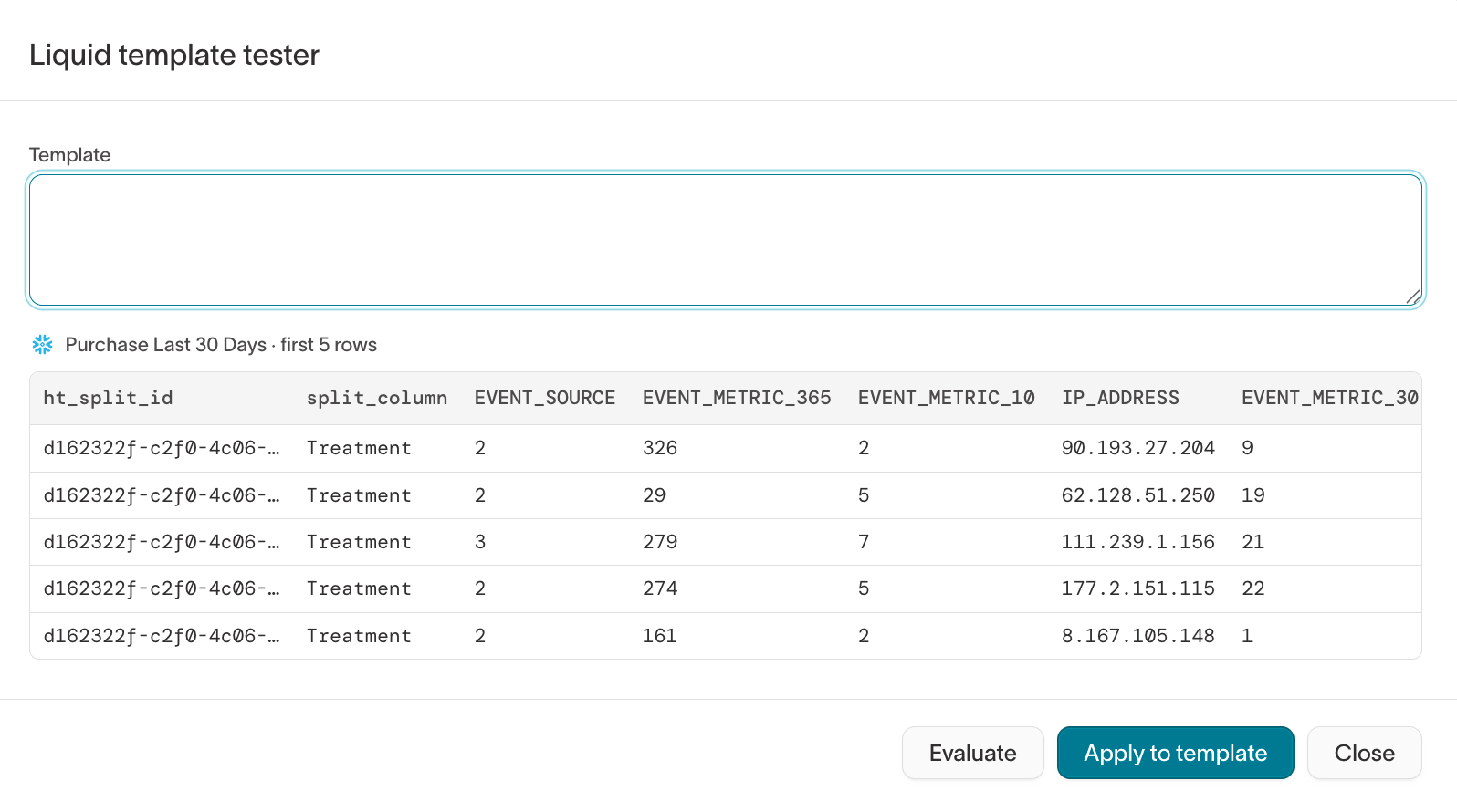
Inline mapping
The inline mapper is available for certain destinations and must be enabled by
Hightouch. to find out whether your destination supports it and to turn it on.
invoice object supports an items field that expects an array of items.
The inline mapper lets you model your data once and format it during sync configuration, rather than creating a separate model for each destination that requires nested objects or arrays.
Create an object
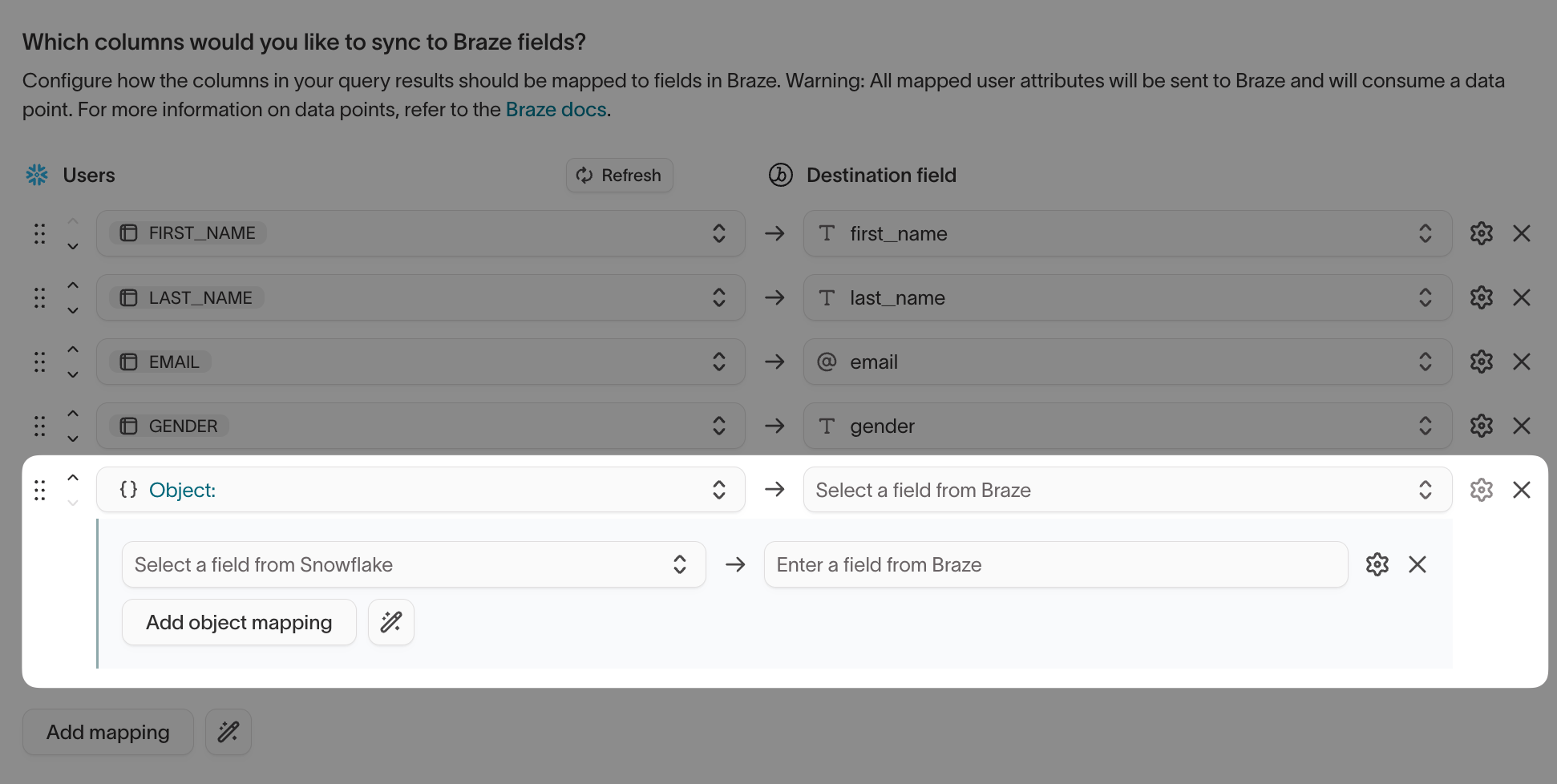
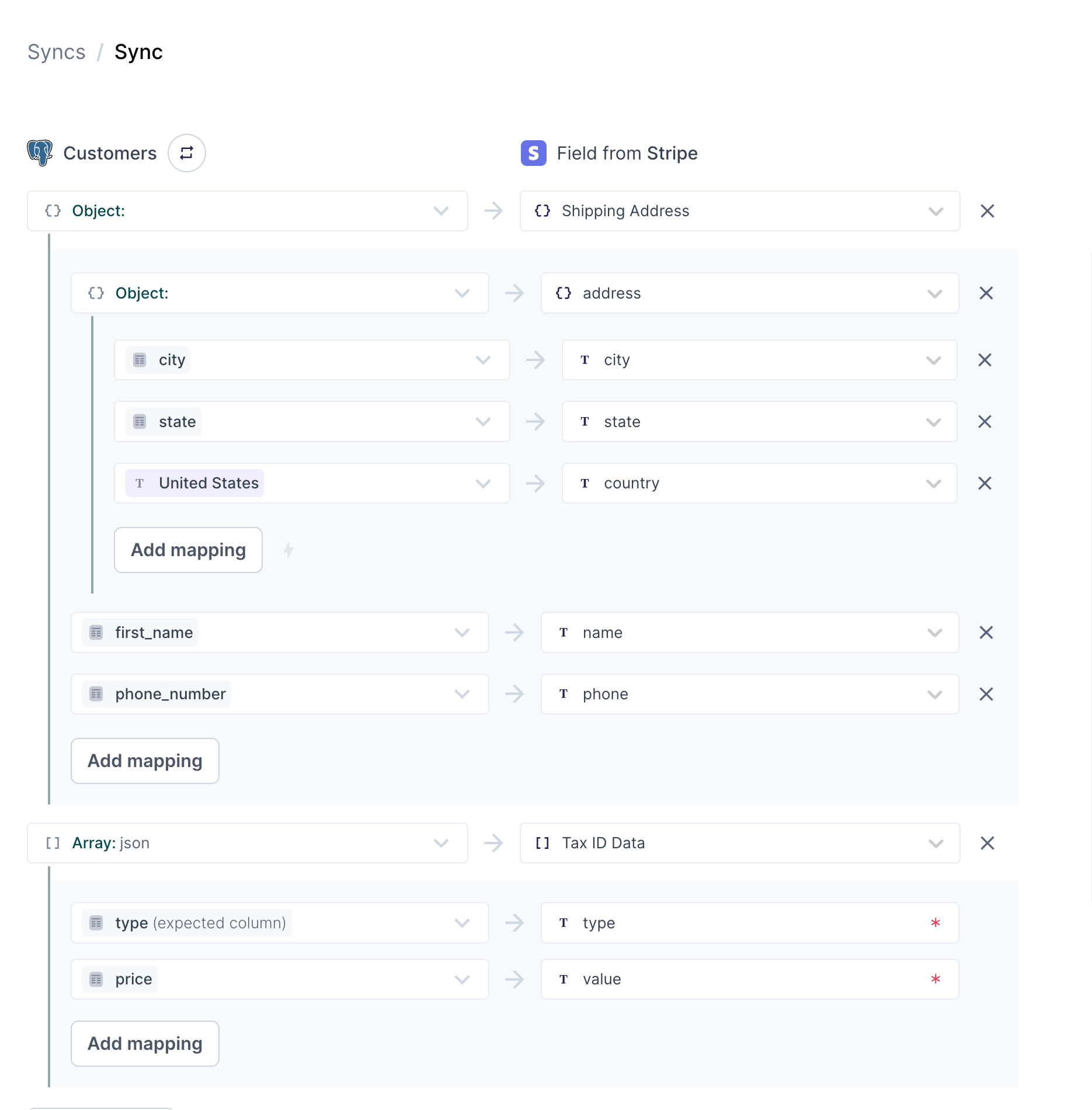
The object inline mapper builds an object from your model’s columns and maps it to a destination field. This section walks through constructing an object for the shipping field in Stripe’s customer object.- In the destination field input, select the field you want to map an object to, for example, Shipping Address.
- The model column input autopopulates to Object mode if the selected field is of type
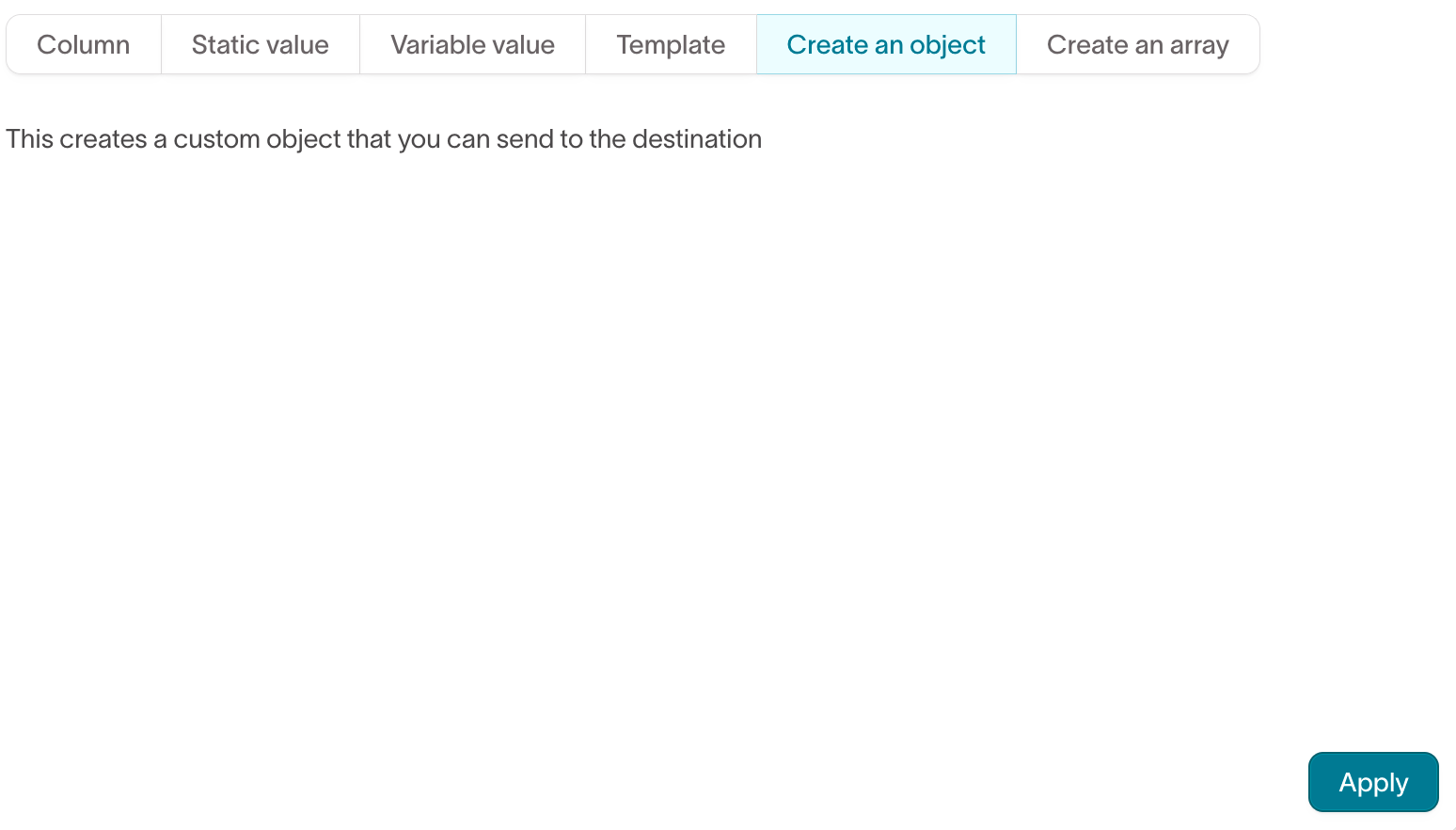
object. If the field’s type isn’t provided, open the advanced mapper and select Create an object.
- Map each nested destination field to a model column.
Create an array
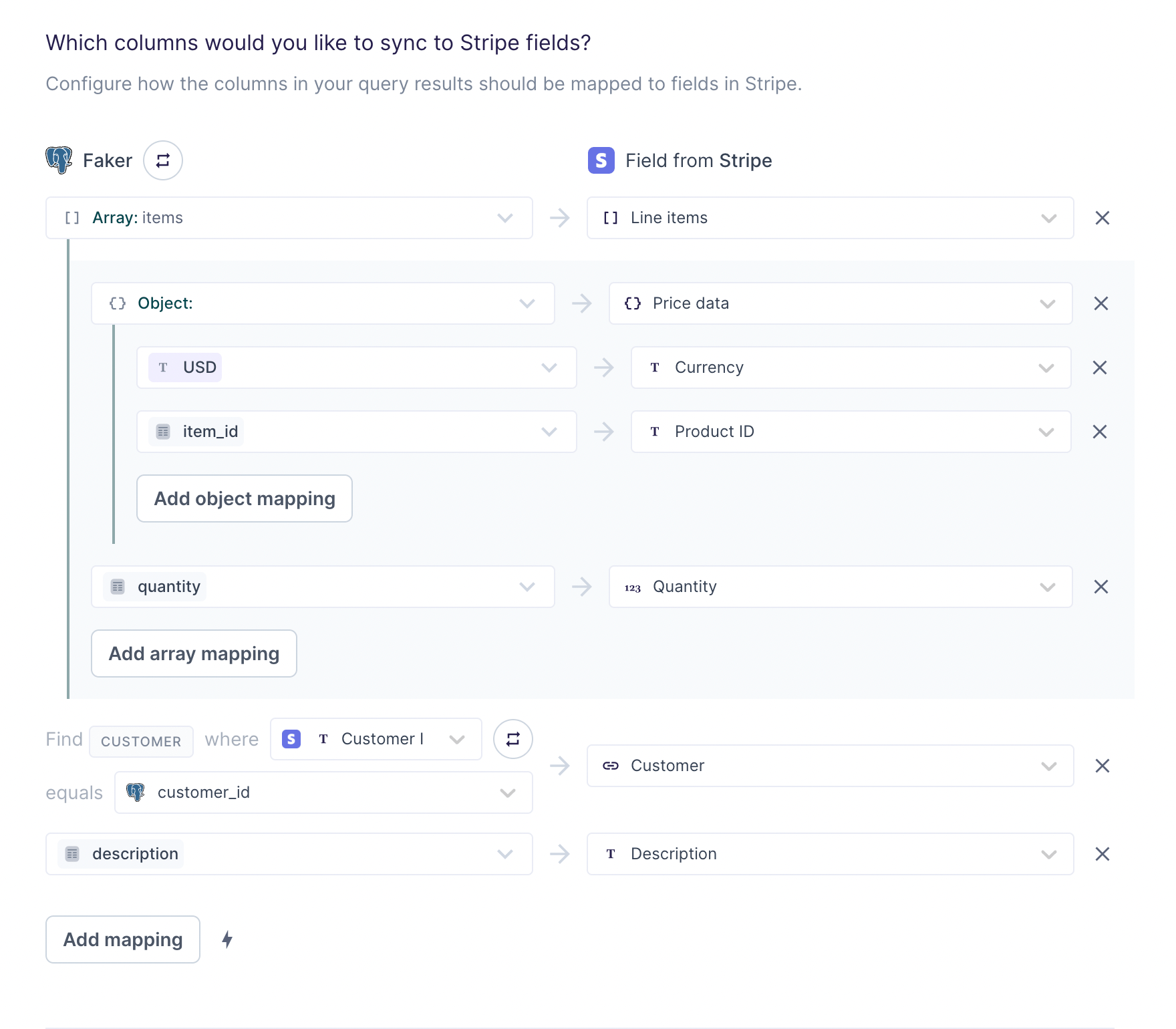
The array inline mapper allows you to construct an array of objects and map them to destination fields using a model column that contains an array of objects. This section walks through constructing a line items array for Stripe’s quote object. You would use the same steps for any other object arrays you want to create.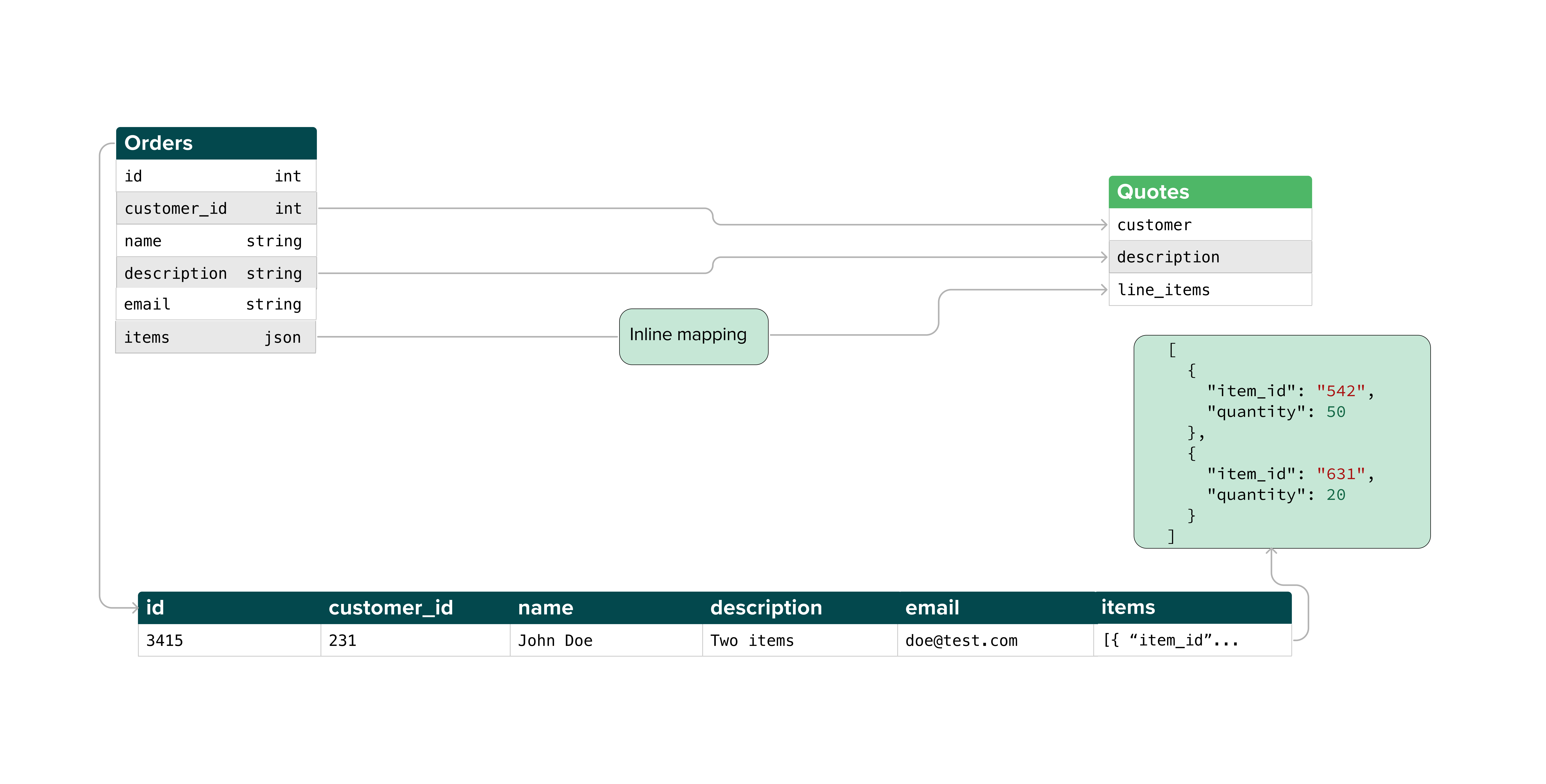
Required data format
To use the inline mapper to create an array of objects, the query results from your model need to have a certain format. Specifically, they should appear as an array of objects, like the example items field in the entity relationship diagram (ERD) above.line_items data table where each row represents an invoice item. The columns are:
invoice_idfor the ID of the invoice the item belongs tocustomer_idfor the ID of the customer who purchased the itemamountfor the cost of itemdescriptionfor a short description of the item
You want to sync an array of items for each invoice for each customer. For example, for
customer_abcd from the preceding table, they would have two separate invoice objects, each with their own items array, one for the invoice with ID in_1 and one for the in_3 invoice:
items array, you would need to include SQL like this in your model definition:
customer_id and invoice_id as well as all properties—in this case just description and amount—on each item and then aggregates them into an array of objects. The group by statement groups them based on the customer_id and invoice_id so that each aggregated array is for one invoice for one customer. Without the inline mapper, you would need to write more complex SQL manually constructing each item attribute as part of the item object.
Map fields
Once your model query results have an array of objects to pull data from, you can use the inline mapper to configure as many syncs as you need to sync these items.- In the sync’s mapping section, select the destination field you want to map an array to, for example, Line items.
- The model column input autopopulates to Array mode if the selected field is of type
array. If the field’s type isn’t provided, open the advanced mapper and select Create an array. - You will be prompted to pick a column that contains an array of objects. Select your desired column from the list of compatible columns. If no columns appear, ensure your model query results conform to the required data format.
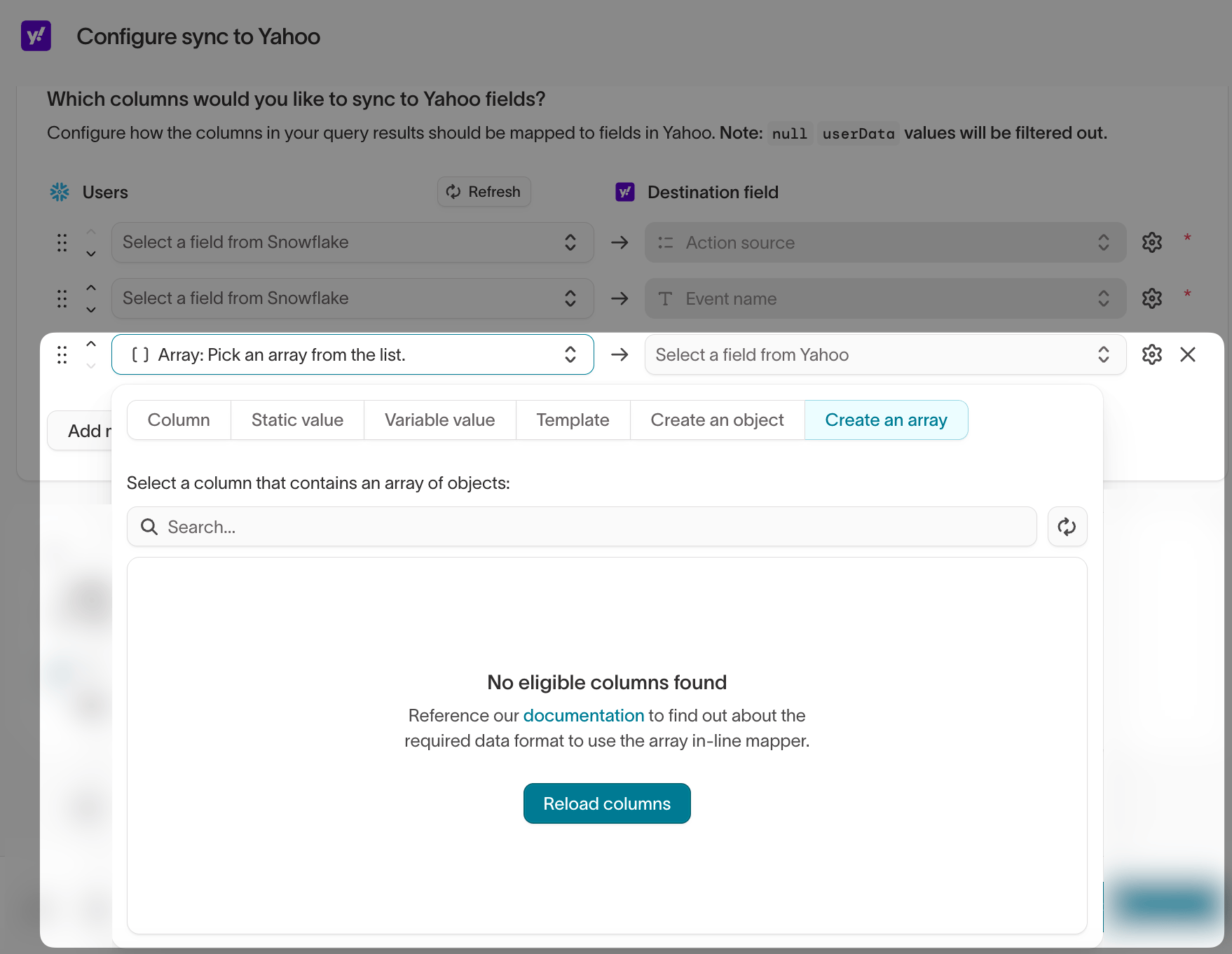
- Select the relevant destination fields you want to map values to and map the nested fields as needed.
Hightouch only processes properties if the mapped object property at the index
of the array exists. For example, if
your_column[0].price exists and
your_column[1].price doesn’t exist, items[0].price will be mapped and
items[1].price won’t be mapped. Hightouch syncs null values if you don’t
choose to ignore them.Nesting depth
You may need to sync arrays or objects with more deeply nested objects. For example, you may need to sync aShipping Address object with this format:
Liquid reference
This reference goes over the following:- Basic liquid formatting rules in the advanced mapper
- Available liquid variables and functions
- Extended use cases
Liquid template format
Variables follow this format:company in the preceding example, should be in single quotes inside the square brackets.
Hightouch also provides these alternative syntaxes:
|) comes after the variable and before the name of the function and any necessary parameters. See the Liquid Reference or Liquid Cheatsheet for a complete list of available functions.
Liquid variables in the advanced mapper
You can use metadata variables in your liquid templates, such as a model’s name, all model column names, and the timestamp of a sync’s last run.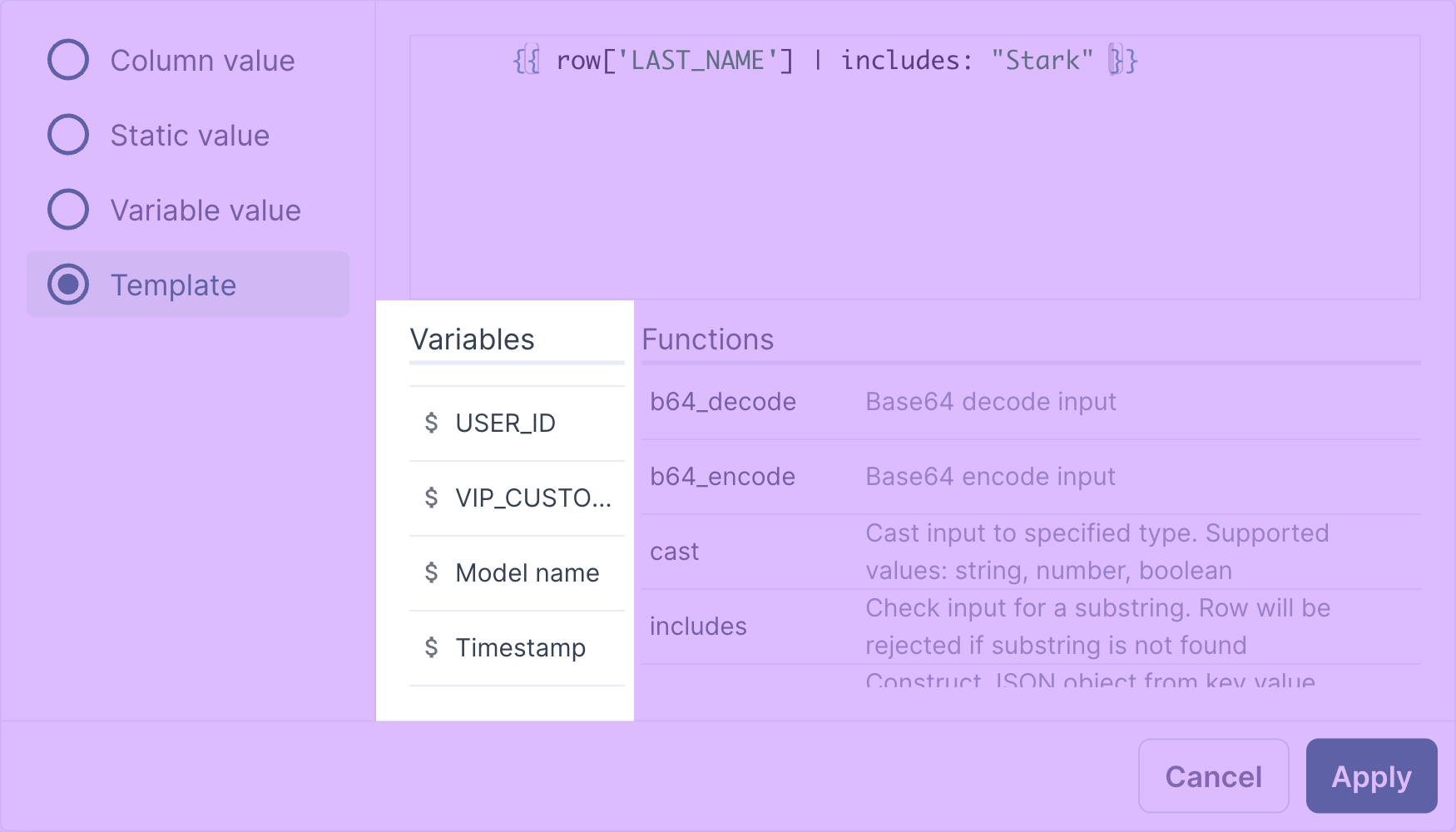
Liquid-inspired functions in the advanced mapper
Hightouch provides these non-native functions for you to use out of the box:Liquid function chaining
You can use more than one Liquid function in a template by chaining them. For example, you may want to put a string variable into camel case before hashing it. To chain functions, separate them with a single pipe (|):
Examples:
Extended Liquid use cases
See Shopify’s Liquid docs, Liquid Cheatsheet, or Liquid Reference for a complete list of available functions. In this section, you can learn how to use Liquid to:- set up conditional outputs
- output a
nullvalue for empty values - set a default value
- escape special characters in JSON mappings
- Numbers: use math functions (such as
absandround) or format currency amounts - Booleans: output a conditional boolean value
- Strings: use string functions (such as
capitalize,strip, andappend) or isolate parts of a string - Dates: use the date function
- Arrays: construct a static array, sync an empty array, or convert an array to a string
- Objects: convert an object to a string or isolate object properties
Conditional output
You can use Liquid conditionals to specify output based on input. For example, this Liquid snippet: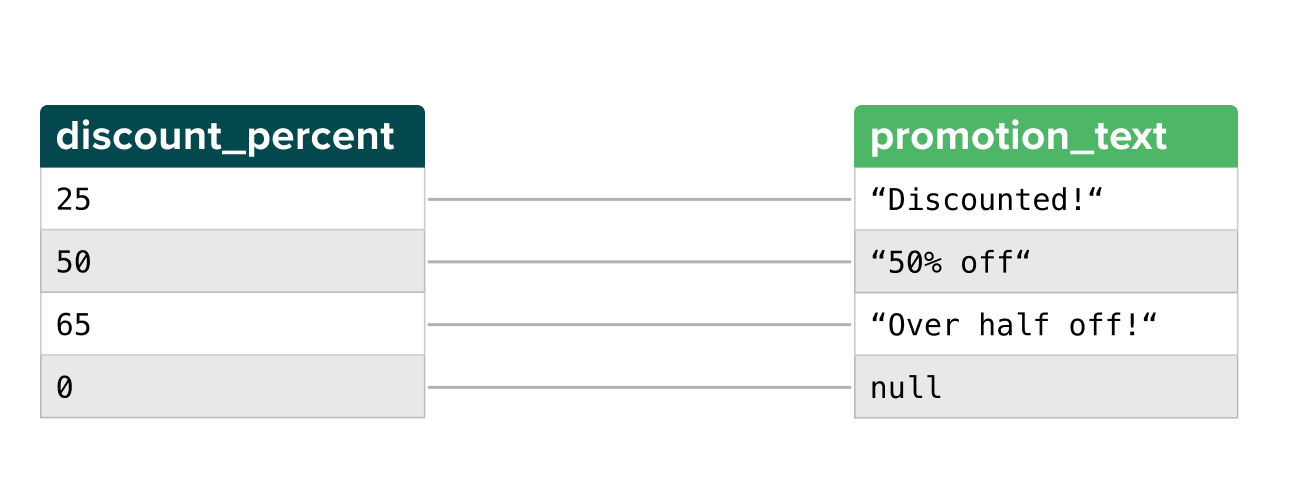
Conditional output for empty values
Conditionals are also helpful to guard against missing values. For example, you could use the following Liquid snippet to send anull value for empty values.
This is helpful if you need to map a column that exists for some rows but not others:
Conditional boolean output
You could also use theassign function to output a conditional boolean value:
Default value
You can also use Liquid to set a default value, in case an input value isnull, false, or empty. For example, this Liquid snippet sets the revenue field as 0 if the value is missing or null in a model’s row:
revenue to the column name you want to set default values for.
Math functions
See Liquid Math Functions for a complete list of math functions. In Hightouch, the absolute value and rounding functions are some of the most commonly used:- Use the
absfunction to send an absolute value:
- Use the
roundfunction to round a value to the nearest integer or a specified number of decimals:
Currency amounts
Hightouch doesn’t supportmoney functions.
If you would like to format currency amounts, such as prices, you can set this up manually by using the following template:
split: converts the value in therow['price']model column (eithernumberorstring) to an arrayreverse: reverses the order of items in the arrayslice: isolates the items in groups of threesreverse: reverses the order of items in the groupsjoin: transforms the single groups of items back into strings
If your model column contains currency amounts without decimal places, make
sure to remove the
decimals variable from the Liquid expression and update
the slice functions accordingly.String functions
See Liquid String Functions for a complete list of string functions. In Hightouch, thecapitalize, strip, and append functions are some of the most commonly used:
- Use the
capitalizefunction to capitalize the first letter of a string:
- Use the
stripfunction to remove all whitespace from the left and right sides of a string:
- Use the
appendfunction to add a file extension to a string:
Isolate parts of a string
You can use the Liquidsplit function to isolate a certain part of a string.
For example, suppose you have a model column that returns URLs, including query parameters.
An example value may look like this: www.example.com/?gclid-123.
You may want to send the base URL (www.example.com/) as one field and one of the query parameters as another field.
Query parameters often include click IDs, such as the gclid or fbclid that you should include on events you send to Google Ads or Meta Conversions (or Meta Offline Conversions) respectively.
For the example value www.example.com/?gclid-123, this Liquid snippet would return the base URL, www.example.com/:
gclid value, 123:
Date function
If your destination expects dates in a different format than your model returns them, you can use the Liquiddate function to reformat them.
For example, this Liquid snippet ensures that dates from the column are always in the DD/MM/YYYY format:
MM/DD/YYYY format:
%H:%M:%S and %z:
minus with plus.
For more examples of how to transform dates and times, refer to this documentation.
Construct a static array
You can sync a static array value to your destination by using this Liquid snippet:'"value1","value2"' with the values you wish to insert in your static array.
Sync an empty array
You can sync an empty array to your destination by using this Liquid snippet:Convert an array to a string
You can convert an array to a string by using thejoin function:
JSON function
You can convert an object to a JSON-formatted string by using this Liquid snippet:This is the "value" in the column in the special_characters column, it will fail:
json function and use the example format below:
Isolate object properties
If your model columns containobject type values, you may want to sync only one or some of the object’s properties to your destination.
You can do this in the template mapper using the dot notation.
Specifically, you can write a Liquid expression containing the model column’s name and the property’s name: {{ row['model_column'].property }}
For example, suppose you had a model column named invoice that contains objects with this structure:
total column to a price field in your destination.
You could do this by including the following Liquid in the template mapper:
customer.name:
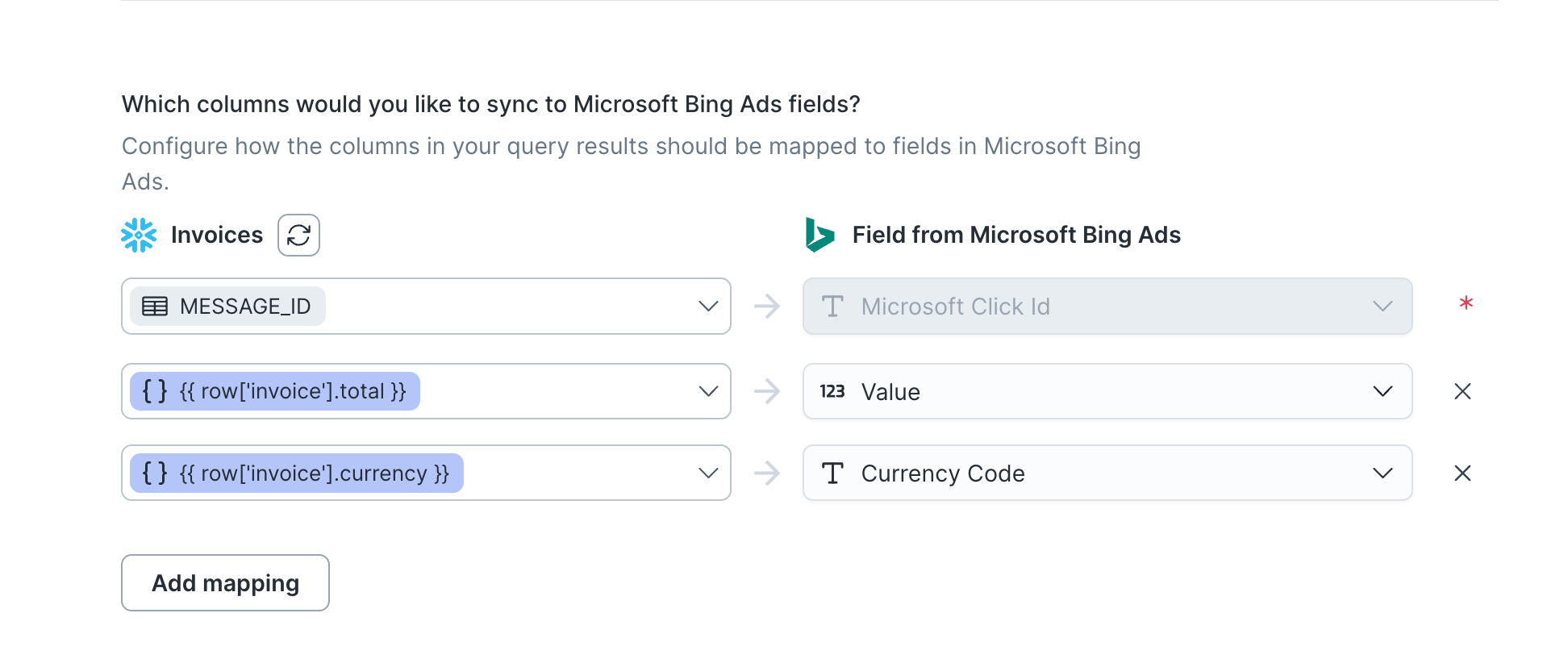
Object / Array in the model’s Columns tab.
Otherwise, Hightouch syncs an undefined value to your destination.
Spread JSON columns into fields
If you manage many destination fields in warehouse SQL, you can sync a JSON (object) column and have Hightouch send each of its keys as a separate destination field. This saves you from mapping hundreds of fields by hand. The keys and values come directly from the column. For example, alead_json column containing this object:
first_name, tier, and region) to the destination, alongside any fields you map normally.
To spread a column:
- In the sync’s mapping section, find Spread JSON columns into fields. This option appears on destinations that support it.
- Select Add JSON column and choose the source column that holds the JSON object.
- Save your configuration.
Hightouch sends each key exactly as it appears in the JSON object, so every
key must match a field name the destination accepts (after any key or value
transforms). For consistent results, make
sure every row’s JSON object uses the same set of keys.
Set precedence for multiple columns
You can spread more than one JSON column into the same destination. Hightouch applies them from top to bottom. If two columns contain the same key, the lower column wins. Drag the handle to the left of a column to change its order.Transform spread keys and values
Because Hightouch sends keys and values verbatim, each key must match the destination’s field name and each value must be in the shape the destination expects. When they don’t match, apply a transform to every key or every value in the column instead of reshaping data in your model. For example, your warehouse might usesnake_case keys while the destination’s API field names have no underscores, or it might wrap each value in an object like { "dtype": "Integer", "value": 202624 } when the destination wants the scalar 202624.
To apply a transform:
- Select the settings icon to the right of the JSON column.
- Under Key transform or Value transform, choose a transform:
- Remove special characters — removes everything except letters and numbers. For example,
SF_ME_PRC_BASE_PRICEbecomesSFMEPRCBASEPRICE. - Custom Liquid template — rewrites the key or value with a Liquid template. Reference both sides as
{{ key }}and{{ value }}. For example,{{ key | remove: "_" | downcase }}turnsSF_ME_PRC_BASE_PRICEintosfmeprcbaseprice. Liquid output is always a string. - Extract from object — pulls a field out of an object-shaped value and preserves its type. Enter a dot-separated path. For example, the path
valueextracts the number202624from{ "dtype": "Integer", "value": 202624 }. If a row’s value isn’t an object or is missing the path, Hightouch rejects that row. This transform is available on the value side only.
- Remove special characters — removes everything except letters and numbers. For example,
- Save your configuration.
Verify the mapping
Before you rely on the sync, confirm that each field lands with the value and shape you expect.- From the sync configuration page, click Test.
- Choose a representative row, including one that exercises any template or inline mapping.
- Run the test and review the request Hightouch would send.
- Confirm each destination field holds the expected value, and that objects and arrays match the structure the destination requires.
Field mapping updates
If you edit the field mappings in your sync configuration, the sync engine automatically reprocesses the entire model query result set during the next sync run. Depending on the selected sync mode, Hightouch syncs the model rows detected as added or as changed by change data capture to your destination. If the sync uses either update or upsert mode, Hightouch resyncs previously synced rows (with the updated mappings) as “changed” rows. If the sync uses insert mode, Hightouch doesn’t reprocess previously synced rows. Instead, it only syncs model rows that are detected as added after the field mapping change was saved in your sync configuration.Model column changes
Most changes to your model columns aren’t automatically detected by sync configurations. Hightouch handles the changes differently depending on whether columns are added, renamed, or removed from your model definition, or if you change a column’s data type. If you add a new column to your model, Hightouch doesn’t automatically add it as a field mapping to your sync configurations. This is because Hightouch doesn’t know which columns you would like to sync to the destination, and which destination fields they should be mapped to. Follow the field mapping instructions to include new columns in your sync configuration.You need to preview and save
your model to have new columns appear in the Hightouch UI.
Unknown field name error.
The error message also contains the original name of the renamed column. To resolve this, remove or update the relevant field mappings in your sync configuration.
Changes to model column names aren’t detected for All /
Mirror type syncs.
Destination field changes
If you rename a field in your destination, you need to update the mapping to this field in your sync configuration. Select the new field name from the dropdown menu and save your changes.Next steps
- Set when the sync runs in schedule a sync.
- Resolve a type mismatch between a column and a field with data types and casting.
- Check a run and troubleshoot rejected rows in debug a sync run.