

Advanced alerting must be enabled by Hightouch. to turn it on.
Before you begin
- At least one sync.
How alerting works
Each sync is evaluated against a set of triggers that watch for problems like failed runs, rejected rows, slow performance, or unexpected data drops. Two terms do the work:- Alert — the signal that a sync has entered a
WARNINGorCRITICALstate, based on a trigger crossing its threshold. - Notification — the message a recipient receives. Alerts always show in the Hightouch app; a notification only goes out if a recipient is subscribed at that severity.
No alerts when everything is healthy, or the number of active alerts when one or more triggers are in a WARNING or CRITICAL state. This reflects whether the sync is healthy, degraded, or needs attention, regardless of when it last ran.
When notifications are sent
Hightouch sends one notification per trigger status change, not per run, so a persistent problem doesn’t notify you on every run. For example:- A sync rejects rows and crosses the warning threshold. You receive one
WARNINGnotification. - It keeps rejecting rows on later runs. No new notification.
- Rejections climb past the critical threshold. You receive one
CRITICALnotification. - The sync recovers. You receive one recovery notification.
Configure alerts
Set alert triggers at two levels. Destination-level settings apply to every sync using that destination; sync-level settings override them for a single sync. To set destination-wide defaults, go to Integrations > Alerting, open the Syncs tab, and select a destination. Set its triggers and recipients, and every sync using that destination inherits them.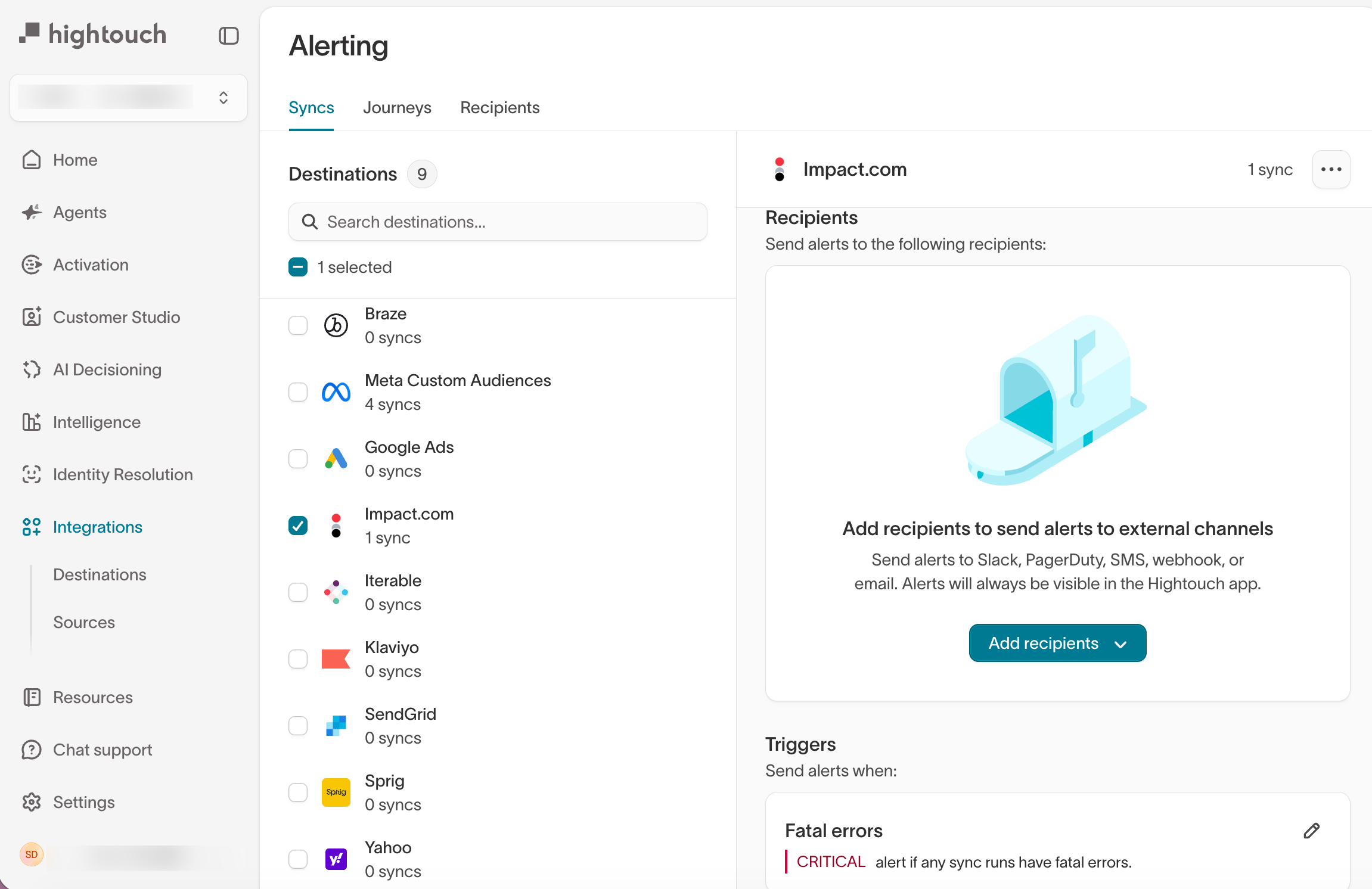
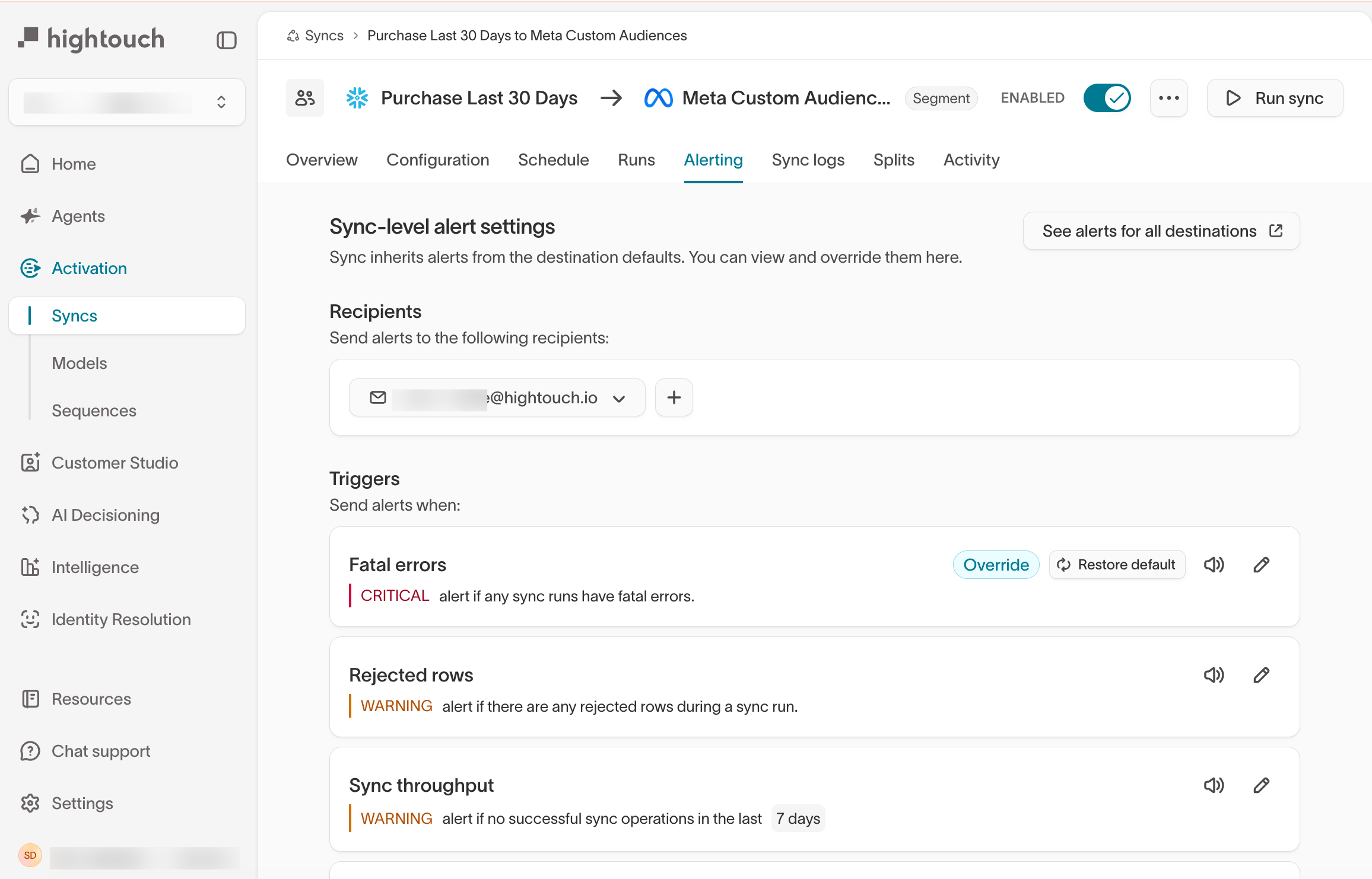
Changes take effect the next time thresholds are evaluated: after the next
sync run, or about every five minutes for time-based triggers.
Trigger types
Fatal errors, Rejected rows, and Sync throughput come preconfigured with defaults. Model or audience size and Sync duration start off until you configure them.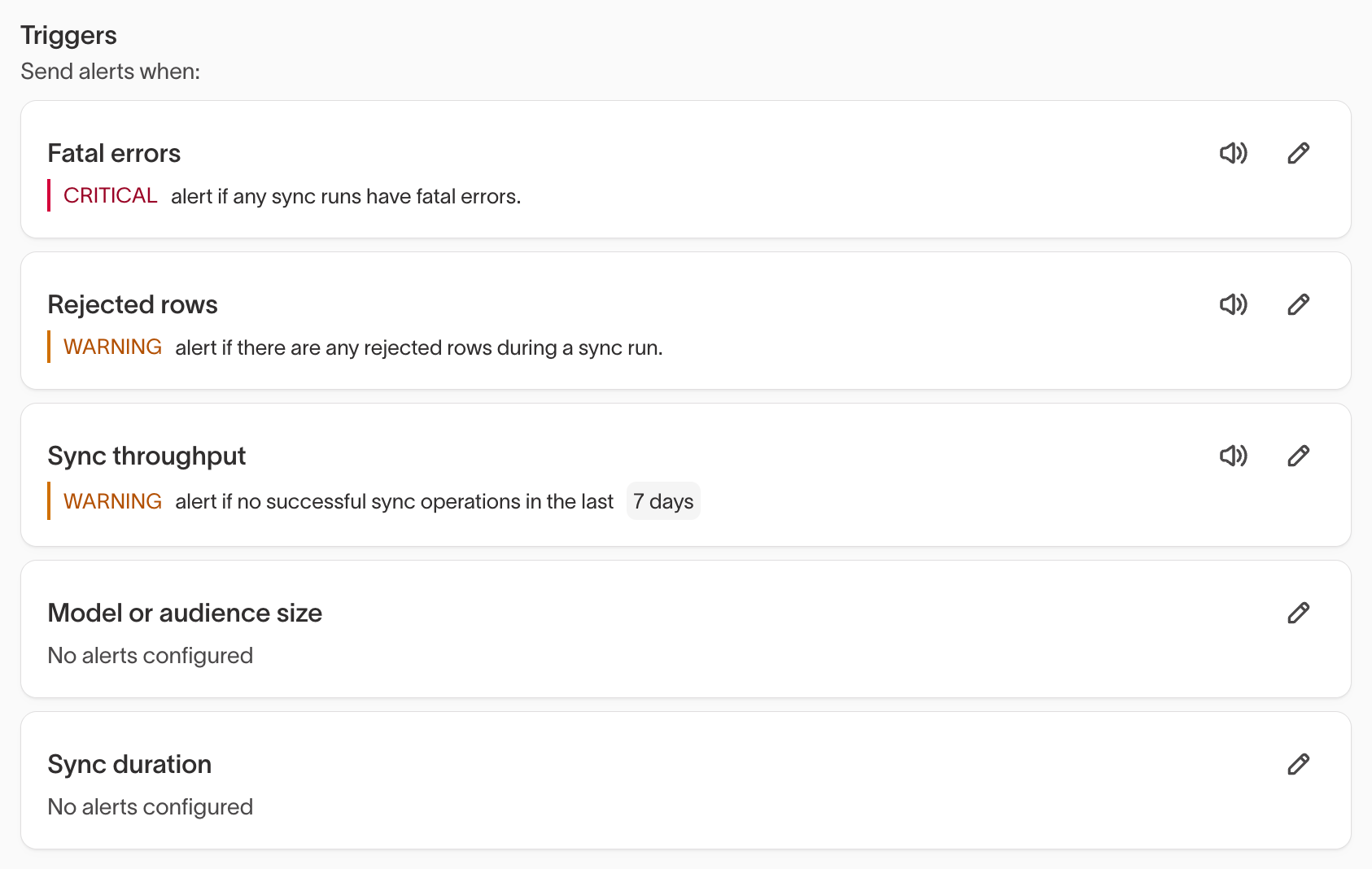
Unexpected sync volume applies only to journey sync tiles in Trigger mode, and is evaluated after a run plans but before it sends anything, rather than after the run ends, so its
STOP severity stops the run instead of reporting on one that already happened. See Unexpected sync volume.
Fatal-error and rejected-row triggers are evaluated right after each run ends. Time-based triggers — throughput and duration — are evaluated about every five minutes, so they can fire before a long-running run finishes even if it’s working normally. To adjust a trigger, click the pencil icon on it.
Unexpected sync volume
Applies to journey sync tiles in Trigger mode. It compares the members a run is about to sync against the members who entered the tile since the last run, and acts before any rows reach the destination: atSTOP it prevents the run from sending, at WARNING it notifies you and lets the run continue.
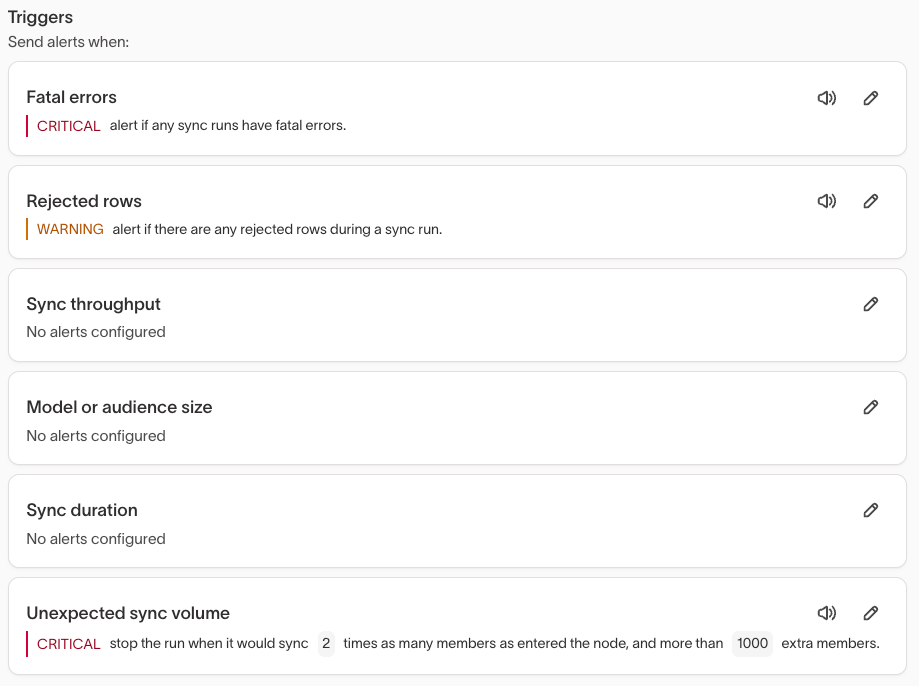
Stopped before syncing: About to sync 50000 members but only 1200 entered this node since the last run (41.7x). Planned adds 50000, retried 0, unaccounted 48800.A gap that size usually means the run is about to sync members who have already been through the node. A stopped run doesn’t resume. To allow the next run to proceed, mute the trigger on the sync’s Alerting tab, which lets subsequent runs complete and silences the notification. If the alert fires on runs that are normal for this journey, raise either threshold, or set the trigger to
WARNING.
Set up recipients and channels
Recipients are the people and channels that receive notifications. Manage them on the Recipients tab of Integrations > Alerting, where each channel type is set up once:- Email — add an address directly.
- Slack — authorize the Slack connection, then choose a channel.
- PagerDuty — complete the PagerDuty setup, then route alerts to a service.
- SMS — add a phone number. Hightouch covers the cost of SMS alerts.
- Webhook — send a JSON payload to a URL you specify. See Send alerts to a webhook.
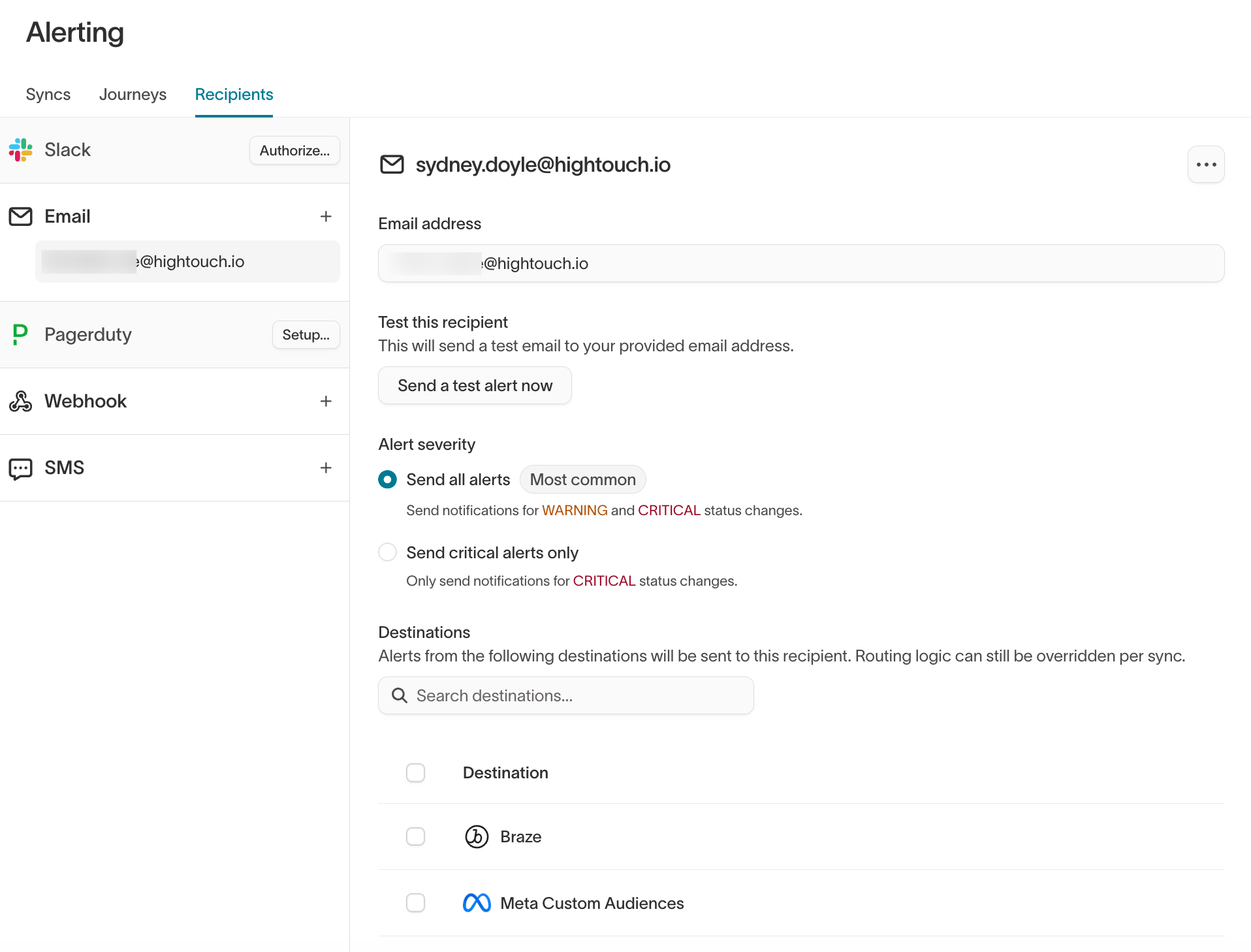
- Send all alerts — notify on both
WARNINGandCRITICALstatus changes. - Send critical alerts only — notify on
CRITICALstatus changes only.
Test a recipient
Before you rely on a recipient, confirm it works. On the recipient’s settings, click Send a test alert now to send a test notification through that channel.Send alerts to a webhook
A webhook channel delivers a JSON payload to a URL you specify whenever an alert fires or recovers. Webhook channels support custom HTTP headers, sent with every request, for authentication tokens or routing keys your endpoint requires — for exampleAuthorization: Bearer <token> or X-Routing-Key: ops-team.
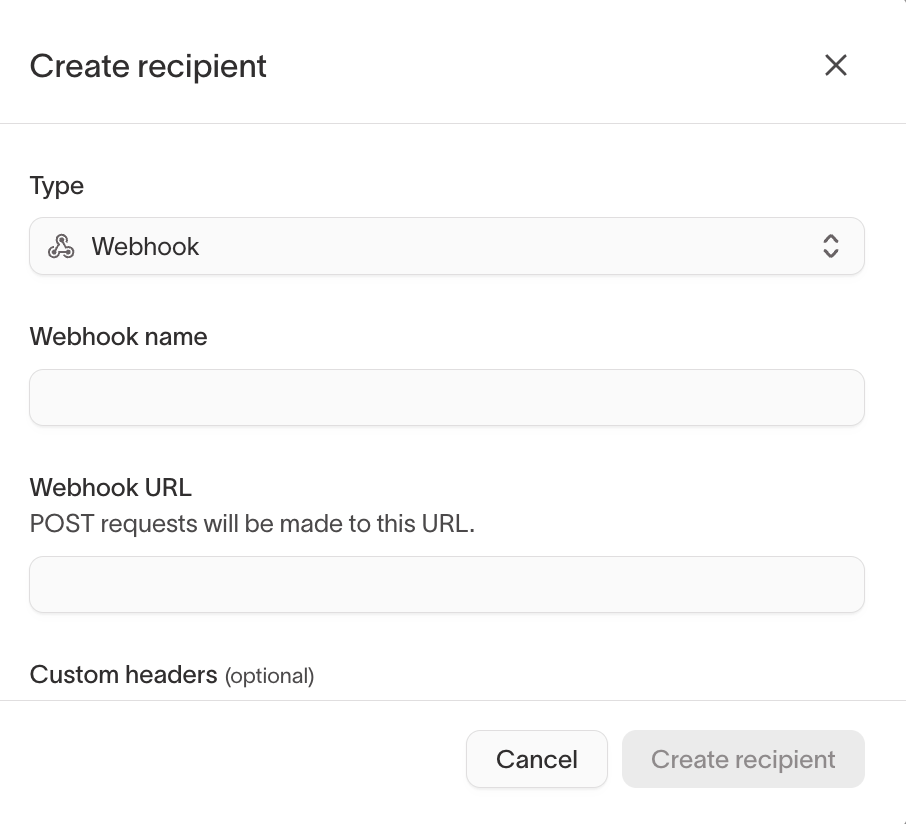
Webhook payload
When a sync alert fires or recovers, Hightouch sends an HTTPPOST request with a JSON body to your webhook URL. The request carries Content-Type: application/json, along with any custom headers you configured. The body identifies the sync, the status change, and the trigger that caused it:
The payload body is fixed. You can configure the webhook URL and custom
headers, but not the fields Hightouch sends or their shape.