

Hightouch retains row-level debugger logs for seven days, and you can’t export
rows from runs older than that. Run summaries stay available for 30 days. For
longer history, use Warehouse Sync Logs.
Before you begin
- A sync that has run at least once. Viewing row-level tabs requires debug access to the sync.
Find the run
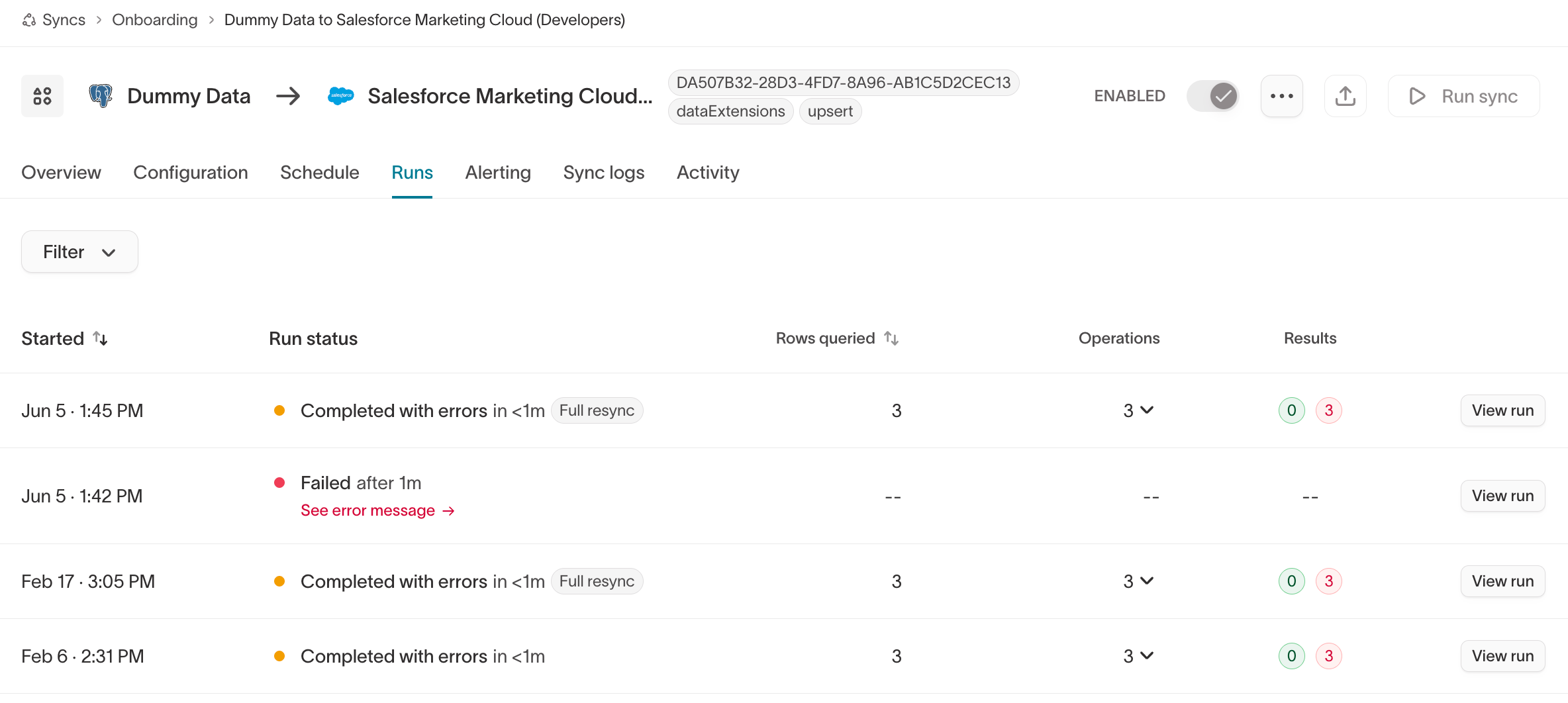
Open the Runs tab on the sync’s page. Each row is one run, with its Started time, Run status, Rows queried, Operations, and Results (successful operations in green, rejected in red).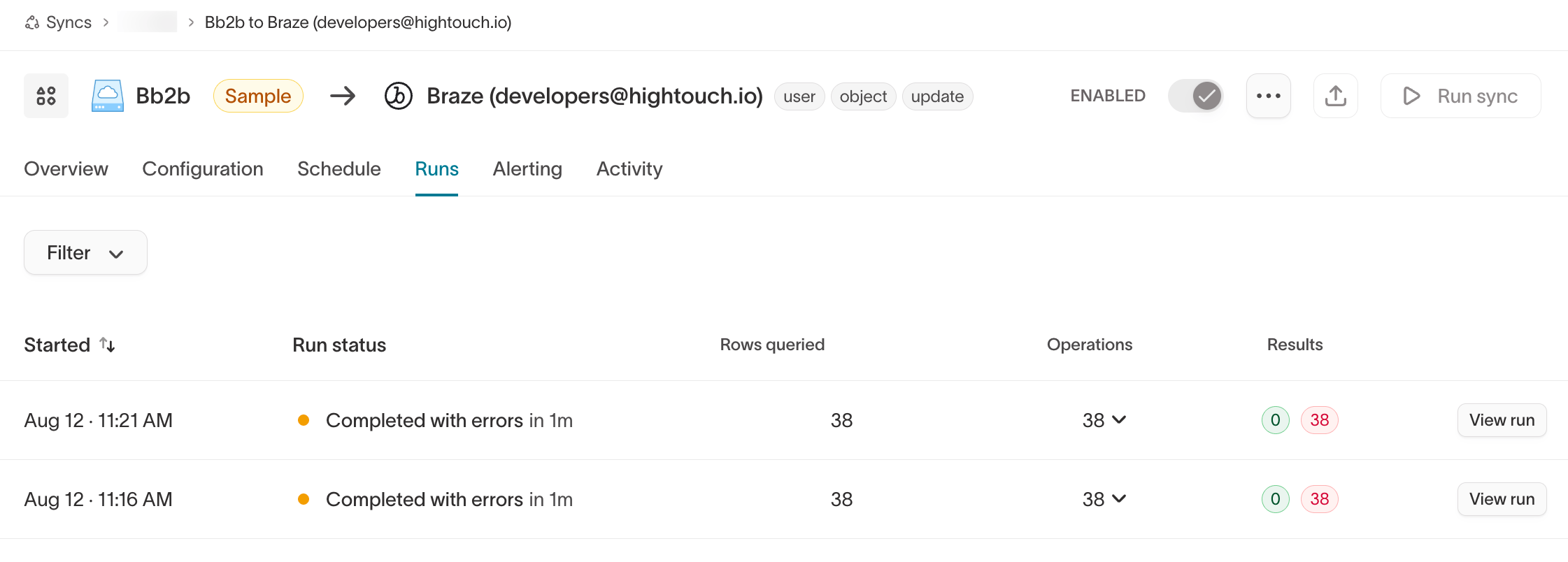
- Completed — the run finished and every row landed.
- Completed with errors — the run finished, but the destination rejected some rows. Open it and go to the Rejected tab.
- Failed — an error stopped the whole run before it could send rows. Click See error message on the row to read it.
- Canceled by user — someone stopped the run.
- Querying, Processing, or Queued — the run is still in progress.
View run details
Click View run to open the run. The Summary tab breaks the run into phases so you can see how far it got and where rows dropped:- Preparing to sync — waiting in queue and initializing.
- Querying source — executing the model query and detecting changes, shown as added (
+), changed (△), and removed (−) rows. - Syncing to destination — Sending data, with a count of rows synced successfully and rows rejected.
- Wrapping up — saving logs.
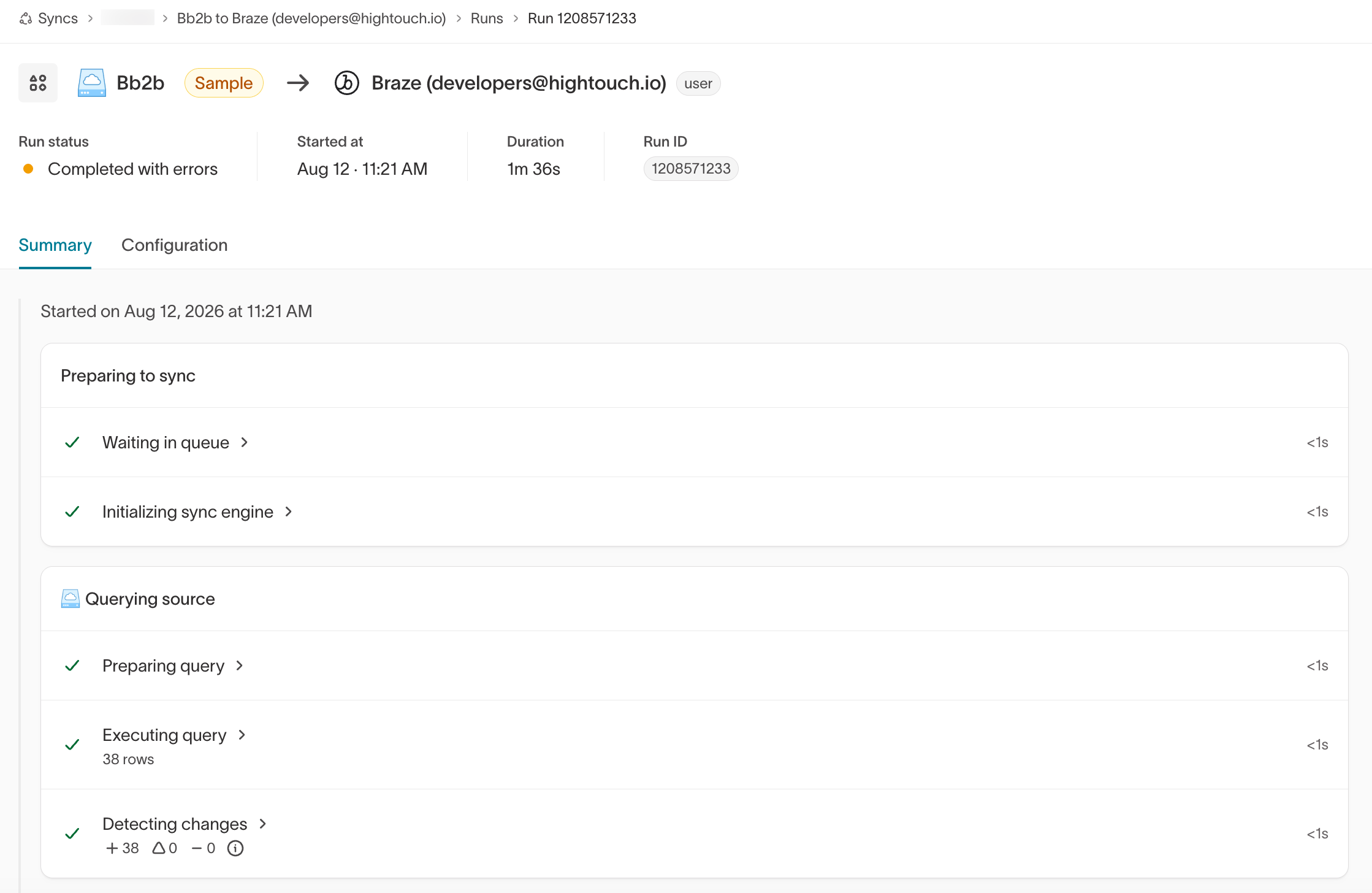
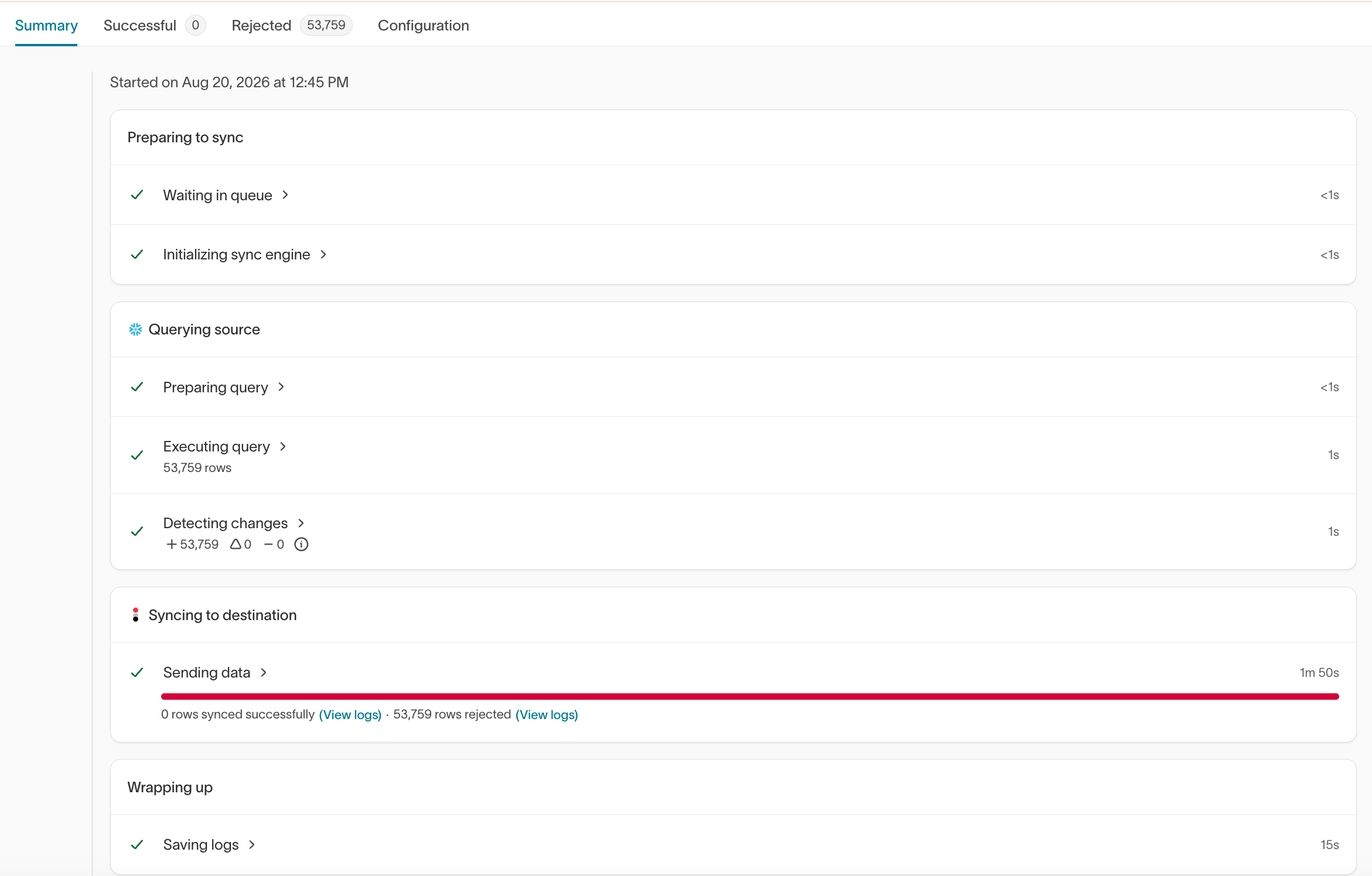
- Added rows are new in the model’s query results since the previous run.
- Changed rows were in the previous results but now have updated values.
- Removed rows are no longer in the query results.
Inspect rejected rows
The Successful and Rejected tabs list the individual rows in the run. To find a specific one, search by the value of the model’s primary key — the search matches on the primary key column only. Each rejected row shows the error the destination returned for it. Hightouch passes these through as the third-party API sent them, including HTTP status codes and any trace IDs.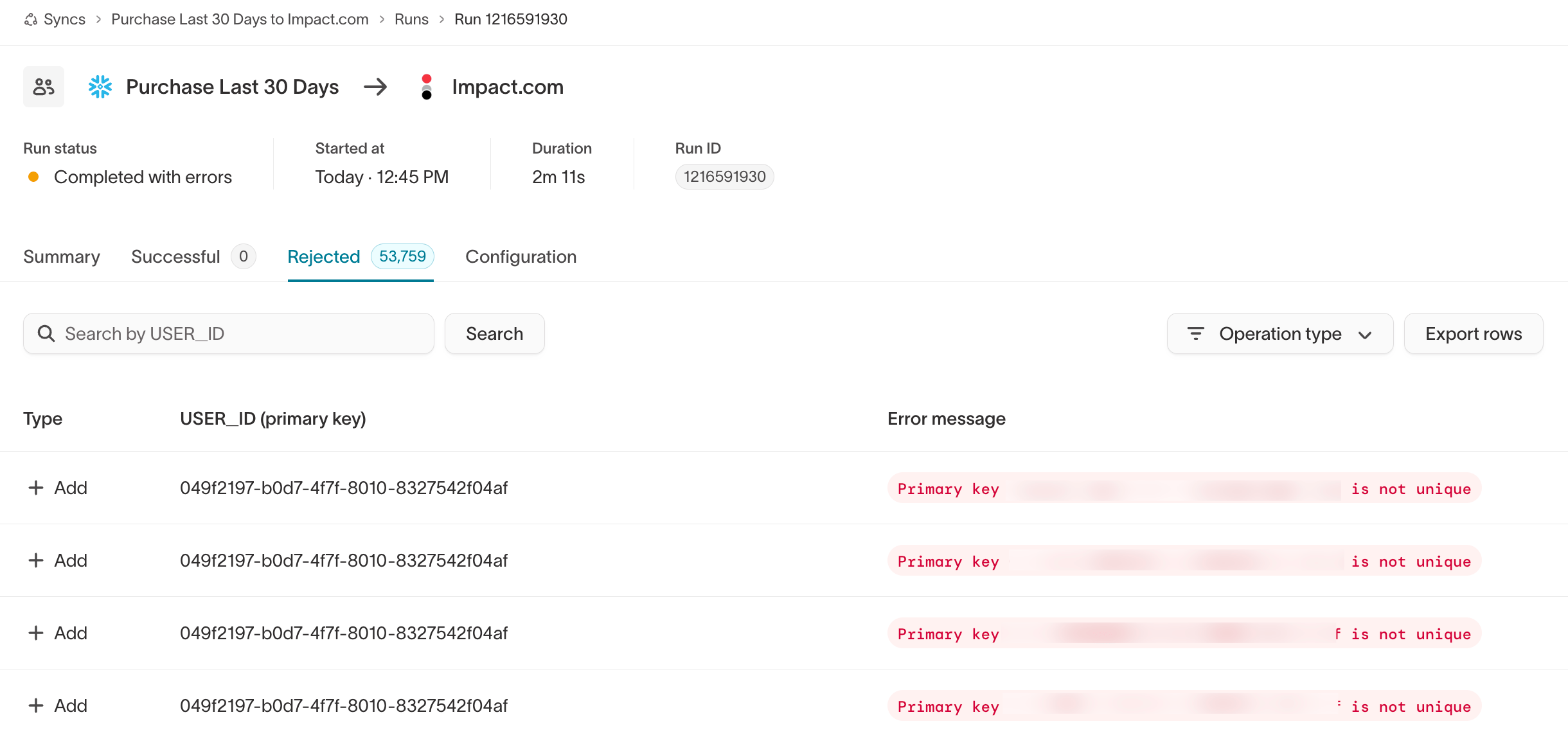
Use the live debugger
To see the exact request and response behind a row, click the row to open the live debugger. It shows the request and response payloads the row was part of, along with the other rows in the same batch. For example, aPOST request that fails with a 400 error shows the destination’s error in the response — such as an undefined object in the request body. Hightouch also shows the request URL: an undefined value in the URL means a required ID never populated, which points you back to the model’s query results.
Payload inspection
Click the expand icon in the payload viewer to open a payload full-screen, then click in the body and press⌘F / Ctrl+F to search it for a row ID, email address, or any other value. Click the copy icon to copy the payload to your clipboard. For large nested payloads, paste the JSON into a tree viewer to browse it as collapsible properties.
Fix and verify
Match the fix to what the payload and error told you:
After you change the model or sync configuration, run the sync again and confirm the new run completes with zero rejected rows.
HTTP status codes
Any HTTP status code in an error comes from your destination, not from Hightouch. The codes fall into five groups:- 1xx — informational; the request was received.
- 2xx — success; the request was accepted.
- 3xx — redirection; further action is needed.
- 4xx — client error; the request was invalid or can’t be fulfilled.
- 5xx — server error; the destination failed to fulfill the request.
- 200 — the destination accepted the request.
- 400 — usually invalid data. Check your values against the destination’s API expectations.
- 401 — a credentials problem. Confirm your destination credentials have the required permissions.
- 500-series (500, 502, 504) — a problem inside the destination. Check its status page for outages; Hightouch retries the sync.