

Overview
Deliver even more relevant ads by combining data from various sources within your data warehouse to build custom audiences for Meta Ads. By keeping your custom audiences updated automatically, never show an ad to someone after they purchase the item you were promoting.Supported syncing
For more information about sync modes, refer to the sync modes docs.
Connect to Meta Custom Audiences
Go to the Destinations overview page and click the Add destination button. Select Meta Custom Audiences and click Continue. You can then authenticate Hightouch to Meta Custom Audiences either with a system user token or with OAuth. Since the OAuth flow requires you to manually refresh this connection every 60 days, we strongly recommend using a system user token for indefinite access.Authenticate with a system user token
When authenticating with a system user token you can choose to either use an existing one or create a new one for the Hightouch integration. To use an existing system user token, you must meet the following prerequisites:- The system user whose token you’d like to use has the
Employeerole. (Adminalso works, but Meta limits each business to a single Admin system user and recommends using a regular system user to access assets, soEmployeeis the practical choice.) - You’ve created an app to add as an assigned asset to the system user. For detailed instructions, see steps 1 - 5 from creating a new system user token.
- You’ve assigned the ad account that you want to create audiences for to the system user. For detailed instructions, see step 8 from creating a new system user token.
Create a new system user token
To create a new token, you first need to add a new app.You create the app in the Meta developer portal, then create the system user and generate its token in Settings at business.facebook.com.
Meta is replacing its older app-creation workflow with a use-case-based flow. The legacy workflow is still available as the Other option (under Looking for something else?, marked “going away soon”), which creates the app in Meta’s old experience where you choose permissions manually.
Existing apps created with Other keep working — you don’t need to recreate them.
New apps should follow the use-case flow below: selecting any of the three Marketing API use cases (Create & manage ads with Marketing API, Measure ad performance data with Marketing API, or Capture & manage ad leads with Marketing API) attaches the
Existing apps created with Other keep working — you don’t need to recreate them.
New apps should follow the use-case flow below: selecting any of the three Marketing API use cases (Create & manage ads with Marketing API, Measure ad performance data with Marketing API, or Capture & manage ad leads with Marketing API) attaches the
ads_management permission this integration needs.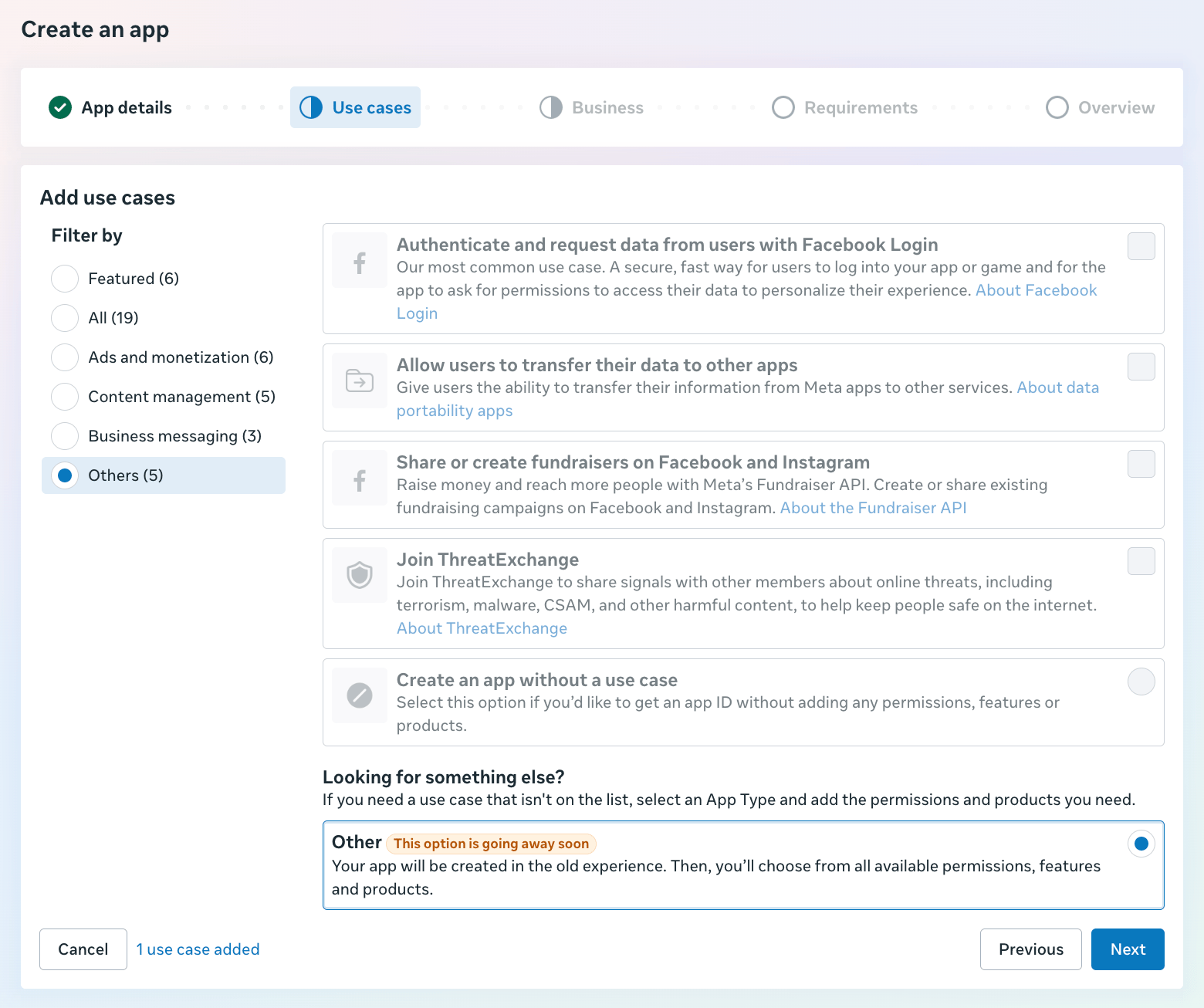
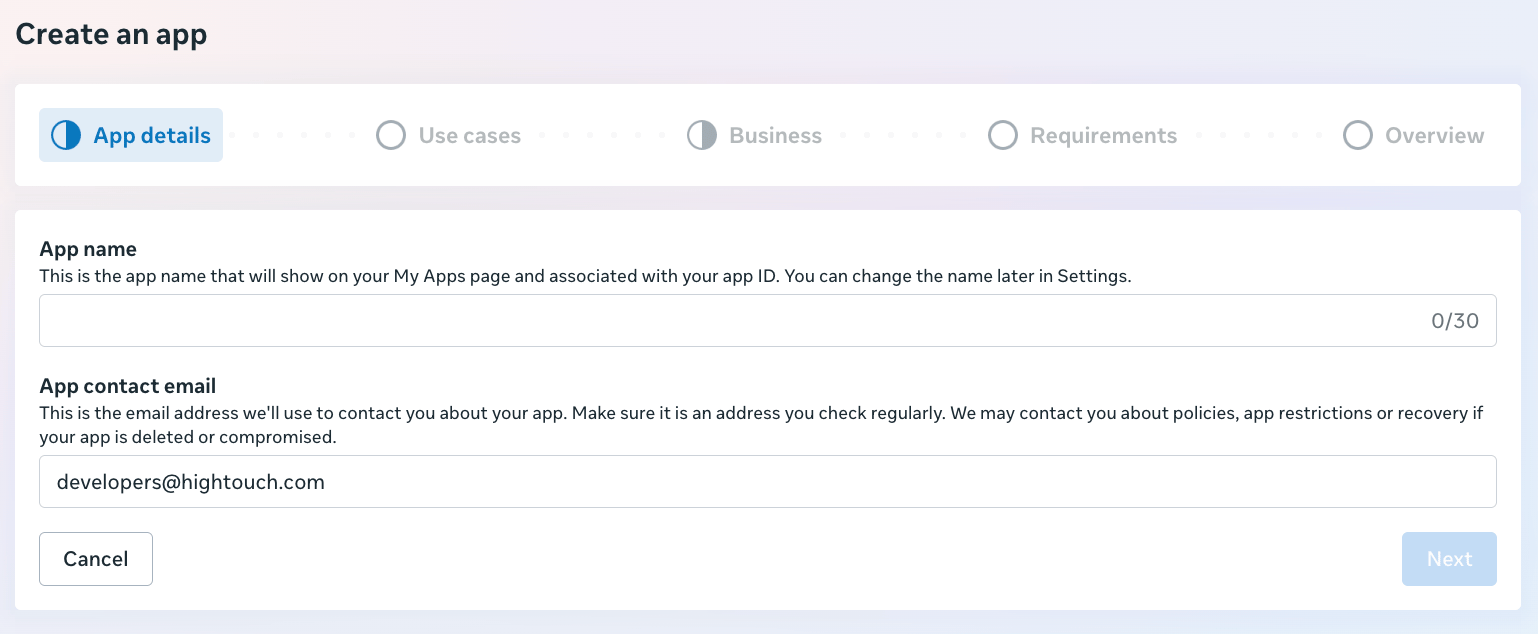
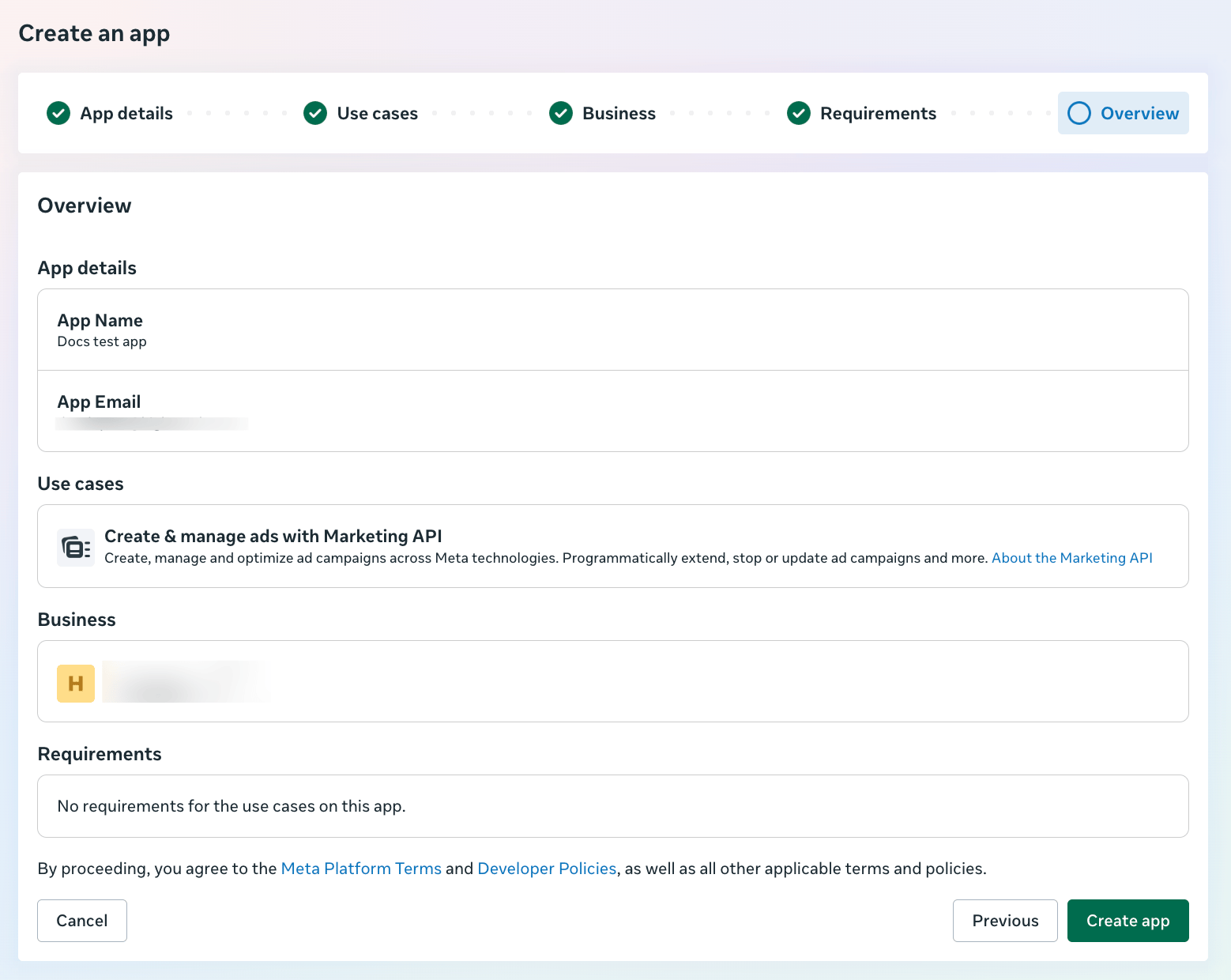
- Enter a name and contact email.
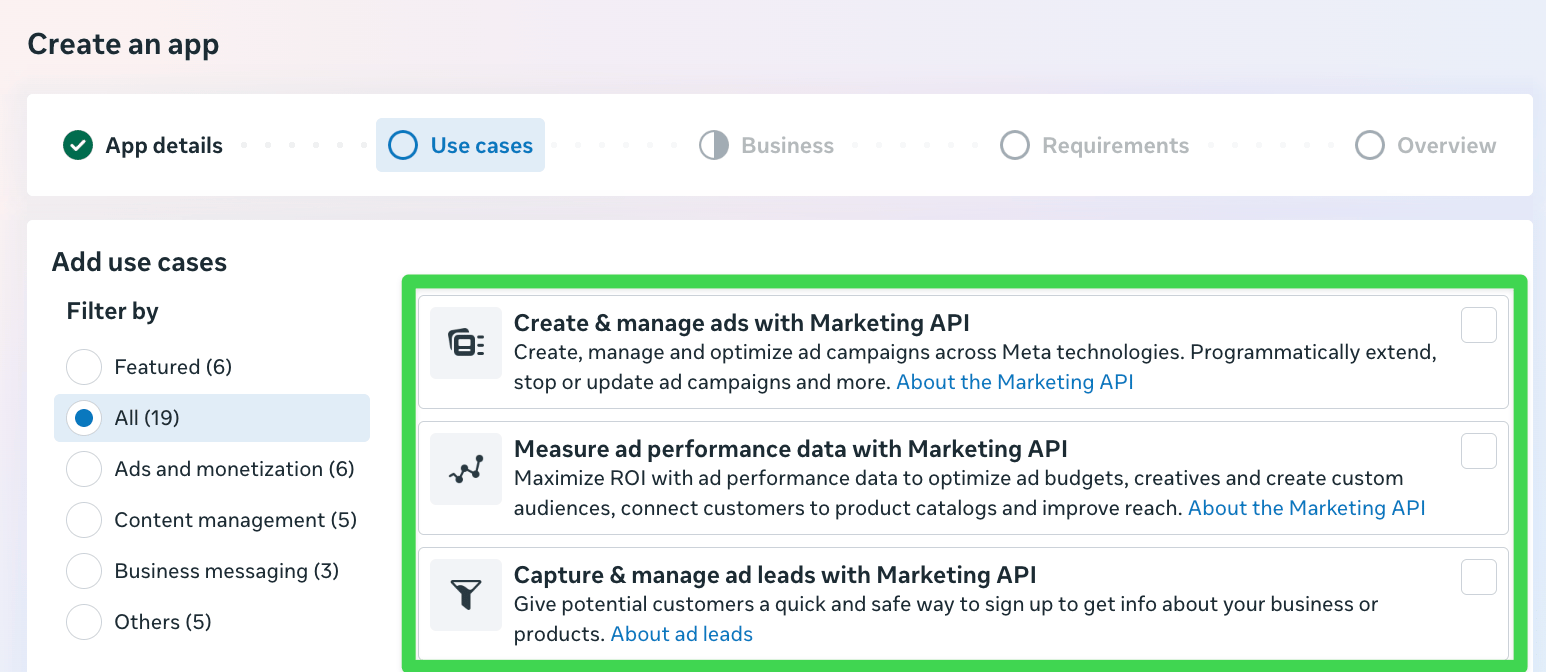
- Select a Marketing API use case such as Create & manage ads with Marketing API. Per Meta’s use case permission mapping, any of the three attaches the
ads_managementthis integration needs and makesbusiness_managementavailable — you select both when generating the token (step 12).
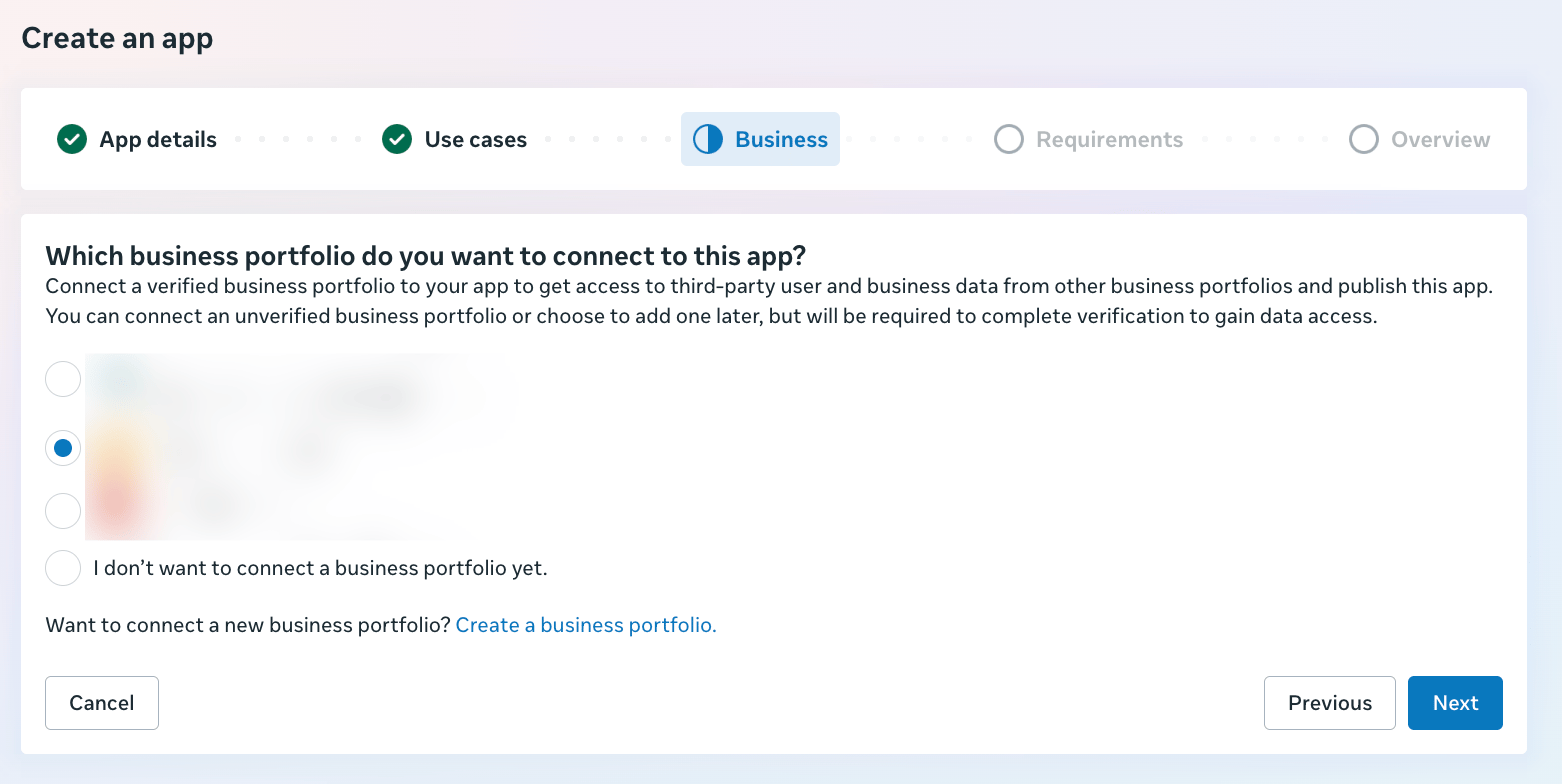
- Connect the business portfolio that owns the ad account you want to sync to.
- Review any listed requirements — typically none when you’re accessing your own ad account.
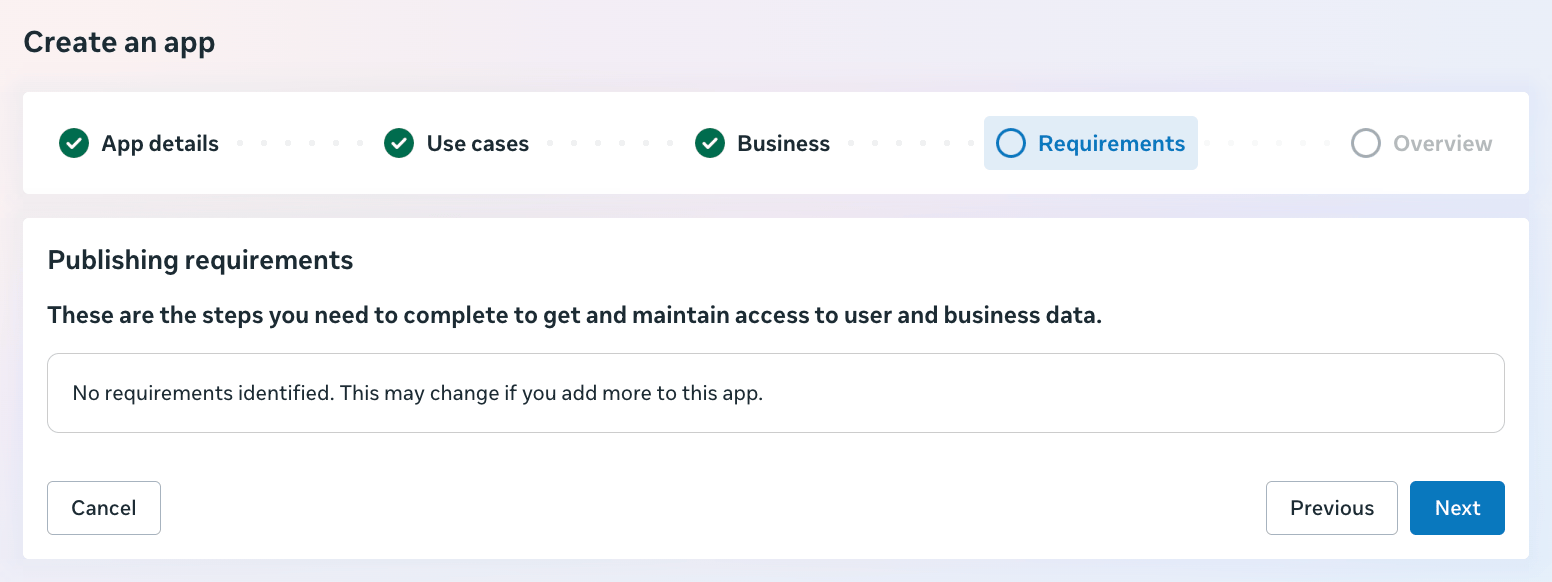
- Review the summary, then select Create app.
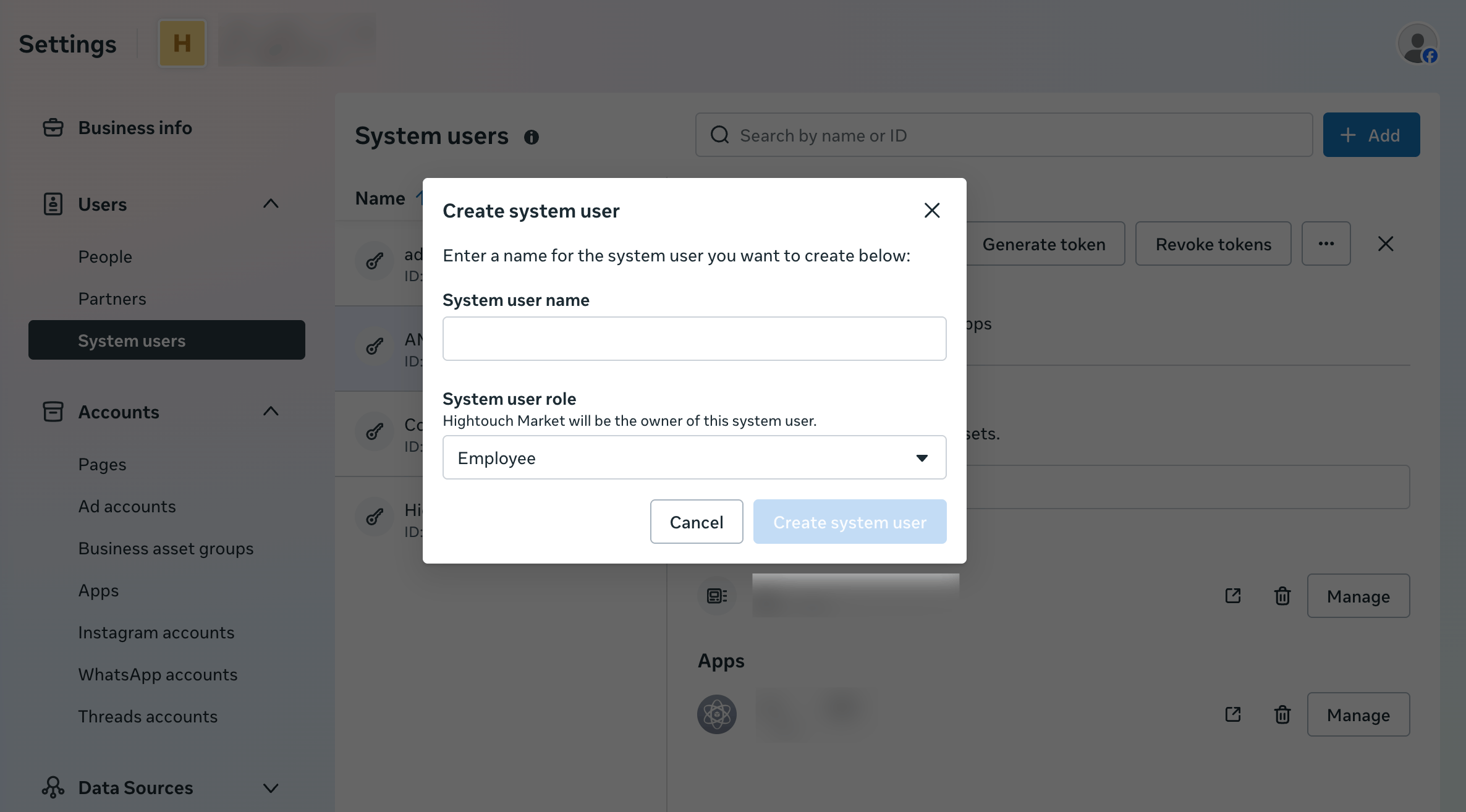
- In Settings at business.facebook.com, go to Users → System users and add a new system user with the Employee role. Meta caps each business at one Admin system user and recommends a regular system user for asset access.
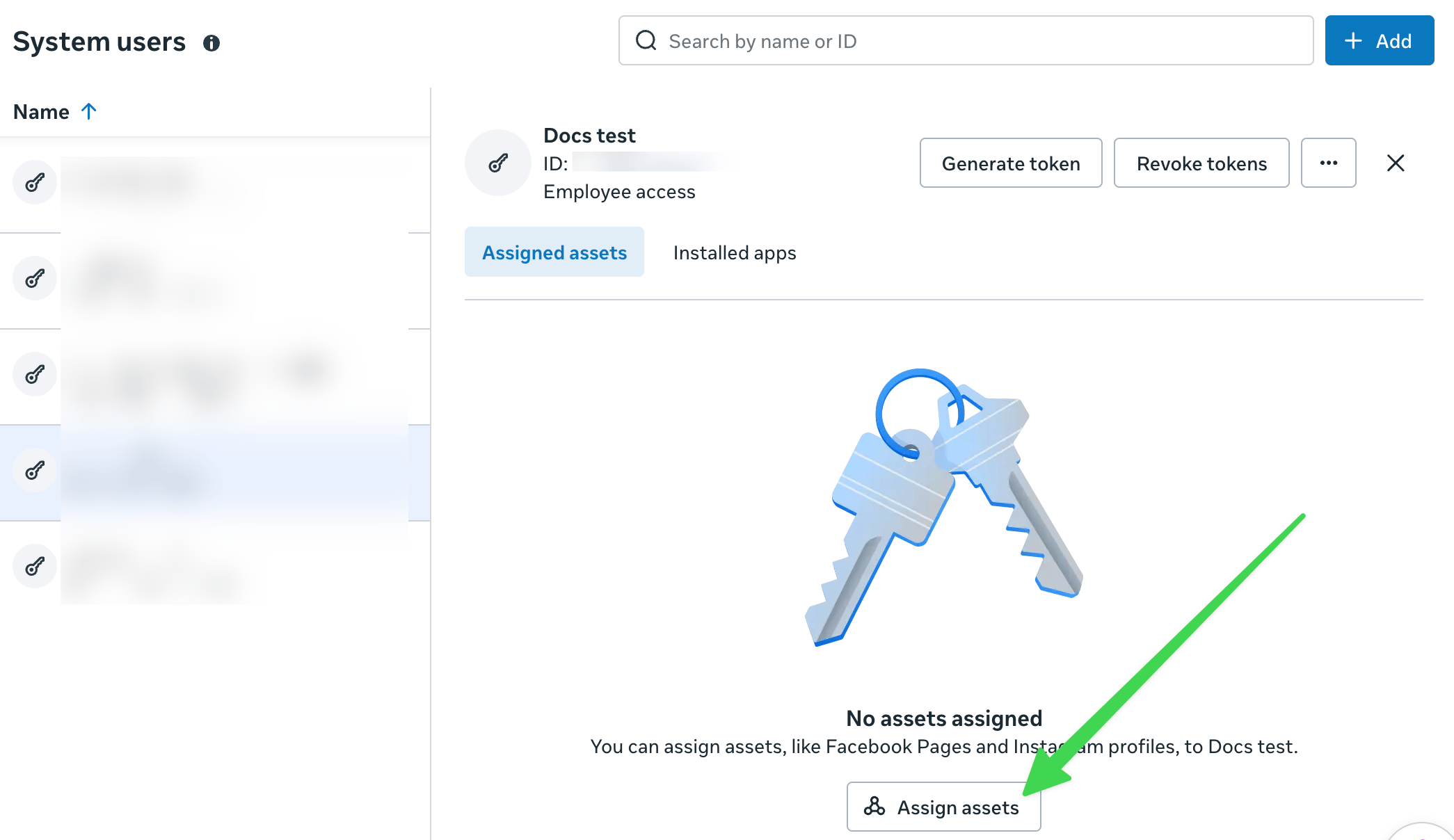
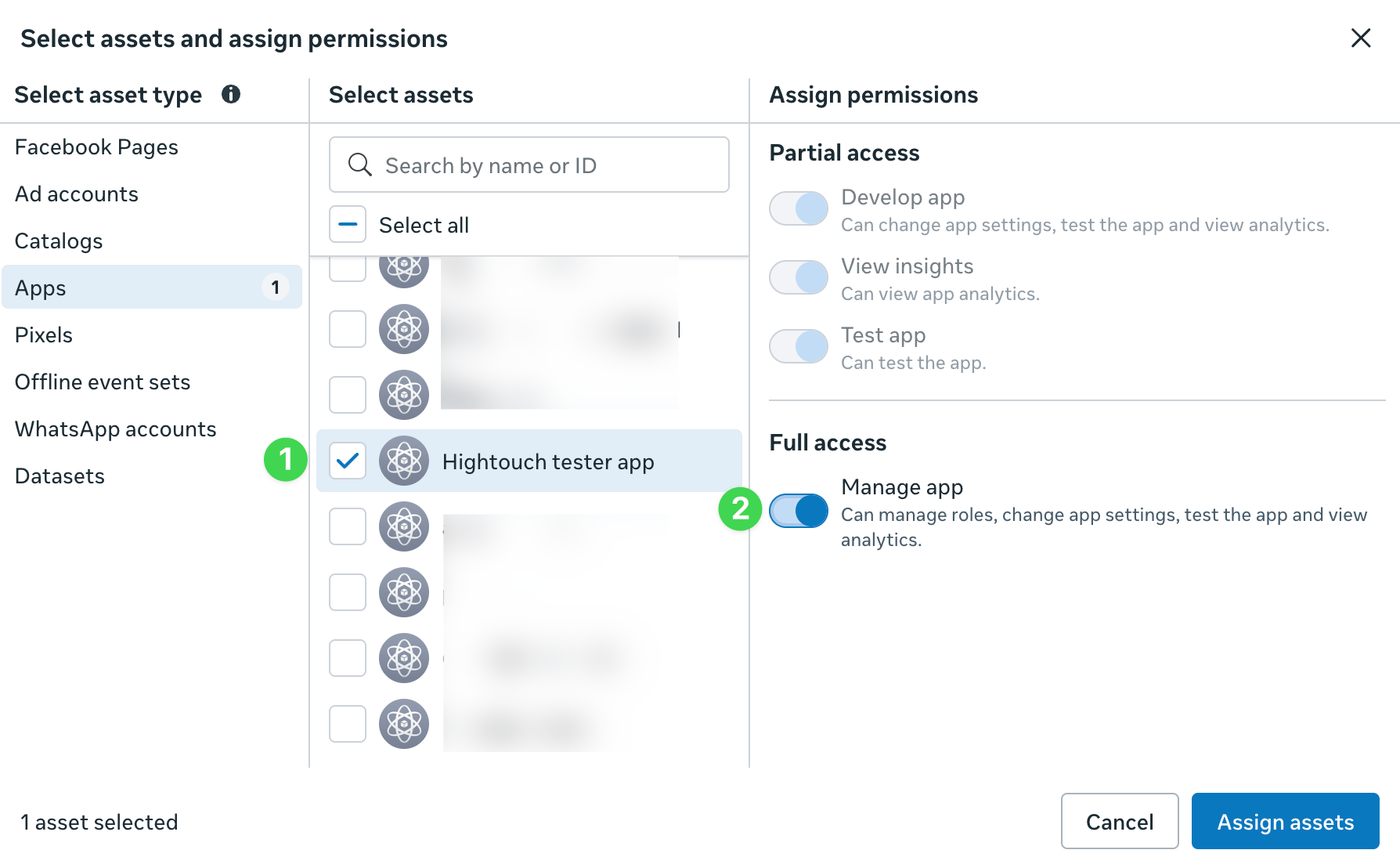
- Select the system user you just created, then click Assign assets.
- Assign both the app (under Apps) and the ad account you want to create audiences for (under Ad accounts), granting each Full access — not Partial access — then click Assign assets.
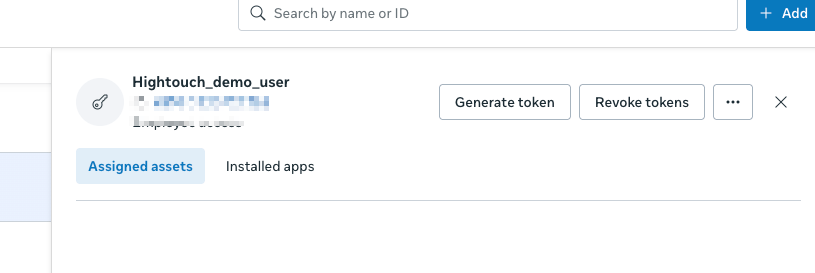
- Back on the system user, select Generate token.
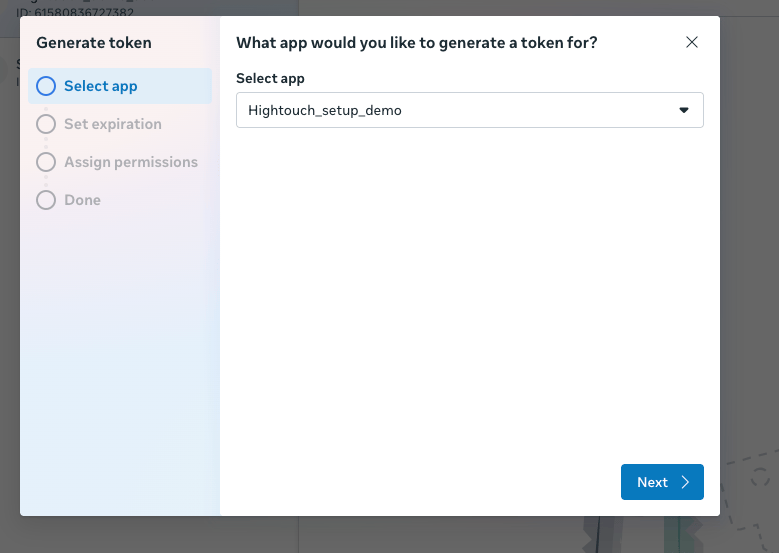
- Choose the app you created to generate the token.
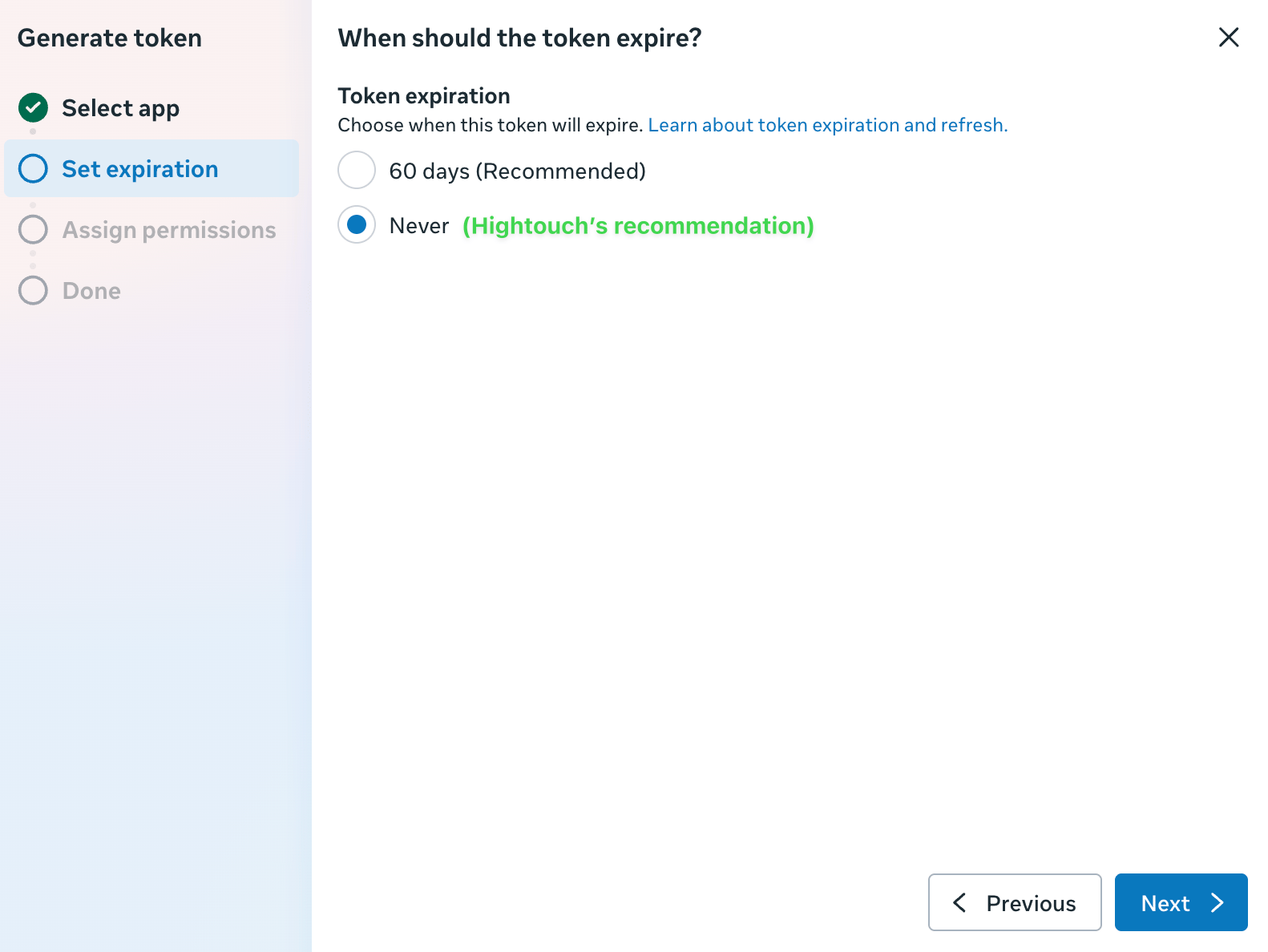
- Set the expiration policy to Never so the token doesn’t lapse and interrupt your syncs. (Meta labels 60 days as recommended, but a system user token is meant for indefinite access.)
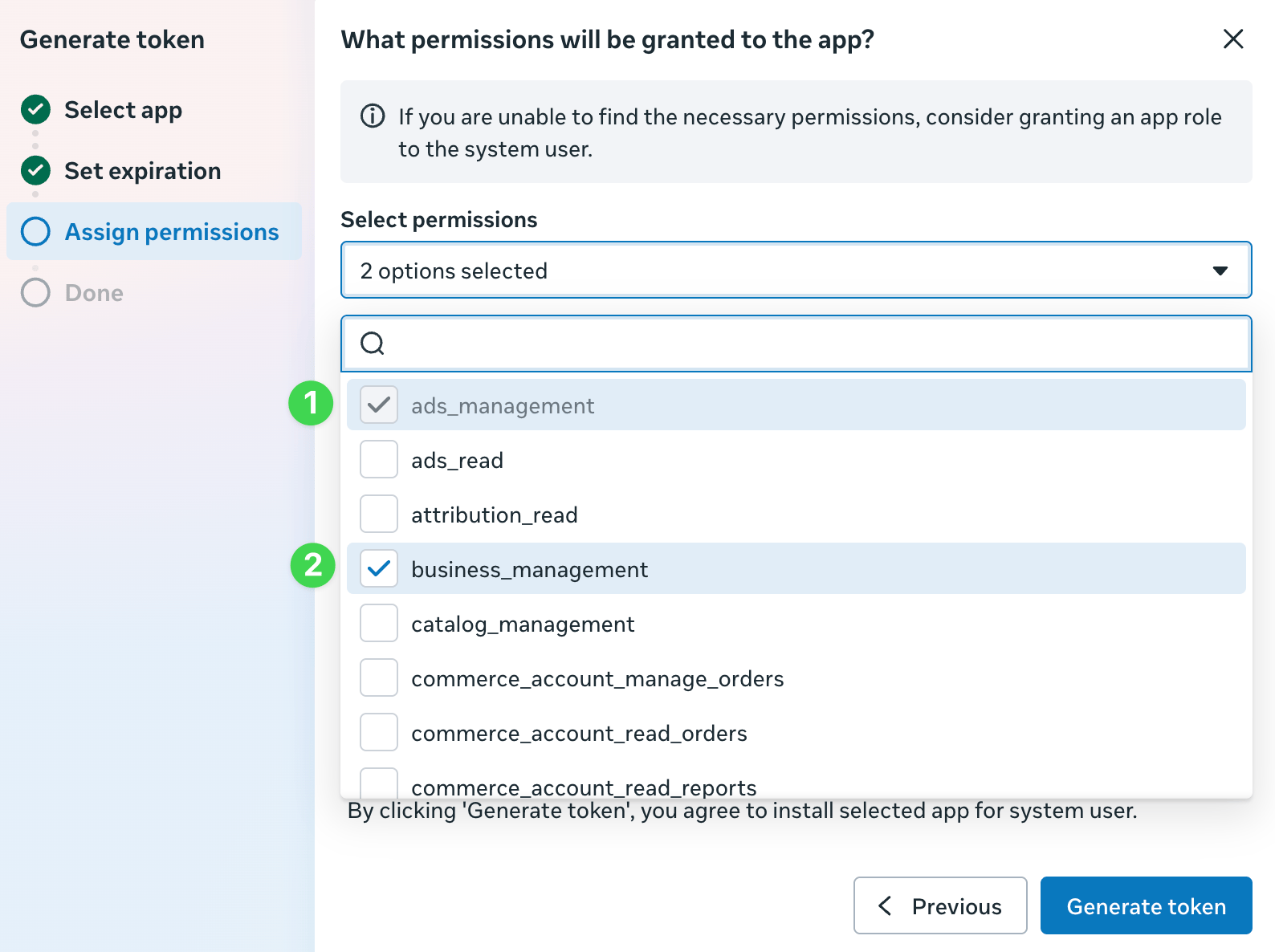
- Ensure that both the
ads_managementandbusiness_managementpermissions are selected, then click Generate token. Hightouch usesads_managementto create and update your custom audiences, andbusiness_managementto list ad accounts, select existing audiences, and run the test connection.
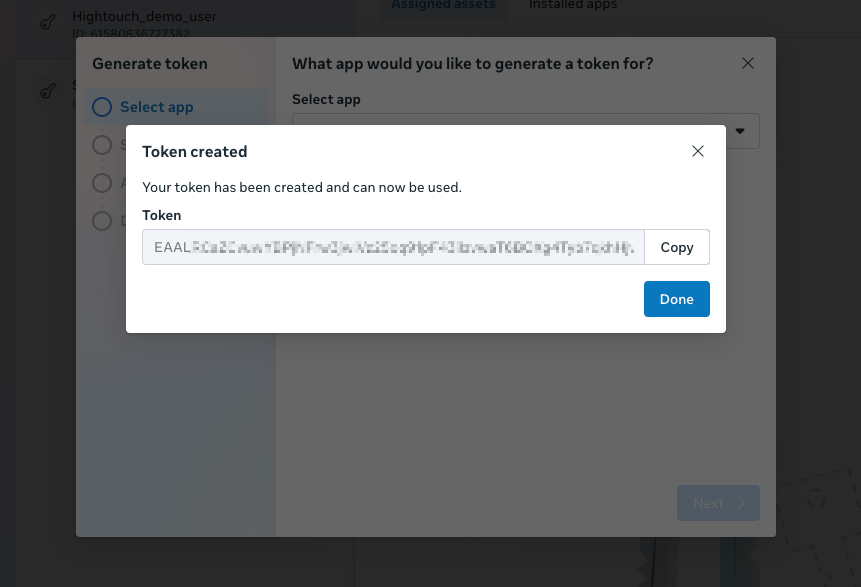
- Copy the generated token. Since this token won’t be stored in Meta, you may want to consider storing it in a secure password vault as well.
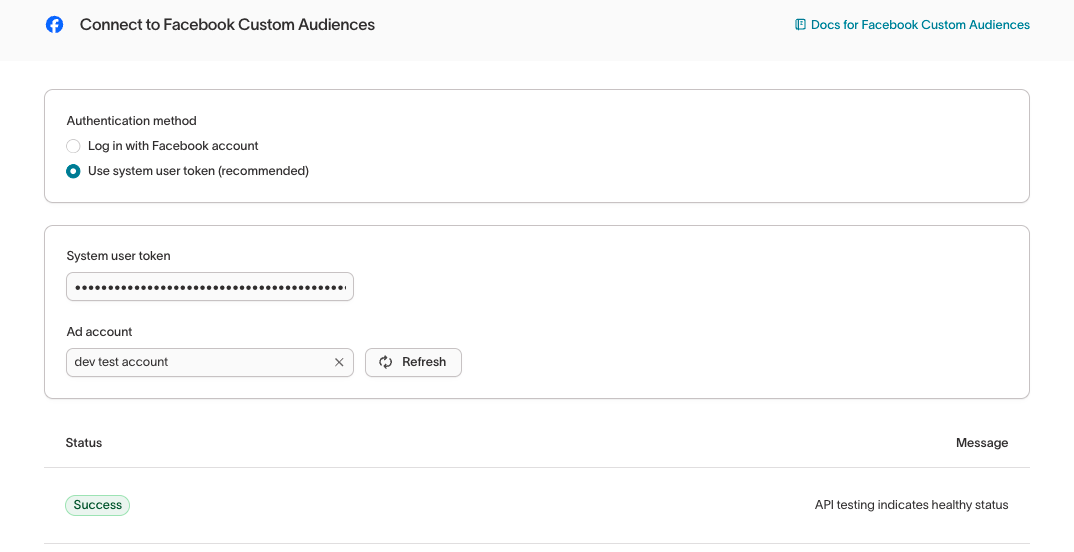
- Back in Hightouch, select Use system user token as the Authentication method, then paste the token you generated as the System User Token, select the relevant Ads Account, and click Continue.
Use an existing system user token
If you already have a Meta app and system user setup, in Settings at business.facebook.com, go to Users → System users.- Once you’ve selected the existing user and assets are assigned, select Generate token.
-
Choose the app you created to generate the token.
- Set the expiration policy to Never so the token doesn’t lapse and interrupt your syncs. (Meta labels 60 days as recommended, but a system user token is meant for indefinite access.)
- Ensure that both the
ads_managementandbusiness_managementpermissions are selected, then click Generate token. Hightouch usesads_managementto create and update your custom audiences, andbusiness_managementto list ad accounts, select existing audiences, and run the test connection. You can’t change a token’s permissions after it’s generated — to add a permission later, generate a new token.
- Copy the generated token. Since this token won’t be stored in Meta, you may want to consider storing it in a secure password vault as well.
- Back in Hightouch, select Use system user token as the Authentication method, then paste the token you generated as the System User Token, select the relevant Ads Account, and click Continue.
Authenticate with OAuth
For the Authentication method, select Log in to Meta and log into your Meta account. Once successful, you will be redirected back to Hightouch to enter a descriptive name for your destination and complete setup.Sync configuration
Once you’ve set up your Meta Custom Audiences destination and have a model to pull data from, you can set up your sync configuration to begin syncing data. Go to the Syncs overview page and click the Add sync button to begin. Then, select the relevant model and the Meta Custom Audiences destination you want to sync to.Syncing custom audiences
Hightouch lets you create and maintain custom audiences via the Meta Custom Audience API. Each sync adds new users and updates existing users’ identifiers you include in record matching. You can remove users that leave your model’s query result by selecting this option in the sync’s delete behavior.Select an existing audience or create a new one
You can create a new audience or use an existing one. When creating a new audience, you can optionally enter a name; otherwise, Hightouch defaults to the name of the associated model. To use an existing audience, select the desired audience from the dropdown.User identifiers
To identify which users to add or update in an audience, select model columns and the corresponding Meta Custom Audience fields. You can match on default, custom, and Meta-specific fields. Meta-specific fields include:- External ID: a custom identifier that you send to Meta via its APIs or tracking pixels
- Page-scoped ID: an ID used for Meta messenger apps and Meta pages
If you map an identifier field that contains an array of values, Hightouch automatically fans out each element into a separate record when syncing to Meta Custom Audiences. Learn more about array identifier fan-out.
Value-based audiences
If you’re creating a new Meta Audience, you can create a value-based audience by mapping a numerical model column containing lifetime values to the Lookalike Value field.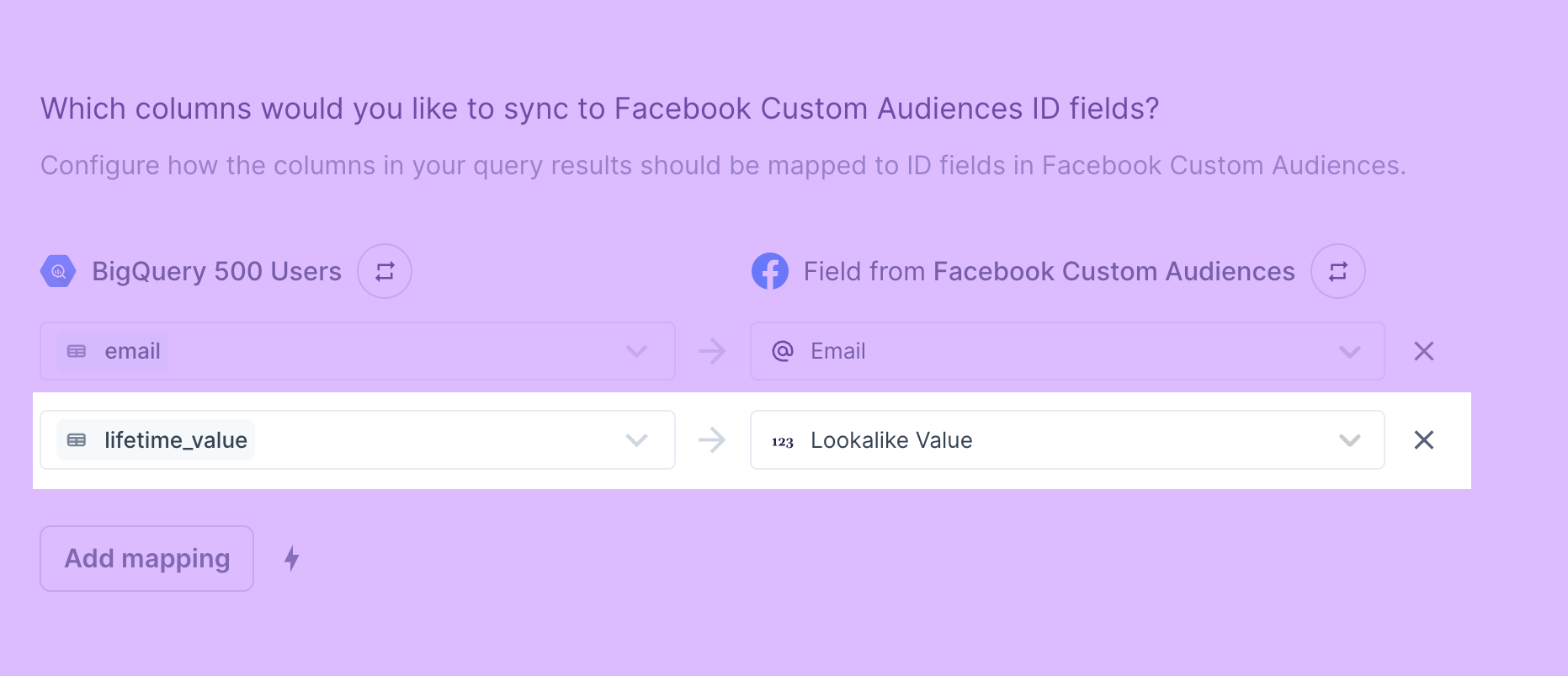
Handling PII and hashing
By default, Hightouch automatically hashes the following fields before sending requests to Meta:- Phone
- Gender
- First Name
- Last Name
- First Initial
- State
- City
- Zip Code
- Country
Share your audience
Optionally share this audience with another Meta advertising account.Delete behavior
You can choose how to handle user records in Meta when the corresponding rows are deleted in your source.Clear and fill
Where clear and fill is enabled for your workspace, Hightouch empties and refills the audience inside a single Meta replace session. Meta then applies the new membership in the background, which can take several hours. During that time Meta discards any rows uploaded to the audience, and it reports no error when it does. To protect the refilled audience, Hightouch holds the sync’s runs after a clear and fill. Scheduled runs are skipped and manual runs are declined until the hold lifts, and the next run then picks up everything that changed in the meantime. Running another clear and fill during the hold is still allowed, since it replaces the audience again. The default hold is 24 hours. Under Advanced, you can set How long should runs wait after a clear and fill? to any value from 5 to 48 hours. A shorter hold risks losing the rows sent before Meta finishes; if you shorten it, compare the audience’s matched count the following day before relying on it. Two Meta limits apply. Meta can’t replace an audience with more than 100 million members, so clear and fill fails on those. Clear and fill also isn’t available for syncs that match on Page-scoped ID.Validate your setup
After you configure your sync, run a test to confirm data flows correctly:- Start with a small test audience or a single record.
- Trigger a manual sync from the Syncs overview page.
- After the sync completes, verify the audience in Meta Ads Manager:
- Go to Audiences and search for the audience name you configured in Hightouch.
- Confirm the audience size reflects the expected number of records. Meta may take up to 24 hours to fully process the audience.
- If the sync shows errors, check the sync run log in Hightouch for specific API error messages.
Tips and troubleshooting
To see the exact API requests and responses from each sync run, use the live debugger. To get notified by Slack, PagerDuty, SMS, or email when a sync fails, set up sync alerts. If you run into an issue this page doesn’t cover, .Matched users count
Hightouch retrieves the audience metadata from Meta in real-time. The matched number displayed in Hightouch should reflect what you see in Meta. Note that the matched numbers are approximated to maintain privacy thresholds. Hightouch takes the matched count to calculate a match rate for your sync, where applicable. The calculation breakdown:matched_user_count / # of rows queried in the latest sync run
The match rate is not calculated when:
- syncing to an existing segment because the total number of records to ever be uploaded to the segment is unknown
- removed users from your model is not removed in Meta because the matched user count would be inflated in the calculation
- Your audience model is too small. Most ad platforms do not display the matched number unless there’s at least one thousand matched users to maintain privacy thresholds.
- The upload is still processing. We recommend waiting at least 72 hours from the first sync run for numbers to settle.
- Your data isn’t cleaned or hashed properly. Hightouch normalizes and hashes your data according to destination requirements, but it’s still good to make sure that the data is as clean as possible. Note that Hightouch cannot clean your data if you opt to hash it yourself. In that case, ensure you follow the data cleaning requirements for Meta.
Meta returns 1k as the default when there is no data or audience is too
small
Common errors
Custom Audience Terms not yet accepted
The full error message is:https://business.facebook.com/ads/manage/customaudiences/tos/?{ACCOUNT_ID} to accept the Terms of Service for each ad account that you want to use. Replace {ACCOUNT_ID} with the ad account ID in act_xxxx format.
Once you’ve accepted the Terms of Service, rerun your sync with the error.
Error Code 400: Missing schema attribute in payloads
By default, Hightouch automatically hashes certain fields before sending them to Meta. The error occurs when Hightouch attempts to hash anull value or null values are being sent to Meta.
To resolve this, remove rows containing null values from your model’s query results or enable the Don’t sync null values option in the advanced mapper.
Unsupported post request. Object with ID ‘undefined’ does not exist
This error occurs if you don’t select an Ad Account on the destination configuration page. Make sure to follow the destination setup procedure outlined in the Connect to Meta Custom Audiences section.401 - Error validating access token
As explained in the Connect to Meta Custom Audiences section, authenticating with OAuth requires you to reauthorize your destination every 60 days. Otherwise, your syncs fail with this error message.400 - OAuthException code 190: Token expired
The full error may look like:400 - {"error":{"message":"The token has expired on...","type":"OAuthException","code":190}}.
Meta access tokens expire periodically. Tokens also become invalid when the authorizing user changes their password or when Meta invalidates the session for security reasons. In the latter case, the error includes error_subcode: 460.
To resolve this error, go to your Meta Custom Audiences destination in Hightouch and click Reconnect. The authorizing user must have ads_management permission on the ad account. To avoid recurring token expiration issues, authenticate with a system user token instead of OAuth.
403 - Ad account permissions error (code 200)
The full error may look like:(#200) Ad account owner has NOT grant ads_management or ads_read permission.
This error occurs when the user who authorized the Meta connection doesn’t have the required permissions on the ad account. To resolve it, in Settings at business.facebook.com, go to Users → System Users and grant the user ads_management or ads_read permission on the relevant ad account. Then reconnect the destination in Hightouch.
400 - (#100) Requires business_management permission
The full error may look like:400 - {"error":{"message":"(#100) Requires business_management permission to access the field.","type":"OAuthException","code":100}}.
This error occurs when your access token is missing the business_management permission. Hightouch needs this permission to list ad accounts, select existing audiences, and run the test connection.
If you authenticated with a system user token, regenerate the token in Settings → Users → System Users at business.facebook.com with both ads_management and business_management selected, then reconnect the destination in Hightouch.
If you authenticated with OAuth, click Reconnect and approve all requested permissions when prompted.
400 - (#100) unsupported get request
The full error may look like:400 - {"error":("message":"(#100) Unsupported get request. Please read the Graph API documentation at https://developers.facebook.com/docs/graph-api {...}.
This error usually happens when one or multiple Meta pages that were granted access to the system user have age restrictions or country restrictions enabled. To resolve the error, edit your system user to remove all pages that have these age or country restrictions. Otherwise, you can edit the page settings to remove the restrictions from these pages.