

Google Display Video 360 is a premium destination and is only available on Business tier plans.
Overview
With the Google Display & Video 360 integration, Hightouch can sync first and third party audiences directly from your warehouse. This allows you to:- Create ad target groups for your own users, using email, physical address or mobile device ID.
- Create target groups from users shared with a partner.
Supported syncing
For more information about sync modes, refer to the sync modes docs.
Connect to Display & Video 360
Select the Google Display & Video 360 destination option. Hightouch will prompt you to authorize the app with your Google account with the required scope to create and update audiences on your DV360 accounts. After authorizing, you will have successfully connected Hightouch to DV360.Sync configuration
Hightouch allows you to create and update first and third party audiences as customer match user lists. These lists support adding members using the mobile device ID, or an array of email, phone numbers, and physical addresses. When creating the audience, make sure the source of the data is properly selected between first or third party sources.Syncing audiences
User consent
Starting in March 2024, Display & Video 360 introduced the consent object for uploading consent with customer match data. The consent object specifies two distinct types of consent and users must grant both types of consent to use their data for customer match lists. Reference the DV360 docs for more information.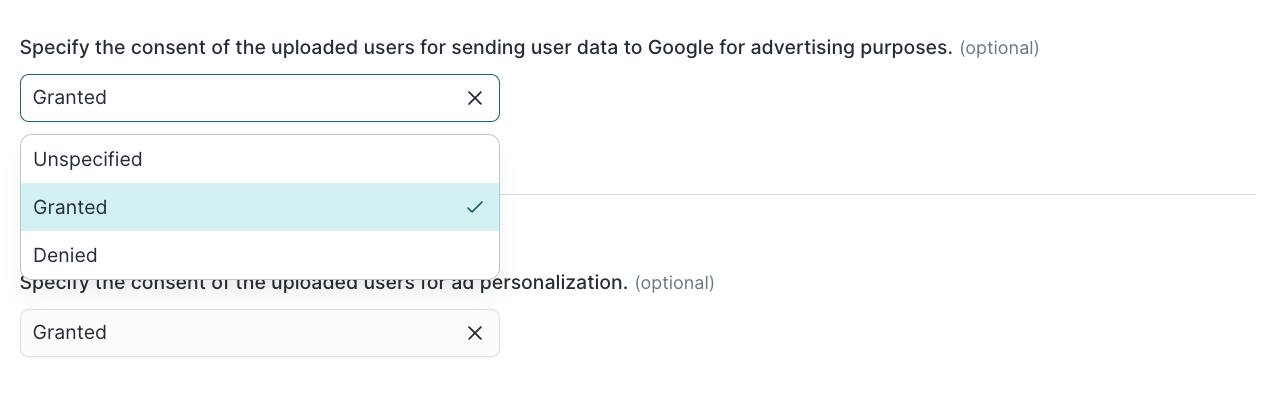
PII data and hashing
Hightouch will automatically hash all the PII data before it’s sent to Google. If the data is already hashed, this option can be disabled. Reference the DV360 docs for more information.User identifiers
Mobile device IDs and other user identifiers can not be mixed. Also, if providing the user’s physical address, the zip code, country code, first and last name must be provided. Phone numbers must be in E.164 format.If you map an identifier field that contains an array of values, Hightouch automatically fans out each element into a separate record when syncing to Display & Video 360. Learn more about array identifier fan-out.
Validate your setup
After you configure your sync, run a test to confirm data flows correctly:- Start with a small test audience or a single record.
- Trigger a manual sync from the Syncs overview page.
- After the sync completes, verify the audience in DV360:
- Go to Audiences in the DV360 UI and search for the audience you configured in Hightouch.
- Google may take up to 48 hours to fully process audience data and reflect the audience size.
- If the sync shows errors, check the sync run log in Hightouch for specific API error messages.
Tips and troubleshooting
To see the exact API requests and responses from each sync run, use the live debugger. To get notified by Slack, PagerDuty, SMS, or email when a sync fails, set up sync alerts. If you run into an issue this page doesn’t cover, .Common errors
Can not use an UNKNOWN or UNSPECIFIED as enum value
Make sure to set the consent status because Google rejects any users where the consent status isUnspecified or Denied.