

Overview
Hightouch lets you pull data stored in Rockset and push it to downstream destinations. Connecting Hightouch to Rockset requires some setup in both platforms. Specifically, you have to create an Rockset API key to configure your connection in Hightouch.You may need to allowlist Hightouch’s IP addresses to let our systems connect to your warehouse. Reference our networking docs to determine which IP addresses you need to allowlist.
Create Rockset API key
- Go to the Rockset Console and open Manage > API Keys.
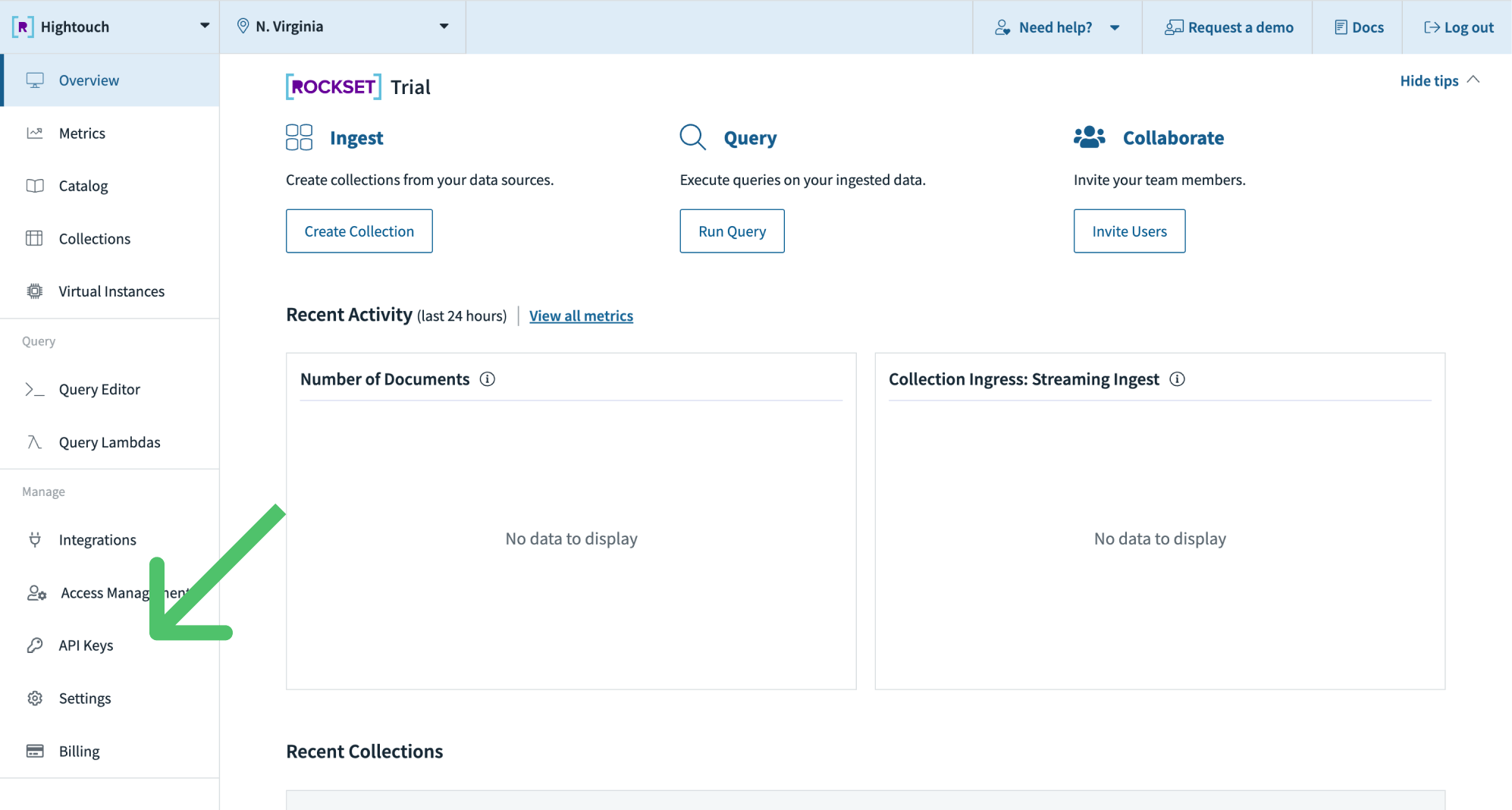
- Click Create API key. Give the API Key a descriptive name, for example “Hightouch Integration,” and give it an admin role.
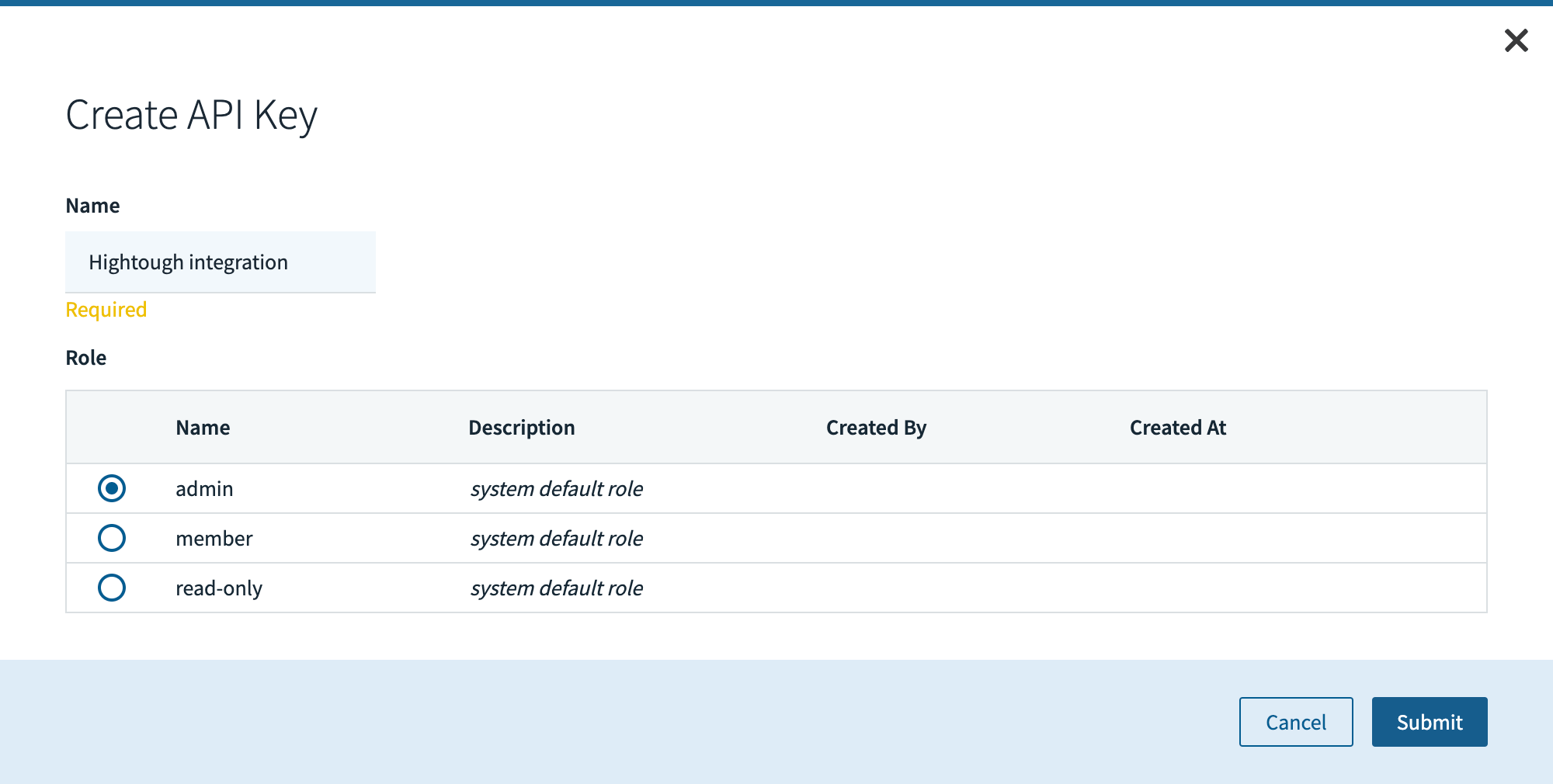
- Click Submit. Copy your API key to use it in Hightouch.
Connection configuration
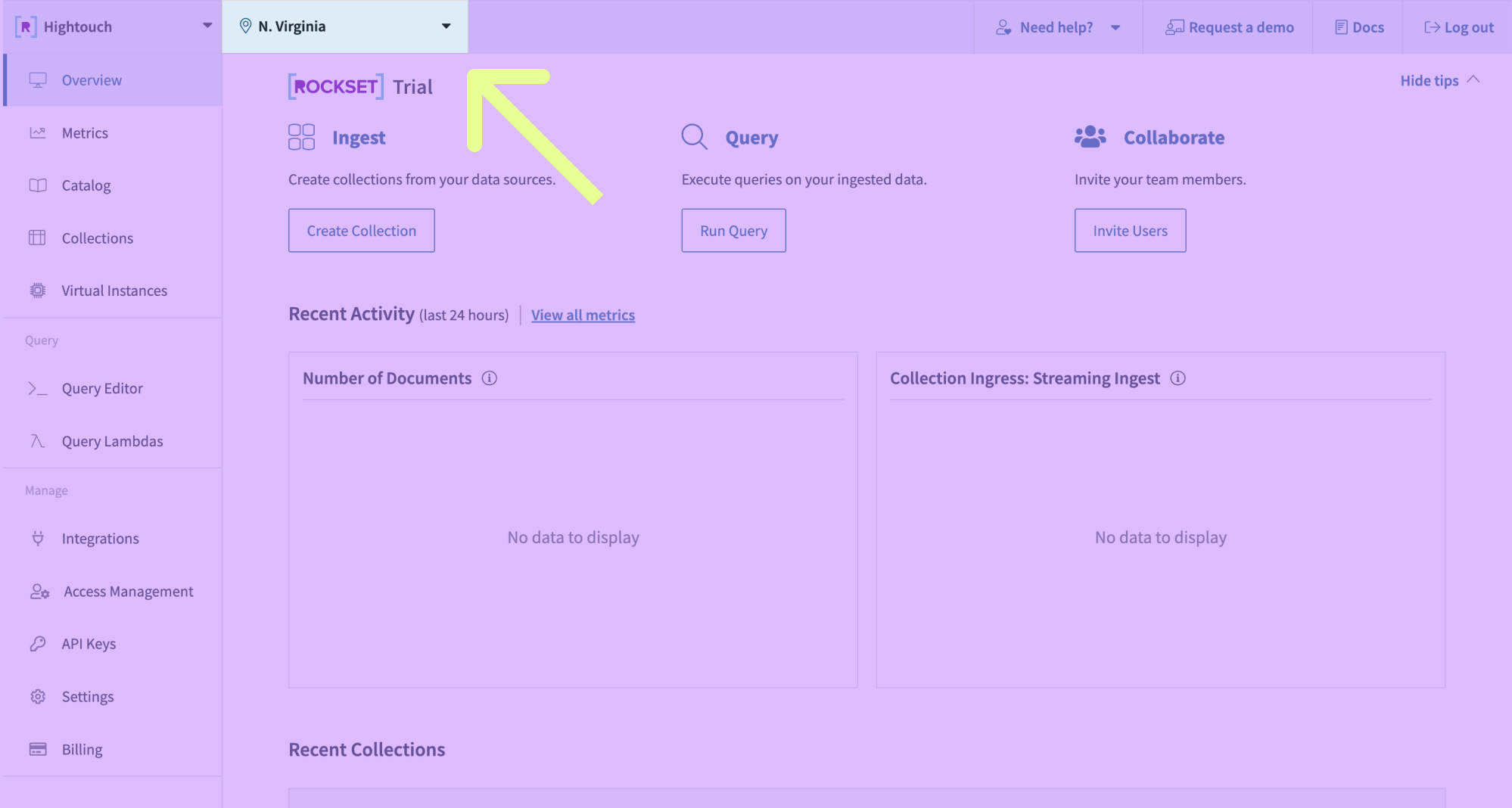
To get started in Hightouch, go to the Sources overview page and click the Add source button. Select Rockset and enter the following fields into Hightouch:- Region: You can find the region of your Rockset organization in the top left corner of the Rockset Console Overview.
- API Key: The API key you previously created.
Test your connection
When setting up Rockset as a source for the first time, Hightouch checks that you have the correct permissions. Once the test passes, click Continue to finish setup.Create models
Once your source configuration has passed the necessary validation, your source setup is complete. Next, you can set up models to define which data you want to pull from Rockset. The Rockset source supports these modeling methods:- writing a query in the SQL editor
- using the visual table selector
- leveraging existing dbt models