

Supported syncing
For more information about sync modes, refer to the sync modes docs.
Setup Offline Conversions API
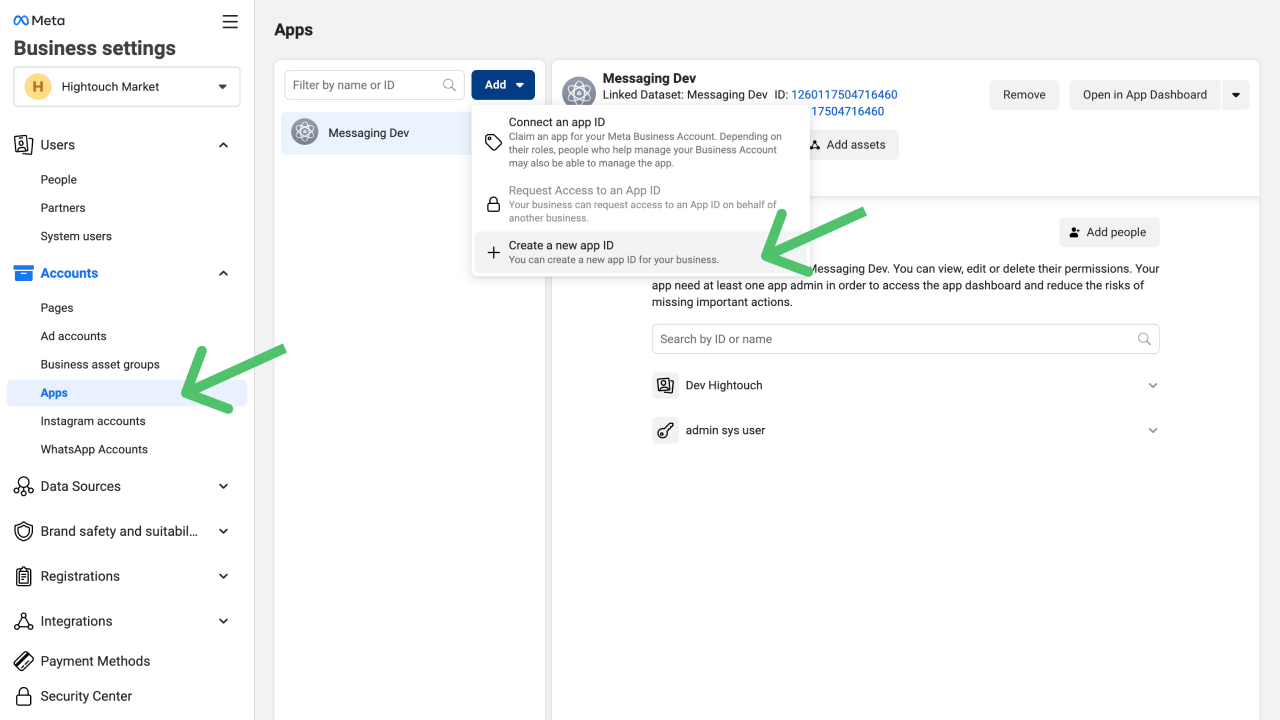
To send offline events via Hightouch, you first need to create an app. You can follow these steps to do so:- In Meta Business Manager, go to Business Settings and open the Apps tab under Accounts.
- Click Add and select Create a new app ID.
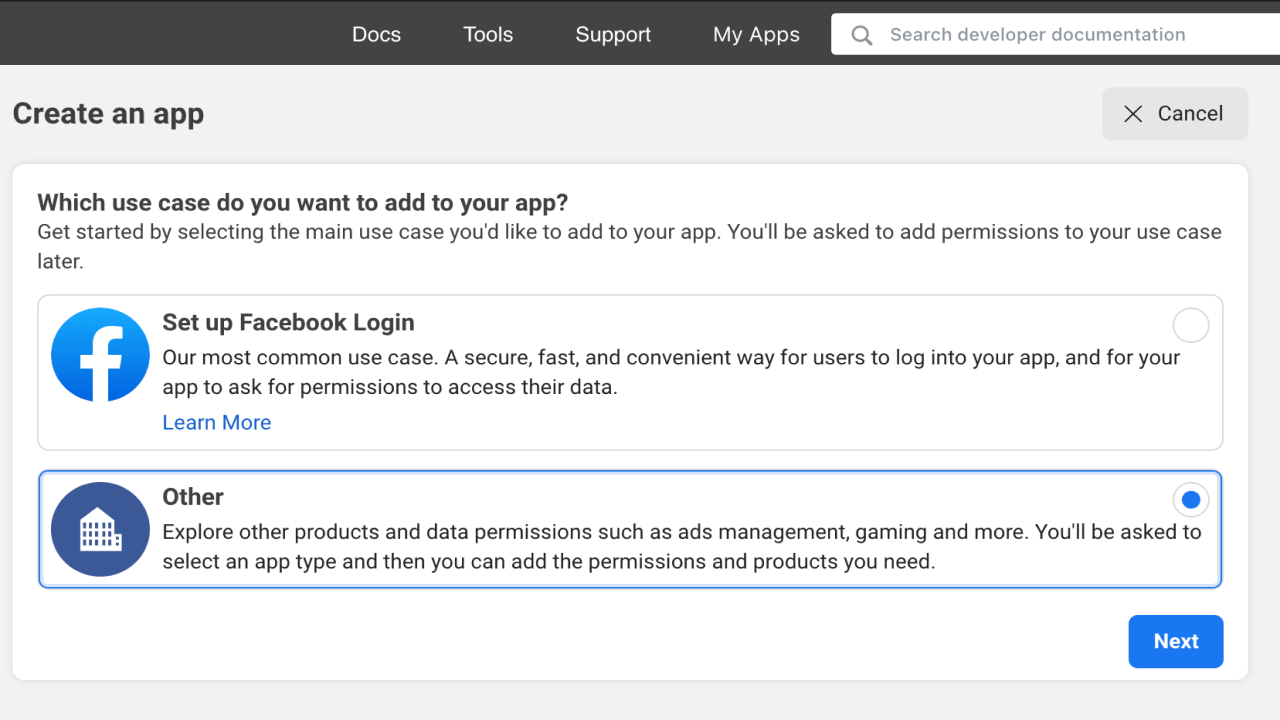
- Select Other as the use case for the app and click Next.
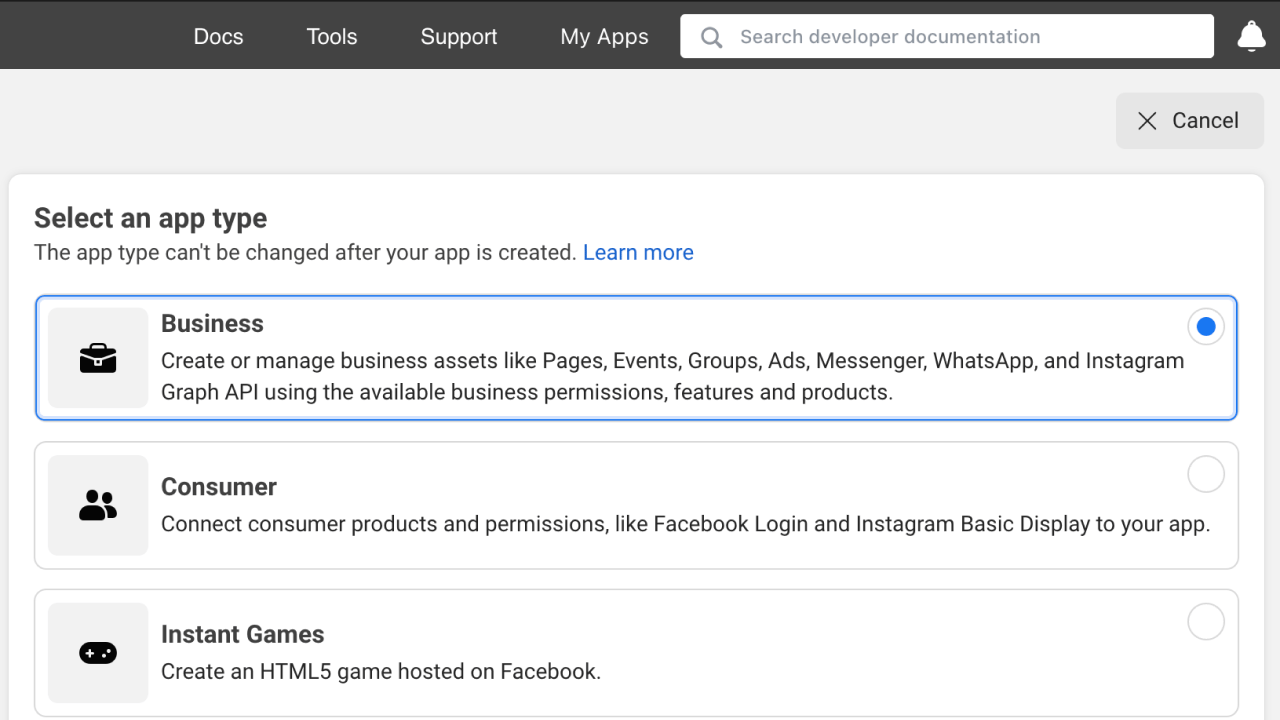
- Select Business as the app type and click Next.
- Add a descriptive name like “Hightouch Offline Events” as the app name and click Create app.
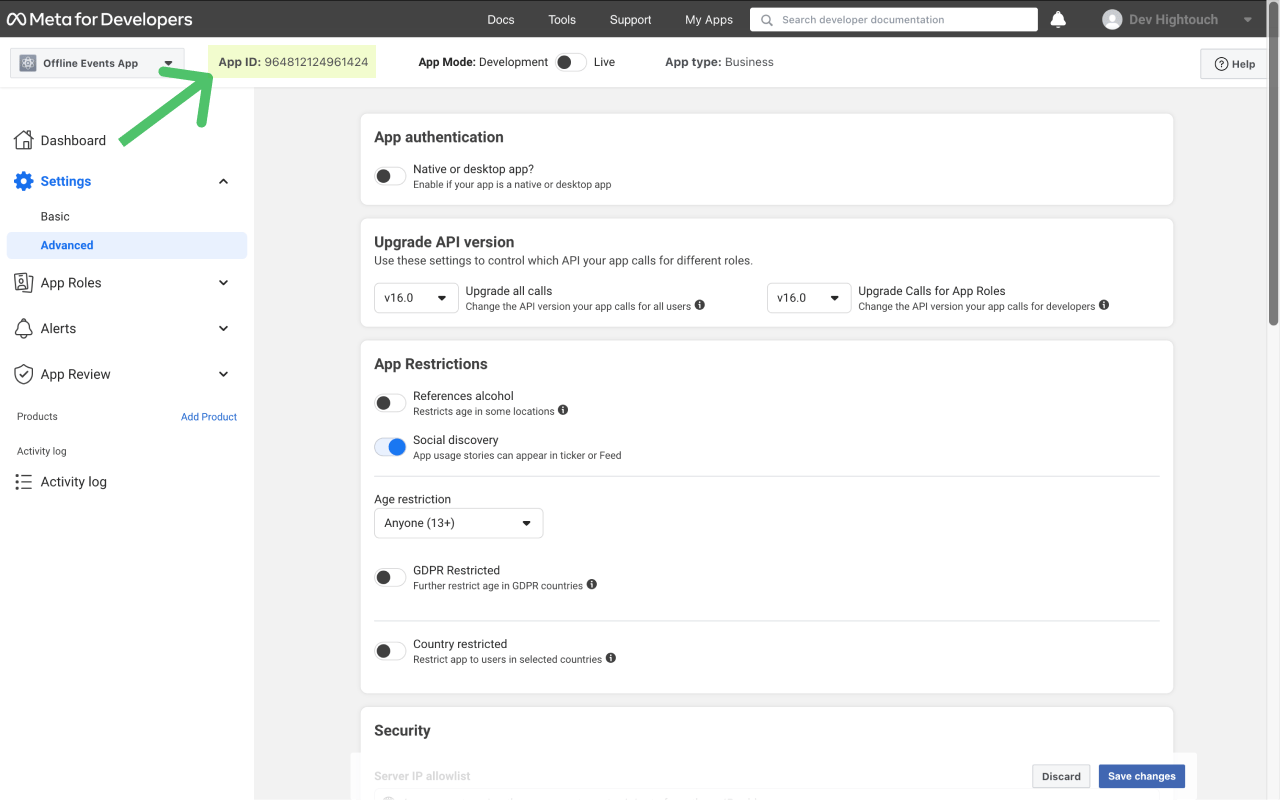
- This takes you to the app overview page. Copy the App ID to connect it in the Business Manager.
- Back in Meta Business Manager and open the Apps tab.
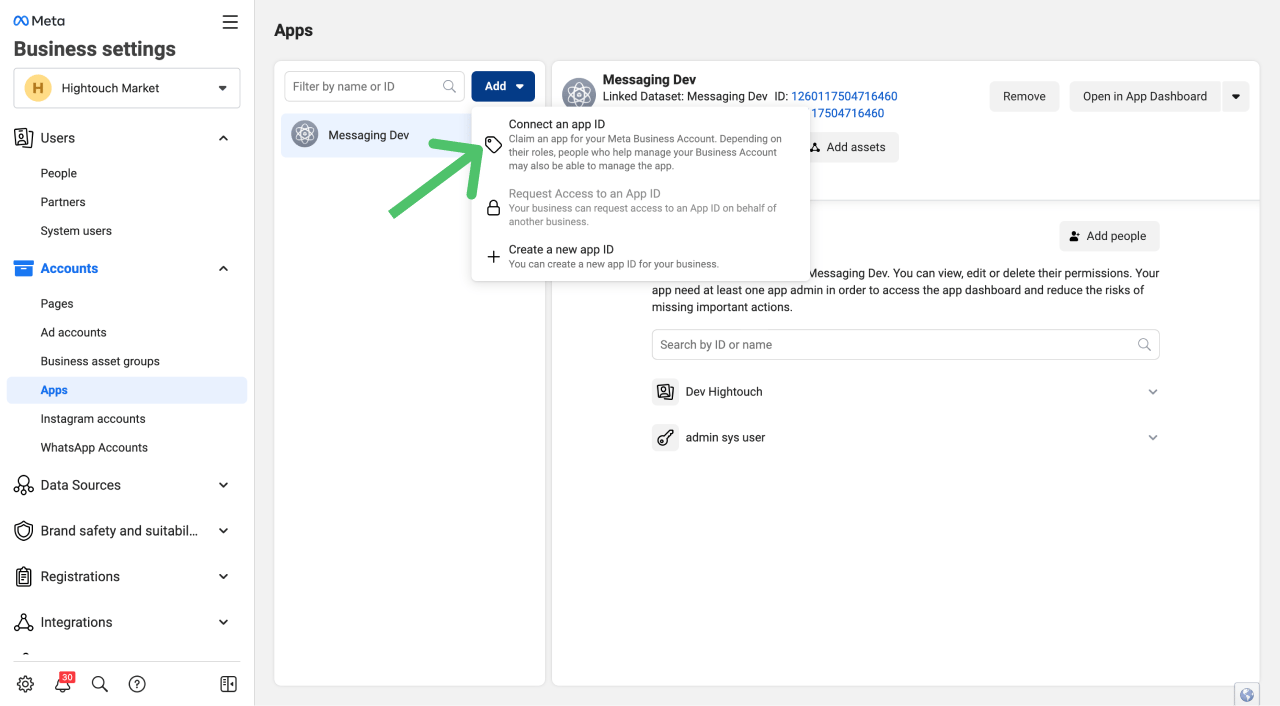
- Click Add and select Connect an app ID. Enter the app ID you previously copied and click Add app.
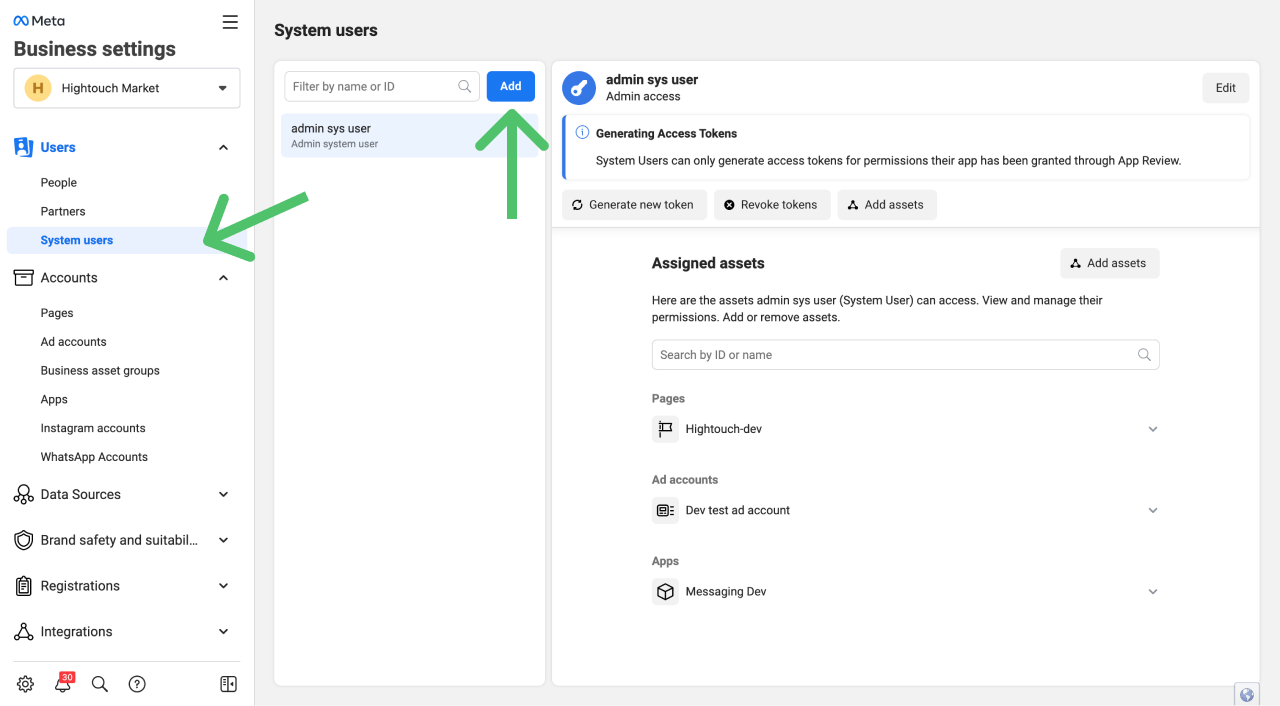
- In Business Settings, open the System Users tab under Users and click Add.
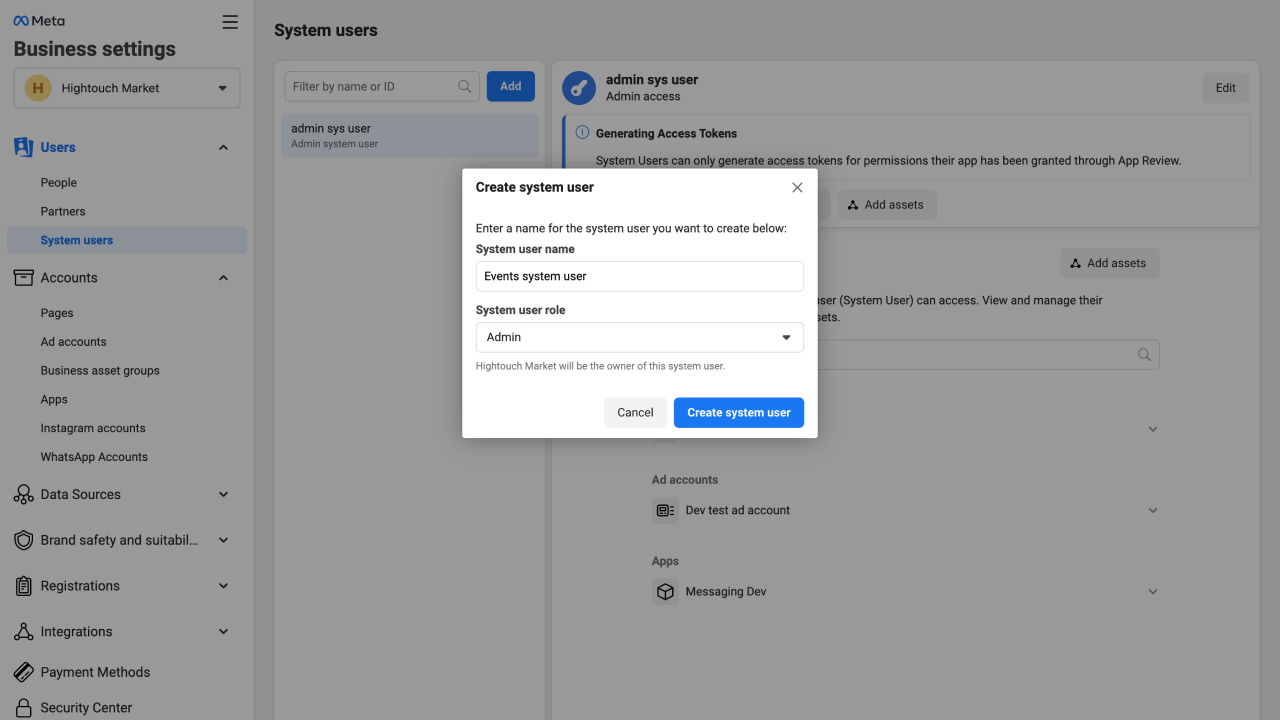
- Enter a System user name and select Admin as the system user role. Click Create system user.
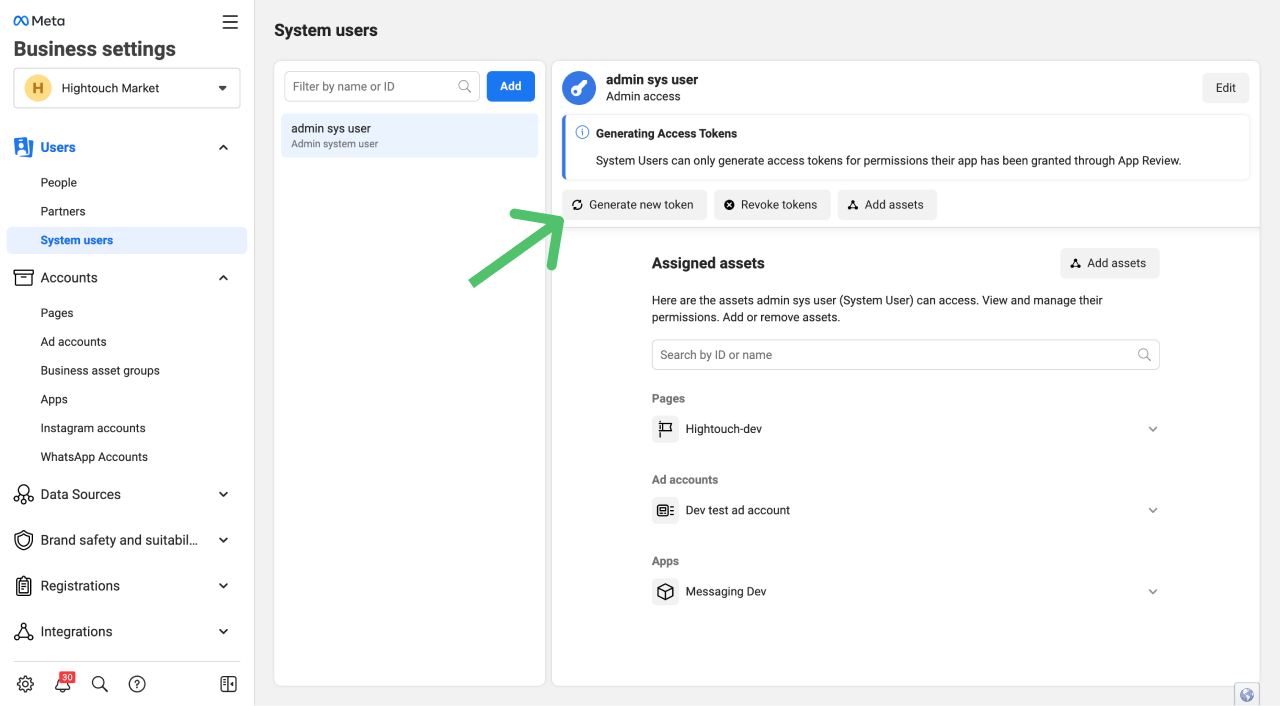
- From the newly created user, click Generate New Token.
- Select the app you previously connected and set the token expiration. We strongly recommend indefinite access so you don’t need to regenerate the token every 60 days. For Available permissions, select ads_management. Click Generate token.
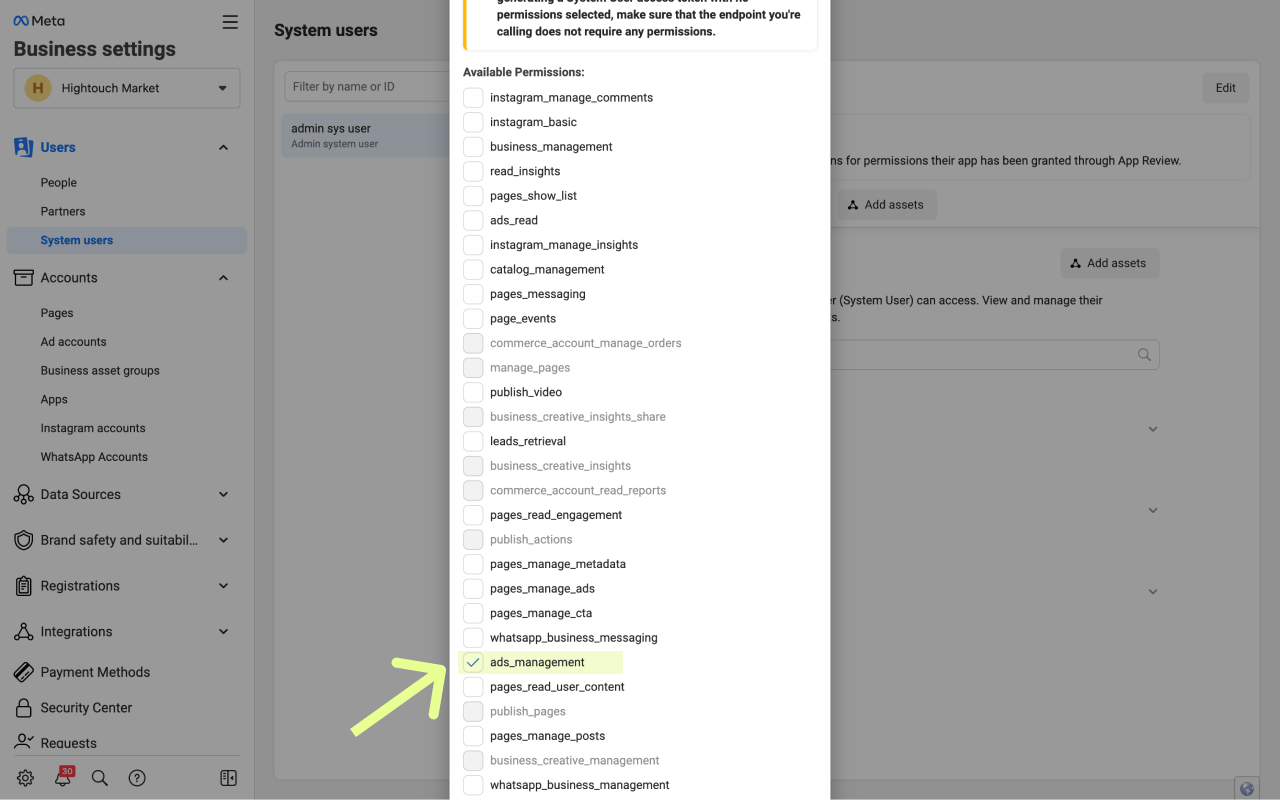
- Copy and store the access token in a secure location as it won’t be stored by Meta.
Connect to Meta Offline Conversions API
Go to the Destinations overview page and click the Add destination button. Select Meta Offline Conversions and click Continue. You can then authenticate Hightouch to Meta Offline Conversions by entering the Access Token you previously generated into Hightouch.Sync configuration
Once you’ve set up your Meta Offline Conversions destination and have a model to pull data from, you can set up your sync configuration to begin syncing data. Go to the Syncs overview page and click the Add sync button to begin. Then, select the relevant model and the Meta Offline Conversions destination you want to sync to.Syncing events
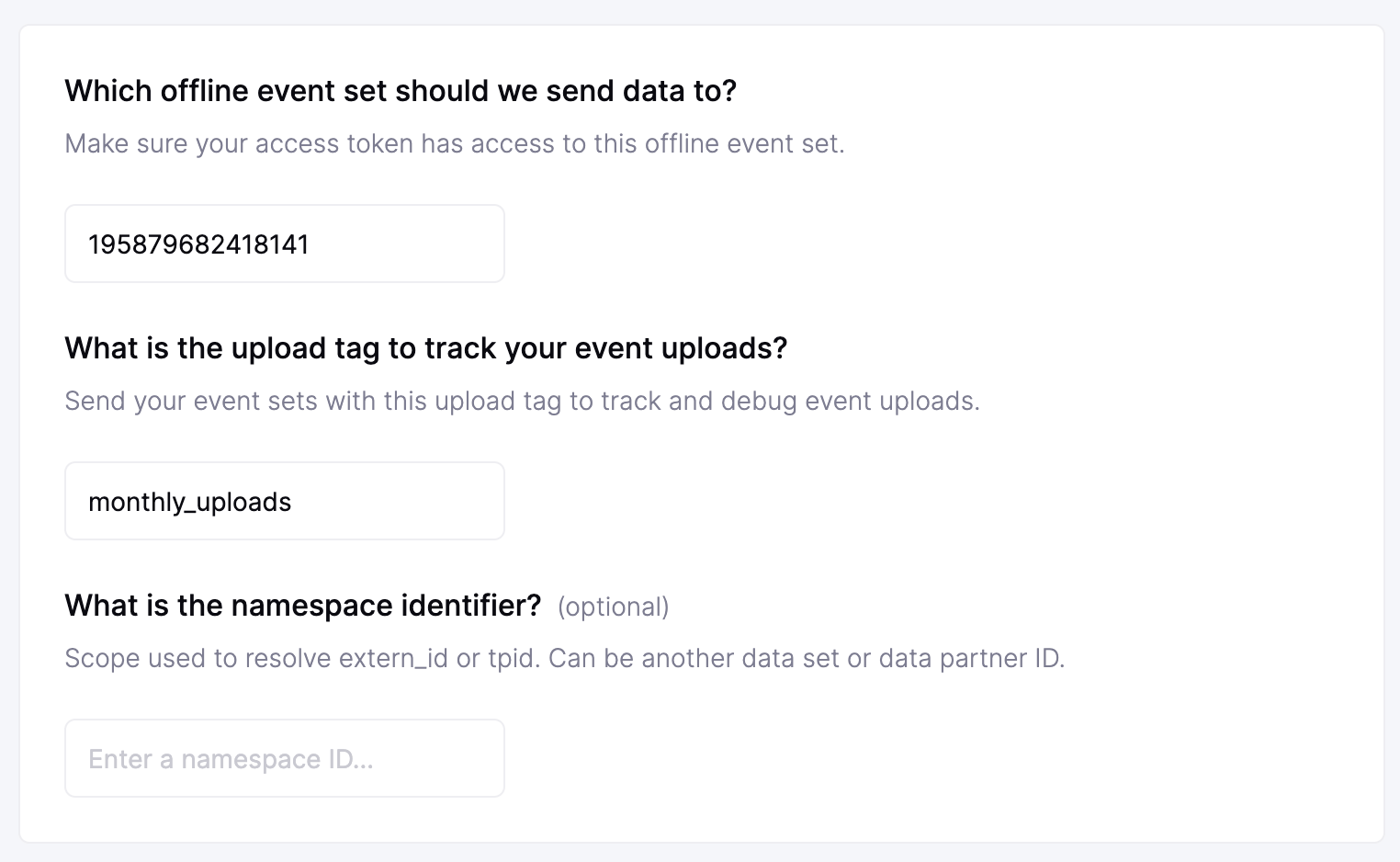
First, enter the event set ID that you want to upload events to. You can find your event set ID from the set’s setting’s tab.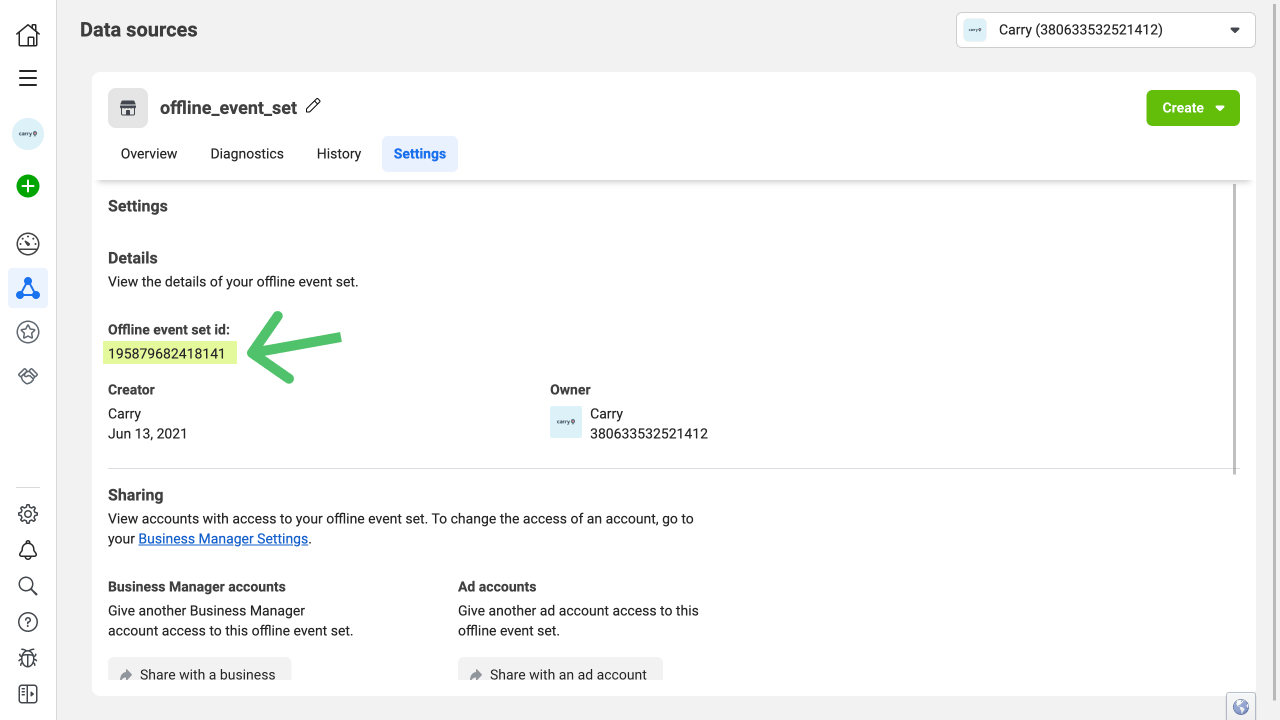
extern_id or tpid. It can be another data set or data partner ID.
Event timestamp
You can optionally select a column that contains timestamps of when events occurred. If this field is empty, Hightouch uses the time the event arrives at the server. Hightouch syncs the timestamp as theevent_time parameter the Conversions API requires.
If you select a column, it should be in ISO 8601 format. Hightouch automatically converts the data to the format Meta expects.
Field mapping
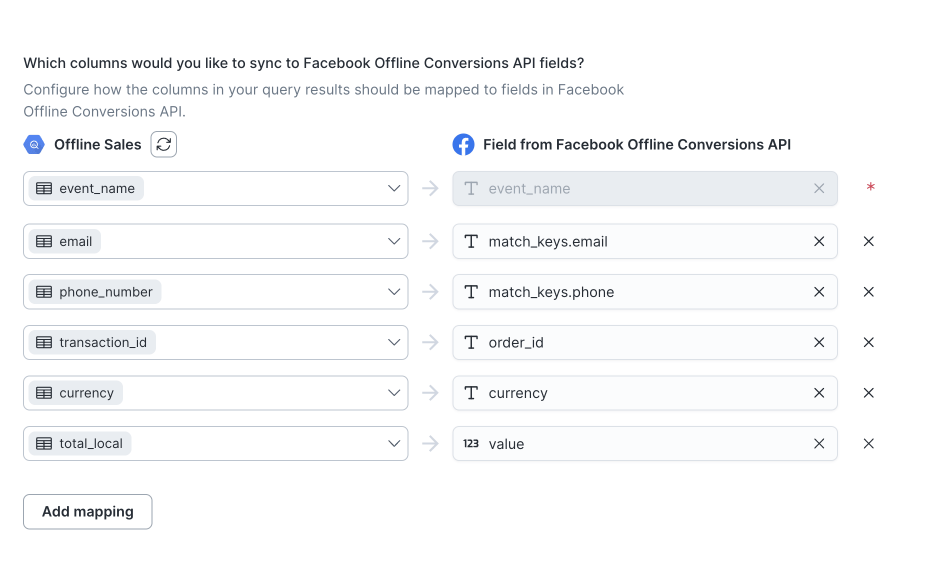
Field mapping is where you can select which event parameters you want to send to the Offline Conversions API. The API expects the following parameters:event_name: Type of event. For example,ViewContent,Search,AddToCart,AddToWishlist,InitiateCheckout, etc.currency: Three-letter ISO currency code for this conversion event. Required forPurchaseevents. For example,USDvalue: Value of conversion event. Required for Purchase events. For example,16.00.match_keys: a set of identifiers to match people for attribution. Examples includeemail,phone,db, etc. Note that these must be hashed.
match_keys. For example, you can use values like "jane@example.com" or ["jane@example.com", "john@example.com"] for match_keys.email. The API rejects comma-separated strings, for example, "jane@example.com, john@example.com". Ensure the mapped field is in the correct format.
Hashing
By default, Hightouch automatically hashes the following fields:- phone
- gender
- doby
- dobm
- dobd
- last name
- first name
- first initial
- city
- state
- zip
- country
Tips and troubleshooting
To see the exact API requests and responses from each sync run, use the live debugger. To get notified by Slack, PagerDuty, SMS, or email when a sync fails, set up sync alerts. If you run into an issue this page doesn’t cover, .Common errors
Event time is older than {…}. Old events can’t be submitted
If you receive this error for an event that isn’t as old as the error message suggests, it may be because of an incorrect format for theevent_timestamp field.
Make sure that timestamps are in ISO 8601 format, as described in the event timestamp section above.