

Overview
Hightouch supports syncing view data from Tableau Cloud or your own self-hosted Tableau Server instance. Most of the setup occurs in the Hightouch UI, but you need access to Tableau for your URL and credentials.You need to allowlist Hightouch’s IP addresses to let our systems contact your warehouse.
Reference our networking docs to determine which IPs you need to allowlist.
If you’re using Tableau Cloud, go to Settings > Bridge and add them to your Private Network Allowlist.
Connection configuration
To get started, go to the Sources overview page and click the Add source button. Select Tableau and follow the steps below.Choose connection type
Hightouch can connect directly to Tableau over the public internet or via an SSH tunnel. Since data is encrypted in transit via TLS, a direct connection is suitable for most use cases. You may need to set up a tunnel if your Tableau instance is on a private network or virtual private cloud (VPC).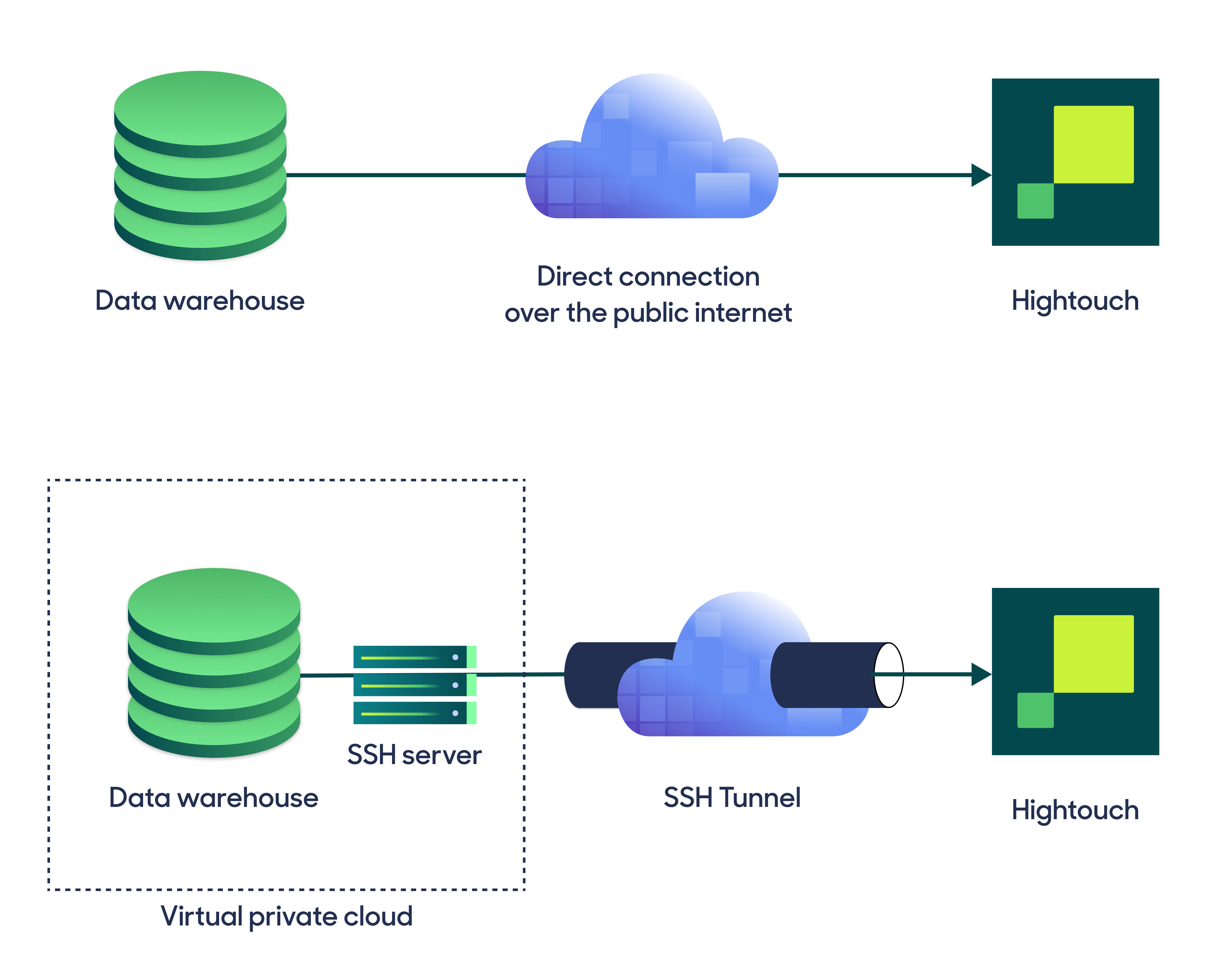
Configure your source
Hightouch supports two authentication methods for Tableau: username and password, and personal access token. For either method, you need to provide the following information:- URL: The URL field should be the full homepage URL of your Tableau instance, for example,
https://prod-useast-a.online.tableau.com/#/site/mycompanysite/home. You can copy and paste this from your browser’s address bar.
- Username: The username of a user with access to the workbooks and views you want to sync.
- Password: The password for the specified username.
- Personal access token name: The name of your token, as configured in Tableau. This is not the token itself.
- Personal access token secret: The secret for the token specified above.
Test your connection
When setting up Tableau as a source for the first time, Hightouch checks that you have the correct permissions. Once the test passes, click Continue to finish setup.Create models
Once your source configuration has passed the necessary validation, your source setup is complete. Next, you can set up models to define which data you want to pull from Tableau.Model setup
- In Hightouch, go to the Models overview page.
- Click Add model.
- Select the Tableau source you previously created.
-
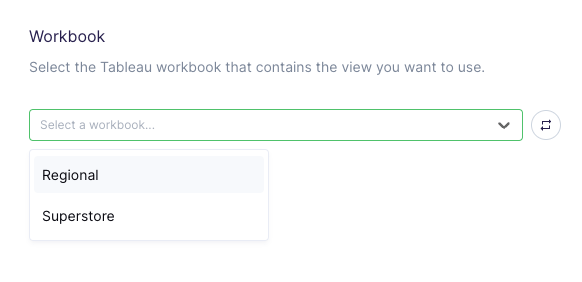
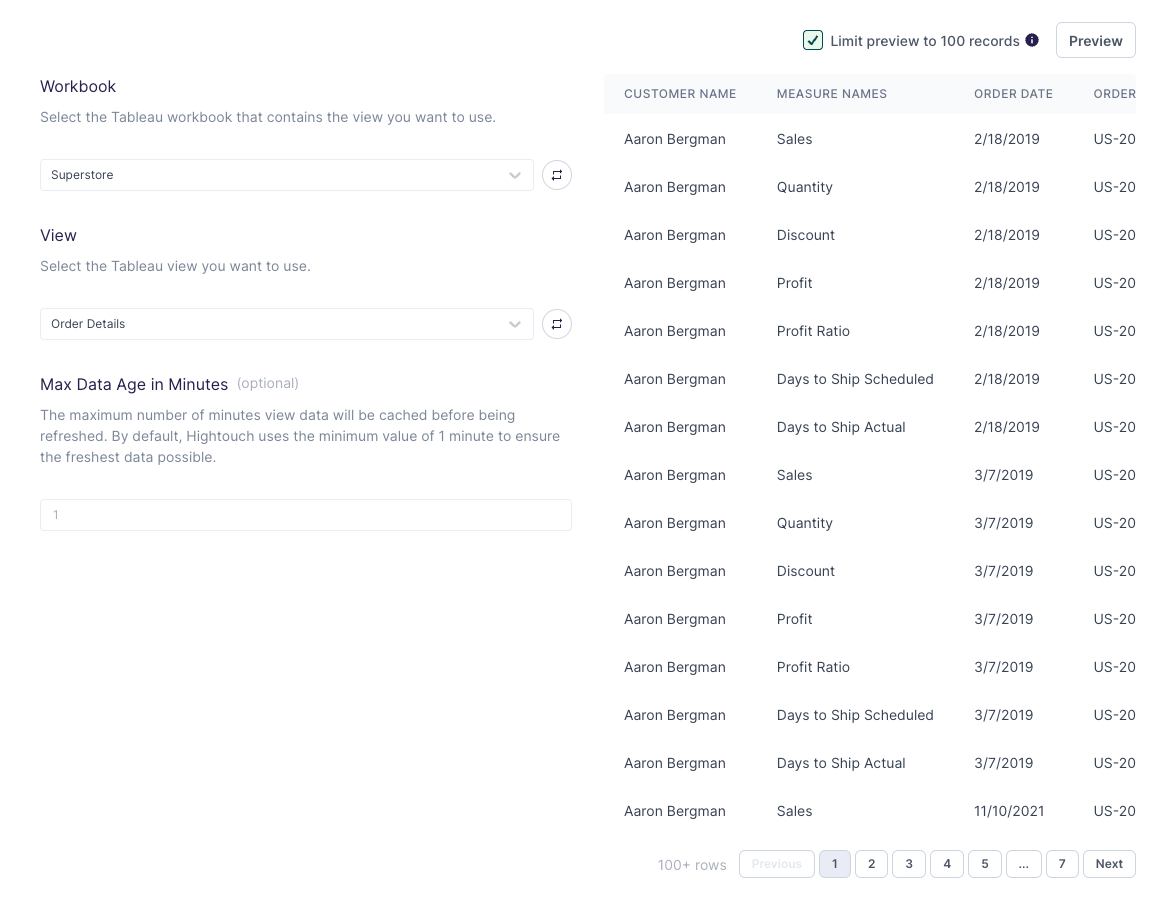
Select the Workbook that contains the view you want to sync.
-
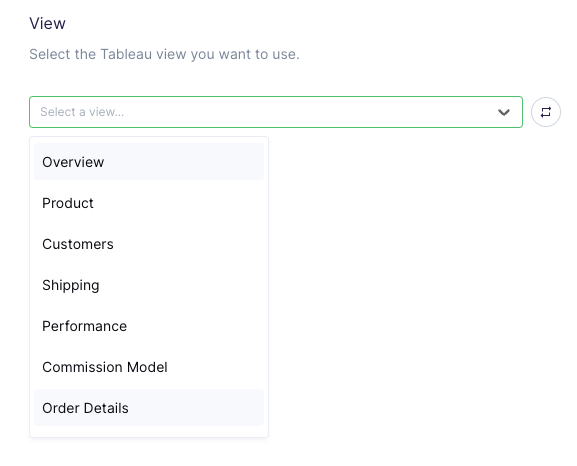
Select the View you want to sync.
-
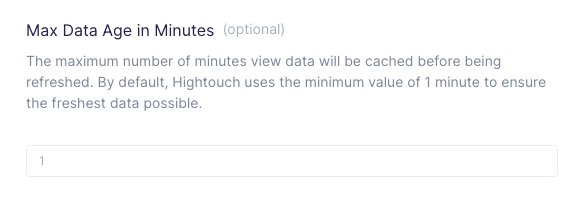
Optionally, set a custom Max Data Age. Tableau caches each data export. If
there is a recent cache newer than the max data age, Tableau serves that data
instead of re-running the data export job. This can be useful if you want to
avoid re-running exports, but it can also lead to stale data. The default value
used by Hightouch is 1 minute, which is the lowest value allowed by Tableau and
means Hightouch uses the freshest data available.
-
Preview your view.
- Click Continue.
- Name your model and select its primary key. Hightouch uses the primary key to determine which rows have been added, changed, or removed since the last sync.