Mixpanel Cohorts are groups of users defined by a chosen set of criteria, like a shared property or sequence of events in Mixpanel. You can also use cohorts to target groups of users via Hightouch.
Hightouch lets you pull data stored in Mixpanel Cohorts and push it to downstream destinations. Connecting Hightouch to Mixpanel requires creating a Mixpanel service account. To create one, follow Mixpanel’s instructions. Keep your service account name and password ready for use in the Hightouch UI.
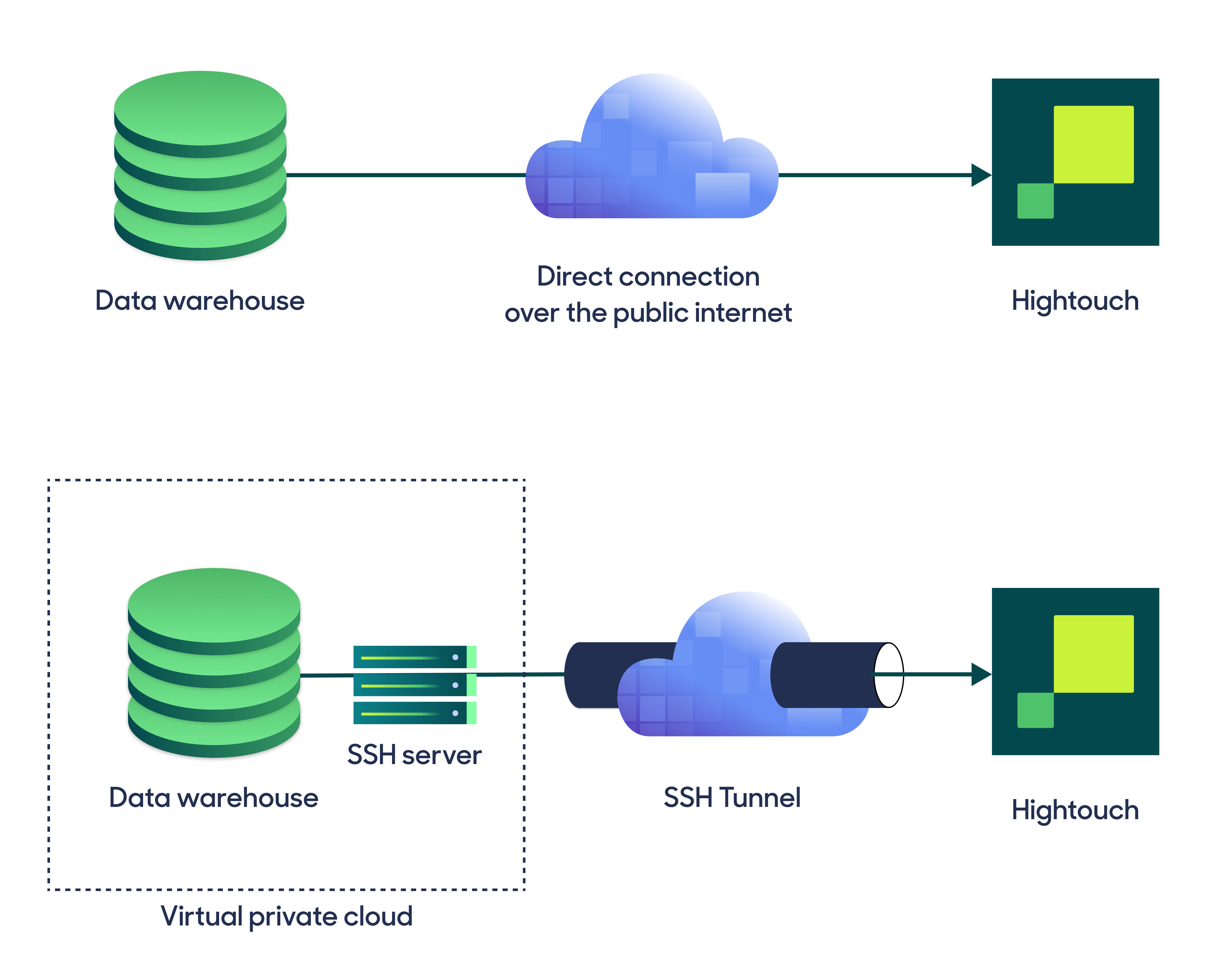
Hightouch can connect directly to Mixpanel Cohorts over the public internet or via an SSH tunnel. Since data is encrypted in transit via TLS, a direct connection is suitable for most use cases. You may need to set up a tunnel if your Mixpanel Cohorts instance is on a private network or virtual private cloud (VPC).Hightouch supports both standard and reverse SSH tunnels. To learn more about SSH tunneling, refer to Hightouch’s tunneling documentation.
Enter the following required fields into Hightouch:
Service account username: This is name of the service account you previously created.
Service account secret: The secret for the service account specified above.
(Optional) Region: By default, Hightouch assumes that your Mixpanel data is stored in the United States, in which case you must leave this field empty.
Otherwise, you can use this field to override that behavior by specifying a different region.
For example, insert eu if your data is located in the European Union.
You can find your Mixpanel region by looking at the Data Residency field in your Mixpanel Project Settings.
When setting up Mixpanel Cohorts as a source for the first time, Hightouch checks that you have the correct permissions. Once the test passes, click Continue to finish setup.
Once your source configuration has passed the necessary validation, your source setup is complete. Next, you can set up models to define which data you want to pull from Mixpanel.
Select the Mixpanel Cohorts source you previously created.
Select the Mixpanel data source, project, and cohort you want to use. The project and cohort populate based on your service account credentials. Check your credentials and click the refresh button if you don’t see the values you expect.
Choose whether to include users without profile data in the query results.
Preview your model’s query results.
Click Continue.
Name your model and select its primary key. Hightouch uses the primary key to determine which rows have been added, changed, or removed since the last sync.
StatusCodeError: 400 - invalid project id for cluster
You may receive this error if your Mixpanel region is incorrect:
StatusCodeError: 400 {"request":"/api/2.0/engage?project_id=XXXXXXX","error":"request failed with error: invalid project id for cluster...."}
By default, Hightouch assumes that your Mixpanel data is stored in the United States, in which case you must leave the Region field empty.
Otherwise, you can use this field to override that behavior by specifying a different region.
For example, insert eu if your data is located in the European Union.