

Before you begin
- A journey in draft or edit mode (see Create a journey)
Overview
Add tiles to the journey canvas in the order members should encounter them:- Control timing with Time delay and Hold until.
- Create branches with Segment and A/B Split.
- Send messages or data with Send email, Send SMS, Send push, and Send to destination.
- Assign values or offers with Set variable and Assign coupon.
Control timing
Time delay
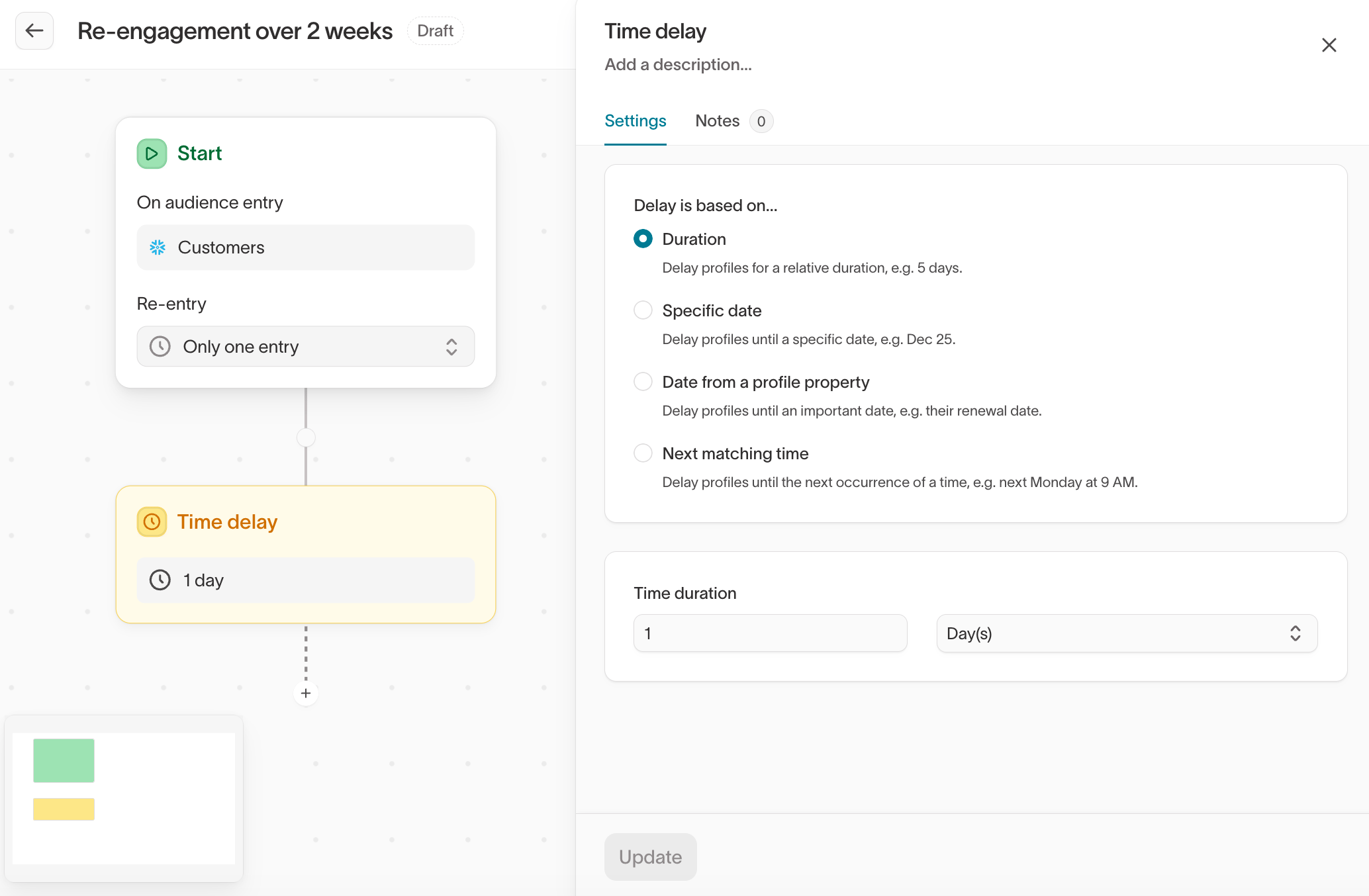
The Time delay tile holds each member until its delay condition is met. Choose one of four modes:- Duration — Wait for a fixed period, such as two hours or three days.
- Specific date — Wait until a calendar date and time.
- Date from a profile property — Wait until a date stored on the member’s profile, with an optional offset, such as two days before
subscription_renewal_date. - Next matching time — Wait until the next occurrence of a recurring time, such as Monday at 9 AM.
A duration shorter than the evaluation interval doesn’t cause the journey to
run sooner. On an hourly schedule, both a 15-minute delay and a 59-minute
delay advance on the next hourly run.
Hold until
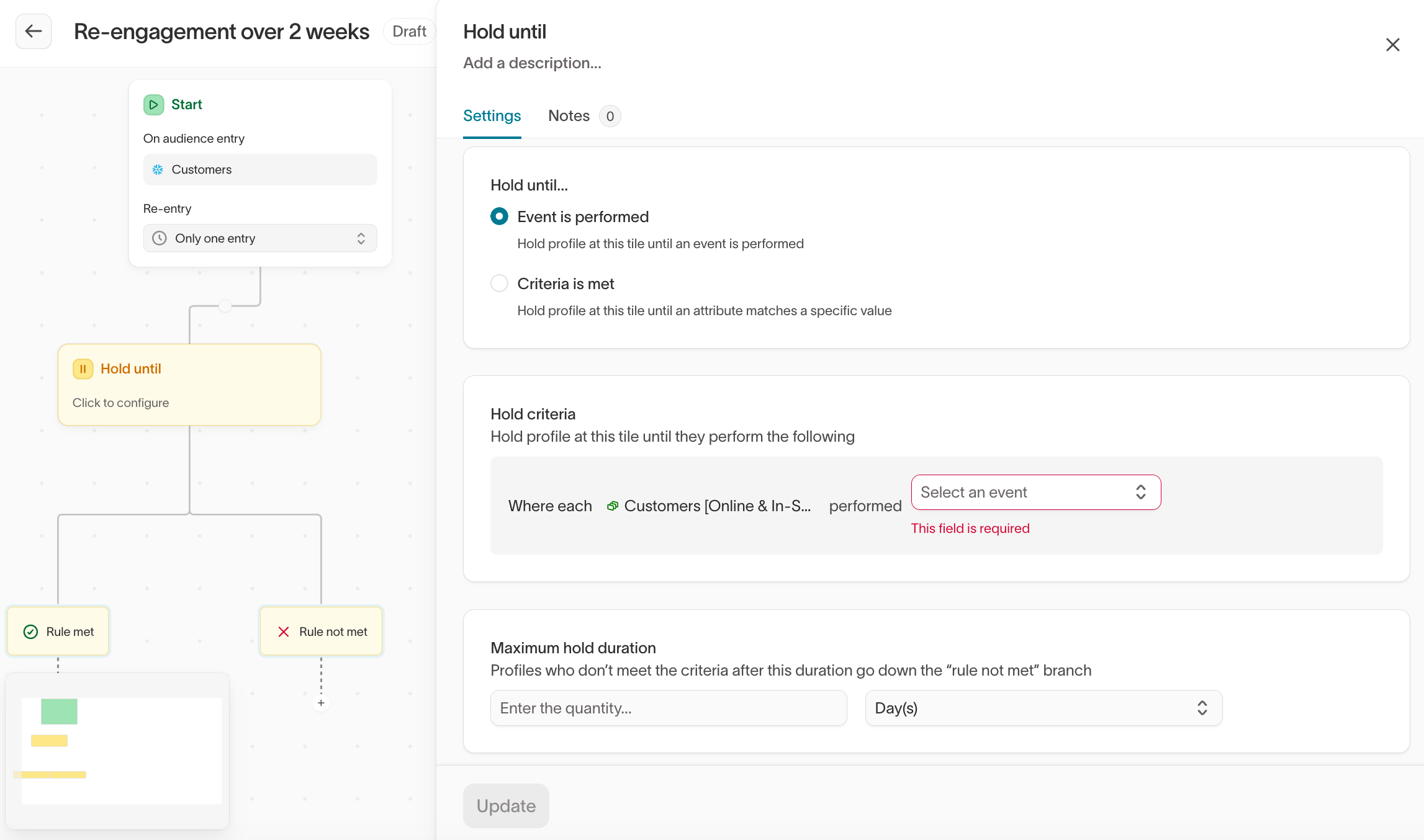
The Hold until tile holds each member until a condition is met or the maximum hold duration expires. It creates two paths:- Rule met — The member follows this path when the condition is met.
- Rule not met — The member follows this path when the maximum hold duration expires first.
- Event is performed — Wait for a specific event.
- Criteria is met — Wait for a condition built in the query builder. Criteria can reference profile attributes, traits, audience membership, event history, and related-model data.
Create branches
Segment
The Segment tile routes members based on profile attributes, traits, audience membership, event history, or relationships. Hightouch evaluates branches from top to bottom. A member follows the first branch whose conditions they meet, so branch order matters when conditions overlap.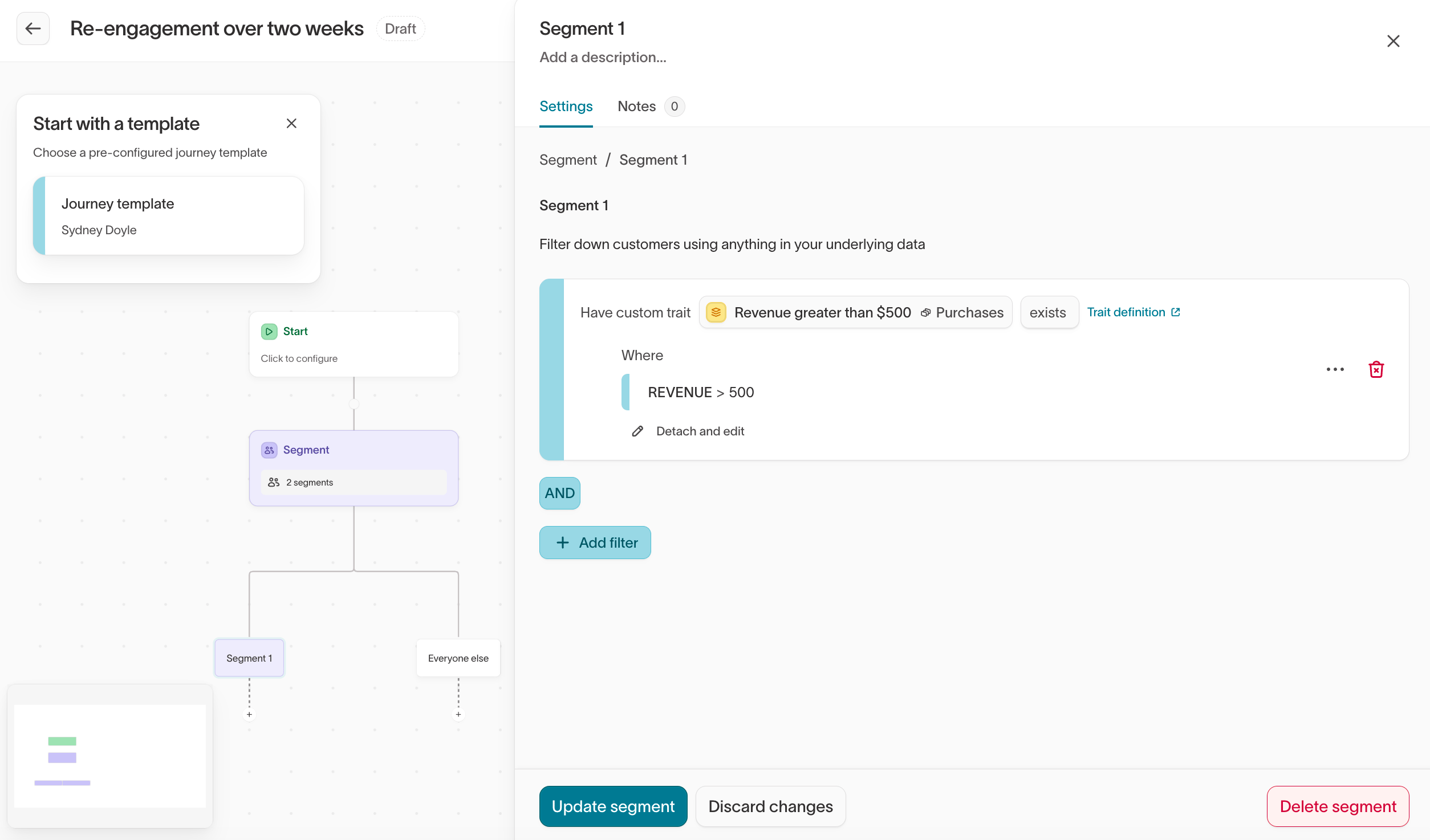
A/B Split
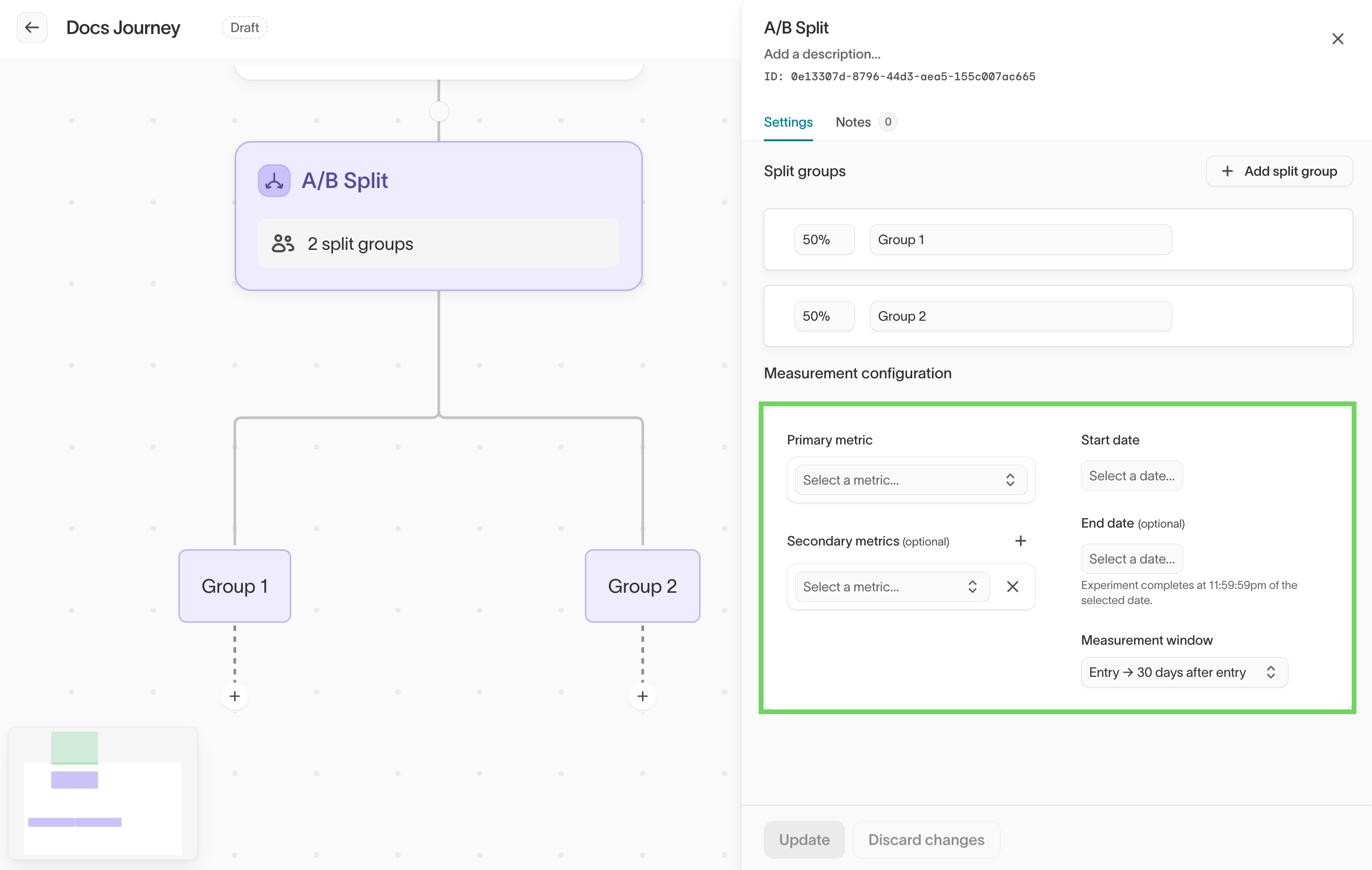
The A/B Split tile divides members across branches by the percentages you set. Assignment is deterministic: Hightouch hashes each member’s primary key with a split-specific salt, so a member returns to the same branch on re-entry as long as the split configuration doesn’t change. Configure the number of branches, the percentage assigned to each branch, and the branch names.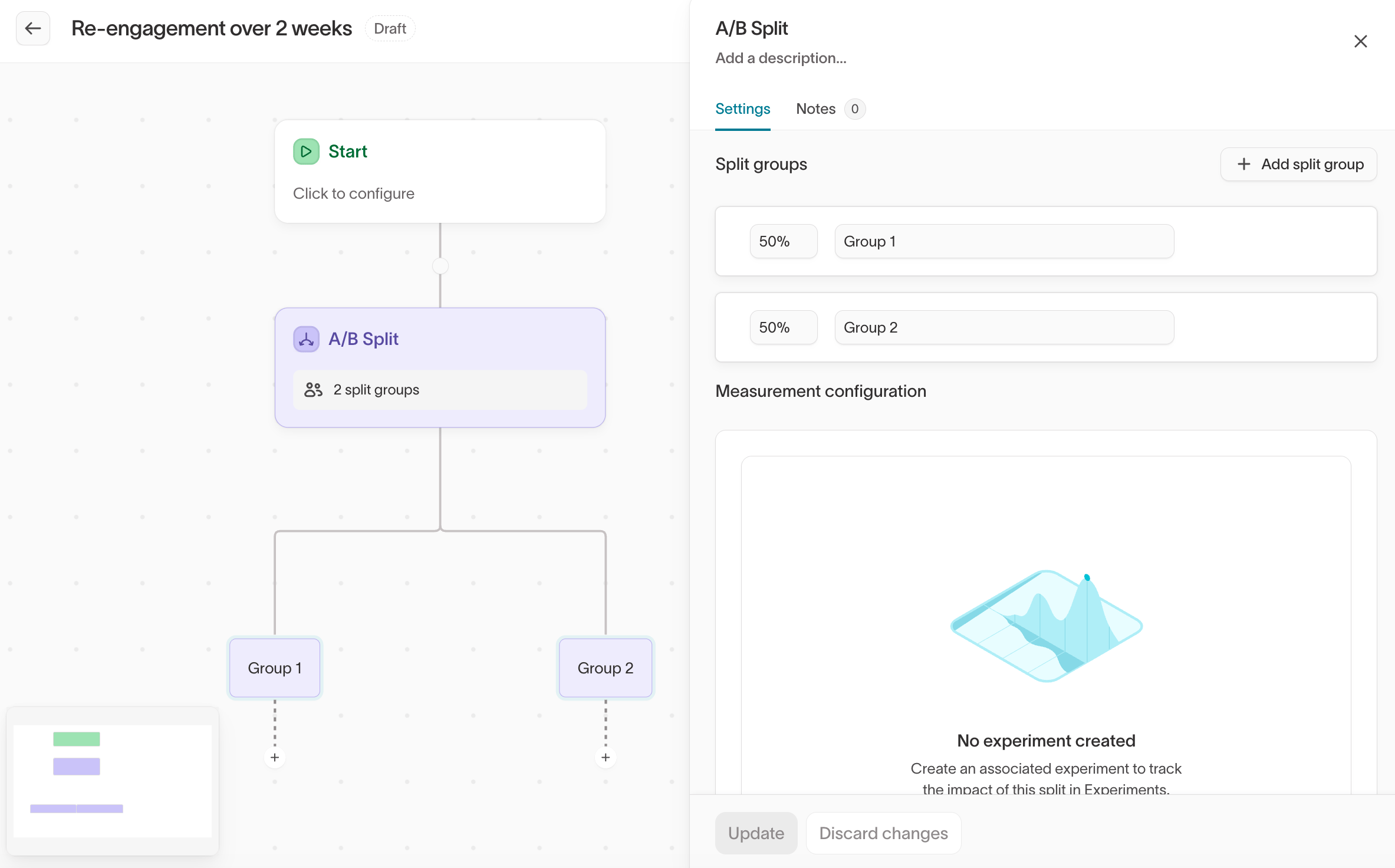
A/B Split experiment measurement must be enabled by Hightouch. to turn it on.
- Open the A/B Split tile.
- Under Measurement configuration, select Create experiment.
- Configure a primary metric, any secondary metrics, and the measurement window.
Send messages or data
Send email, SMS, or push
The Send email, Send SMS, and Send push tiles deliver messages directly from Hightouch. They don’t create a sync to a downstream messaging tool.Hightouch must enable direct delivery for your workspace, and each channel
must be configured before its tile appears. Otherwise, use Send to
destination.
- Name the tile. Hightouch uses the tile name as the message name in reporting.
- Create the message from a template or from scratch.
- For email, configure the subject, preheader, and body.
- Add personalization from profile attributes. In an event-triggered journey, you can also reference properties from the event that triggered entry.
- Preview the message with a profile and send a test message.
- Configure send limits, if needed.
Send to destination
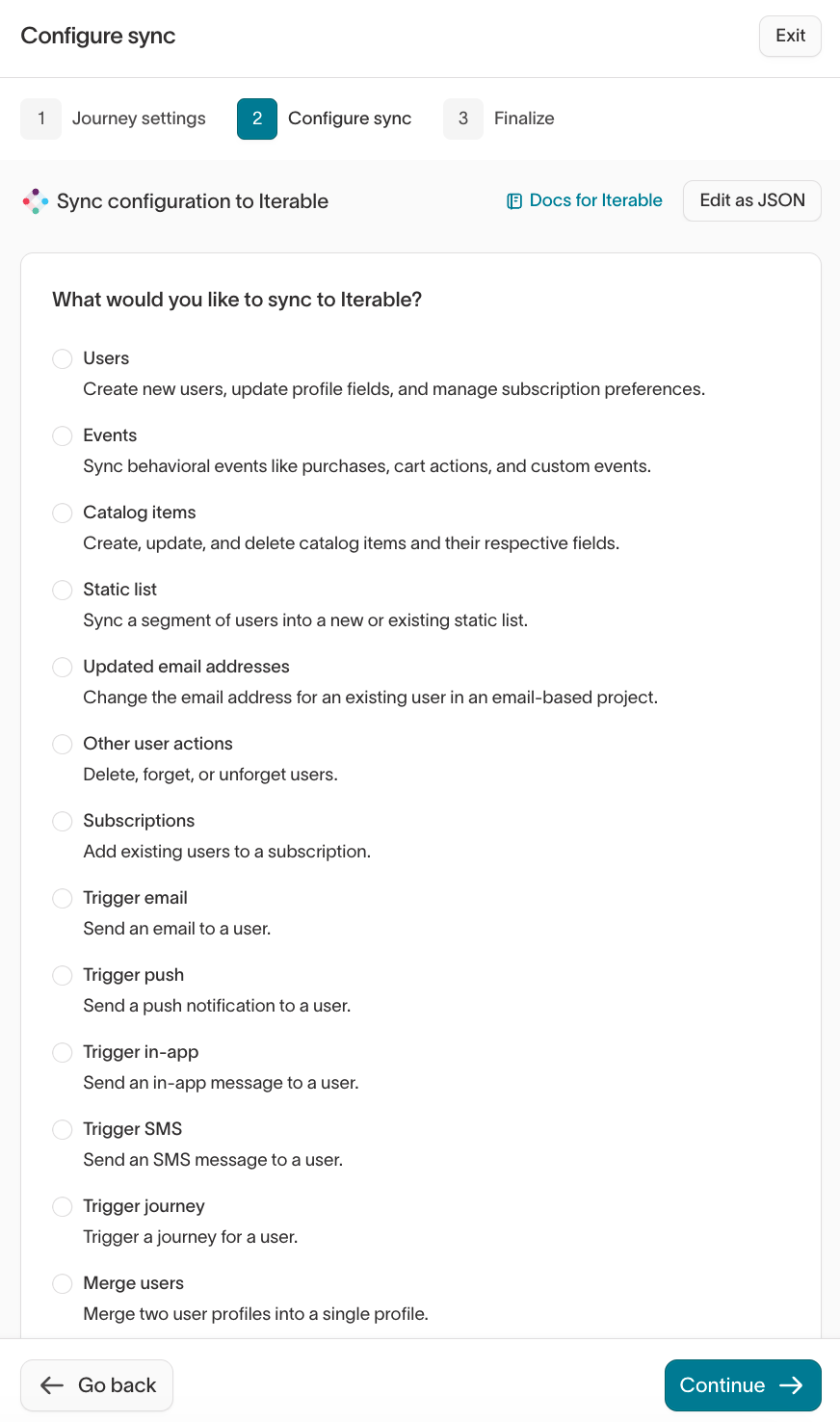
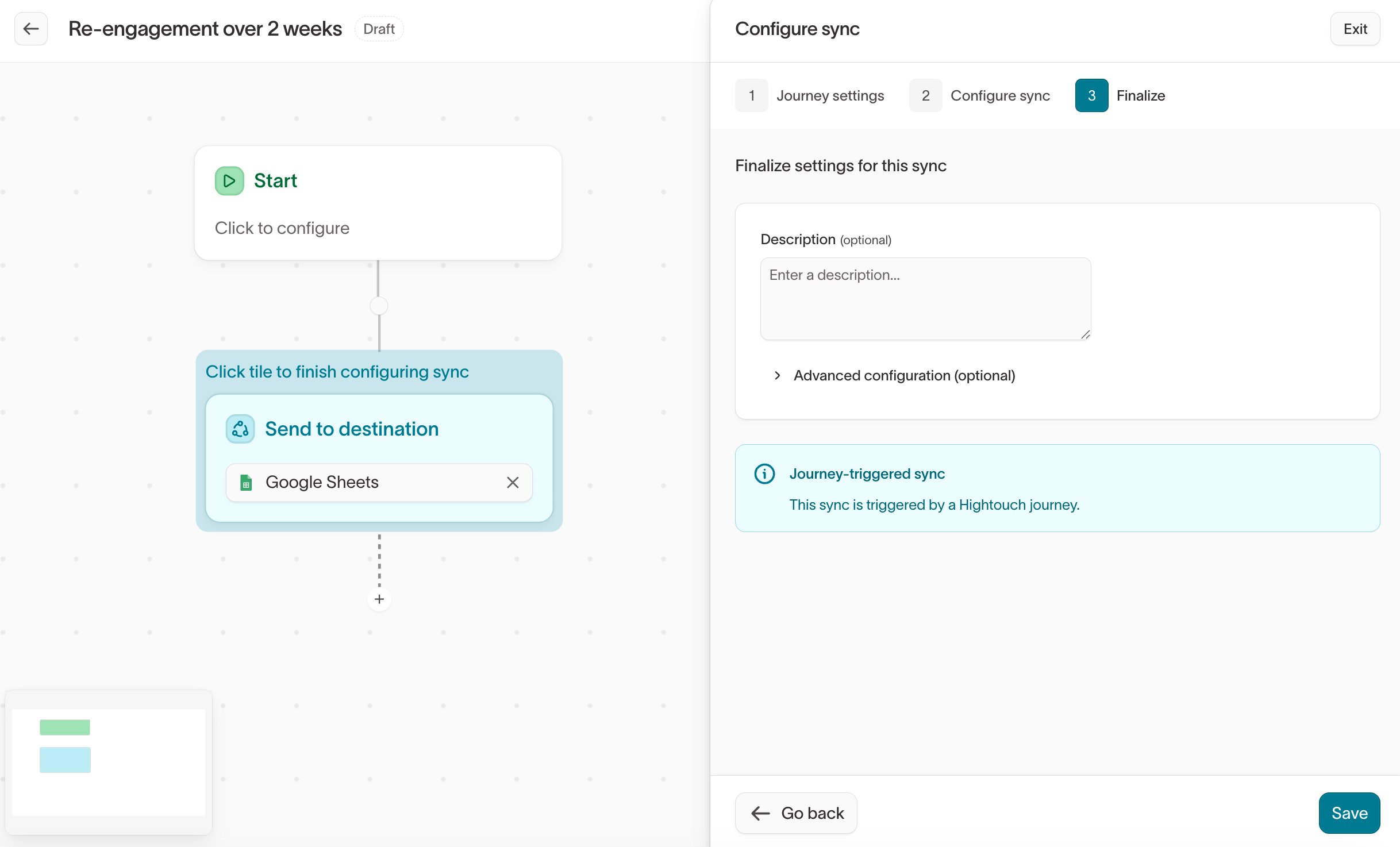
The Send to destination tile runs a sync when members reach it. Select an existing sync or create one from the tile.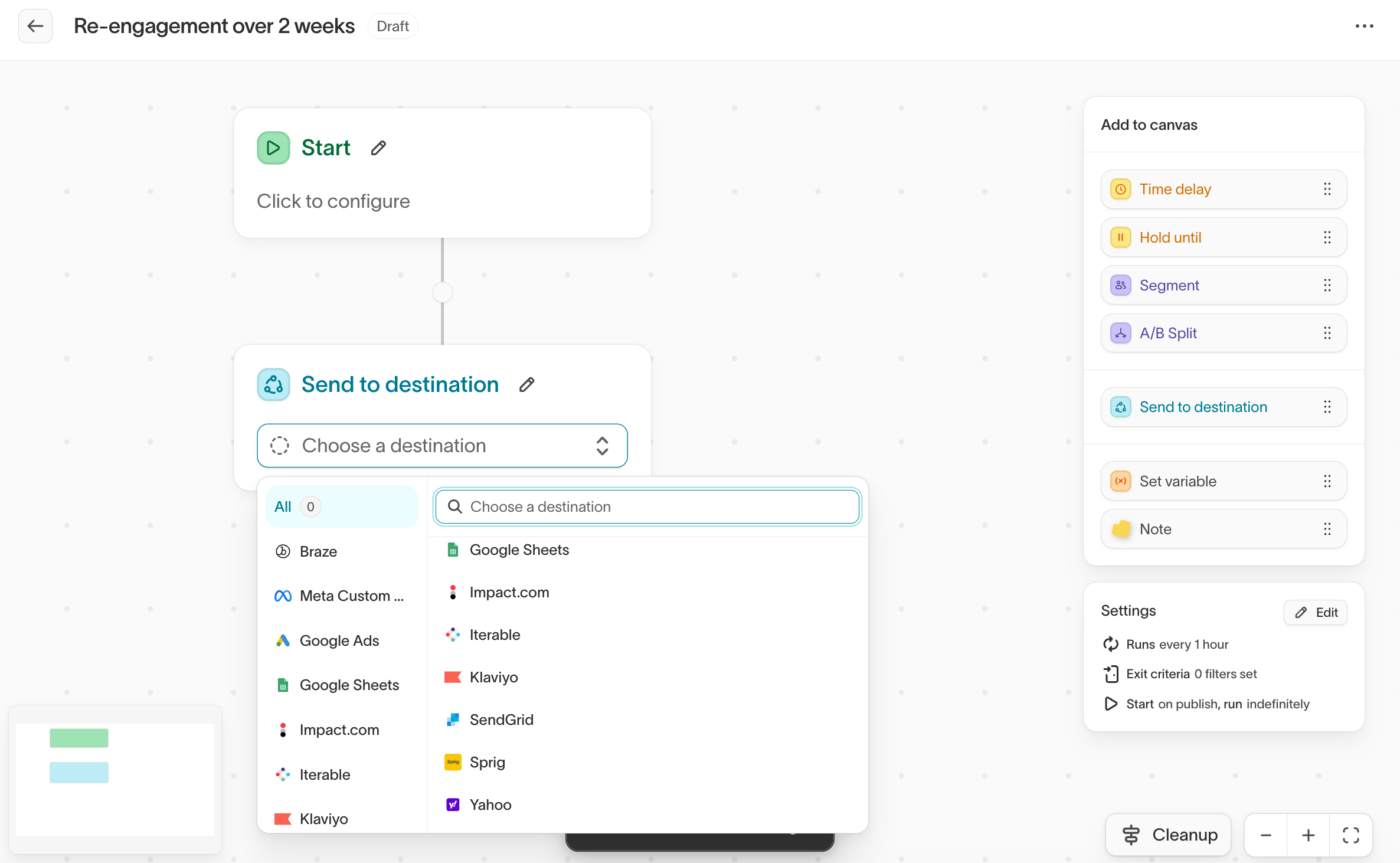
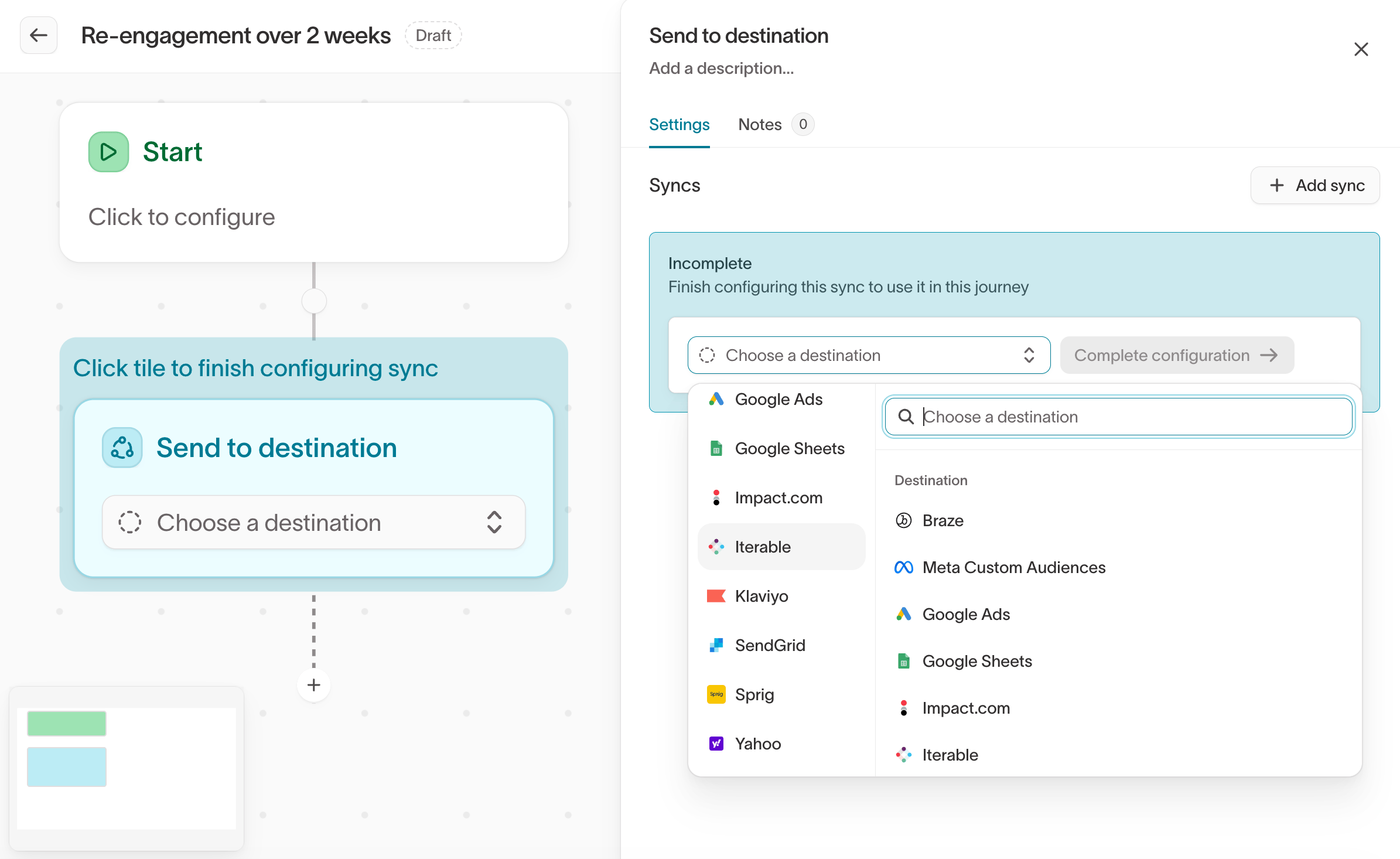
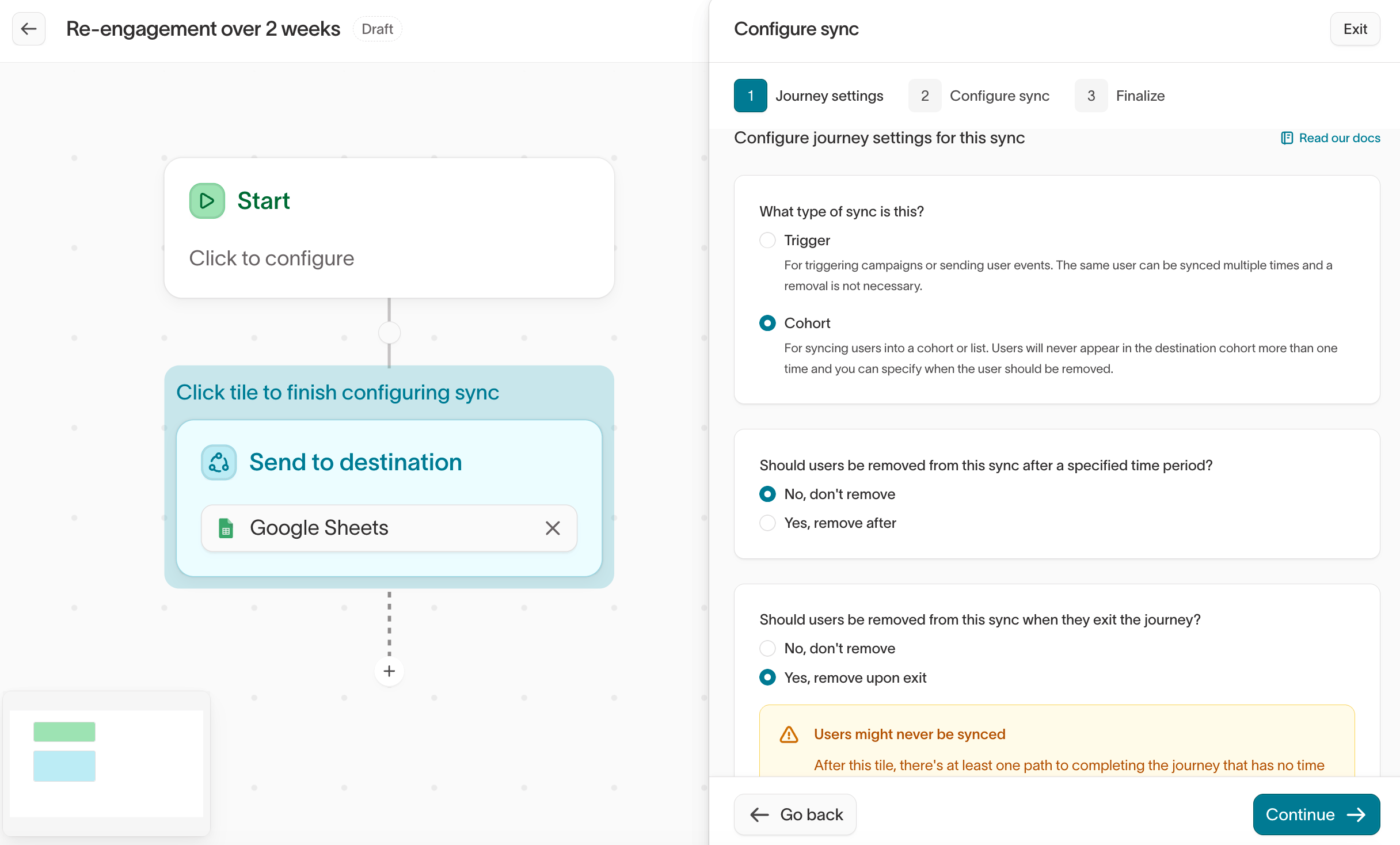
Configure the sync type and removal behavior under Journey settings, then configure the destination-specific object and how fields map to the destination.
Trigger mode
Trigger mode is deprecated, and new one-time sends should use Message
mode instead. Existing trigger syncs keep working, and
Trigger mode deprecation explains what changes.
Expire unsent entries on trigger syncs
A trigger sync keeps a record of every member who has passed through the tile, and an entry stays eligible to send until a sync sends it. This can lead to unexpected behavior. If a destination rule filters members out at sync time, those members progress through the journey normally, but their entries stay eligible indefinitely. If the rule changes later, the sync can send old rows. Every trigger sync is therefore bounded by an expiry window. The workspace default is 30 days, and it applies to every trigger sync in the workspace.- Entries older than the window are skipped at sync time and never sent.
- The window is measured from when the member entered the tile, not from when the journey started or when the sync last ran.
Cohort mode
Use Cohort mode to maintain a destination audience or list that reflects current journey membership.Message mode
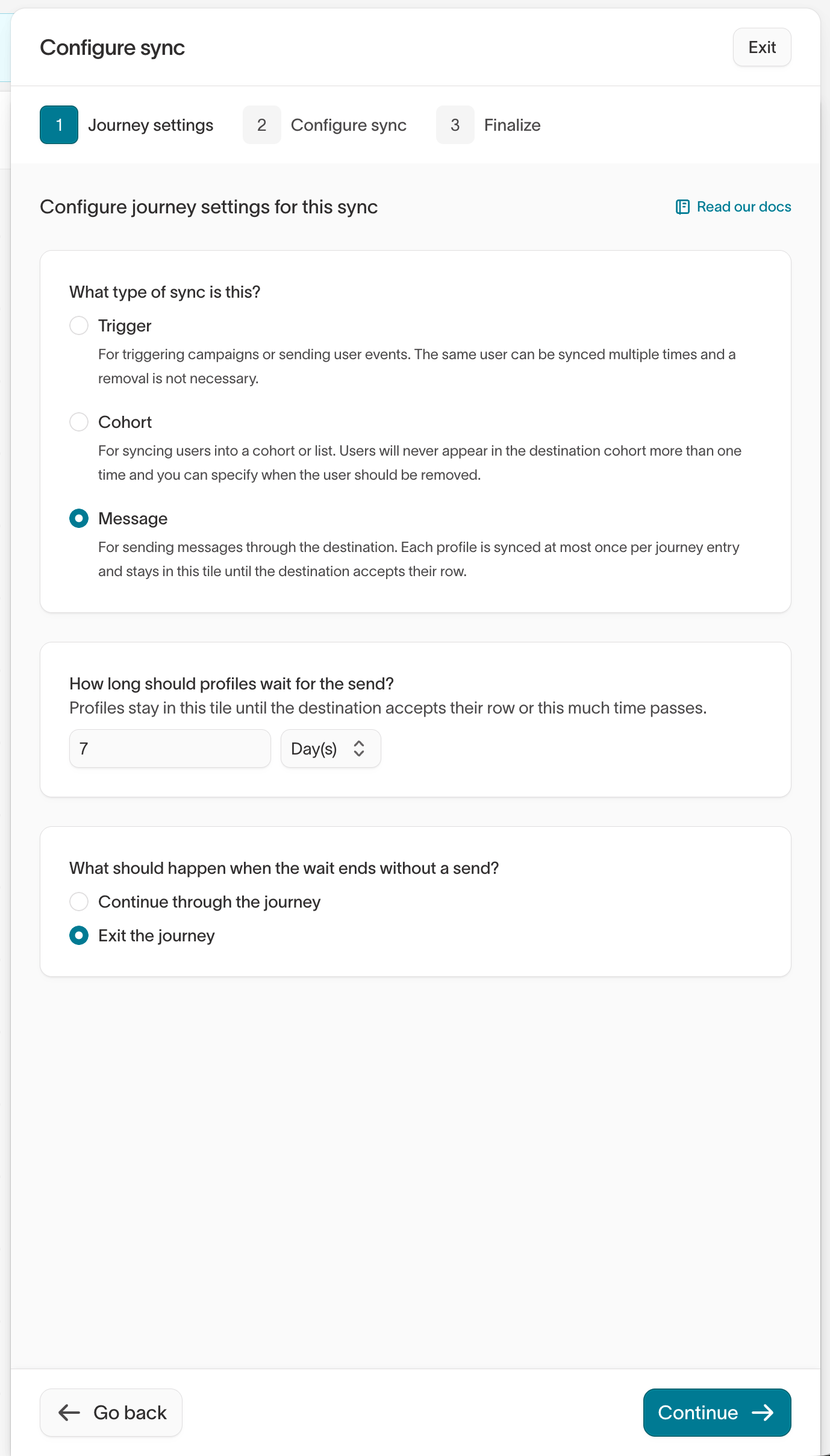
Use Message mode for one-time actions where you want one event or message per member per tile. In Message mode, the tile holds members until the destination confirms the record was accepted. Message mode runs a sync through Send to destination. The destination’s acceptance confirms a successful delivery from the sync engine, but it doesn’t confirm that the recipient received or opened a message. Hightouch checks each waiting member on journey evaluations:
Journey exit criteria still apply while a member waits. Once a member leaves the tile, the Message sync stops retrying their record. Leaving the tile doesn’t send a removal to the destination.
Message syncs require a destination configuration that sends added records only. Use Insert where available.
To configure Message mode:
- You must set the maximum wait for the sync. The wait starts when the member enters the tile and controls how long the member waits to be synced.
- Set the timeout action to either have the member continue or exit the journey if the sync engine could not perform the sync within the allowed wait time. The default is
Continue through the journey.
Trigger mode deprecation
We’re retiring Trigger mode in favor of Message mode, which handles one-time sends more reliably. If a member leaves the parent model and later rejoins it, a trigger sync can send them the same message twice, while Message mode sends at most once per journey entry. Message mode also holds members at the tile until the destination accepts their record, so the rest of the journey never gets ahead of the send. Your existing trigger syncs keep running and stay editable, and a journey that already uses one can still add more. Everywhere else, the sync type picker offers Message and Cohort instead. When you’re ready to switch a sync over, follow Migrate from Trigger to Message mode. If you have a use case Message mode doesn’t cover, and we’ll help you find the right setup.Migrate from Trigger to Message mode
Message mode is designed to replace Trigger mode and is safer for ensuring that messages are only delivered once. To migrate an existing sync:- Pause the journey.
- Change the sync mode from Trigger to Message and set the required maximum wait (
wait_for). - Check the destination configuration and receiving system to ensure they process added records only. Disable operations for changed or removed records. Use Insert where available.
- Restart the journey.
Retries and sequencing
If a record fails to sync, Hightouch retries it on later runs. A cohort sync retries the record while the member remains in the sync and stops once they’re removed by an exit or completion. A trigger sync retries until the record syncs or its expiry window (expire_after) elapses. Message syncs retry while the member remains at the tile, within the maximum wait.
Send to destination tiles reached during the same journey evaluation are scheduled together at the end of the run. Journeys don’t guarantee an order between those syncs. Use Message mode when the next tile must wait for destination acceptance. Add a Time delay tile when you need an additional delay between actions.
Sync templates
You can apply a sync template to reuse destination-specific configuration. The template doesn’t control the journey sync type or removal behavior, so changes to those settings must be made on each journey sync. Destination rules can exclude records at sync time. In Message mode, excluded members take the configured timeout action when the journey detects the exclusion. Trigger and Cohort modes continue to advance members without waiting for destination acceptance.Assign and carry values
Set variable
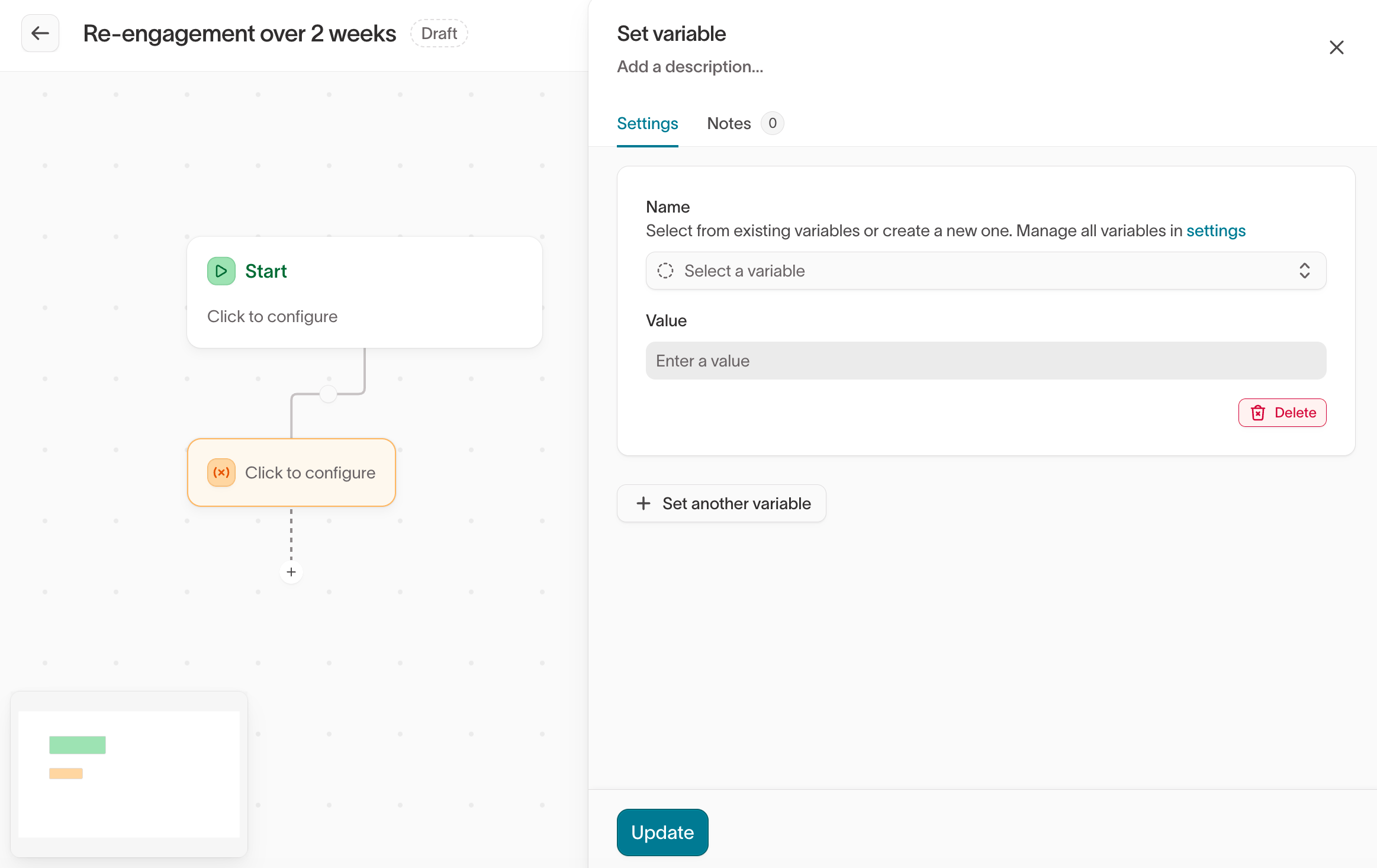
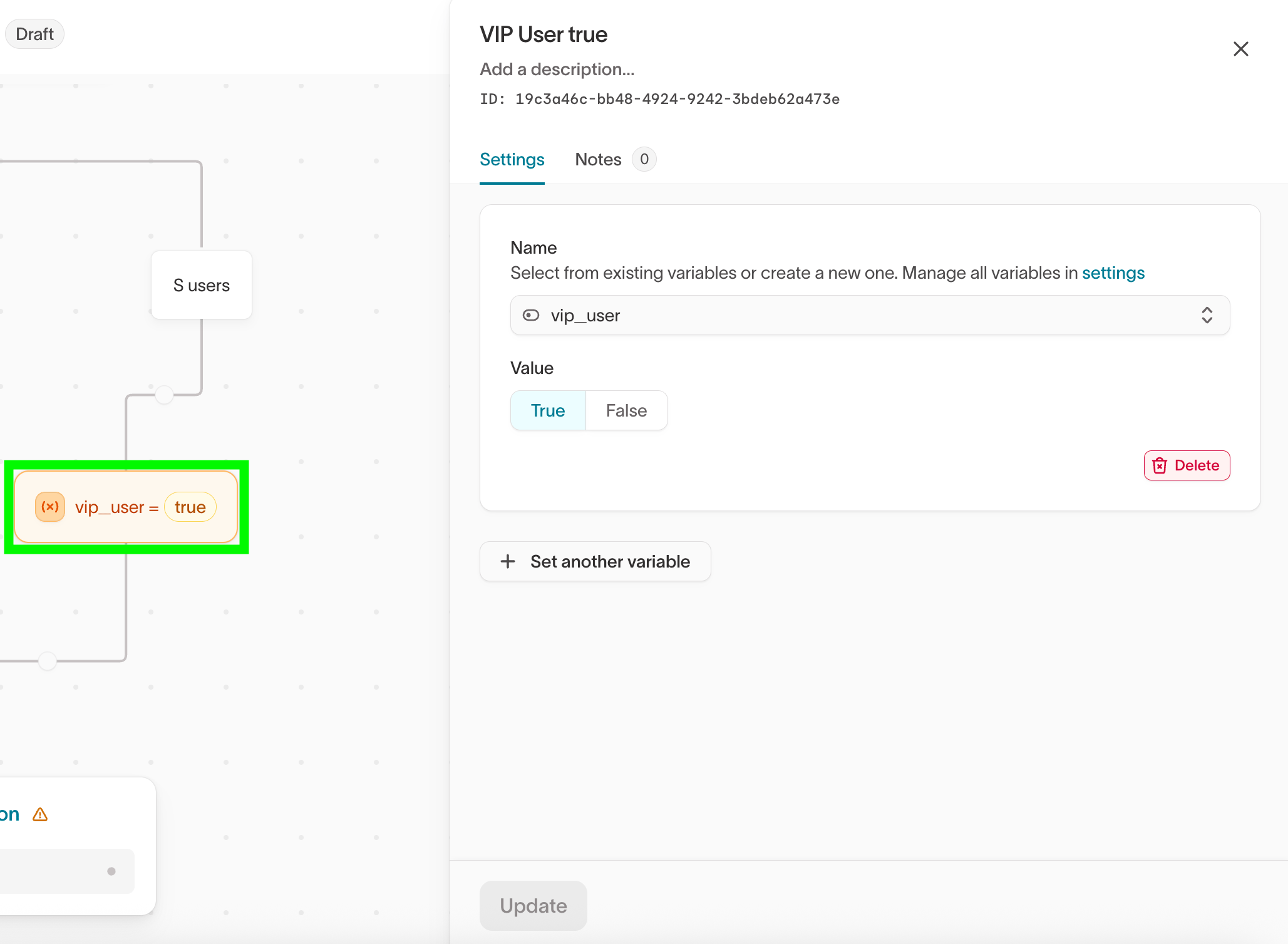
The Set variable tile assigns a value to a journey variable. Later tiles can use that value for branching or send it to a destination. Define variables in the journey’s Variables settings, then add Set variable tiles where their values should change.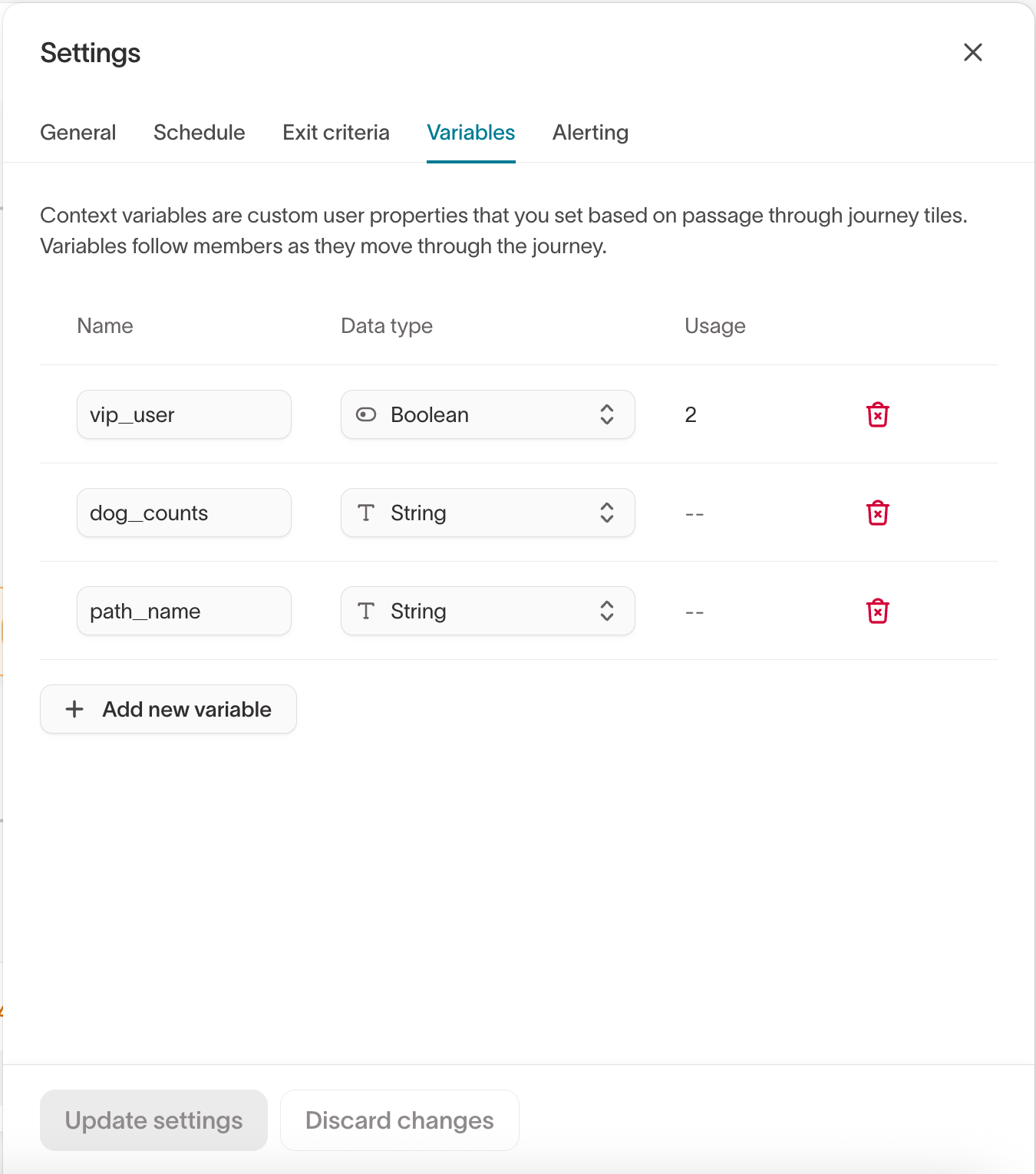
- Define a
vip_uservariable in journey settings. - Add a Segment tile that branches on loyalty level.
- On the high-loyalty branch, set
vip_usertotrue. On the remaining branches, set it tofalse. - In a Send to destination tile, map
vip_userto a destination field.
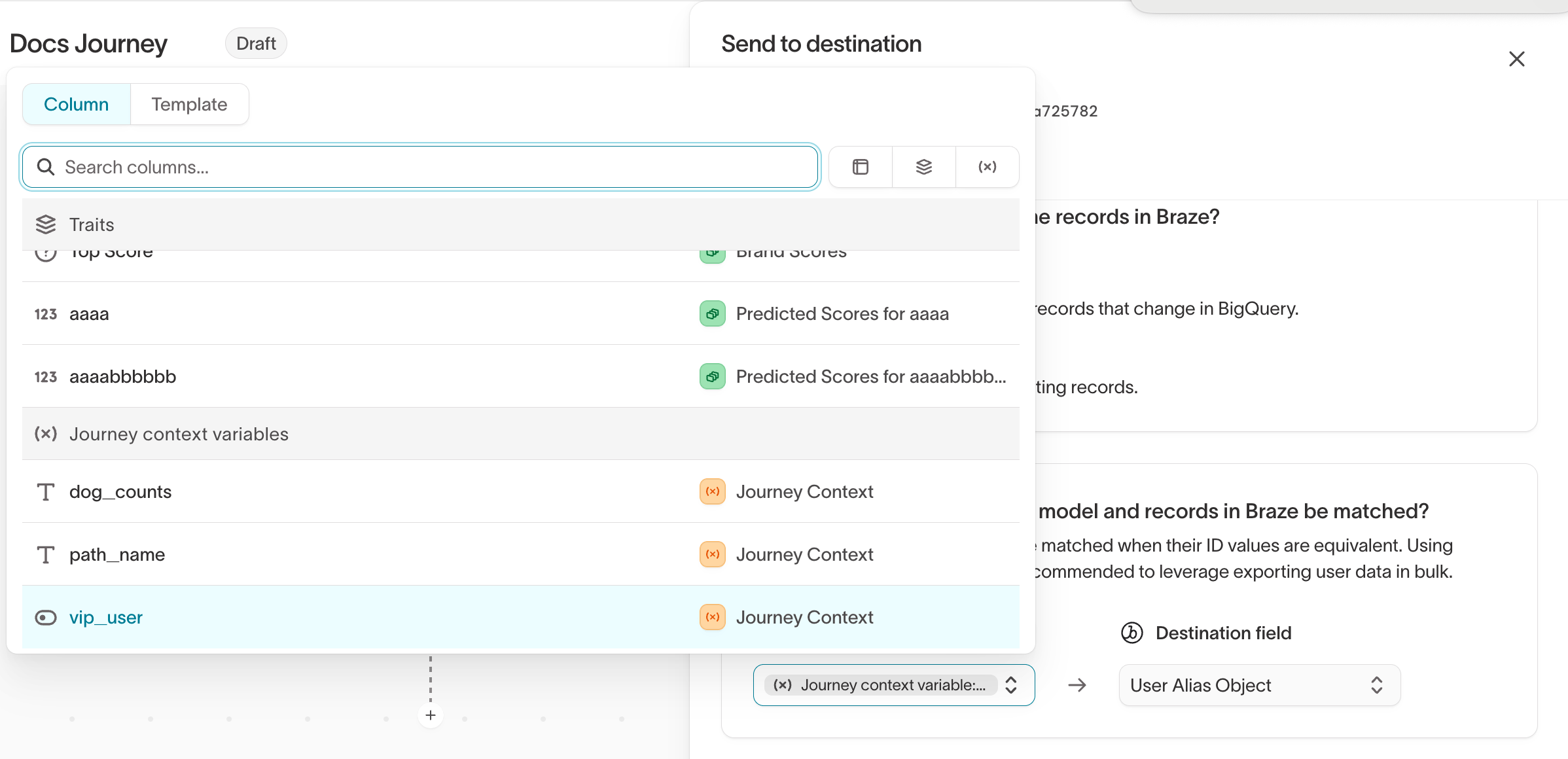
JOURNEY_CONTEXT_LOG_<journey_id> table. Query this table to use a journey variable in downstream analysis or audience logic.
The journey UI uses Variables and Set variable. Warehouse log tables
and API responses use context variables for the same data.
Assign an offer
Assign coupon
The Assign coupon tile assigns a code from a configured coupon pool to each member who reaches it. Use it for promotions that need unique, single-use codes. See Coupon assignment to configure a coupon pool.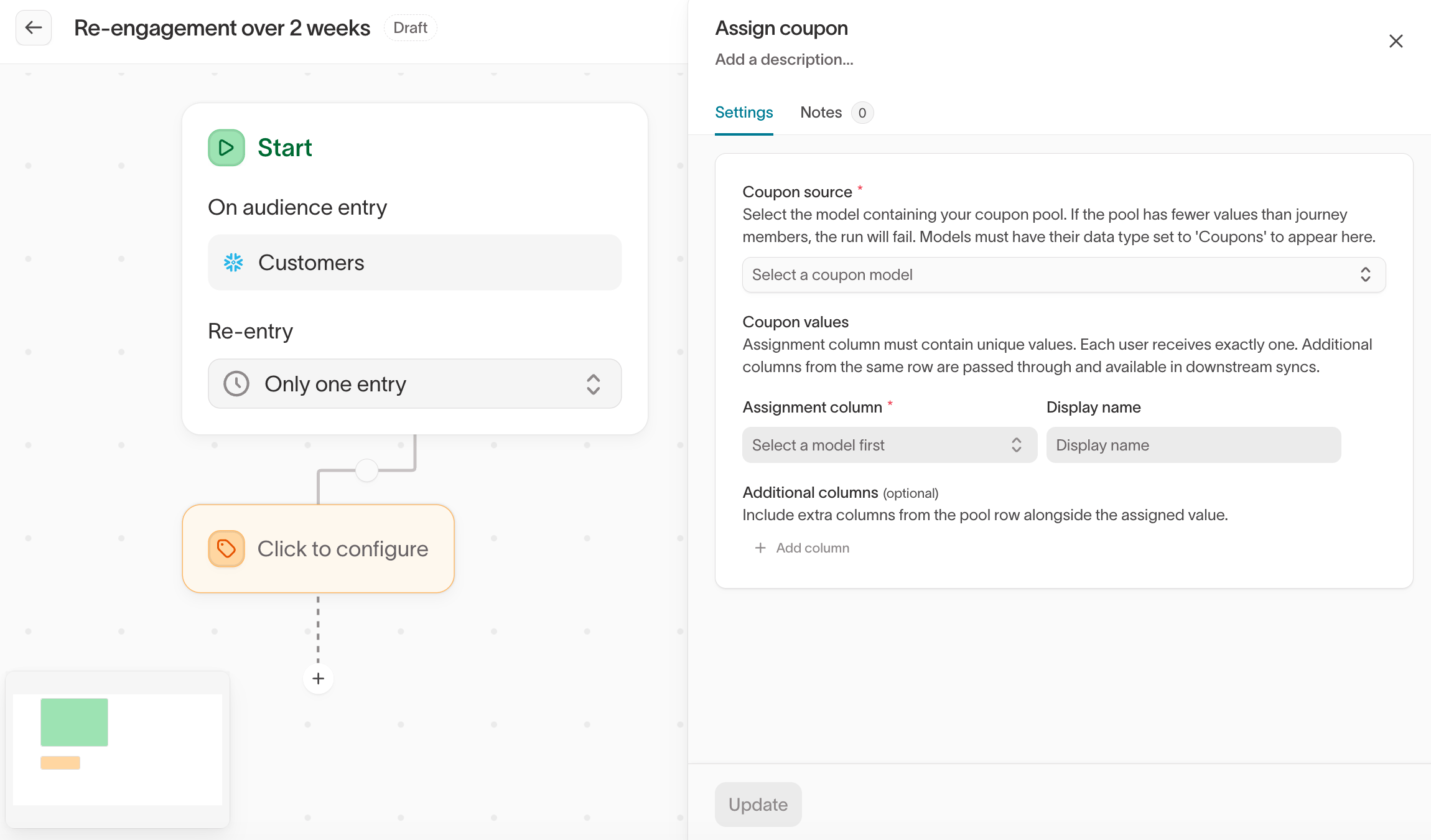
Next steps
- Test and launch a journey to validate tile behavior before activation.
- Coupon assignment to configure coupon pools.
- Warehouse tables reference for journey log and variable schemas.