

Profiles must be enabled by Hightouch. to turn it on.
Before you begin
- A configured schema with at least one parent model.
Overview
Use Profiles (titled Profile Explorer in the app) to explore members of your parent model directly: to understand which attributes are available, or to look up a specific customer and troubleshoot their behavior. Unlike Audience insights, which analyze a specific audience while you build it, Profiles doesn’t require an audience in progress.Find a member
Go to Customer Studio > Profiles and select a parent model. Search members by primary key, or select Filter to locate members using any condition available in the audience builder.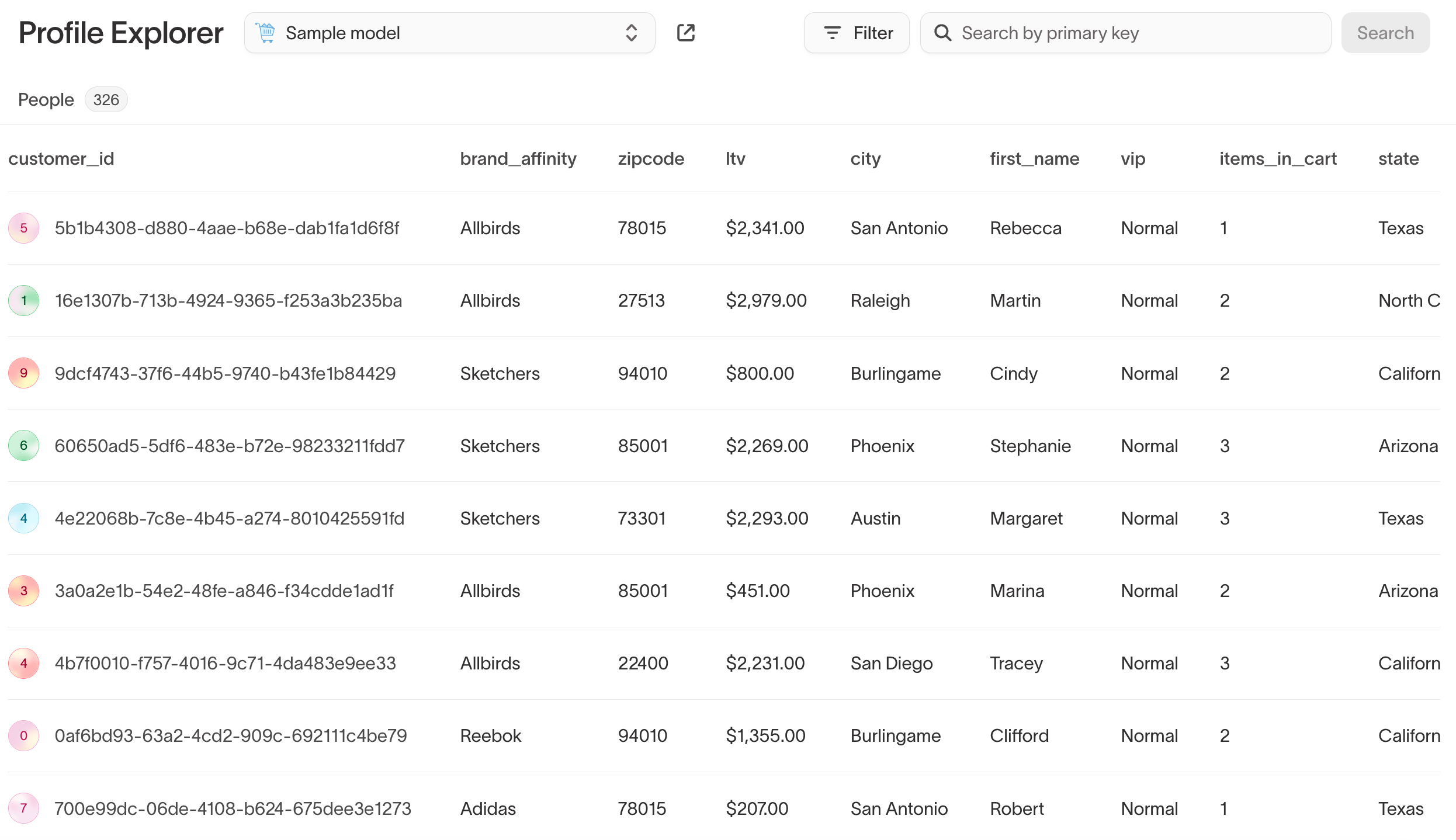
Inspect a member
Select a member to open their profile, which gathers that member’s attributes, activity, and memberships in one place.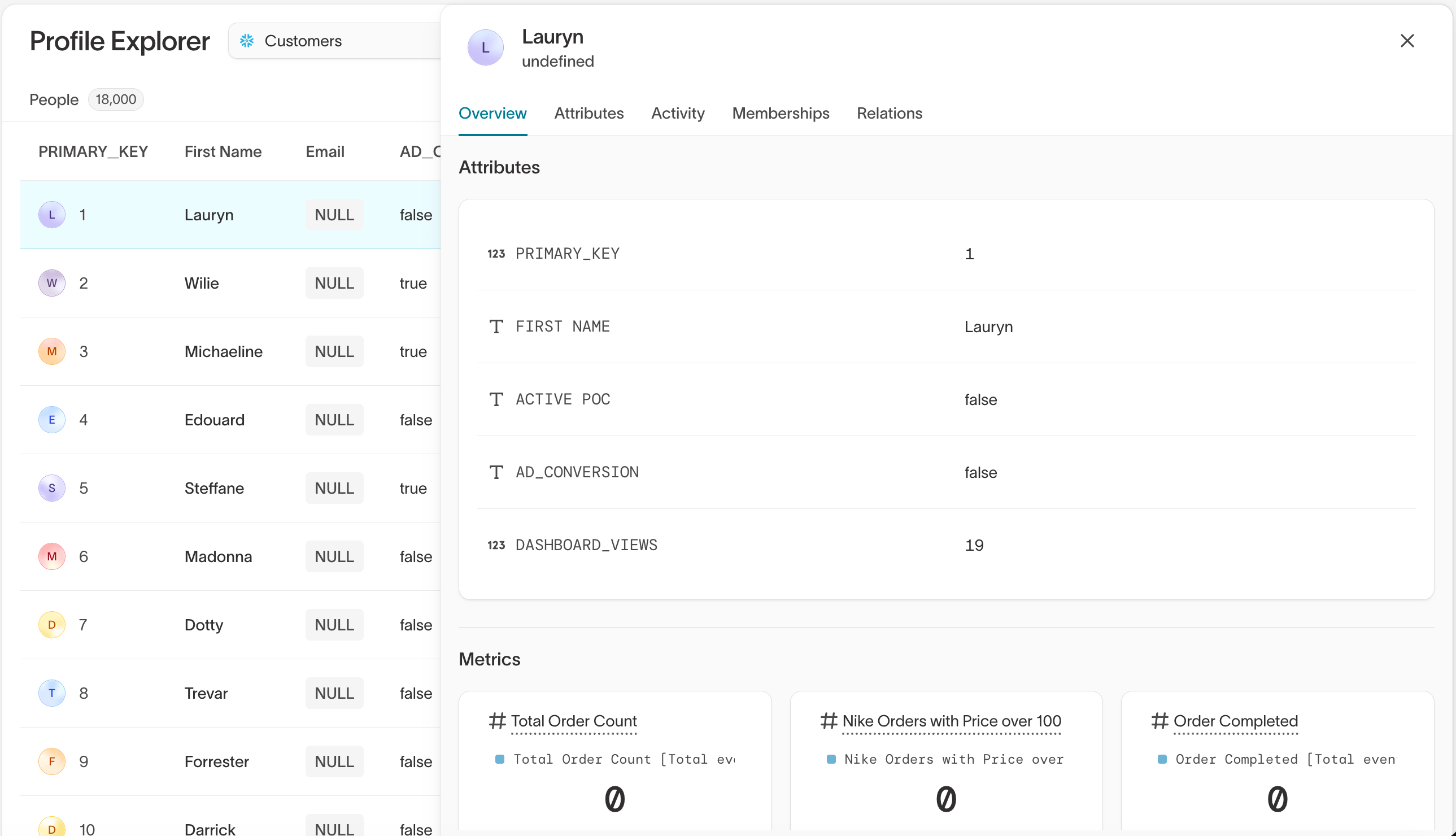
- Read their attributes and metrics — The fields on the parent model, alongside calculated metrics such as total order count.
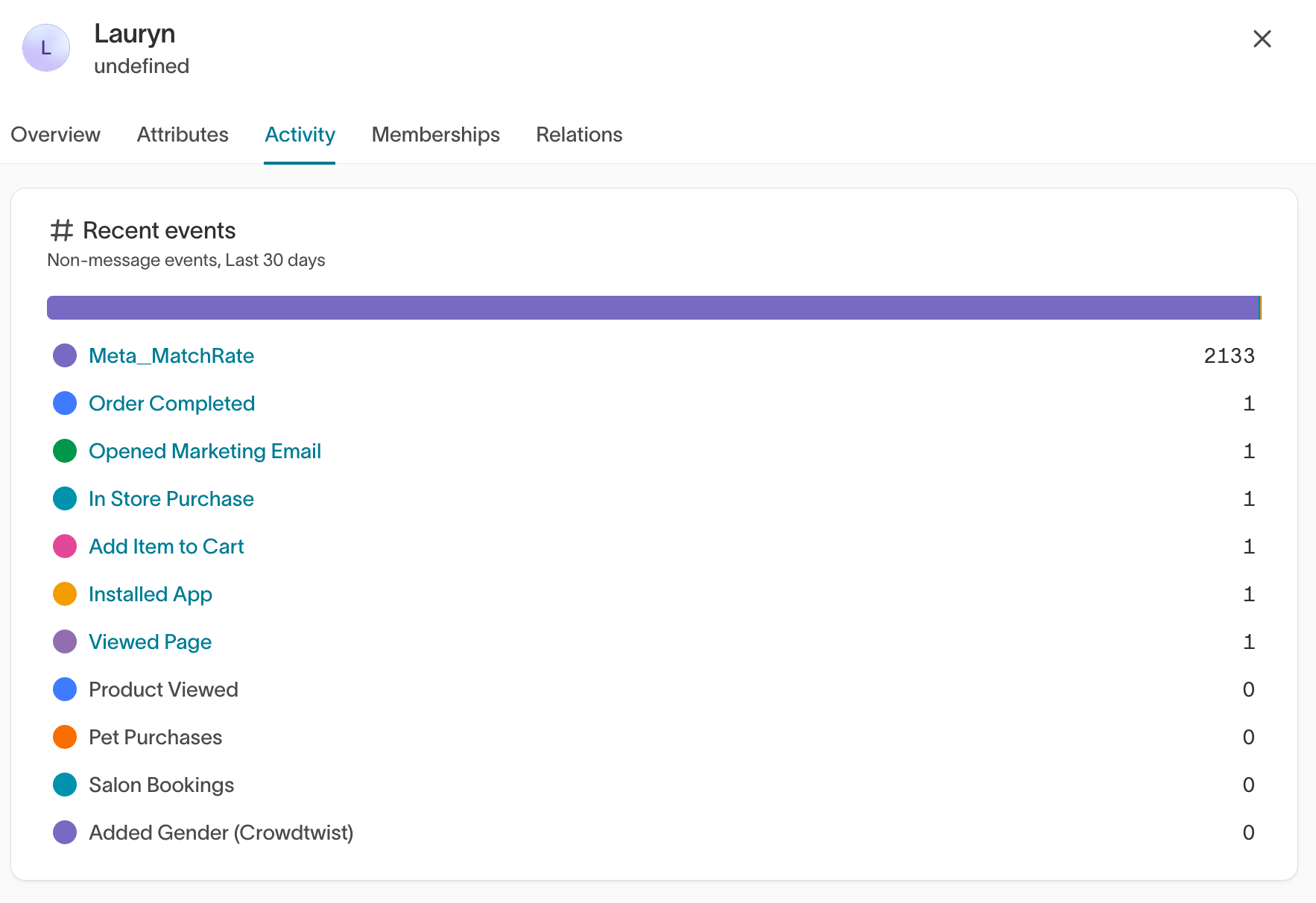
- See recent activity — Events from the last 30 days by default, such as purchases, email opens, and page views.
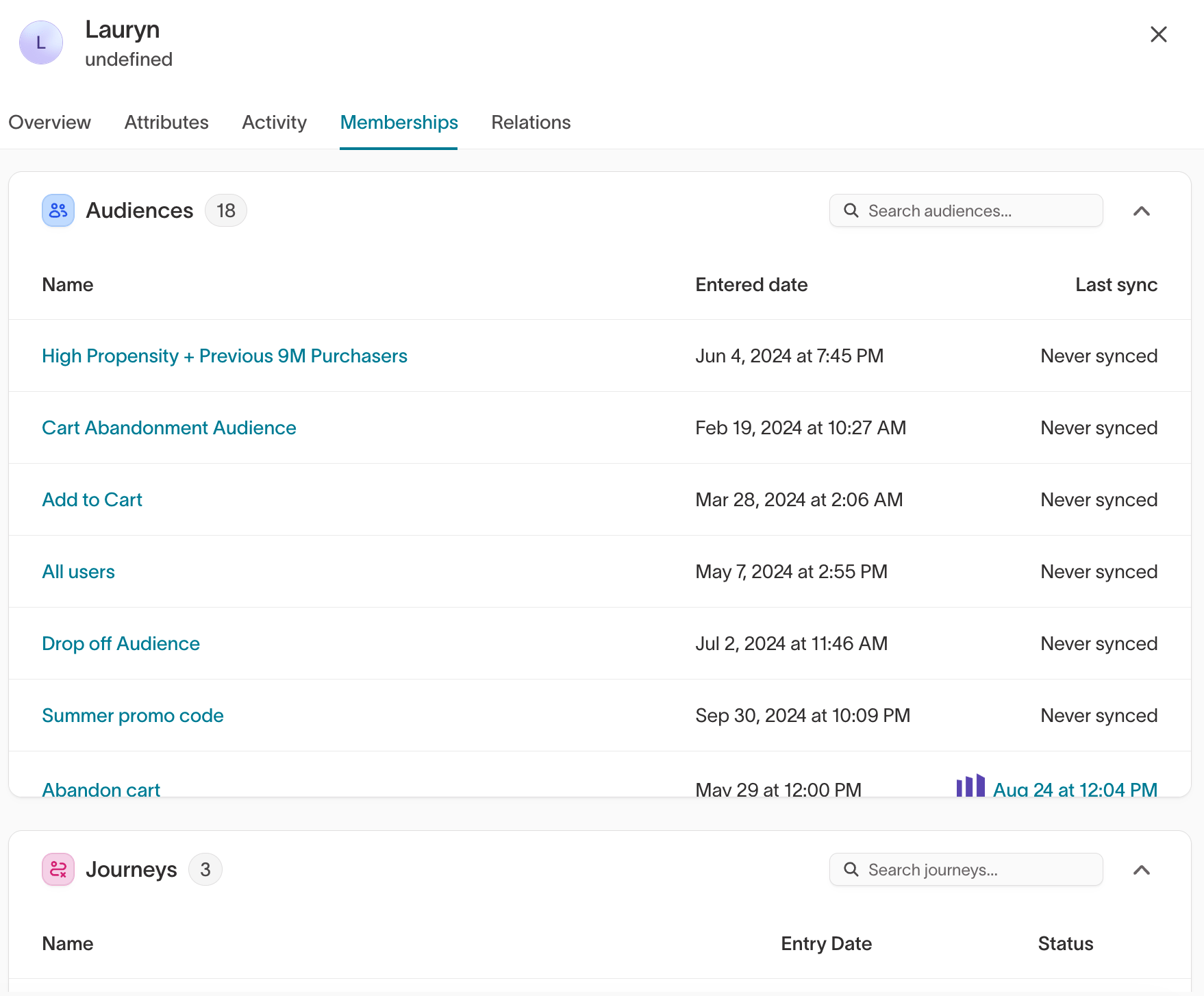
- Check audience and journey membership — The audiences and journeys the member belongs to and when they entered each, along with when their audiences last synced.
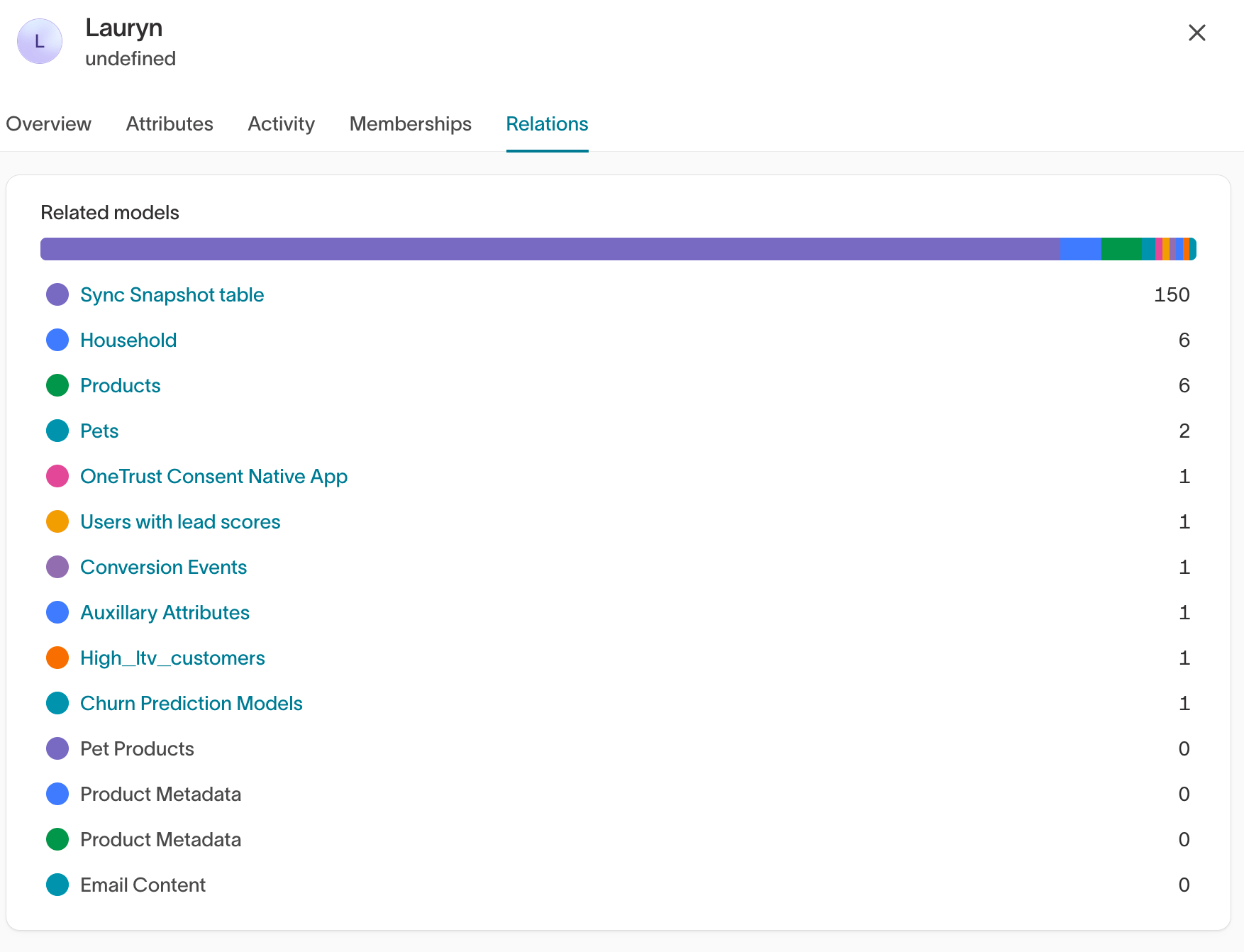
- Trace related records — How many rows the member has in related models, such as orders or products.
Next steps
- Build an audience once you know which members to target.
- Audience filters for the conditions available in the Filter option.
- Audience insights to analyze a specific audience’s composition.