

Before you begin
- Completed schema setup by your data team.
Overview
The audience builder is where you define who should be included in an audience using your warehouse data. For example, you might define an audience of customers who:- added an item to their cart in the last 24 hours
- haven’t completed an order
- have a lifetime value greater than $200
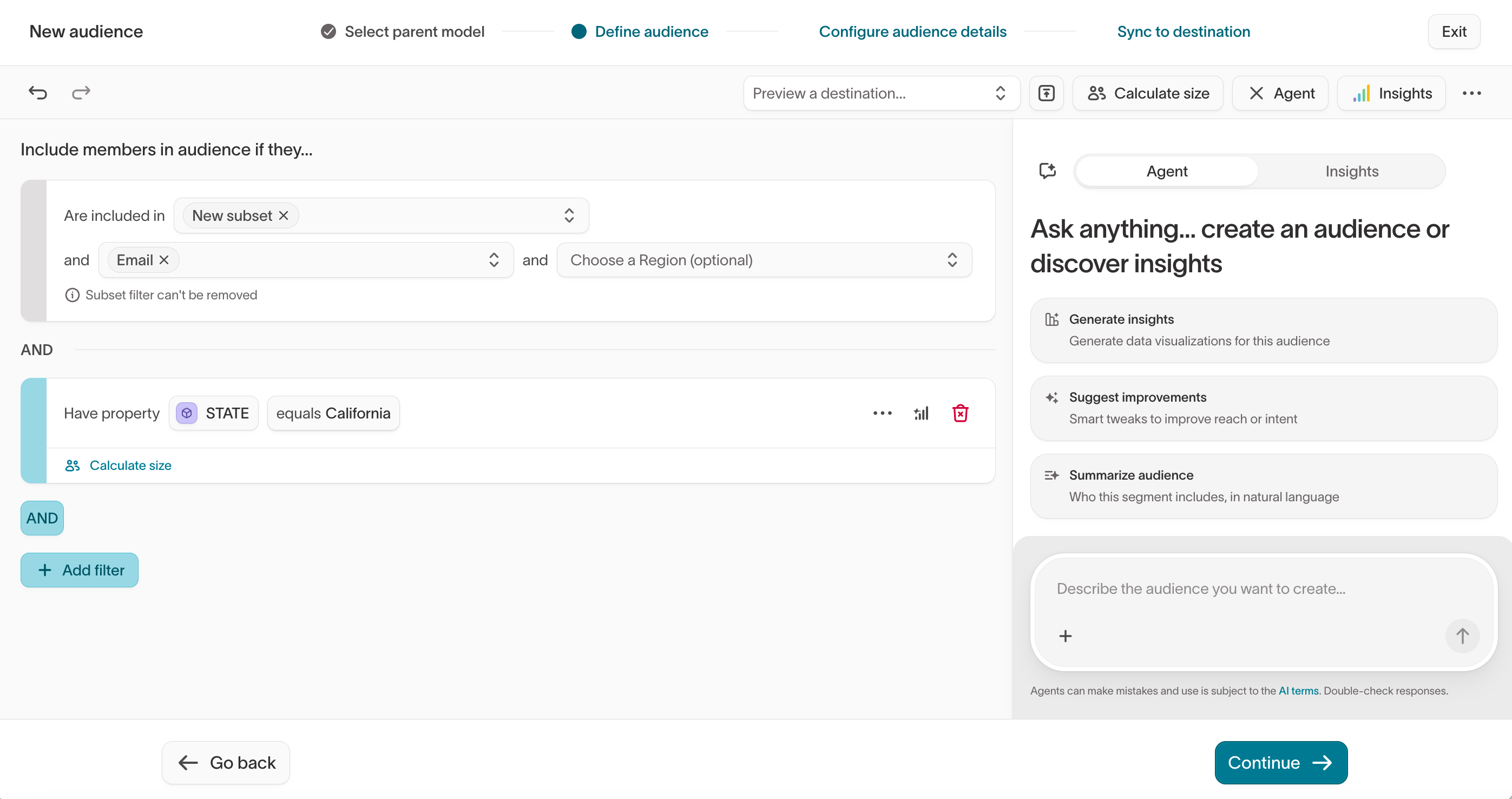
- Add filters directly in the visual builder.
- describe the audience to the agent in natural language and let it draft or refine the filters for you.
Most audiences are evaluated in batches on a schedule. If you need to respond
to customer behavior within seconds, use real-time
audiences instead.
Create an audience
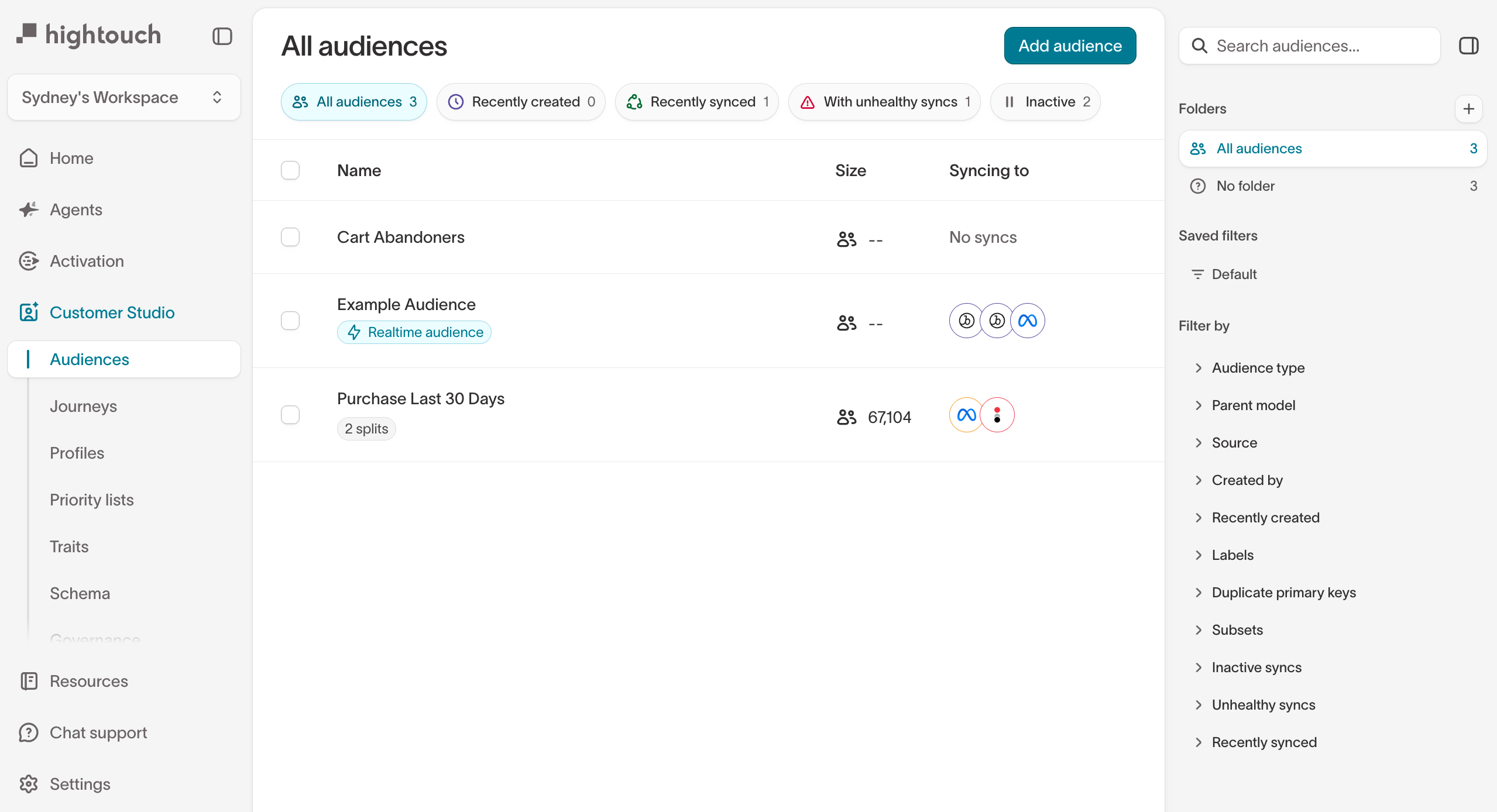
- Go to Customer Studio > Audiences.
- Select Add audience.
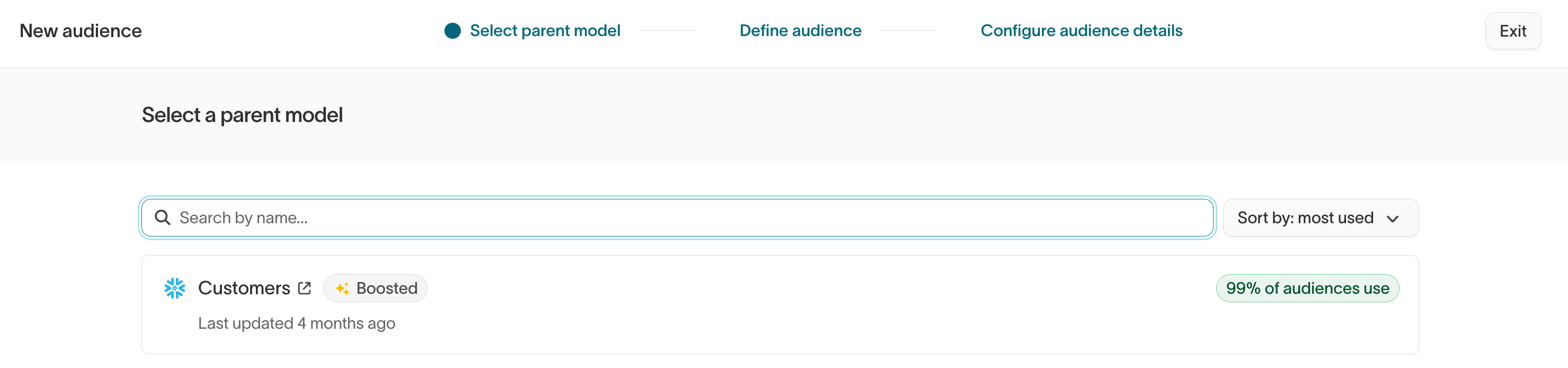
- Choose the parent model you want to build from, such as
UsersorAccounts. - Name the audience and optionally add a description.
Users parent model contains users; an audience built from an Accounts parent model contains accounts.
Define who qualifies
Add conditions for the customer attributes, behaviors, or related data that determine membership. You can build the conditions yourself, ask the agent to draft them, or combine both approaches on the same audience.Add filters in the visual builder
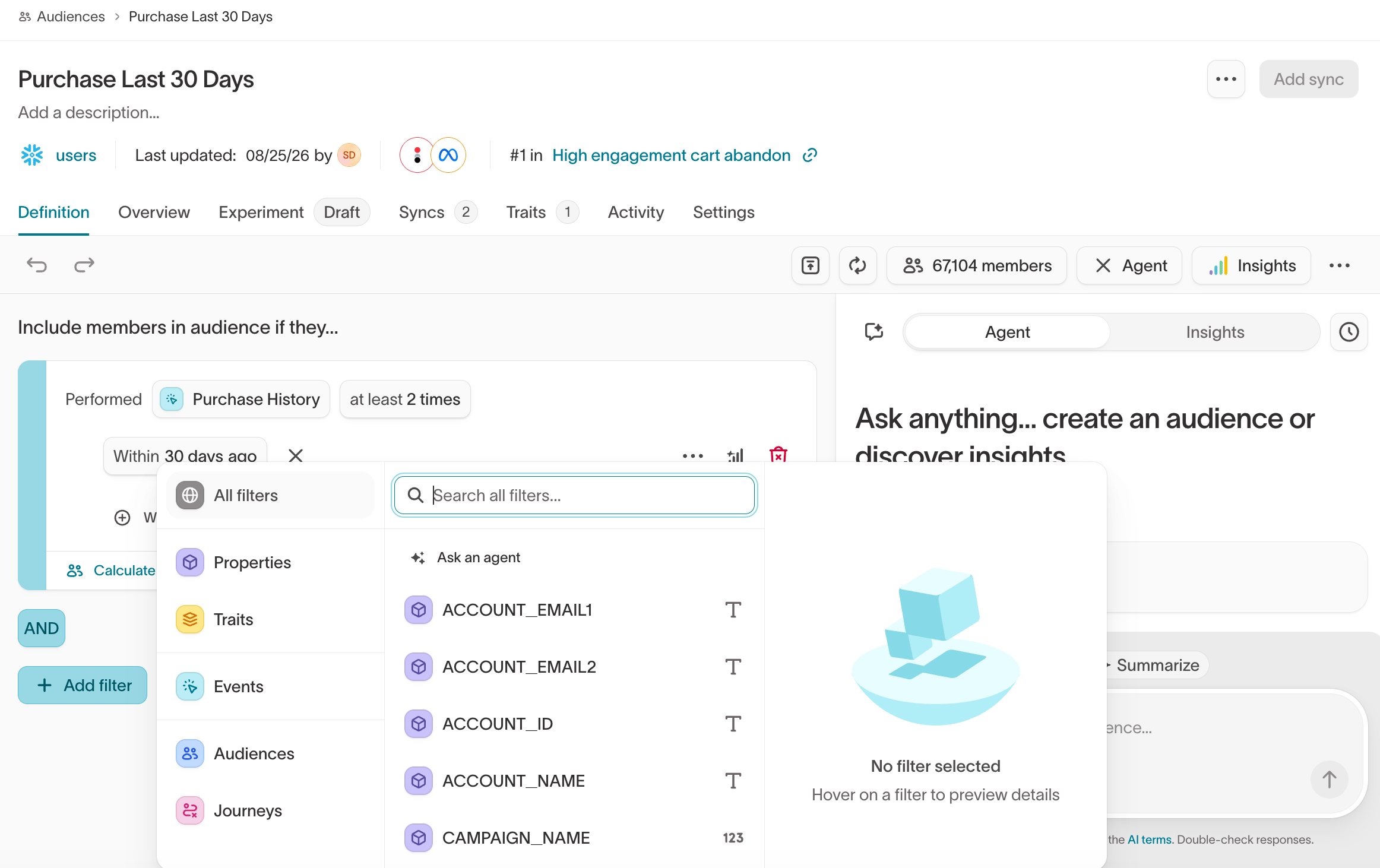
Select Add filter and choose what to filter on. Common filter sources include:- Properties — Fields on the parent model, such as region or plan.
- Events — Behaviors such as purchases, logins, or product views.
- Related records — Purchases, subscriptions, accounts, or other connected models.
- Traits — Reusable calculated values such as lifetime value or purchase count.
- Audiences — Membership in another saved audience.
- Journeys — Participation in a journey.
Build with the agent
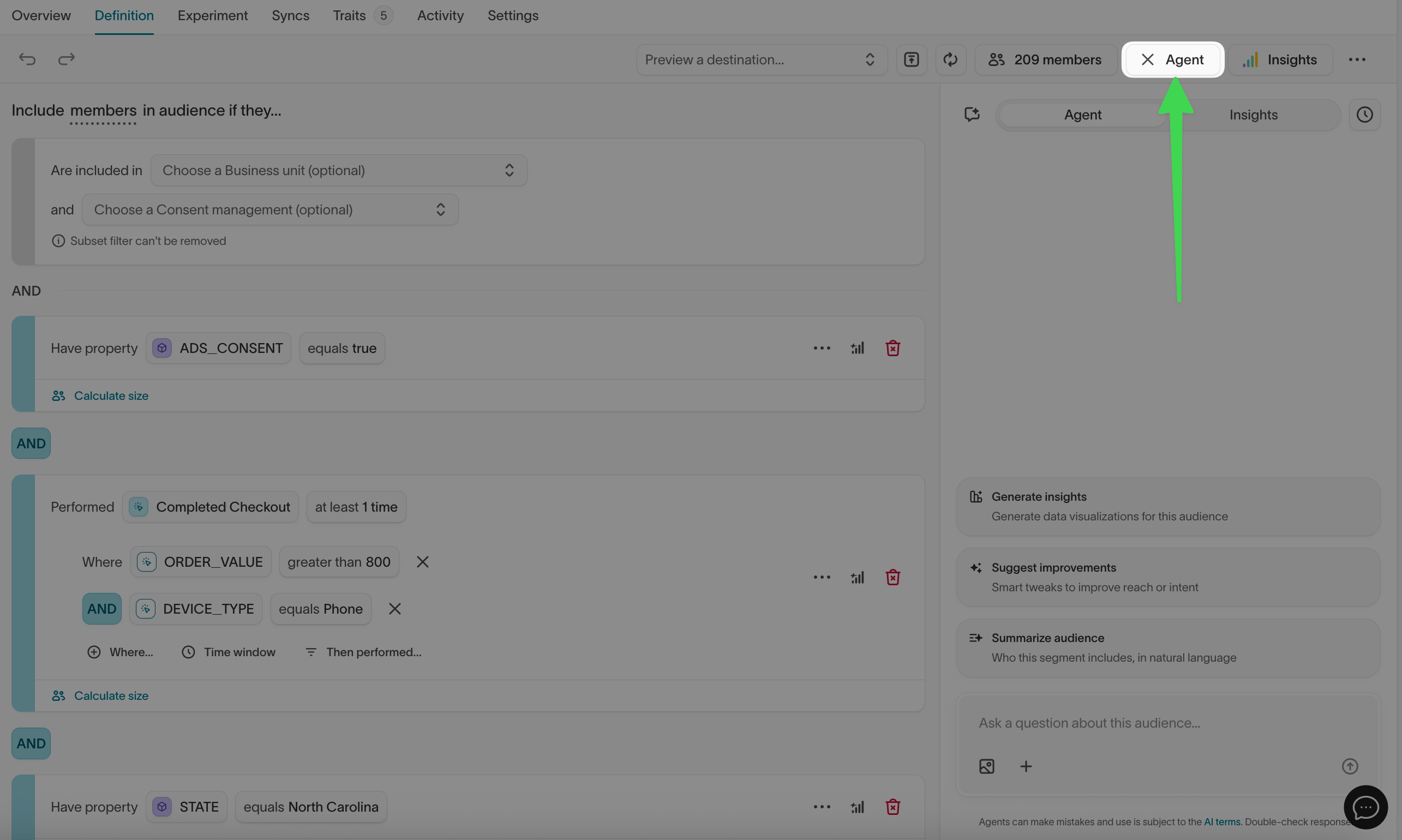
Select Agent to open the agent chat alongside the builder, then describe the audience you want in natural language:Create an audience of customers who added an item to their cart in the last 30 days but did not complete an order.
The agent drafts the matching conditions in the builder. You can also ask it to explore the fields and events in your schema, explain existing filters, or generate insights about the current audience.
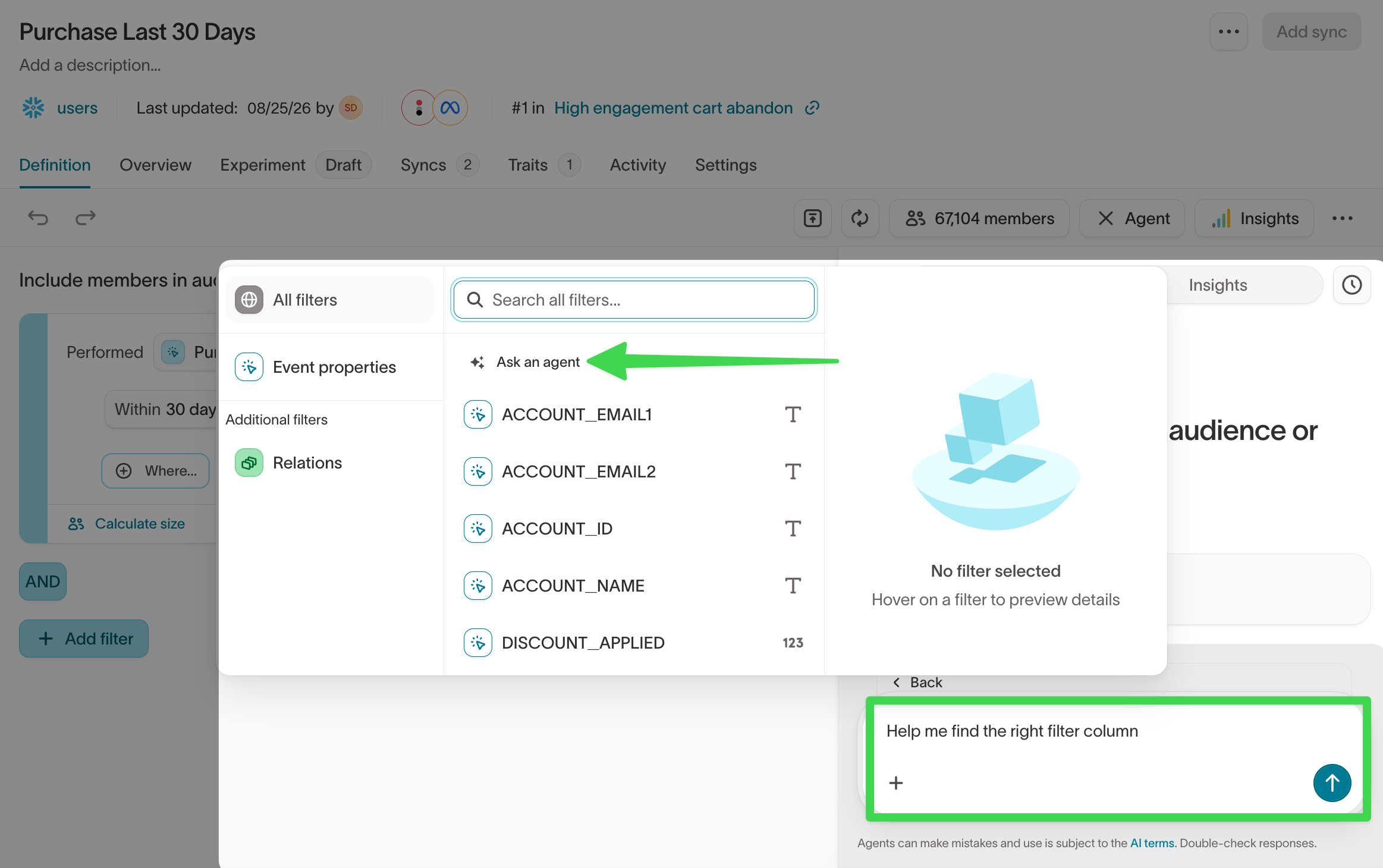
To give the agent more context, attach an image or file to your message, such as a screenshot of a segment definition or a campaign brief.
Help me find the right filter column for customer tenure.
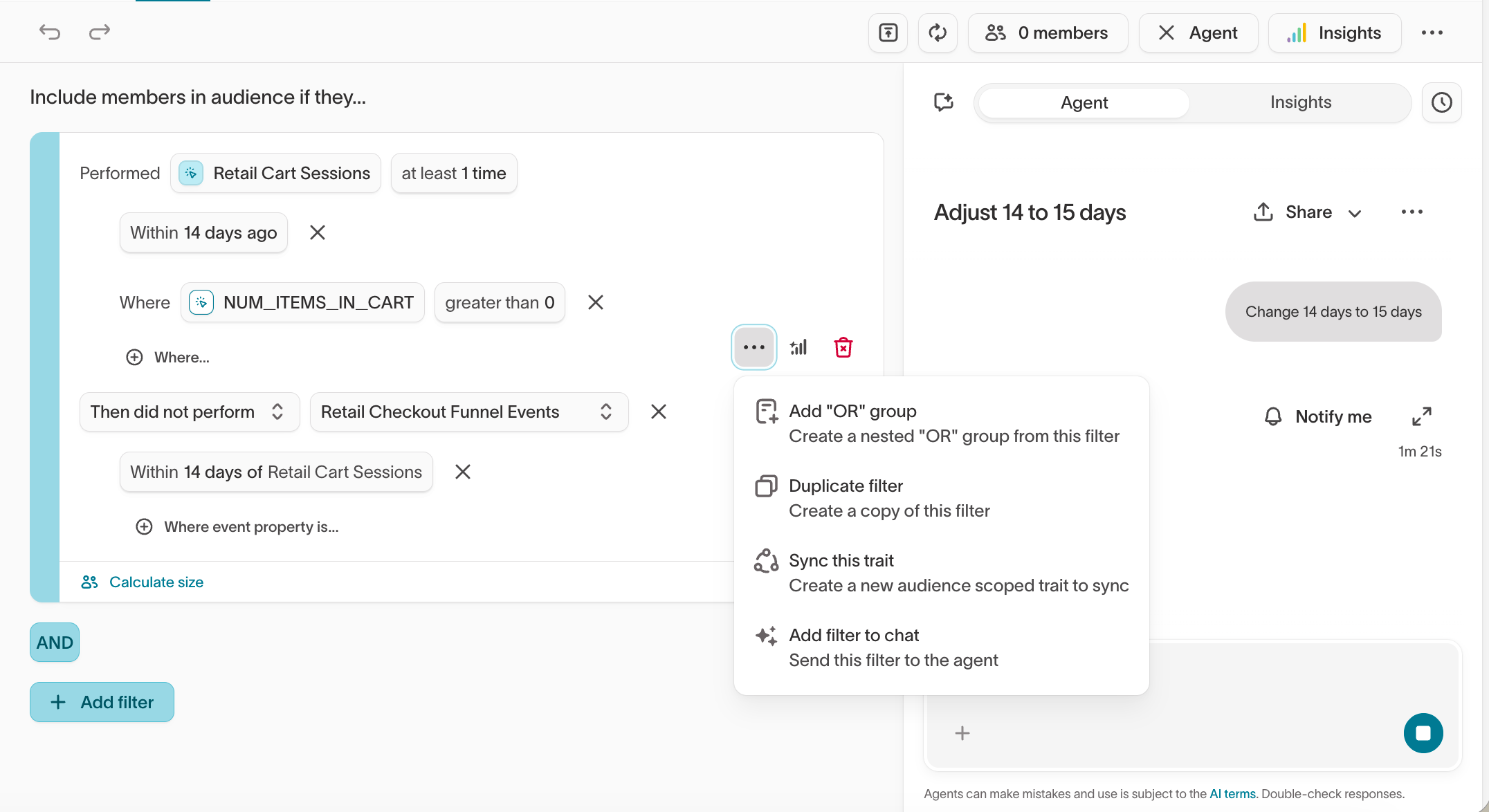
Review and apply agent changes
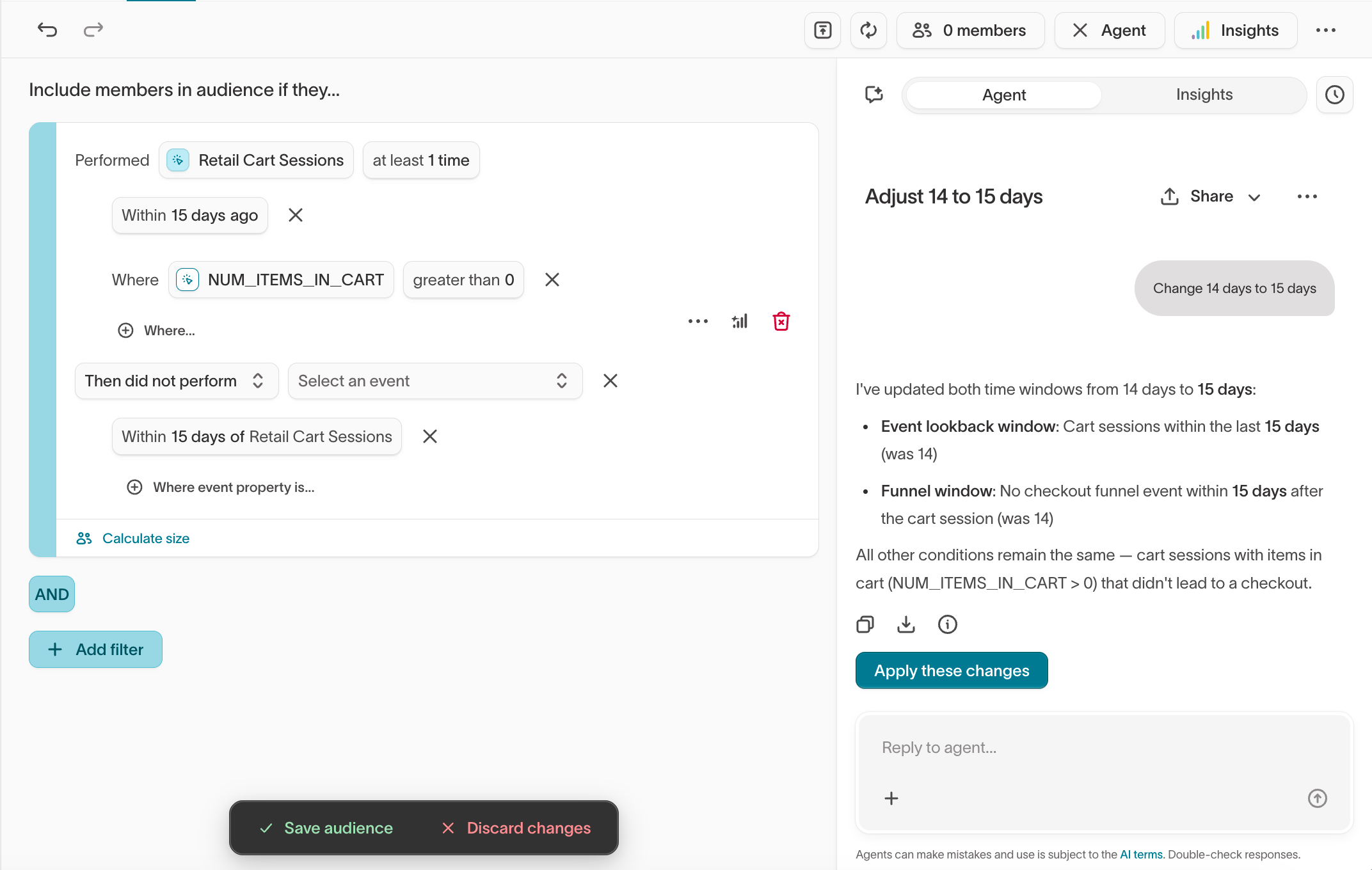
The agent proposes changes rather than applying them silently. Review each proposal before it updates the audience:- Read the proposed conditions in the agent’s response.
- Select Apply these changes.
- Inspect the updated definition in the builder.
- Preview the qualifying members.

Limit the audience size
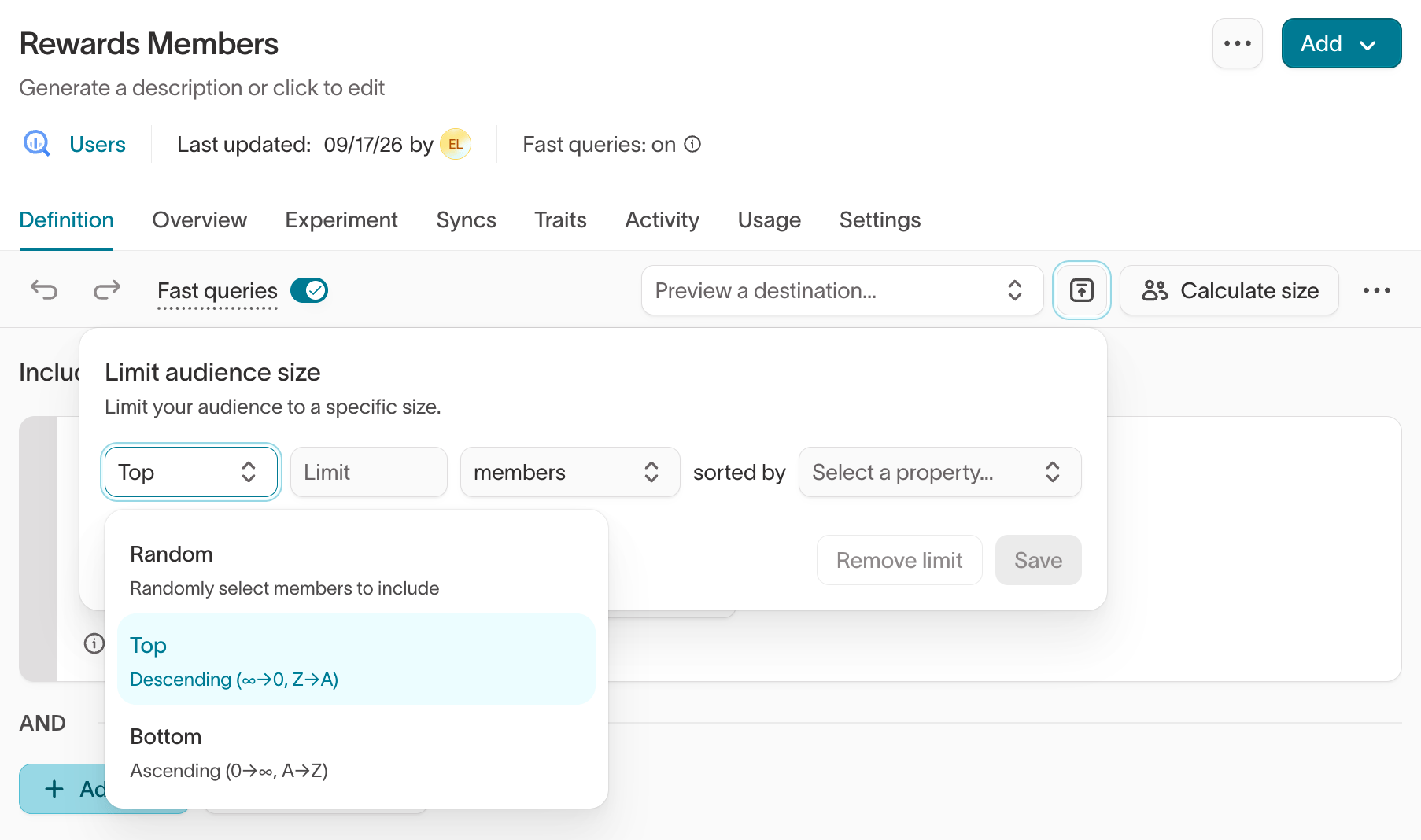
By default, an audience includes everyone who meets its conditions. You can cap the number of members when you want to activate only your highest- or lowest-ranked customers, such as the top spenders or the accounts with the lowest engagement. Select Limit audience size, choose Random, Top, or Bottom, set how many members to keep, choose whether to limit to a fixed number or a percentage, and rank them by a column such aspurchase_amount or last_purchase_date.
Preview and validate the audience
Before saving, confirm that the audience matches the customers you intended to target. Select Calculate size to see how many records currently qualify, then select the member count to inspect example records.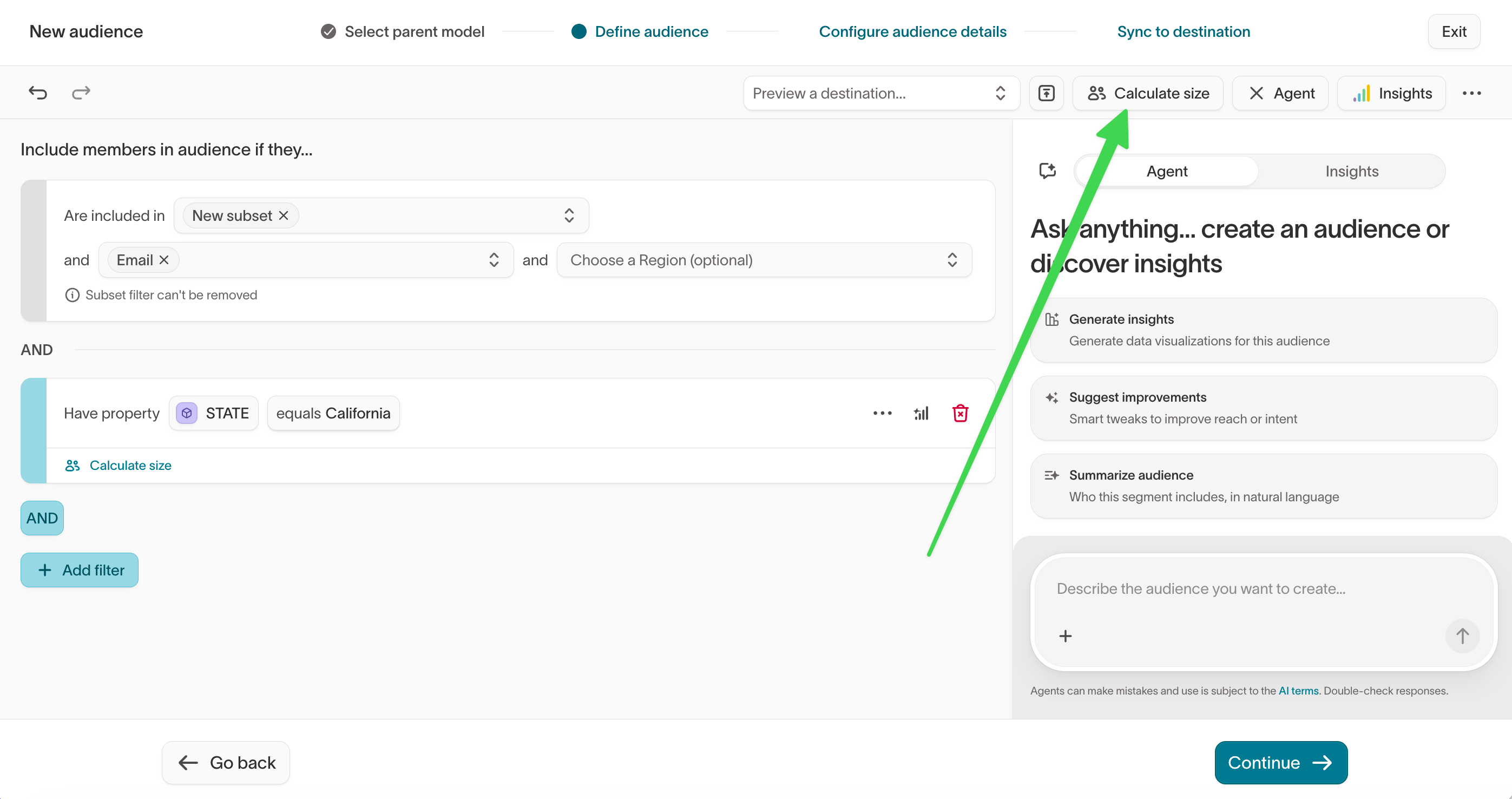
- The conditions — Confirm they express the targeting rule you intended.
- The members — Confirm the resulting customers or accounts look right.
The count is exact unless sampling is enabled for
the model, where it’s an approximation. It reflects your current source data
and refreshes when you change a filter or a sync runs. A matching preview
confirms the audience logic, not delivery. To confirm records reach a
destination, run a limited test sync before launching.
Which condition removes the most customers? Audience insights shows composition, overlap with another audience, and a breakdown by attributes and traits.
Preview destination rules
If your workspace uses destination rules, select a destination in Preview a destination to see how those rules affect which records would be sent.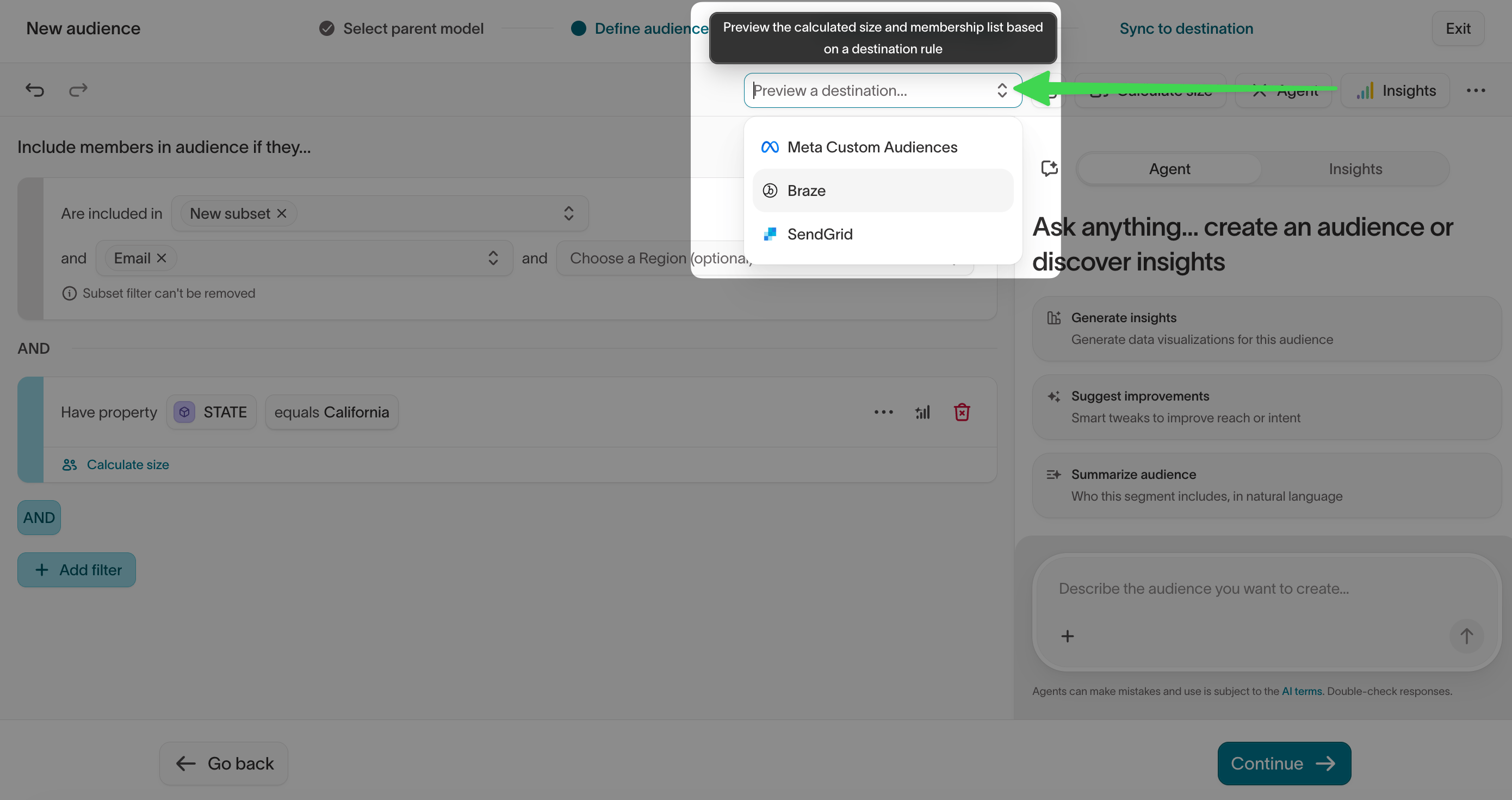
Save the audience
When the definition and preview look right, select Save audience.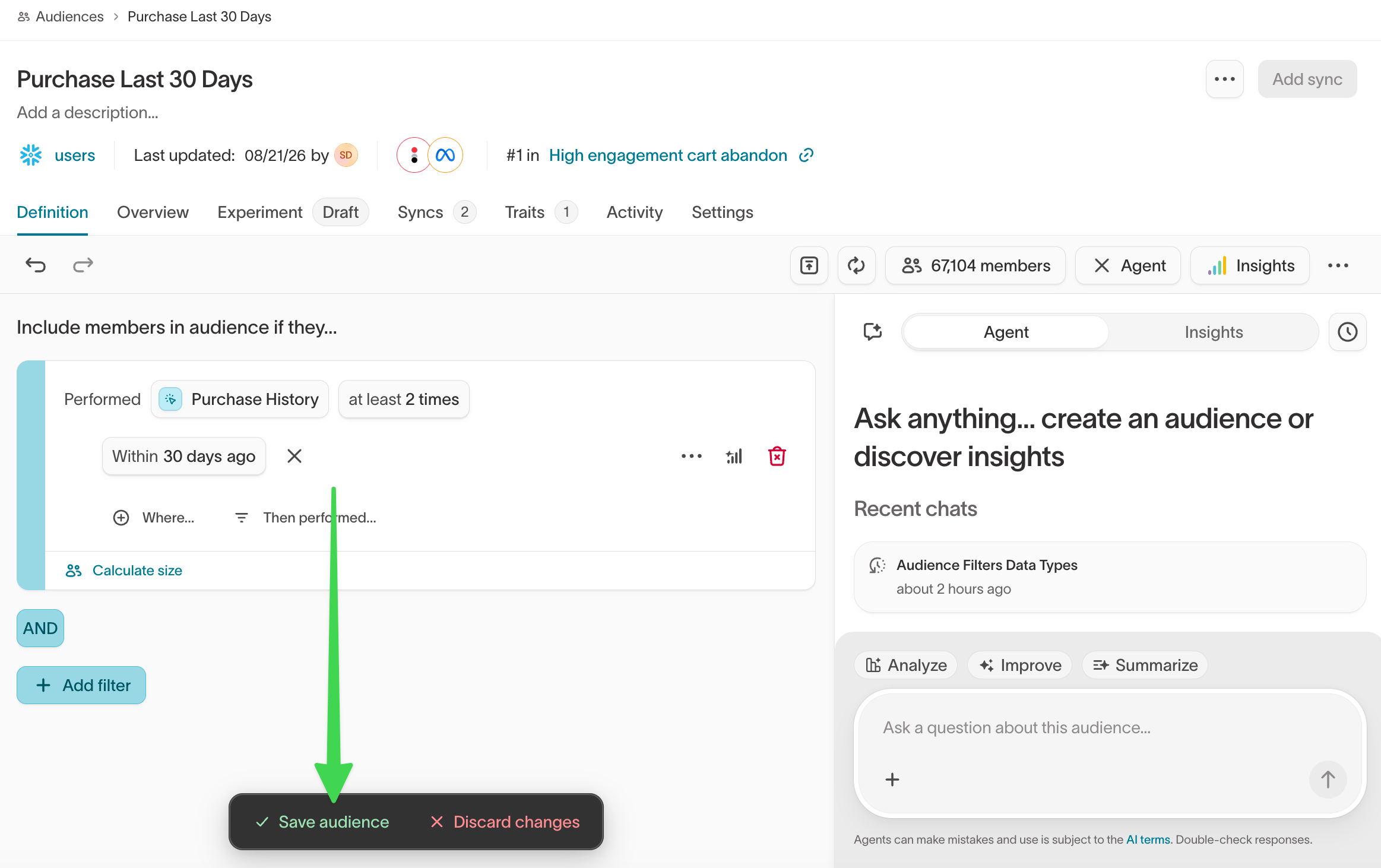
Decide what happens next
Once you’ve saved an audience, you can use it in different ways depending on what the campaign needs.Sync the audience directly
Use a sync when you want to keep a destination updated with the customers who currently qualify. For example, sync an audience to:- an ad platform for targeting or suppression
- a CRM for sales outreach
- a messaging platform for campaign membership
Use the audience in a journey
Use a journey when the campaign needs to unfold over time. A journey can coordinate:- waits between steps
- branches based on customer behavior or attributes
- exit criteria
- destination actions at different points in the workflow
Duplicate an audience
To reuse an existing audience as a starting point, open it and select Make a copy from its … menu. This creates a copy you can rename and adjust without affecting the original, and it lets you choose which of the source audience’s syncs to carry over.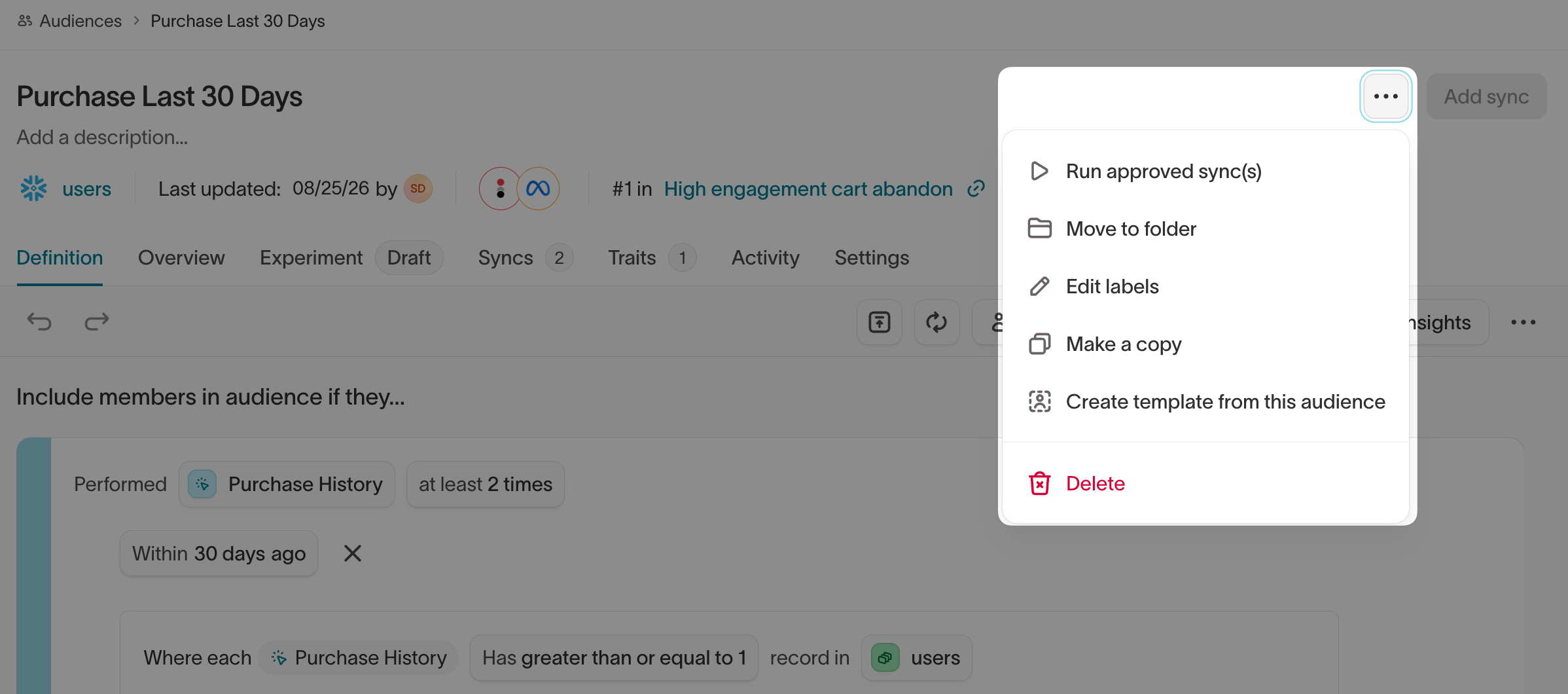
Other ways to work with an audience
After saving an audience, you can also:- use Audience insights to understand its composition and overlap
- save reusable audience logic with templates
- run an experiment to compare treatment and holdout groups
- add or reuse calculated values with traits
Experimentation and governance
Split audiences for experiments
Divide an audience into random or rule-based groups for testing.
Each profile is assigned once, based on its primary key.
Changing split percentages can reassign users—use a snapshot to preserve consistency.
How audiences stay up to date
Audiences update automatically as your source data changes so campaigns always reach the right people.Segment by households or accounts
In some workspaces, audience data is organized around more than one entity type, such as: People, Households, or Accounts. When you enable schema labeling, the audience builder automatically reflects these relationships. This allows you to create audiences that consider shared characteristics or behaviors across related entities, rather than limiting segmentation to individuals.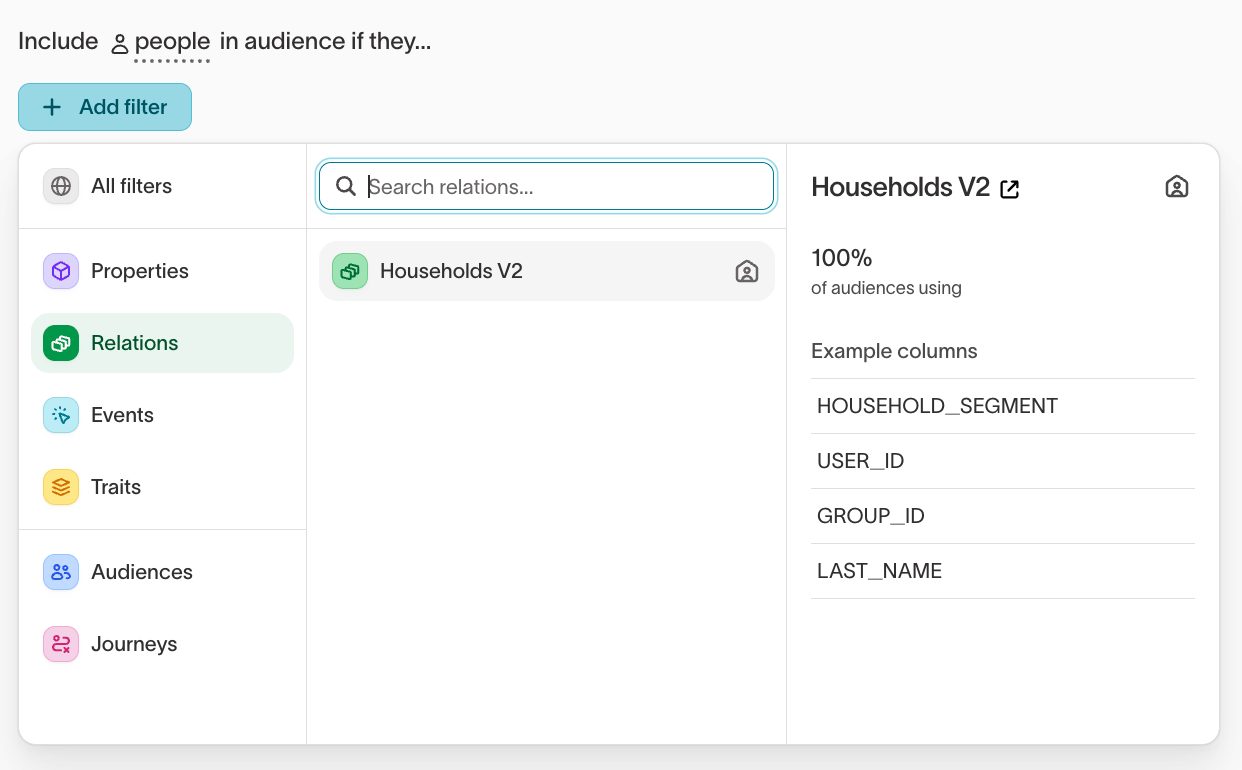
-
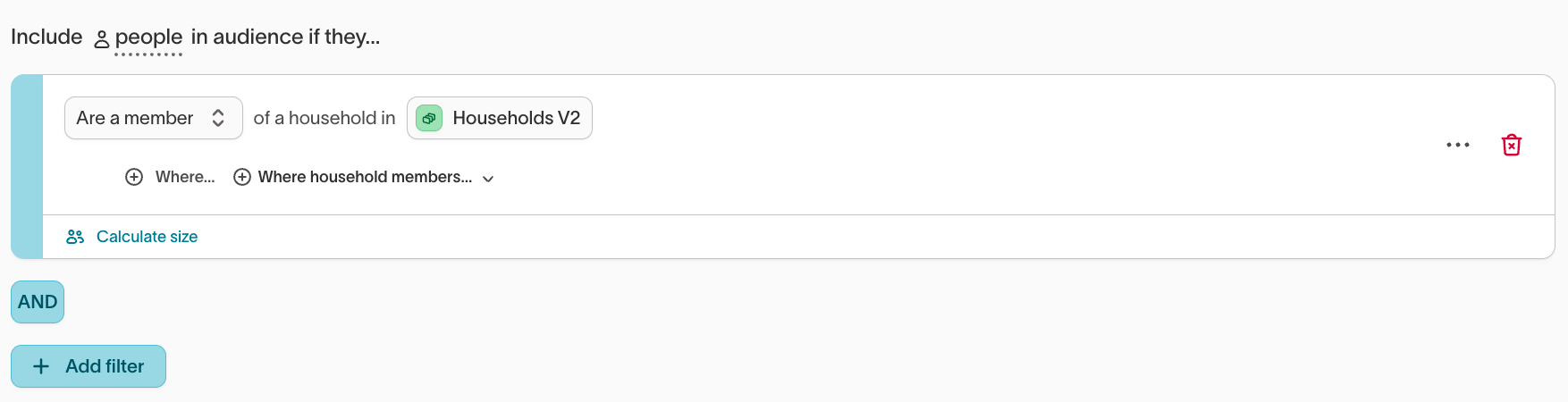
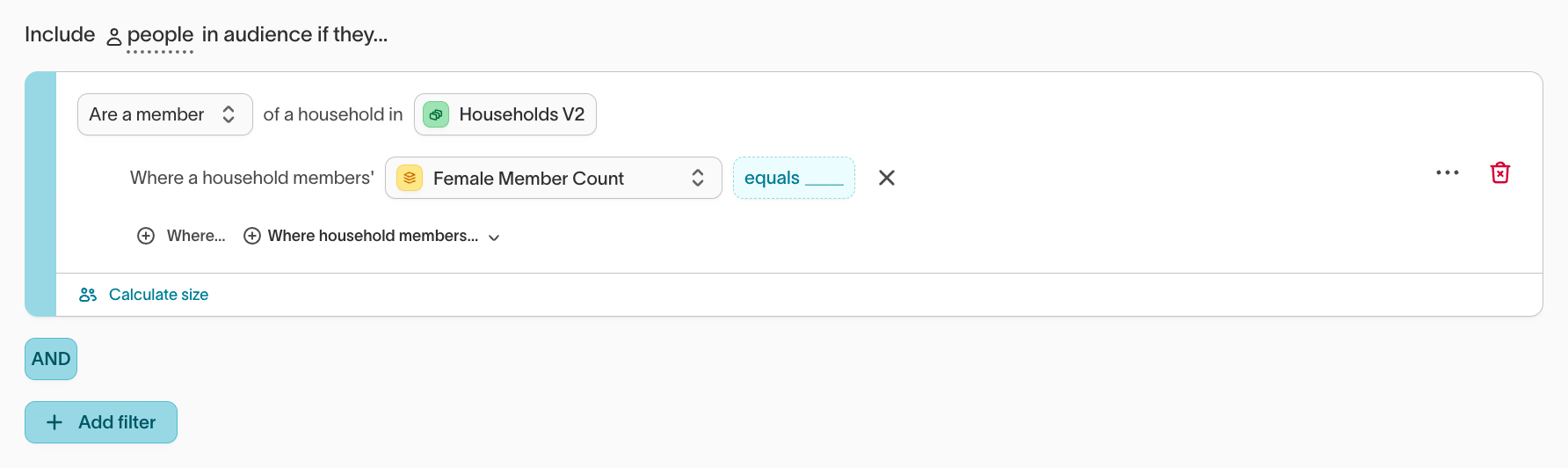
Household segmentation: Include people in households that meet a shared condition (for example, at least one member identifies as female or holds an active subscription).
-
Account segmentation: Include people whose associated account shows recent activity or engagement (for example, a recent purchase or contract renewal).
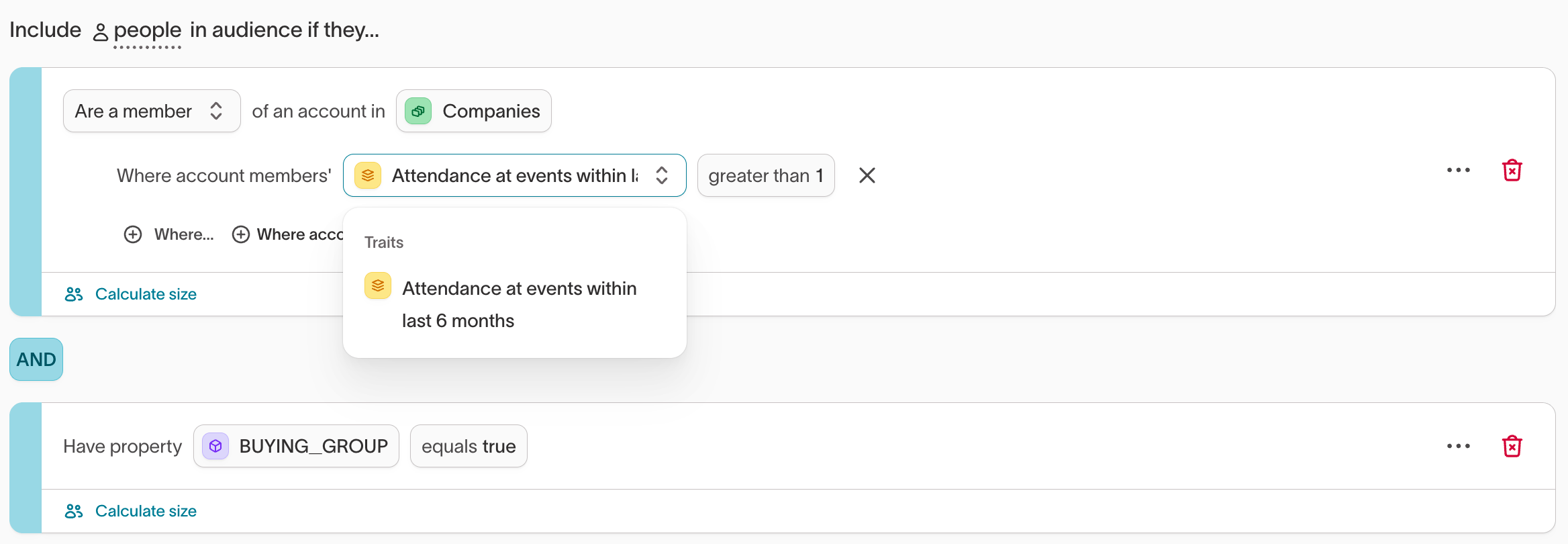
Schema labeling enables you to build audiences using both individual and
group-level data. This supports coordinated targeting and measurement when
multiple related entities—like people within households or employees within
accounts—affect campaign outcomes.
Example use cases
Abandoned checkout retargeting
Goal: Retarget users who started checkout but didn’t complete. Filters- Event:
Checkout startedwithin last 24 hours - Event:
Order completednot performed in same window - Trait:
LTV > 200 - Property:
Email is not null
- Meta Custom Audiences
- Klaviyo List
Real-time travel personalization
Goal: Personalize offers for users who searched flights or hotels in the last 24 hours. Filters- Event:
searchwherecategory = flight OR hotel - Event:
search_timeperformed within 24 hours - Trait:
loyalty_status = Gold
Best practices
Troubleshooting
If you see warehouse SQL errors (for example, unresolved columns, invalid identifiers, or object authorization failures), use Resolve SQL compilation errors.
Common issues and detailed resolutions
Filter value suggestions not appearing
Cause: Column suggestions are not enabled, or the suggestion cache is stale. Resolution: Ensure you’ve enabled column suggestions. If suggestions are enabled but missing, refresh them in the filter UI.
A filter references a deleted column
Cause: A model column was deleted but is still cached in Hightouch. Resolution: Preview and re-save the model configuration to refresh cached columns. To see which audiences and syncs reference a column before you delete it, check the column’s Usage.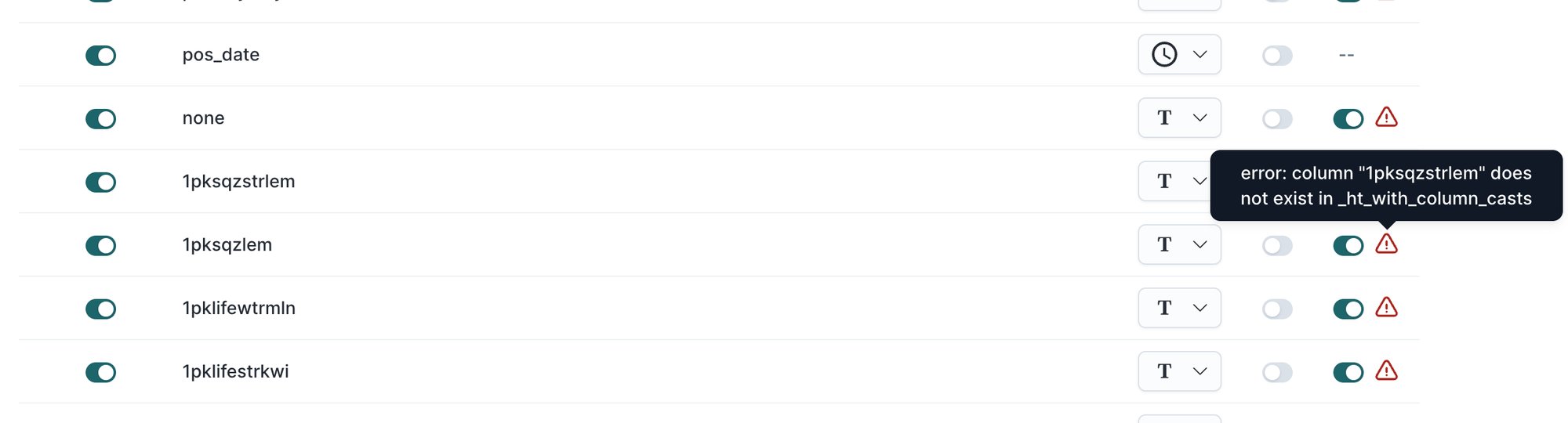
A filter references an unresolved column
Cause: A filter or audience condition references a column that is not present in the model output, often due to a renamed or removed column or stale filter configuration. Resolution:- Open the parent model and confirm the referenced column exists in the selected columns.
- Preview and re-save the model to refresh available columns in Customer Studio.
- Update audience filters that reference the missing column, or add the column back to the model.
- Re-run audience preview to confirm the error is gone.