

Before you begin
Overview
Customer Studio has several governance controls, each scoped to a different question. Subsets are the row-level control.
Use subsets when different teammates should only work with part of your customer data. For example, a company with a global customer table can create a subset per region and grant each region’s user group access to its subset. Every audience those users build is then scoped to those rows, so they can’t sync customers outside it.
Common uses:
- Region — Scope each marketer to the geography they work in, so an EMEA marketer never builds against North American records.
- Brand or business unit — Give each team access only to the customers of the brand or product line they own.
- Consent — Scope access by opt-in type, so lifecycle marketers only see email opt-ins and performance marketers only see ad-targetable customers.
Subset categories vs. subsets
A parent model is segmented with subset categories and subsets. The category is the dimension (for example,Region); each subset is a value within it (North America, EMEA, APAC).
When a marketer builds an audience, they can pick more than one category and more than one subset within a category. A customer must match any subset selected within a category, and satisfy every category, to qualify for the audience.
Set up subsets
Subsets are configured under Customer Studio > Governance, on the Subset categories tab.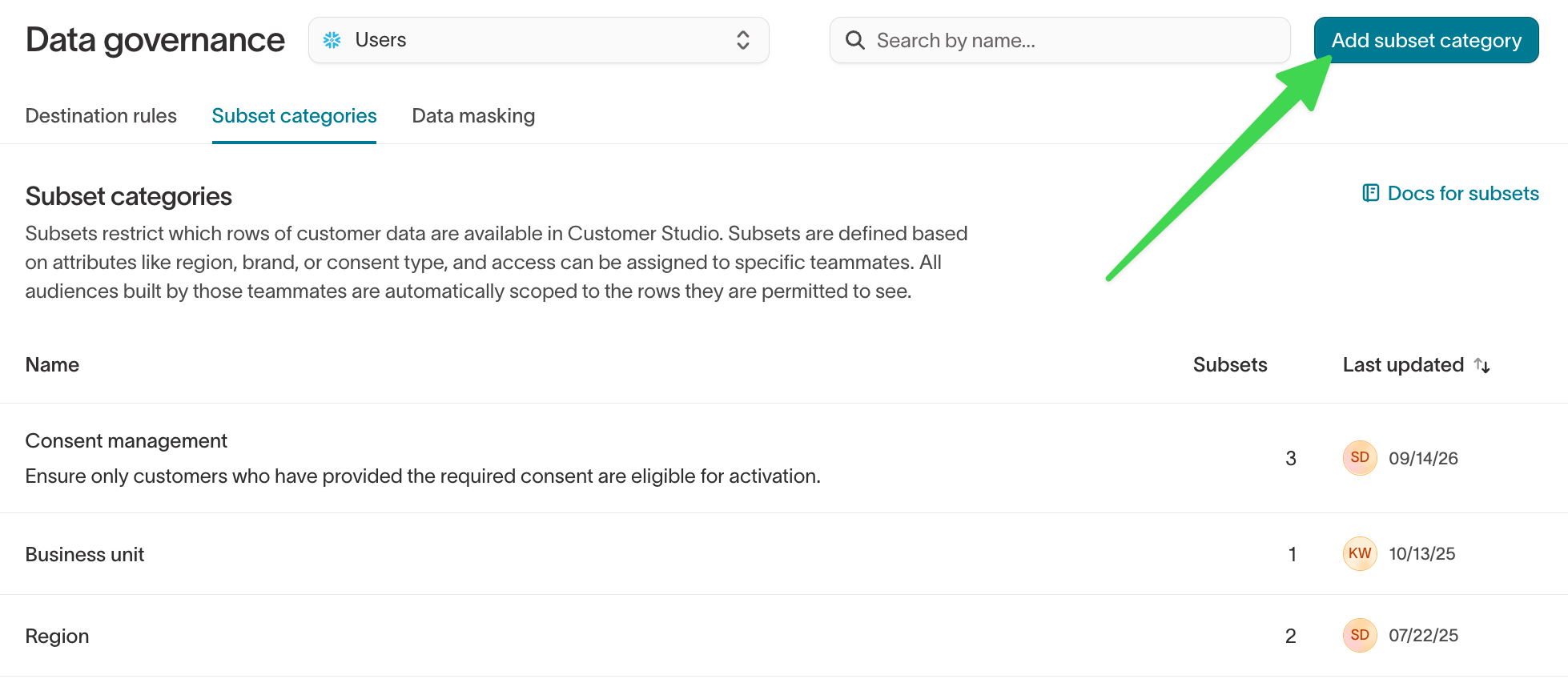
Select a parent model
Select the parent model you want to scope at the top of the page. Subsets apply to audiences built on that model.
Create a subset category
Click Add subset category, name the dimension (for example, 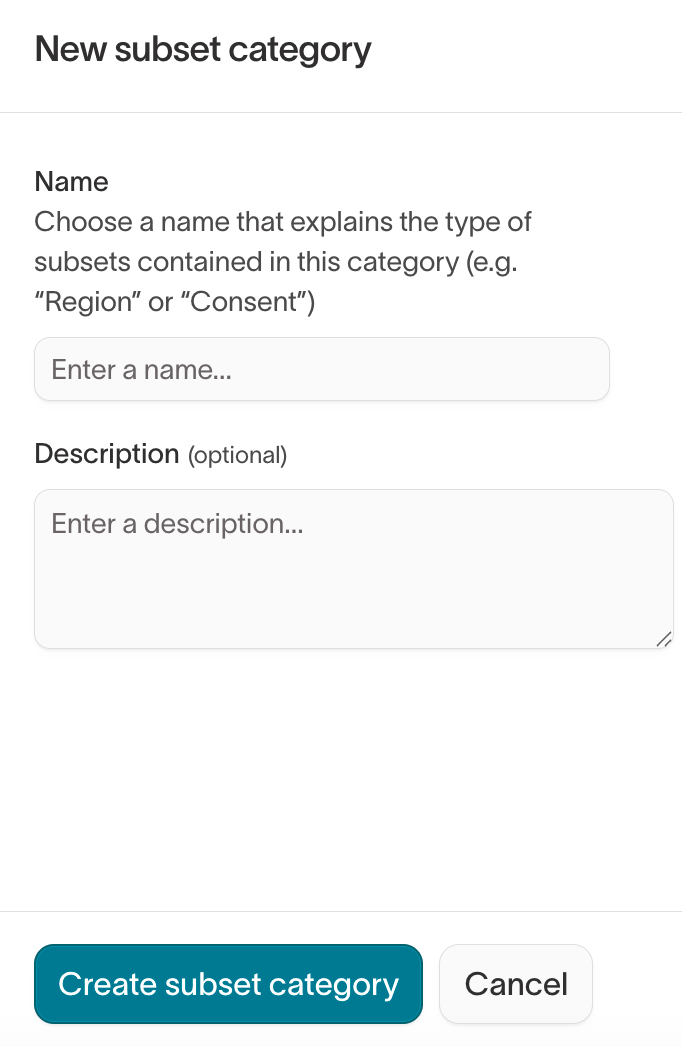
Region or Consent), and add an optional description. Click Create subset category.Decide whether the category is required
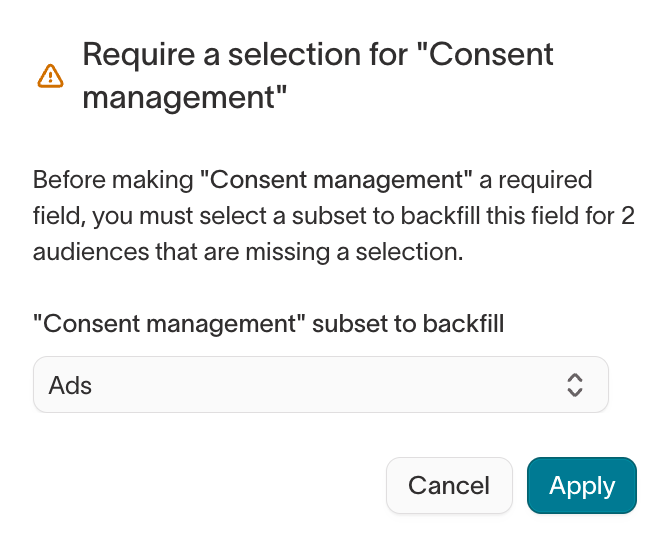
Open the category and turn on Required when a marketer must select a subset from it to build an audience on this parent model. Leave it off when the scoping is optional.A required category with no accessible subset blocks affected users entirely: if none of a marketer’s user groups can access a subset in a required category, they can’t build audiences on that parent model.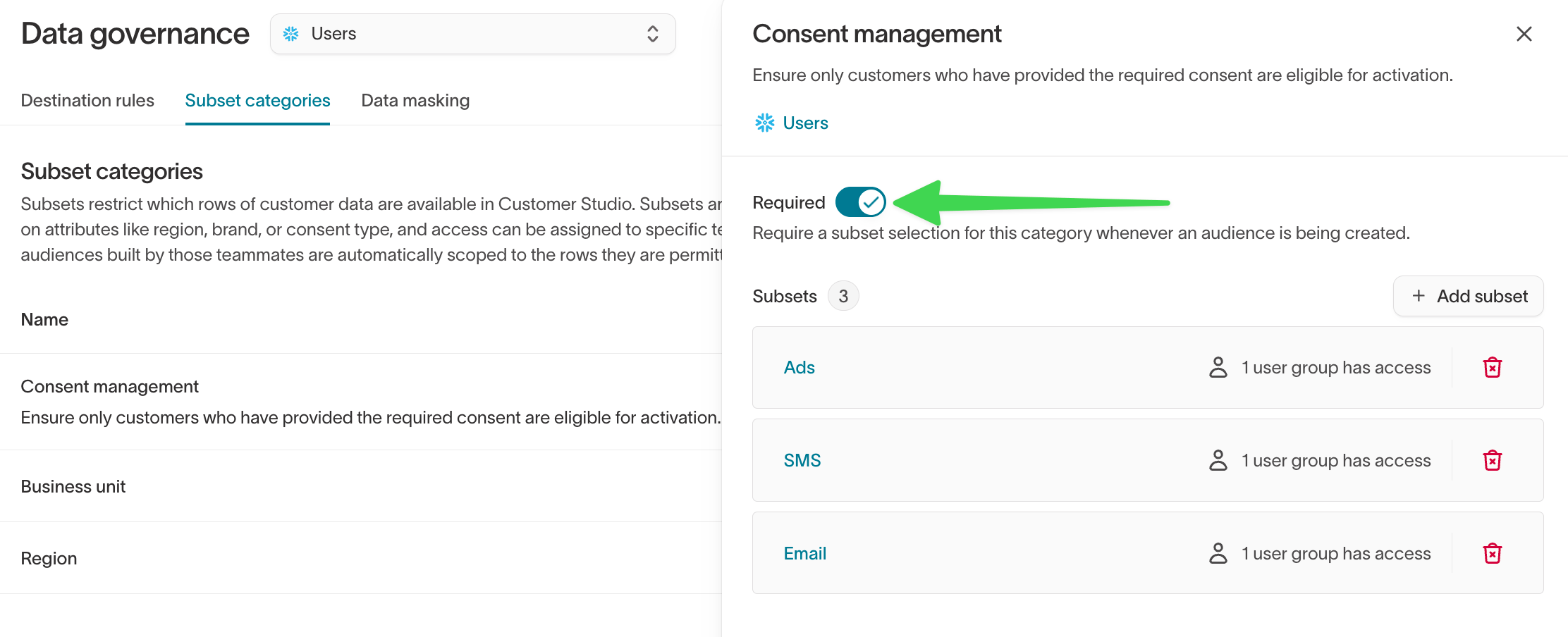
Add subsets to the category
Click Add subset and name it (for example, 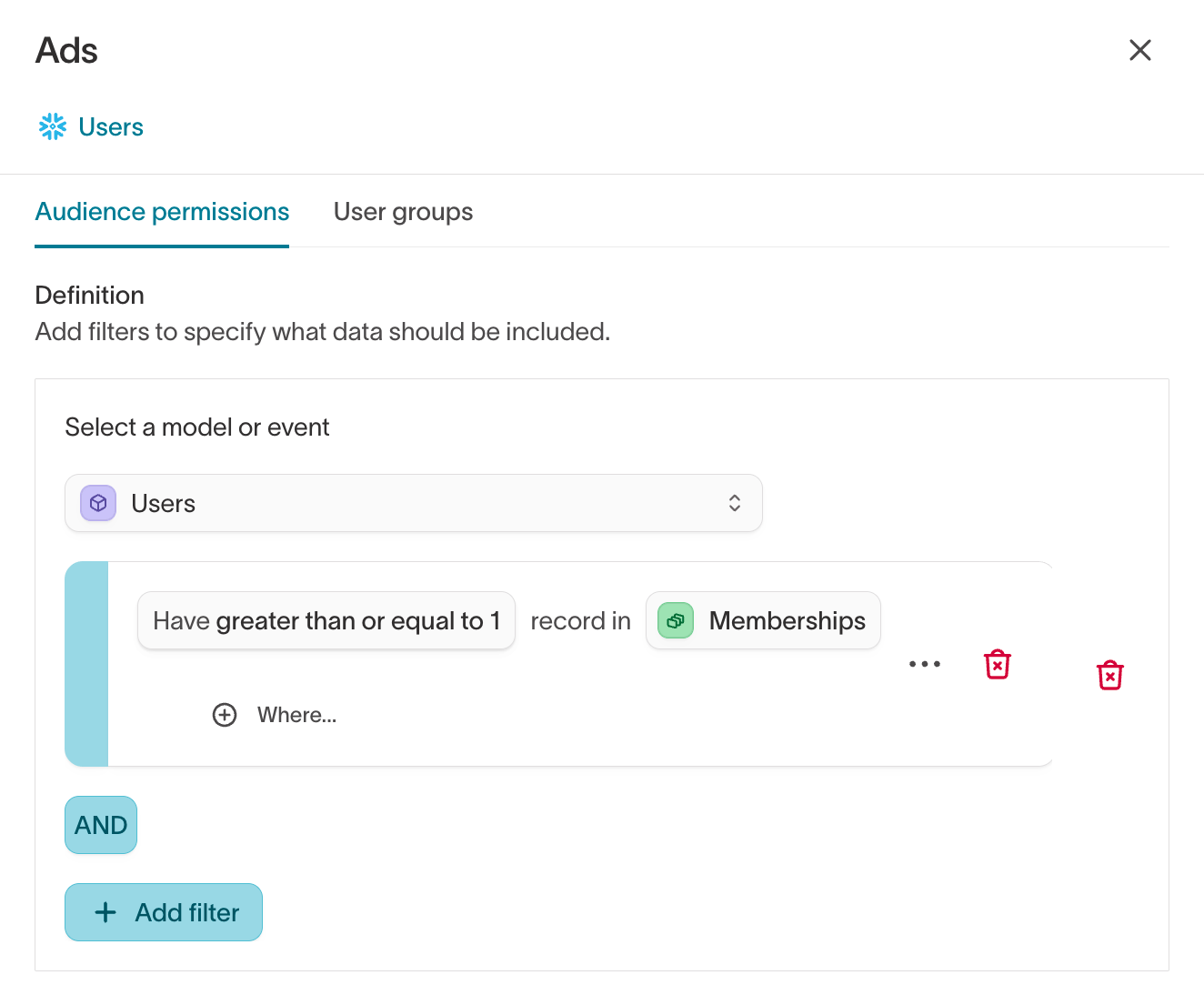
Canada, Email opt-in). A subset has two tabs: define which customers it includes on Audience permissions, and grant access on User groups. On Audience permissions, click Add filter to set membership.AND / OR logic. For how to build and combine conditions, see Audience filters.Grant access to user groups
Access is granted by user group, not by individual user. On the User groups tab, select the groups whose members should be able to build audiences on this subset, then click Create subset.A group appears in this list only if it already has access to the parent model. Admin groups always have access and can’t be deselected.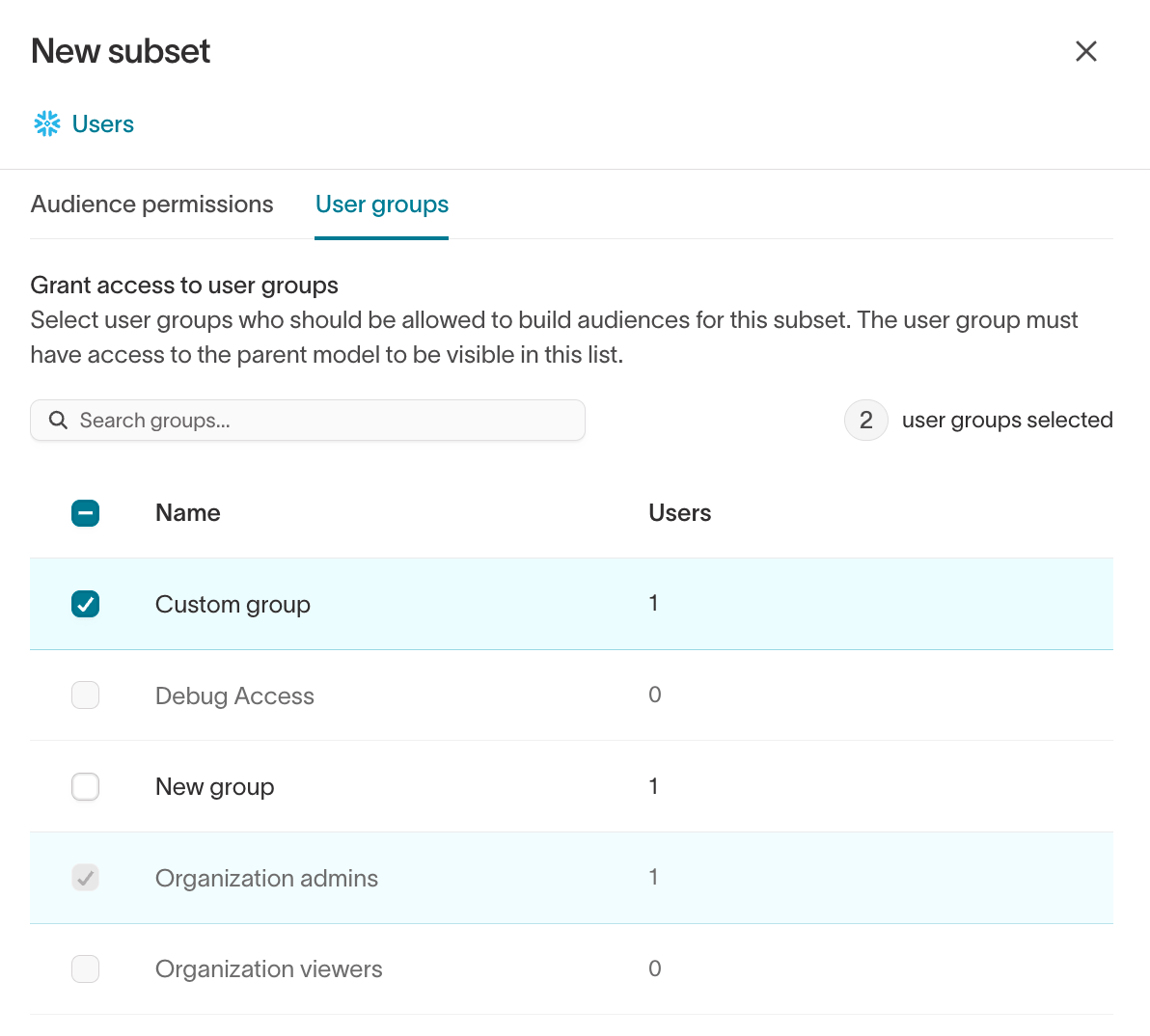
How subsets apply to audiences
When a marketer creates or edits an audience, they see any required categories and can choose the subsets they have access to. Their selections apply as base filters on top of the audience definition, so results never include rows outside the subset.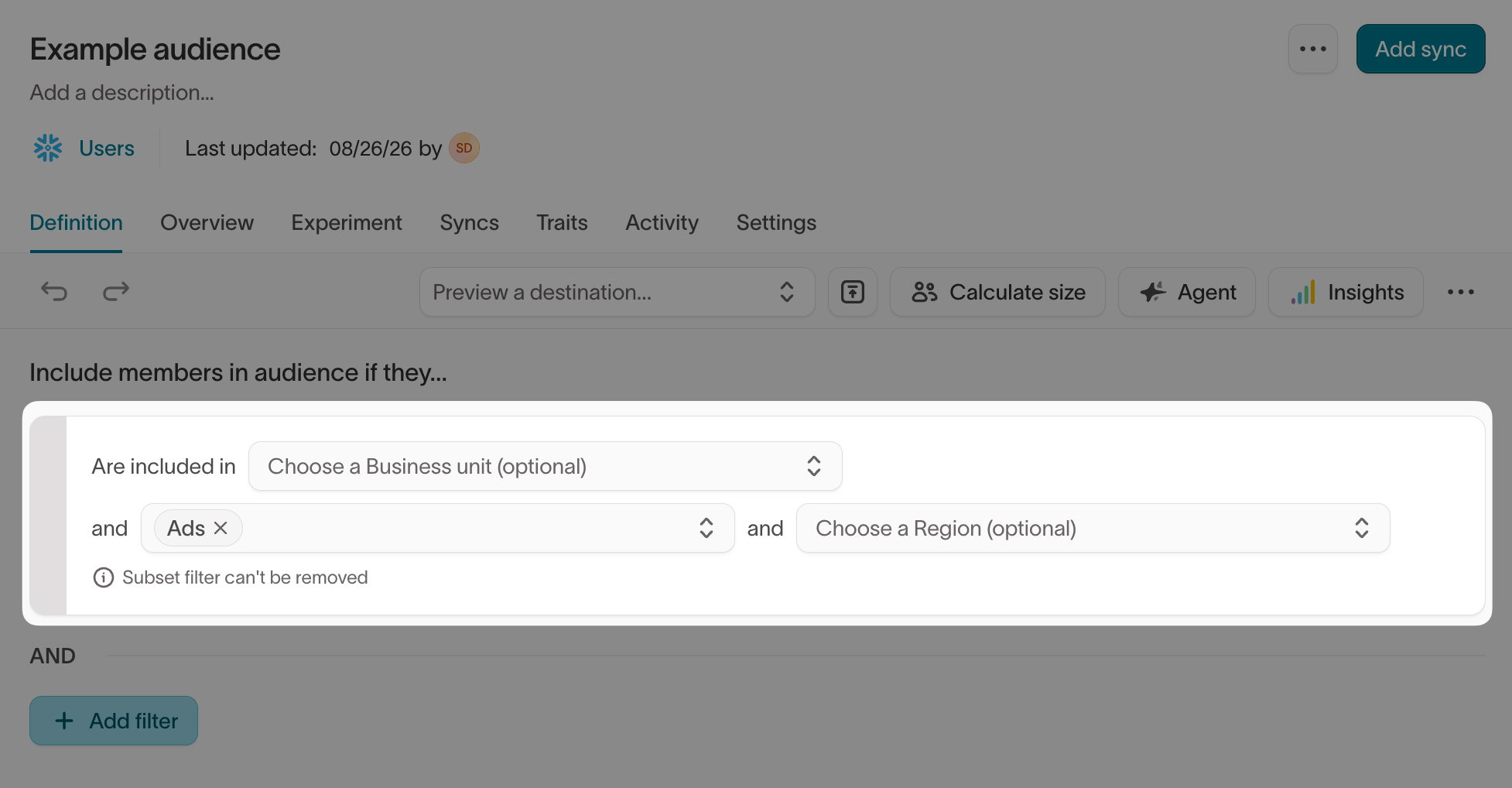
How subsets apply to journeys
A journey takes its subsets from its entry:- Enters audience — The journey uses the entry audience’s subsets.
- Performs events — You select subsets on the journey’s Start tile. See Subsets on event entry.
Next steps
- Data masking to hide or block sensitive columns and values, even for users who can see the rows.
- Destination rules to control which records can reach a given destination.
- Build an audience to see how subset selections apply as base filters.
- Create a journey to select subsets on an event-based Start tile.