Experiments were previously called Splits.
Experiments is only available on Business tier plans.
Before you begin
- Created Audience Experiments in Customer Studio
- Audience synced at least once after experiments were created
- Event data (such as purchases or clicks) available for measurement
Overview
Experiments provide a measurement layer for Audience Experiments. Whenever you create an Audience Experiment in Customer Studio or configure an experiment on an A/B split tile in Journeys, Hightouch automatically generates a corresponding Experiment so you can track performance across randomized groups. Experiments allow you to:- Compare holdout vs. treatment outcomes
- Analyze lift and confidence intervals
- Visualize performance over time
- Evaluate strategies continuously
Experiment measurement charts have been updated. All experiment reporting now
lives in
Intelligence → Experiments.How Experiments are created
Experiments are automatically managed based on Audience Experiments in Customer Studio:- Creating an Audience Experiment automatically creates a corresponding Experiment.
- Disabling or deleting an Audience Experiment removes its Experiment.
- Restoring an Audience Experiment restores its Experiment.
Setup and requirements
1. Create Audience Experiments
Before measuring experiment results:- Create Audience Experiments in Customer Studio.
- Ensure the audience has synced at least once after the experiment groups were created.
- Confirm that users generate measurable events (such as purchases, page views, or clicks).
Measure results
TheExperiments section of Intelligence helps you compare outcomes between experiment groups and evaluate the impact of your campaigns.
Navigate to: Intelligence → Experiments
View list of Experiments
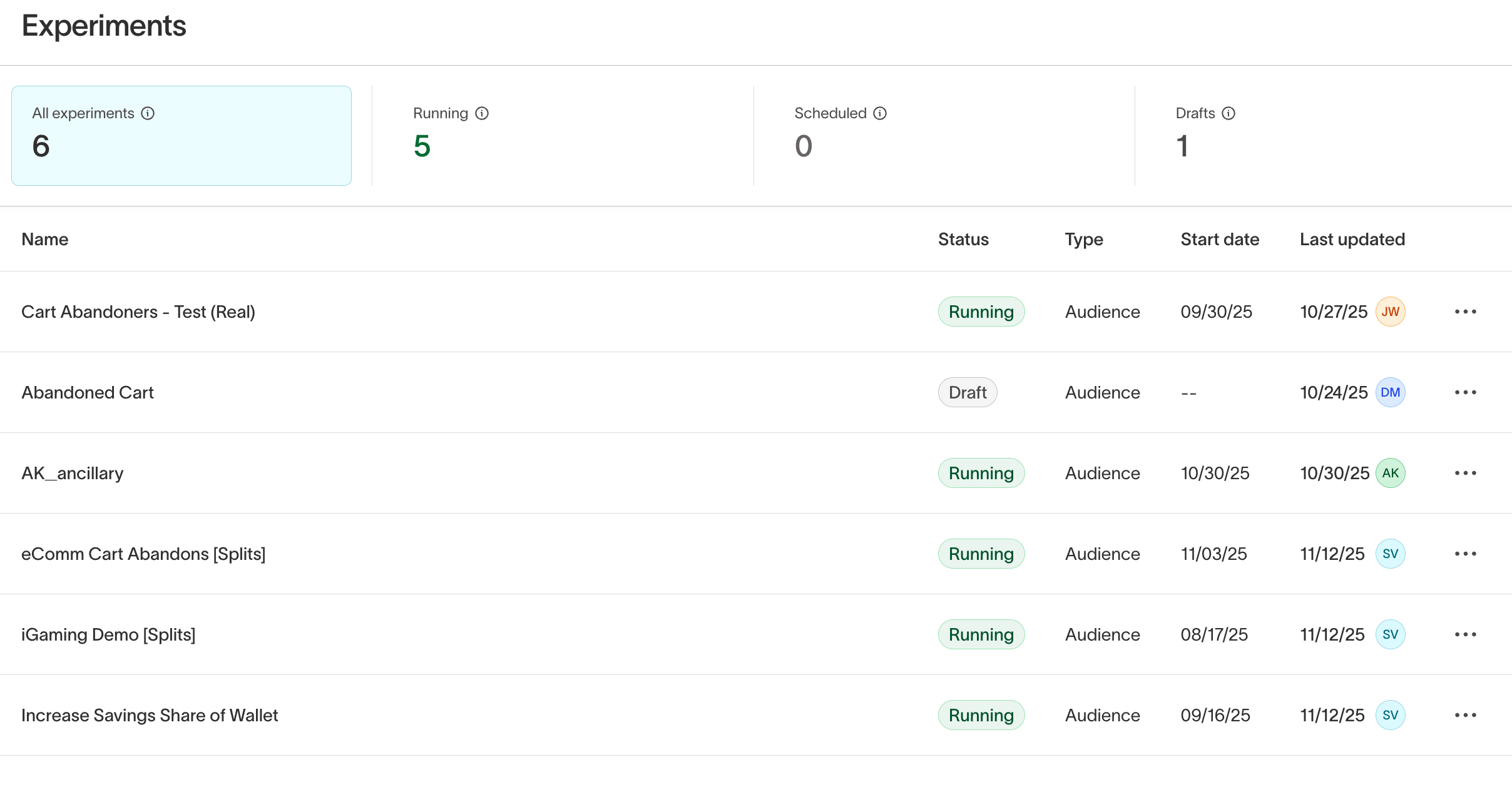
The Experiments list shows all Experiments, their statuses, and recent updates.Statuses include:
- Draft: Missing one or both required configuration elements (primary metric or start date).
- Scheduled: Fully configured; the start date is in the future.
-
Running: Fully configured; the start date is today or in the past.
Configure an experiment
Open an experiment and select the
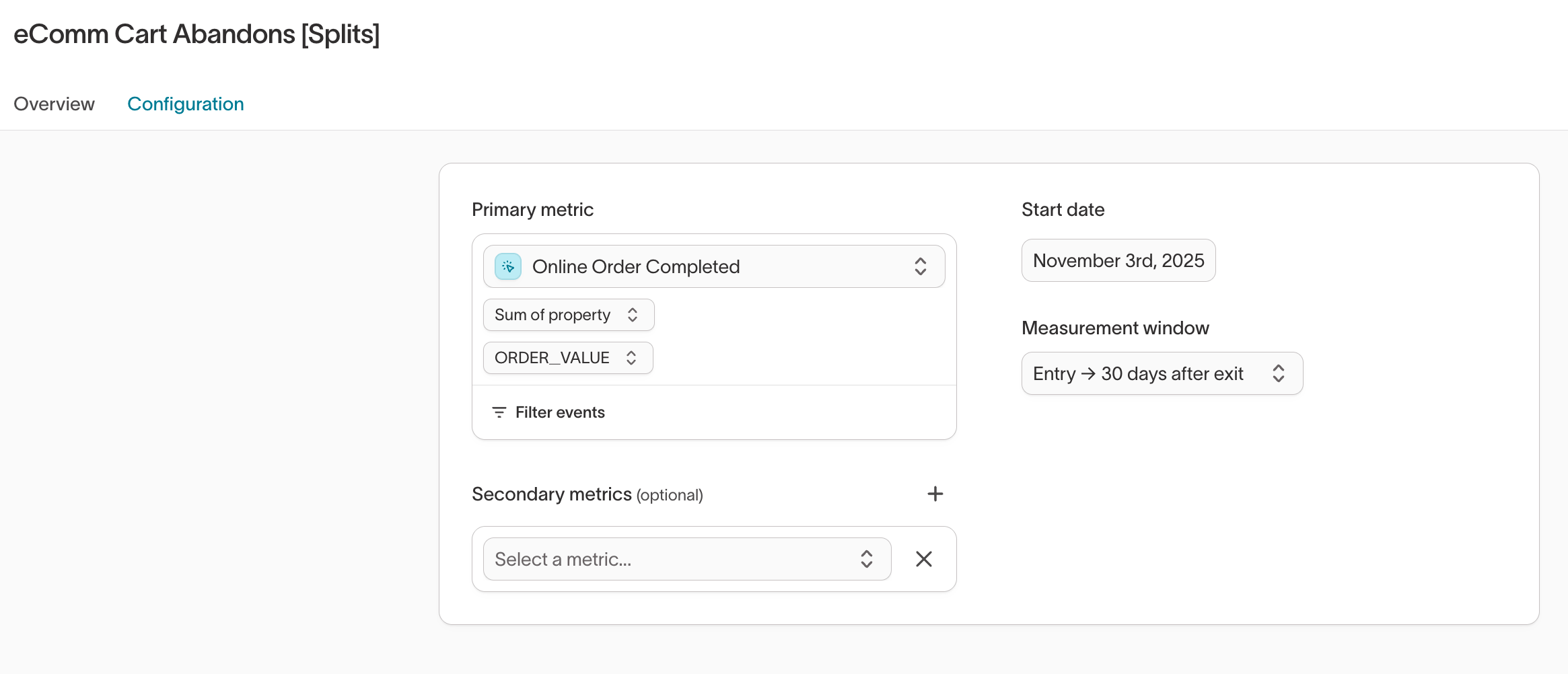
Configuration tab.From here, you can:- Choose a primary metric (required) and optional secondary metrics (e.g., Conversions, Revenue).
- Learn how to create a metric.
- Optional: Use the
Filter bydropdown to refine by user properties or events.
- Set a Start date
- Determines when measurement begins.
- Does not apply retroactively.
- Does not affect sync or activation behavior.
- Choose a Measurement window
-
Example: Entry → 30 days after entry measures events from the moment the user enters the audience to 30 days later.
-
Example: Entry → 30 days after entry measures events from the moment the user enters the audience to 30 days later.
Interpret results
The 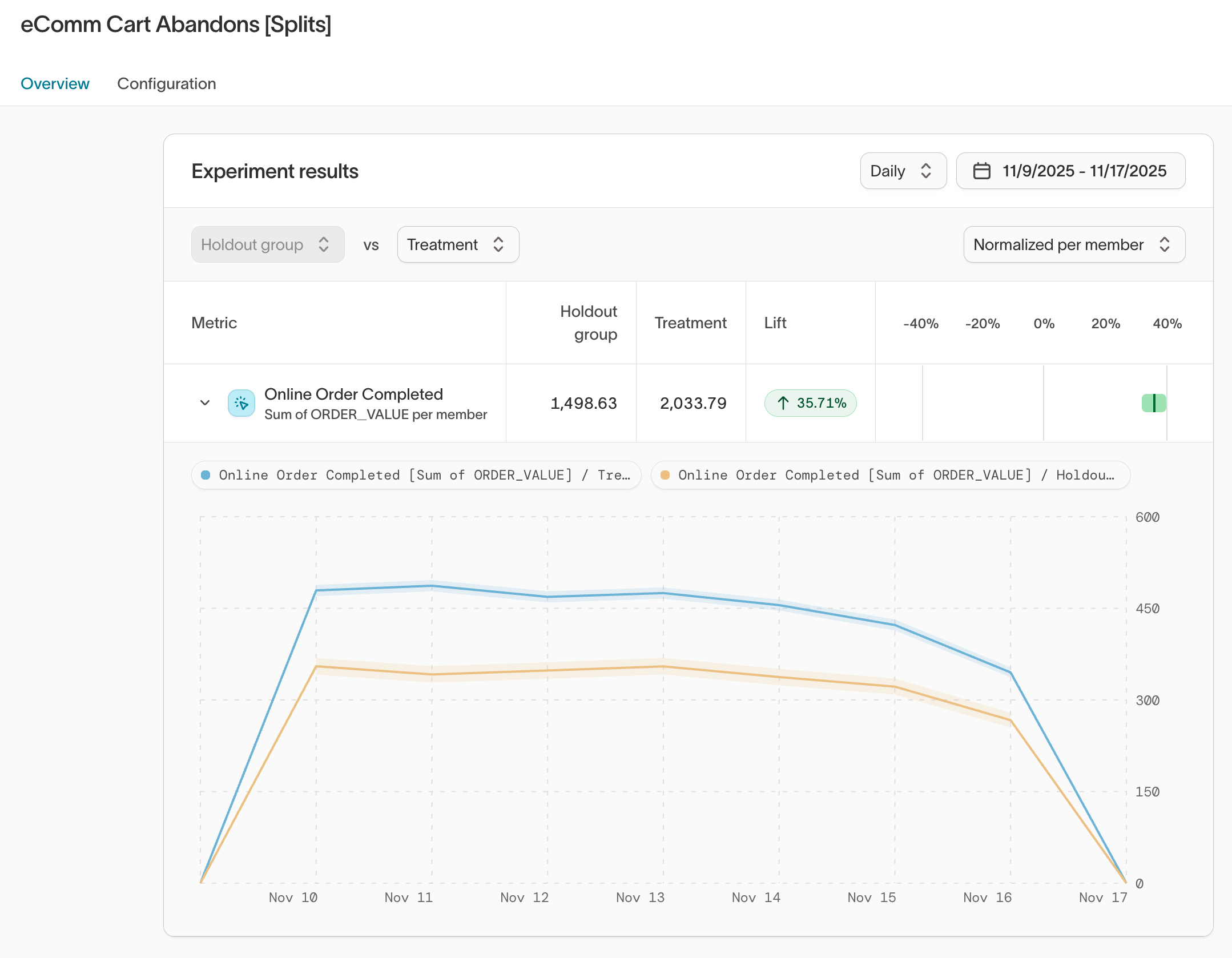
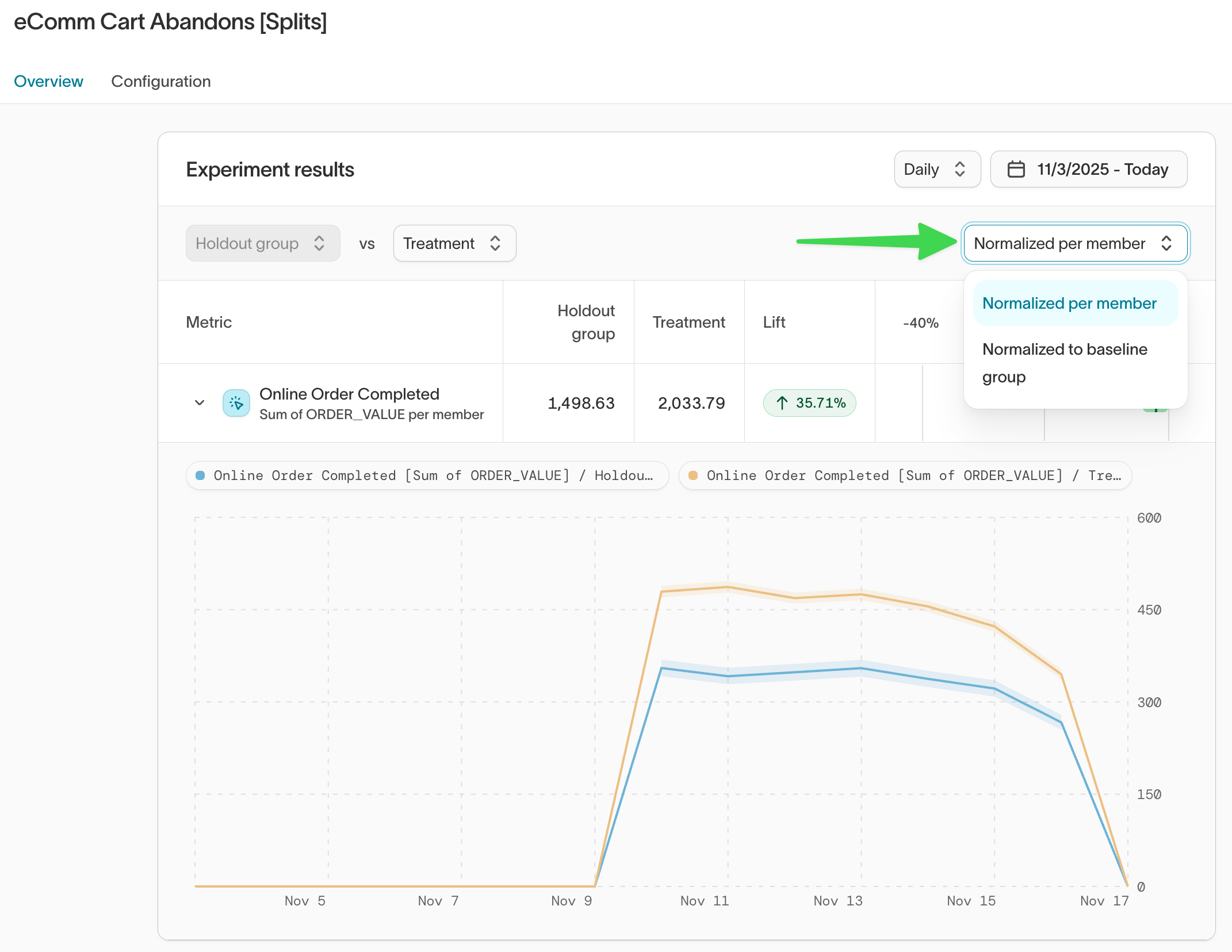
Overview tab displays experiment outcomes and performance trends.- Lift %: Percentage difference between treatment and holdout group performance.
- Lift interval bar:
- Green: Significant positive lift
- Red: Significant negative lift
- Gray: Not statistically significant (interval overlaps 0%)
- Performance lines:
- Solid lines show performance over time
- Shaded regions represent 95% confidence intervals