

Before you begin
- A defined schema with at least one parent model (for example,
Users). - Event data that reflects the outcome you want to predict (for example, purchases, cart completions).
- (Optional) Connected destinations for syncing audiences.
Overview
When defining audiences, you sometimes want to act on signals about what customers are likely to do next, not just what they have already done. Predictive traits extend Customer Studio traits with AI-powered scores that estimate the likelihood of a future action — or the value that action will produce. For example:- Purchase propensity: probability that a user will make a purchase within the next 7 days
- Cart completion propensity: probability that a user who started checkout will complete their purchase
- Churn prediction: probability that a user will stop performing a key event (such as a purchase or login) within a given timeframe
- Predicted value: the revenue a user is expected to generate within a given timeframe
Predictive traits are built on the same machine learning models used in
Hightouch AI Decisioning. They are
automatically trained on your historical event data and do not require custom
ML expertise.
Configure predictive inputs
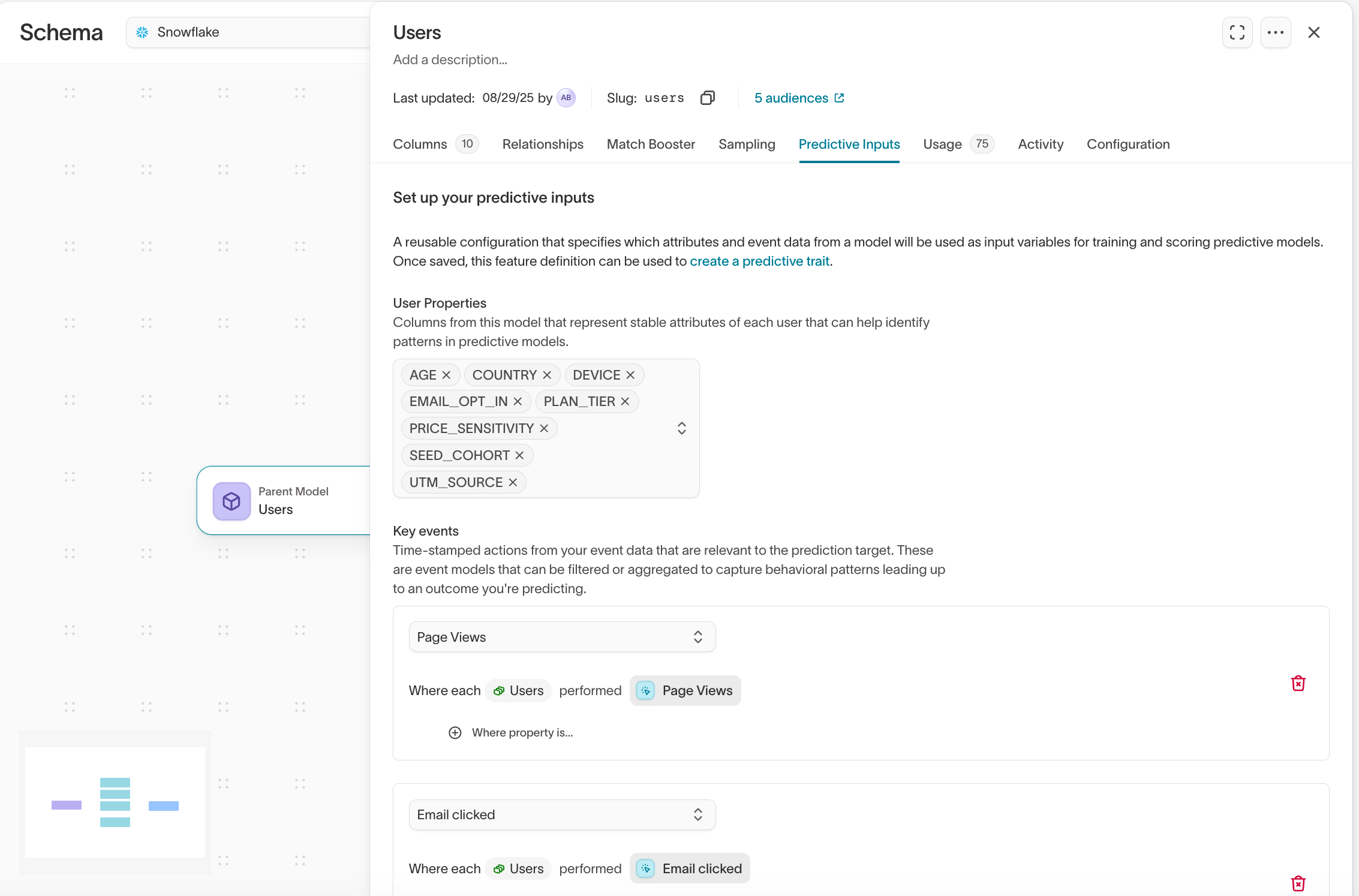
Before you create a predictive trait, you must define predictive inputs in your schema. Predictive inputs are the user properties and event data that models use for training and scoring. To configure predictive inputs:- Go to Customer Studio > Schema.
- Select your parent model (for example,
Users). - Open the Predictive Inputs tab.
- Under User Properties, select the columns from this model that can help identify patterns — for example,
age,country,device,plan_tier. - Under Key events, add the event models that are relevant to the prediction target. Events must have a primary key configured to be available for selection.
Create a predictive trait
- Go to Customer Studio > Traits.
- Select Create > New trait.
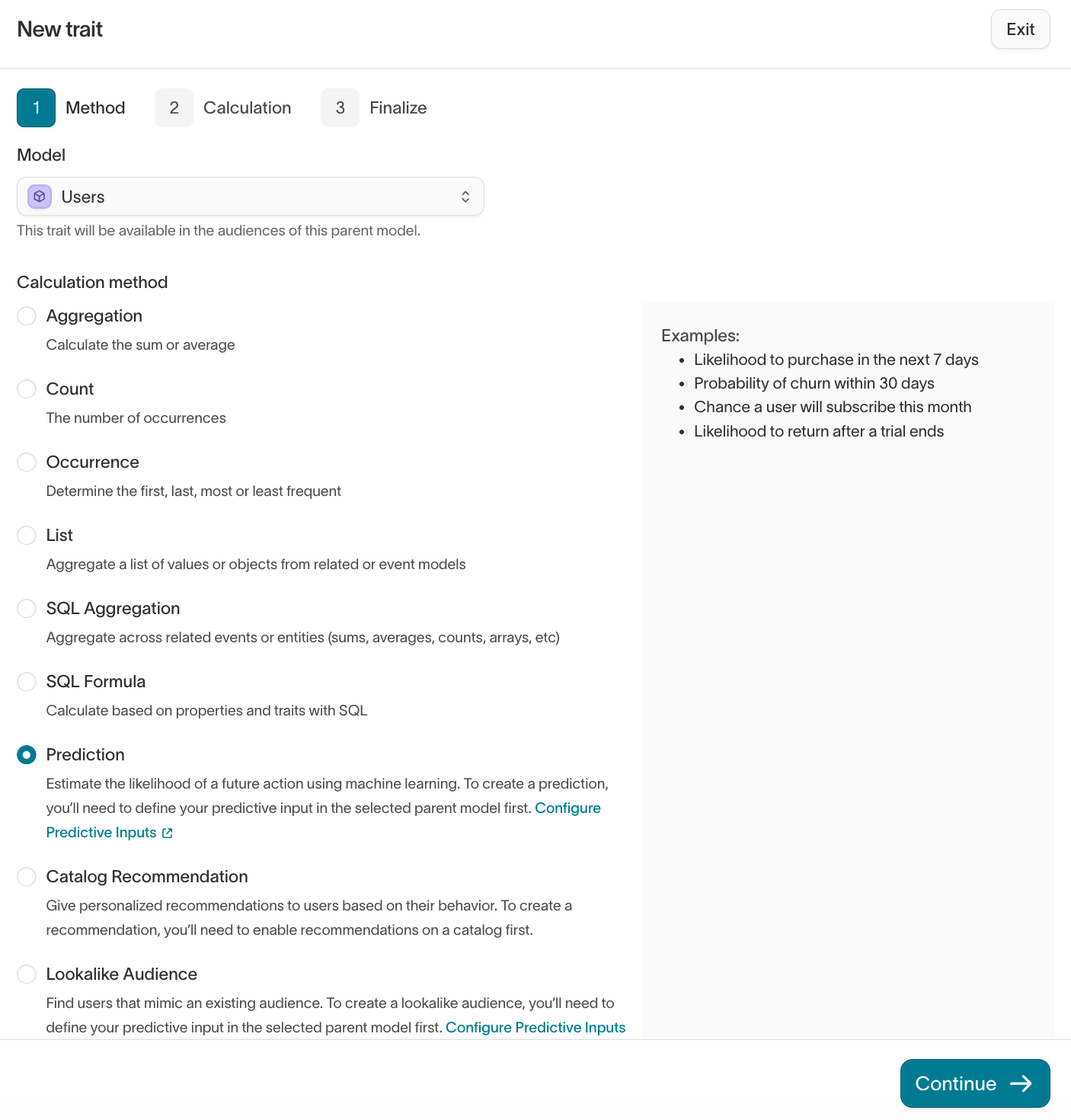
- In the Method step, select the Model you want to score (your parent model, for example
Users), then choose Prediction as the calculation method. Click Continue.
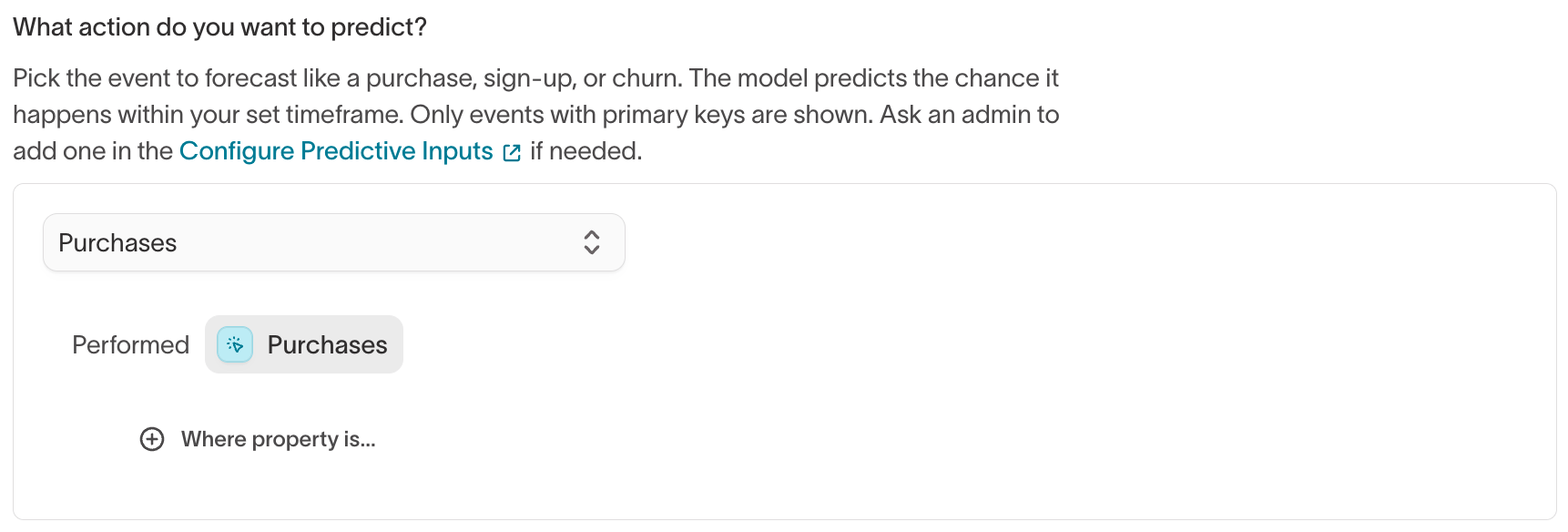
- In the Calculation step, under What action do you want to predict?, select the event to forecast (for example,
Purchases). Only events configured as predictive inputs, with a primary key, appear here.
-
Under What kind of prediction is this?, choose the type of score. The timeframe control below adapts to the type you pick.
For Value of event, also choose the aggregation and numeric property to predict — for example, the sum of
PURCHASE_VALUE.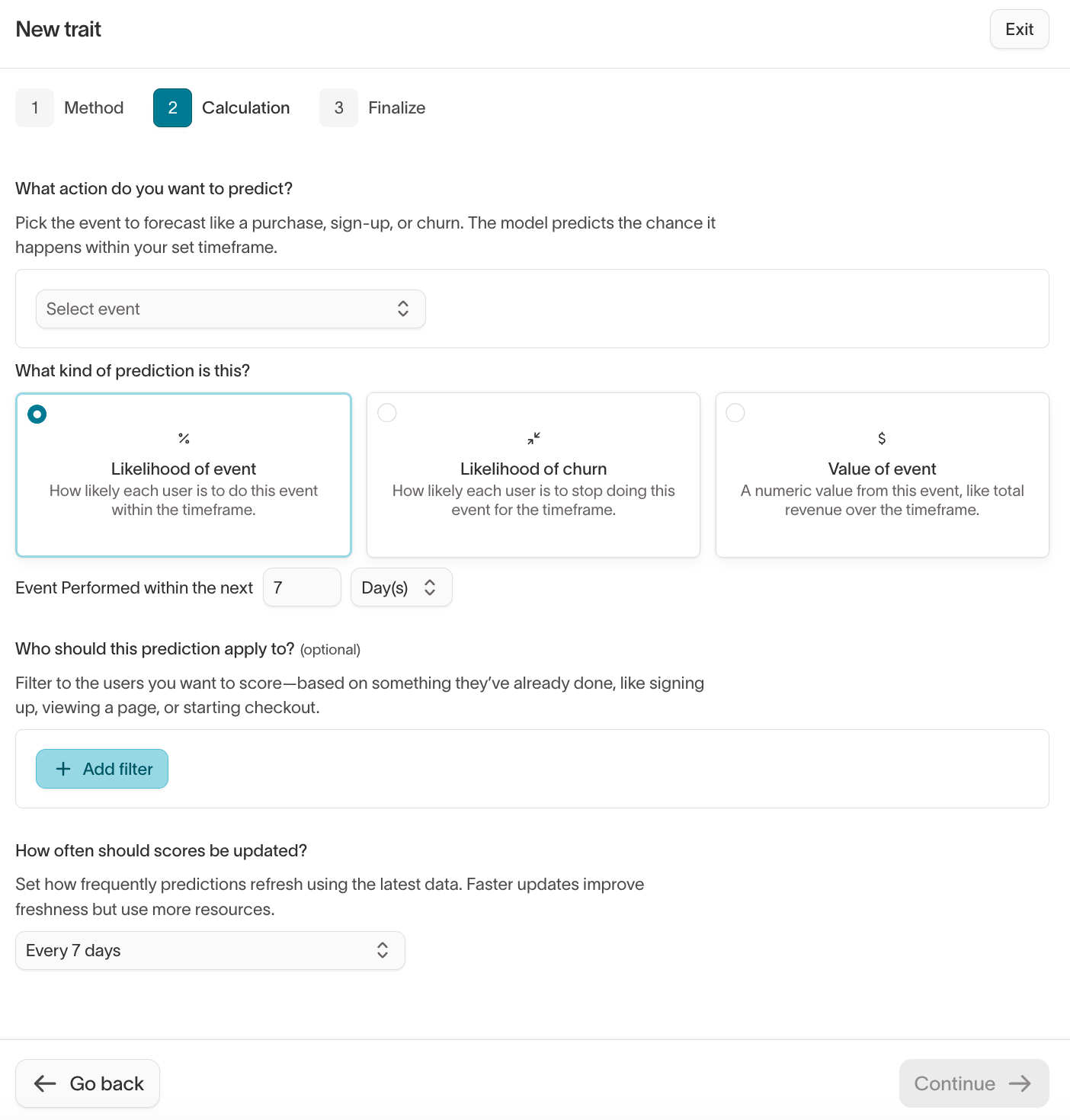
- (Optional) Under Who should this prediction apply to?, add filters to score only certain users — for example, people who have already signed up or started checkout.
- Under How often should scores be updated?, set the refresh cadence, then click Continue. More frequent updates keep scores fresh but use more warehouse resources.
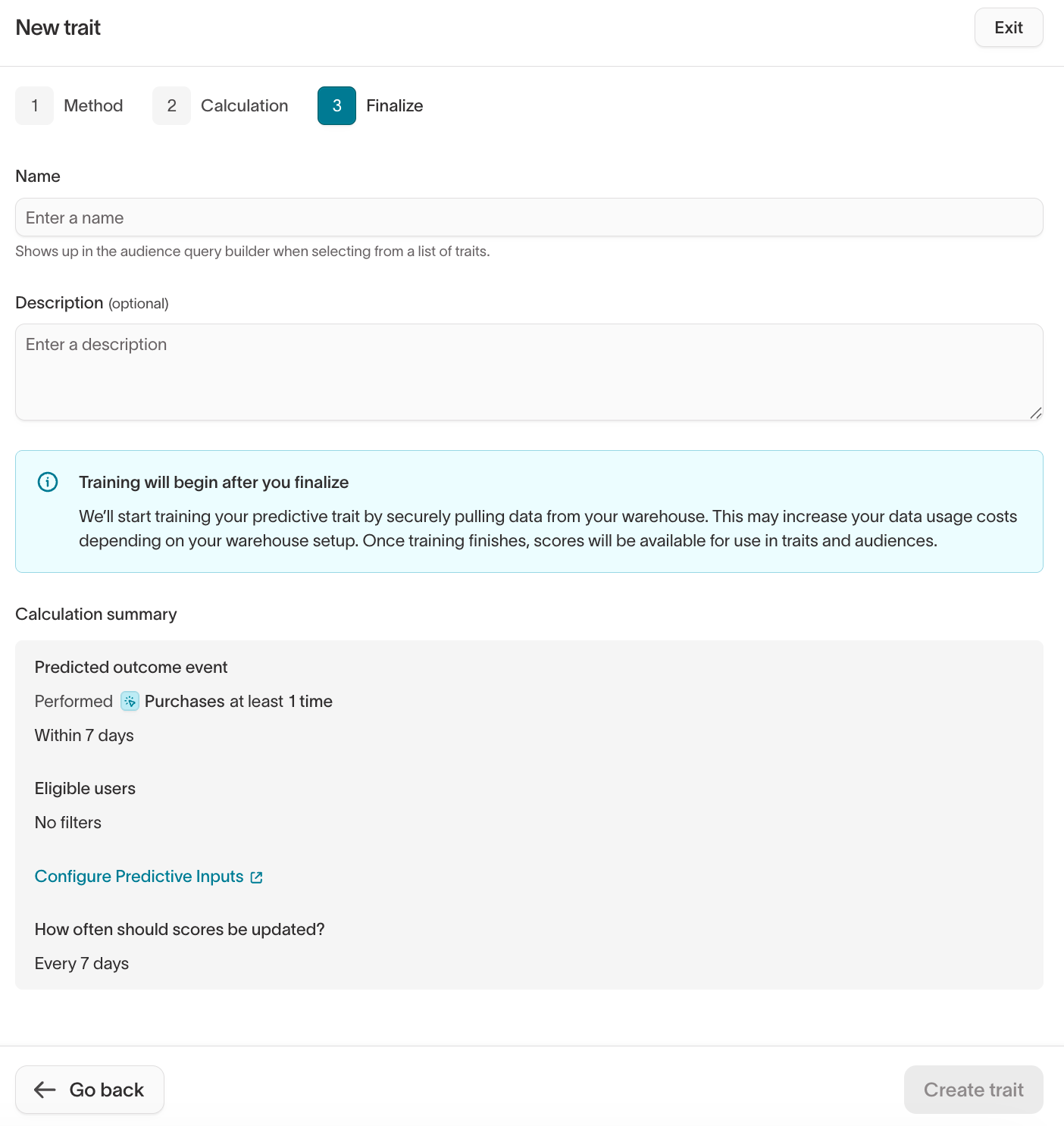
- In the Finalize step, name the trait, optionally add a description, review the calculation summary, and click Create trait.
View and use predictive traits
After training completes, predictive traits appear in the Traits list with type Prediction. You can:- Preview results in the trait details page
- Use in audiences by filtering on score thresholds or percentile ranges
- Sync predictions to destinations such as ad platforms, ESPs, or CRMs for activation
Analyze predictions
After training finishes, open the Prediction analysis tab on the trait to see how well the model performs. It reports the number of users scored and the last run date, and every metric is measured on a held-out sample the model never saw during training.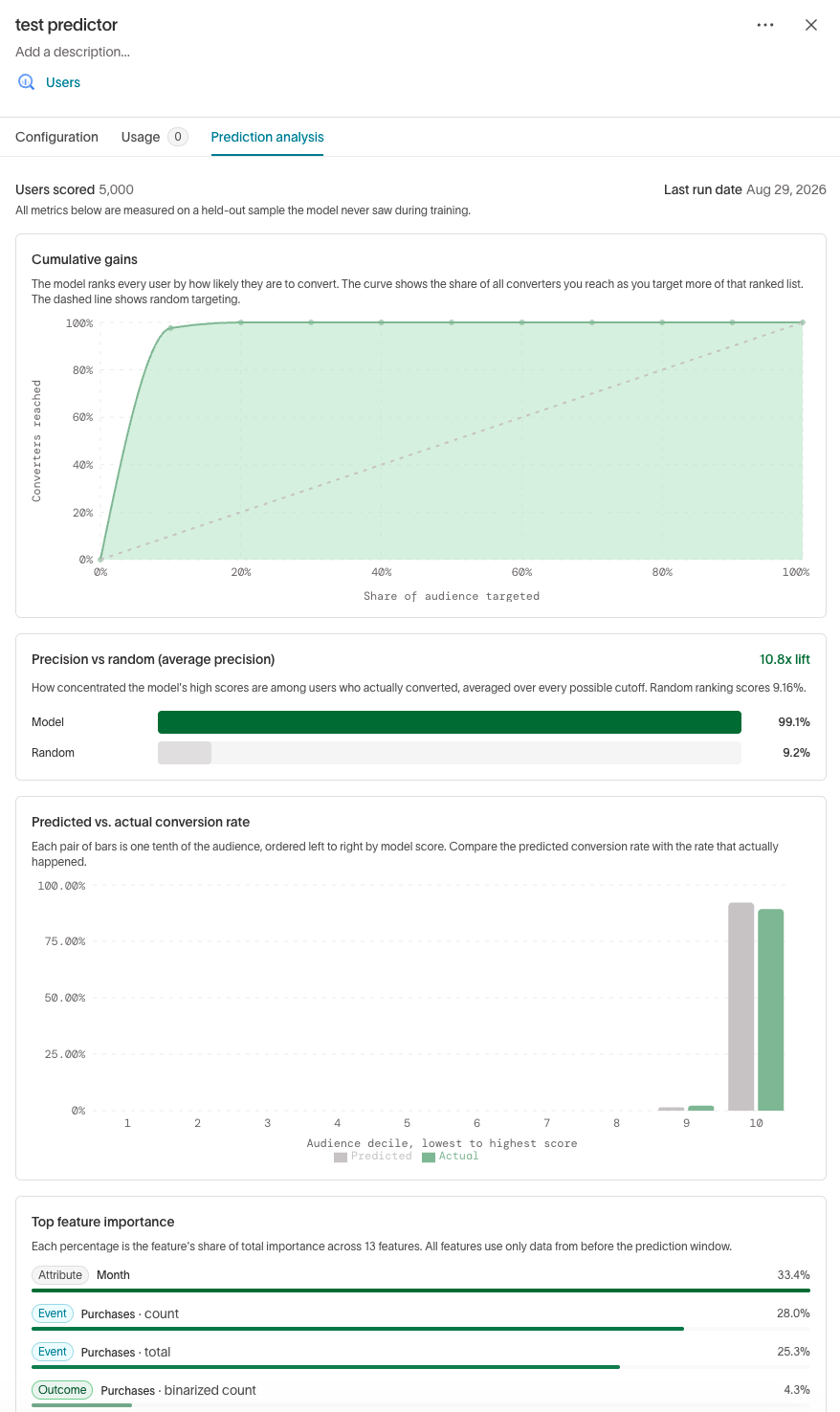
Cumulative gains
The cumulative gains curve ranks every user by how likely they are to convert, then plots the share of all converters you reach as you target more of that ranked list. The steeper the curve climbs above the diagonal — which represents random targeting — the more converters you reach by targeting a small, high-scoring slice of the audience.Precision vs. random
This compares how concentrated the model’s high scores are among users who actually converted against random ranking, and reports the lift — how many times better than random the model is at pushing real converters toward the top. Higher lift means a sharper model.Predicted vs. actual conversion rate
Each pair of bars represents one tenth of the audience, ordered by model score. Comparing the predicted conversion rate against the rate that actually happened shows whether the scores are well calibrated: the two bars in each decile should sit close together.Top feature importance
This ranks the user properties and events that contribute most to the model’s scores, each as a share of total importance. Use it to confirm the model is learning from signals you’d expect.Use predictive traits in audiences
You can use predictive traits when defining audiences the same way you use other traits.- Go to Customer Studio > Audiences and click Add audience.
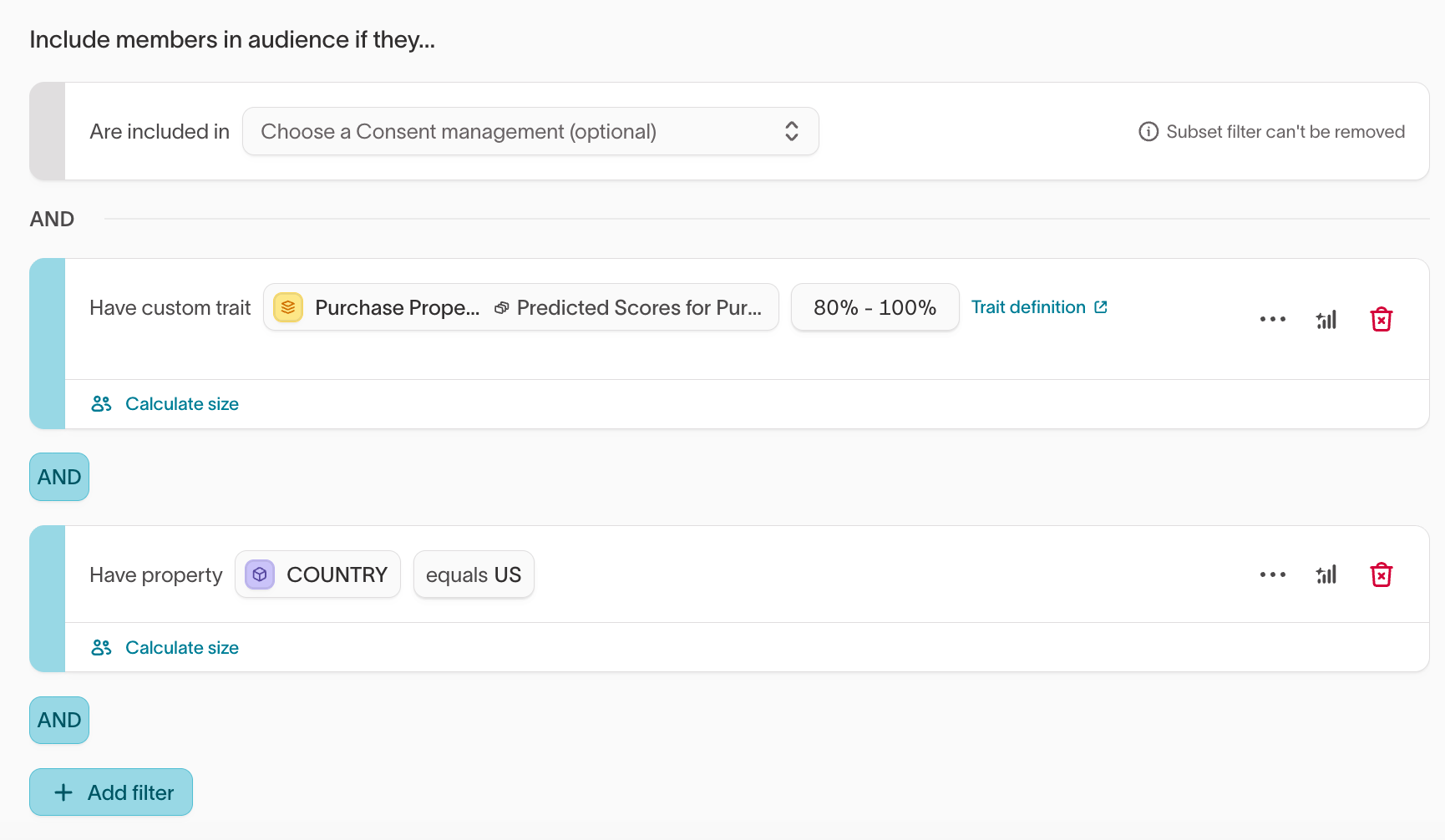
- In the audience definition, select a trait.
- Set the score range or percentile range you want to include (for example, 80–100%).
- (Optional) Combine the predictive filter with other attributes, such as
country = USorplan_type = paid.
- High propensity to purchase + specific geography (US, Canada)
- Cart completion propensity + recent site activity (visited in the last 7 days)
Predictive traits update on a schedule. Between updates, some people may
complete the action you’re predicting (like making a purchase), but their
score won’t change until the next update. To keep your audience focused on
people who haven’t yet acted, add a filter that excludes people who have
already performed the predicted event (for example,
Purchases = 0 or
Purchases (in last 7 days) = 0). Your campaign then includes only users who
are still likely to take action.Sync predictive audiences
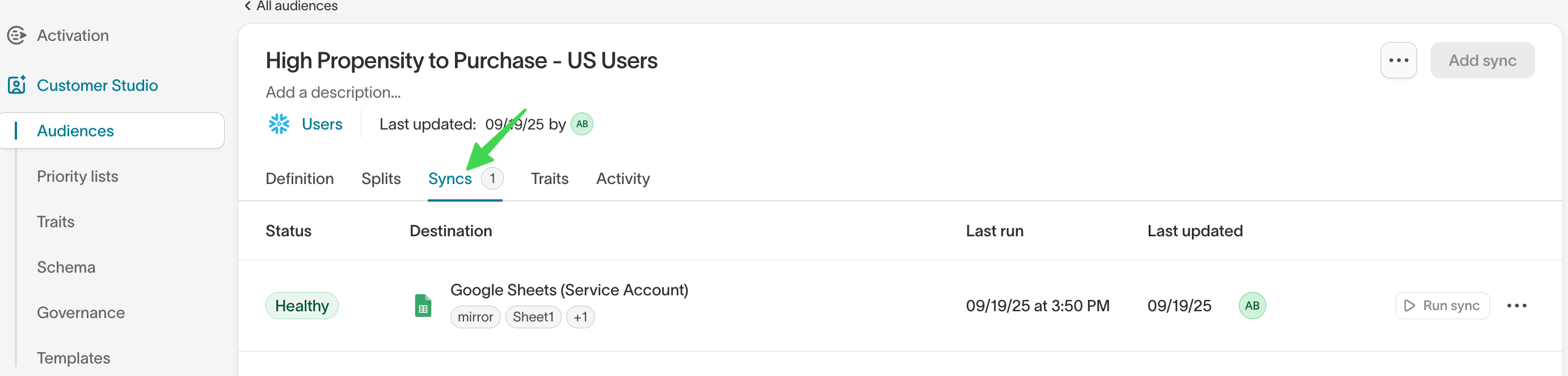
Once you define an audience with predictive traits, you can sync it to any connected destination the same way you sync other audiences. For example, you might sync:- High purchase propensity users to Google Ads or Meta Ads for paid acquisition
- High cart completion propensity users to an ESP for checkout reminder emails

Troubleshooting
If a predictive trait run fails, Hightouch assigns an error code that identifies the cause. The table below covers all predictive trait error codes. For a complete reference of all Hightouch error codes, see Error codes.Next steps
- Catalog recommendations to rank the top items from a catalog for each user.
- Lookalike audiences to find users who resemble a high-value segment without defining an outcome event.
- Traits to see how predictive traits sit alongside the other trait types.
- Build an audience to filter on a predictive score in the visual builder.
- Experiments to measure the lift a predictive audience actually drives.