

Environments and deployments are only available on Business tier plans.
How do environments work?
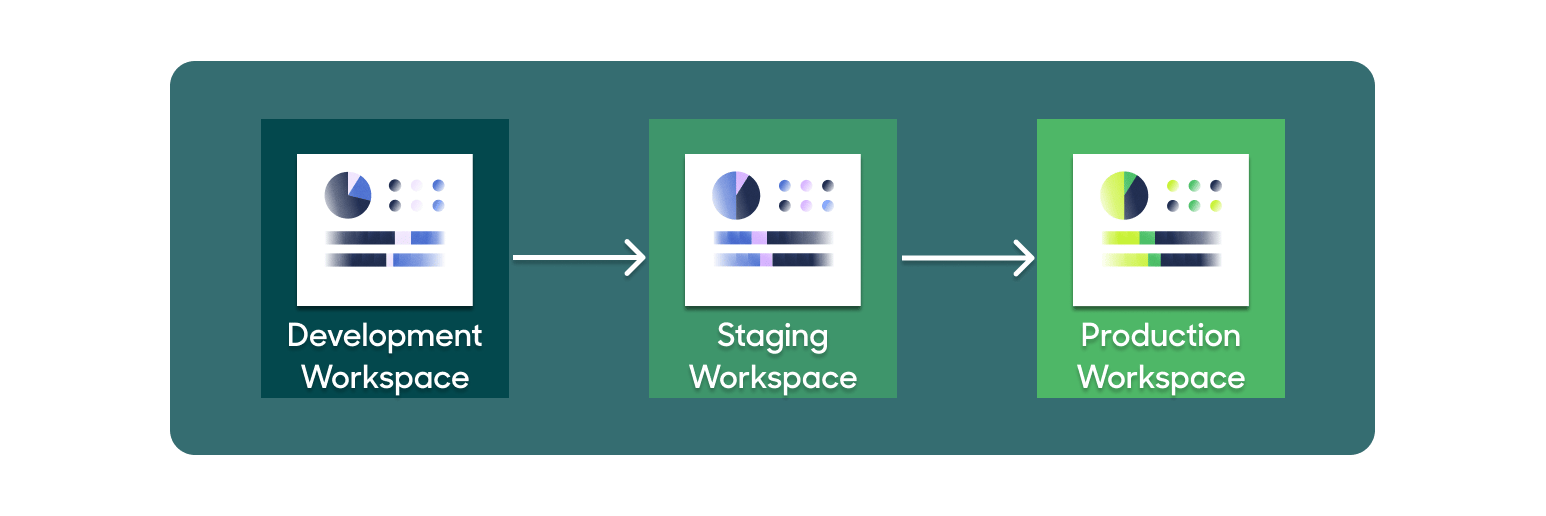
Each Hightouch workspace in your organization acts as a separate environment. You can link resources between workspaces, which allows you to deploy models and syncs from one environment to another. Each workspace can have its own set of alerts and can use its own extensions. Environments integrate seamlessly with other governance features, such as role-based access controls (RBAC) and approval flows. Workspace permissions and drafts are enforced across workspaces when deploying changes. You can set up your organization so that specific team members have access to certain resources. For example, some team members, such as your data team, may have permission to set up sources and models. Others, such as the marketing team, can deploy or draft sync deployments.Separate resources for separate environments
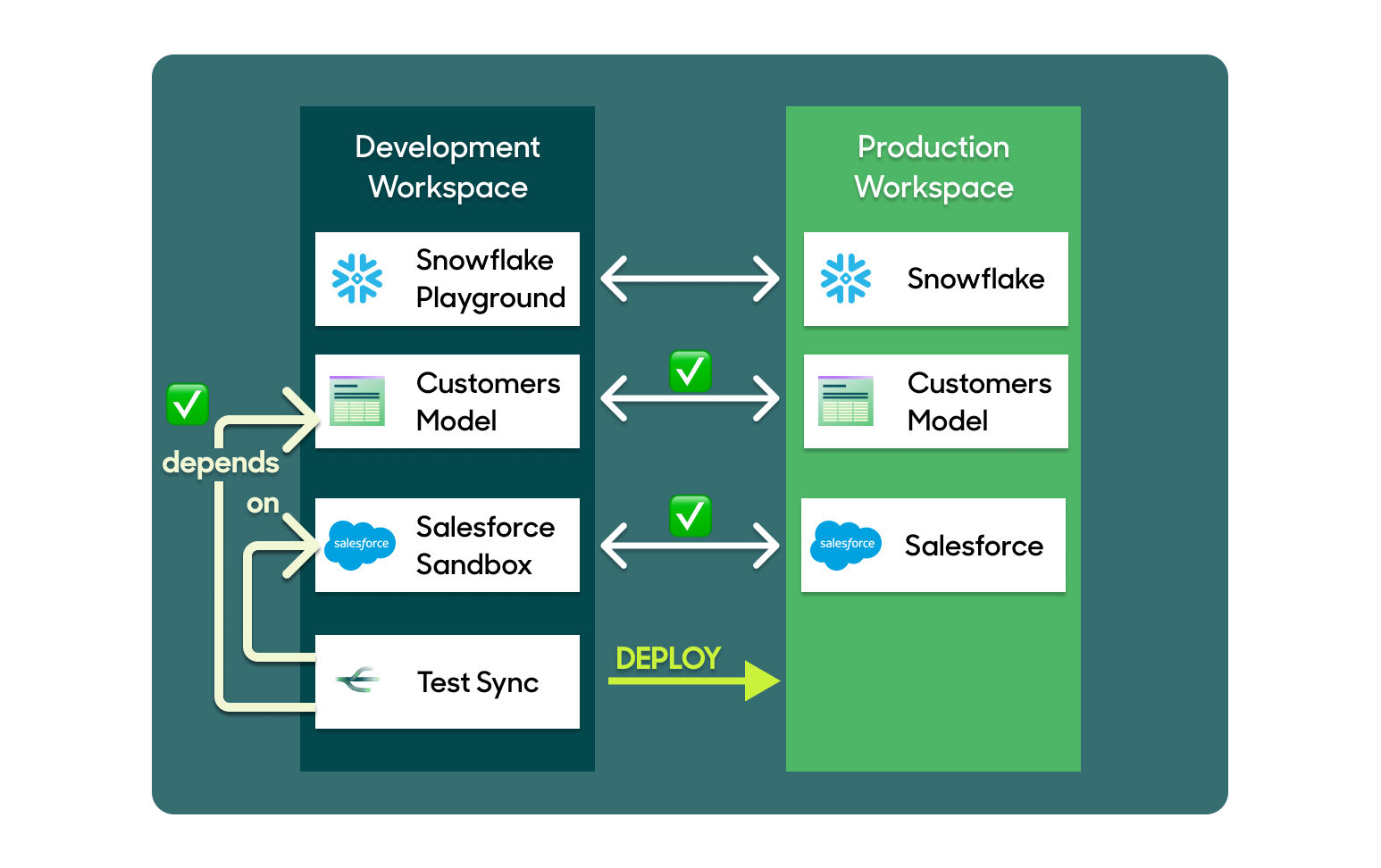
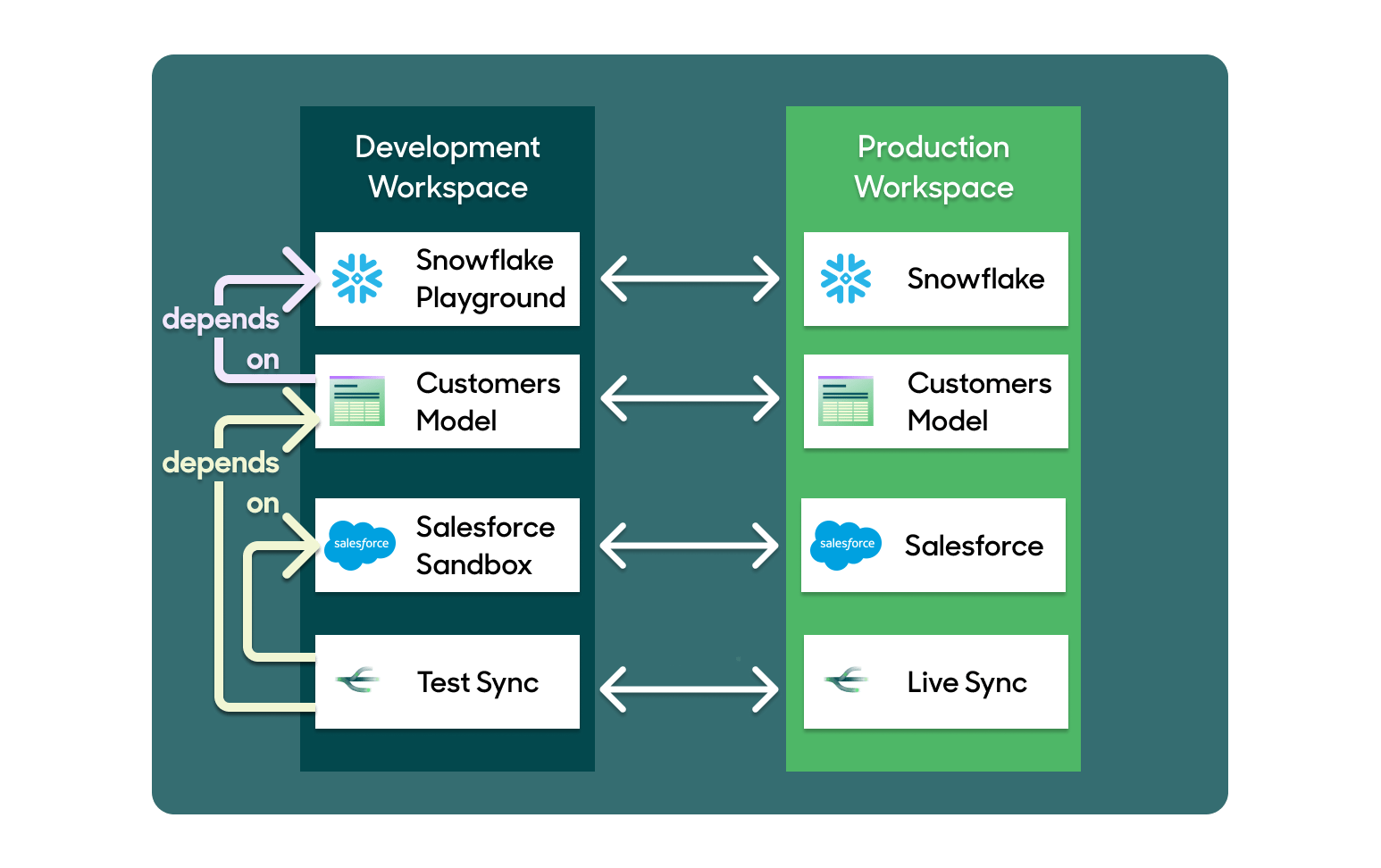
Each workspace has its own set of resources, including sources, models, destinations, and syncs. Hightouch allows you to link resources across workspaces. For example, you can link a Snowflake playground in your “dev” workspace to a production Snowflake instance in your “prod” workspace, a Salesforce sandbox to your production Salesforce instance, etc.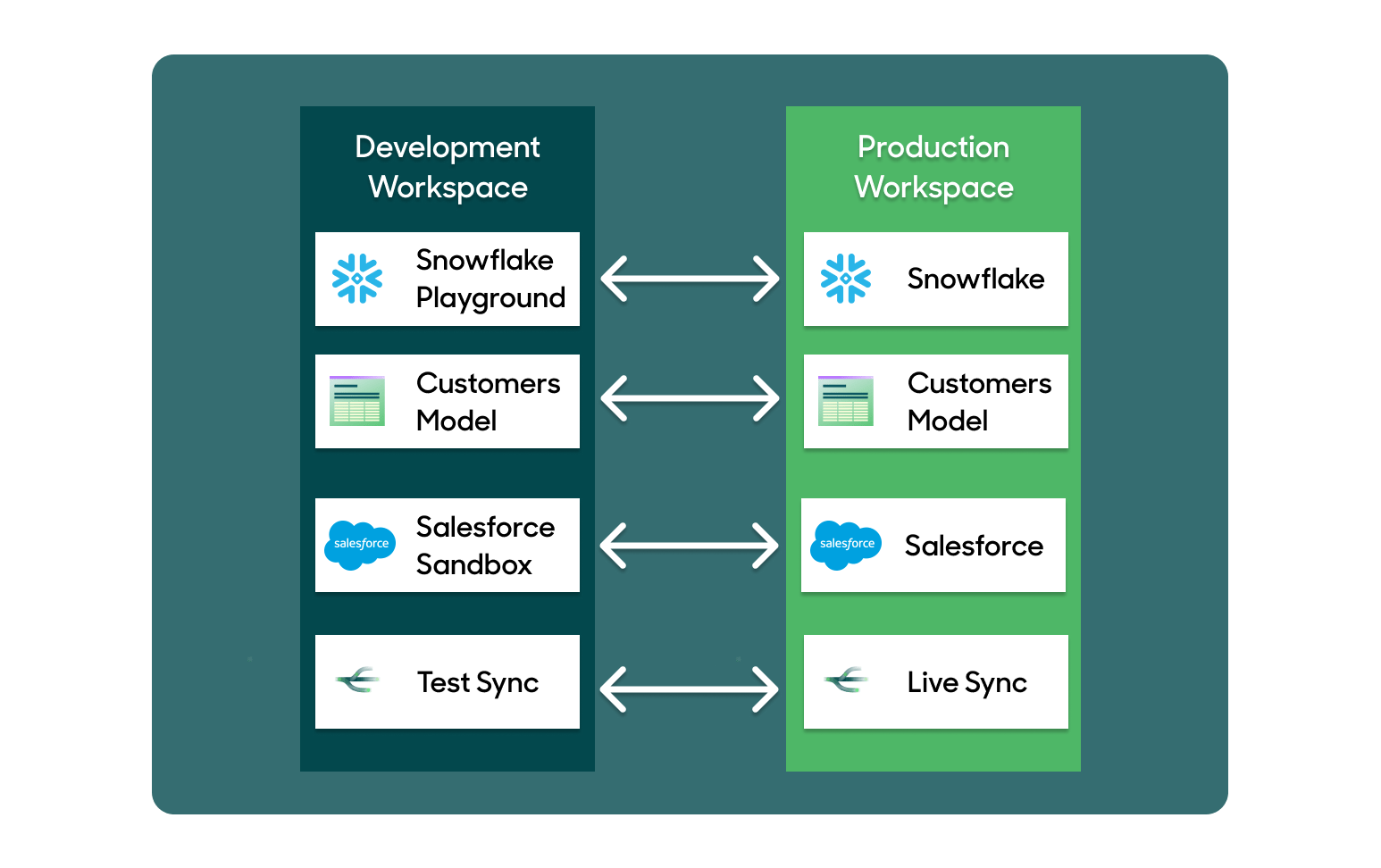
Resource dependencies
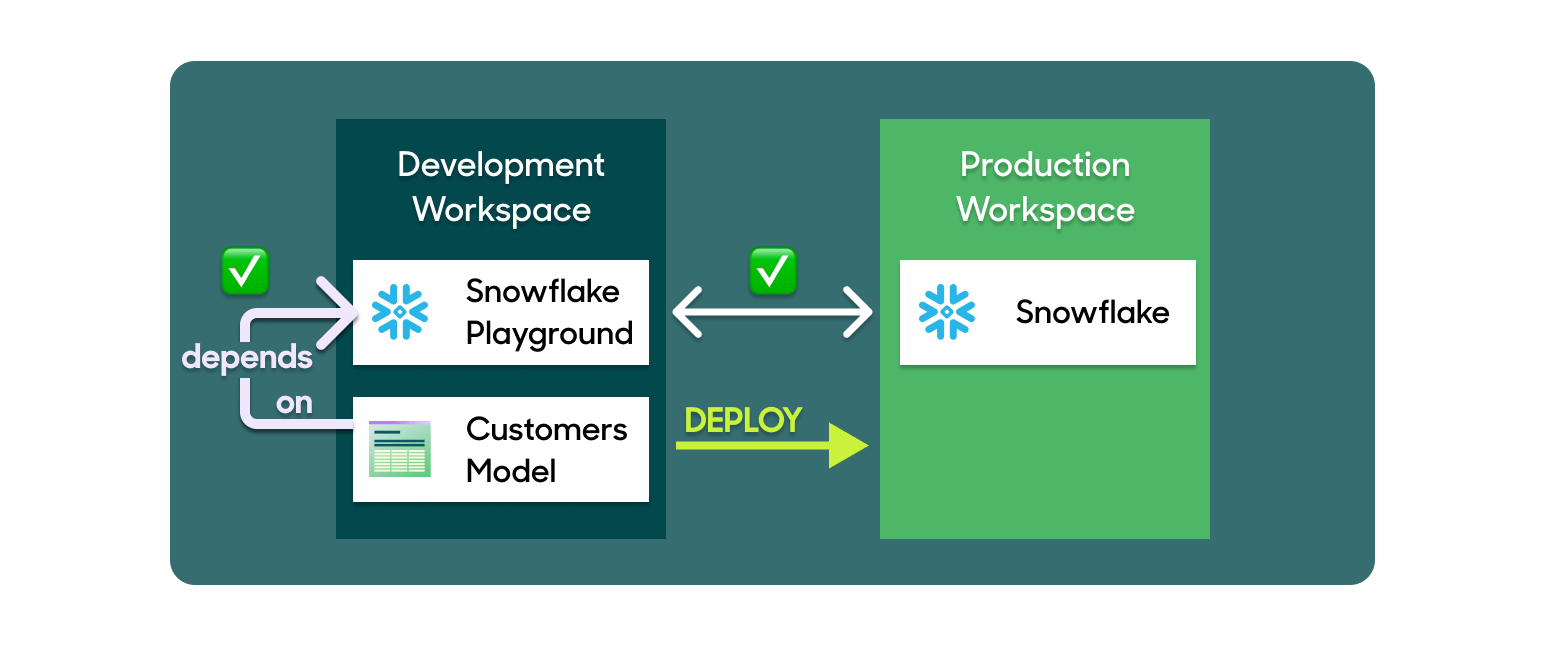
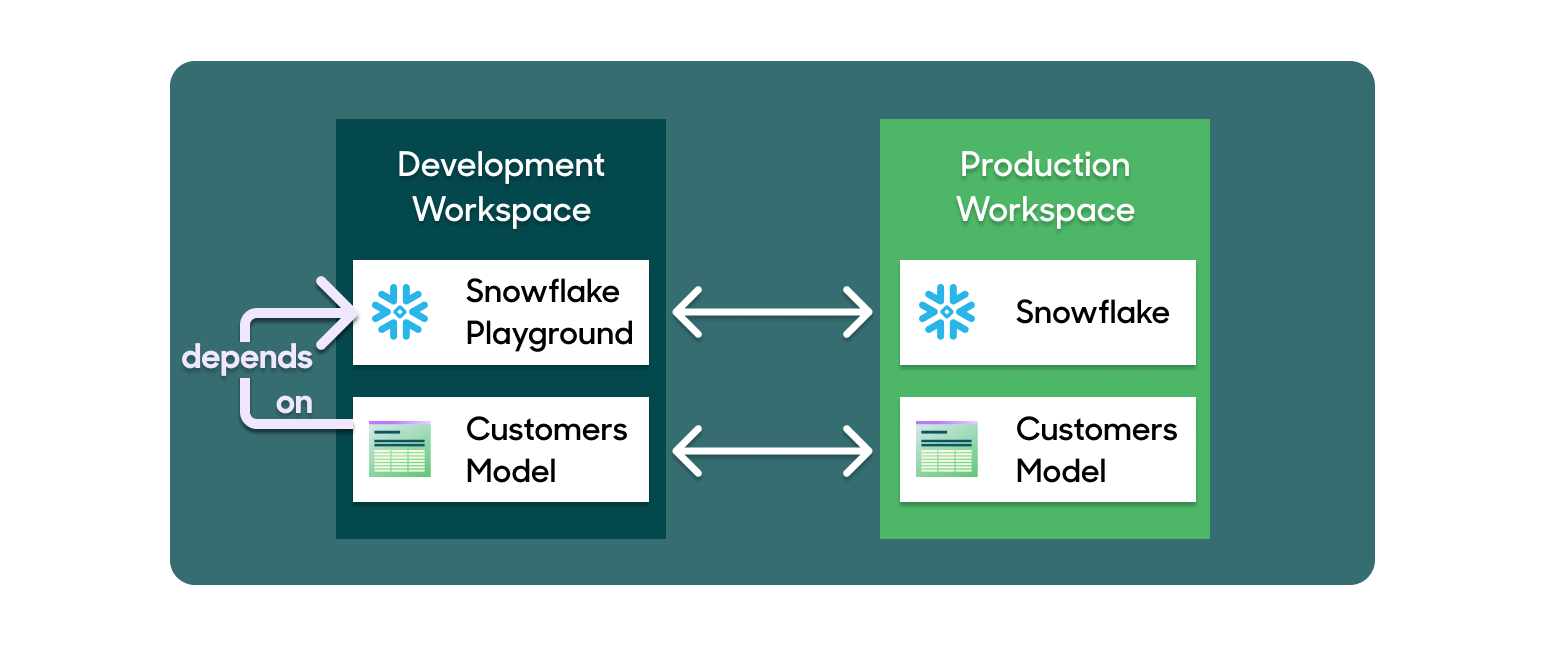
While any resources of the same type can be linked, for example, source to source and sync to sync, you can only deploy models and syncs. To deploy models and syncs, you must link their underlying sources and destinations to their relevant counterparts.Environments apply to Reverse ETL models and syncs only. Customer Studio
resources — including audiences, traits, parent models, and schema models —
cannot be deployed between environments. Each environment must be
configured and maintained independently for Customer Studio workflows. For
Customer Studio change management, use Approval
Flows instead.
Environment usage
To deploy changes, you first need to link resources. You can either link existing sources and destinations on their configuration pages, or link them as part of the deployment workflow. You only need to link underlying resources once to allow deployments. Removing links between resources doesn’t impact syncs or models you previously deployed.Link resources
You can link existing sources and destinations to their counterparts in other workspaces. You can only link models and syncs during the deployment workflow. When you deploy a resource for the first time, you create and simultaneously link the resource to a counterpart in the target workspace. During deployments, Hightouch ensures you’ve linked the necessary underlying resources. If you haven’t, you can link them directly from the deployment wizard.Link sources and destinations
To link existing sources and destinations, follow these steps:- Go to the resource’s overview page and open the Linking tab.
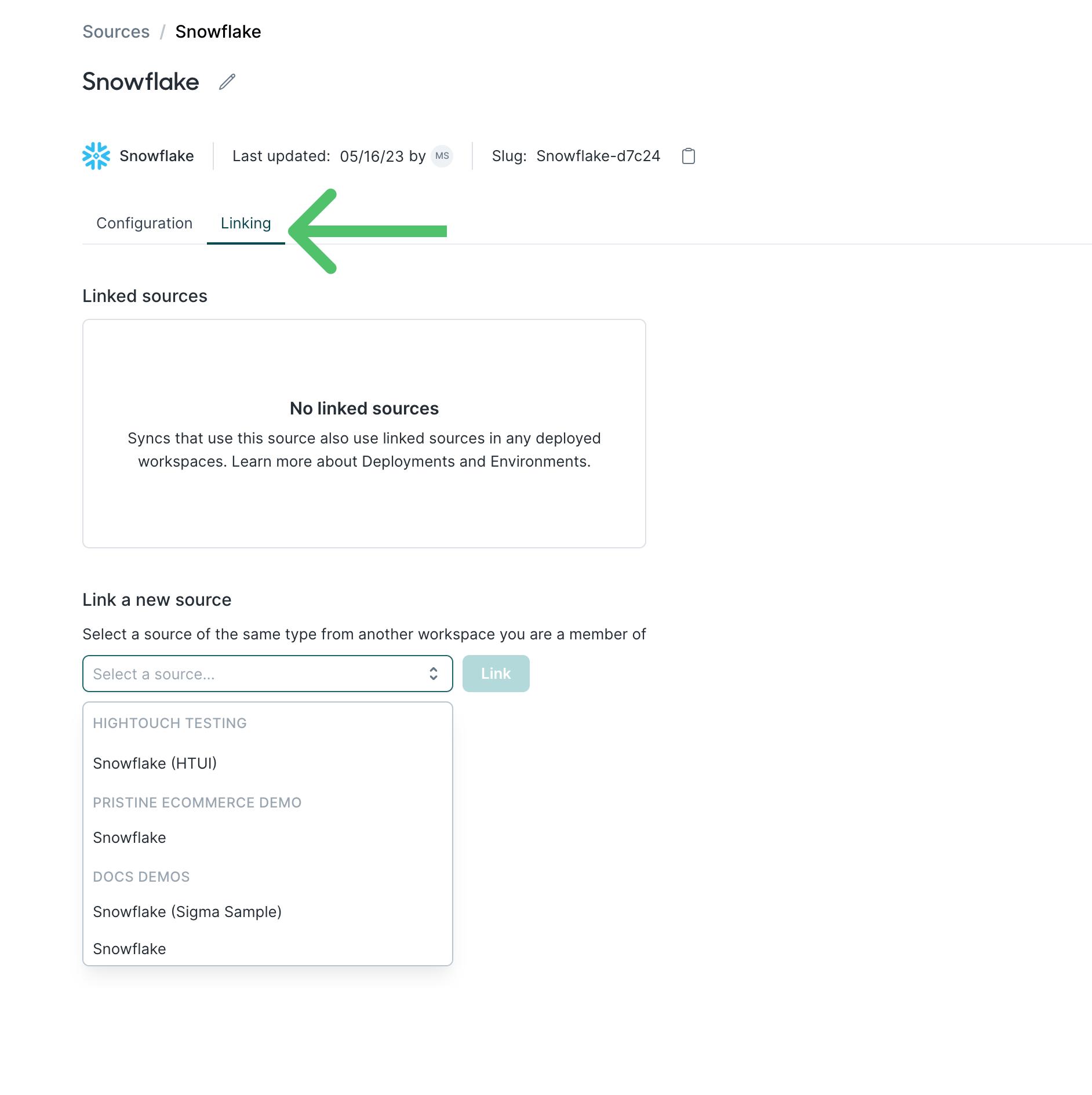
- Select the relevant resource for each workspace you want to link and then click Link.
Hightouch only displays eligible resources for linking. To be eligible: - the
resources must be of the same type; for example, they both must be Snowflake -
the user creating the link must be a member of both workspaces - both
workspaces must belong to the same organization
Link syncs and models
The only way to link syncs to other syncs and models to other models is by deploying them. Once deployment creates a new sync or model, it’s automatically linked for future deployments. You cannot deploy to existing syncs or models. If you want to link existing syncs or models from one workspace to another, delete the development or testing version and recreate it by deploying it from your production environment. Don’t hesitate to if you have any questions or concerns.Deploy changes
To deploy syncs or models, follow these instructions:- From a model or sync’s configuration page, click the deploy icon to the left of the Run button and select Deploy.
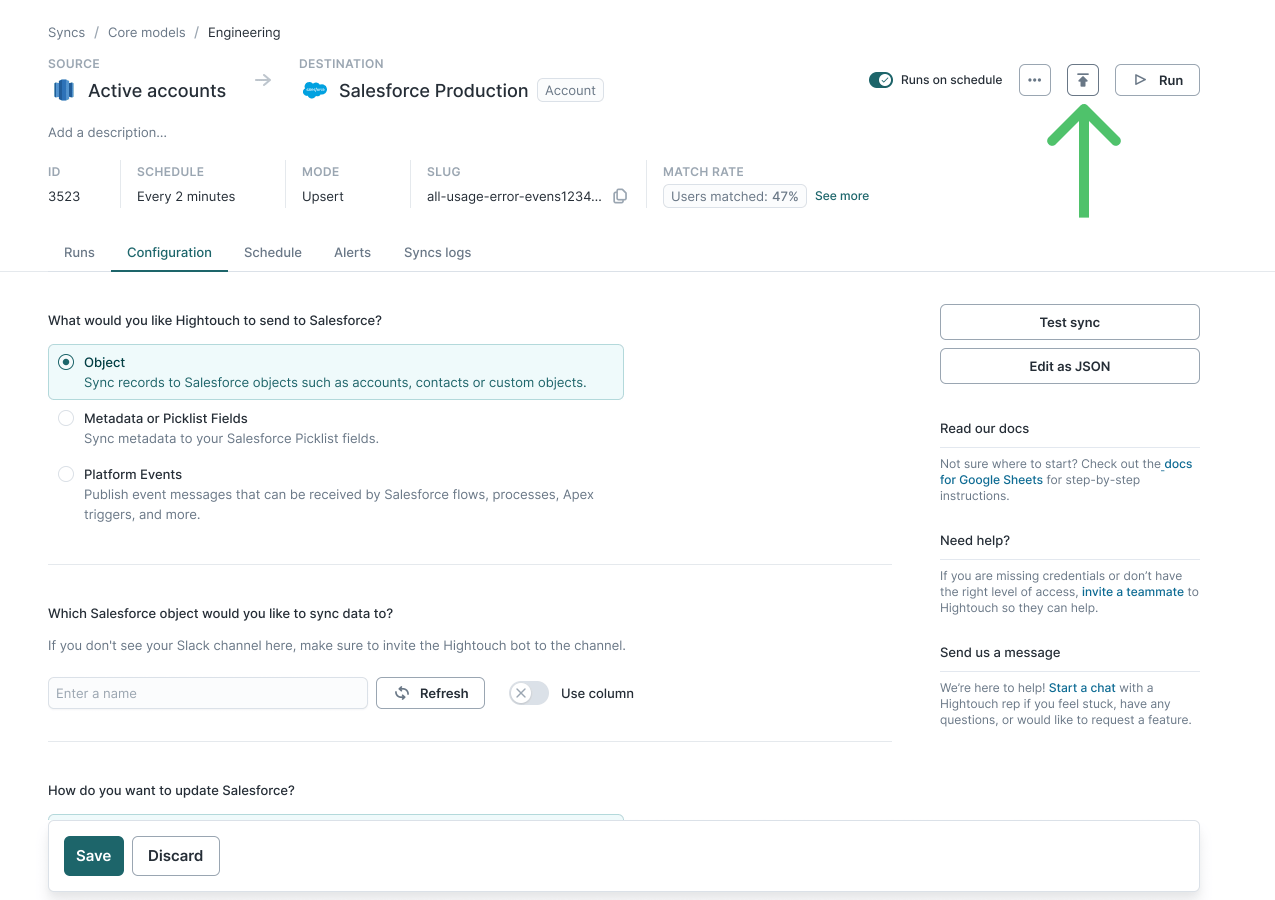
- Select the environment you want to deploy the change to. The first time you deploy a particular resource, Hightouch creates a new resource in the target environment. If you’ve deployed the resource before, the deployment updates the previously created and linked resource.
- If the relevant underlying resources aren’t already linked, follow the steps in the modal to link them.
- The deployment wizard shows what has changed: added, removed, and updated configurations. Review these to ensure they’re the changes you want to deploy.
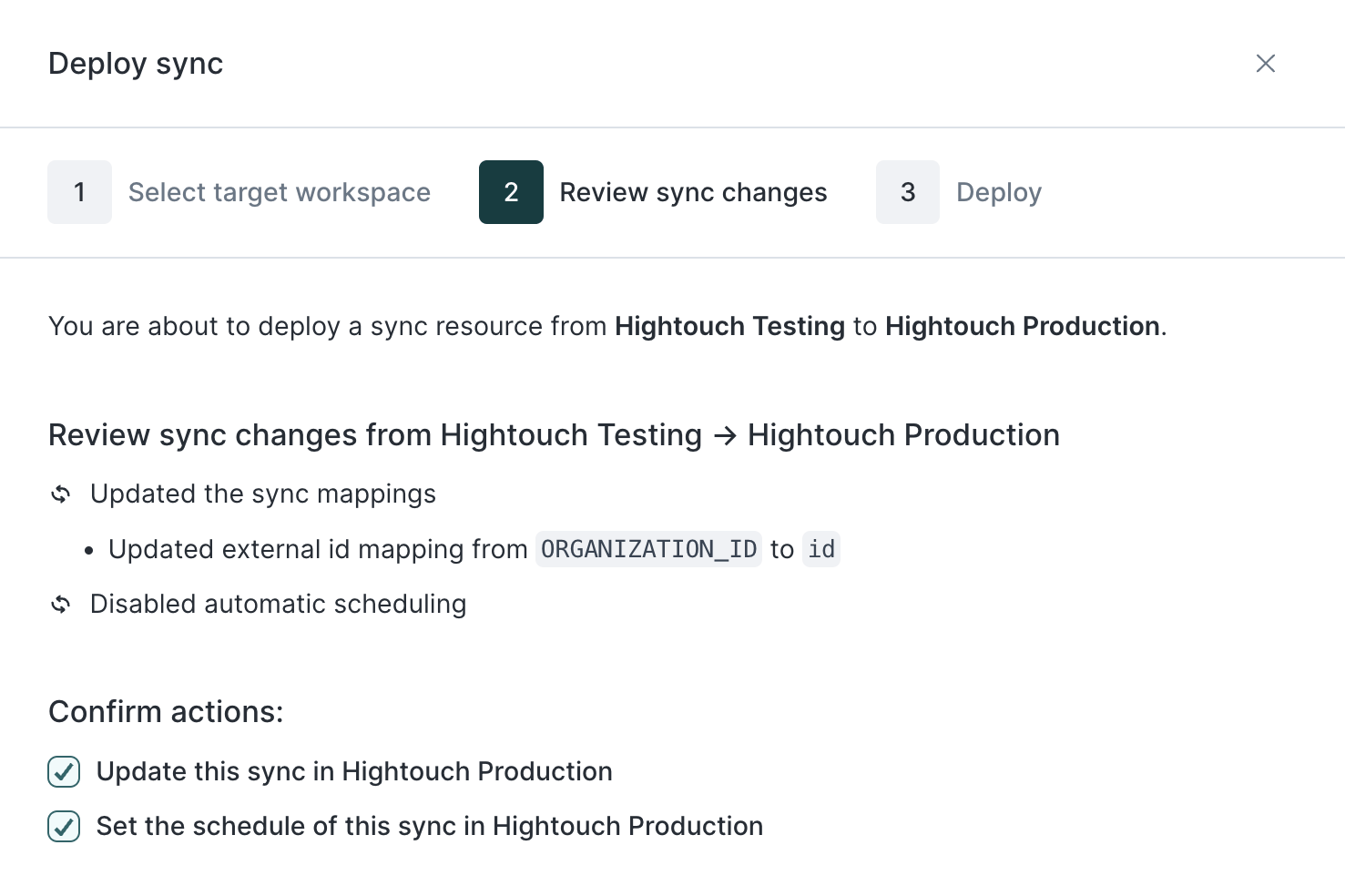
- For sync deployments, you can choose whether to deploy its schedule as well as the other configuration changes.
- Click Deploy.
- Syncs created via deployment are disabled by default. If you want to enable a deployed sync, make sure to do so from its overview page once you’ve deployed it.
You can’t deploy
drafted
changes on a configuration. You first need to get approval and/or publish
changes to a resource before deploying the changes.
Deployment validations
Before deploying changes, Hightouch validates dependencies. Hightouch blocks deployments until you’ve resolved all dependency issues. For example, if you try to deploy a dbt-based model from your staging to production workspace, but the dbt extension isn’t set up in production, Hightouch blocks the deployment. Once you’ve resolved the issue, for example, by configuring a missing extension, you can retry the deployment. Deployments will clear or replace any existing drafts or approval requests on a sync or model in a target workspace. You will be warned if a deployment will replace a draft during the validation step.FAQ
What permissions do you need to use environments?
To link resources, you needcreate permissions for the relevant resource type in both workspaces you want to create the link between.
To deploy changes, you need permission to create or update drafts for the relevant resource type in the target workspace you want to deploy changes to.
Can you link any resource to another resource of the same type?
You can link sources to other sources, models to other models, destinations to other destinations, and syncs to other syncs.Customer Studio resources — including audiences, traits, parent models, and
schema models — cannot be linked or deployed between environments. Each
environment must be set up and maintained independently for Customer Studio.
For Customer Studio change management, use Approval
Flows instead.
How do you link existing models and syncs?
The only way to link syncs to other syncs and models to other models is by deploying them. Once deployment creates a new sync or model, it’s automatically linked for future deployments. If you want to link existing syncs or models from one workspace to another, delete the development or testing version and recreate it by deploying it from your production environment. Don’t hesitate to if you have any questions or concerns.Can you use environments to copy resources?
You can use deployments to copy existing models and syncs but not sources and destinations. To copy an existing model or sync to a different workspace, follow the instructions for deploying changes.Can you only deploy changes to production environments?
Deploying changes has no directionality. You can deploy changes from a testing workspace to a production workspace and vice-versa, as long as the validations pass.Can you use environments and deployments with Git Sync?
If you already use Git Sync to manage your syncs and destinations across workspaces, deploying a sync or model to your target workspace would create its correspondingyaml file in the configured Git Sync repository.
Beyond updating yaml files, environments and deployments don’t interact with your Git Sync repositories.
You should use either Git Sync or the in-app environments and deployments feature for your environment management.