

Overview
Customer Data Platforms (CDPs) are often used by many teams across an organization, including:- Marketers building audiences and launching campaigns
- Data teams managing models, permissions, and warehouse access
- Administrators overseeing workspace setup, security, and compliance
- Regional, brand, or business-unit teams working from shared customer data
- Legal, privacy, or operations teams reviewing how data is used
- Who can access a workspace
- What data they can use
- What work they can see
- What can be sent to downstream tools
- Which changes require approval
Explore the interactive architecture diagram →See how governance controls fit into the Hightouch architecture.
How composable governance differs from traditional governance
In traditional customer data platforms, customer data is typically copied into the platform’s own infrastructure. That means governance often happens inside a separate system with its own permissions, storage layer, and rules. Hightouch works differently. Hightouch connects directly to your existing warehouse and inherits the controls already defined there. If a table, column, or dataset is restricted in your warehouse, Hightouch respects that access. Hightouch then adds additional controls for activation workflows, so teams can use customer data without bypassing the governance your organization already has in place. In practice, this means governance in Hightouch is composable:- Your warehouse controls the underlying data access
- Hightouch controls how teams activate and distribute that data
- You can apply only the controls you need based on how your organization works
What governance helps you manage
Hightouch governance controls help answer a few practical questions:- Who should be able to access this workspace?
- What data should each team be allowed to work with?
- Which audiences and campaign assets should teams be able to see?
- What data should be allowed to leave the platform?
- Which changes should require review before going live?
Control who can access a workspace
Organizations and workspaces
Before configuring workspaces, it helps to understand the two levels of structure in Hightouch: Organizations and Workspaces.A Hightouch Organization is the parent container representing your company as a whole. It is the top-level entity used for user management, billing, and cross-workspace administration. Within an Organization, you create one or more Workspaces — each a separate environment with its own sources, destinations, models, syncs, and users.Two pre-built organization-level groups are available by default:- Organization Admin — full access across all workspaces and org-level settings, including managing SSO configuration, billing, creating new workspaces, inviting users, and creating new user groups
- Organization Viewer — read-only access across the organization
SSO and SCIM
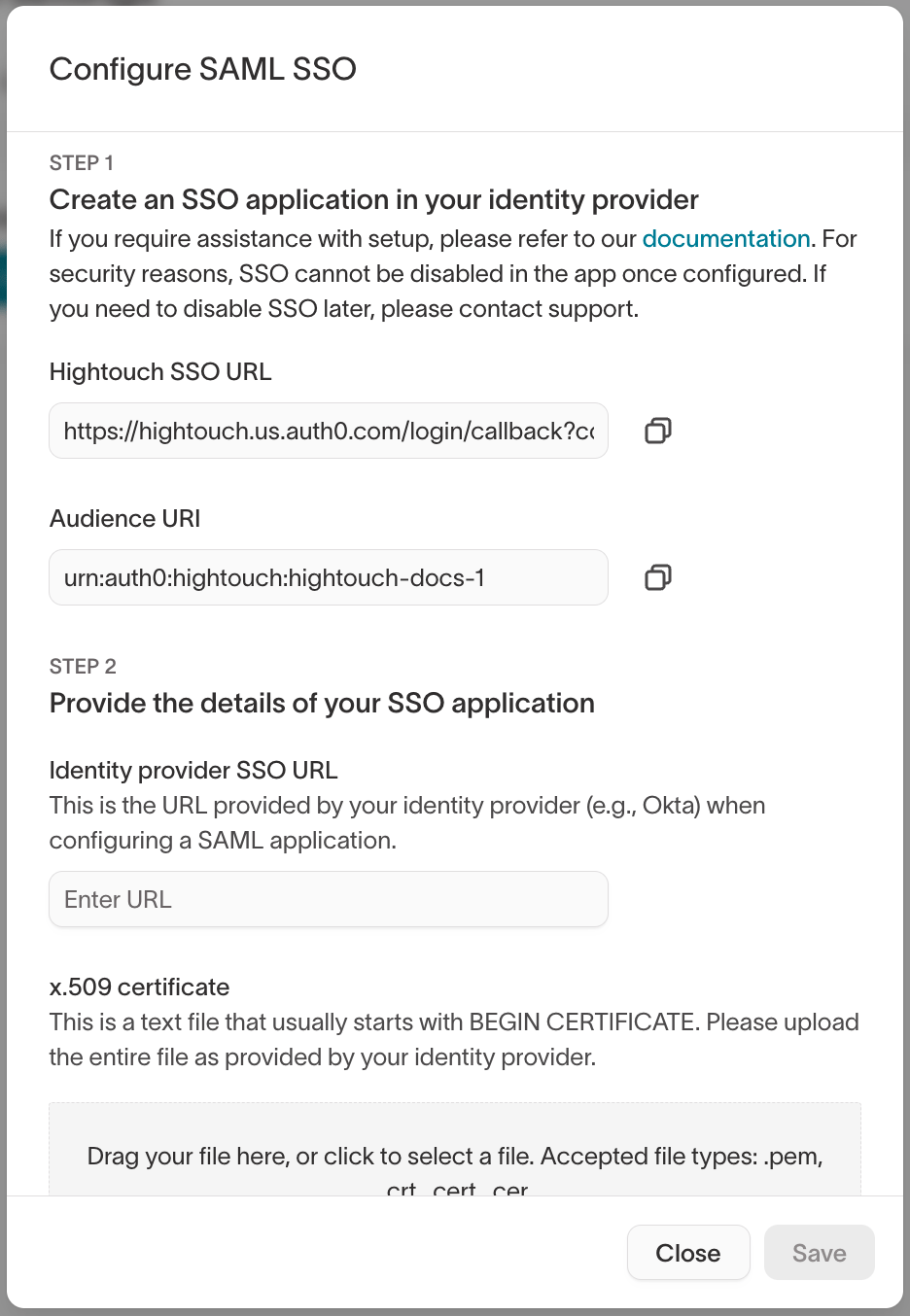
For teams managing access at scale, Hightouch supports SAML SSO through identity providers like Okta and Microsoft Entra ID, plus automatic user provisioning via SCIM.- SAML SSO automatically creates Hightouch users on their first login
- SCIM synchronizes user account changes from your identity provider to Hightouch automatically — including provisioning, deprovisioning, and group assignments
Workspace structure
The next governance decision is whether teams should work in the same workspace or in separate ones.A workspace is a separate container with its own sources, destinations, models, syncs, and users. Separate workspaces are useful when you need complete isolation, such as:- Regional or data residency requirements
- Strict separation between staging and production
- Business units that should not share data or configuration
- Workspaces — includes a side-by-side comparison of workspaces vs. environments
- Core concepts
- Environments
When to use this
Use separate workspaces when you need complete operational or regulatory isolation.Use a shared workspace when teams should collaborate from the same models and data, but still need scoped access and control.Control what data teams can work with
Once users are in a workspace, the next question is: what data should they actually be able to use?This is where access controls become important for day-to-day work.For example: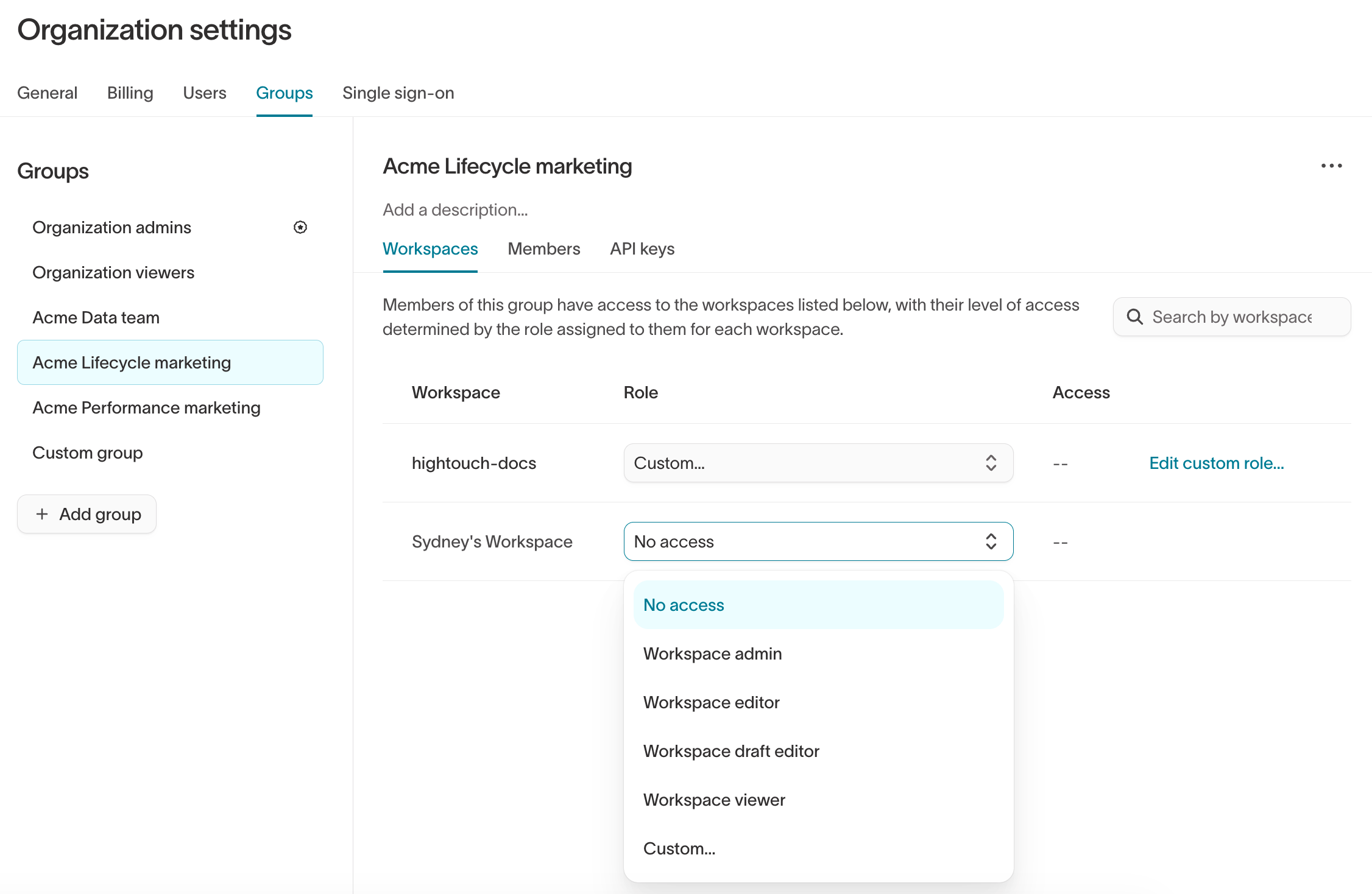
- A regional team may only need access to customers in its market
- A brand team may need to work only with its own customer segment
- Marketers may need to build audiences without seeing raw PII
- Some users may need to review data, while others need to create and launch workflows
User groups and roles
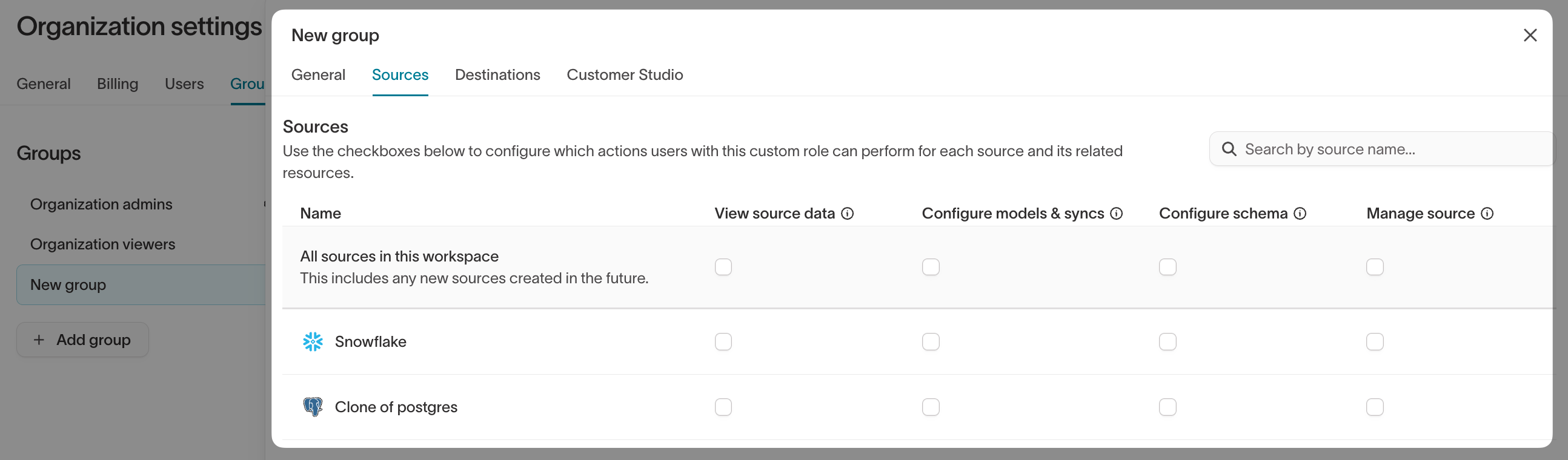
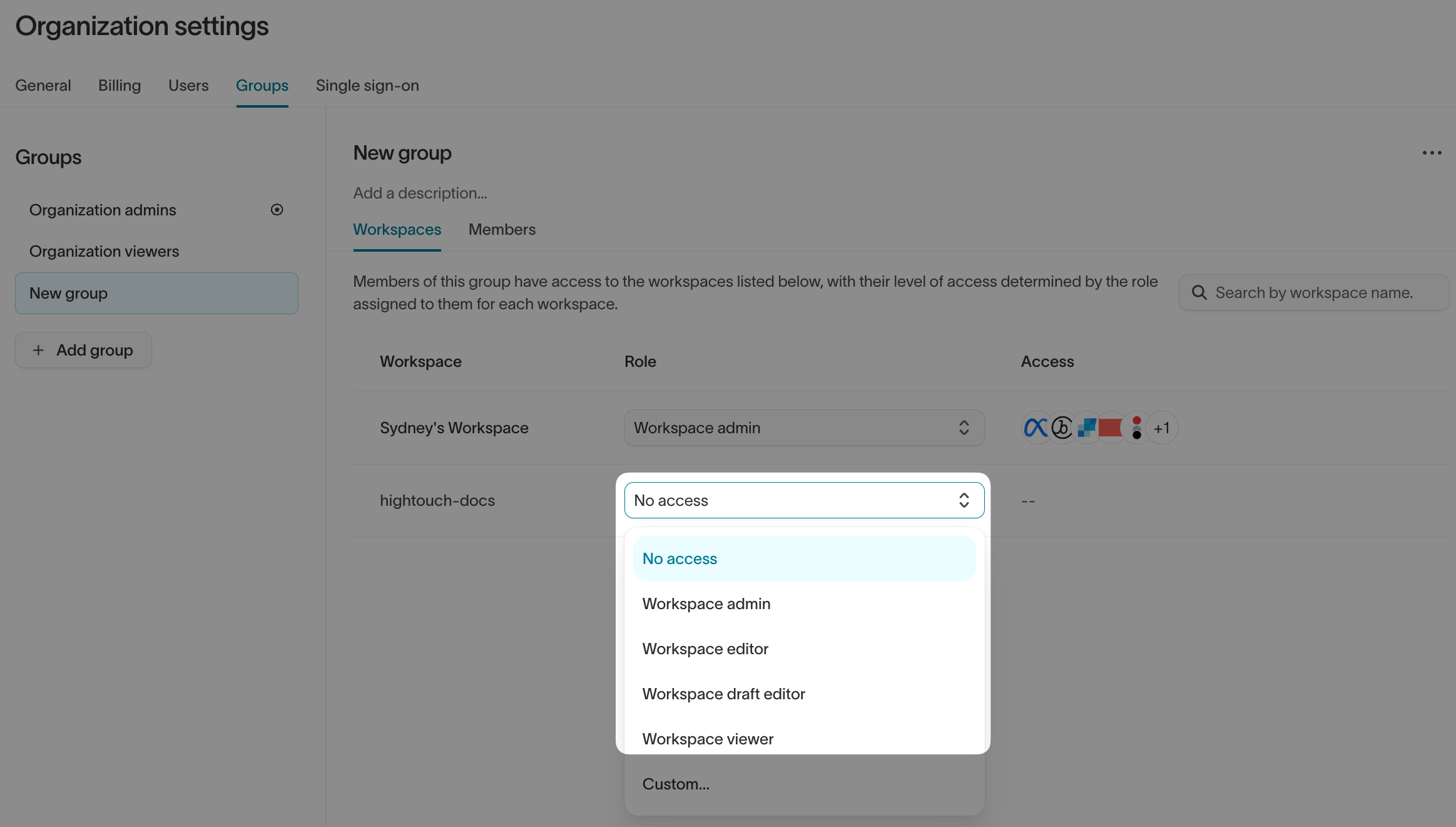
Access control in Hightouch is managed at the user group level, not on individual users. A user group is a collection of users who share the same permissions. Each group is assigned a role per workspace, which determines what actions members can take.There are two types of user groups:- Pre-built groups — Organization Admin and Organization Viewer, available by default
- Custom groups — created by org admins to reflect different teams, regions, brands, or any other structure that impacts permissions
- Admin — full grants, typically assigned to data or IT teams
- Editor — can create and configure resources, but cannot delete or update existing source and destination configurations
- Viewer — read-only access across the workspace
-
Draft editor — can create and propose changes, but cannot publish; all changes go through an approval flow
- Control who can create new sources and destinations
- Grant rights per source (including schema management, which also governs access to traits, sync templates, and governance features like destination rules and subsets)
- Grant rights per destination
- Grant rights per parent model and general model on the Models tab
- Control access to Agents, Ad Studio, and Lifecycle Studio
- Control creation and per-resource rights for event sources, destinations, contracts, and functions
Subsets
Subsets limit which records a team can access at the row level.This is useful when multiple teams work in one workspace but should only be able to use part of the overall customer data, such as:- One region
- One brand
- One business unit
- One consented customer segment
Data masking
Data masking helps teams work with customer data without exposing sensitive values in previews, profile views, or record inspection.Three masking levels are available:- Approved — data is visible and available for use in syncs and filters
- Redacted — data is hidden in the UI (profile details, column suggestions, analytics) but remains accessible for syncs and audience filters
- Blocked — data is completely restricted from access and syncs
When to use this
Use these controls when multiple teams share a workspace, but not everyone should have the same level of access to the same data.Control which campaign assets teams can see
The previous section covered who can access the platform and what underlying data they can query. This section is about something different: which audiences, syncs, and campaign assets different teams can see once they’re inside the workspace.Even if two teams have identical data access, they may have no reason to see each other’s audiences, syncs, or journeys. Without that separation, large workspaces become noisy, harder to navigate, and easier to change by mistake.See:
Spaces
This is where Spaces help.Spaces let you partition a single workspace into isolated sub-workspaces for different regions, brands, teams, or business units. Within a Space, teams work from the same underlying models, sources, and destinations — but their audiences and syncs are scoped to that Space and are not visible to other teams.Key behaviors:- Models, sources, destinations, and schema are shared across all Spaces in a workspace
- Audiences and syncs are scoped to a specific Space
- Only users with explicit access to a Space can create, view, or edit its resources
- Workspace admins retain cross-Space visibility for governance and troubleshooting
- Access is managed via user groups, not individual users
- Which audiences should this team see?
- Which syncs belong to this region?
- How do we keep one team from accidentally editing another team’s work?
Spaces must be enabled by Hightouch. to turn it on.
- Spaces
When to use this
Use Spaces when teams should share the same workspace and data foundation, but should not all see the same campaign assets or operational work.Control what data can leave Hightouch
One of the most important governance decisions is what happens when customer data is sent to downstream tools or destinations.Even if the right team built the right audience, you may still need to control:
- Which records can be synced to a destination
- Whether consent rules are enforced
- Which fields are allowed to be mapped
- Whether syncs follow an approved setup pattern
Destination Rules
Destination Rules automatically filter which records are eligible to sync to a specific destination.They are evaluated at sync time — they do not affect the underlying audience definition. Think of them as a channel-specific filter that Hightouch applies automatically every time an audience syncs to a given destination.They are especially useful for enforcing requirements like:- Email consent
- SMS consent
- Advertising consent
- Regional policy restrictions
- Minimum audience thresholds
- Frequency capping
Data Masking
Data Masking can also be used at the destination layer to ensure that raw sensitive values — such as email addresses or phone numbers — are not mapped to destinations that only need hashed identifiers or anonymized fields.See:Audience Templates
Audience Templates let admins define reusable audience structures that users can quickly adapt with minimal changes.Admins set up an audience as usual but leave certain fields blank — those become the fields users fill in when creating an audience from the template. This ensures that baseline segmentation logic, suppression rules, and consent filters are baked into every audience from the start. Marketers can customize within the template’s parameters but cannot bypass the foundational logic.You can also mandate that all new audiences must start from an approved template, ensuring governance guardrails are always in place.Audience Templates are configured under Templates > Audience Templates in Customer Studio.See:Sync Templates
Sync Templates give teams an approved starting point for destination configuration.Instead of setting up every sync from scratch, admins can define approved mappings, modes, and field-level permissions ahead of time. For specific fields, admins can use the editable toggle to allow users to customize only those fields when creating a sync from a template.You can also enforce the use of sync templates entirely by enabling the Require sync templates toggle in Settings.This helps teams move faster while reducing setup mistakes and configuration drift.Sync Templates are configured under Templates > Sync Templates in Customer Studio.See:When to use this
Use destination-level controls when different downstream tools have different requirements, or when your team wants to enforce safe and repeatable activation patterns.Control which changes require review
Some changes are low risk. Others should not go live without review.For example:Environments help teams separate testing from production and move changes more intentionally between them. Each workspace acts as a separate environment. You can link workspaces and deploy models and syncs from one environment to another without recreating them from scratch.Before a deployment executes, Hightouch validates that all underlying resources (sources, destinations, models) match their production counterparts — preventing mismatches that could cause data integrity issues.See: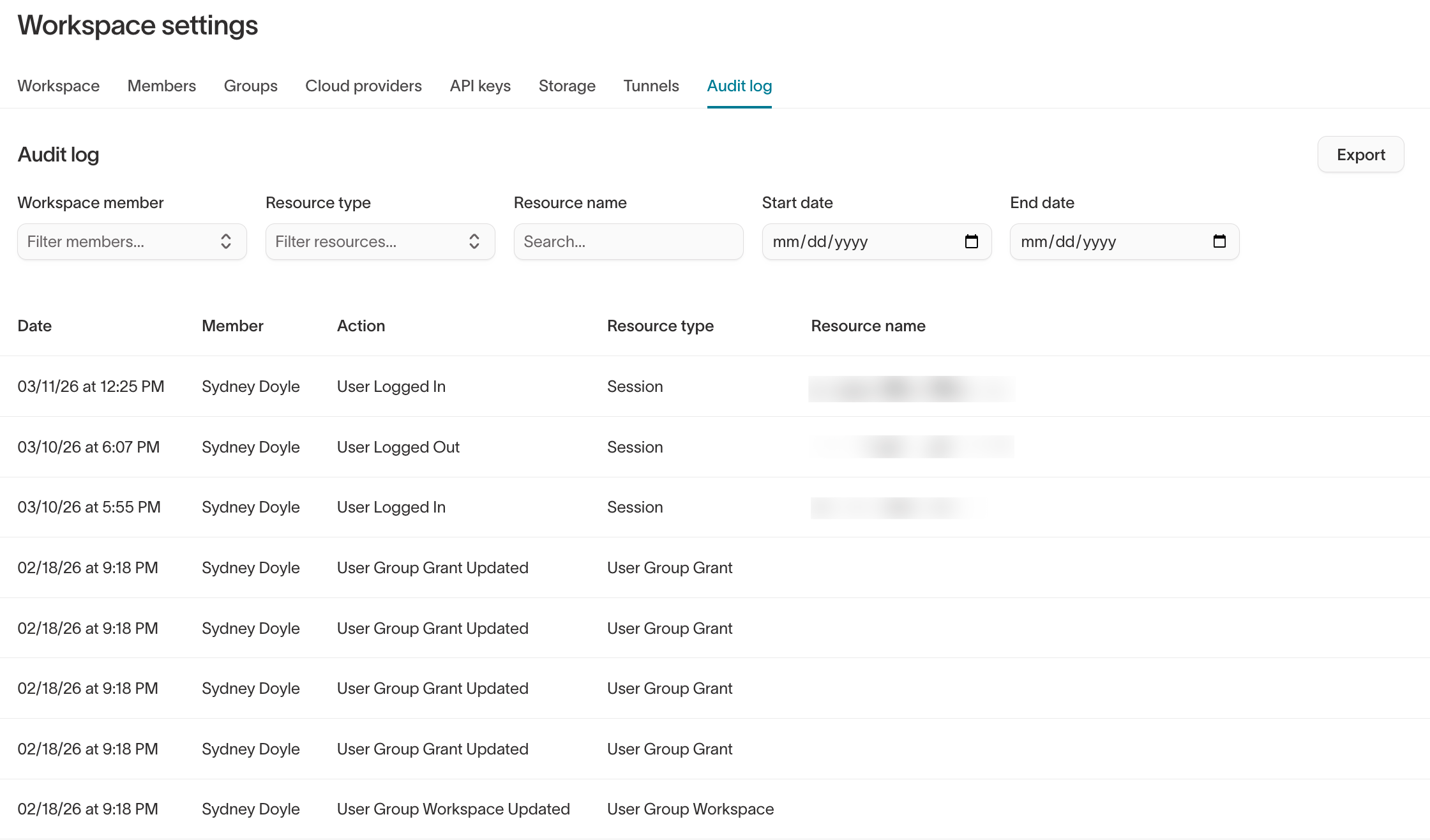
- Launching a new audience to a paid media platform
- Changing sync mappings for a production destination
- Updating logic that affects a large customer segment
- Allowing less technical users to propose changes without publishing directly
Approval Flows
Approval Flows let designated users create or edit resources in draft mode, then require review before those changes go live.To set this up:-
In Settings > Workspace, under Require approvals, turn on Syncs & Models
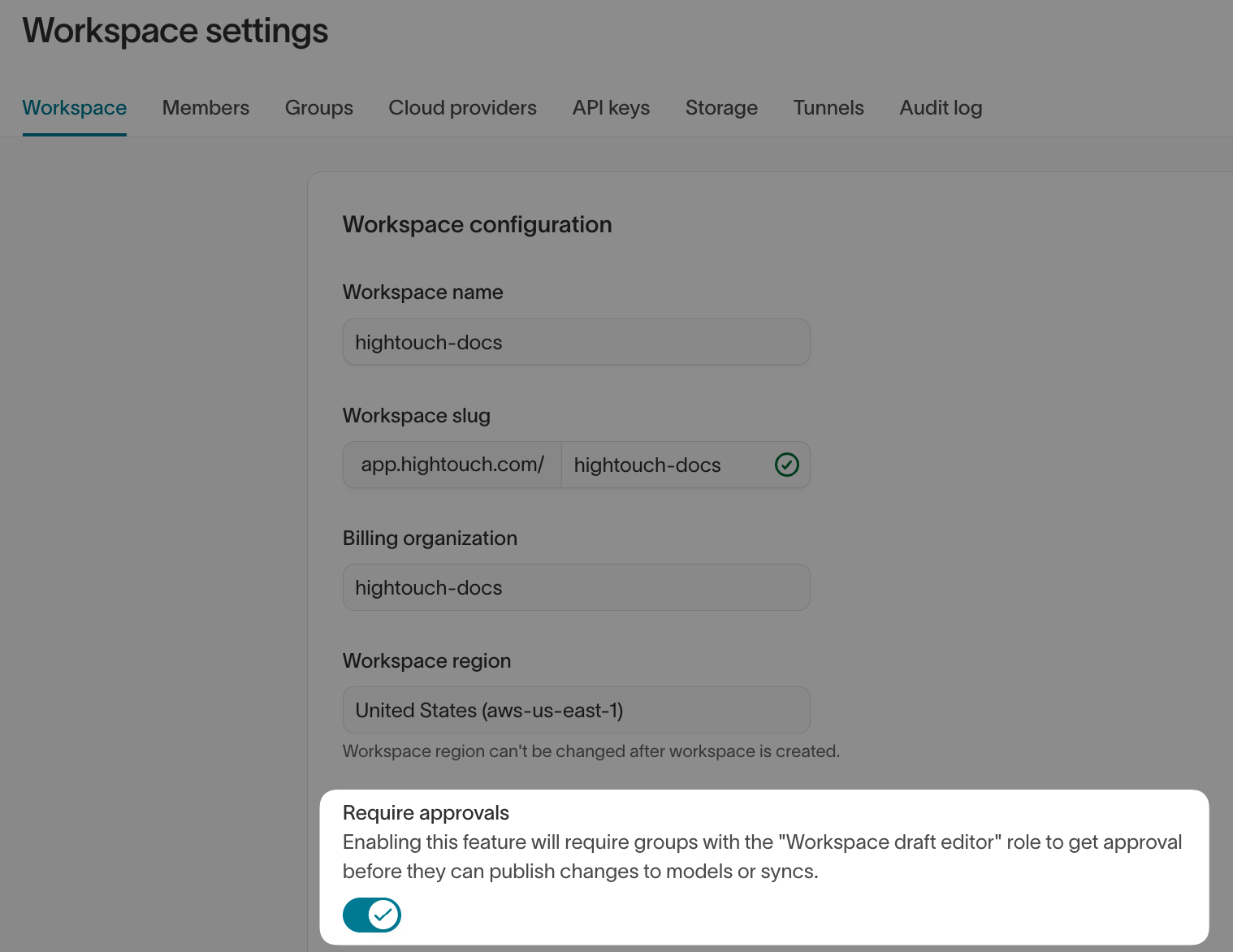
- Assign the Workspace draft editor role to users who should go through the approval process
- By default, all roles except Workspace draft editor and Workspace viewer can grant approval — if you need to grant approval permissions to other roles, build a custom role
Environments
Environments apply to models and syncs only (rETL
workflows). Customer Studio resources — such as
audiences, destination rules, and sync templates — cannot be deployed between
environments. For Customer Studio change management, use Approval Flows
instead.
Audit visibility
Governance also depends on being able to understand what changed, when, and by whom.Audit logs are available under Settings > Audit log and track up to 90 days of in-app activity. Each log entry records the user, action, resource, and a before/after JSON diff. For longer retention or custom dashboarding, audit data can also be written back to your warehouse via Warehouse Sync Logs.When to use this
Use review and change-management controls when multiple teams can affect production workflows, or when your organization needs more formal approval before activation.Choosing the right governance controls
Not every team needs every governance feature from day one. A practical way to roll out governance is to start with the controls that match your organization’s complexity.Smaller teams
Start with:- Workspace structure
- User groups
- Roles
Growing teams
Add:- Subsets
- Spaces (if enabled for your workspace)
- Basic destination controls
Larger or more regulated teams
Consider:- Custom groups and scoped roles by team, region, or brand
- Subsets by region, brand, or business unit
- Spaces
- Destination Rules
- Audience Templates
- Sync Templates
- Approval Flows
- Environments (for rETL models and syncs only)
- Audit logs
Recommended governance patterns
If teams share customer data but work independently
Use:- One shared workspace
- Roles for action-based access
- Subsets for data access
- Spaces for team-level visibility (if enabled for your workspace)
If different regions or entities must be fully separate
Use:- Separate workspaces
- Separate infrastructure or regional connections as needed
If consent rules differ by channel
Use:- Destination Rules
- Sync Templates
If campaign changes should be reviewed before launch
Use:- Approval Flows
- Environments (for rETL models and syncs only) for staging and production where needed
Next steps
To put governance into practice, start with the feature docs for the controls you need:- Core concepts
- User groups
- Roles
- SSO and SCIM
- Subsets
- Destination Rules
- Data masking
- Audience Templates
- Sync Templates
- Approval flows
- Environments
- Audit logs
- Folders and labels
- Spaces — must be enabled by Hightouch