

Before you begin
- A schema set up by your data team, so you can build audiences from your customer data.
- A Meta destination connected to your workspace. Marketers often can’t connect destinations, so ask your platform admin if Meta isn’t listed when you add a sync.
- A role that can create audiences and syncs on the parent model and the Meta destination. See Roles.
- For Match Booster, which is optional: the Match Booster add-on, and enrichment configured on the parent model by your data team. The first enrichment can take up to 72 hours, so ask for it before you start.
Build, sync, and use the audience
Build the audience
Go to Customer Studio > Audiences and click Create audience.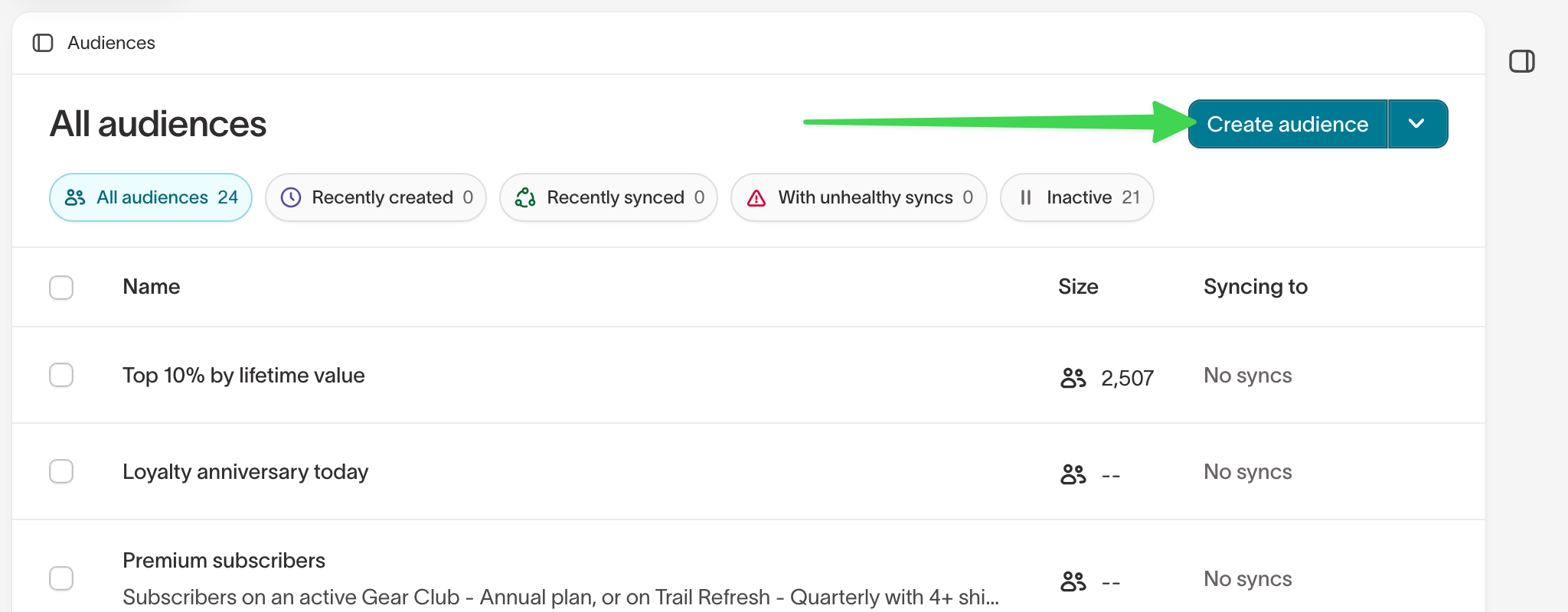
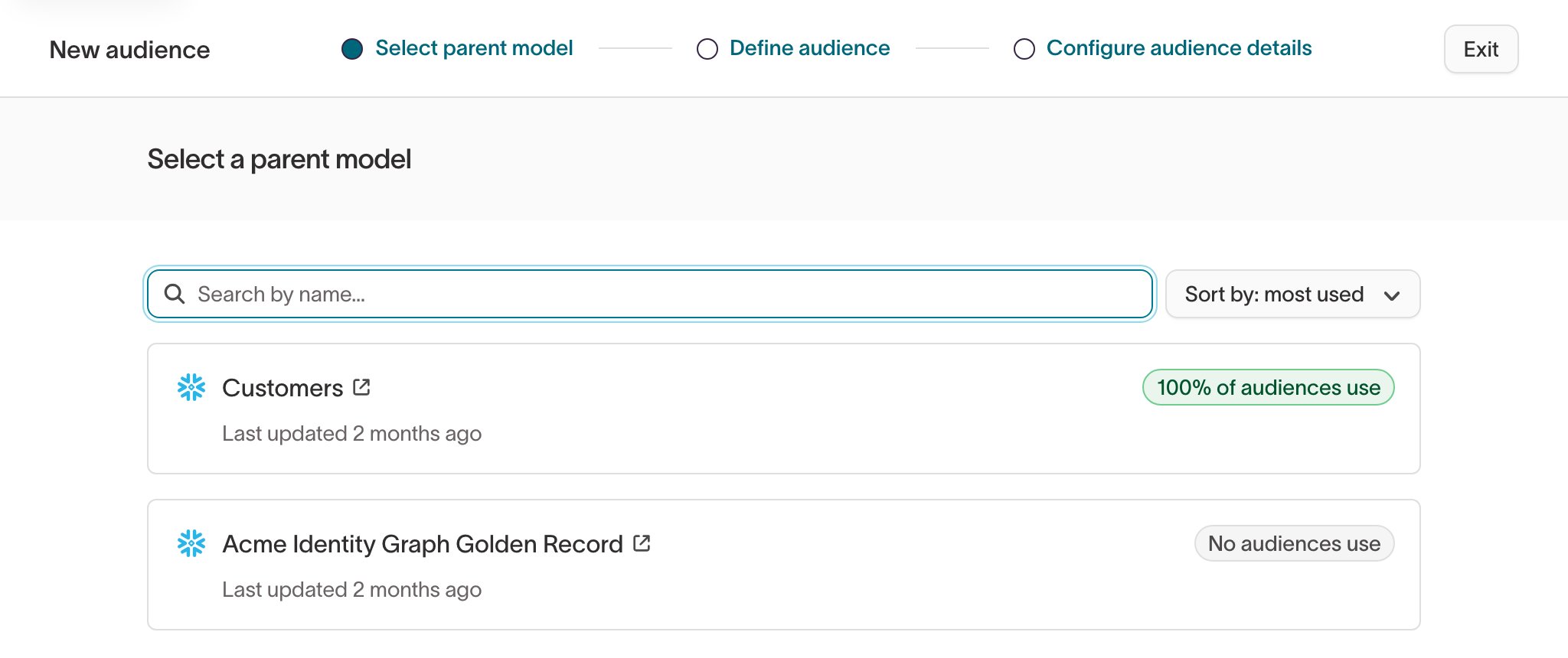
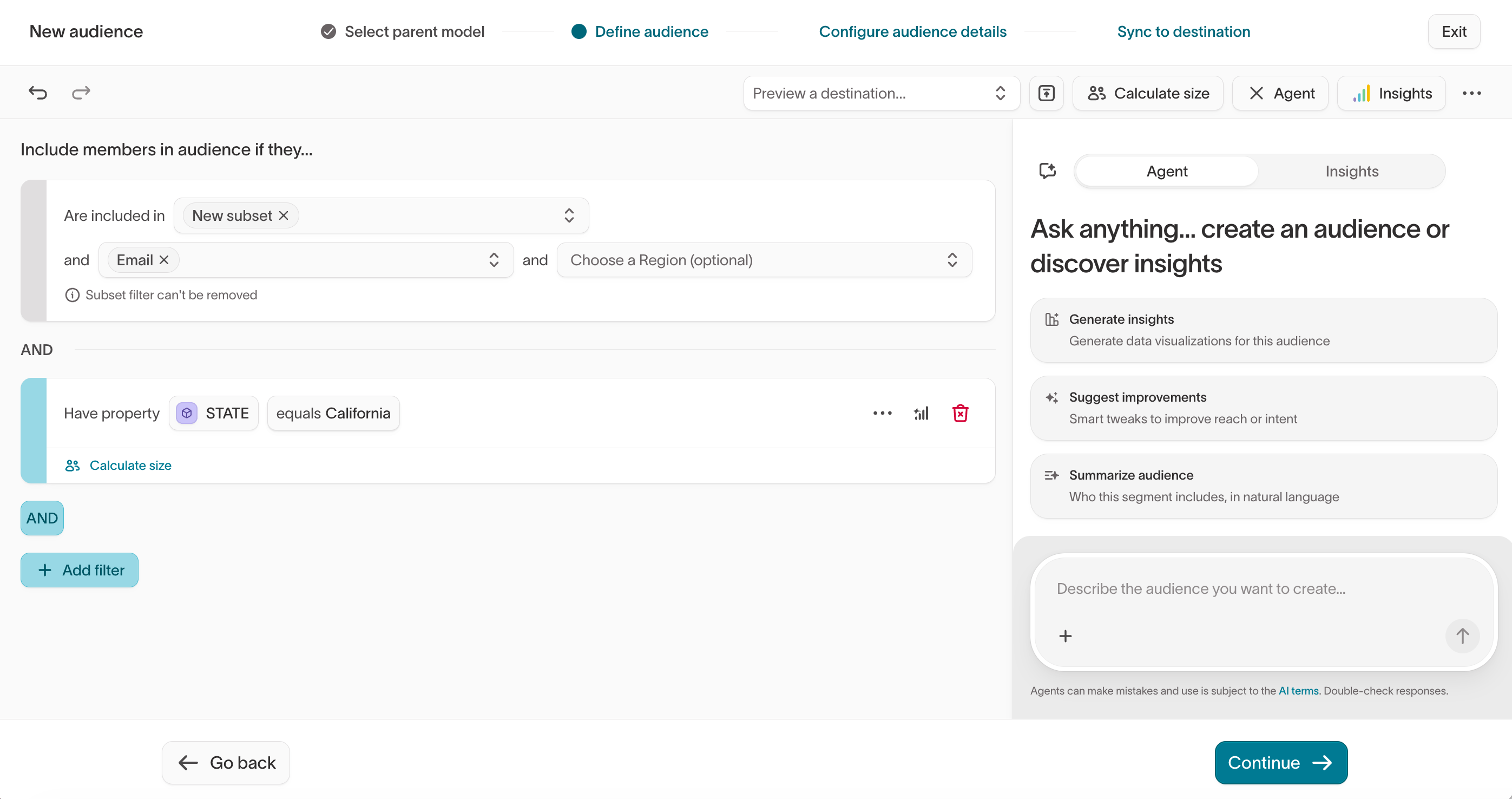
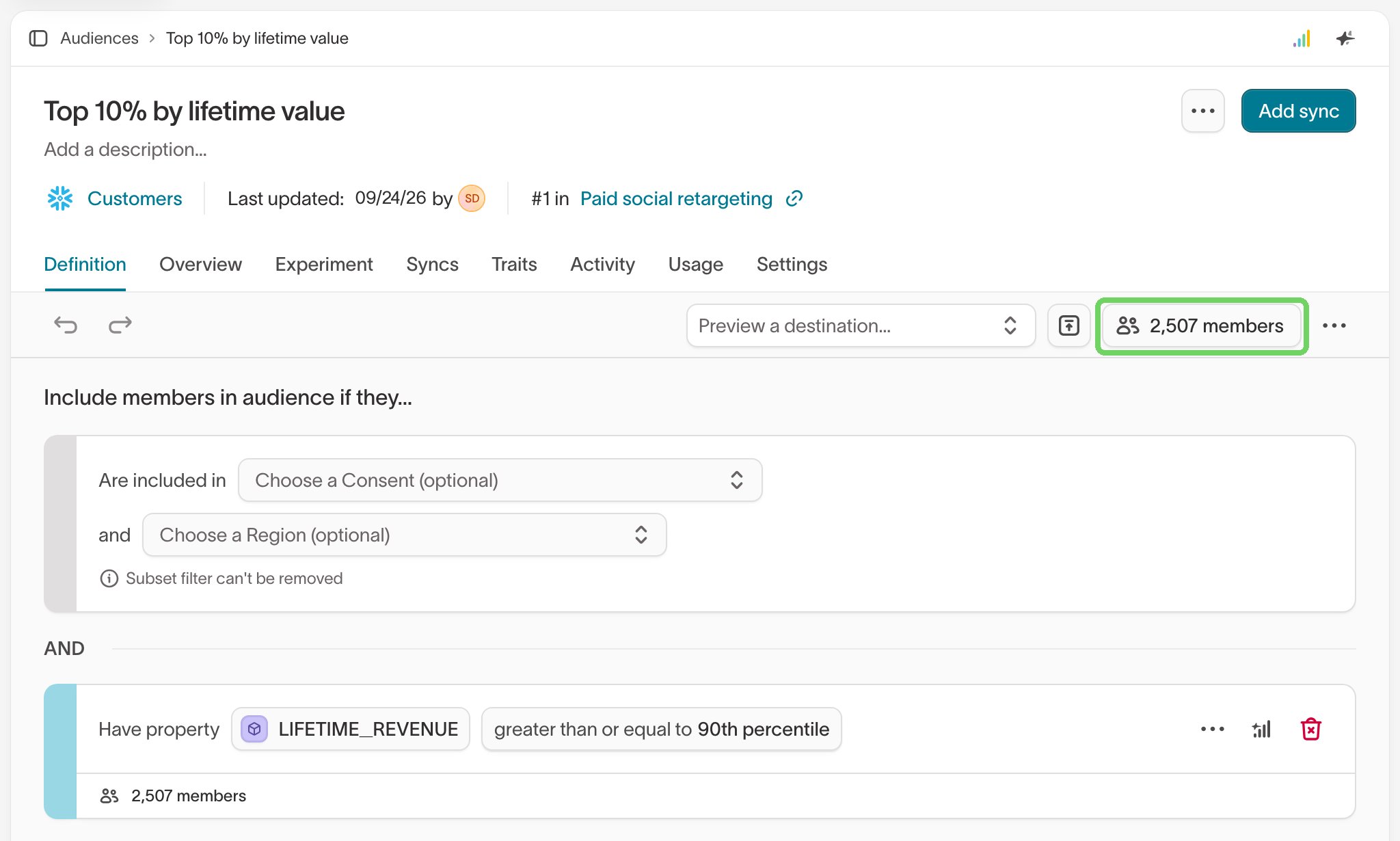
Sync the audience to Meta
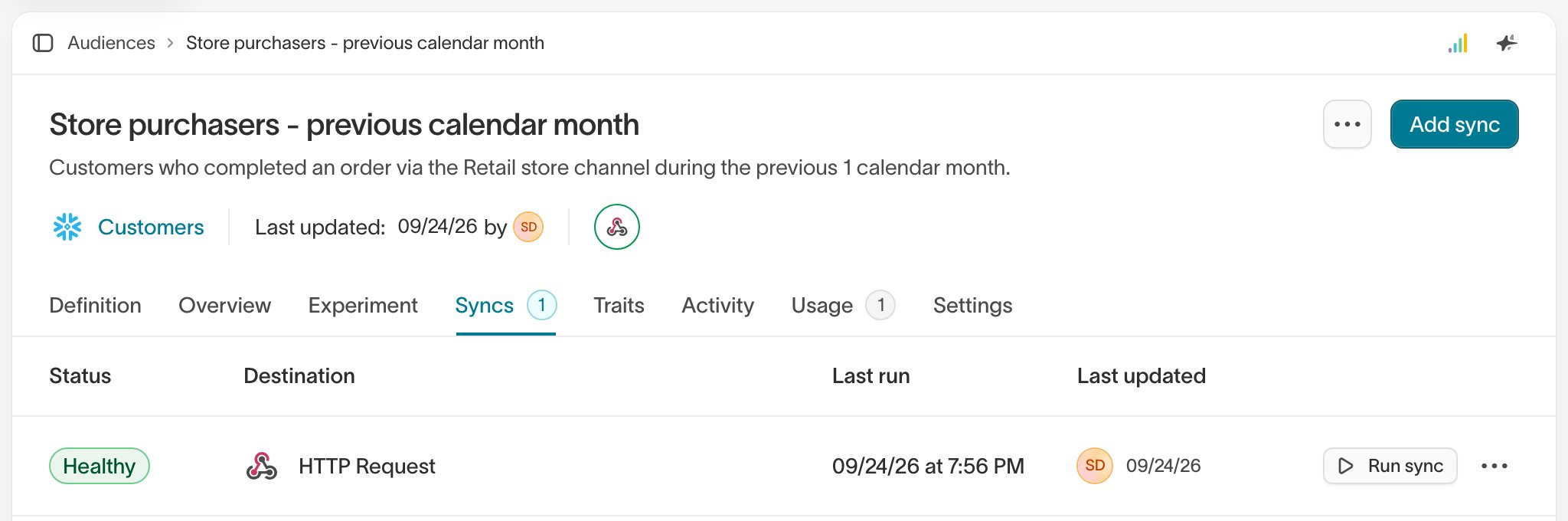
Open the saved audience, click Add sync, and choose your Meta destination.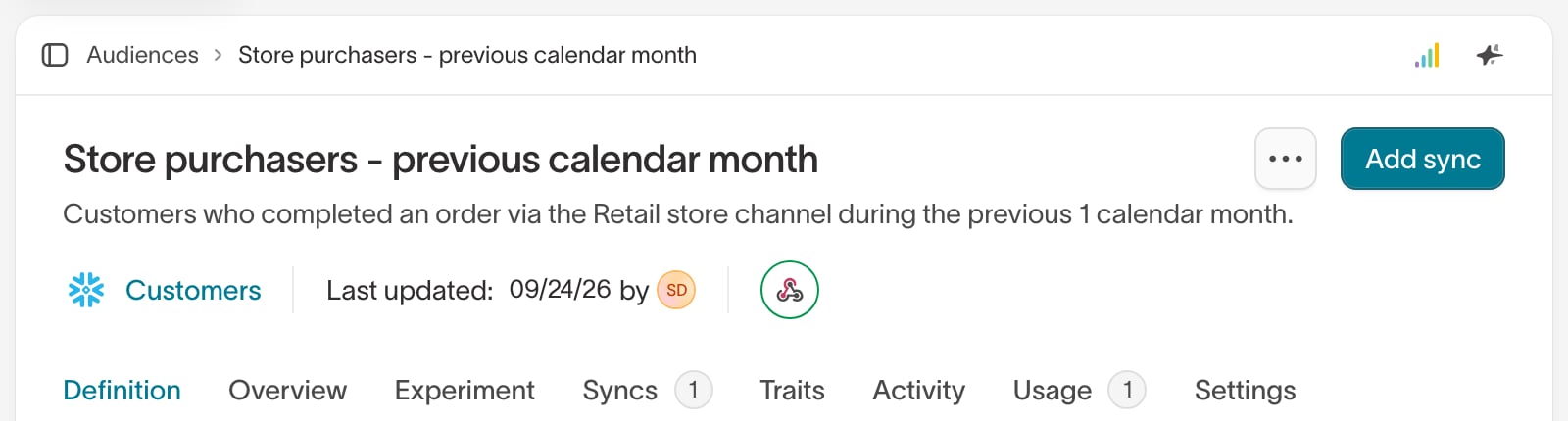
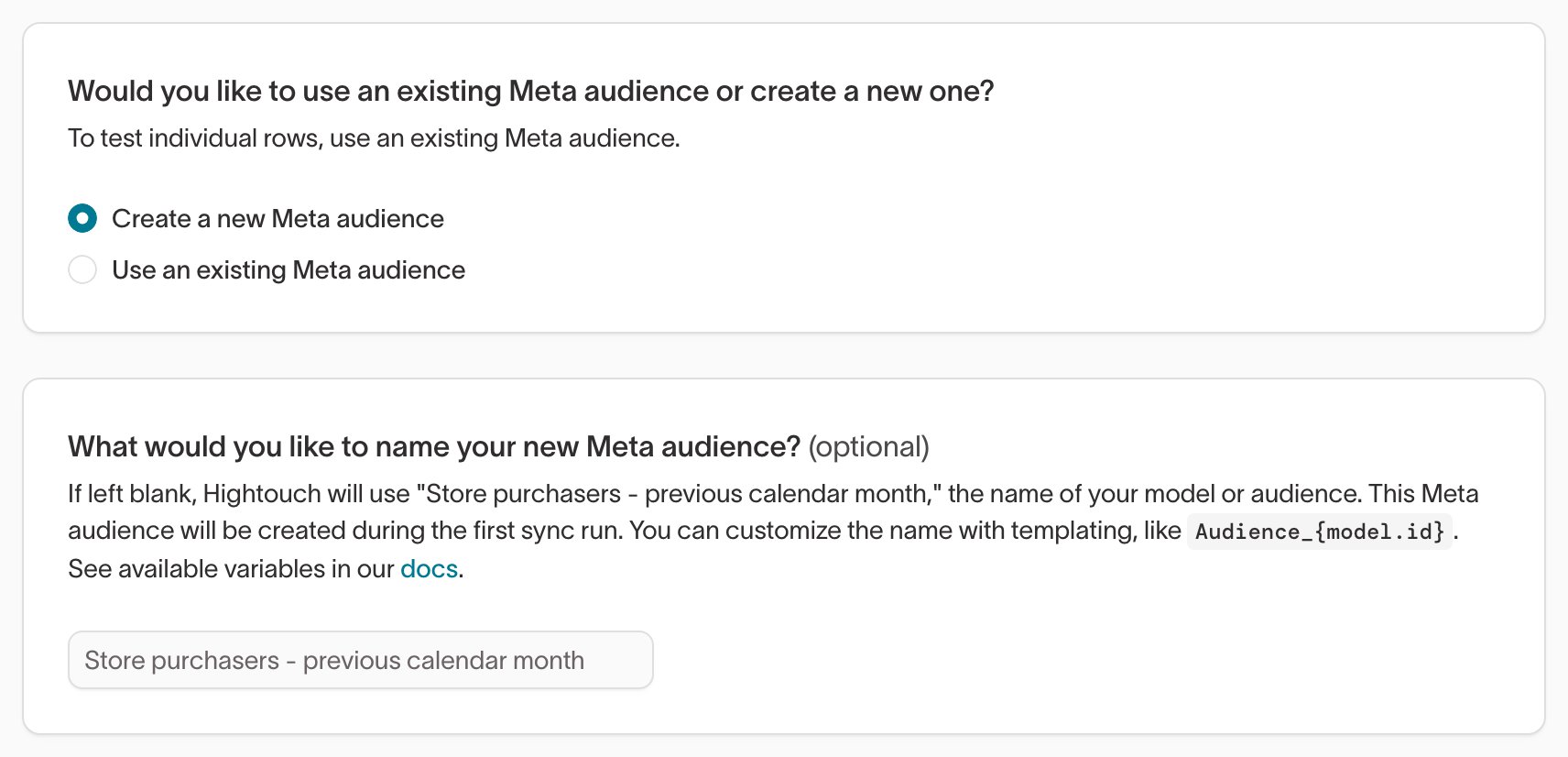

- Ad account: choose the ad account that runs your campaign.
- Audience: select Create a new Meta audience, and give it a name you’ll recognize in Ads Manager, such as “Purchased last 30 days.” If you leave the name blank, Hightouch uses the audience’s name. To keep updating an audience that already exists in Meta, select Use an existing Meta audience instead.
- Identifiers: map every identifier you have, such as email, phone, first and last name, and postal code. Meta matches more people when it gets more identifiers. Hightouch hashes the personal fields before it sends them, so map plain values.
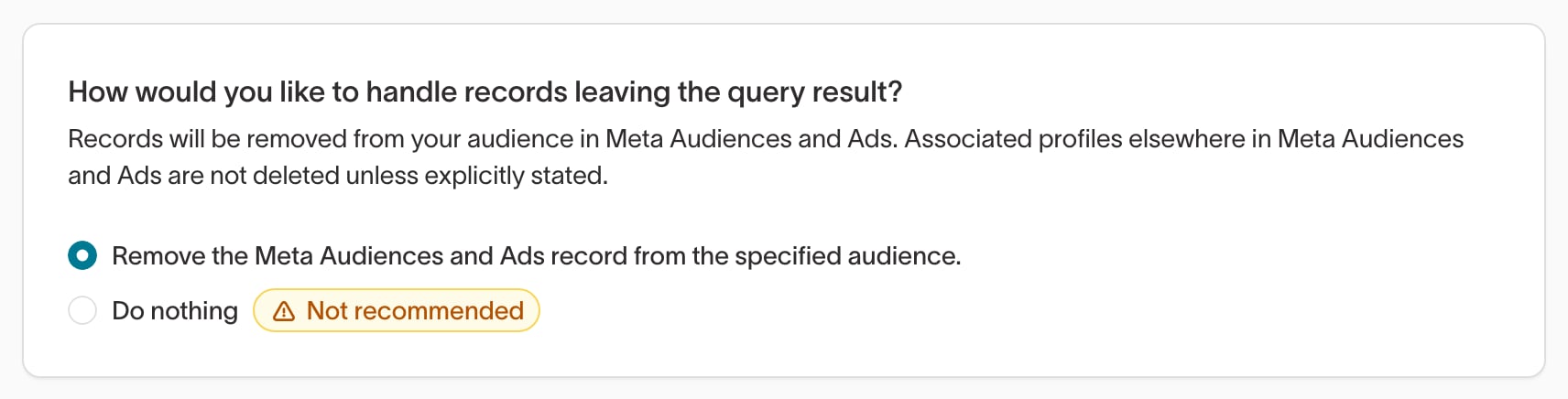
- Records leaving the audience: keep the default, Remove the Meta Audiences and Ads record from the specified audience. People who leave the audience, such as customers whose last purchase is now over 30 days old, leave the Meta audience on the next run.
Turn on Match Booster (optional)
If your workspace has Match Booster, it adds licensed third-party identifiers, such as alternate emails and phone numbers, to the people you sync, so Meta can match more of them.In the sync’s field mapping section, turn on Match Booster, then choose Person as the targeting level. Person is the right level for suppression, since you want to exclude the people who bought, not everyone in their household.If the toggle is unavailable and shows Configure Match Booster on this parent model, enrichment isn’t set up on the parent model yet. Ask your data team to configure it.
Schedule and run the sync
Click Continue to reach the last page of the sync form. Under Schedule type, choose Interval to run on a set interval, such as once a day, or Custom recurrence to pick the days and time. Daily is enough for most suppression and retargeting audiences. See Schedule syncs in the UI.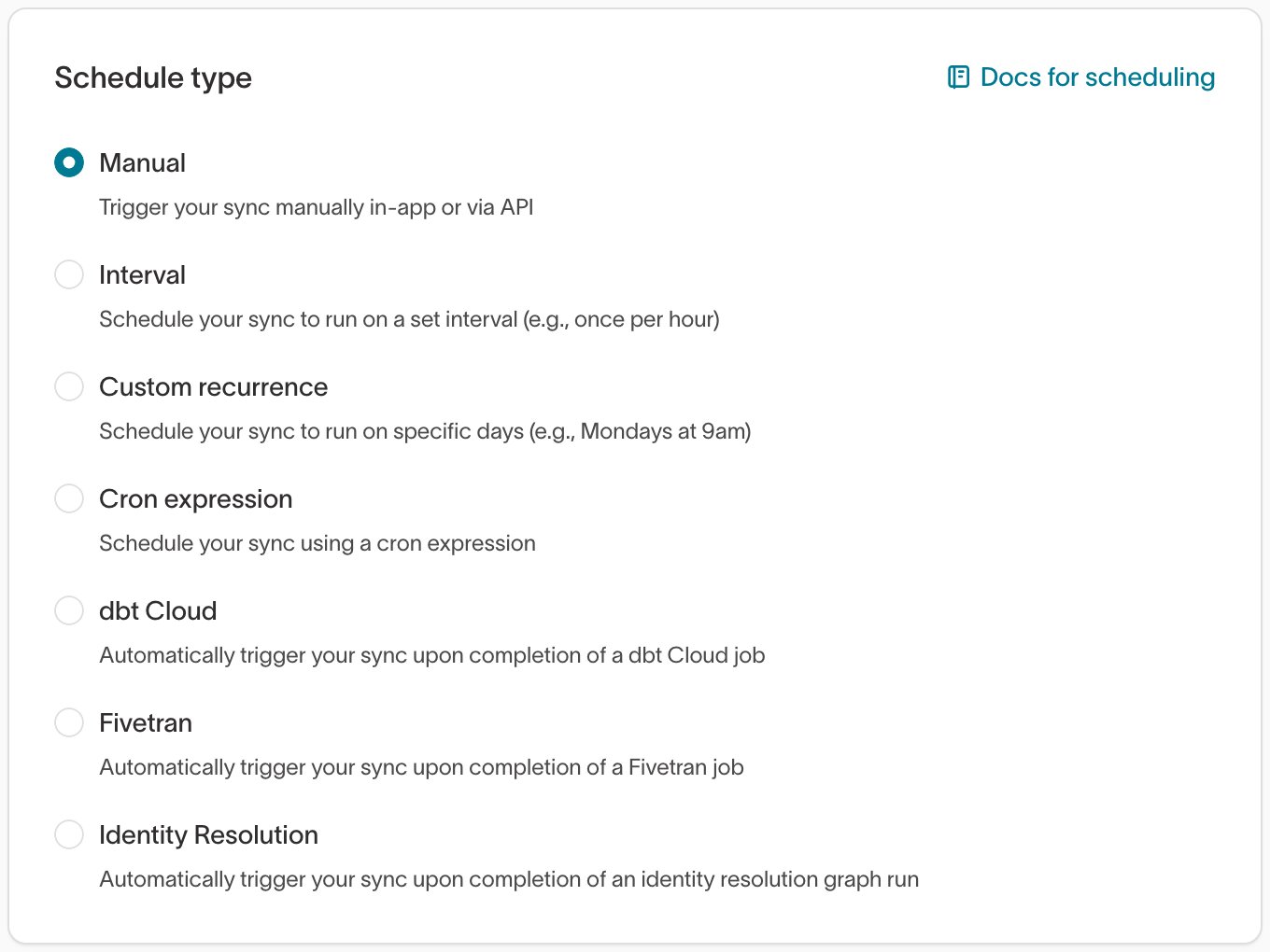
Use the audience in your campaign
In Meta Ads Manager, open the ad set for your acquisition campaign and add the audience you synced as an exclusion. With Advantage+ audience, which is Meta’s default, exclusions are under Audience controls. With original audiences, they’re under Custom audiences, where you select Exclude. Hightouch updates the audience on every run, so the ad set excludes new buyers and lets older buyers back in without any edits from you.The same audience works for other goals:
- Retargeting: include the audience instead of excluding it.
- Lookalikes: use the audience as the source for a Meta lookalike audience. For a value-based lookalike, map a lifetime value column to Lookalike Value when you create the Meta audience. See Value-based audiences.
Check your match rate
Open the sync and find Matched users on its Overview tab. It shows how many people Meta matched, and a match rate when Hightouch can calculate one. Wait about 72 hours after the first run before you judge it.Hightouch gets the matched count from Meta, so it should be close to what Ads Manager shows. Meta rounds the count for privacy, and the match rate compares Meta’s count with the number of rows in the most recent run, so it won’t equal your audience size exactly. See Matched users count and Monitor match rates.To see what Match Booster adds, compare the match rate with a sync of the same audience that has Match Booster turned off.
Launch checklist
- The audience preview shows the people you expect
- The sync maps every identifier you have, and removes people who leave the audience from the Meta audience
- The sync has a schedule, and its first run succeeded
- The audience shows in Ads Manager and the right ad set excludes it
- You recorded the match rate after the numbers settled, with and without Match Booster if you use it
Next steps
- Lookalike audiences to build lookalikes in Hightouch instead of in the ad platform.
- Destination rules to keep people without ad consent out of ad platform syncs.
- Realtime audiences to update the ad platform as customers act, instead of on a schedule.
- Create your first ad to make the creative for the campaign.