

Match Booster is only available on Business tier plans as an add-on product.
Before you begin
- A model or Customer Studio parent model with at least one supported identifier, and Match Booster enabled on your workspace
Overview
This page covers the model side of Match Booster setup — enabling enrichment, mapping your identifier columns, configuring settings, and running the initial enrichment. After enrichment completes, enable Match Booster in your syncs.Where Match Booster lives in Hightouch
You can enable Match Booster in two places, depending on how you build your audiences:Enable Match Booster on the model
-
Open the model or parent model where you want to enable Match Booster:
- For models: go to Activation > Models. Select the model and open the Match Booster tab.
- For parent models: go to Customer Studio > Schema. Select the parent model and open the Match Booster tab.
- Toggle Enable Match Booster on.
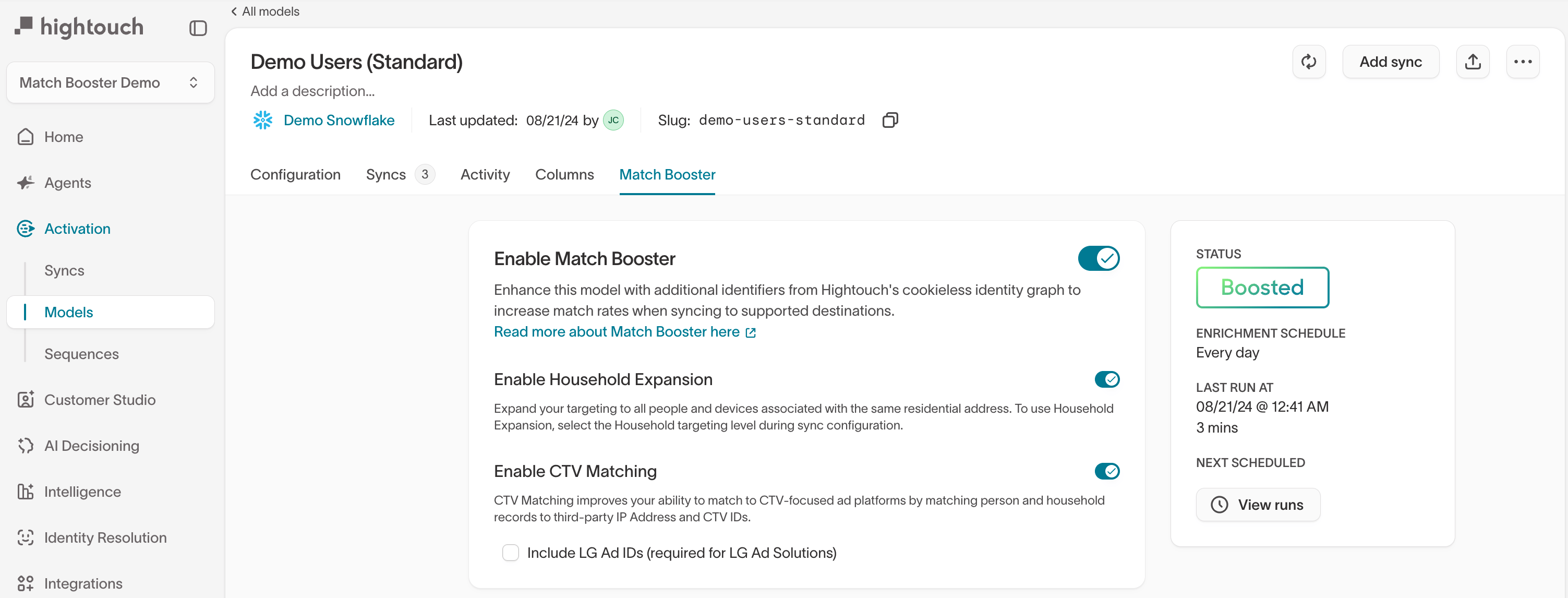
Select expansion options
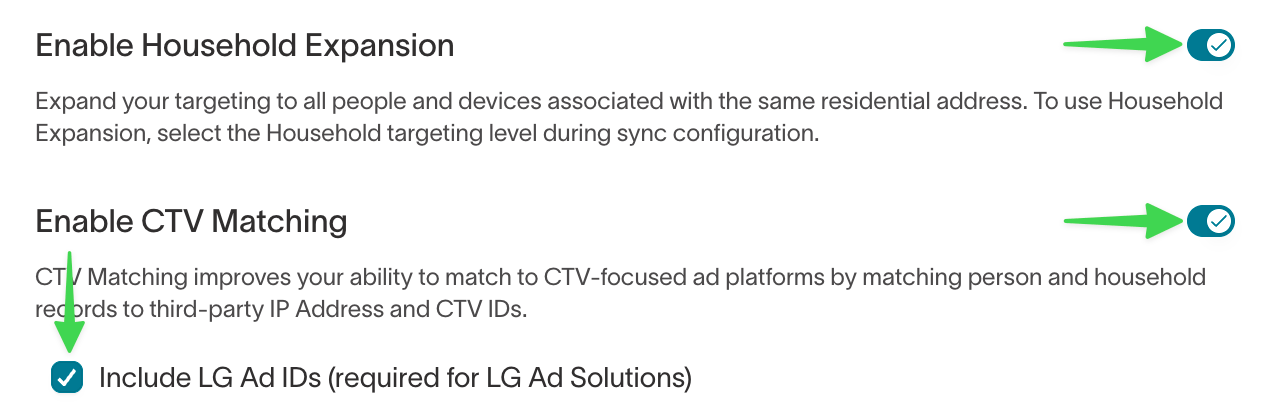
Configure optional expansion behavior before mapping match keys.- Enable Household Expansion — Enable this if you want to target, suppress, or measure at the household level instead of just the individual. Household Expansion matches a single record to a residential address in the identity graph and expands targeting to all people and devices in that household. To use Household targeting, you must also select the Household targeting level during sync configuration.
- Enable CTV Matching — Enable this if you run ads on connected TV platforms (Roku, LG, Samsung, Vizio). CTV Matching translates your first-party identifiers into CTV IDs and IP addresses that CTV ad platforms use for matching.
Map match keys
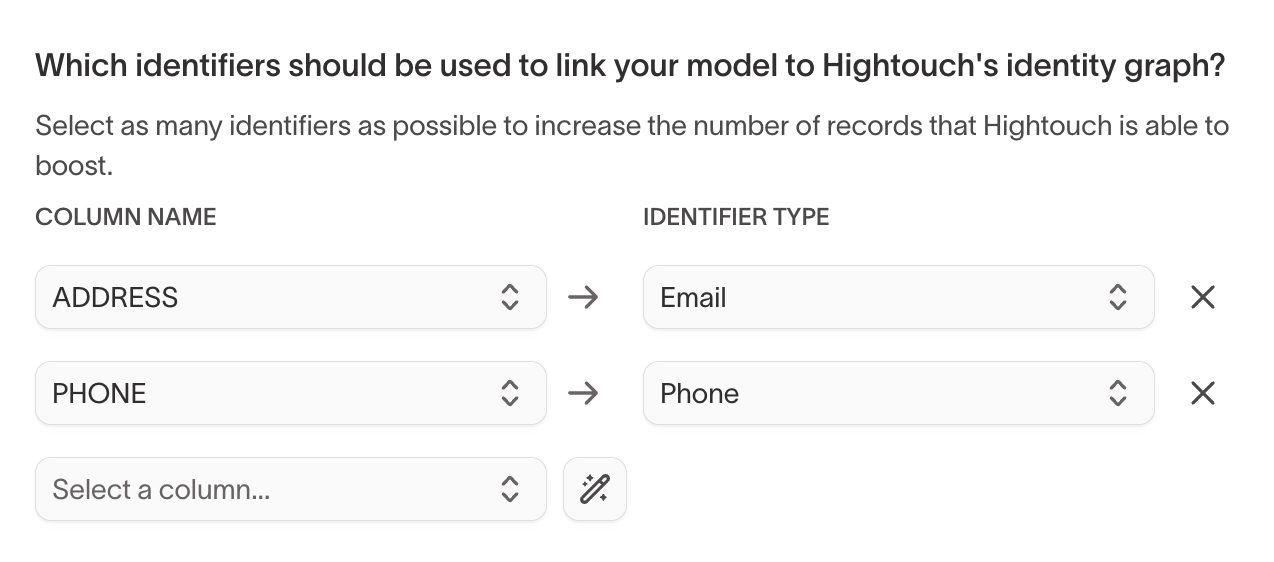
Under Which identifiers should be used to link your model to Hightouch’s identity graph?, map your match keys by selecting a warehouse Column name and an Identifier type for each identifier you want to use.-
Select the identifiers you want to match into the identity graph. Common mappings include:
- Email (raw or hashed — Hightouch hashes raw values automatically)
- Phone number (raw or hashed)
- Name and address fields (raw, or SHA256 hashed in US enrichment, for name/address matching)
- Device IDs, IP addresses, or mobile ad IDs (for anonymous or CTV use cases)
- For name and address matching, you must provide first name, last name, and at minimum the first address line and postal code. Including city and state improves accuracy. Each name and address field has a plain text identifier type and a SHA256 identifier type, for example First Name and First Name SHA256. You can mix types across fields, but map only one type per field. See Hashed names and addresses.
- Select Save when your mappings are complete.
Match keys reference
Match keys determine which records can be matched, what additional identifiers Match Booster can add, and what enriched identifiers are available in your destination syncs.Known users
Use known-user matching when you have user-level identifiers like email, phone, MAIDs, or postal address information. Supported inputs:
Enriched identifiers added:
Anonymous users
Use anonymous matching when you have IP address data but no known user identifiers. Supported inputs:
Enriched identifiers added:
Conversion events
Use conversion matching when you sync conversion records and want ad platforms to match more of those events. Supported inputs:
Enriched identifiers added:
Identifier normalization
If you pre-hash email, phone, or name and address values, normalize your plaintext identifiers using the rules below so your hashes match what Hightouch requires. EU enrichment requires stricter normalization than US enrichment because the EU identity graph stores values in a different format.- Remove all whitespace from the email.
- Remove accents (for example,
é → e,ü → u). - Replace these special characters:
ß → ss,œ → oe,æ → ae,þ → th. - For Gmail addresses (
@gmail.com), remove dots and+tagsuffixes from the part before the@.
Marie.Dupré@example.com→marie.dupre@example.comweiß@example.de→weiss@example.deJohn.Doe+promo@gmail.com→johndoe@gmail.com
Phone
For EU enrichment, format phone numbers as E.164 (with the leading+, for example +447700900123). This formatting is required for both plaintext and pre-hashed phone values.
Postal codes and addresses
In all regions, lowercase names and address fields (street, city, state). For postal codes:- US enrichment — Keep only the digits (5-digit ZIP, 3-digit ZIP prefix, or ZIP+4).
- EU enrichment — Remove whitespace but keep letters and numbers. For example, UK
SW1A 1AAbecomessw1a1aa.
Hashed names and addresses
Hashed name and address matching must be enabled by Hightouch. to turn it on.
- Standardize addresses to USPS format with a CASS-certified tool.
- Lowercase each value, trim leading and trailing whitespace, and replace repeated spaces with a single space.
- Hash each value with SHA-256 and store the hex digest. Uppercase and lowercase hex both work.
- Address line 1: hash the standardized delivery line, for example
123 n main st, not123 north main street. - State: hash the two-letter state code, for example
ca. - Postal code: hash the 5-digit ZIP code only. Don’t include ZIP+4.
Set enrichment schedule
Configure how frequently Hightouch enriches your model against the identity graph. The Enrichment schedule section lets you set a recurring interval (for example, every 1 day). Schedules are capped at 28 days to meet data retention requirements.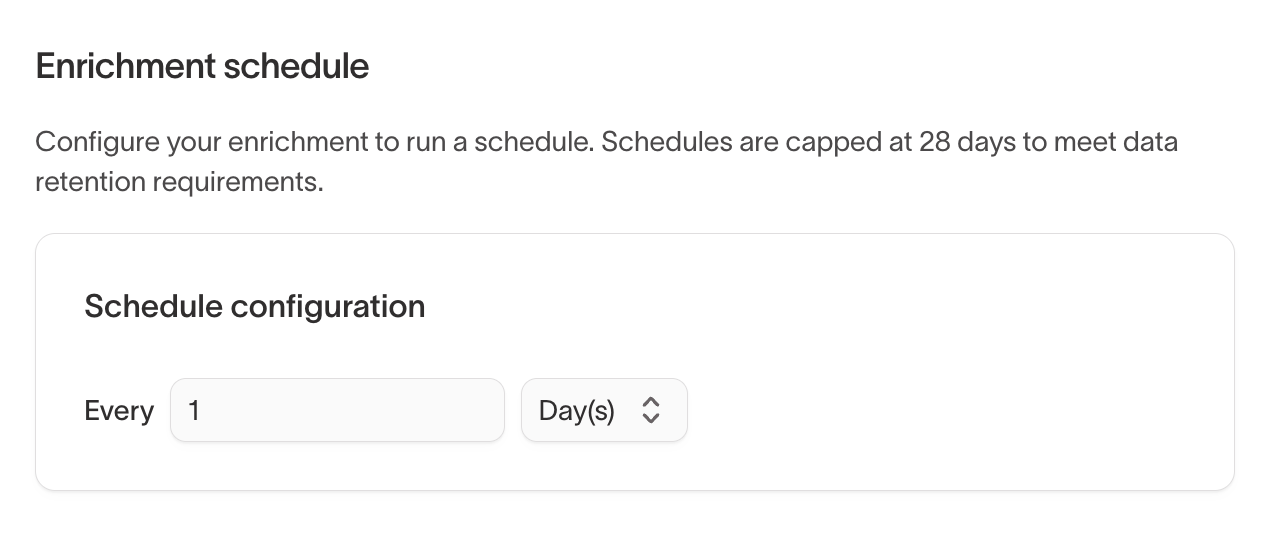
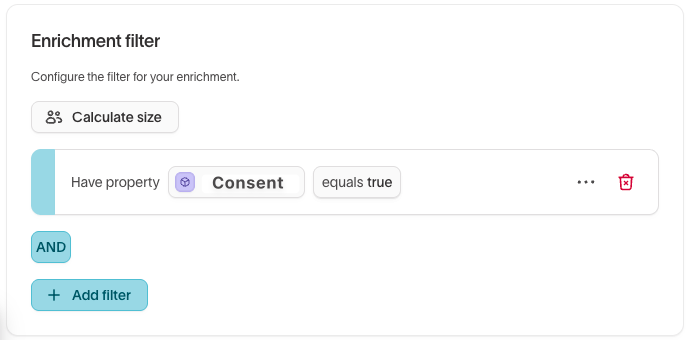
Add enrichment filters (parent models only)
On parent models, you can use enrichment filters to define a subset of records to enrich. Common filters include:- Limiting enrichment to specific regions
- Enforcing consent rules by enriching only consented users
Run initial enrichment
Select Initialize Match Booster to run the first enrichment.
Initialization is a one-time step that can take up to 72 hours. Select Email
me when enrichment is complete to avoid monitoring progress manually.
Next steps
Configuring Match Booster on a model is step one. Enrichment does not flow to ad platforms until you enable Match Booster on a sync. After the initial enrichment completes:- Enable Match Booster in syncs — Turn on Match Booster in your destination syncs to start sending enriched identifiers to ad platforms.