

Before you begin
Overview
Hightouch’s AI Decisioning (AID) helps you deliver real-time, personalized messages based on live customer context and predictions. By connecting AID with Salesforce Marketing Cloud (SFMC), you can:- Automatically trigger messages from AID Agents via SFMC Triggered Sends or Journeys
- Personalize SFMC templates using dynamic variables from Hightouch—no custom code required
- Centralize targeting and decision logic in Hightouch, while using SFMC to handle message delivery
Set up SFMC as a destination
Already configured SFMC? Even if you’ve previously set SFMC up as a
destination, you’ll still need to apply the specific permissions and scopes
outlined below.
Why these permissions matter
To send messages through SFMC using AID, Hightouch needs access to certain channels, content, and user data. These permissions allow Hightouch to:- Trigger messages via Triggered Send and Journey Builder
- Read and update subscriber data
- Access and personalize email, SMS, push, and in-app templates
- Read Content Builder assets to list and preview your email templates
Connect SFMC and grant permissions
In SFMC:- Create an installed package in SFMC until you reach Set Server-to-Server Properties.
-
Under Channels, enable the permissions for each message type you want Hightouch to use (read, write, send, publish, or post).
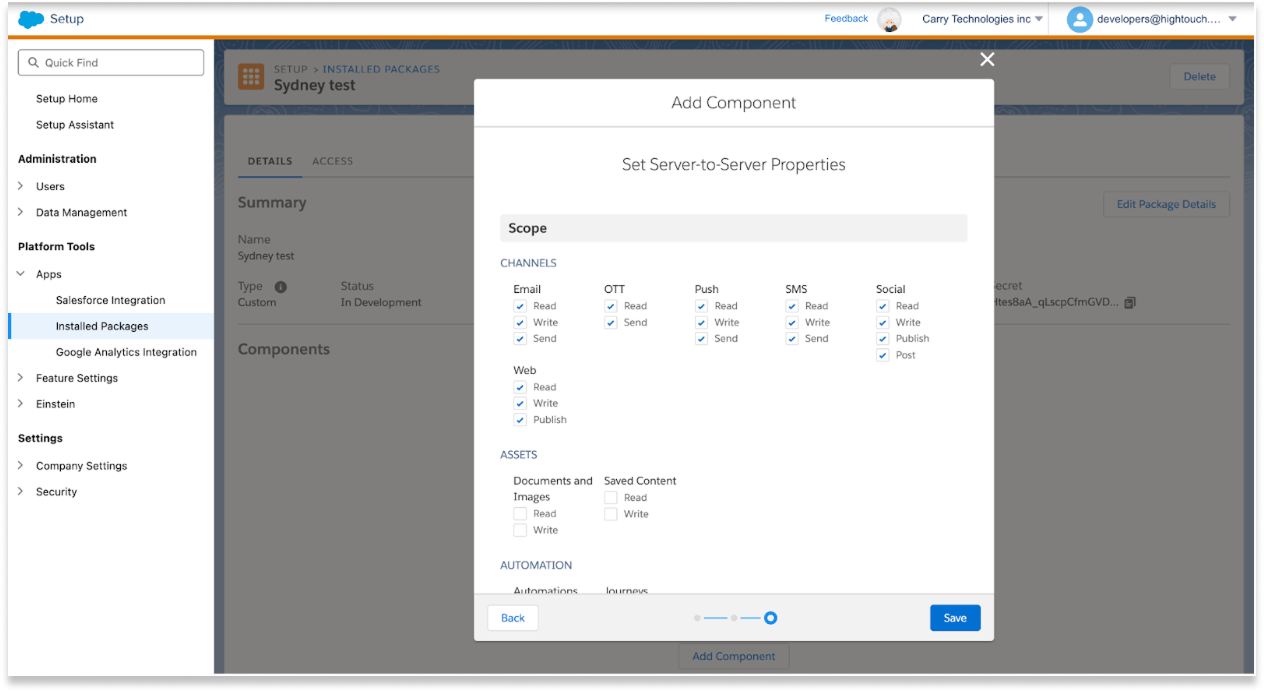
- Under Assets, select Documents and Images: Read.
- Select Save.
- Continue setting up the SFMC destination until you reach the Custom Scopes step.
- Under Advanced permissions > Custom Scopes, paste in the following:
email_read email_write email_send documents_and_images_read accounts_read data_extensions_read data_extensions_write journeys_read journeys_write journeys_aspr journeys_execute list_and_subscribers_write list_and_subscribers_read push_read push_write push_send- Select Test Connection to verify that setup is complete.
Add channels in AI Decisioning
Once SFMC is set up as a destination, you can add channels. Channels define how Hightouch sends messages to SFMC—via Triggered Sends or Journeys.
Set up a channel
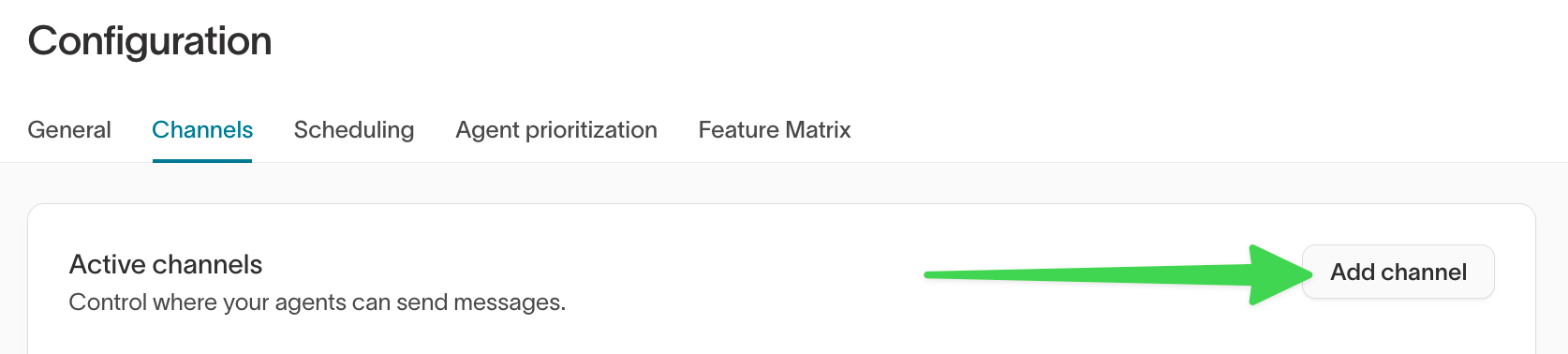
- Go to AI Decisioning > Configuration > Channels.
-
Select Add channel.
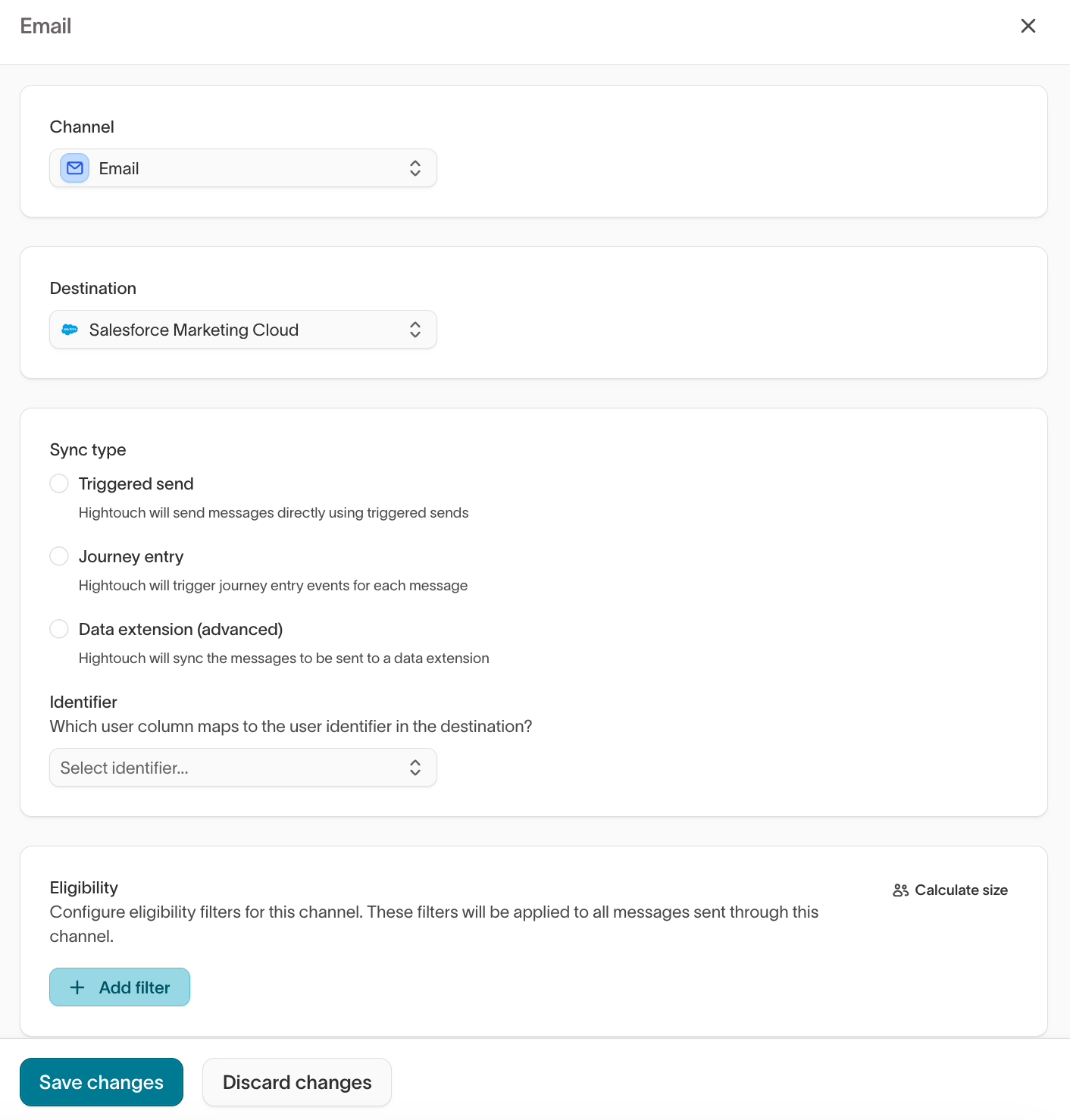
- Choose a channel type: Email, SMS, Push, or In-App.
- Select Salesforce Marketing Cloud as the destination.
-
Select a sync type:
- Triggered send – sends a 1:1 message in real time
- Journey entry – sends as part of a journey workflow
- Data extension (advanced) – batch sends managed within SFMC
- For Triggered send channels, choose an identifier that matches the Subscriber Key field in SFMC (for example, email or user ID). Hightouch sets the identifier automatically for Journey and Data extension channels.
-
Select Add channel, then Save changes.
Sync type comparison
The Sync Type determines how Hightouch sends messages through SFMC:Add messages
After you add channels in AI Decisioning, you can add messages to your agents. Each message connects an agent’s decision to a specific template in SFMC.For full details on message configuration, variants, and tags, see Messages.
Add a message from SFMC
- Go to AI Decisioning > Agents and select your agent.
- Open the Messages tab.
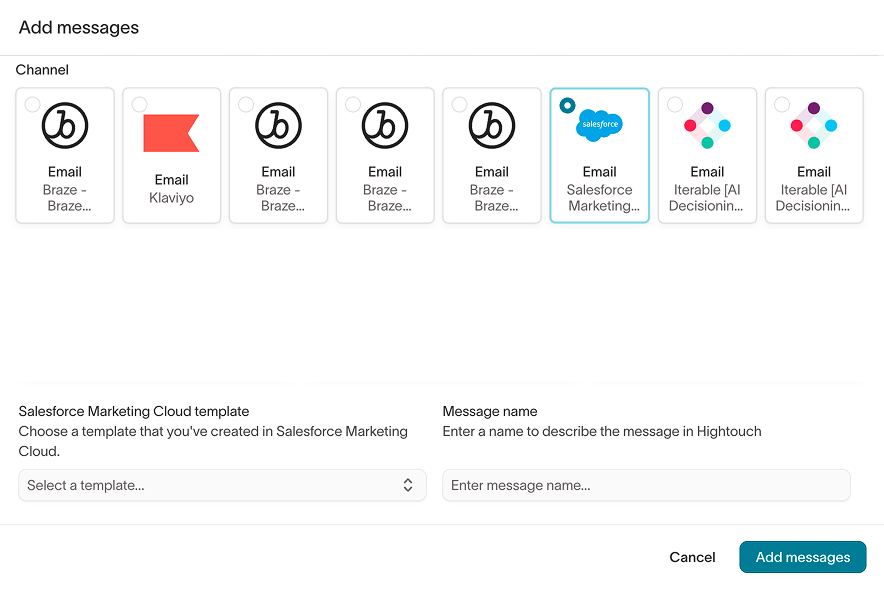
- Select Add messages, then select Add messages individually.
- Select your configured SFMC channel and destination tile (for example, Email - Salesforce Marketing Cloud).
- Select the appropriate template or event identifier from SFMC.
-
Enter a message name and select Add messages.
- Send emails via Triggered Send
- Send emails via Journey
- Send emails via Data Extension
- Send SMS via Journey
- Send SMS via Data Extension
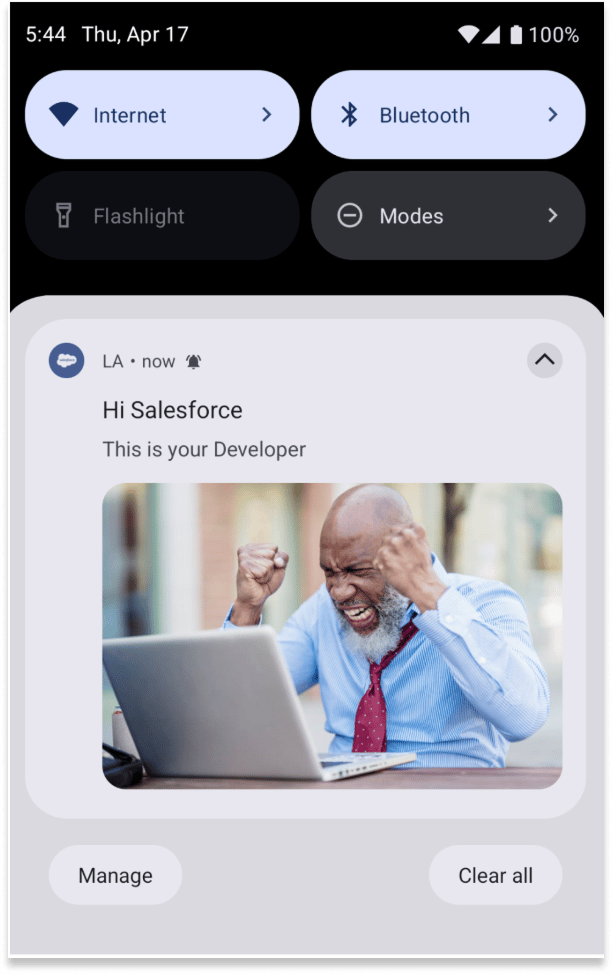
- Send push (outbound) via Triggered Send
- Send push (app inbox) via Triggered Send
- Send push via Journey
- Send push via Data Extension
- Send in-app via Journey
- Send in-app via Data Extension
Test a message
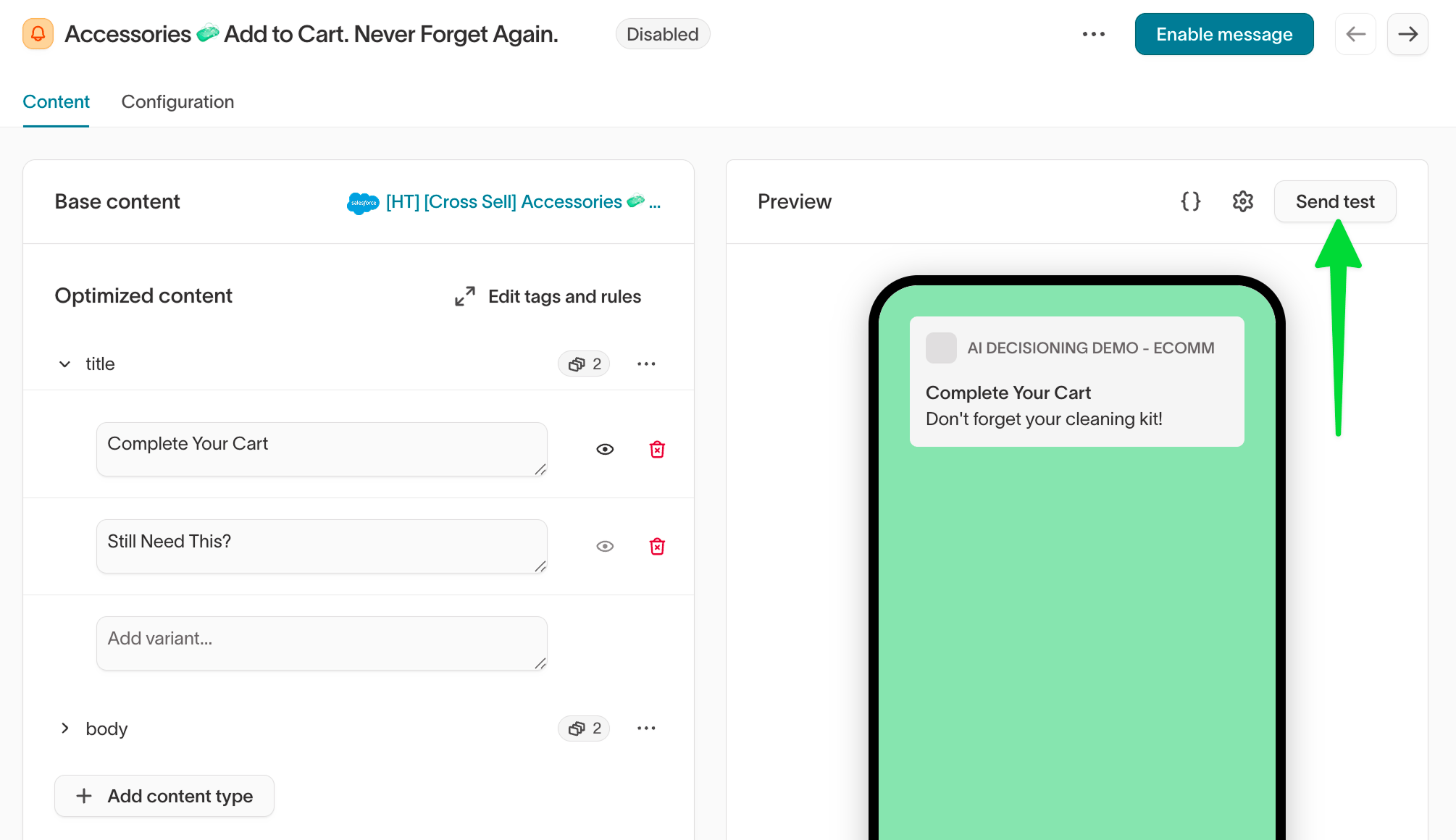
- Open the message and go to the Content tab.
- Under Optimized content, confirm your variants are configured. If your message uses dynamic variables, set values for testing.
- In the Preview panel, verify the rendered message looks correct.
-
Select Send test to send the message to a test user.
Configure SFMC Triggered Sends and Journeys for AID
Before adding a message in Hightouch, you need to configure the corresponding Triggered Send or Journey in SFMC.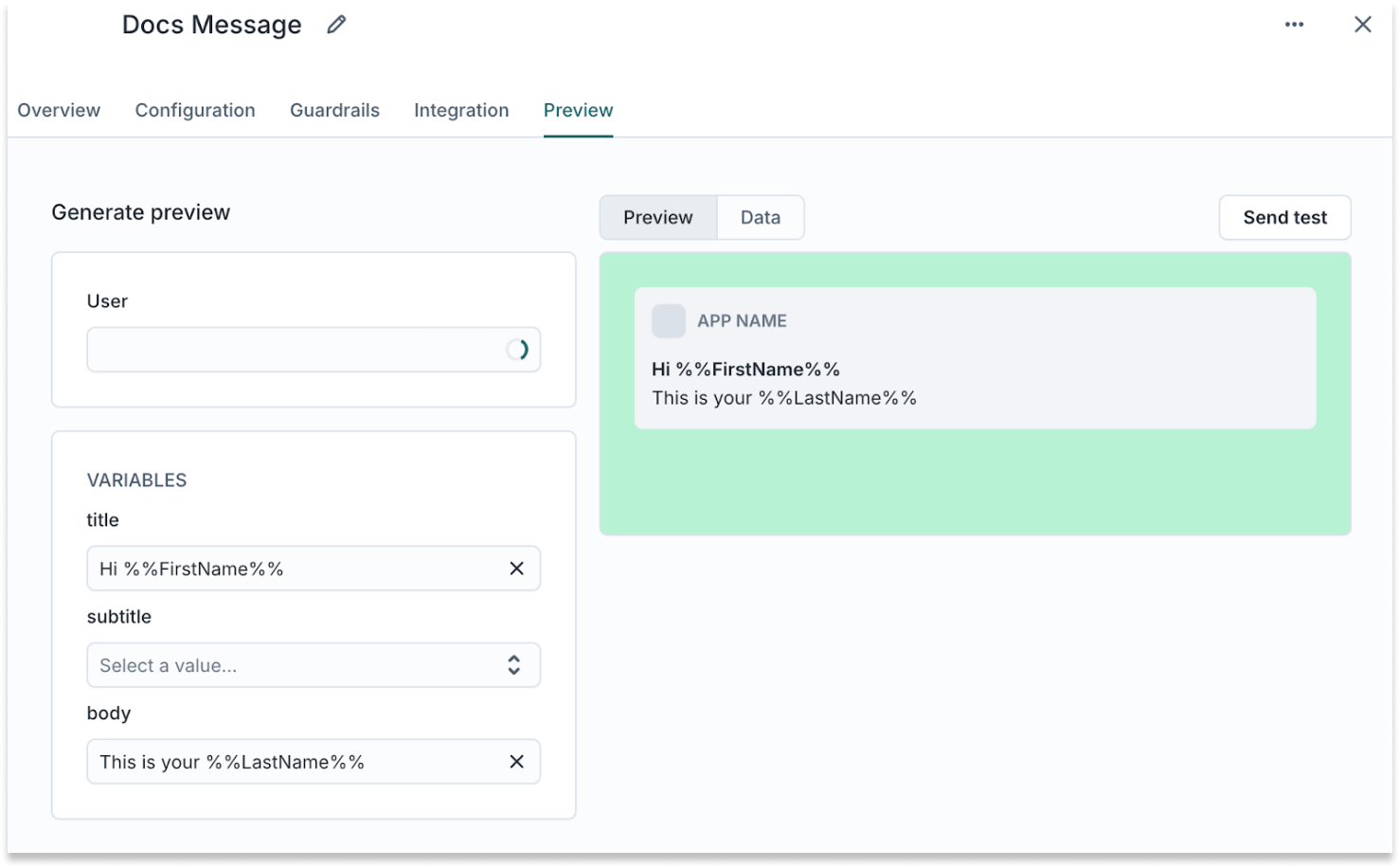
Send emails via Triggered Send
-
Add a channel with the sync type set to Triggered send.
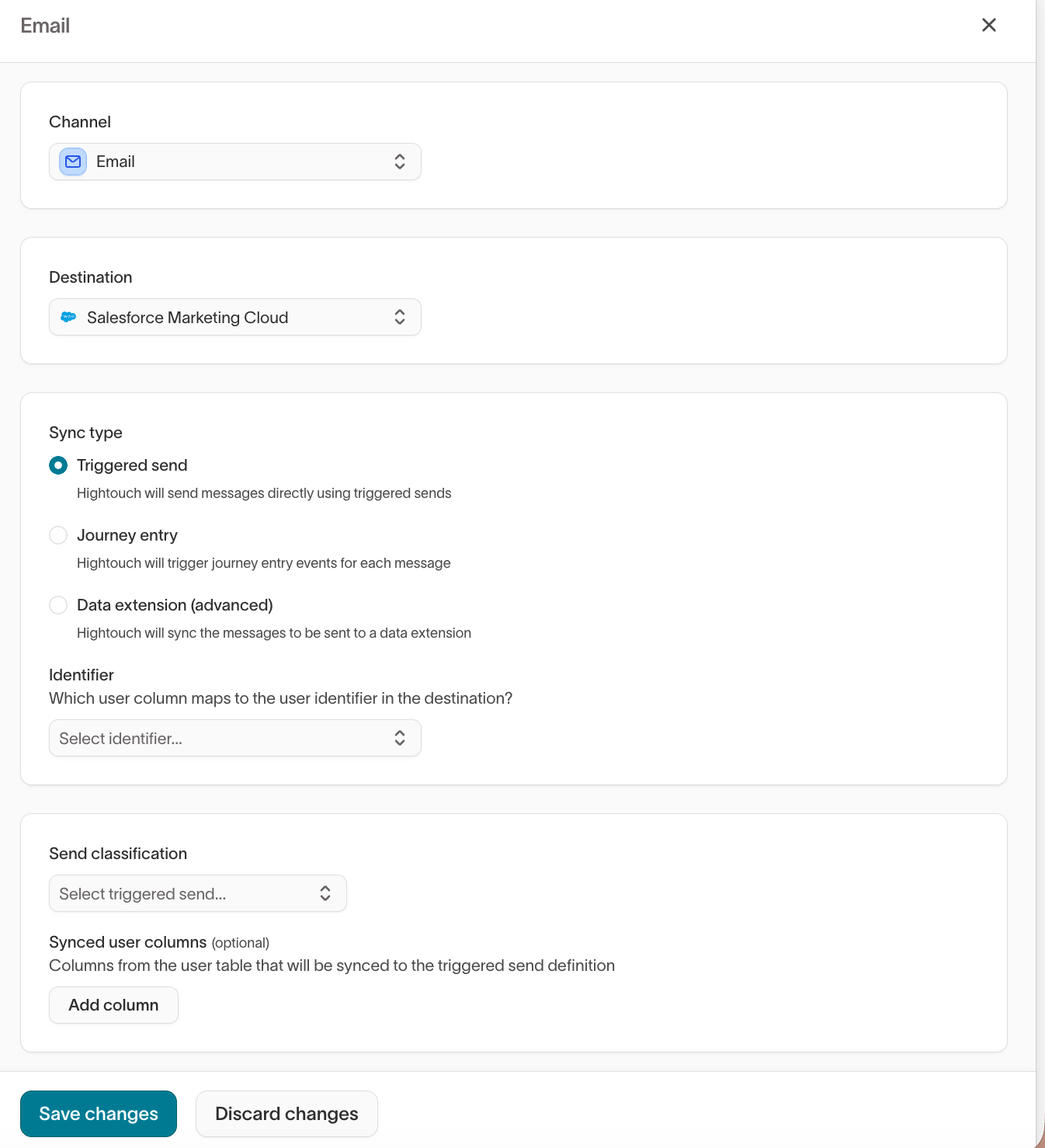
-
Add a message from your SFMC email template.
- Close the window that opens and return to the Messages tab.
-
Select the link next to Base content to go to SFMC.
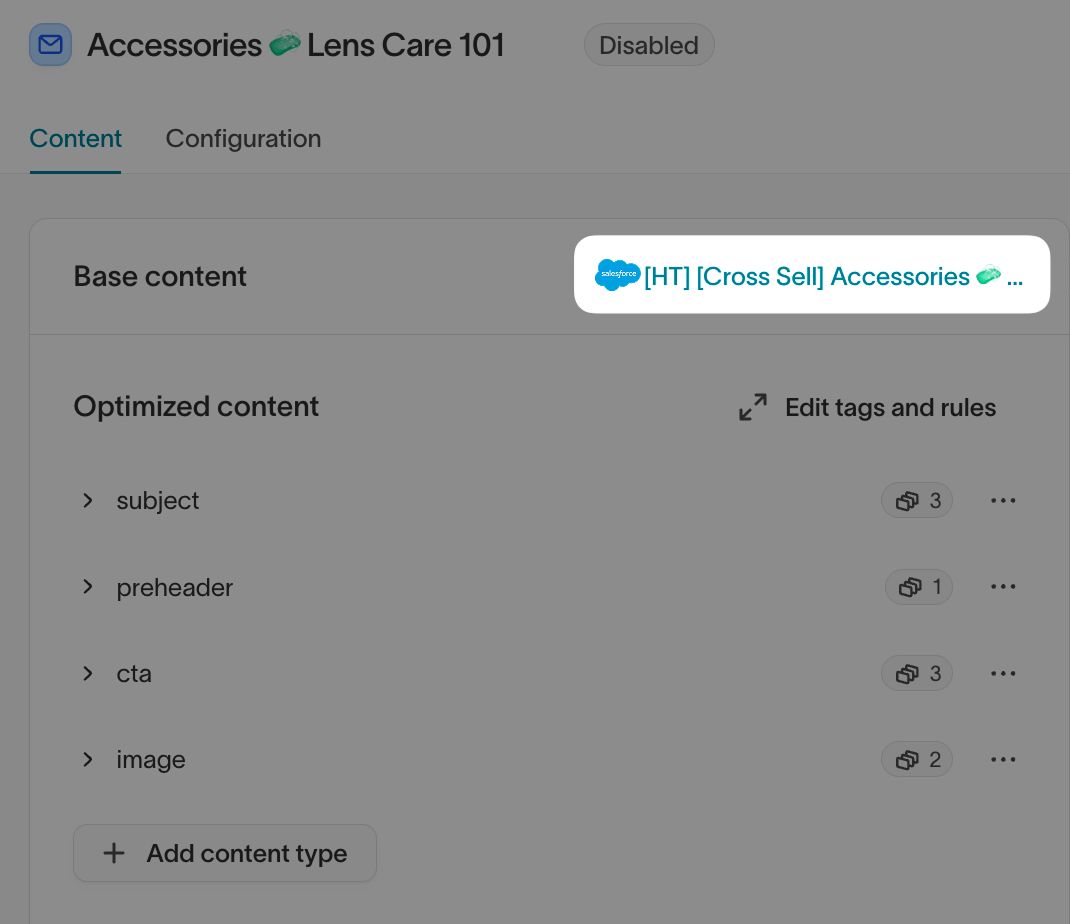
- This will prompt you to log in to SFMC and should open the Email Studio > Interactions page.
-
Select Triggered Sends.
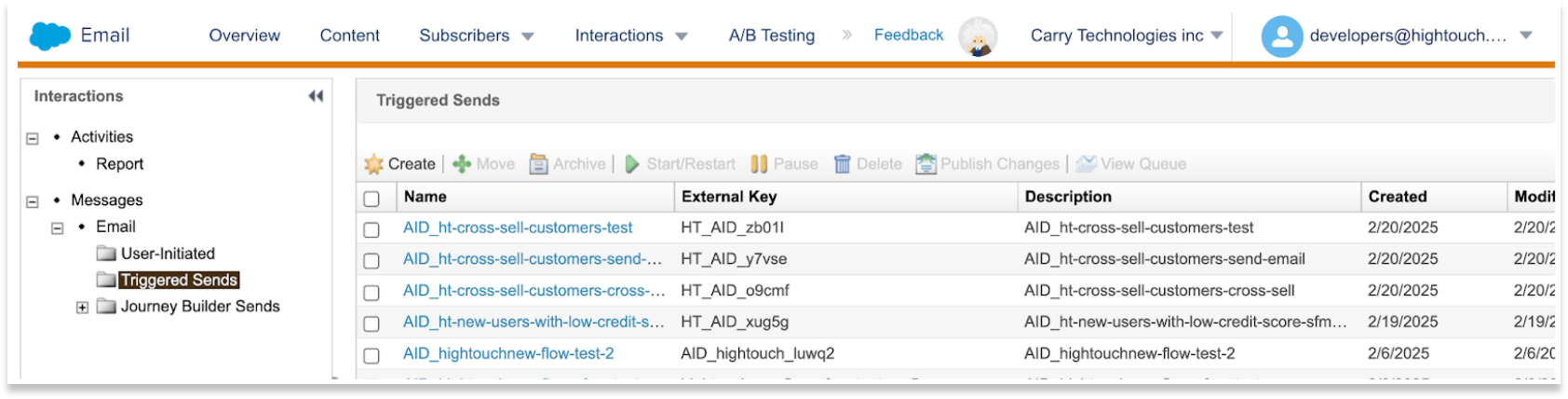
- Select the send name that corresponds with your newly created message.
-
Select Start/Restart.

- Return to Hightouch and open your message.
-
In the Content tab, set the variables and select Send test.
Send emails via Journey
-
Add a channel with the sync type set to Journey entry.
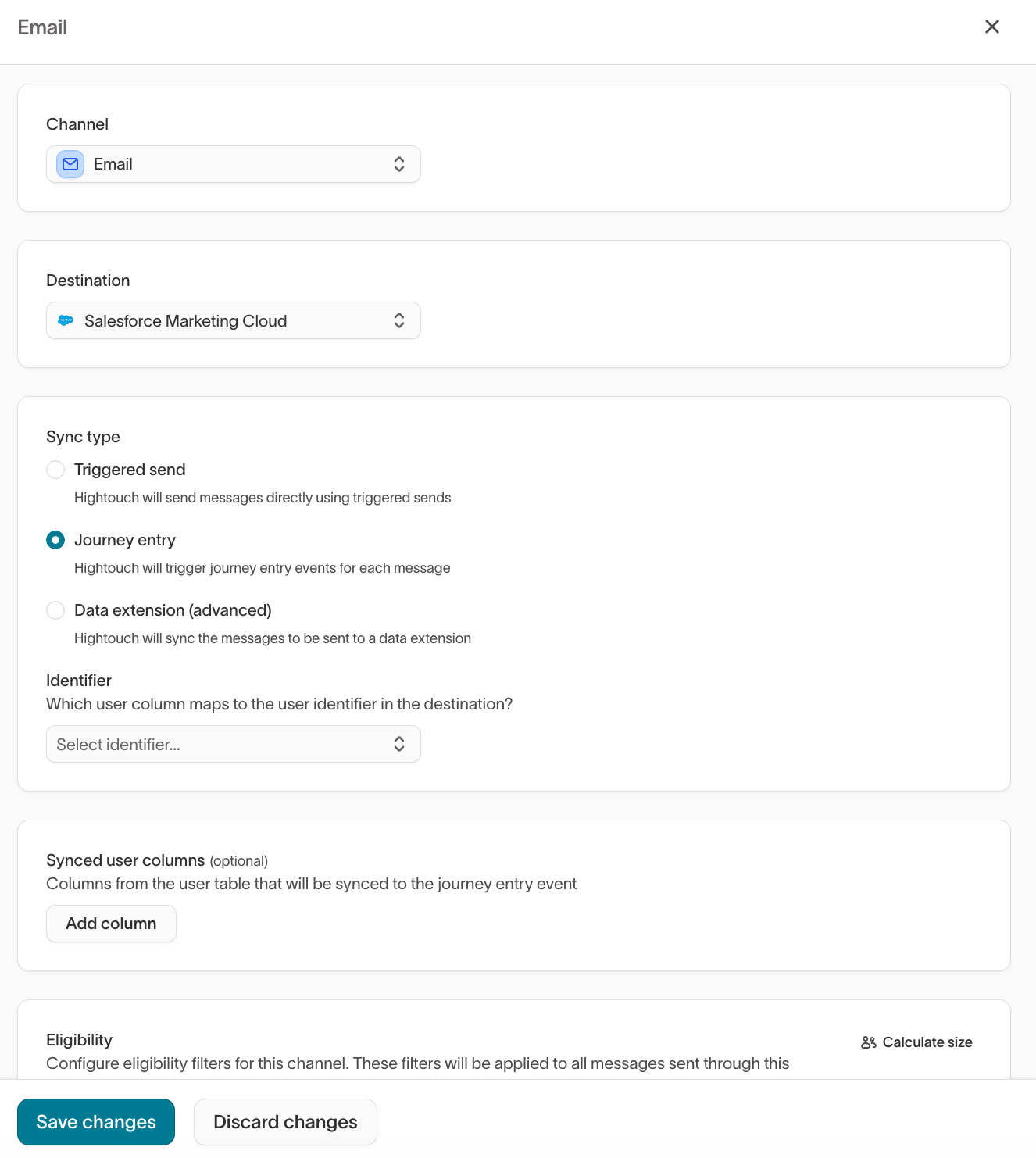
-
Add a message from your SFMC email template.
-
In the Content tab, set the variables and select Send test.
Send emails via Data Extension
-
Add a channel with the sync type set to Data extension.
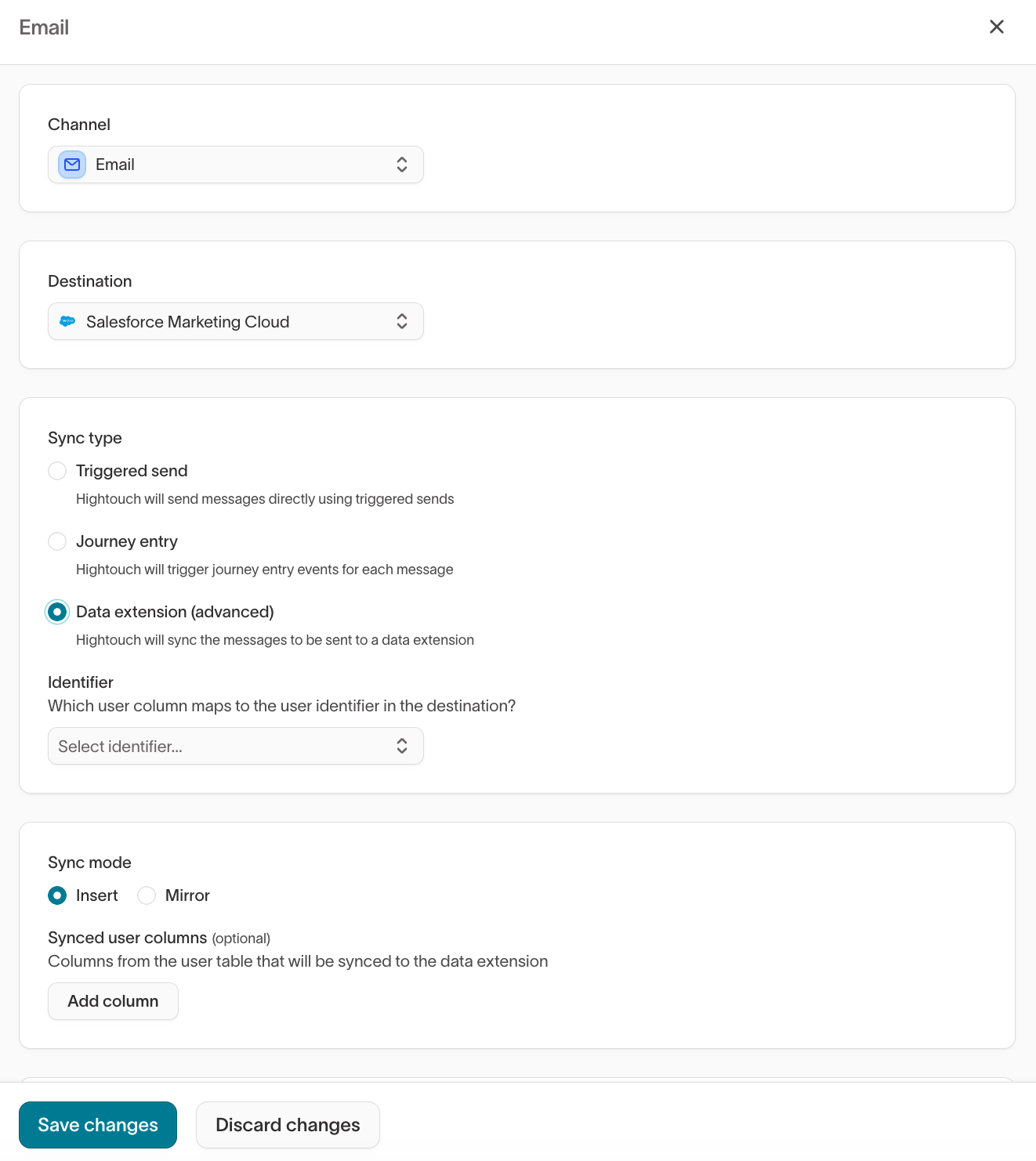
- Choose Insert (append new rows) or Mirror (keep in sync with your warehouse).
-
Add a message from your SFMC email template.
- In SFMC, configure your send logic (automation, query activity, or triggered automation) to read from the Data Extension that Hightouch populates.
Send SMS text messages via Journey
-
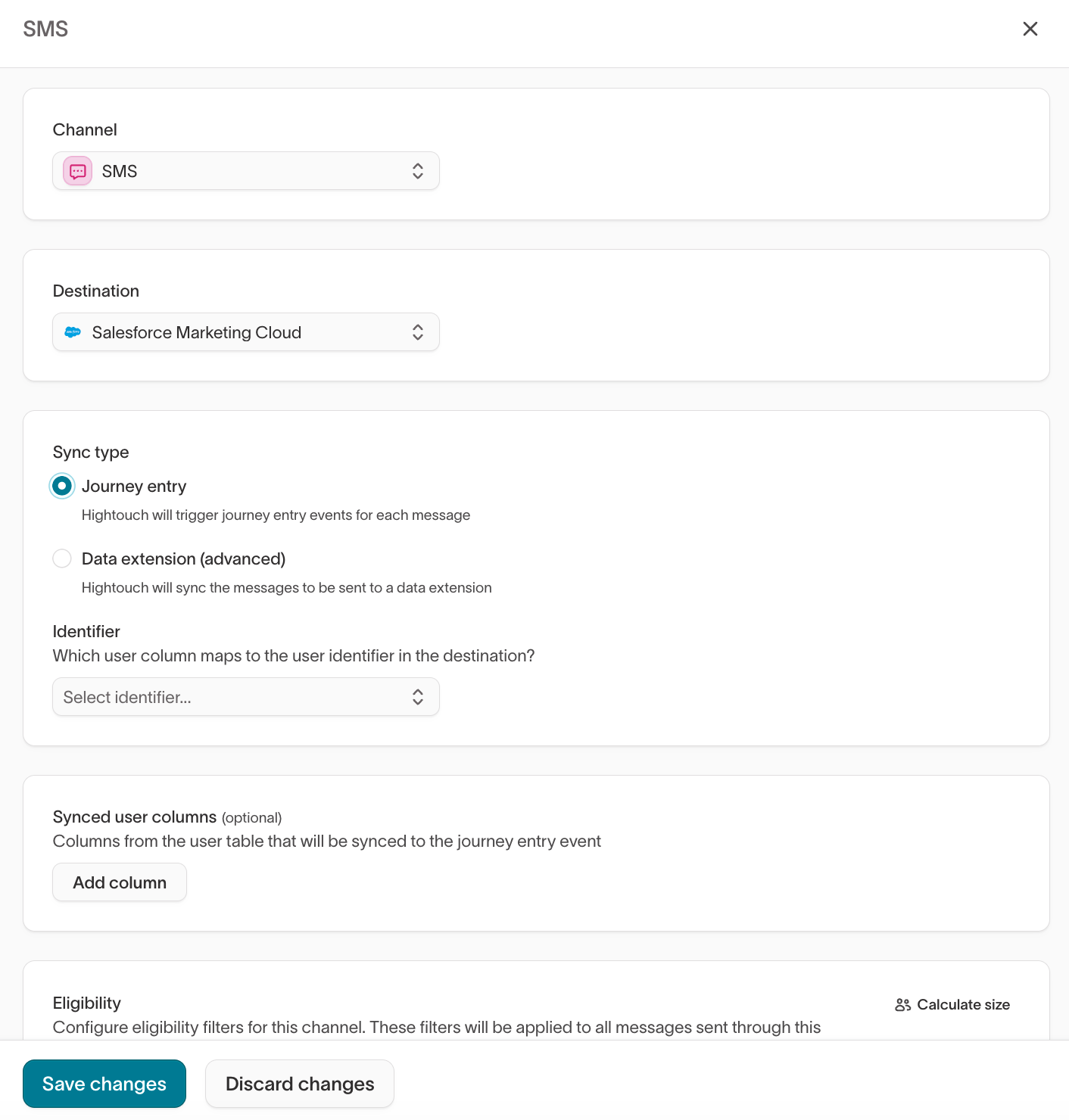
Add a channel with the sync type set to Journey entry.
-
Add a message from your SFMC SMS template.
-
In the Content tab, set the variables and select Send test.
Send SMS text messages via Data Extension
-
Add a channel with the sync type set to Data extension.
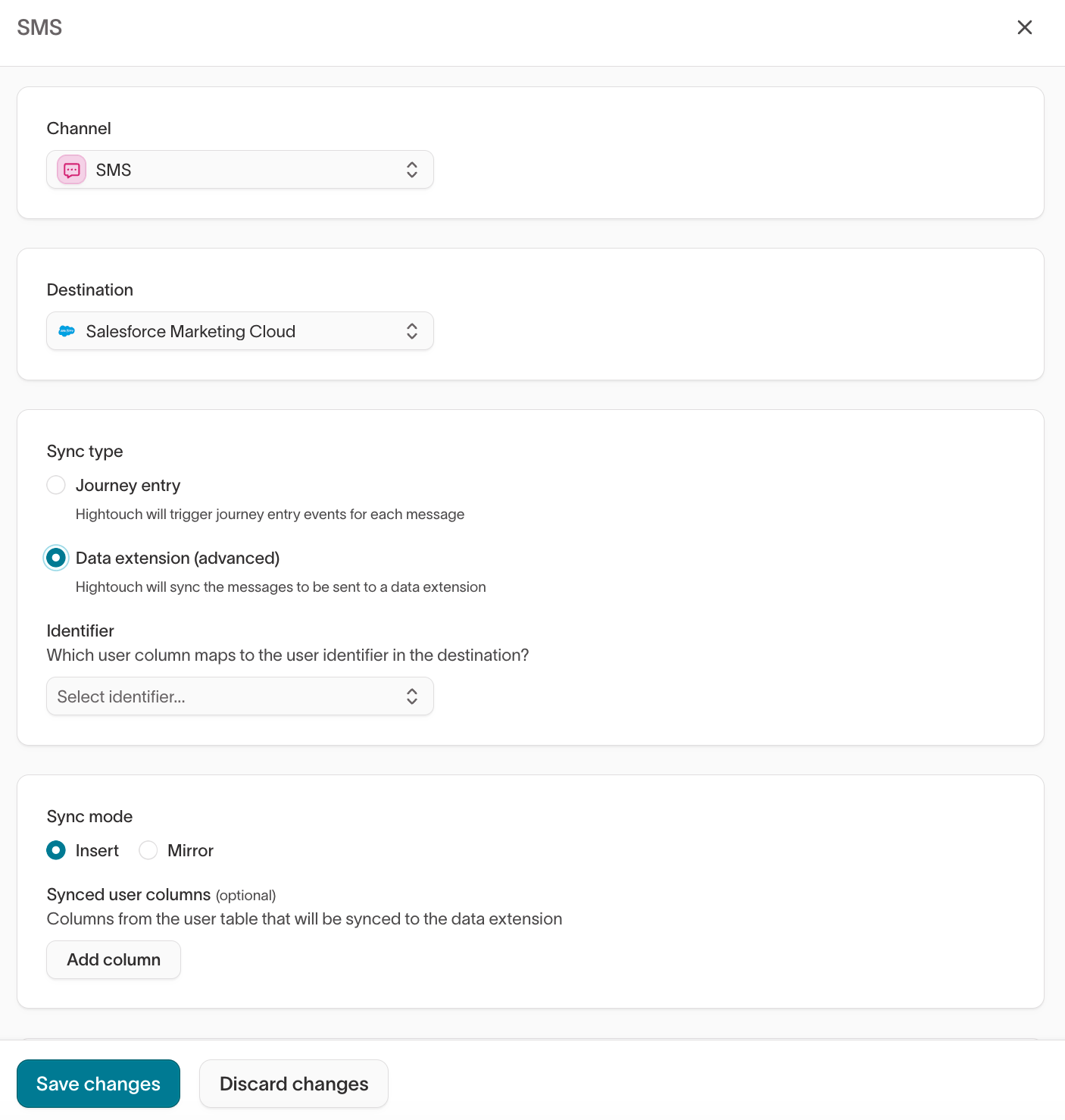
- Choose Insert or Mirror mode.
-
Add a message from your SFMC SMS template.
- In SFMC, configure your send logic to read from the Data Extension that Hightouch populates.
Send push (outbound) notifications via Triggered Send
Enable the push channel
-
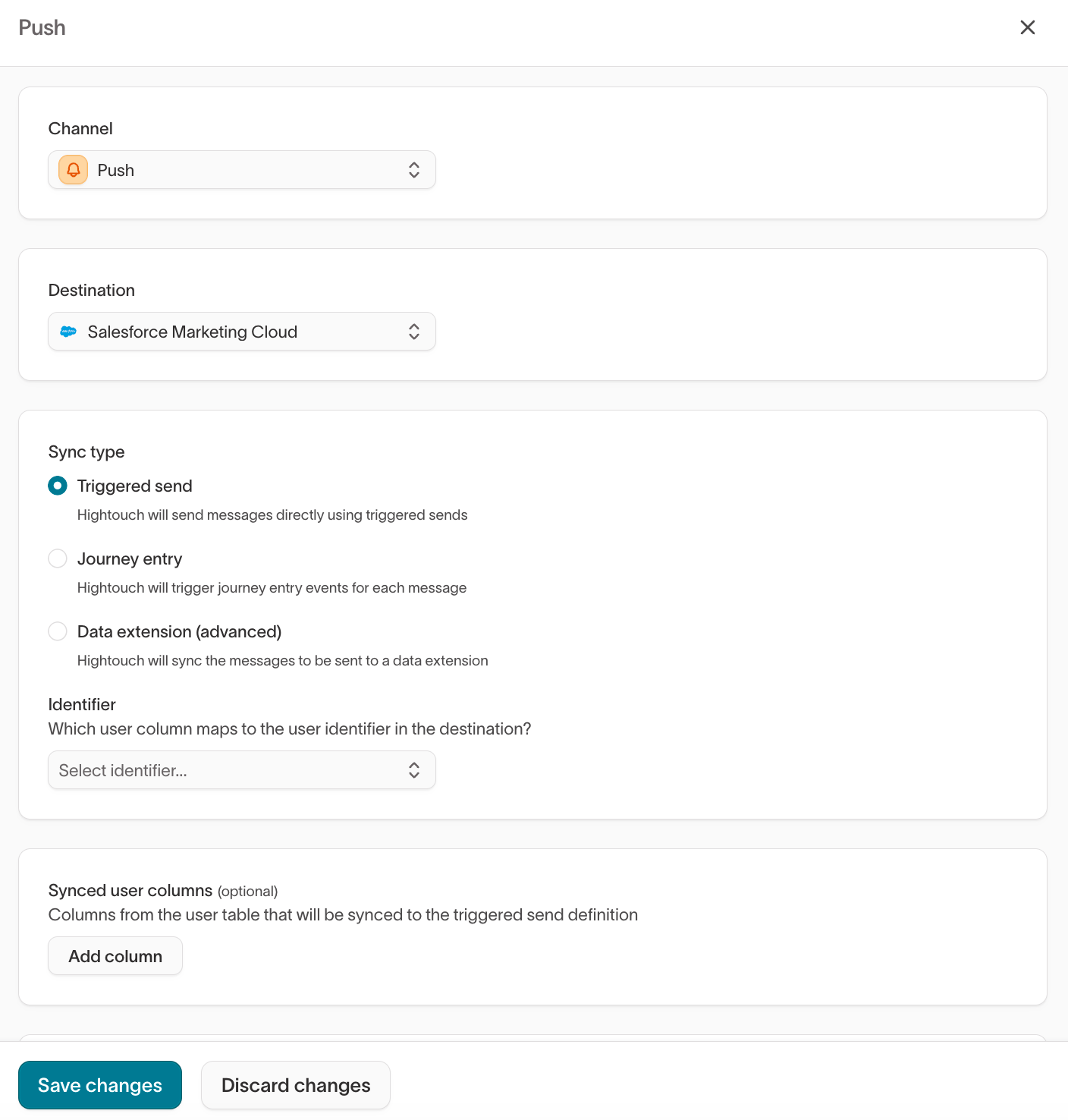
Add a channel with the sync type set to Triggered send.
Configure your push template in SFMC
In SFMC:- Go to Mobile Studio > MobilePush.
-
Select Create Message.
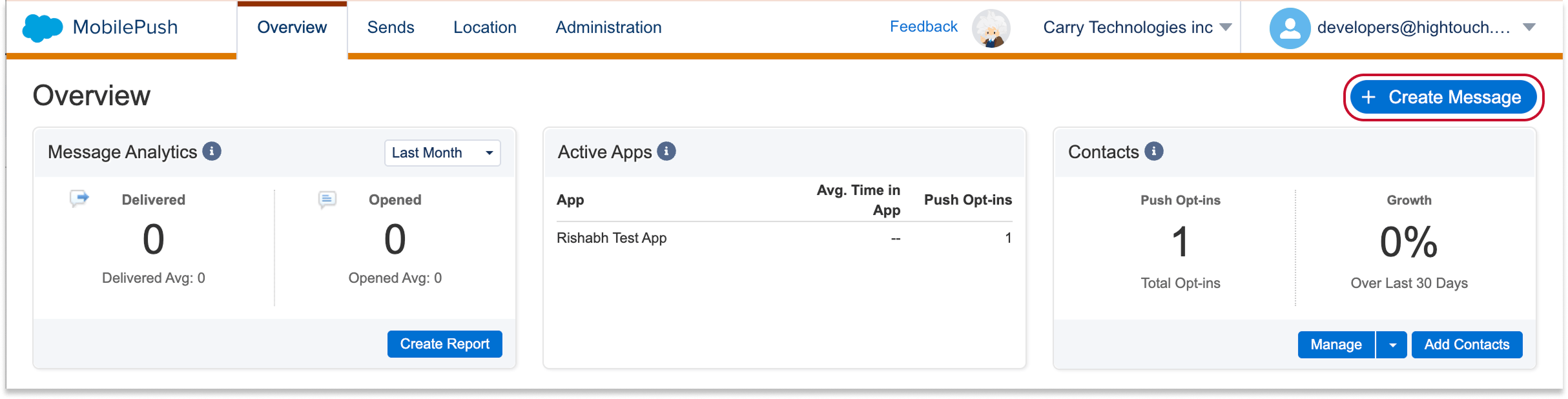
- Select the Outbound template and select Next.
- Name your message and select your app.
- Select API Triggered as the Send Method.
-
Select Alert as the Push Method and select Next.
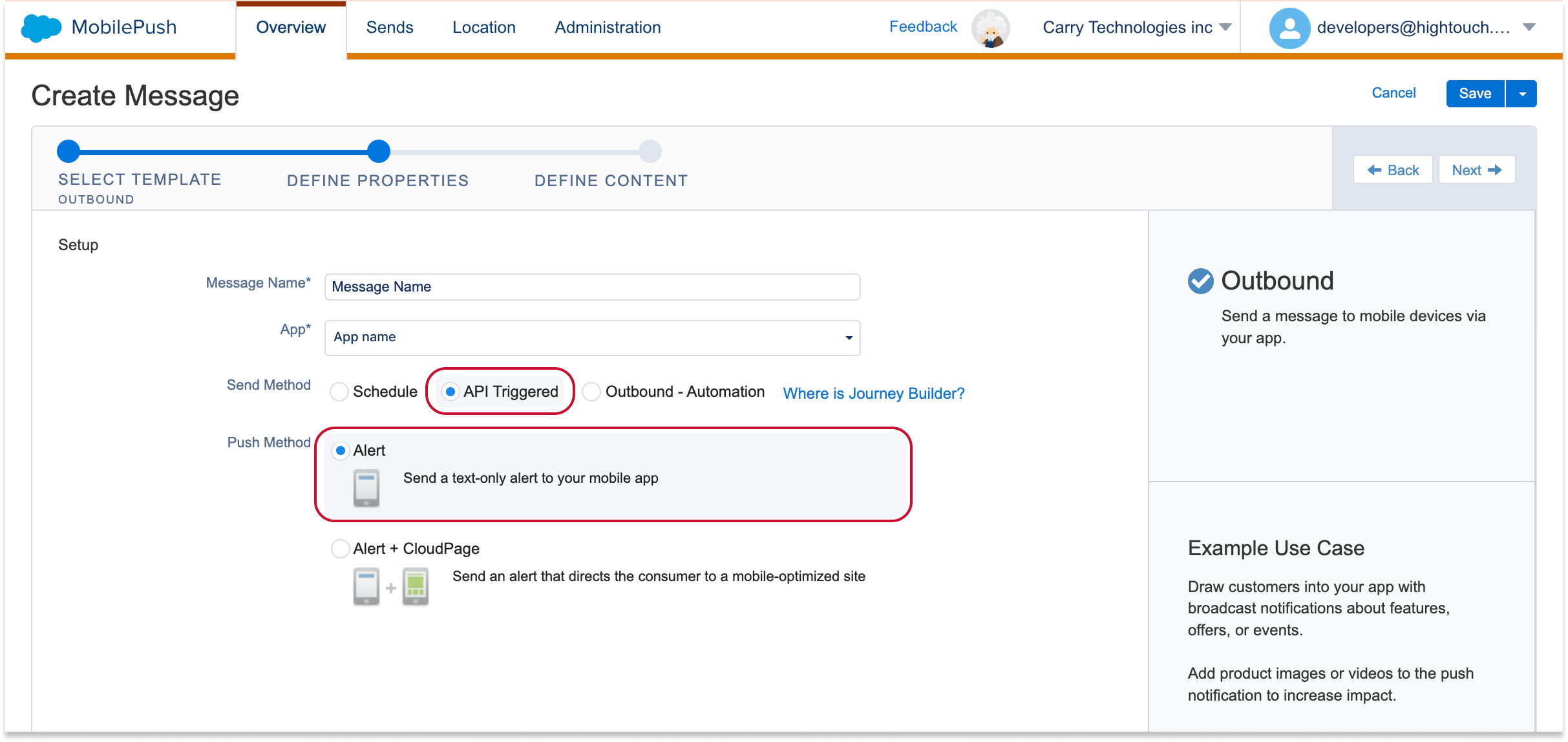
You can only trigger Alert Only or Inbox Only messages, not Alert + Inbox.
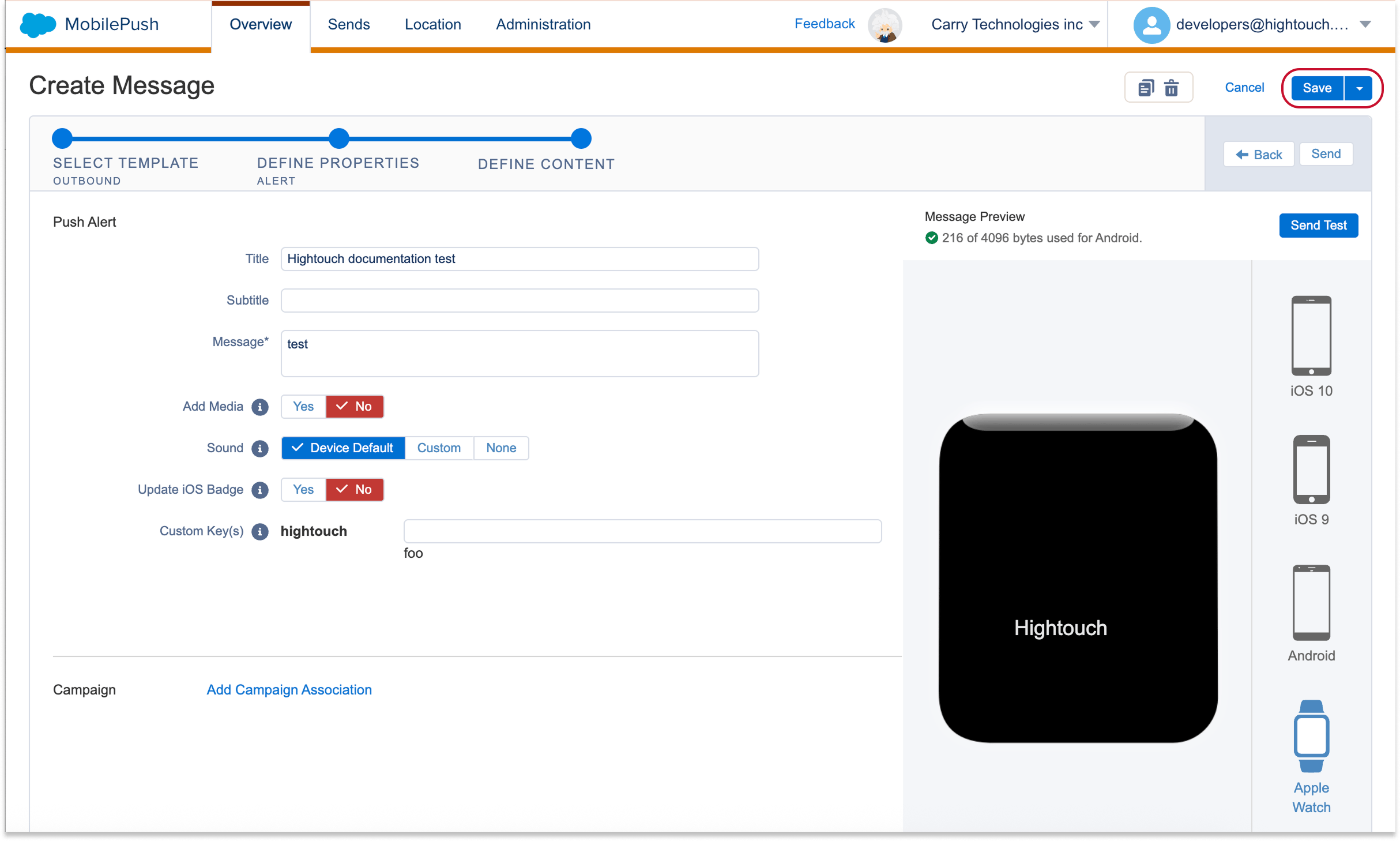
- Create the template for your push alert.
-
Save your message.
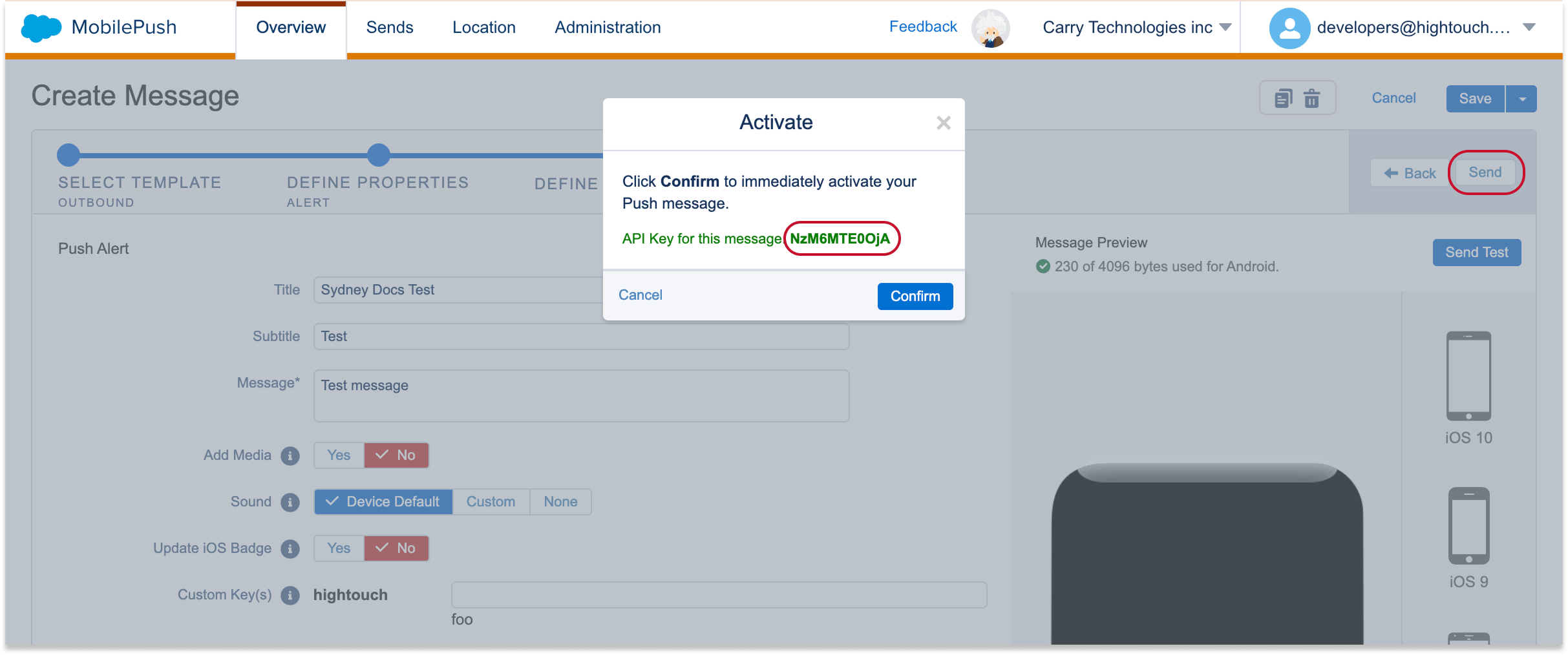
- Select Send in the top right-hand corner.
-
An activation window should pop up with an API key. Copy this API key to make it easier to find the template in Hightouch in a later step.
Add a message in Hightouch
In Hightouch:-
Add a message from your SFMC push template.
Preview content
Hightouch automatically creates the variables for push notification title, subtitle, and body. The values you supply here are used directly in the push notification without any need for code snippets in the template. If these are left blank, Hightouch uses the default values in the template.Send tests
-
To test push notifications, paste the contact key you use in your SFMC contacts.
- Personalization strings can be supplied directly in the values for the variables without any need for code snippets in the template.
Send push (app inbox) notifications via Triggered Send
Enable the push channel
-
Add a channel with the sync type set to Triggered send.
Configure your push template in SFMC
In SFMC:- Go to Mobile Studio > MobilePush.
-
Select Create Message.
- Select the Inbox template and select Next.
- Name your message and select your app.
- Select API Triggered as the Send Method.
-
Select Alert as the Push Method and select Next.
You can only trigger Alert Only or Inbox Only messages, not Alert + Inbox.
- Create the template for your push alert.
-
Save your message.
- Select Send in the top right-hand corner.
-
An activation window should pop up with an API key. Copy this API key to make it easier to find the template in Hightouch in a later step.
Add a message in Hightouch
In Hightouch:-
Add a message from your SFMC push template.
Send push notifications via Journey
-
Add a channel with the sync type set to Journey entry.
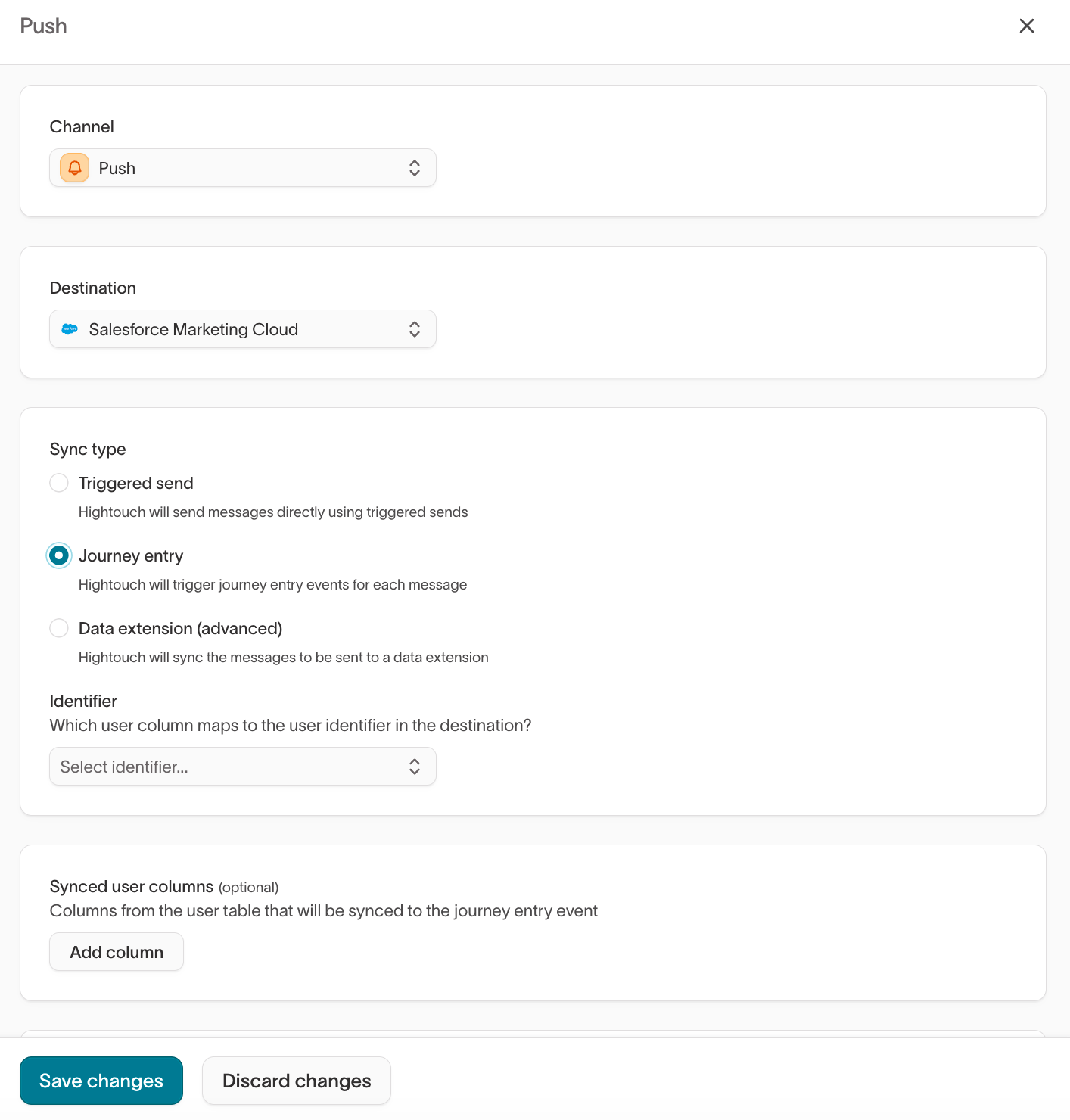
-
Add a message from your SFMC push template.
-
In the Content tab, set the variables and select Send test.
Send push notifications via Data Extension
-
Add a channel with the sync type set to Data extension.
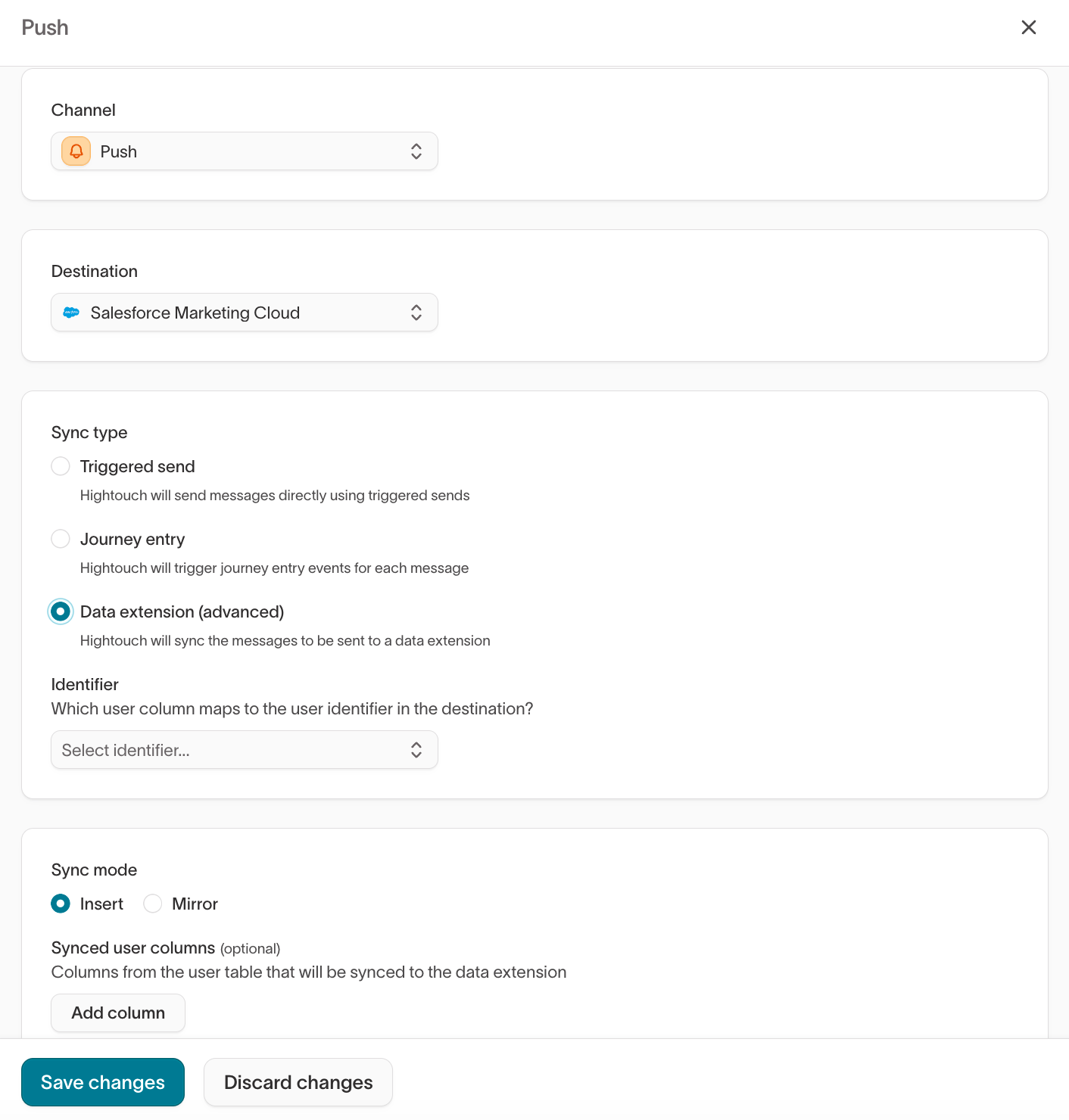
- Choose Insert or Mirror mode.
-
Add a message from your SFMC push template.
- In SFMC, configure your send logic to read from the Data Extension that Hightouch populates.
Send in-app notifications via Journey
Enable the in-app channel and add a message
-
Add a channel with the sync type set to Journey entry.

-
Add a message from your SFMC in-app template.
Link your message to an SFMC Journey
In these next steps, you will link your newly created message to an associated Journey in SFMC.In Hightouch:- Go to the Content tab within your message to add the variables you would like Hightouch to control.
- Go to Journey Builder > Journey Builder.
-
Select Create New Journey.
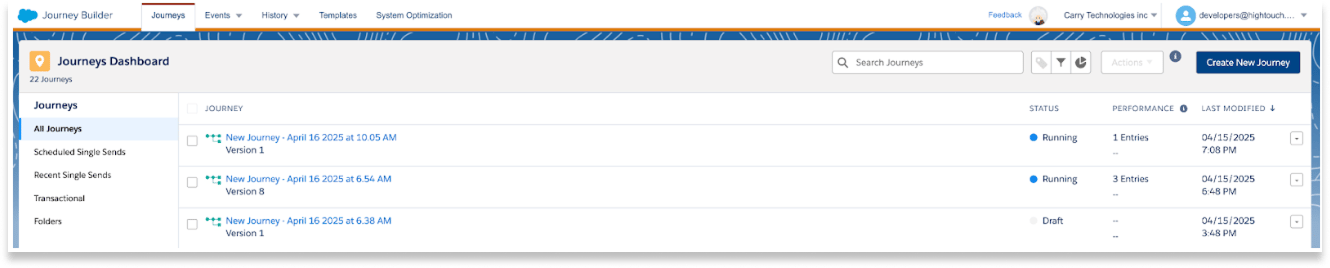
- Select Multi-Step Journey.
-
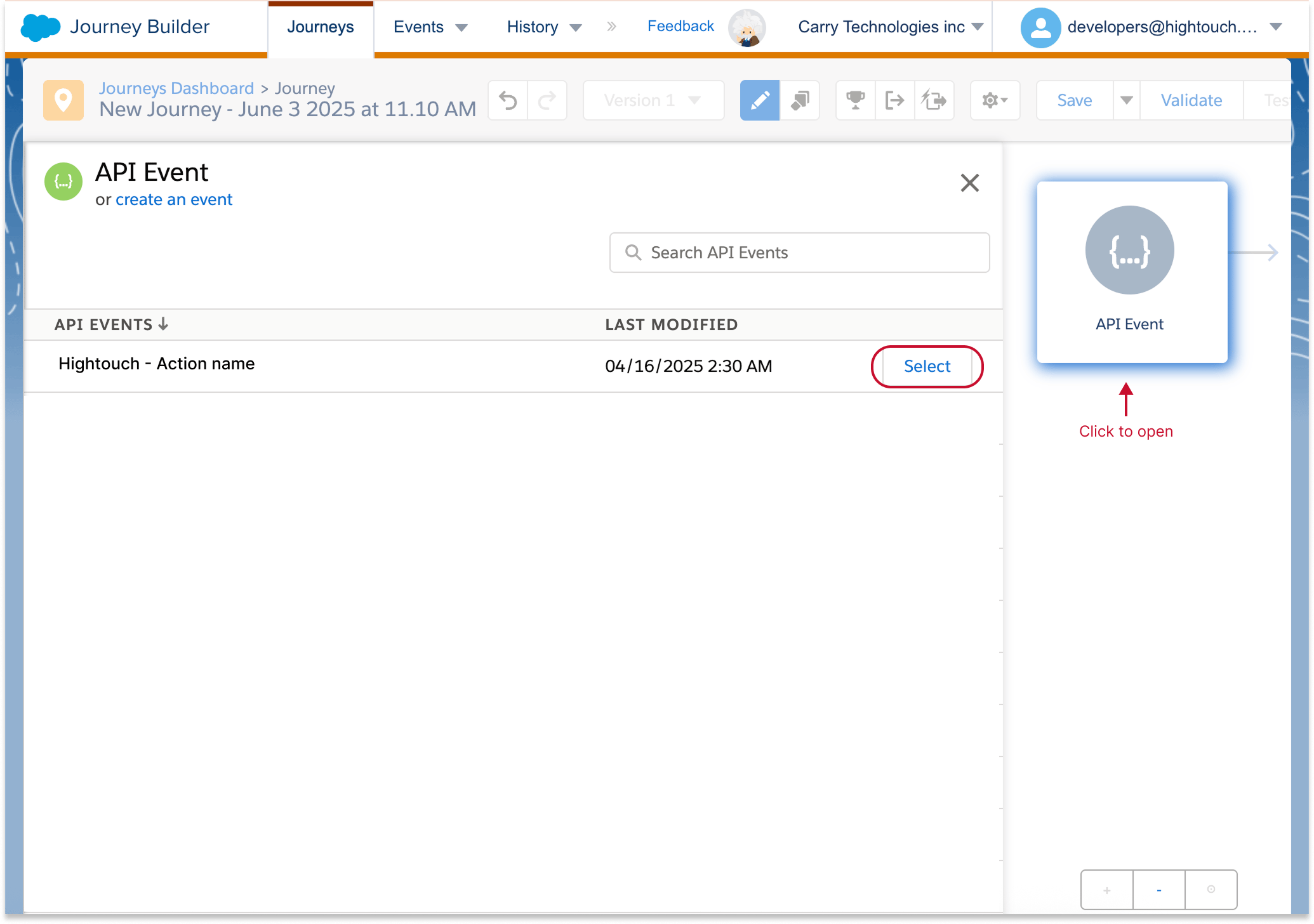
Select API Event as the entry source. Drag it onto the Journey Builder.
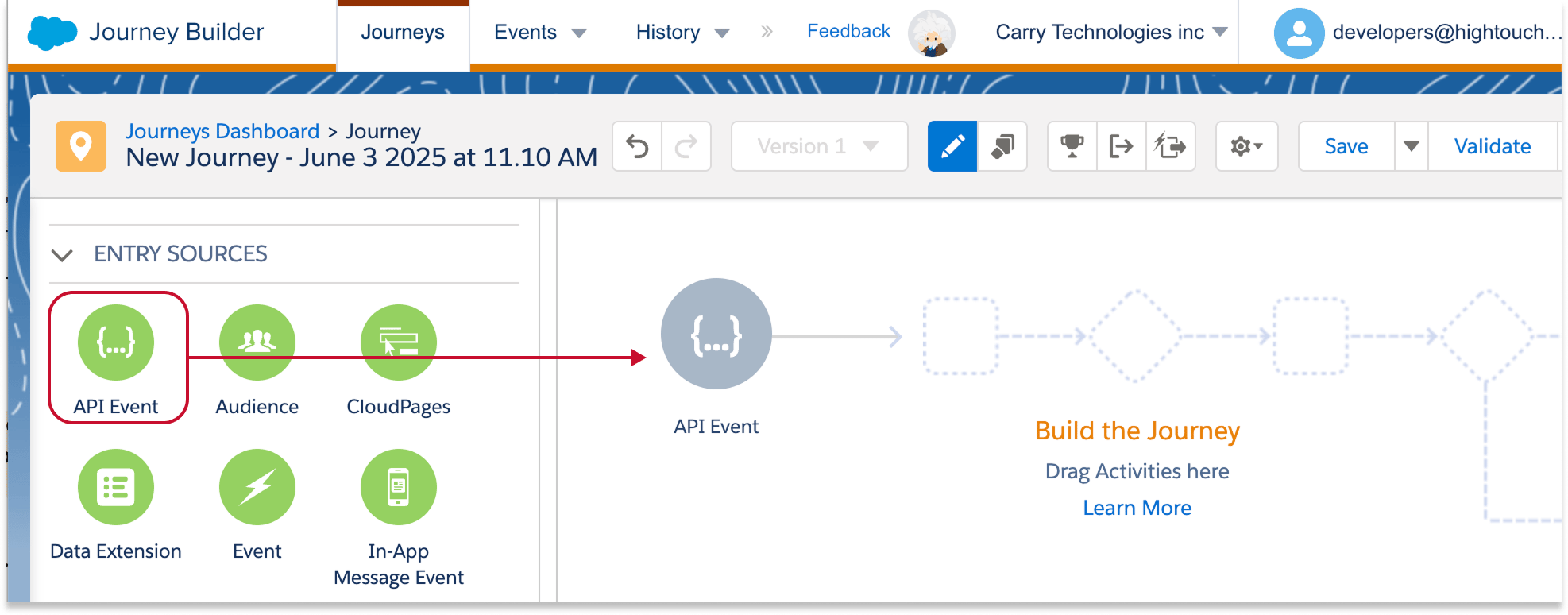
- Select the grey API Event icon in the Journey Builder. This will open a list of API Events.
- Select the message name you chose when adding the message in Hightouch.
Hightouch automatically creates the required Data Extension with the event so
you don’t have to set that up.
- Select Done.
-
Next, drag In-App Message to the Journey Builder.
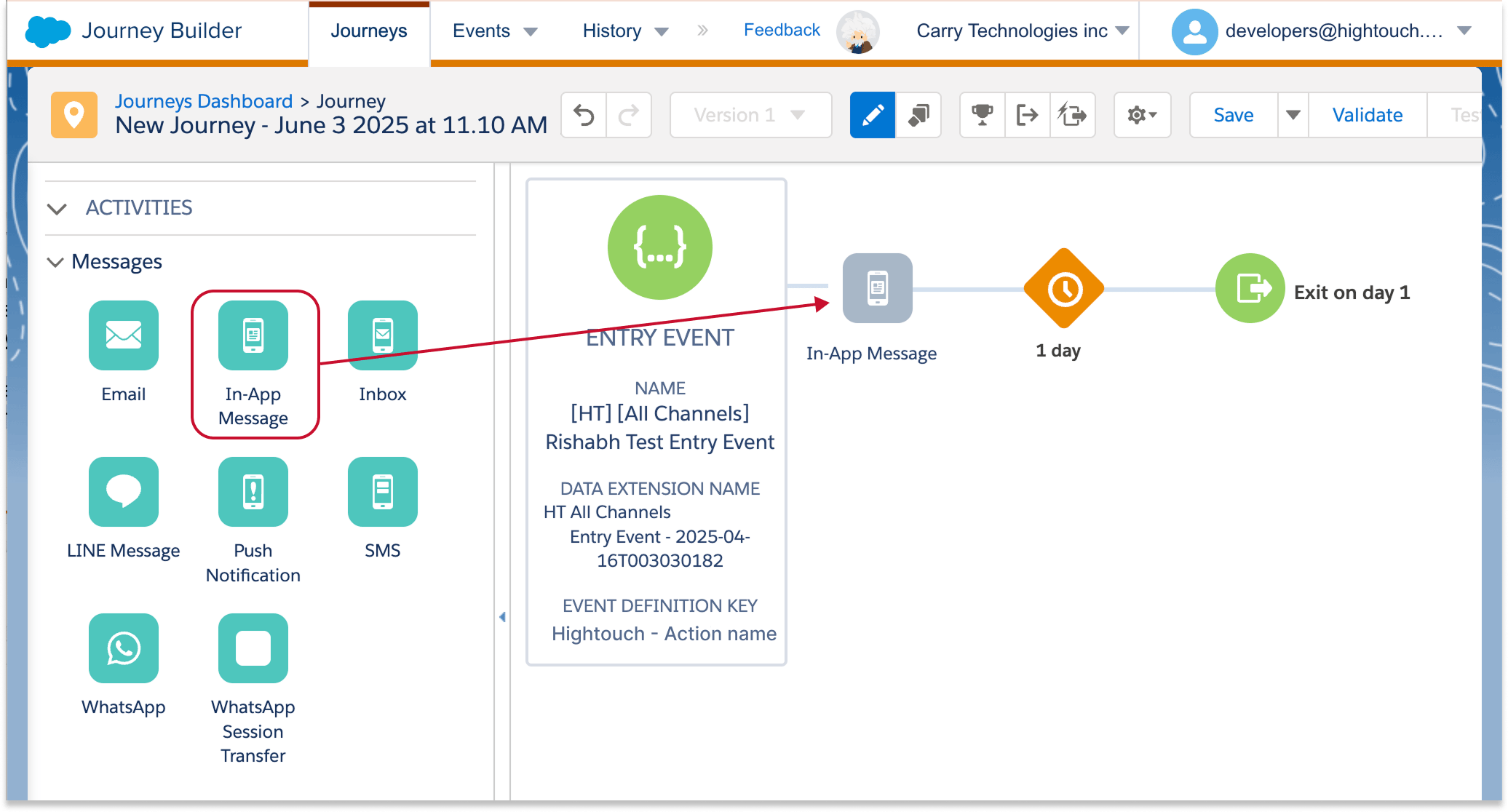
- Select the grey In-App Message icon in the Journey Builder.
- Select (or create) your desired in-app message template.
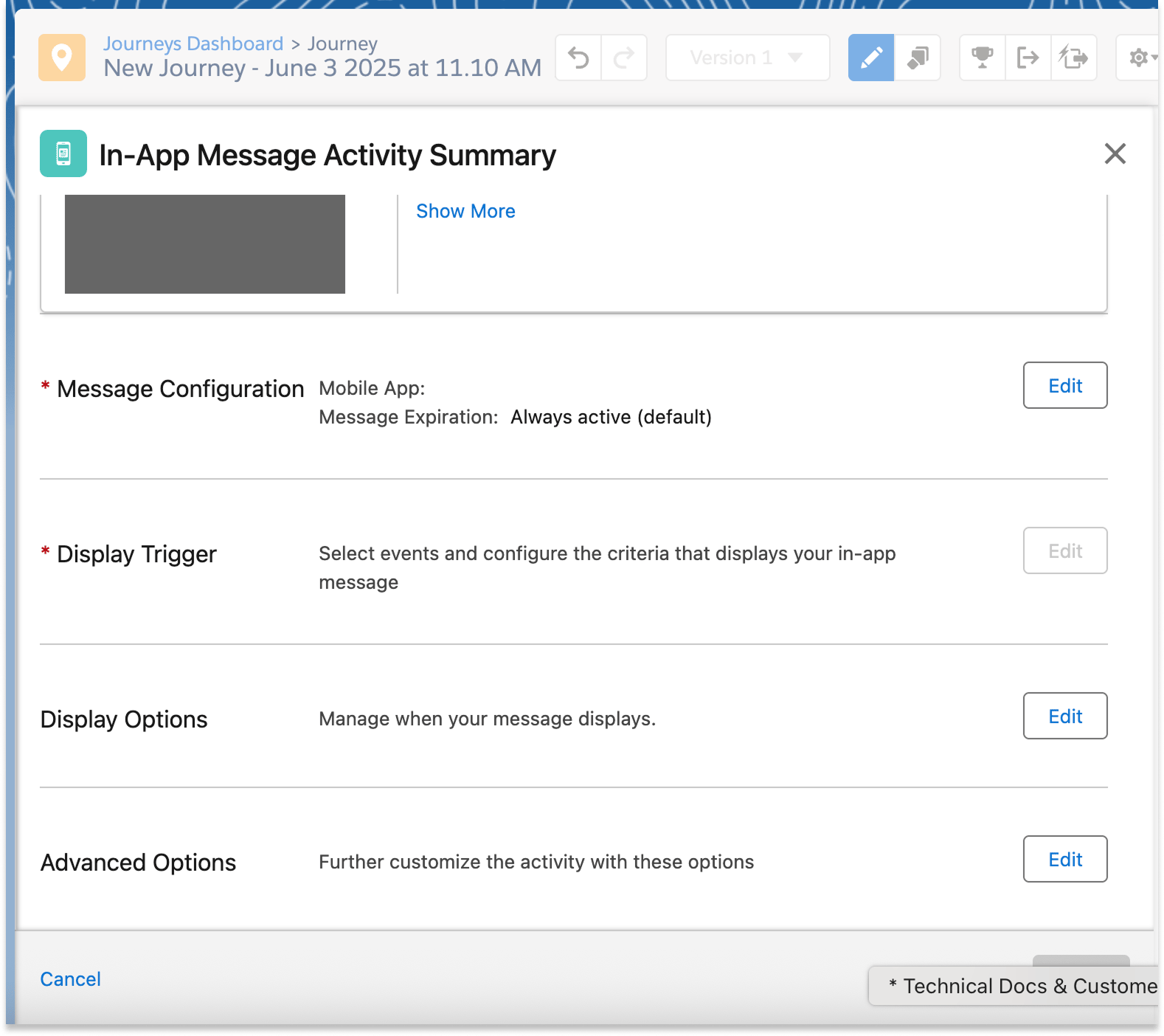
-
In the In-App Message Activity Summary, edit the required settings for Message Configuration and Display Trigger. Optionally, configure Display Options and Advanced Options as desired. See SFMC documentation for more details.
-
Optional: If you would like Hightouch to control aspects of the In-App Message, follow the instructions for using variables in SFMC templates.
- Paste the variable code snippets from Hightouch into SFMC:
- Select a message in Message Definition
- Select Edit Selected Message
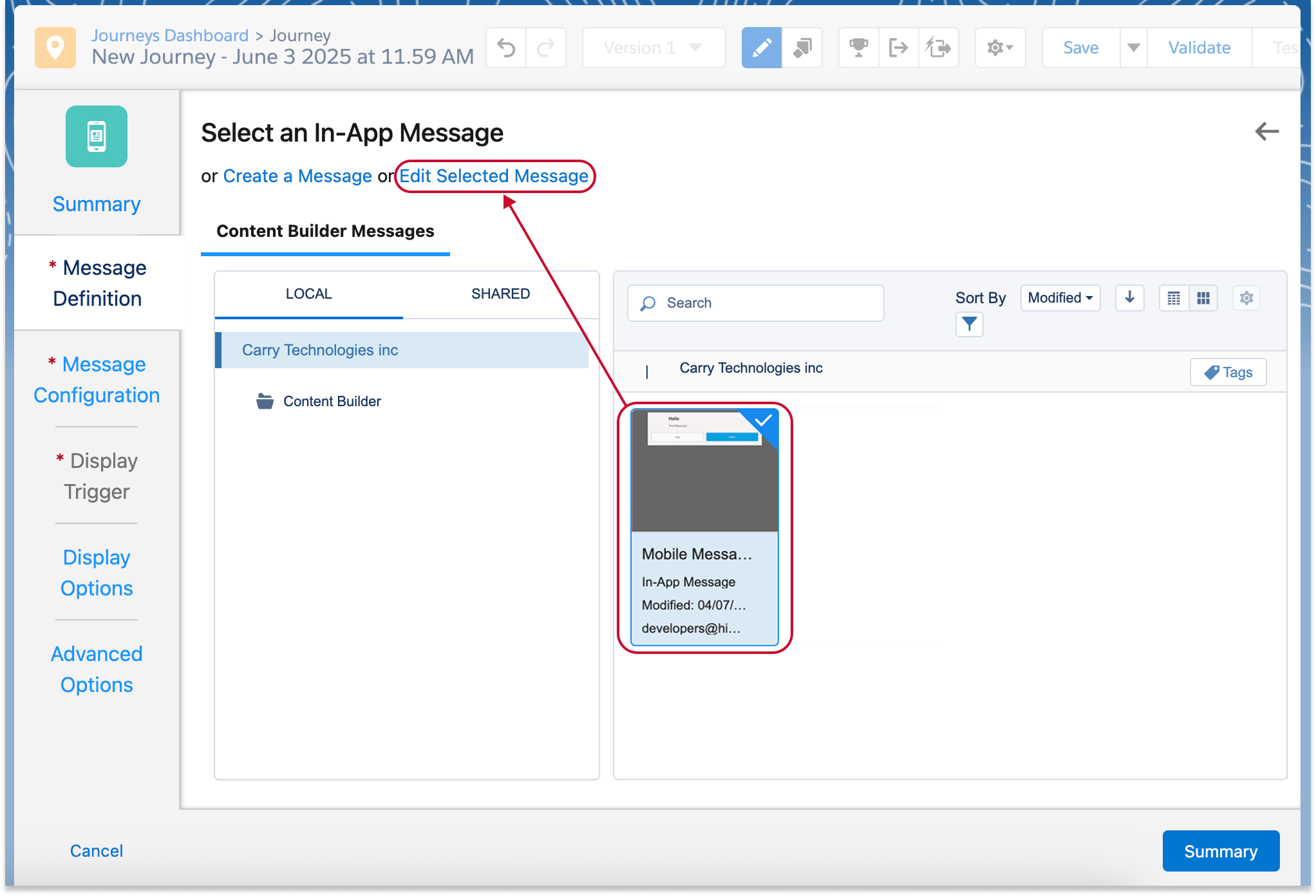
- Paste the variable code snippets from Hightouch into SFMC:
-
Paste the copied code snippets from Hightouch into the Content tab that opens.
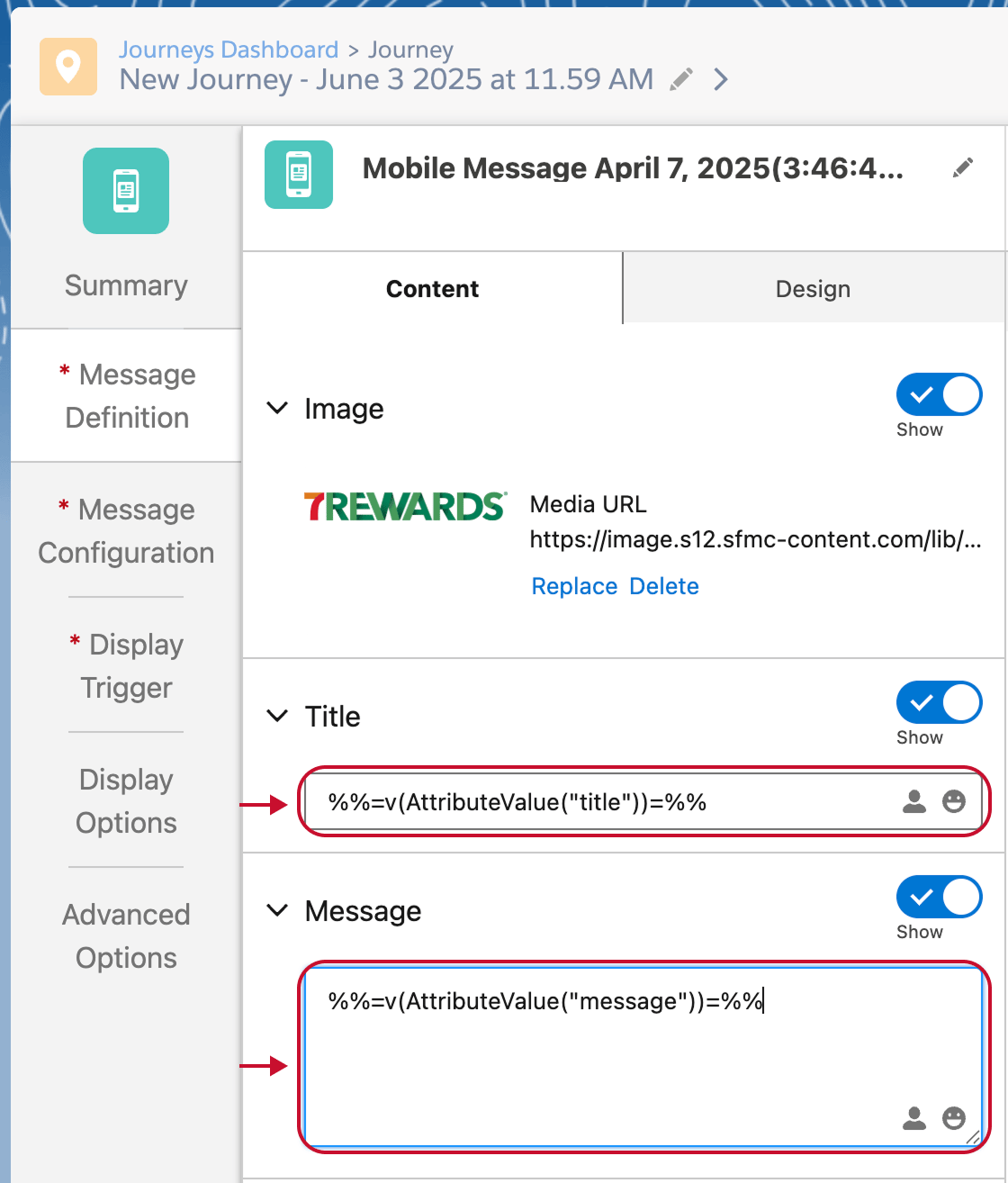
- Save your changes.
- Optional: To continuously test sends, click the Gear icon > Journey Settings and select re-entry any time.
-
Activate your journey.

- Return to Hightouch and refresh the Content tab within your message.
- Preview your content to ensure everything is accurate.
-
You can now Send test to subscribers.
Send in-app notifications via Data Extension
-
Add a channel with the sync type set to Data extension.
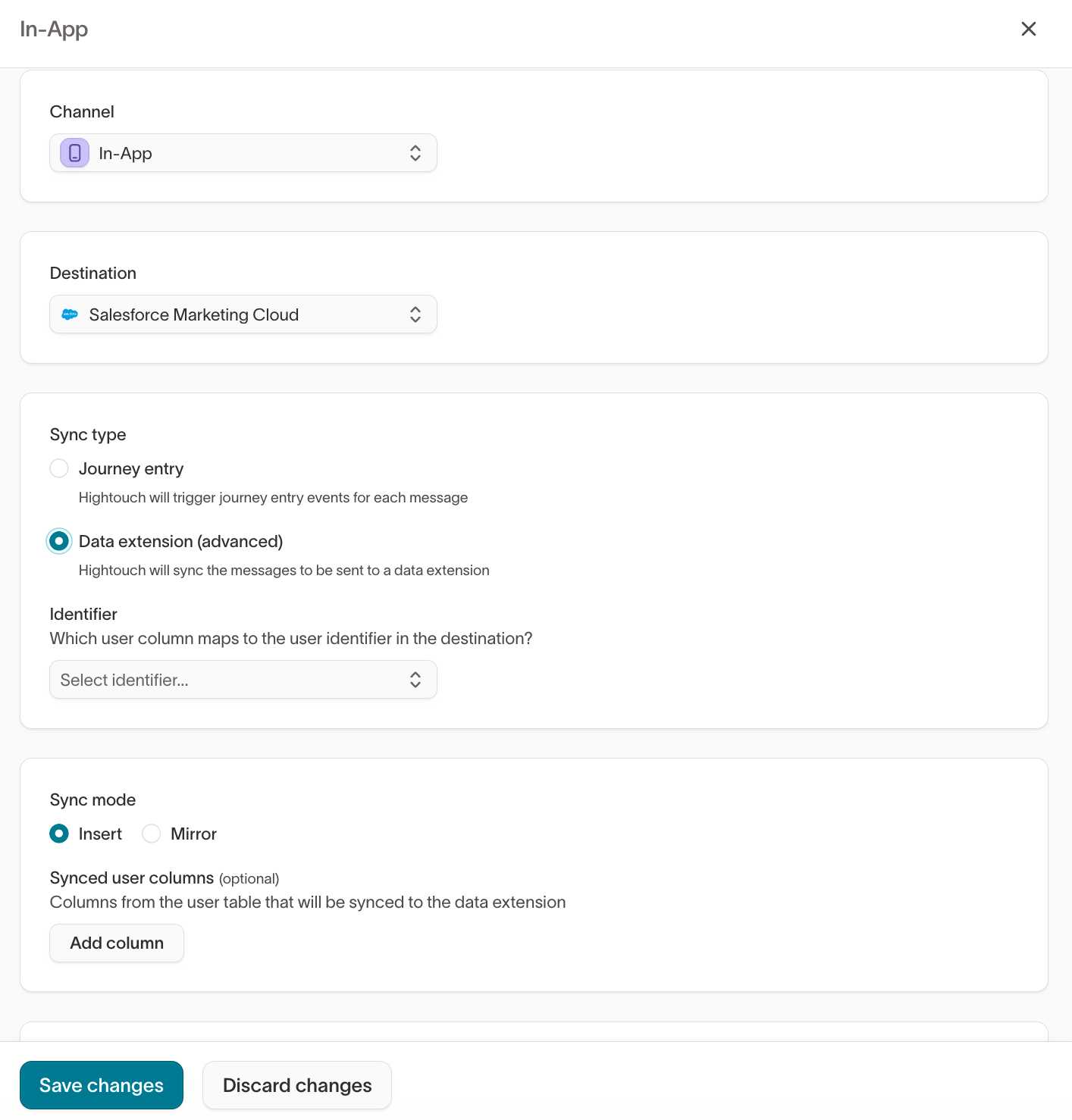
- Choose Insert or Mirror mode.
-
Add a message from your SFMC in-app template.
- In SFMC, configure your send logic to read from the Data Extension that Hightouch populates.
Use variables in SFMC
Hightouch variables allow you to personalize SFMC messages using live warehouse data, any variable you’ve defined within the message such as subject line variations, or different content blocks.Access variables
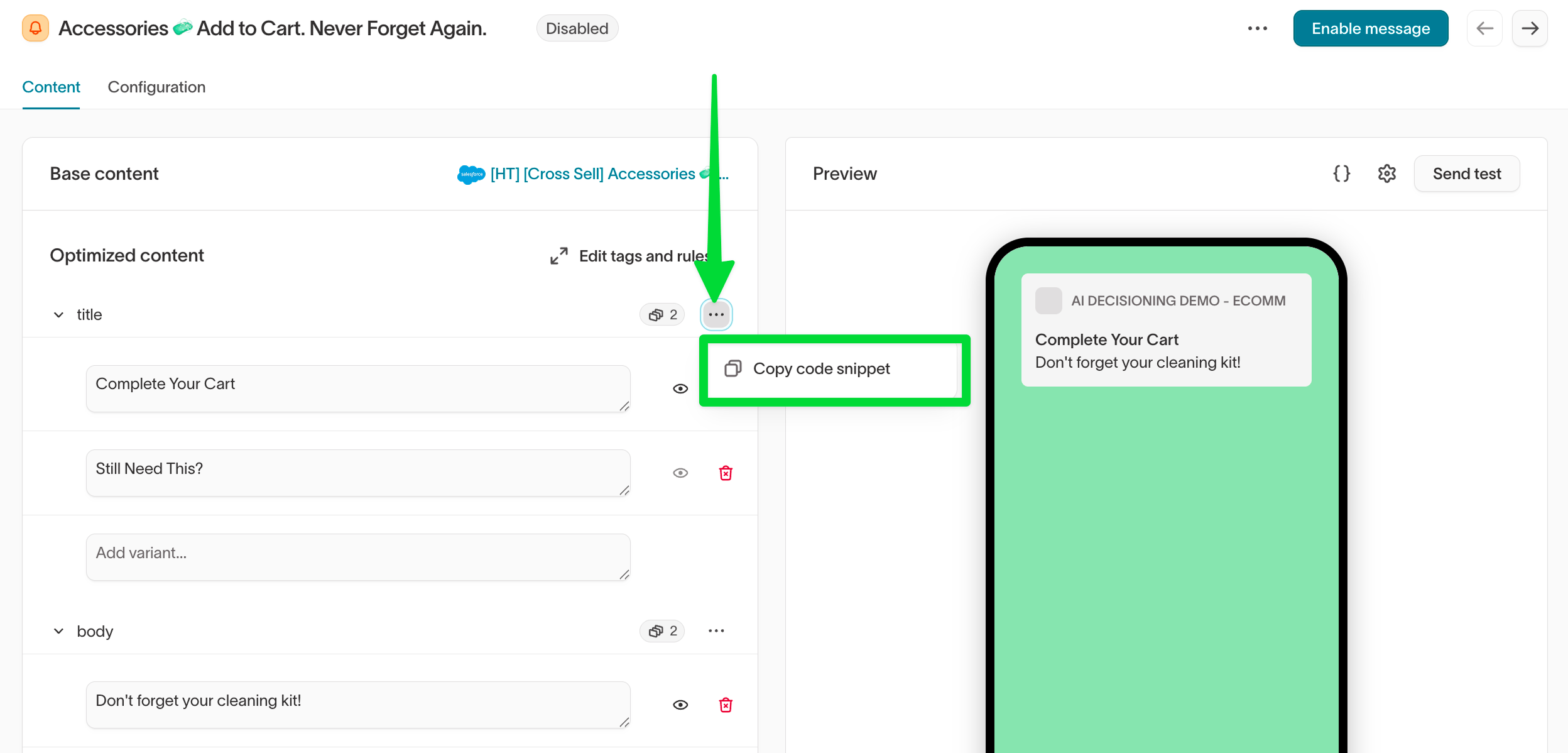
- Open a message in Hightouch and go to the Content tab.
- Under Optimized content, expand a content type (for example, subject or body) and add your variants.
- Select the
...menu on a content type and select Copy code snippet to get the variable code. - Paste the code into your SFMC template. These snippets render with real values for each user when the message is sent.
Important notes
- Triggered Sends: Variables are fully supported.
- Journeys: Variables are available via Data Extension fields synced by Hightouch.