

Before you begin
- Configuration
- Prepare data for AID
- At least one connected destination (SFMC, Braze, Iterable)
Overview
An Agent in AI Decisioning combines your audience, messages, and goals into a single adaptive campaign.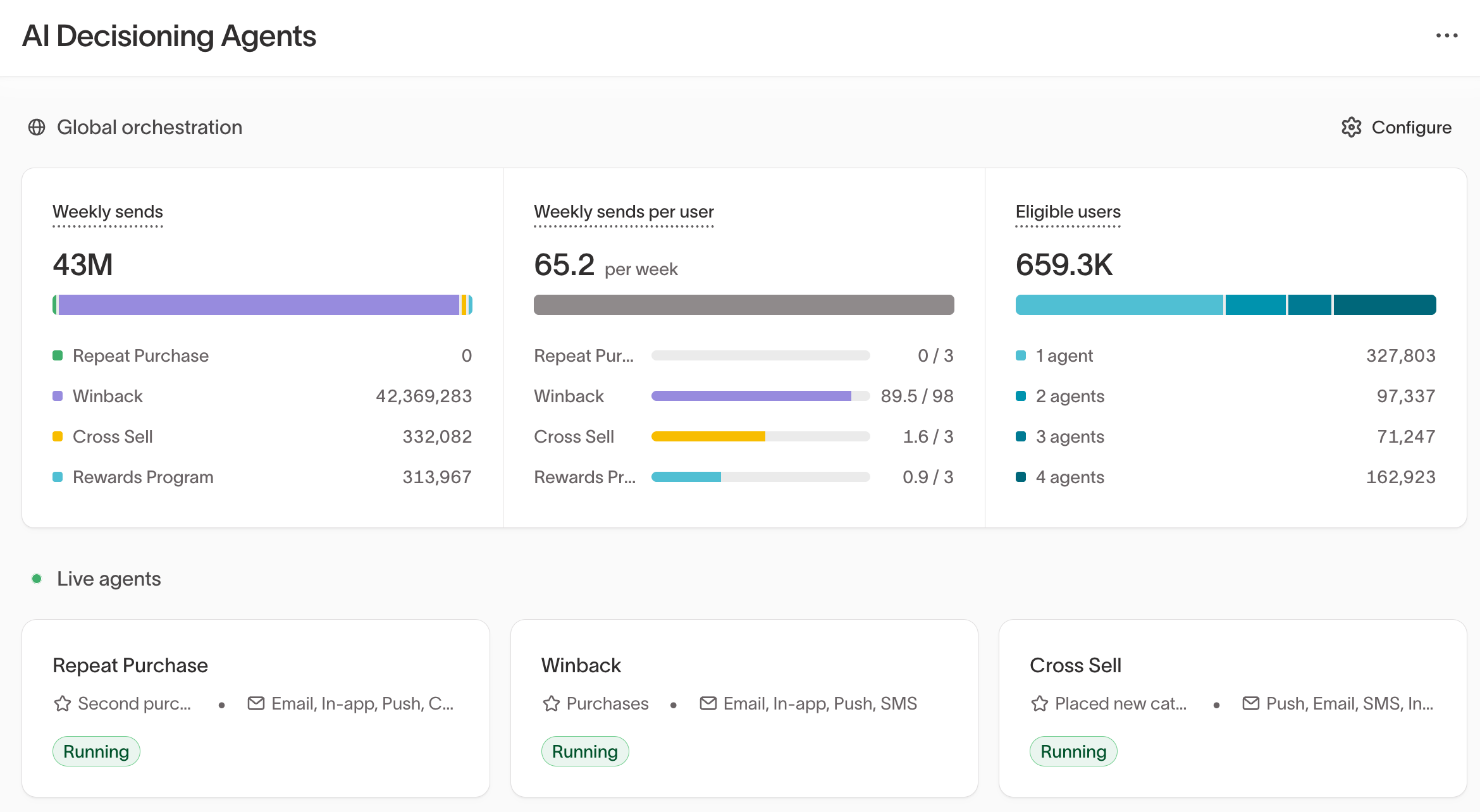
Agents don’t replace your content or rules—they learn within the goals,
audiences, and guardrails you define.
Create a new agent
- Go to
AI Decisioning >Agents. - Click
+ Add agent.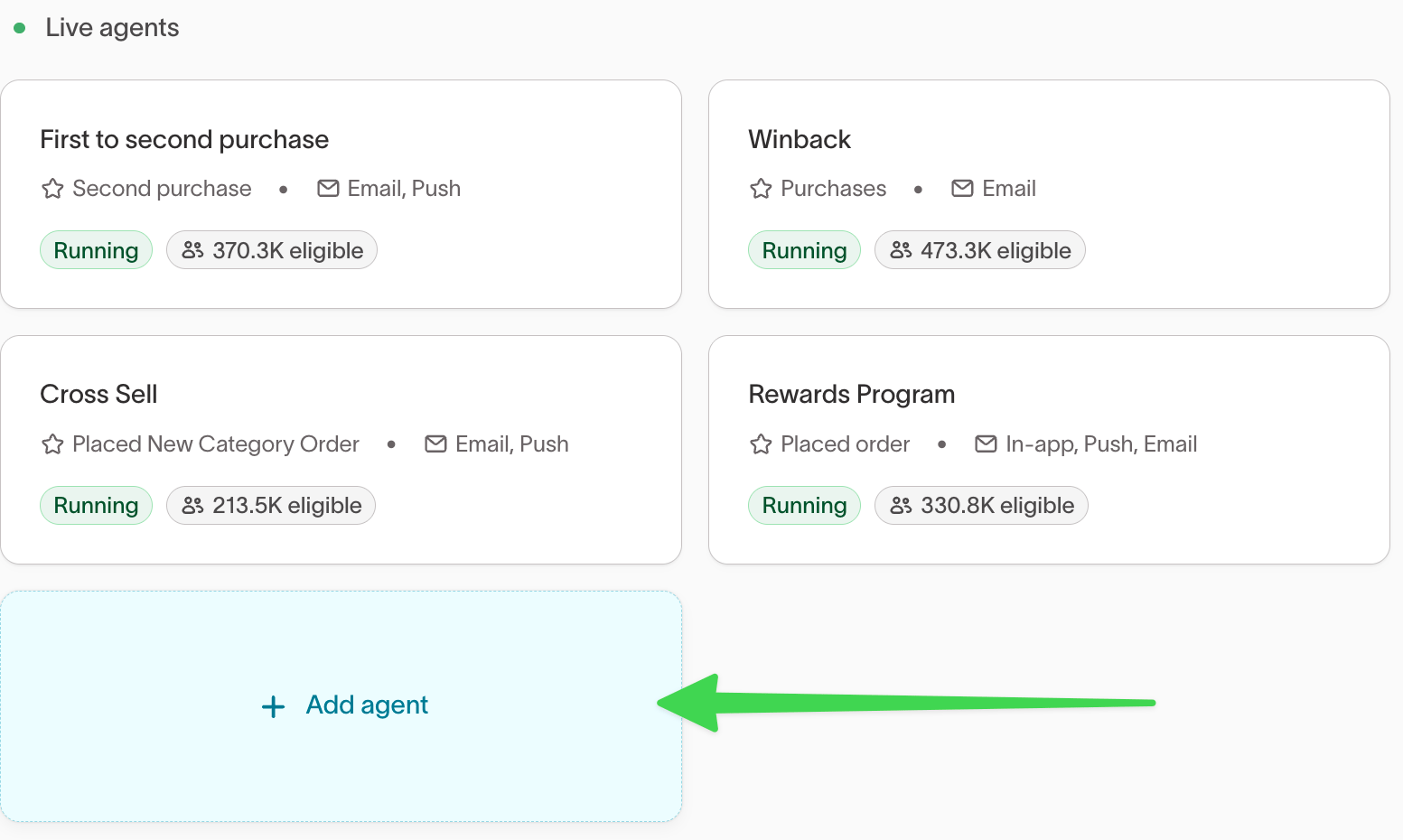
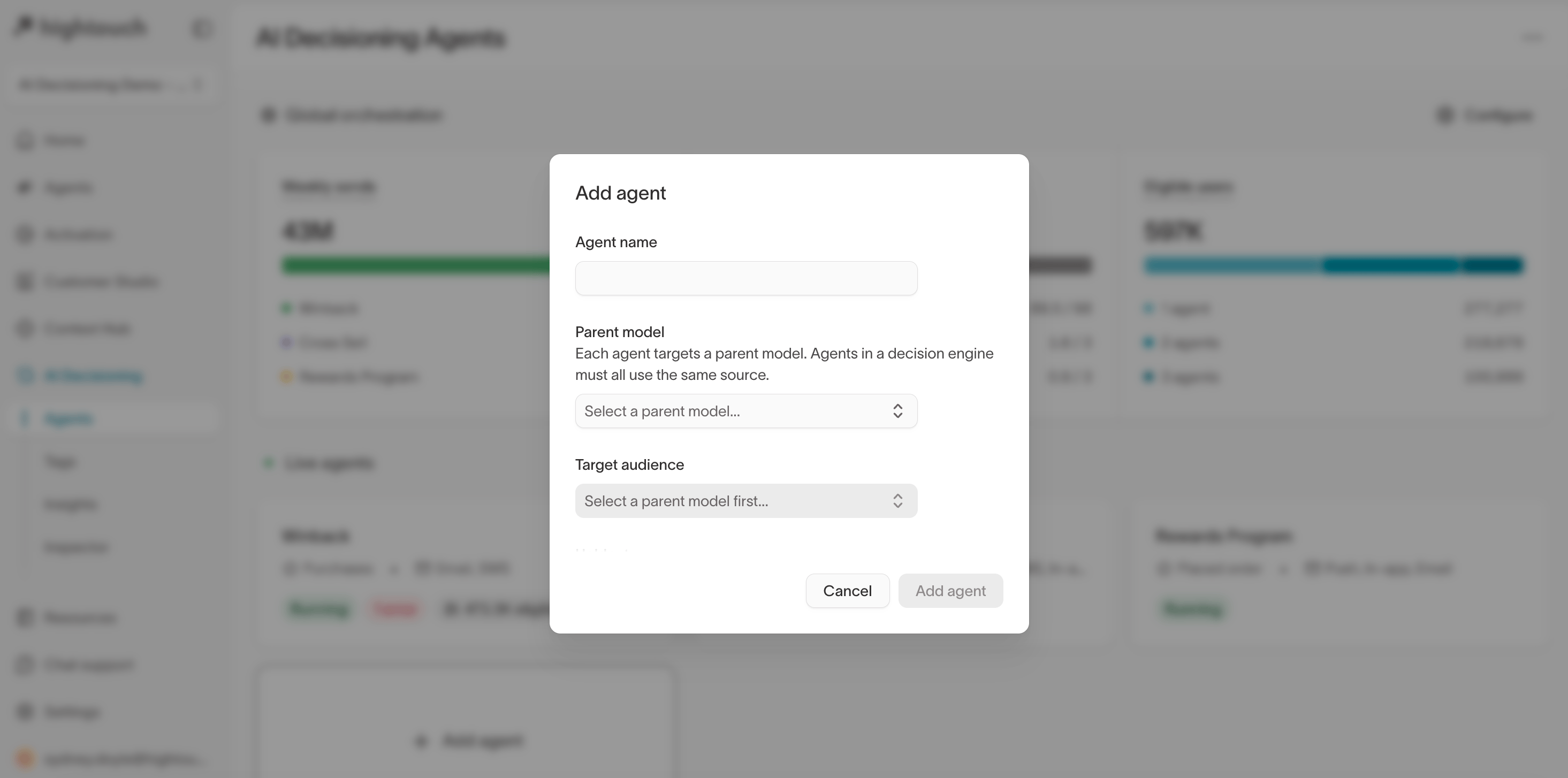
- Enter a name that reflects your campaign’s purpose, such as
Win-back customersorSubscription renewals. - Select a parent model. The parent model defines which users this agent can evaluate. All agents in the same decision engine must use models from the same data source.
- Choose a target audience from Customer Studio > Audiences. The audience list is filtered to audiences built from the selected parent model.
- (Optional) Add a holdout group to measure incremental lift (for example,
20%). - Click
Add agent.
Configure your agent
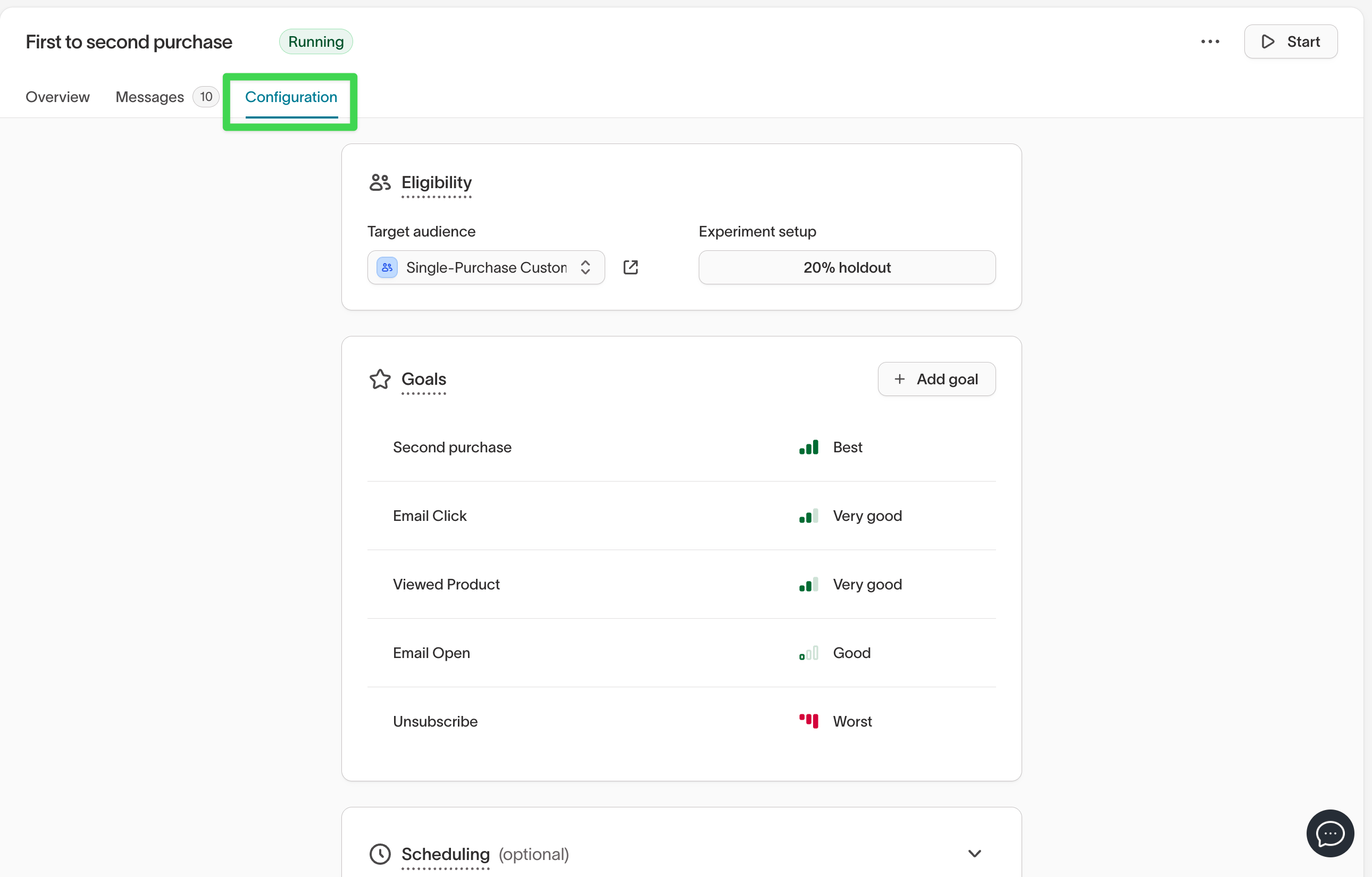
After creation, click your agent to open theConfiguration tab.
From here, you can set audience eligibility, goals, Smart suppression, and scheduling preferences. Messages have their own top-level Messages tab — see Messages.
Set audience eligibility
This section shows the audience your agent targets and its experiment setup.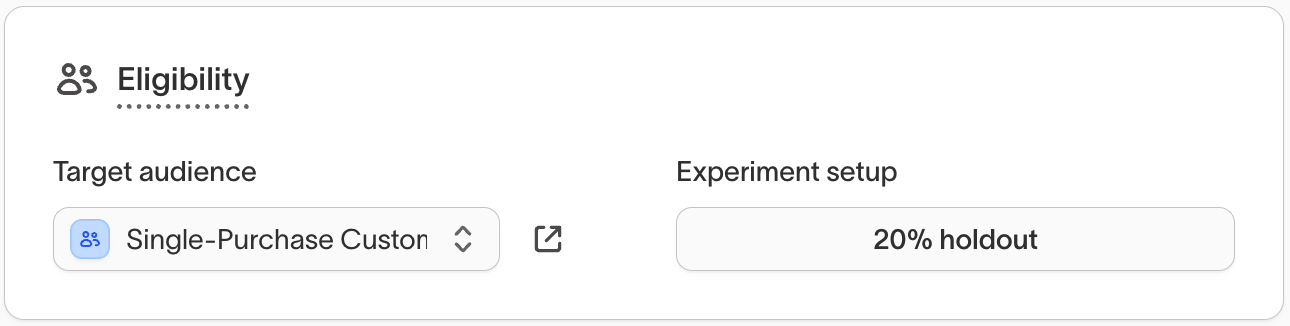
Holdouts let you compare users who receive messages with users who don’t, so
you can measure incremental lift.
Add and manage goals
Goals define what your agent optimizes toward.Each goal represents a measurable event (like a purchase or click) and includes a priority level—helping AID decide which outcomes matter most.To add a goal:
-
In your agent’s
Configurationtab, underGoals, click+ Add goal.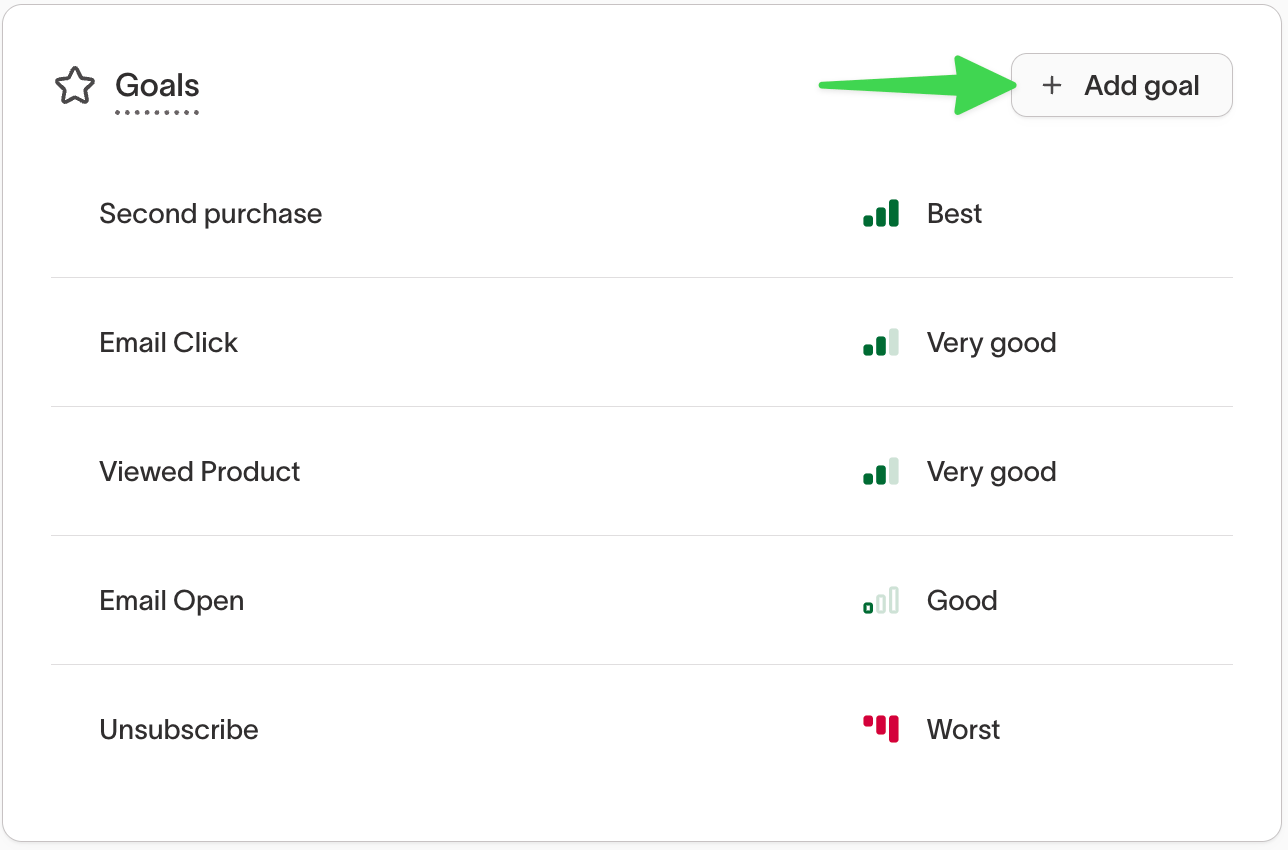
-
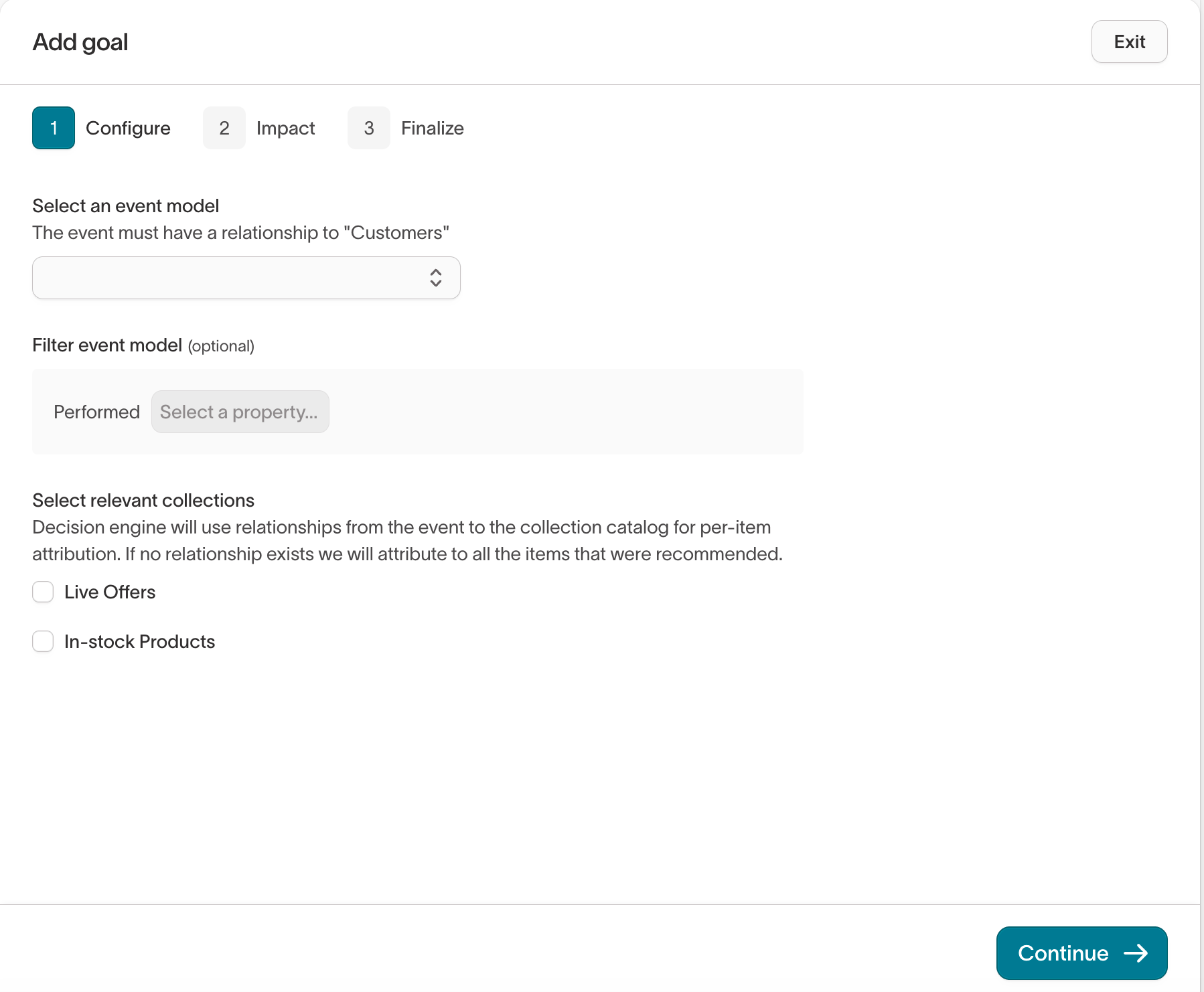
Configure the goal.
- Select an event model (for example,
Purchase event,Viewed Product, orRedeemed offer). - (Optional) Add a filter to refine the event, such as
Performed > Where property is campaign = Summer Sale.
- Select an event model (for example,
-
Click
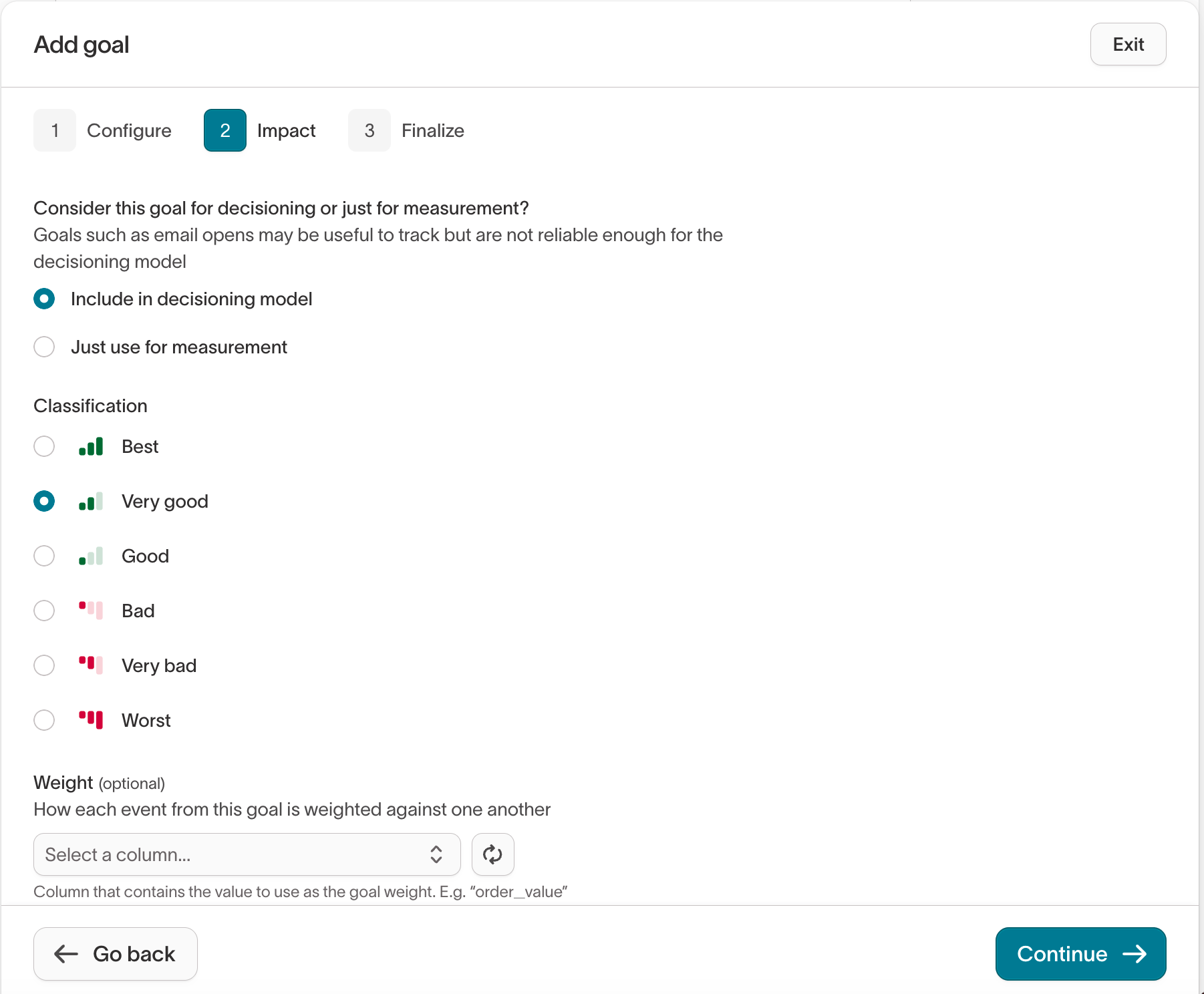
Continueto move to theImpactstep.- Choose whether to include this goal in decisioning or track it for measurement only.
- Select a classification:
Best— Primary success metricVery good/Good— Positive supporting outcomesBad/Very bad/Worst— Negative outcomes such asUnsubscribe
- (Optional) Add a weight column to scale results by value (for example,
PriceorOrder Value).
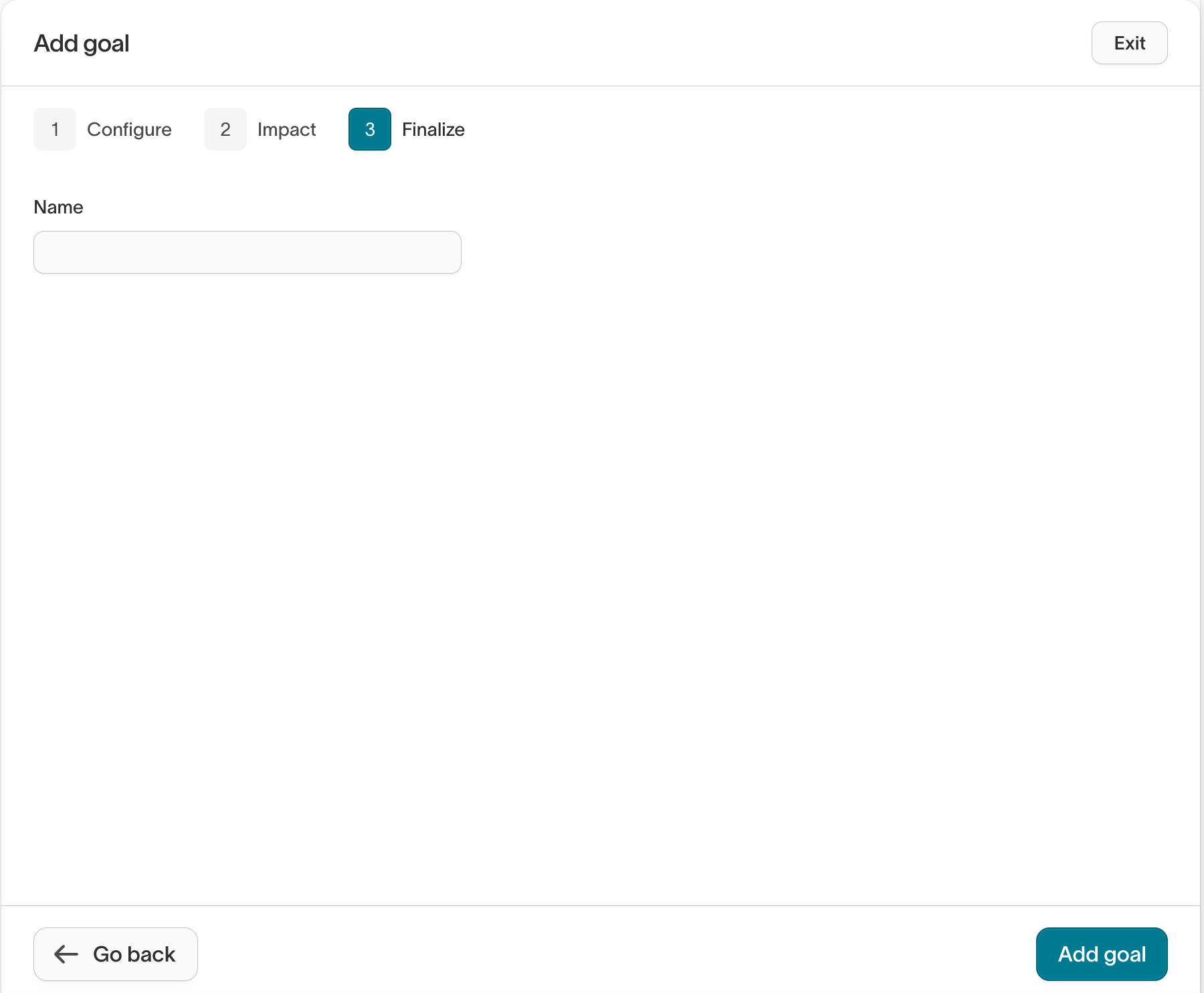
-
Click
Continueto finalize.- Enter a clear, descriptive goal name (for example,
Redeemed offer). - Click
Add goalto save.
- Enter a clear, descriptive goal name (for example,
Goals replace the older “Outcomes” field from earlier versions of AI
Decisioning. Each agent learns continuously based on these metrics.
(optional): Configure scheduling
Use the 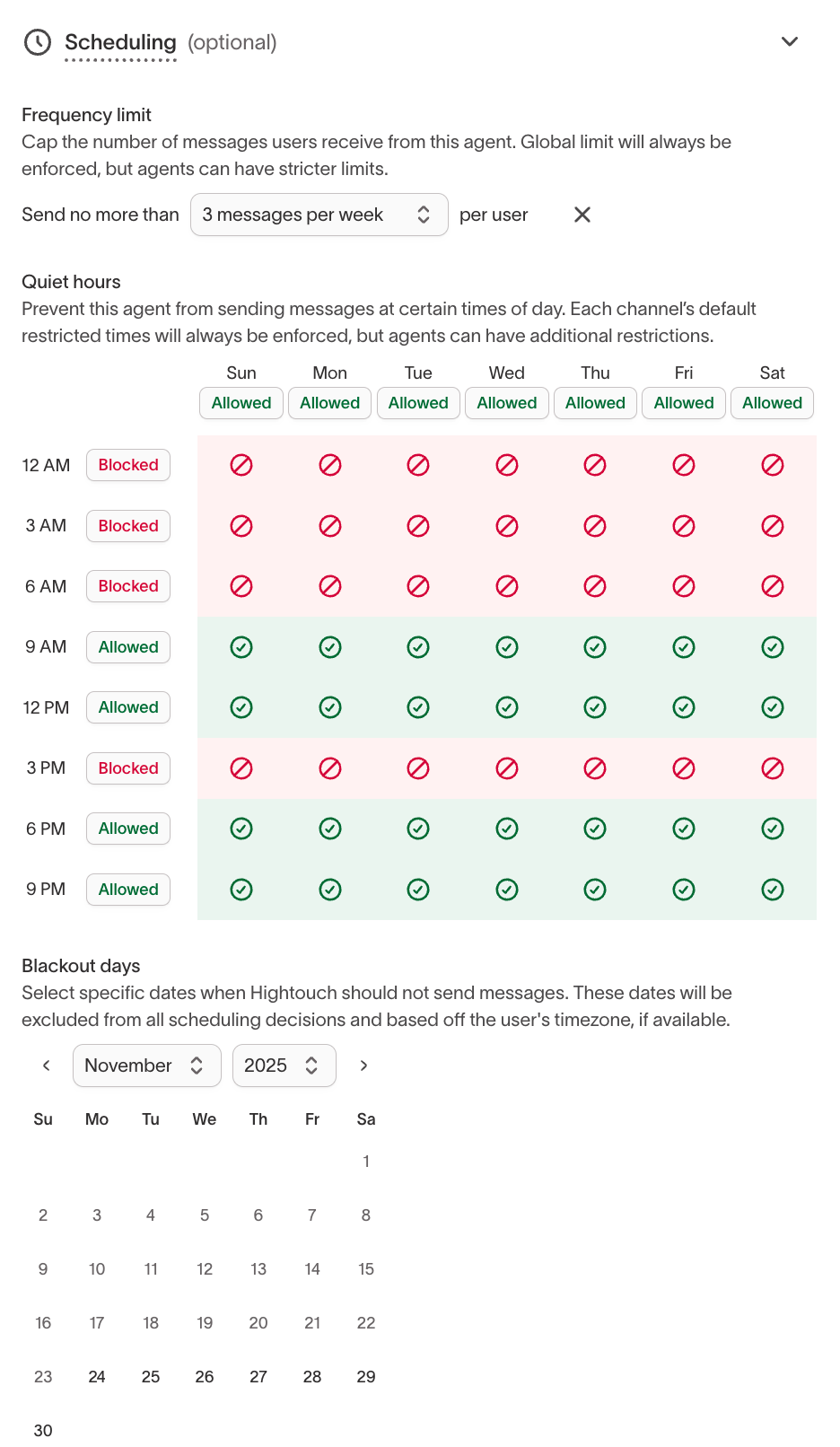
Scheduling panel to control when your agent sends messages.To cap how often a user can receive messages, use Message limits (for example, up to 3 sends per week per user), configured separately from scheduling.
(optional): Enable smart suppression
Smart suppression predicts which messages are most likely to drive incremental conversions and holds back the rest. It uses the goals you’ve already configured to evaluate each send.
- In Configuration, scroll to Smart suppression (optional).
- Select Enabled.
- Set the percentage of eligible users to send to (for example, send messages to the top 67%).
-
Select Save changes. A predicted performance curve appears once the model has enough data, typically after about two weeks.
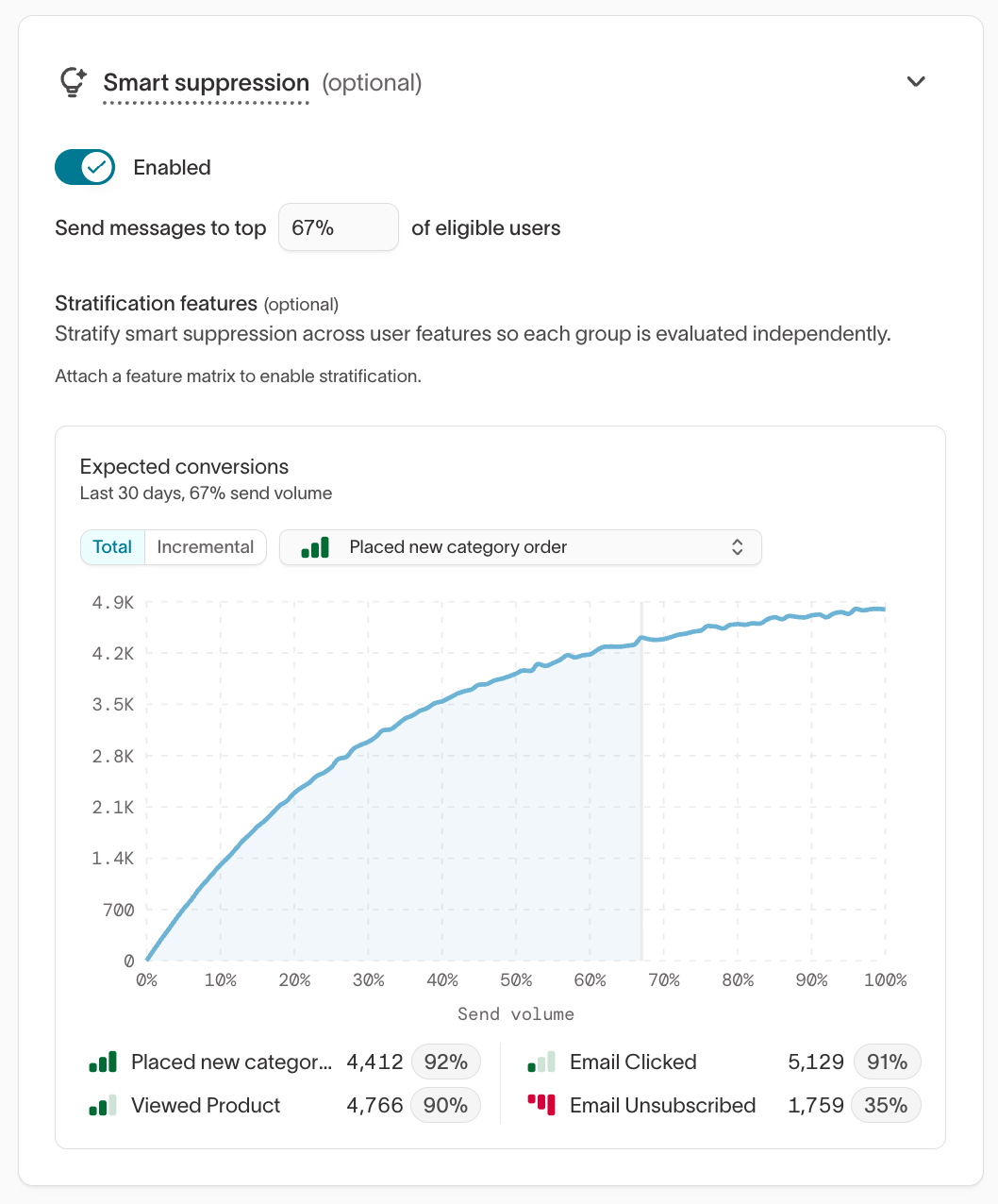
For detailed guidance, see Enable smart
suppression.
(optional): Advanced settings
Use 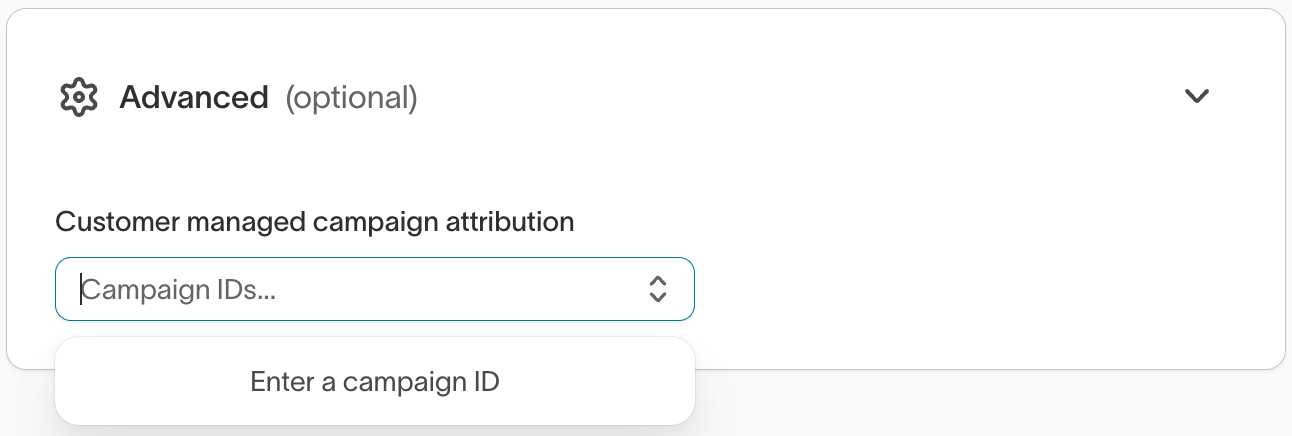
Advanced settings to connect your agent with your organization’s downstream campaign tracking.Campaign IDs help maintain consistent reporting between Hightouch and your
connected destinations. For example, you can enter Braze, Iterable, or SFMC
campaign identifiers to align AID outcomes with your existing analytics.
Monitor and manage agents
Once your agent is running, open theOverview tab to review live performance and experiment results.
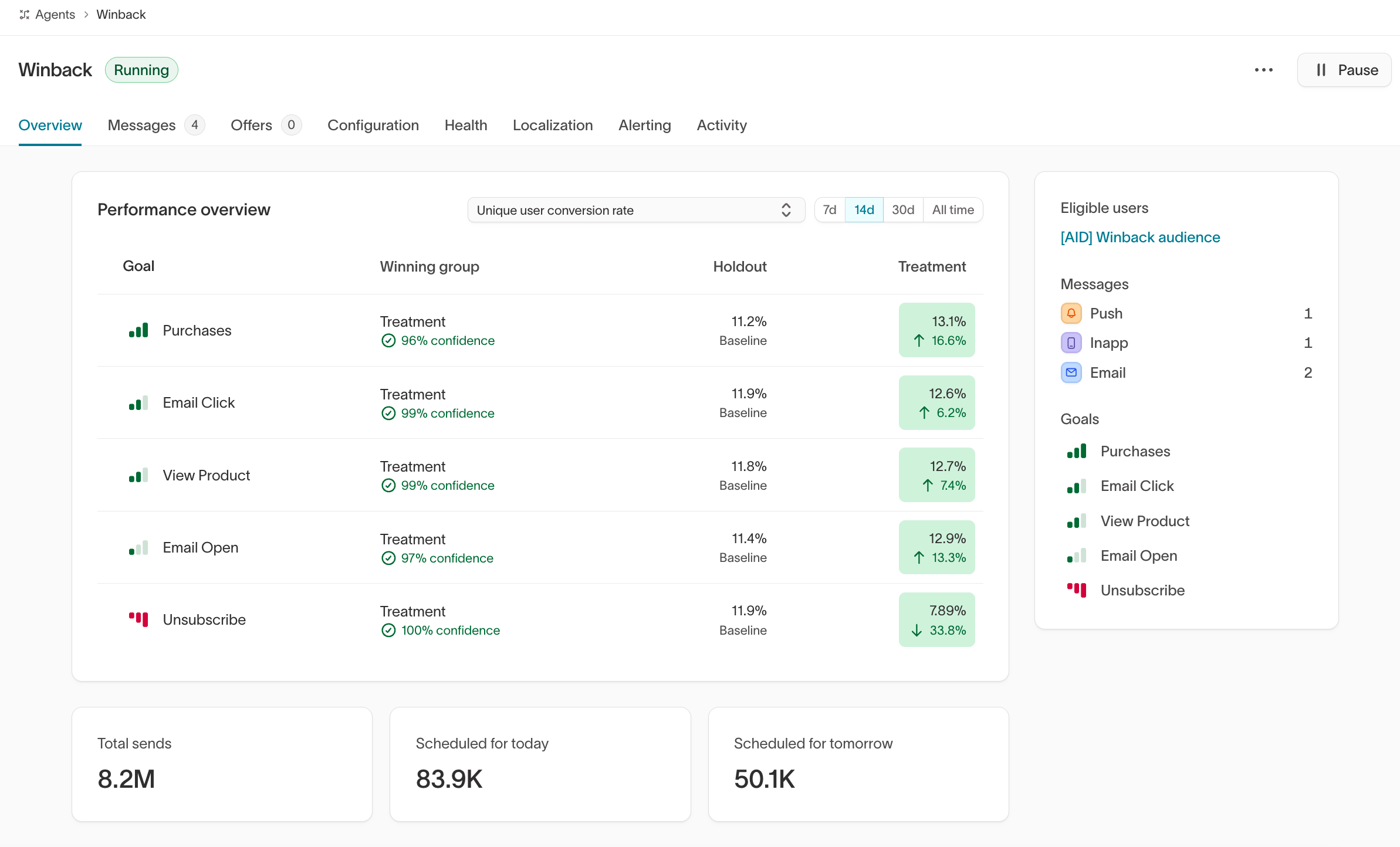
Use this view to monitor how your messages are distributed, which goals are performing best, and how holdout results compare to treatment performance.
Performance updates automatically as your agent runs. Confidence levels appear
once enough event data has been collected for statistical analysis.
Messages
Messages define what an agent can send and where those messages are delivered. Each message connects an agent to a destination (such as Braze, Iterable, or Salesforce Marketing Cloud). Agents evaluate messages continuously to determine which content, timing, and channel perform best for each user. Message setup includes:- Connecting the agent to a destination
- Adding optimized content and variants
- Applying message- and variant-level guardrails
Offers
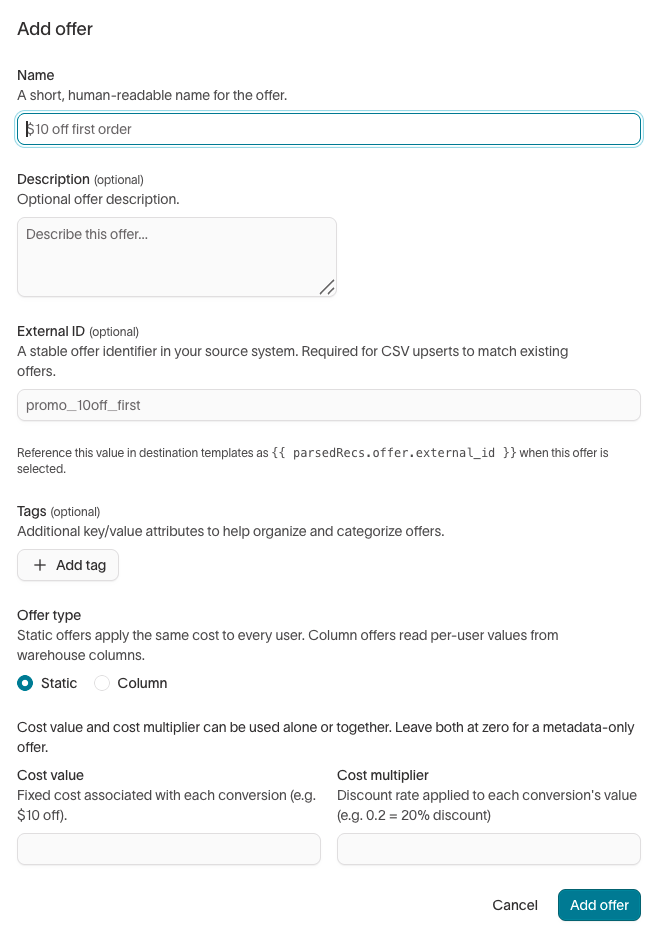
TheOffers tab lets you create and manage offers that agents can factor into their decisioning. When an offer is attached to a message, the agent weighs the message’s expected value (value minus cost, weighted by conversion likelihood) alongside engagement signals when choosing what to send.
To create an offer:
- Open an agent and go to the
Offerstab. - Click
+ Add offer. - Configure the offer:
- Name: A short, human-readable name (for example,
$10 off first order). - Description (optional): Additional context about the offer.
- External ID (optional): A stable identifier in your source system. Required for CSV upserts to match existing offers.
- Tags (optional): Key-value attributes to help organize and categorize offers.
- Offer type: Static offers apply the same cost to every user. Column offers read per-user values from warehouse columns.
- Cost value: A fixed cost associated with each conversion (for example, $10 off).
- Cost multiplier: A discount rate applied to each conversion’s value (for example,
0.2= 20% discount).
- Name: A short, human-readable name (for example,
- Click
Add offer.
Health
The Health tab gives you real-time visibility into your agent’s pipeline runs, channel delivery rates, and outcome data freshness. From a single view, you can monitor message generation status, diagnose pipeline failures, and catch data issues before they affect optimization. For full details, see Agent health.Localization
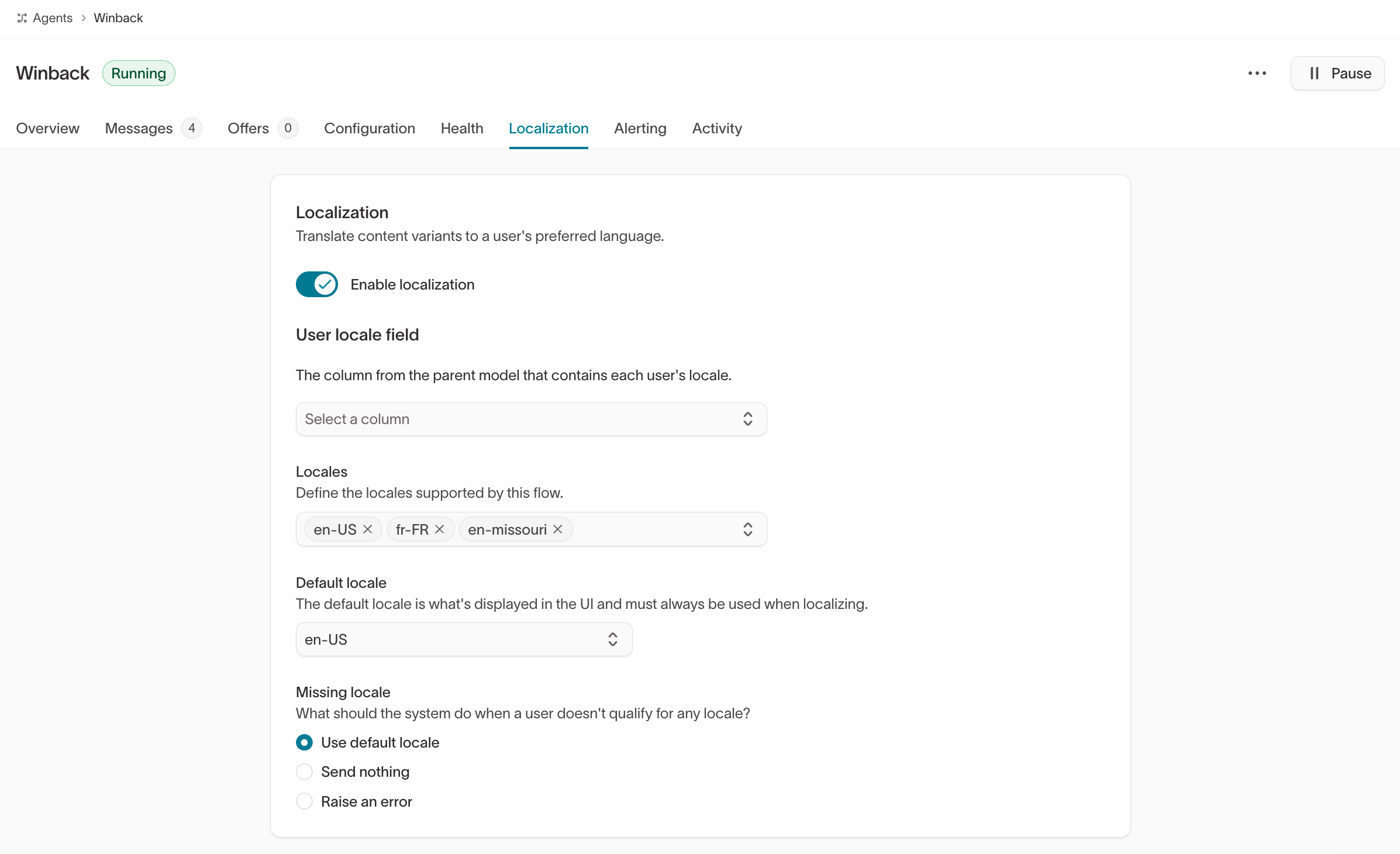
TheLocalization tab lets you translate content variants to a user’s preferred language. When enabled, the agent serves localized versions of your message content based on each user’s locale. Localization is opt-in per agent — existing agents keep working as-is until you enable it.
To configure localization:
- Open an agent and go to the
Localizationtab. - Toggle on Enable localization.
- Configure the following settings:
- User locale field: Select the column from the agent’s parent model that contains each user’s locale (for example,
localeorlanguage). - Locales: Define the locales supported by this agent. Suggestions are pulled from values that already exist in your warehouse, but you can add any string (for example,
en-US,fr-FR, or a non-ISO value likemx). - Default locale: The locale displayed in the UI. It’s used for users whose locale is missing or unsupported when the missing-locale behavior is set to Use default locale.
- Missing locale: Choose what the system should do when a user doesn’t qualify for any locale:
- Use default locale — Send the default locale content
- Send nothing — Skip the user
- Raise an error — Flag the issue for review
- User locale field: Select the column from the agent’s parent model that contains each user’s locale (for example,
Locale values in your
User locale field column must exactly match the
locales you configure here, including case and separators. A user whose value
doesn’t match any configured locale is treated as missing a locale.Alerting
The Alerting tab lets you set up automated notifications for engine run failures, long-running or stalled agents, and unexpected drops in recommendation volume. Every agent comes pre-configured with a default run failure monitor — no setup is required for monitoring to begin. You can add notification channels (Slack, Email, PagerDuty, SMS, or Webhook) and configure severity levels and thresholds. For full details, see Agent alerting.Troubleshooting
If you recently updated goals, audiences, or connected destinations, allow
time for the agent to refresh data before performance metrics stabilize.
Next steps
- Messages to create and manage message variants.
- Agent health to monitor pipeline runs and delivery rates.
- Agent alerting to get notified about run failures and volume drops.
- QA guide to validate messages before launch.
- Smart suppression to control send volume based on predicted impact.
- Tags to add and analyze message tags.
- Insights to measure agent and message performance.
- AI Decisioning configuration for channels, scheduling, agent prioritization, and feature matrices.