

Before you begin
- Access to AI Decisioning
- At least one agent, message, or variant created
Overview
Tags in AI Decisioning classify and group message variants so you can compare how different creative strategies perform across your agents. Each tag consists of a key and a value. The key defines a category, such astone or product, and the value describes a specific attribute, such as playful or sunglasses. Together, these pairs describe both what your message says and how it says it.
Once applied, tags let you break down performance in Insights to identify which themes, tones, offers, or structures drive engagement. Tags are most useful when multiple messages or variants share the same concepts, because that overlap makes it easier to compare results and identify patterns.
Consistent tagging also helps AI Decisioning learn from past performance, improving future recommendations and experiments.
Plan your tagging framework
Before you start tagging, decide what you want to learn from your campaigns — such as which offers, value propositions, or tones drive engagement. Planning your framework upfront helps you tag consistently from the start.Decide what to tag
Your tags should capture:- What the content says — for example, product, offer, or audience
- How it says it — for example, tone, urgency, or format
- Keep tag names short and consistent
- Use one value per tag type, such as one
Toneor oneOffer - Avoid duplicate concepts, such as
IncentiveandOffer - Don’t recreate system fields like
channel,message, orsubject line - Create tags for any dimension you want to measure or control, such as business unit or product line
Choose message tags vs. variant tags
Use message-level tags for broad attributes that apply to the entire message, such as product, campaign theme, or business unit. Use variant-level tags for finer creative differences, such as subject line tone, CTA style, or emoji usage.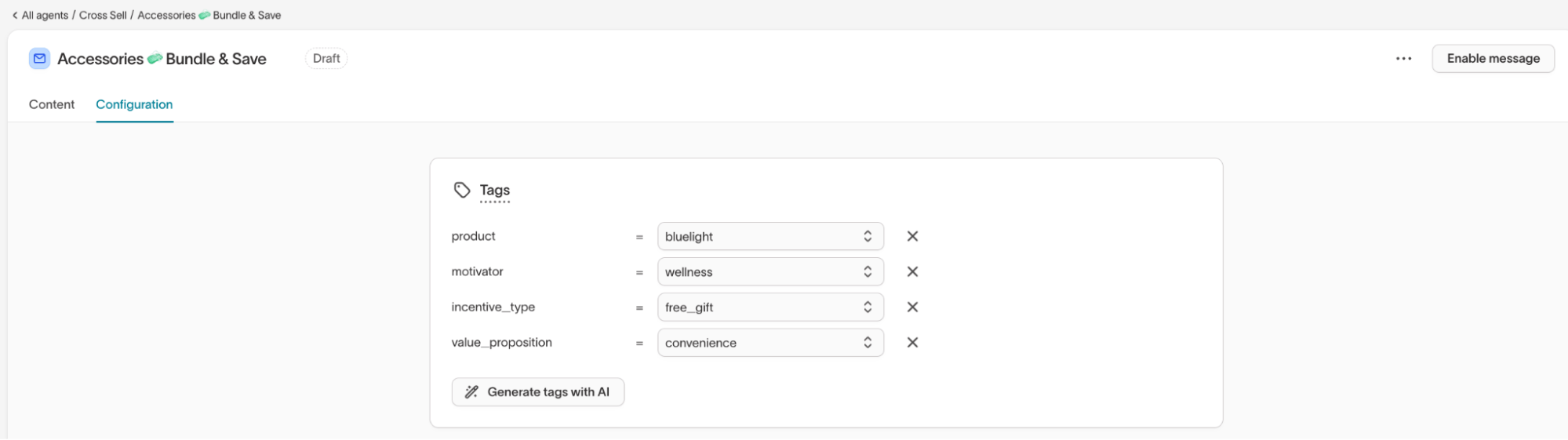
Start small, then expand
As you add new tags, Insights automatically updates results for past agents that use them.
Best practices
Example tag structures
Financial company example
Streaming service example
Tag messages and variants
Once you’ve planned your tag structure, you can start applying tags while building or reviewing agents. Use the Agent view to tag messages in context, or the Tags page to manage tags across your workspace.Message tags
Message tags classify the overall purpose or focus of a message. You can add them directly from the message configuration view inside an agent.- Go to
AI Decisioning > Agents > Select an Agent. - In the
Messagestab, choose a message. - Open the
Configurationtab. - Under
Tags, use the dropdowns to select existing tags or clickAdd tagto create new ones. - Click
Save changesto apply.
Product: BluelightMotivator: WellnessIncentive Type: Free giftValue Proposition: Convenience
Variant tags
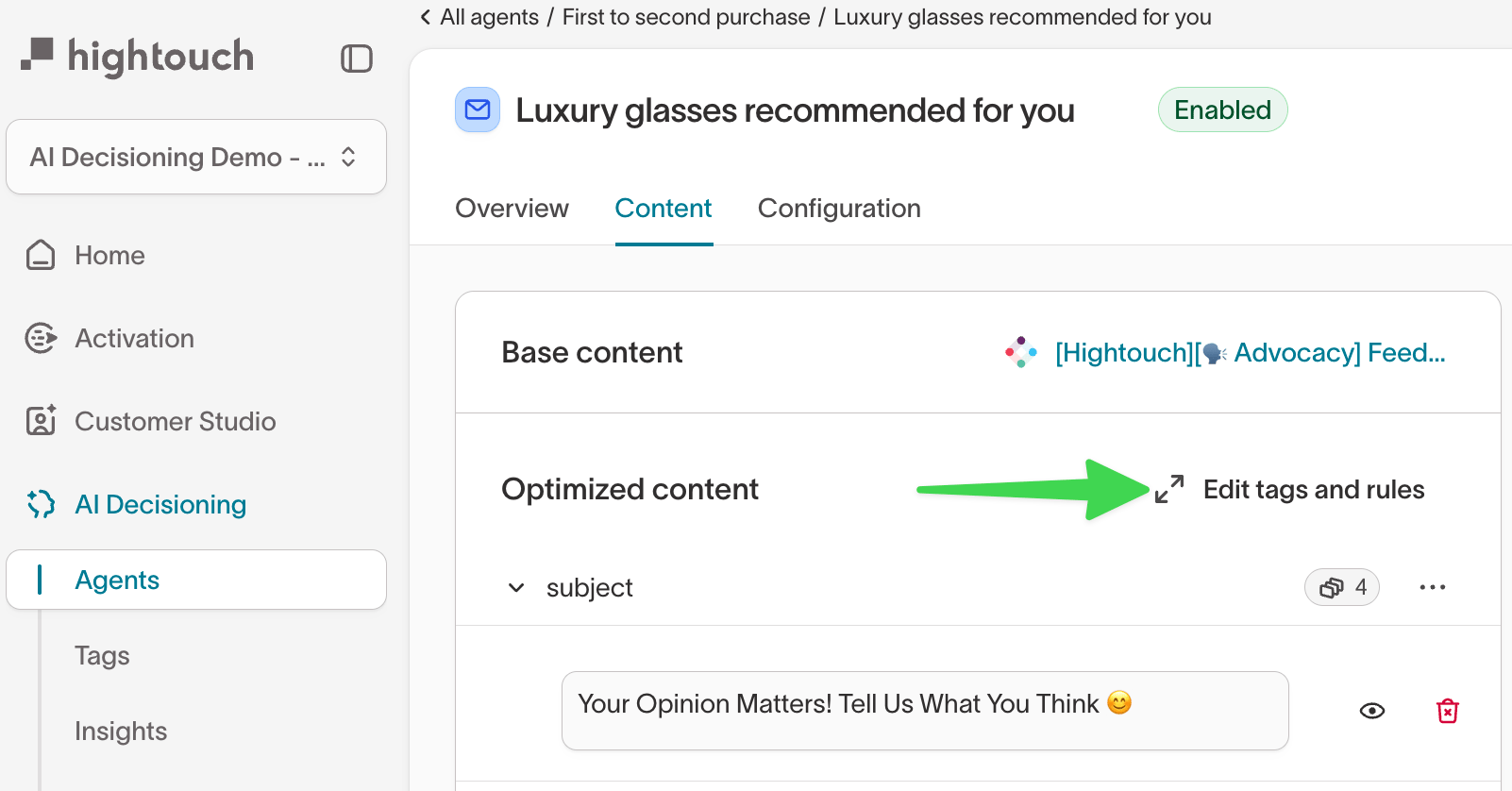
Variant tags help you compare creative differences within a single message, such as tone, offer, structure, or subject line style.- Go to
AI Decisioning > Agents > Select an Agent. - In the
Messagestab, choose a message. - Open the
Contenttab. - Under
Optimized content, clickEdit tags and rules. - Hover over the tag icon next to a variant and click
Add content tags. - In the
Edit content tagsmodal, use the dropdown to select existing tag values or type to create new ones. - Click
Applyto save your changes.
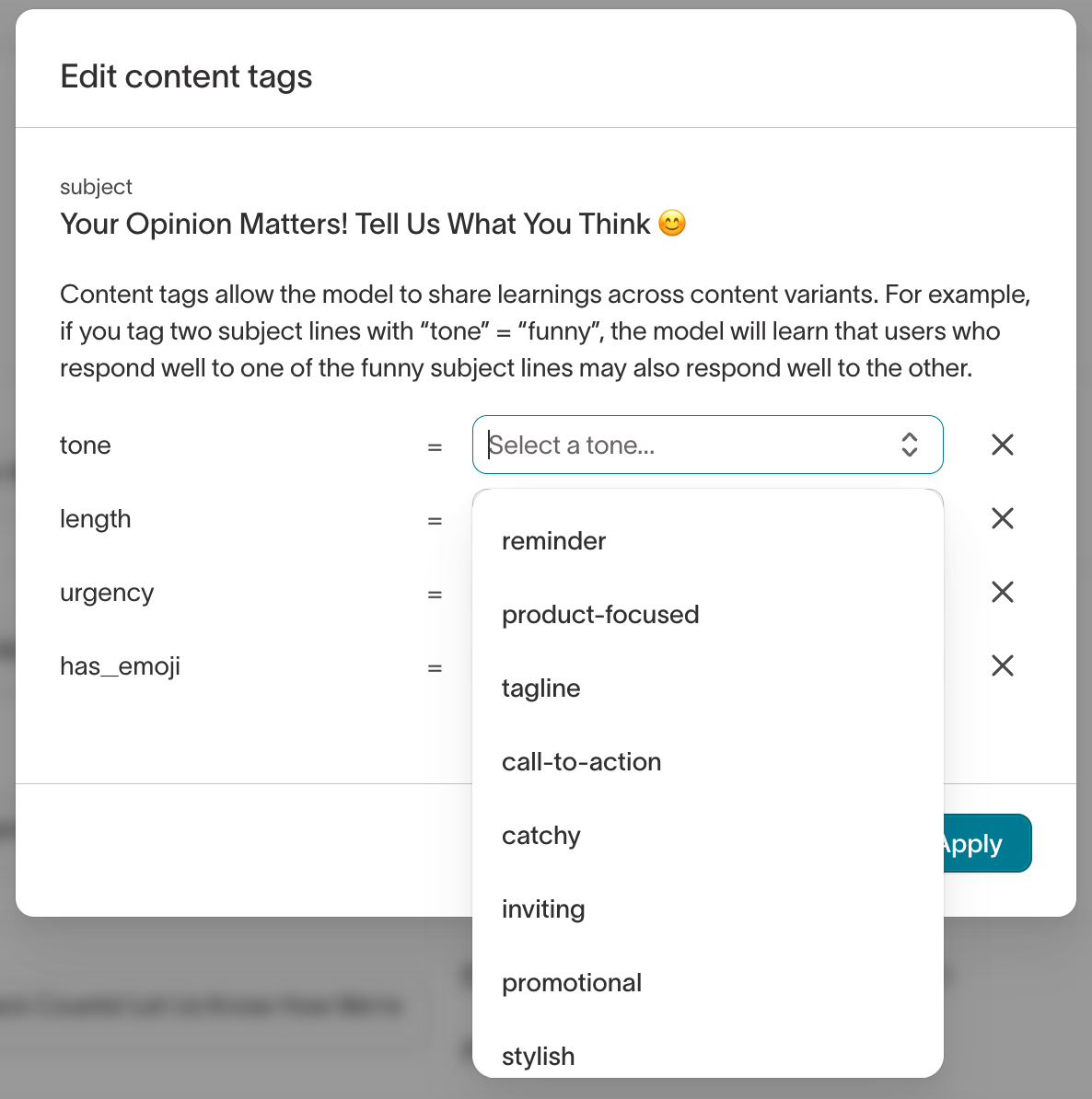
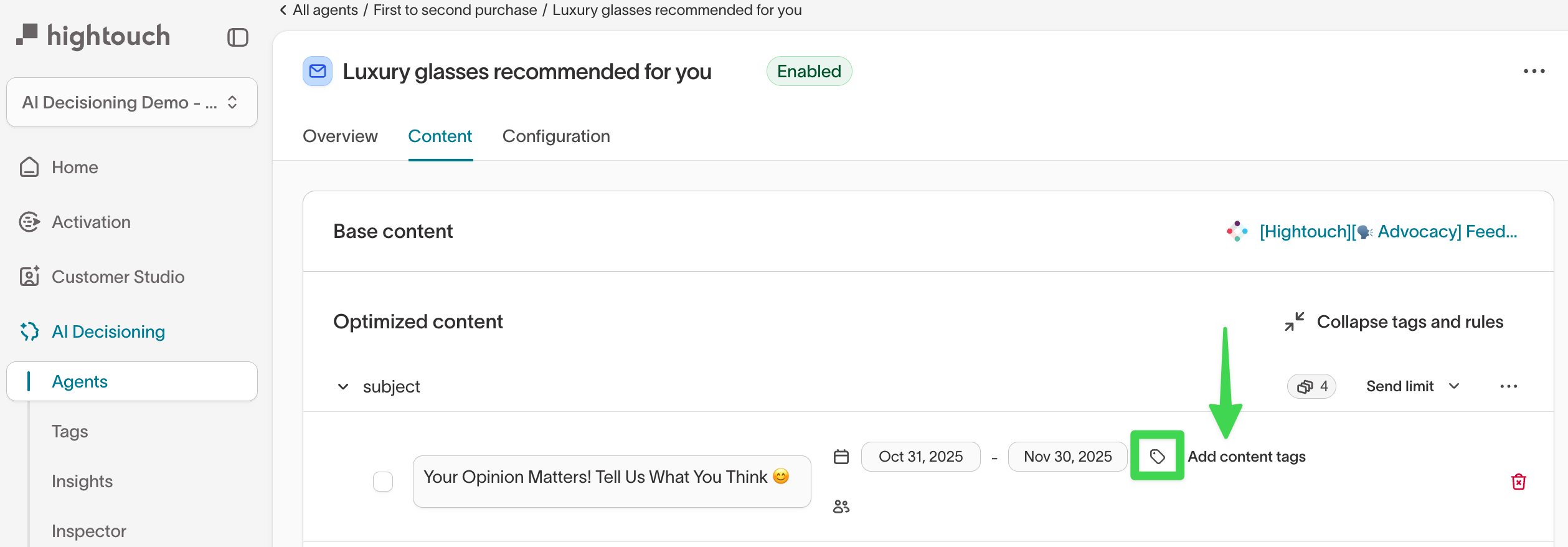
Length: ShortTone: Savings focusedUrgency: NormalHas emoji: Yes
Analyze tag performance
Use tags to understand how creative themes perform across agents and messages.Insights
Once your messages and variants are tagged, you can measure how each tag performs across agents in Insights.- Go to
AI Decisioning > Insights. - Select the
Creative Performanceview. - In the
Break down bydropdown, choose a tag key such asincentive_type,tone, ormotivator.
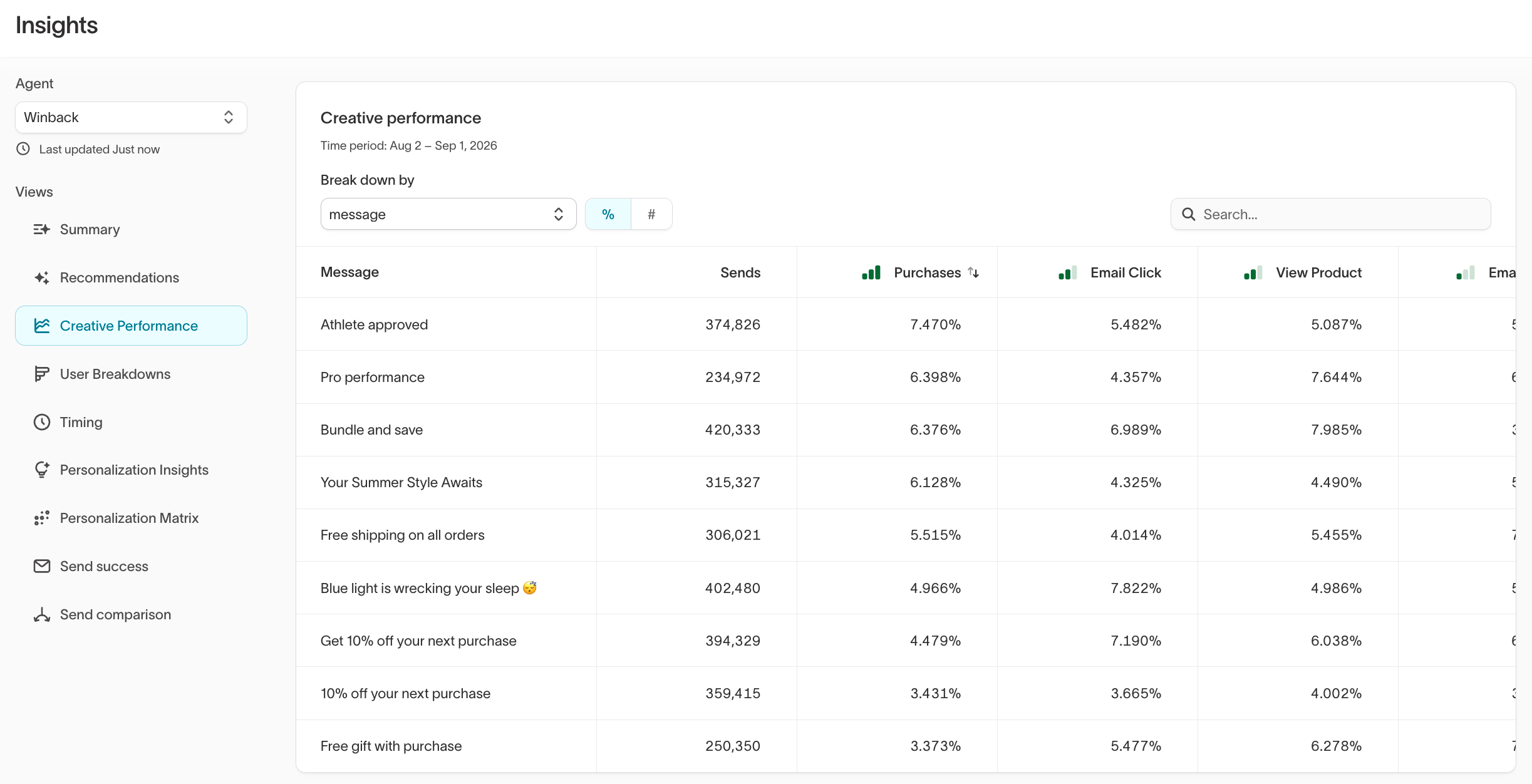
- Sends — total number of messages delivered for each tag value
- Key conversion events — such as purchases, sign-ups, or other tracked actions
- Engagement metrics — including click-through rate (CTR), open rate, or conversion rate
incentive_type reveals which offers drive the strongest results. For example, fixed_discount may outperform free_shipping or free_gift in conversion rate, helping you understand which incentive types resonate most across audiences.
Drill-down views
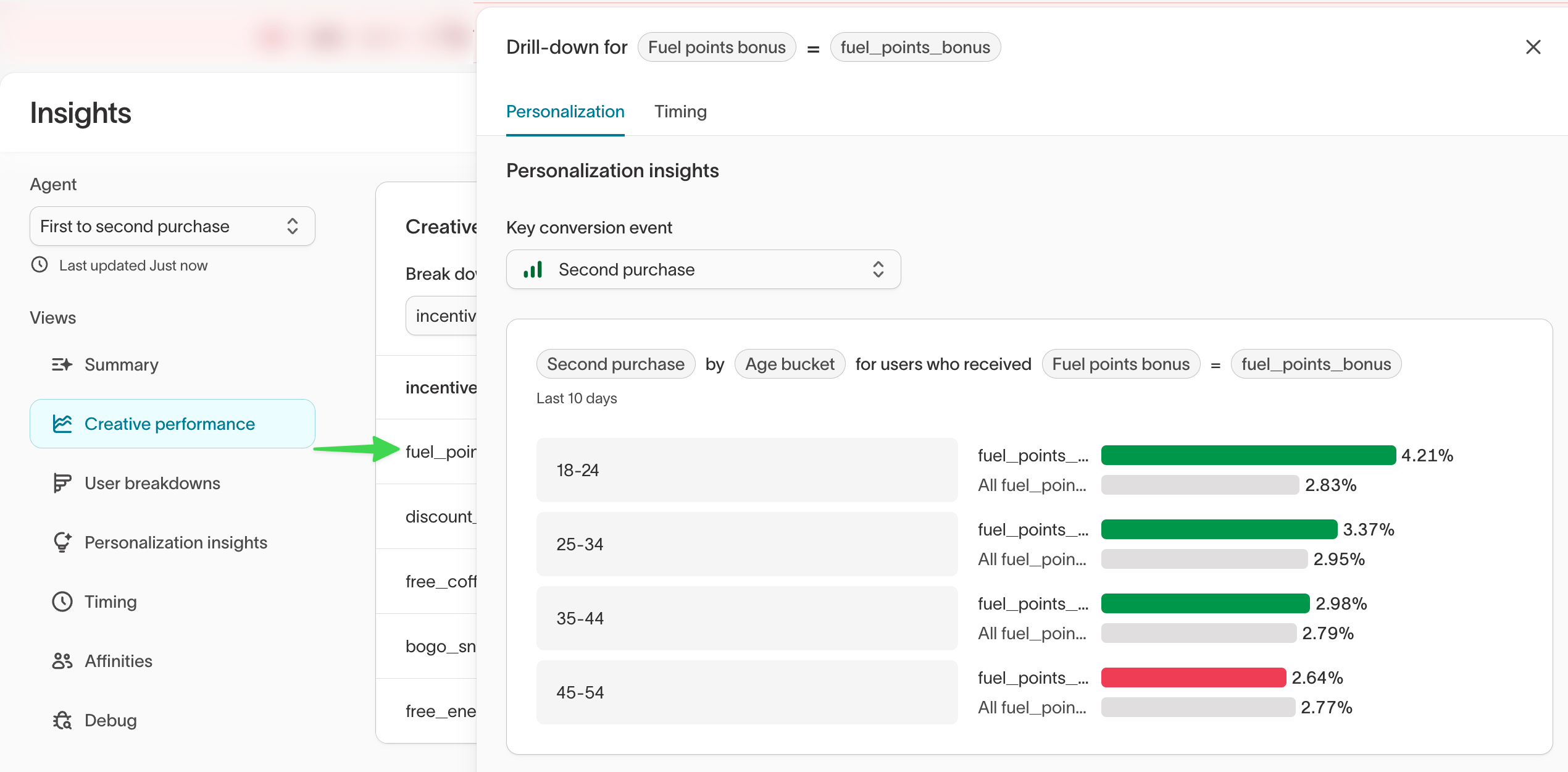
You can also drill down into a specific message or variant to explore deeper insights:- Personalization insights — Compare how engagement differs by user attributes such as device type, region, or affinity
- Timing insights — Identify when messages perform best by day or time of day
Content analysis
Each message also includes content-level insights to help you understand relationships between creatives. In the message’sContent tab, scroll to Content analysis to view:
- Tags — Applied tags such as
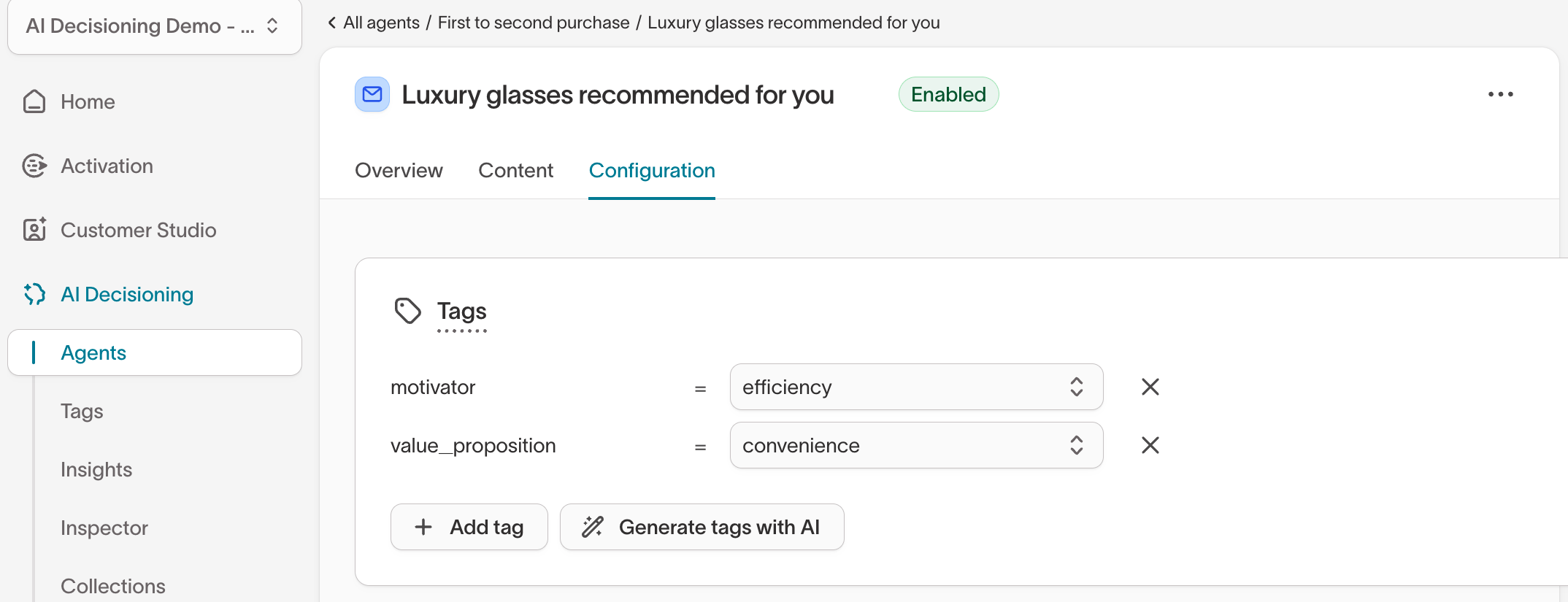
Motivator: EfficiencyorValue Proposition: Convenience - Similarity analysis — Messages with similar structure, tone, or intent
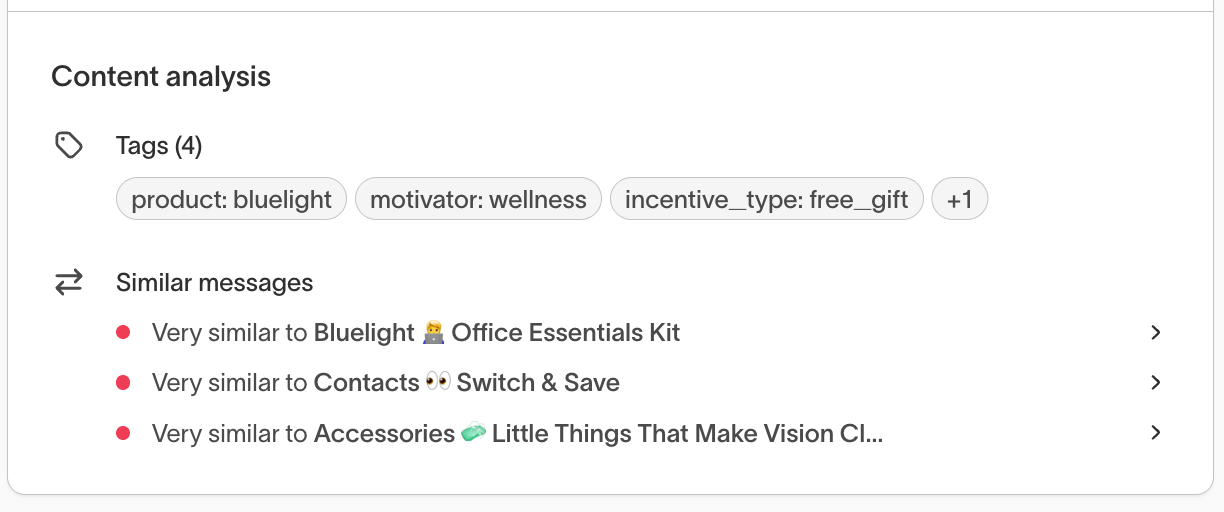
Content analysis focuses on creative similarity and reuse, while the
Insights tab focuses on quantitative performance and impact. Use both to
understand what works and why.
Manage and govern your tags
As your tagging system grows, use these tools to keep tags consistent, apply them efficiently, and extend their use beyond analysis.Manage tags on the Tags page
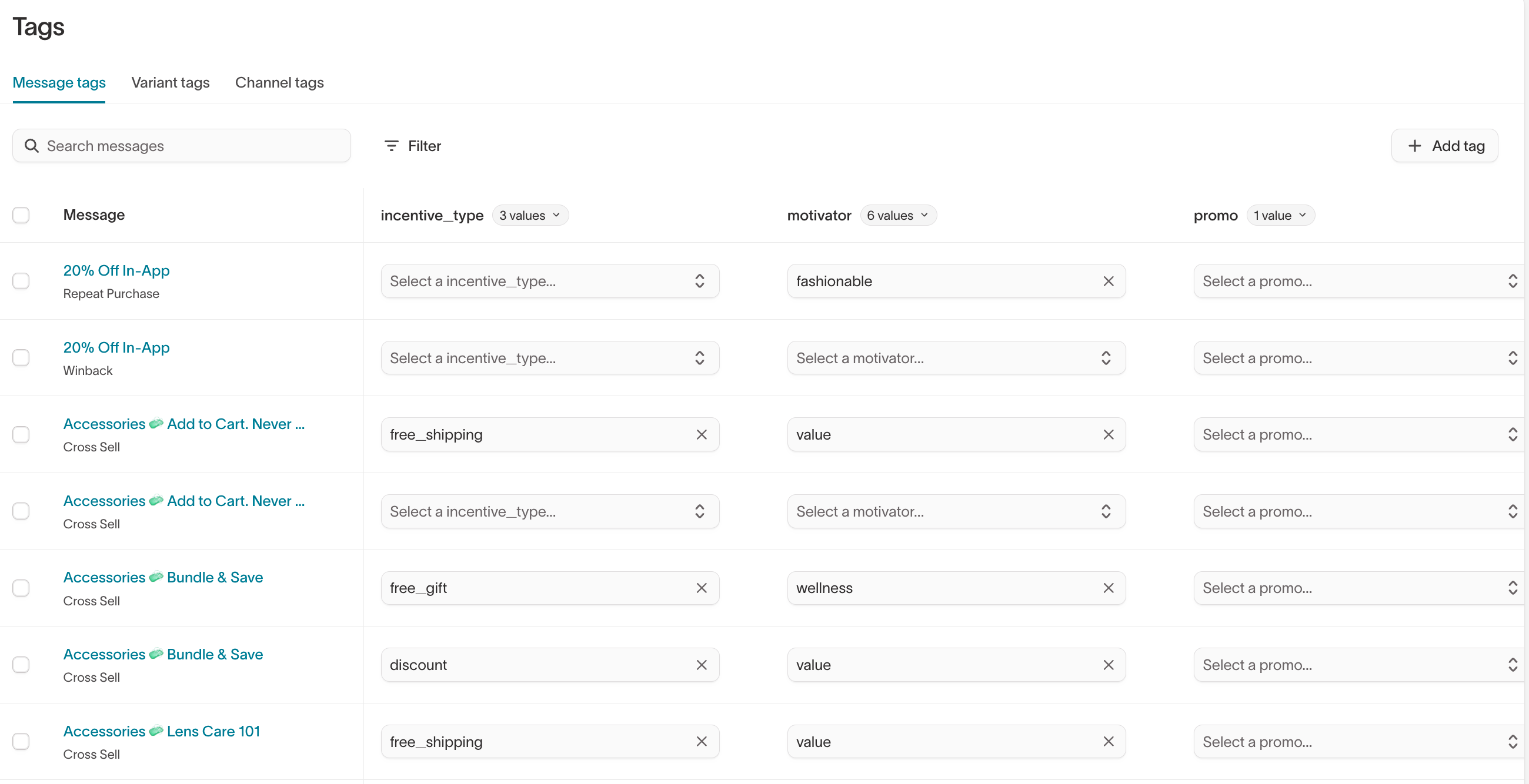
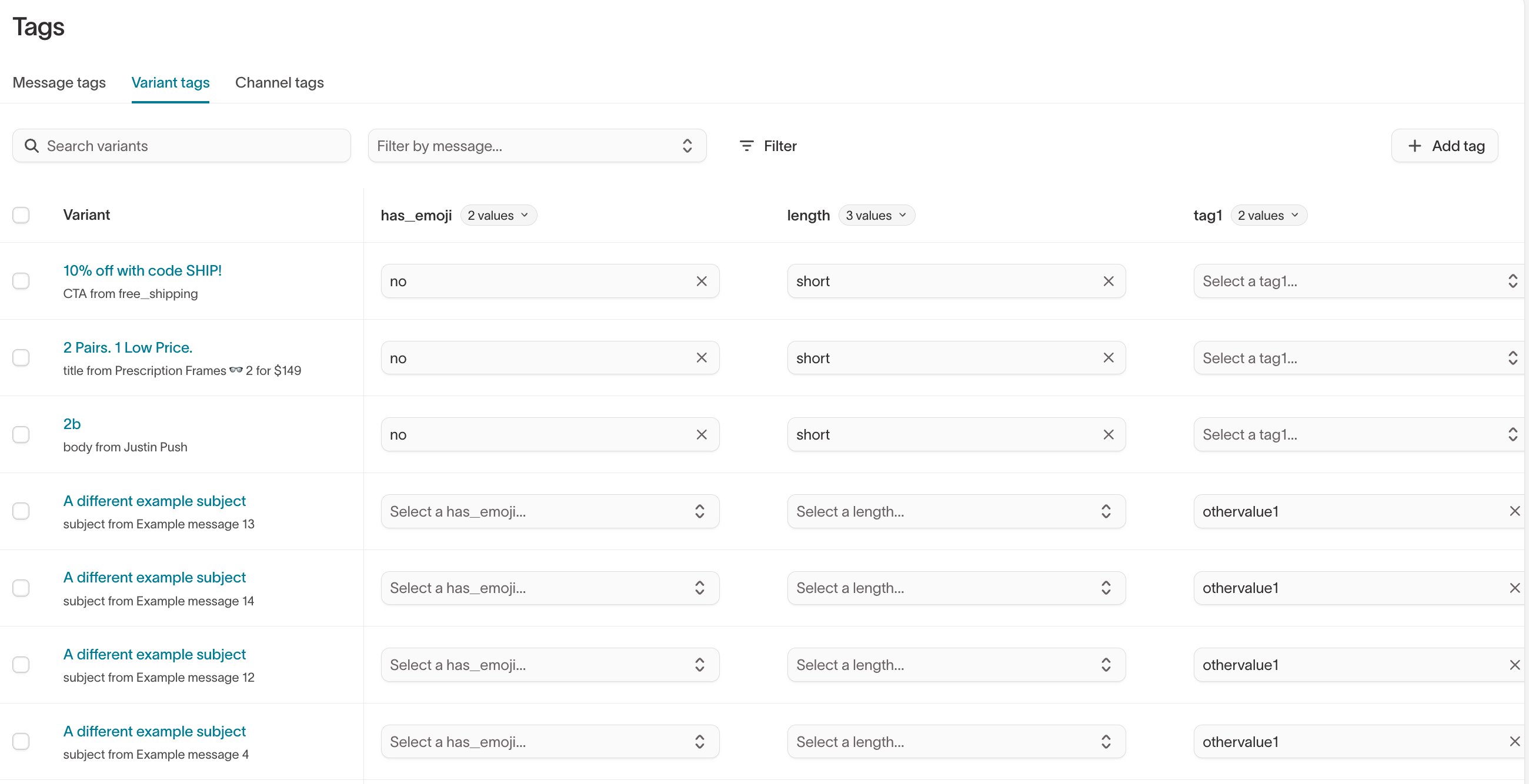
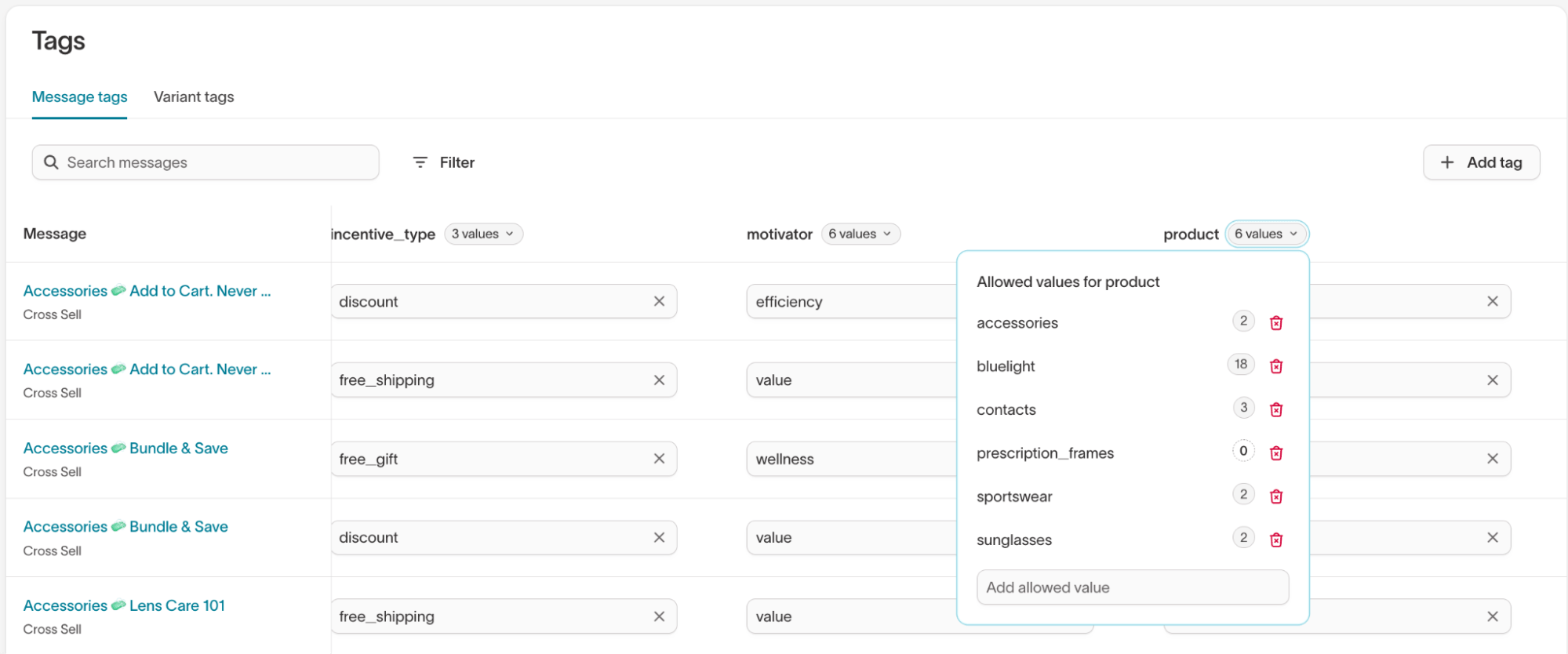
The Tags page (AI Decisioning > Tags) provides a centralized view of all tags in your workspace. Changes made here apply globally to every agent that uses the tag key.
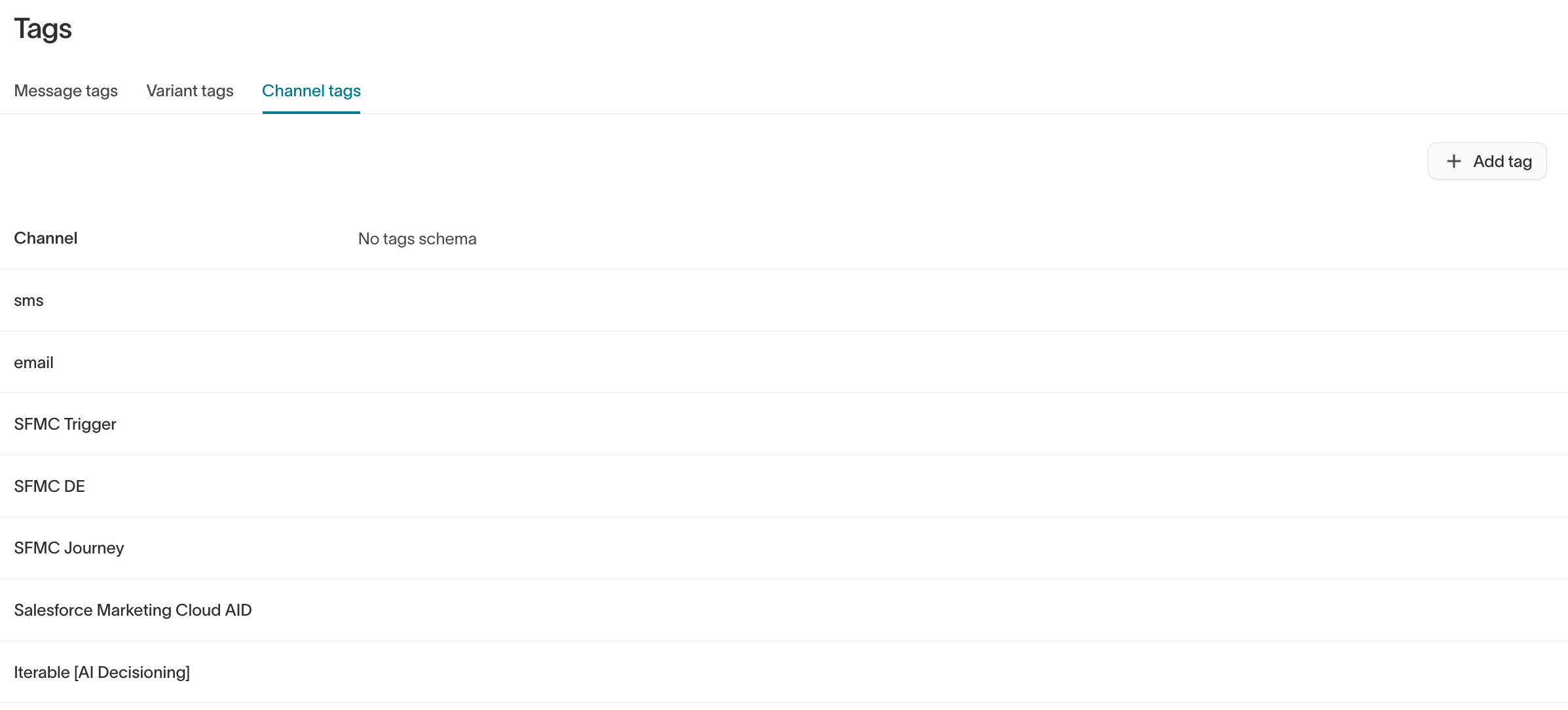
The Tags page separates tags into Message tags, Variant tags, and Channel tags.
Add tag instructions
On the Tags page, hover over a tag key to reveal its options menu, then select Edit tagging instructions. In the Edit tag descriptions modal, add tag-level and value-level instructions that define when the tag — and each of its values — should be applied. Clear instructions improve consistency across teams and help AI apply tags more accurately.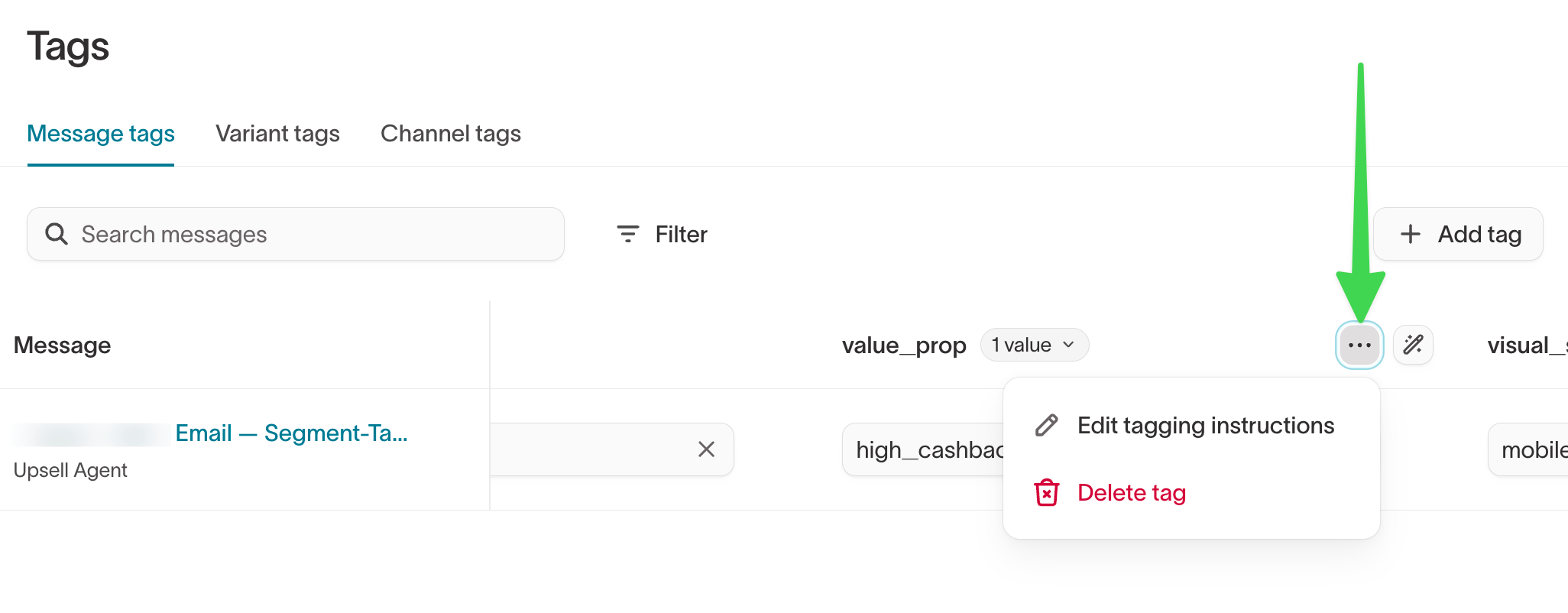
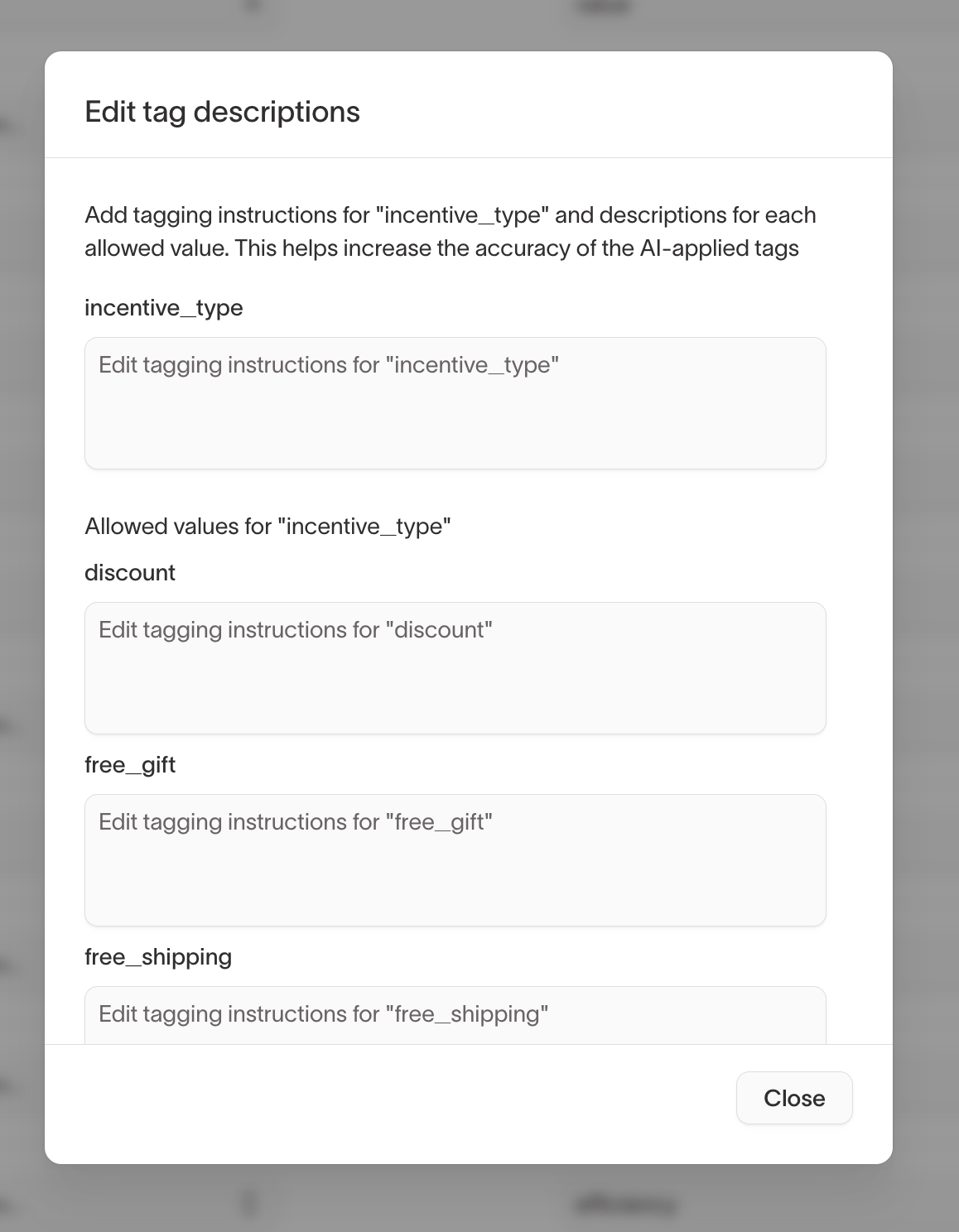
What to include in tag instructions
Effective tag instructions answer one question: When should this tag or value be used? Good instructions help people tag consistently and give AI the context it needs to distinguish between similar values.Writing effective instructions
When writing tag or value instructions:- Describe when to apply the tag or value
- Explain how it differs from other values
- Avoid generic definitions or restating the tag name
- Use short, directive language
Example: tag-level instructions
Tag:incentive_type
Good instruction
Use this tag to classify the primary incentive offered in the message. Select the value that best represents the main benefit emphasized to the user.
Weak instruction
Indicates the type of incentive.
Example: value-level instructions
Value-level instructions are most useful when values are similar or easily confused, messages include multiple incentives or concepts, or you use AI-assisted tagging. Tag:incentive_type
-
discountUse when the message emphasizes a price reduction, percentage off, or limited-time deal. -
free_giftUse when the message highlights a free item added to a purchase, regardless of purchase amount. -
free_shippingUse when the message emphasizes waived shipping costs as the primary incentive.
Use AI to suggest and apply tags
AI-generated tags must be enabled by Hightouch. to turn it on.
Generate tags for individual messages or variants
When editing a message or variant, clickGenerate tags with AI to get suggestions based on your content.
- Click
Generate tags with AI. - Review the AI-generated tags.
- Edit or remove any that don’t fit your naming conventions.
- Message: “Earn double points on every booking this weekend” → AI suggests
Loyalty,Limited Time Offer - Variant: “Book now to unlock rewards faster” → AI suggests
Urgent CTA,Rewards Focused
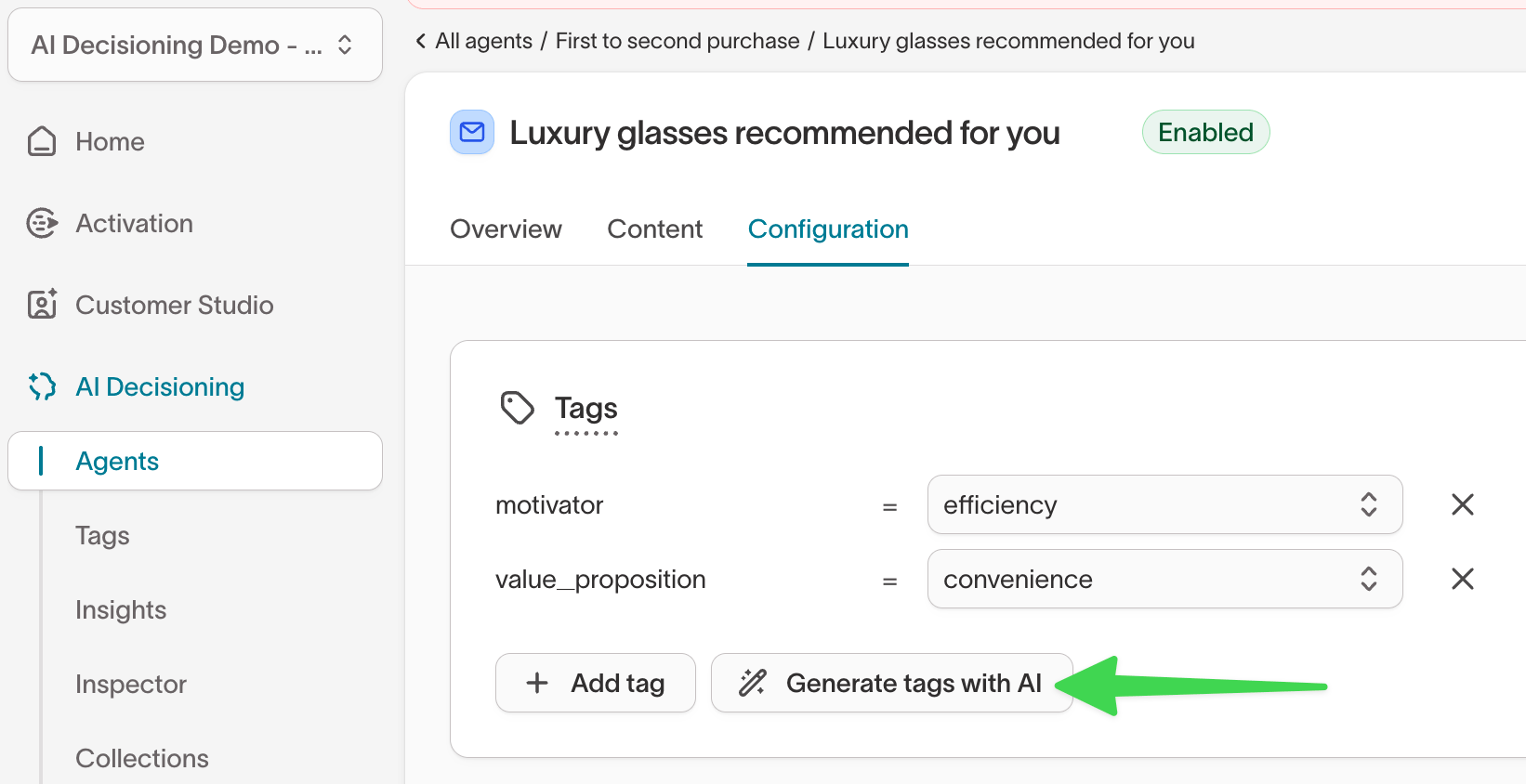
AI-suggested tags do not apply automatically. Always review suggestions before
saving to ensure accuracy and consistency.
Bulk-apply tags on the Tags page
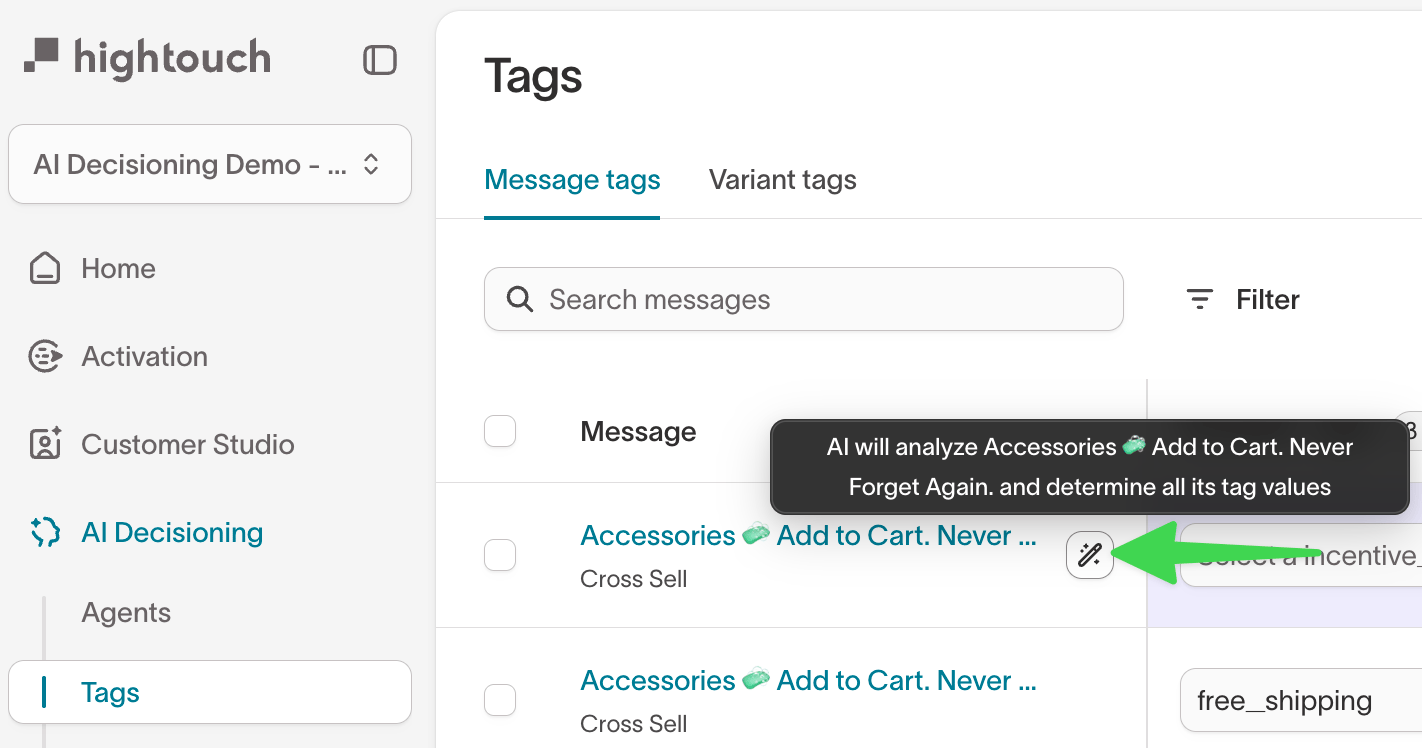
To tag many messages at once, select the messages, then use Actions to Let AI tag the selected messages or Manually tag them. To apply AI tags for a single tag key across messages, hover over the tag key and select the magic wand button.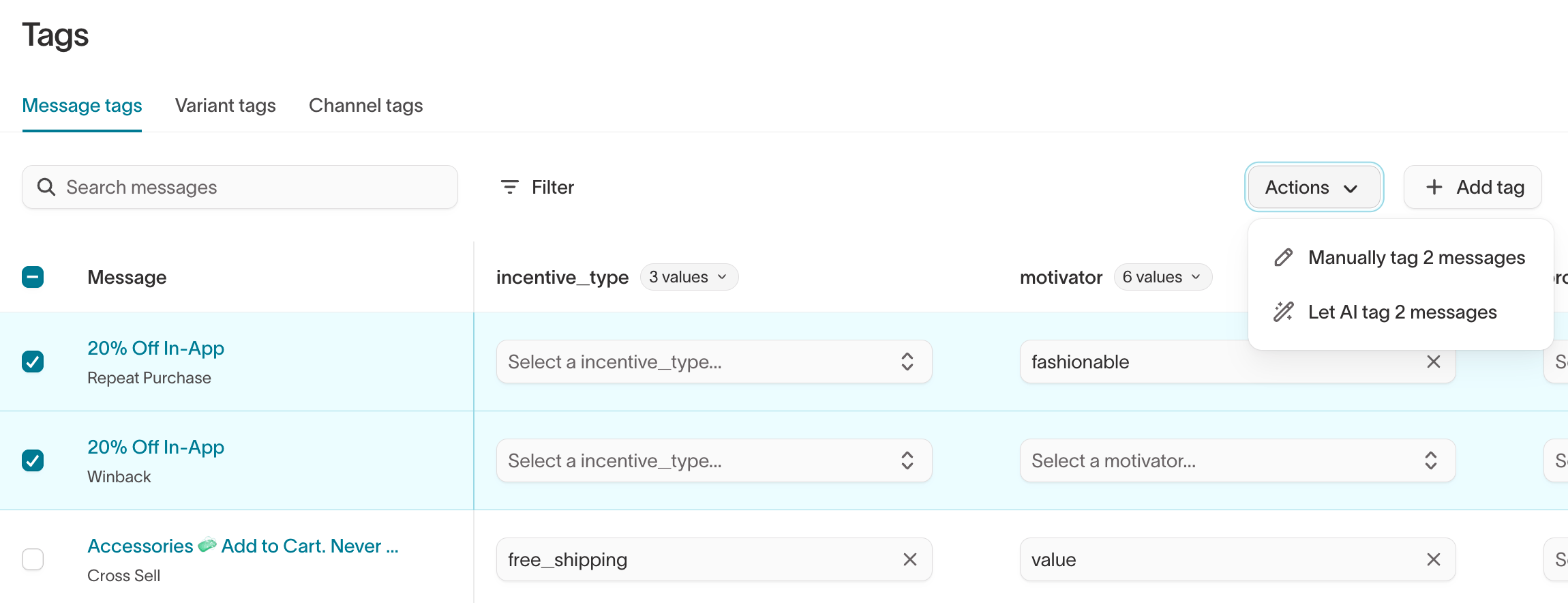
Set send frequency caps using tags
You can also use tags to apply send frequency caps more granularly. This helps you control how often users receive messages within specific categories, such as by business unit or product line. For example, if your agent includes messages across multiple business units, you can tag each message with aBusiness Unit value such as Insurance or Banking, then set separate frequency caps for each one. This helps prevent users from receiving too many messages from the same category, even when the overall agent-level cap has not been reached.
You can also set send frequency caps at the channel level (email, SMS,
push, and so on). You do not need to tag whether a message is email, push, or
SMS because AI Decisioning identifies the channel automatically.
Troubleshooting
Tag visibility in Insights depends on your workspace’s sync schedule. If you
recently applied tags, wait for the next sync cycle before results appear.