

Before you begin
- Prepare data for AID
- A destination connected in Hightouch (such as HTTP Request)
Overview
AI Decisioning delivers decisions through your connected Hightouch destinations. It has purpose-built integrations for Braze, Iterable, and Salesforce Marketing Cloud that manage message delivery for you. A custom channel extends AI Decisioning to any other destination in the Hightouch catalog. If you can sync to a destination today, AI Decisioning can deliver to it: you connect the destination, and AI Decisioning writes its decisions to a model you sync from. The most common use is a raw HTTP endpoint, where AI Decisioning posts each decision to your own API using the HTTP Request destination. Use a custom channel when:- Your destination doesn’t have a purpose-built AI Decisioning integration.
- You deliver through middleware you already own, such as a Lambda or an internal service.
- You want to write decisions to a warehouse, object store, or other system for downstream processing.
How custom channels differ from managed channels
With a managed channel (Braze, Iterable, or Salesforce Marketing Cloud), Hightouch creates and manages the delivery sync for you, and message content is sourced from a template in your destination. A custom channel works differently in two ways:- You build and own the delivery sync. AI Decisioning writes each agent’s decisions to a Hightouch model. You create a normal sync from that model to your destination, and you own its schedule and monitoring.
- Message content lives in Hightouch. You author each message’s content as variables in AI Decisioning. There’s no destination template to select.
Connect your destination
Connect the destination you want AI Decisioning to send to. For a raw HTTP endpoint, add the HTTP Request destination, where you configure the base URL, authentication, and headers for your API.Store API keys and tokens in the destination’s authentication or headers, not in the request body.You’ll configure the request method and payload later, when you build the delivery sync.
Add a custom channel
A channel connects an agent’s decisions to a destination.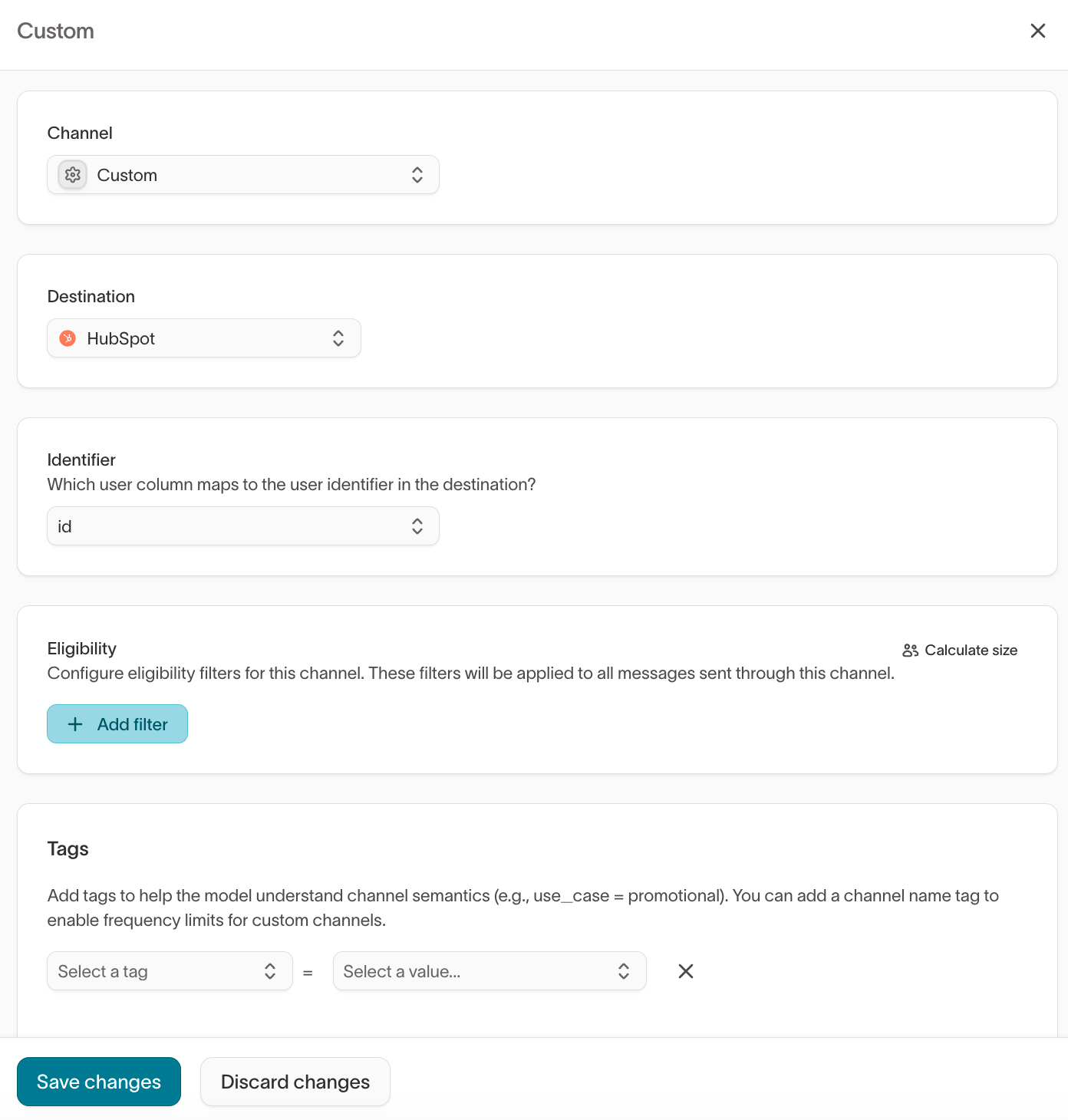
- Go to AI Decisioning > Configuration > Channels.
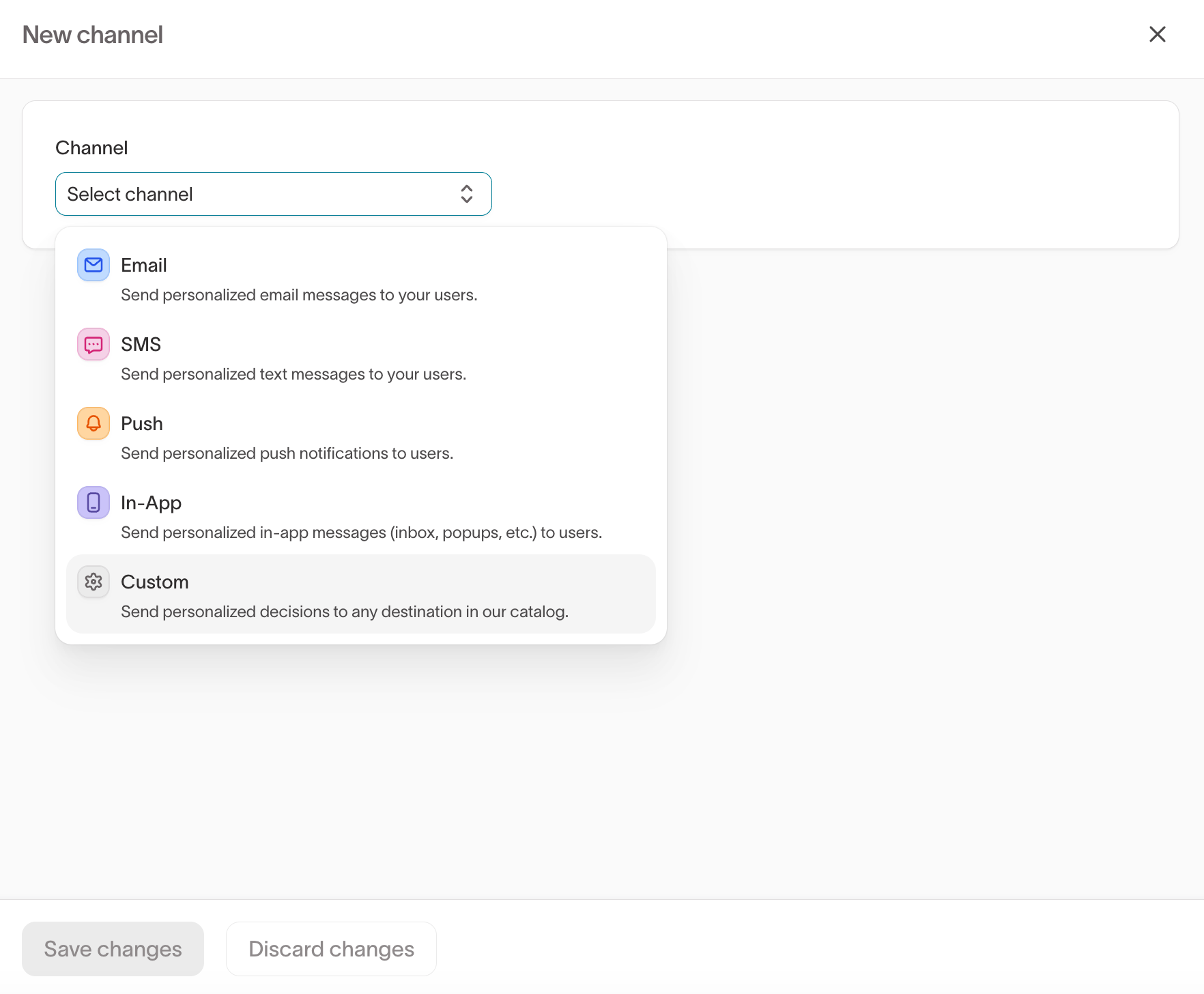
- Select Add channel.
-
For the channel type, select Custom (“Send personalized decisions to any destination in our catalog”).
- Select your destination.
-
Select an identifier — the user column that identifies the recipient, such as
emailoruser_id. This becomes theexternal_idcolumn in the model AI Decisioning writes to. - Select Add channel, then select the channel and select Save changes.
Custom channels don’t apply a channel tag automatically. To enable frequency
limits, add a channel name tag to the channel. See
Tags.
Add messages
Each message defines the content an agent can send. For a custom channel, you author the content directly in Hightouch as variables.
- Go to AI Decisioning > Agents and select your agent.
- Open the Messages tab.
- Add a message and select your custom channel and destination.
- In the Content tab, define the message’s variables (for example,
subjectandbody) and add variants.
hightouch_recommendation column. For full details on messages, variants, and tags, see Messages.Build the delivery sync
When you enable the first message on a custom channel, AI Decisioning creates a model that holds each agent’s decisions. Build a sync from that model to your destination, mapping its columns into the request your destination sends.Use the same pattern for any variable you defined on the message:
Available columns
The model exposes a fixed set of columns:Map your message content
hightouch_recommendation and hightouch_user are JSON columns. To read a value, parse the column and reference the field you want.For the HTTP Request destination, build the request body to match what your API expects. This example reads the recipient identifier, the campaign, and two message variables:parsedRecs['variables']['<variable name>']. To read a synced user column, parse hightouch_user the same way.To hand your API the entire decision instead of individual fields, pass the hightouch_recommendation column through as a JSON object and transform it in your own service.For the full set of request options — method, path, authentication, headers, rate limits, batching, and error handling — see the HTTP Request destination.Schedule and validate
- Set the sync schedule to match how often your agent makes decisions.
- Run the sync on a small test group first. Confirm your endpoint receives requests in the expected shape before enabling it broadly.
- Enable the sync.
Manage messages with the API
You can create and update custom-channel messages, and trigger a run, with the Hightouch API. Use it to manage messages programmatically instead of in the app. The API manages messages and runs in an existing agent. Create the custom channel and its destination in the app first — the API doesn’t create them. Create a message in an existing custom channel:Troubleshooting
Next steps
- Messages to author the content and variants your custom channel delivers.
- HTTP Request destination for the request options you configure on the delivery sync.
- QA guide to validate messages before you launch.
- Hightouch API reference to manage messages and trigger runs programmatically.