

Before you begin
Overview
Inspector (labeled Experience inspector in the app) helps you understand how messages are delivered to an individual user. Instead of aggregated metrics, Inspector shows exactly what happened for a specific person—step by step—across one or more agents. This makes it easy to validate campaign behavior and explain outcomes with confidence. In Inspector, you can review a user’s full journey across agents, including:- When the user becomes eligible for an agent
- Which messages were evaluated and which were sent
- When sends were skipped, including by smart suppression
- Which content and variants were selected
Navigate to Inspector
In the Hightouch app, go to:AI Decisioning > Inspector
From here, you can:
- Filter by All agents or a specific agent
- Search for a user
- Step forward or backward between users
- Review each user’s experience over time
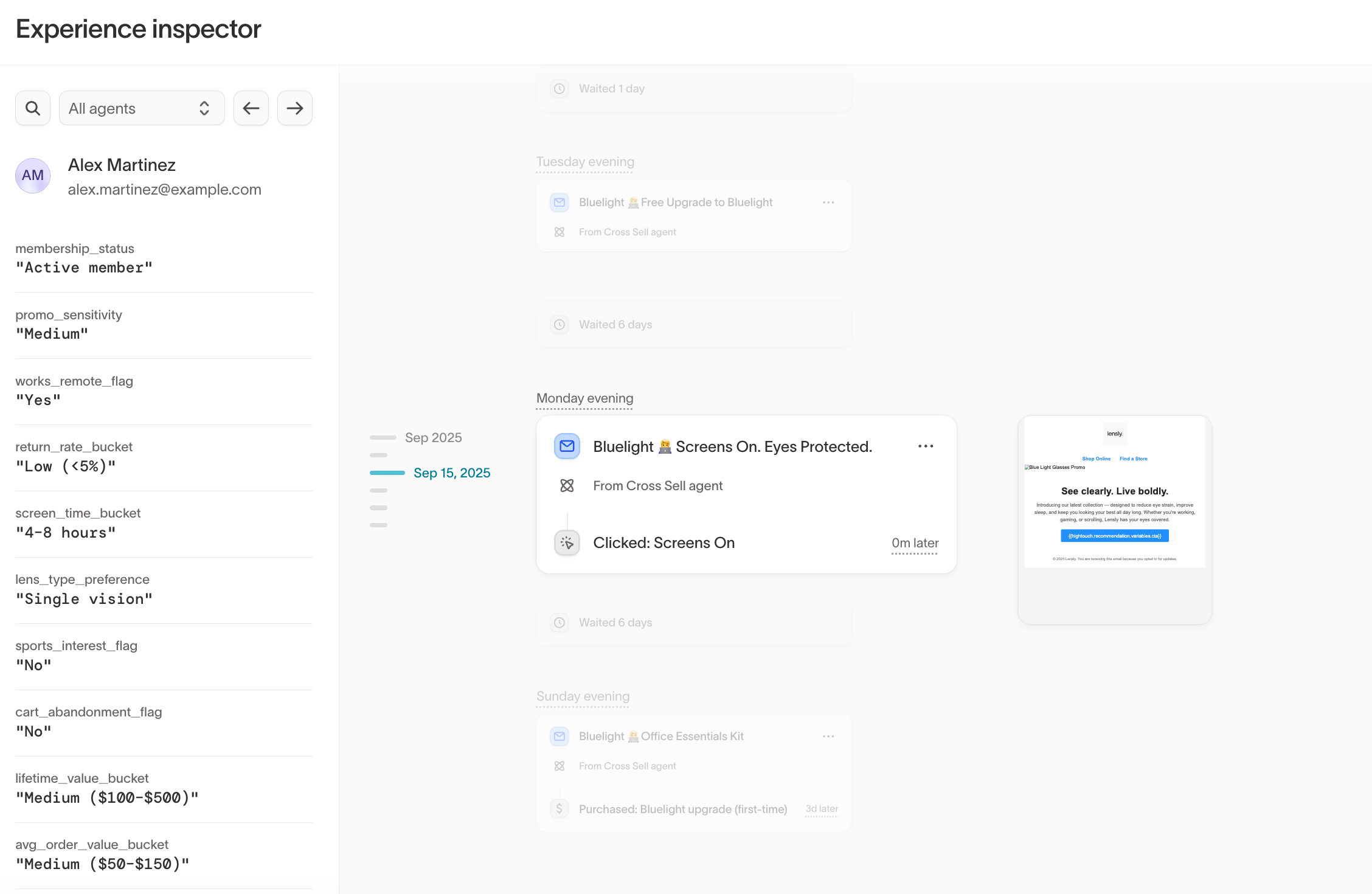
Review a user’s experience
Inspector is organized into three main areas that work together to explain delivery behavior.User attributes
The left panel shows the full set of user attributes available to agents. These attributes help explain:- Eligibility and agent entry
- Message selection and personalization
- Suppression or exit behavior
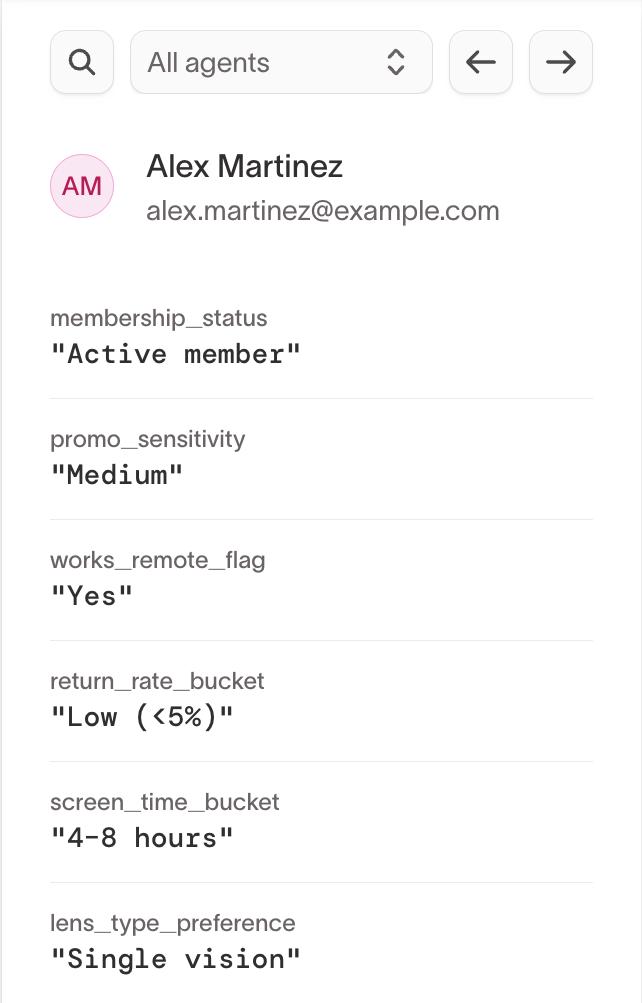
The attributes shown here represent everything the agent knows about the
user. Not every attribute directly influences every message decision.
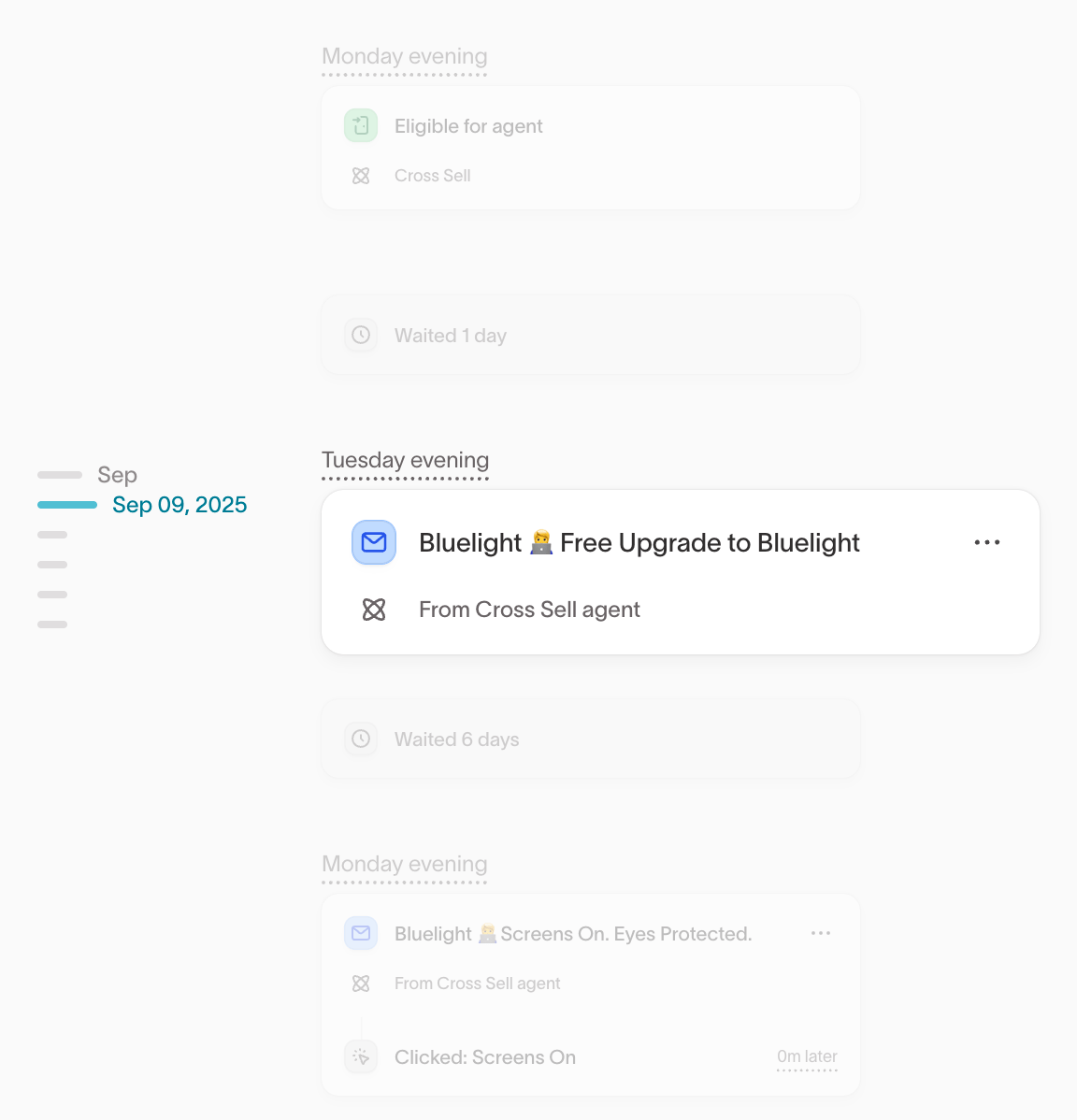
Experience timeline
The center panel shows a chronological timeline of the user’s journey across agents. You may see events such as:- Eligible for agent
- Wait periods between evaluations
- Messages sent, including channel and agent
- Skipped sends, including smart suppression
- Exited agent events
- Outcome events, such as clicks or purchases (when available)
Message details
To open the message details drawer, open the actions menu on a message card and select View message or View data payload, or click the message thumbnail. This view explains what was sent and shows the data behind it.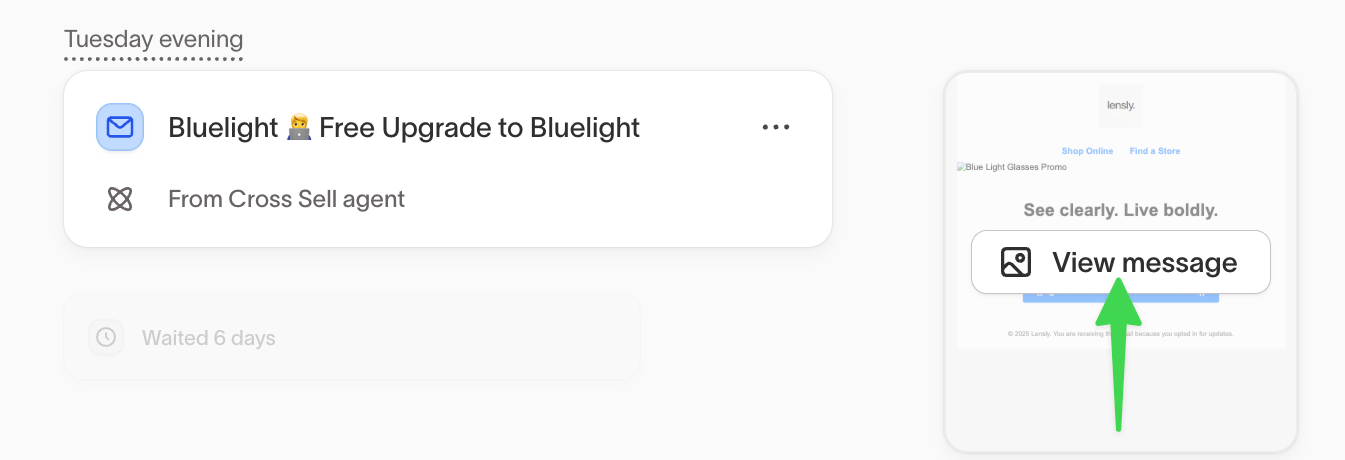
Use these views together to validate content and confirm the variables and personalization sent to the destination.
When to use Inspector
Use Inspector when you need a clear, user-level explanation of how an agent behaved for a specific person. Inspector is best suited for questions like:- Why did this user receive this message?
- Why was a send skipped or suppressed?
- What personalization and variables were sent with the message?
- How did this user’s experience unfold across agents?
For performance trends, lift analysis, and insights across many users, use Insights.