

Before you begin
Overview
Delivering relevant and timely customer experiences in Iterable requires up-to-date, contextual data. By integrating Hightouch’s AI Decisioning (AID) with Iterable, you can:- Automatically trigger Iterable campaigns based on predictions and behaviors surfaced by AID Agents
- Personalize message content using dynamic variables from your data warehouse
- Centralize targeting and decision logic in Hightouch, while using Iterable to handle message delivery
Set up Iterable as a destination
Follow the destination setup guide up to Sync Configuration. Once connected, Iterable will be available as a destination in AI Decisioning.
Add channels in AI Decisioning
Once Iterable is set up as a destination, you can add channels. Channels define how Hightouch sends messages to Iterable via Triggered Campaigns.
Set up a channel
- Go to AI Decisioning > Configuration > Channels.
-
Select Add channel.
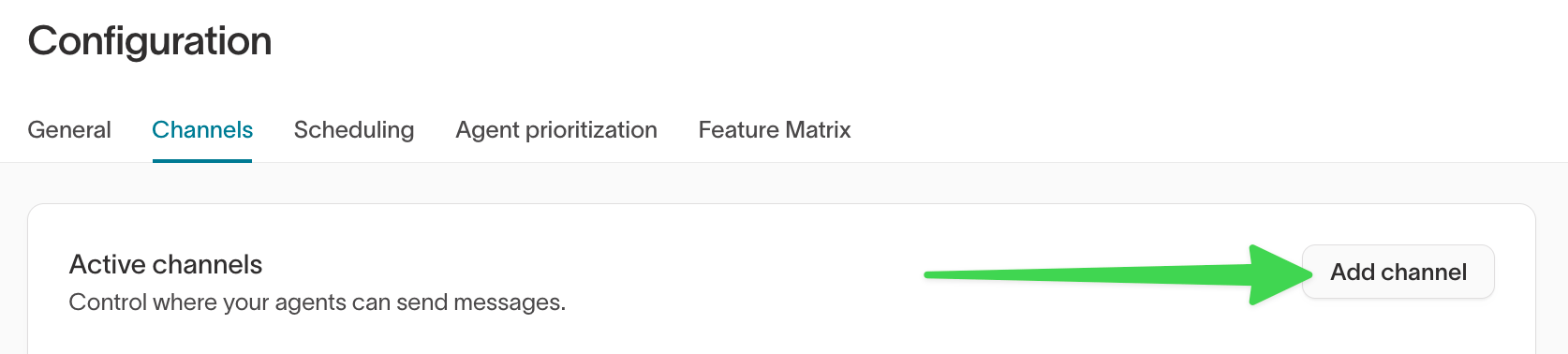
-
Choose a channel type:
- Email – for triggered email sends
- SMS – for triggered text messages
- Push – for mobile push notifications
- In-App – for in-app messaging (popups, inbox cards, etc.)
- Select Iterable as the destination.
-
Under Campaign setup, choose how Hightouch connects to Iterable:
- Create from template – select a template, and Hightouch creates an API-triggered campaign from it.
- Existing campaign – select an existing API-triggered campaign directly.
-
Under Identifier type, choose how to match users:
- Email – match by email address
- User ID – match by unique ID
-
Choose the identifier field from your model (for example,
user.emailoruser.id). -
Select Add channel, then Save changes.
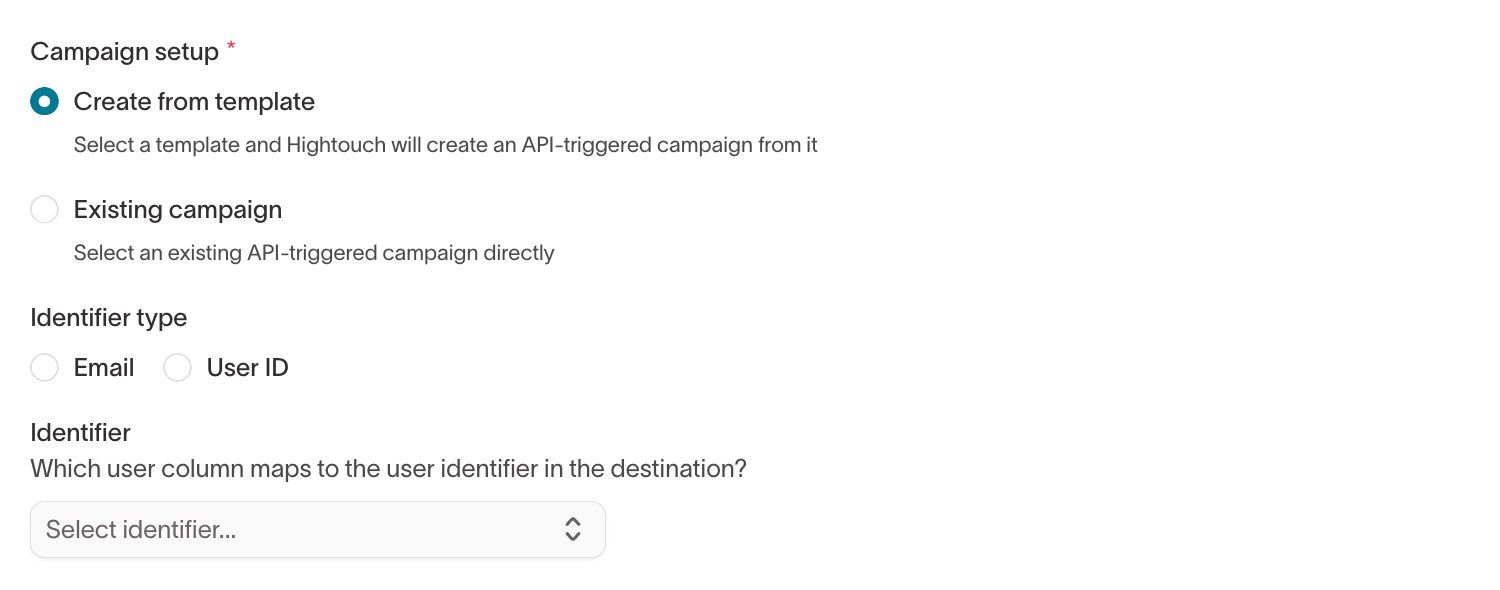
Identifier type comparison
Both identifier types support all channel types (Email, SMS, Push, and In-App).
Add messages
After you add channels in AI Decisioning, you can add messages to your agents. Each message connects an agent’s decision to an Iterable Triggered Campaign.For full details on message configuration, variants, and tags, see Messages.You can repeat this process for each channel type:
Add a message from Iterable
- Go to AI Decisioning > Agents and select your agent.
- Open the Messages tab.
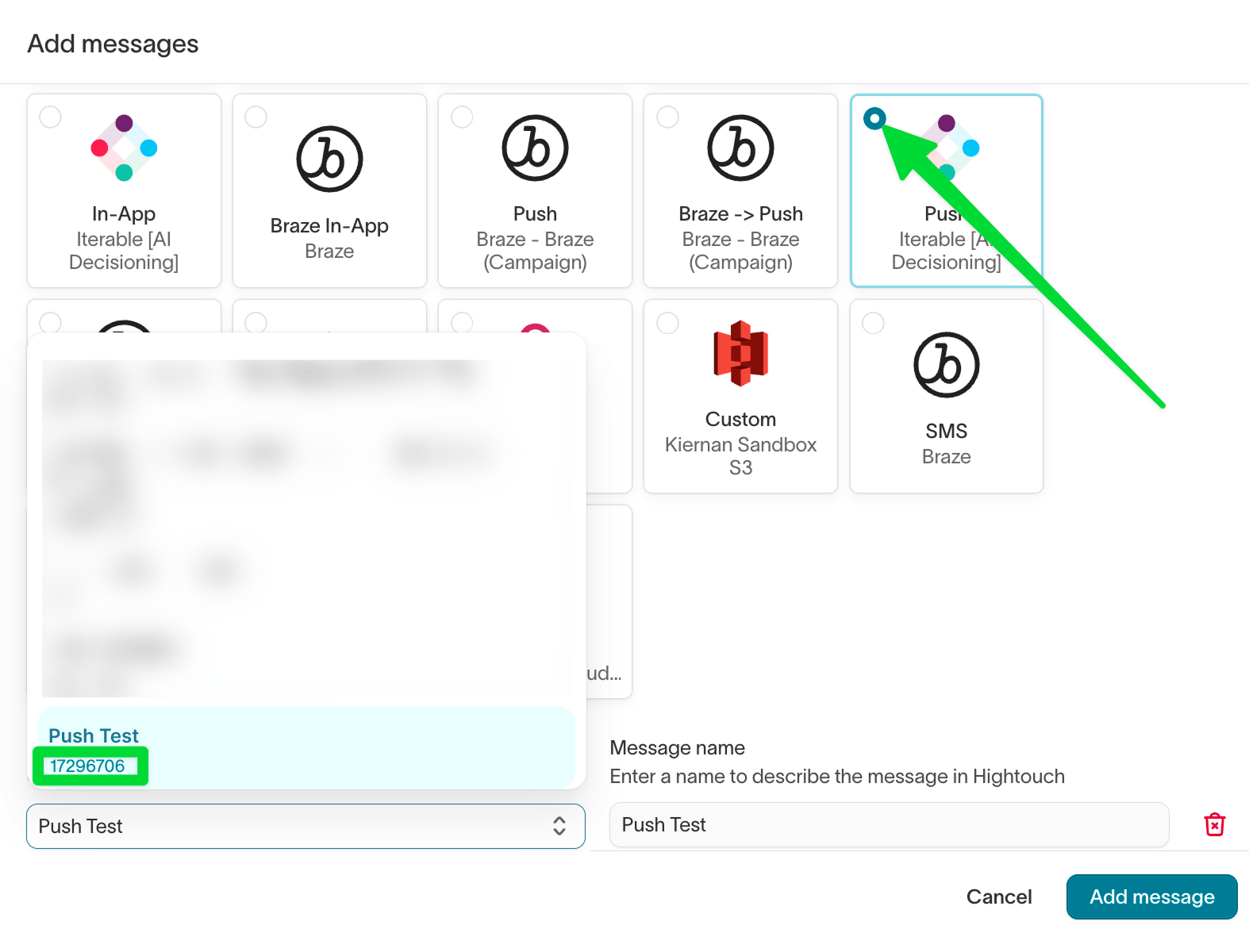
- Select Add messages, then select Add messages individually.
- Select your configured Iterable channel and destination tile (for example, Email - Iterable).
- Select an Iterable template (or an existing campaign, matching your channel’s Campaign setup).
-
Enter a message name (for example,
Cart Abandonment SMS) and select Add messages.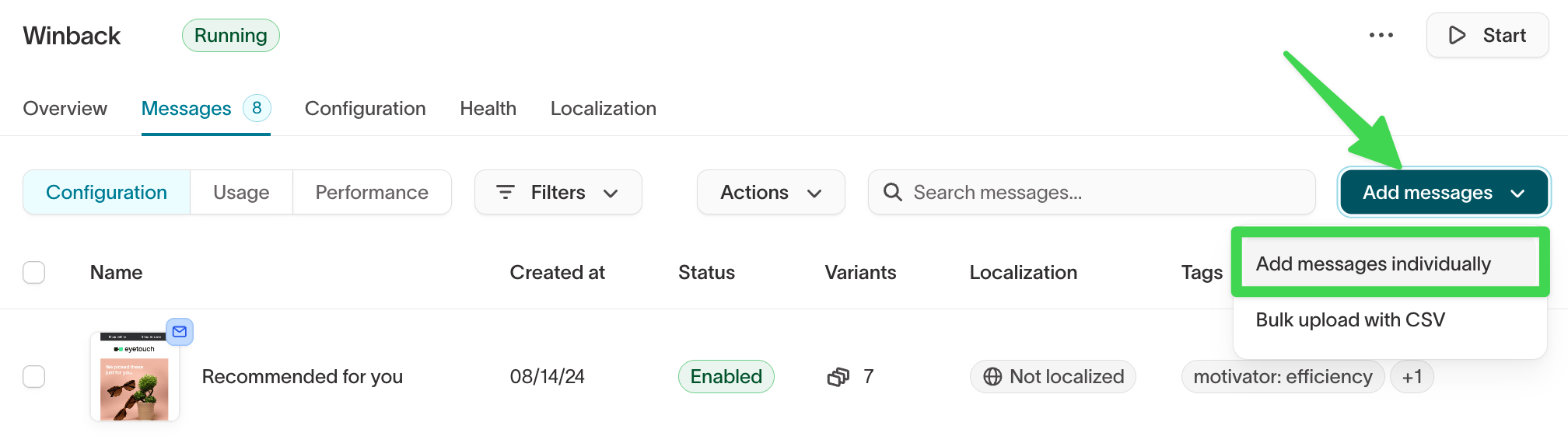
When your channel uses Create from template, Hightouch clones the
selected Iterable template and creates a new Triggered Campaign, then sends
through that new campaign via API — not the original template. See How
Iterable templates and campaigns work with
Hightouch for
details.
Test a message
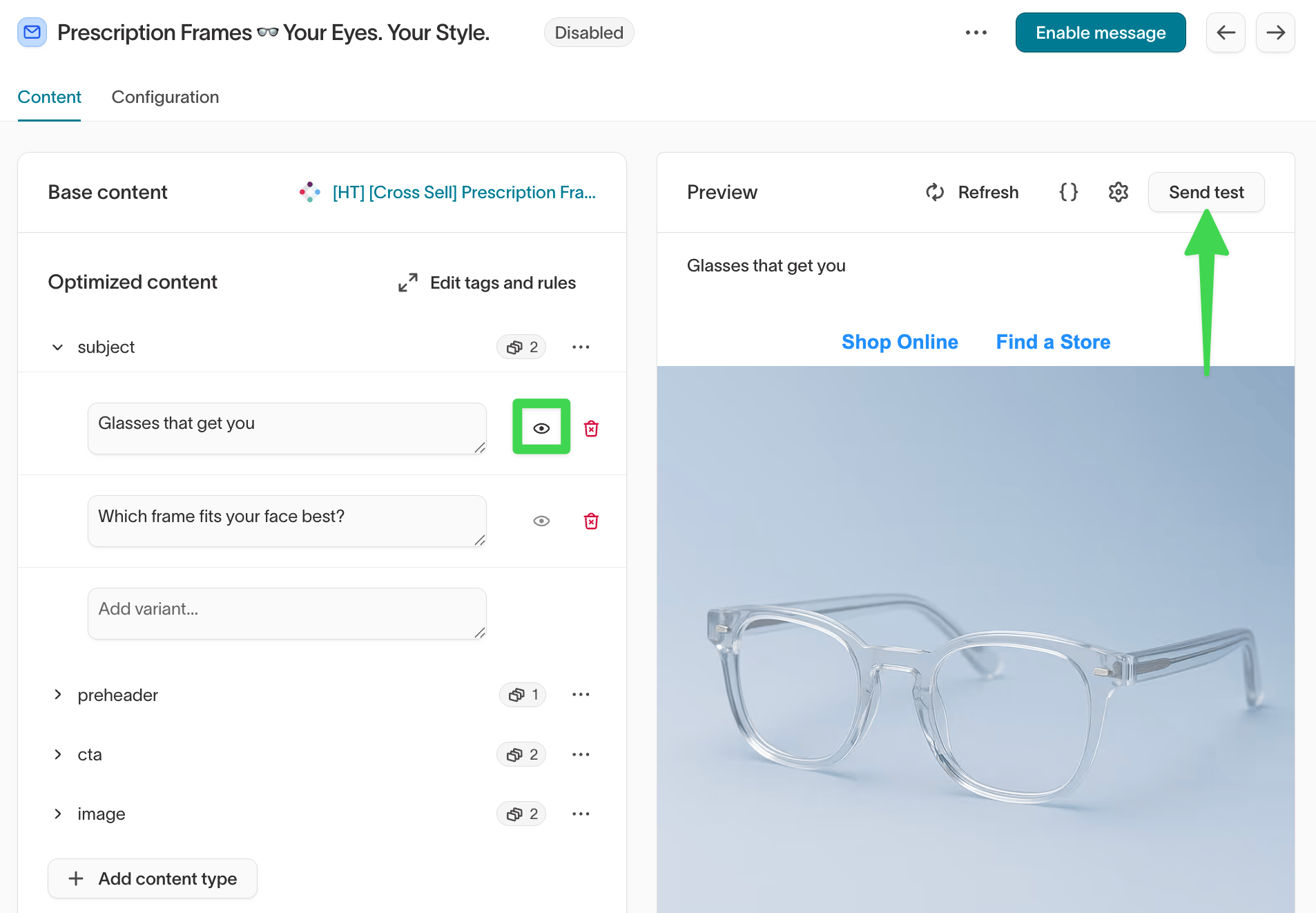
- Open the message and go to the Content tab.
- Under Optimized content, confirm your variants are configured. If your message uses dynamic variables, set values for testing.
- In the Preview panel, verify the rendered message looks correct.
-
Select Send test to send the message to a test user in Iterable.
How Iterable templates and campaigns work with Hightouch
When your channel uses Create from template, you’re not sending the base template directly. Instead, Hightouch clones the template to create a new Triggered Campaign. If your channel uses Existing campaign, Hightouch sends through the campaign you selected and doesn’t clone anything.What happens behind the scenes
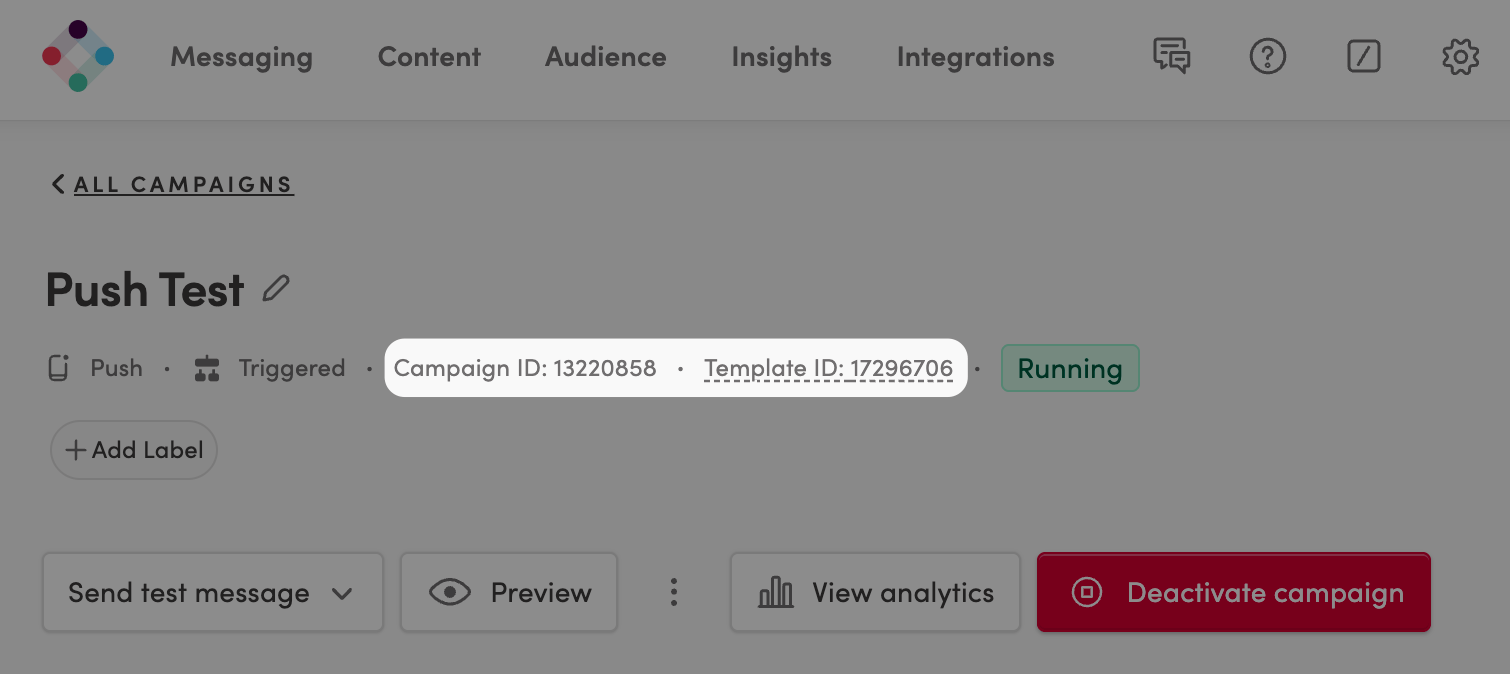
- You select an existing Iterable template (by Template ID).
- When you select Add messages, Hightouch:
- Clones the template
- Creates a new Campaign ID
- Hightouch uses the new campaign ID to send messages via API—not the original template.
Why this matters
- Hightouch sends through the new campaign, not the original.
- To update message content, edit the new campaign version—not the base template.
How to find the right campaign
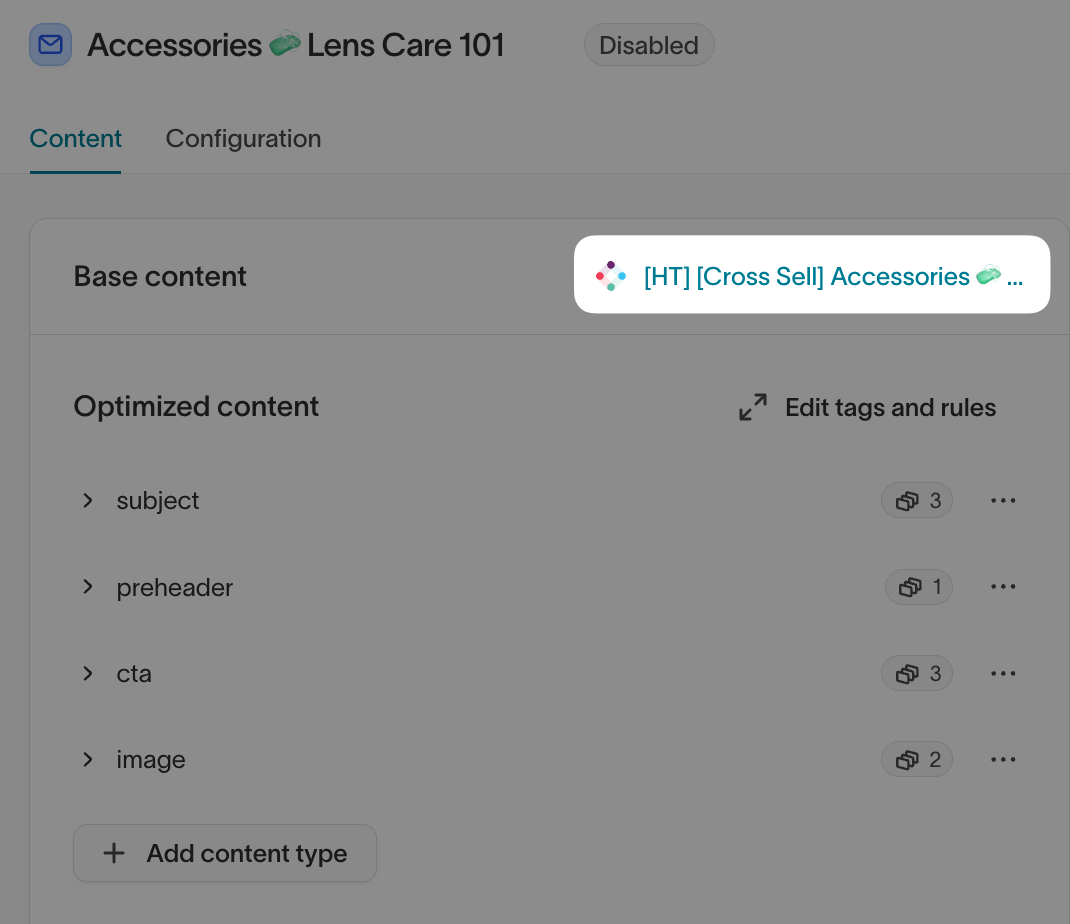
- Open the Content tab in the message: AI Decisioning > Agents > [Select Agent] > Messages > [Select Message] > Content
- Select the link next to Base content to open the Iterable campaign.
4. Configure Iterable Triggered Campaigns for AID
What you set up in Iterable depends on your channel’s Campaign setup.Create from template
Build and save the Iterable template you want to use. Hightouch creates the API-triggered campaign for you when you add the message — you don’t need to create a campaign in Iterable.Existing campaign
- In Iterable, go to Messaging > Campaigns.
- Select New Campaign > Triggered Campaign.
- Select the message type, design your template, and publish the campaign.
- In Hightouch, select that campaign when adding a message.
5. Use variables in Iterable templates
Hightouch variables allow you to personalize Iterable messages using live warehouse data, any variable you’ve defined within the message such as subject line variations, or different content blocks in your Iterable library.Access variables
- Open a message in Hightouch and go to the Content tab.
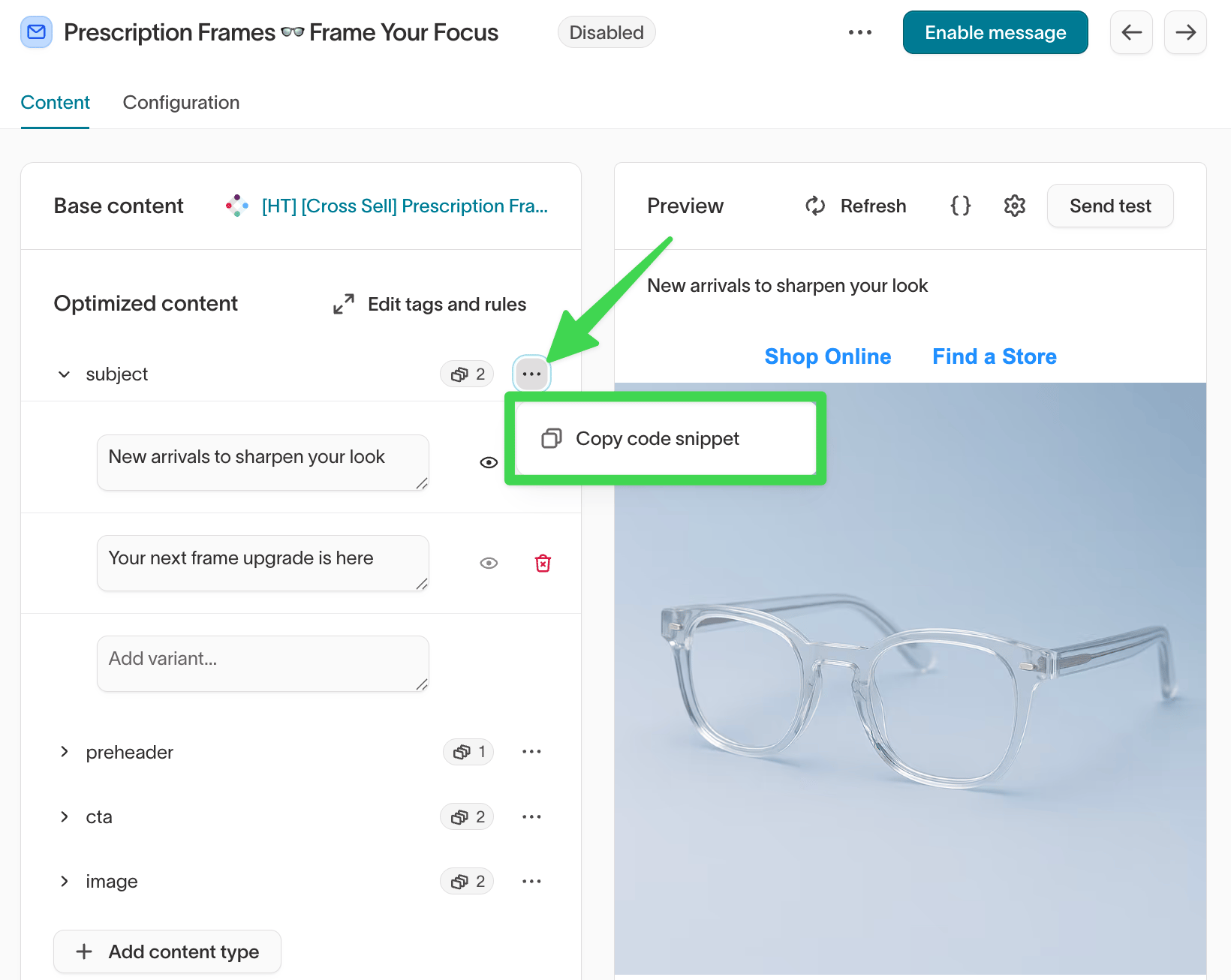
- Under Optimized content, expand a content type (for example, subject or body) and add your variants.
- Select the
...menu on a content type and select Copy code snippet to get the variable code. - In Iterable, paste the variable tag into the corresponding field in your message template.
Important notes
- Variables are fully supported in Triggered Campaigns.
- Make sure your Iterable template references the correct variable syntax from the code snippet.