

Overview
Event streaming sends events collected by Hightouch directly to destinations, without going through the warehouse. Events arrive in seconds — useful when timing matters, like triggering a message, updating consent, or powering real-time personalization.Event streaming is a type of Event
Sync that takes events from an Event
Source and syncs them to an Event Destination in real-time.
When to use event streaming
Use event streaming when your workflow depends on something that just happened. Examples:- Post-purchase messaging — send an upsell or confirmation immediately after checkout
- Real-time ad spend control — pause ads as soon as they exceed their budget
- Lifecycle triggers — follow up right after a demo request, new sign-up, or missed call
- Consent and contact updates — sync a user’s consent or contact status the moment it changes
When to use reverse ETL instead
Reverse ETL is a better fit when timing is less critical and context matters more than immediacy. Use reverse ETL when you need:- Warehouse-enriched or aggregated data
(joins across tables, LTV, days since last purchase, ML scores) - Audiences built from historical behavior
(for example, users who purchased 3+ times in the last 90 days) - Ongoing monitoring and governance at scale
(shared models and metrics used across many workflows)
- Conversion events that benefit from complete identity and revenue context
- Audience membership that should change over time, not from a single event
- Features or scores computed from many events (churn risk, power users, high-value cohorts)
How event streaming works
With event streaming, events flow through Hightouch and are forwarded to destinations in near real time.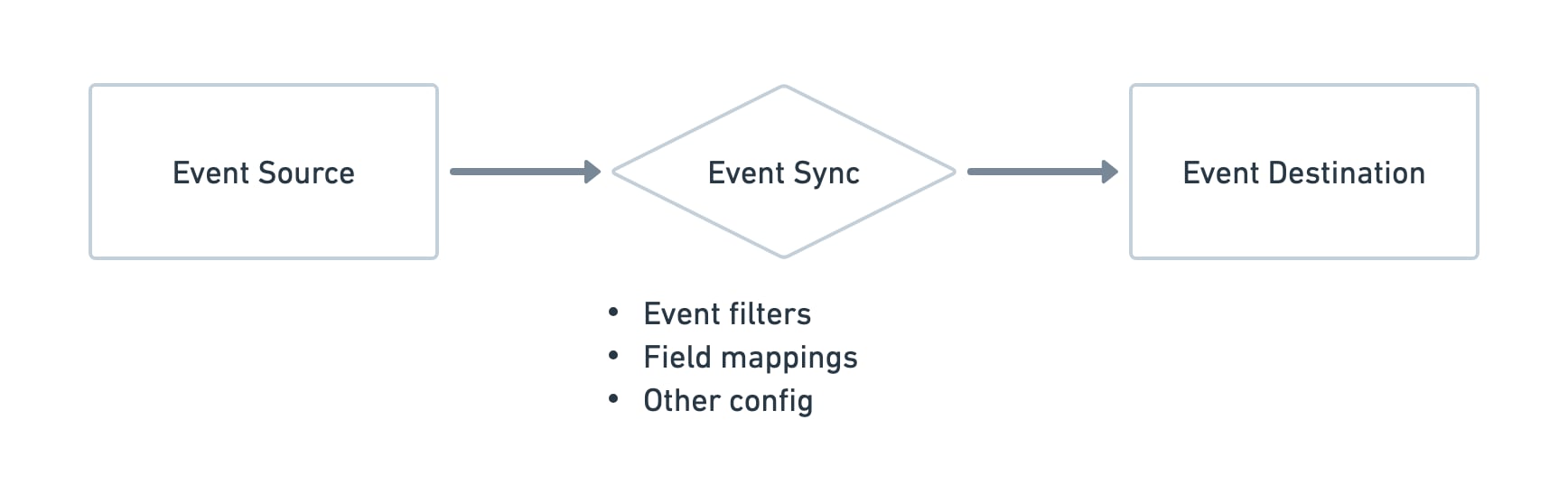
- The event is received from an event source (SDK, HTTP API, streaming source, or webhook).
- (Optional) Contracts validate the event’s structure, naming, and required fields.
- (Optional) An Event Function transforms or enriches the payload.
- Filters decide whether the event should be forwarded for a given event type.
- Field mappings shape event and user data to match the destination schema.
- The event is delivered to the destination, with automatic retries on failures.
Optional validation and transformation
You can optionally add additional controls to this flow:-
Data contracts
Validate event structure, naming, and required fields before events are delivered.
→ See Managing contracts -
Event functions
Modify or enrich events in-flight before they are sent to the destination.
→ See Functions overview
Set up event streaming
Before you begin
Before you begin, make sure you have:- An event source that’s already set up and receiving events
- A destination where you want to forward those events
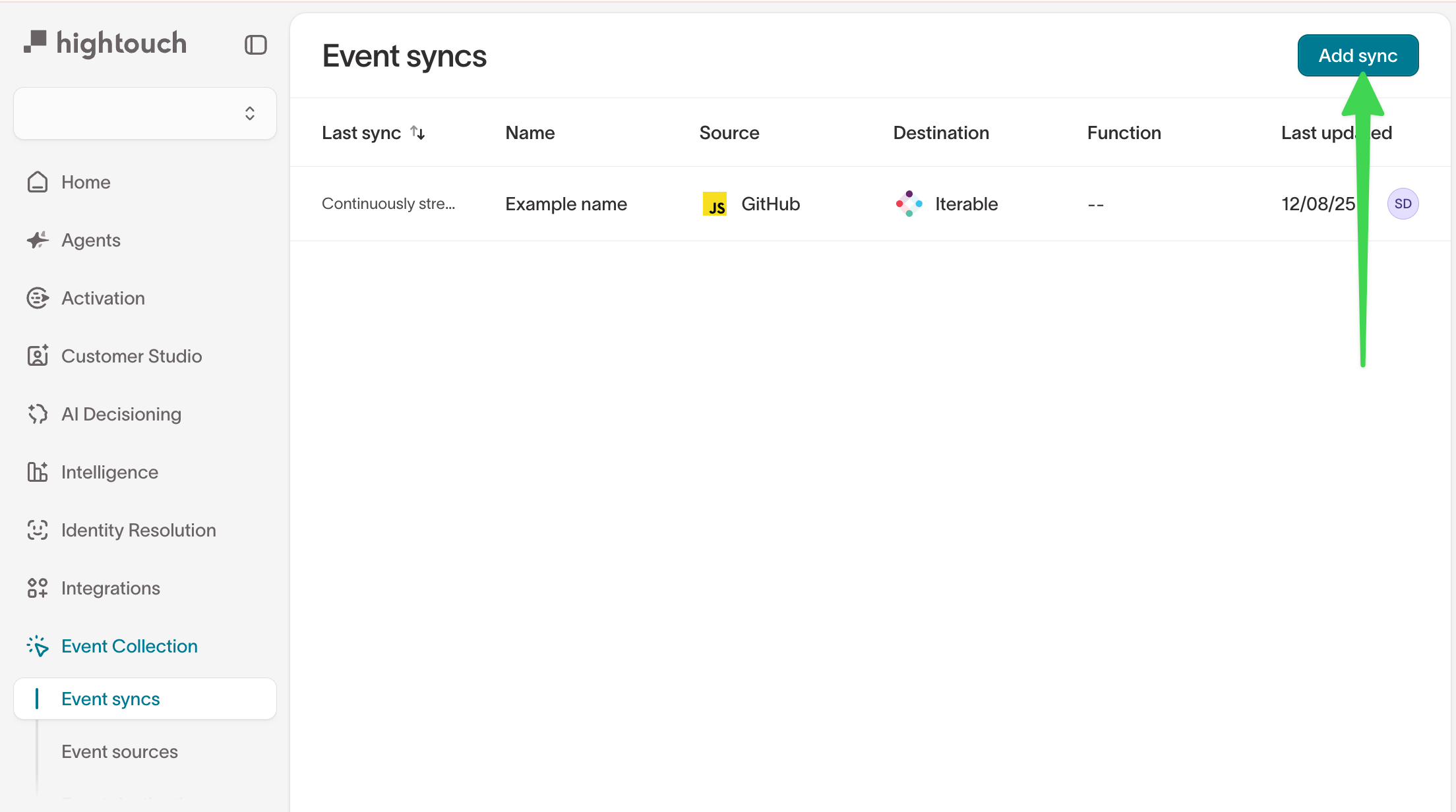
Select an event source
Choose the source that emits the events you want to stream.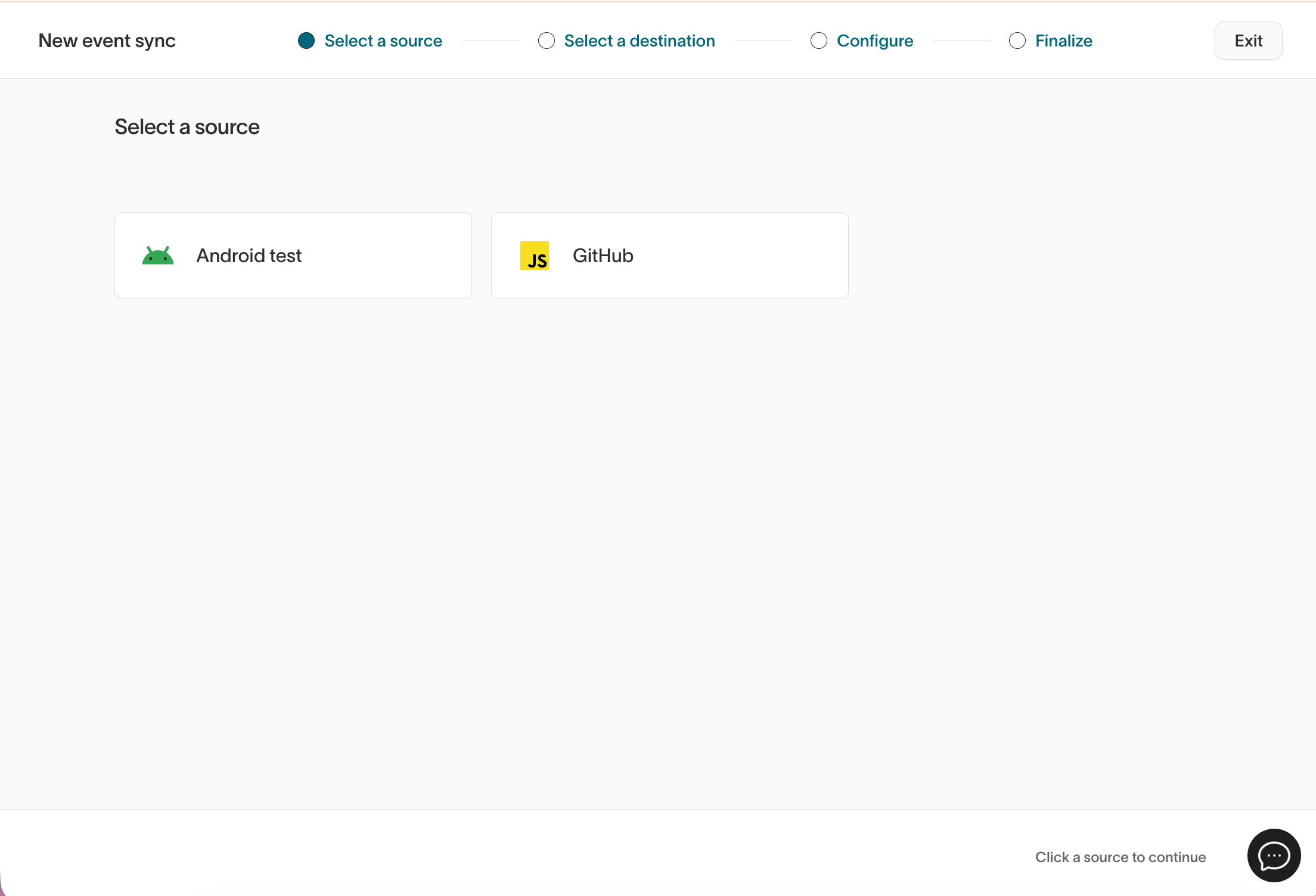
- Go to
Event Collection → Event Sources - Select the source
- Open the Debugger tab
- Trigger the event in your app or site and verify it appears in the debugger
Select an event destination
Event syncs can either store events or forward events, depending on your use case: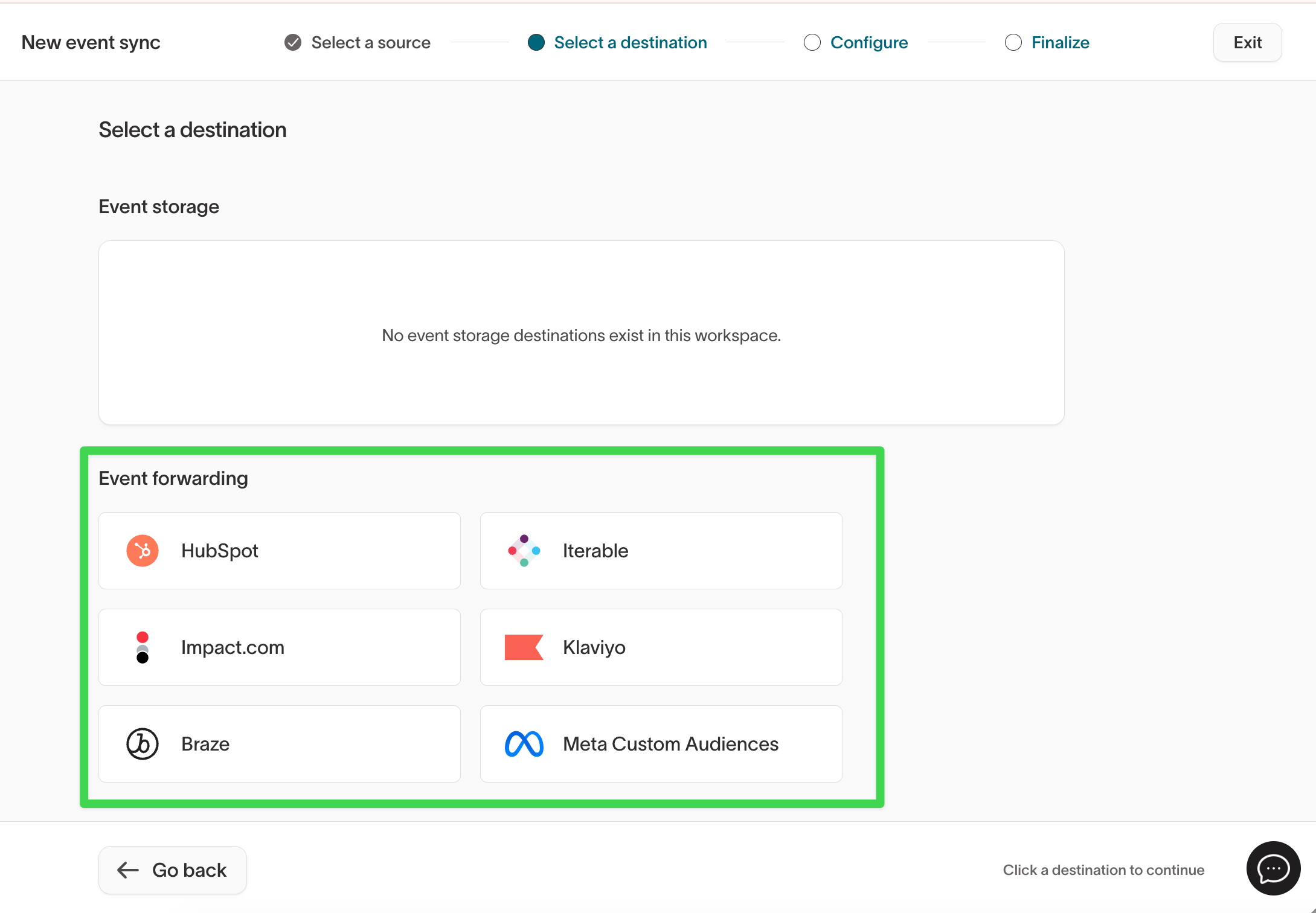
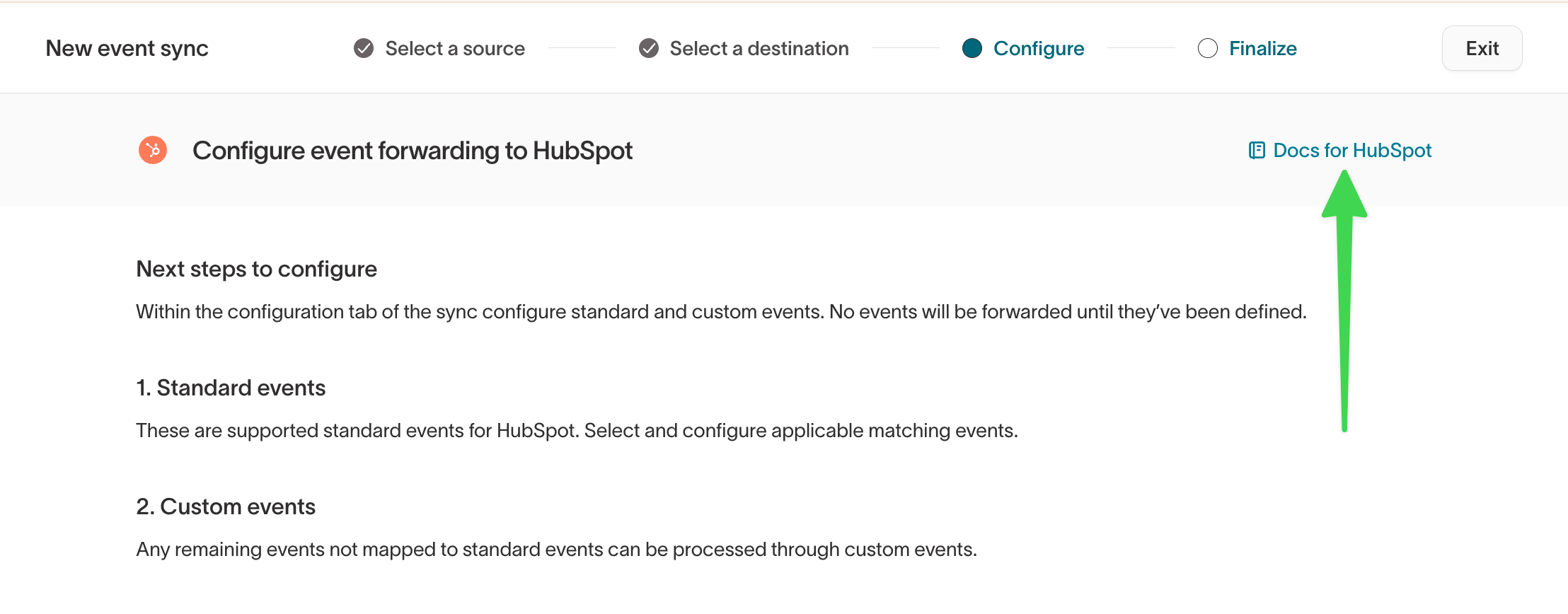
- Event storage destinations write events to your warehouse
- Event forwarding destinations send events to downstream tools in real time
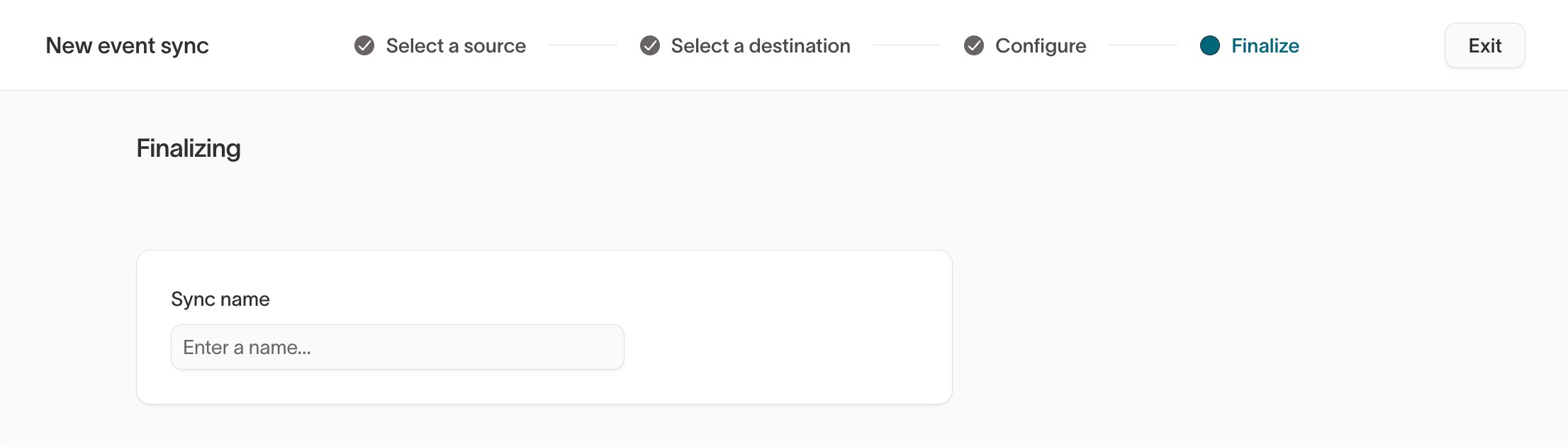
Configure streamed events
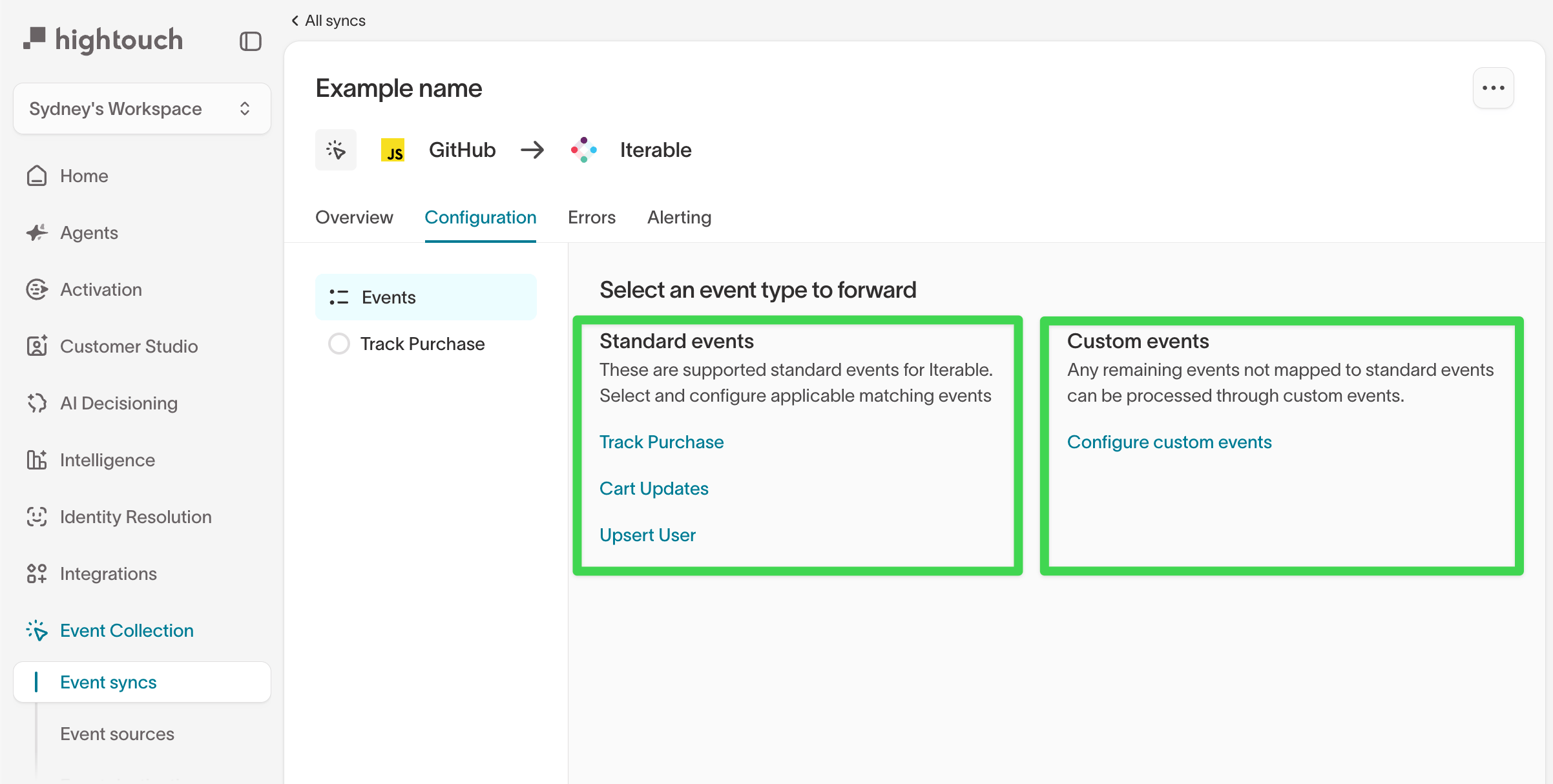
Event configuration happens inside the sync, not during creation. Set in:Event Collection → Event Syncs → [Select sync] → Configuration
Event types
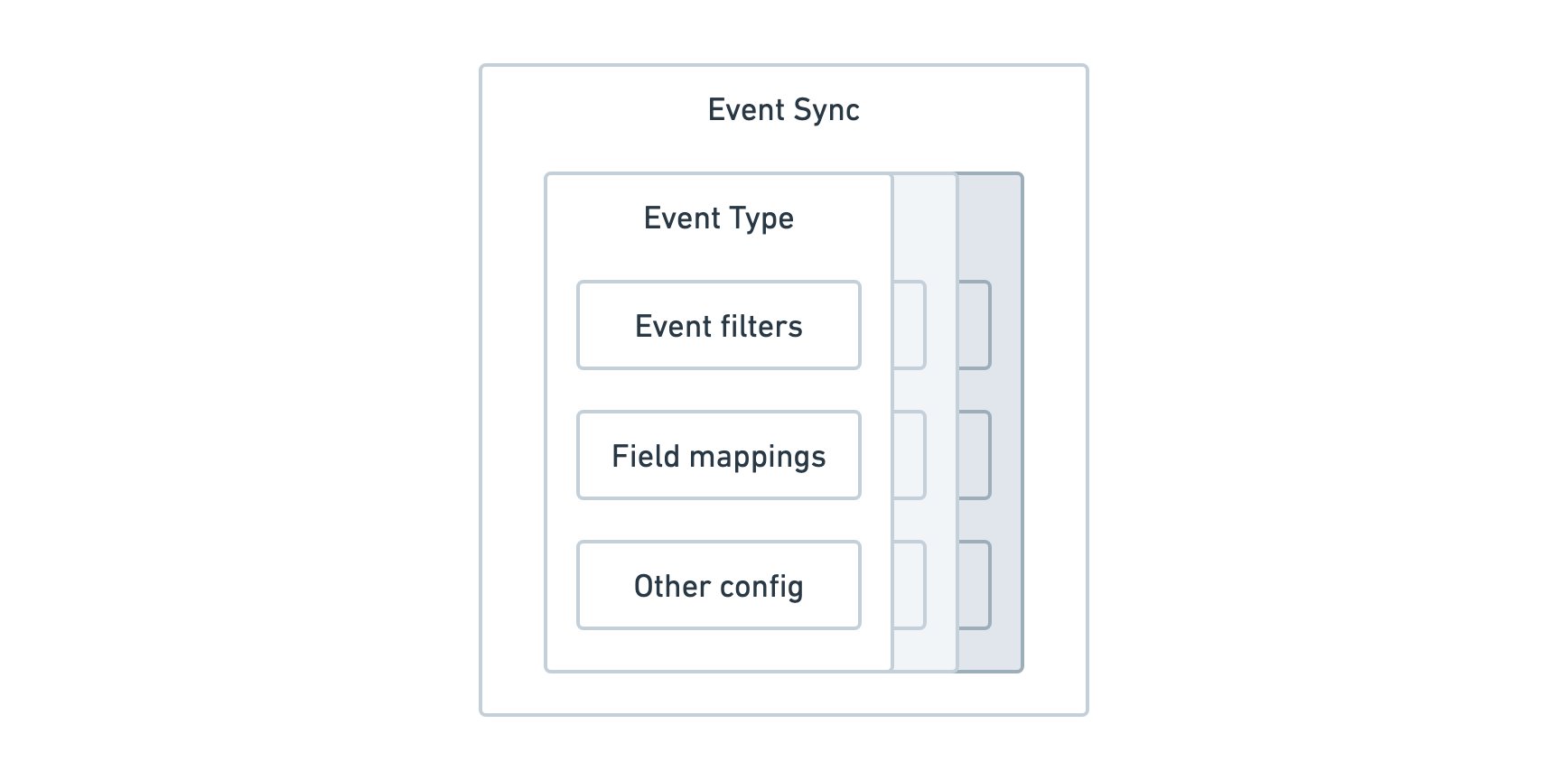
Each destination supports one or more standard event types (for example, a purchase event) and custom event types. You can configure multiple custom event types per realtime sync. This lets you forward different event categories (for example,Product Viewed, Cart Updated, and Wishlist Added) through a single sync, each with its own field mappings and configuration.
We recommend always configuring at least one custom event type so you don’t unintentionally drop events.
Referencing fields
In event filters and field mappings, you can reference fields on the event payload to filter on and match to fields in the destination object. Keep in mind:- Reference nested fields using dot notation, for example
properties.priceorevent. - If a destination expects a specific data type, use Liquid templates to cast or format values, for example
{{ row['properties'].price | cast : 'number'}}. - If a field name contains a period (
.) or backslash (“), escape it with a backslash. - You do not need to escape spaces.
- The
eventproperty refers to the event’s name for track events. - The
typeproperty refers to the SDK and API event type (track,identify,page,screen,group).
Event filters
Event filters determine which incoming events are sent as each event type. For example, when configuring a purchase event, you might filter for only purchase-related events.
Field mappings
Field mappings control what data is sent to the destination and where it appears. Mappings are configured per event type and grouped by purpose in the UI. Set in:Event Collection → Event Syncs → [Select sync] → Configuration → [Select event type]
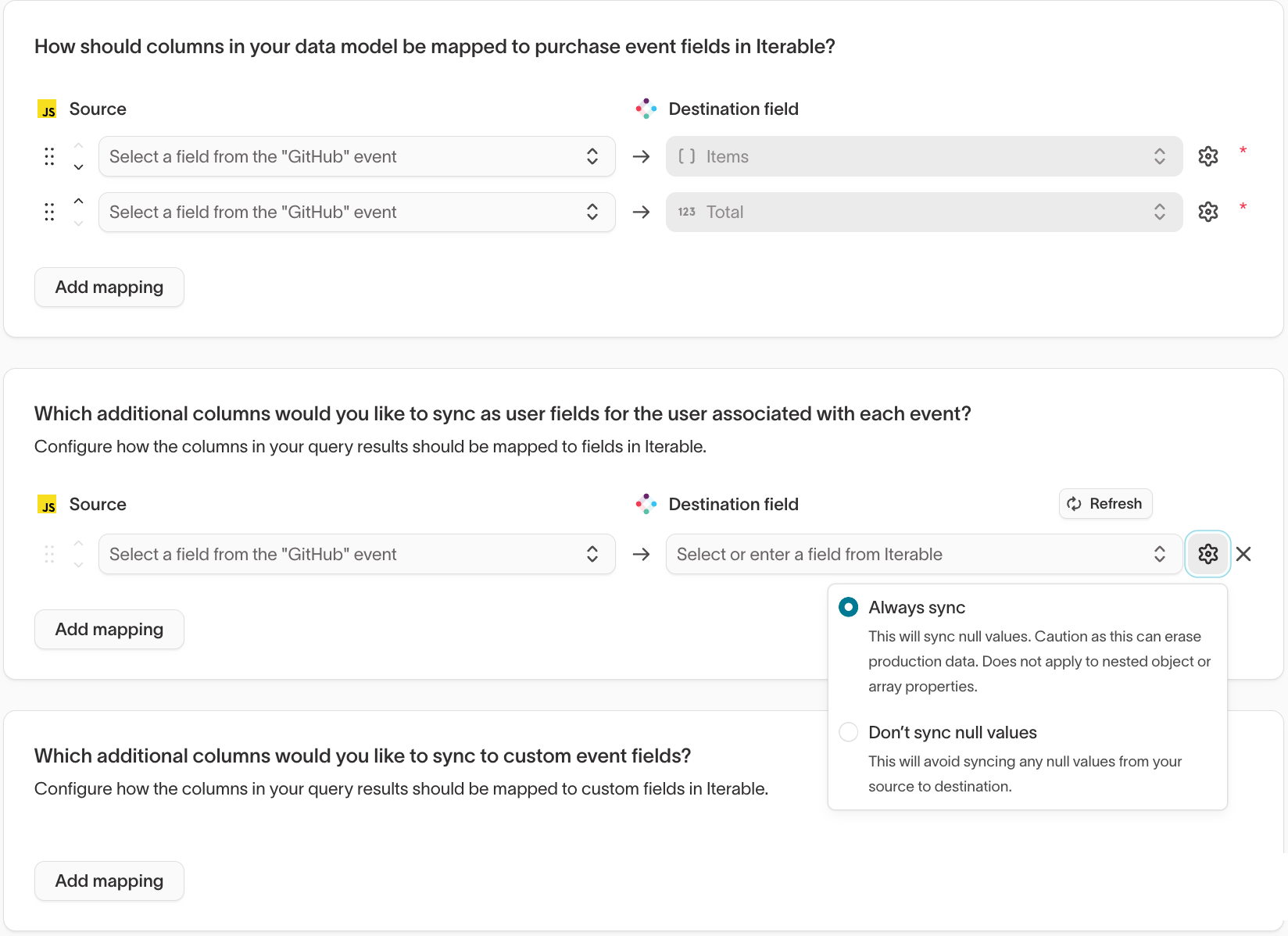
Map required event fields
This section maps core event data to fields required by the destination.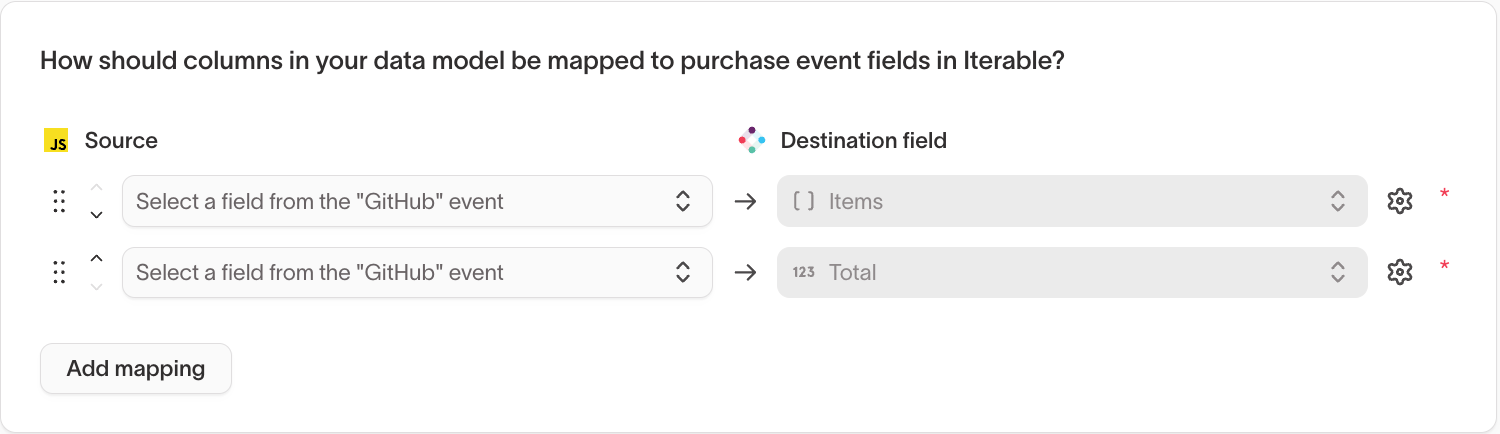
Sync additional user fields (optional)
This section lets you send user-level data along with each event, such as email or subscription status. Use this when:- The destination updates user profiles based on events
- You want events to enrich user data in real time
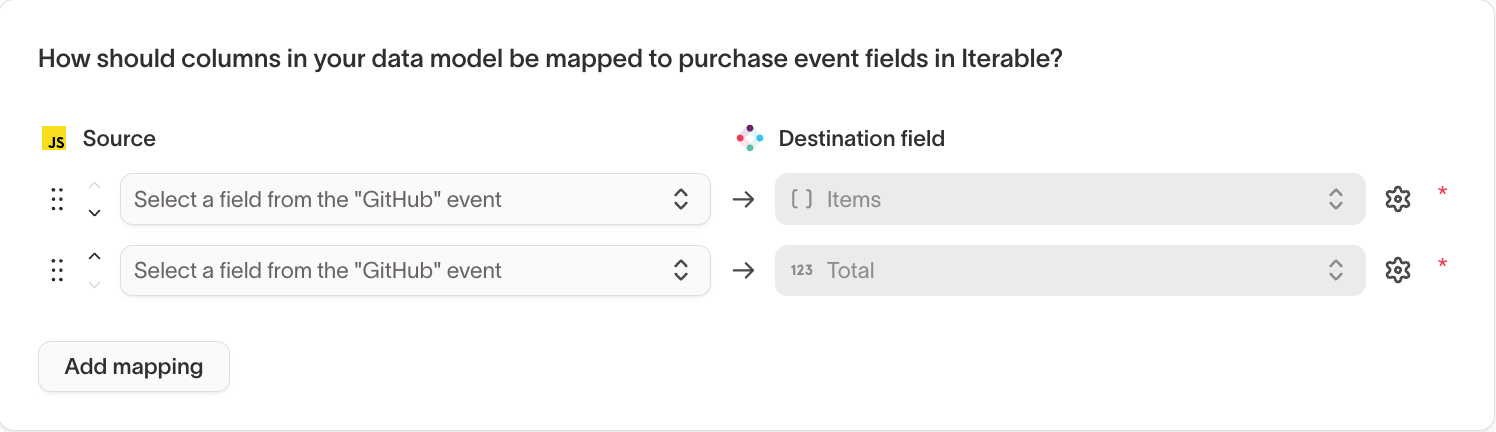
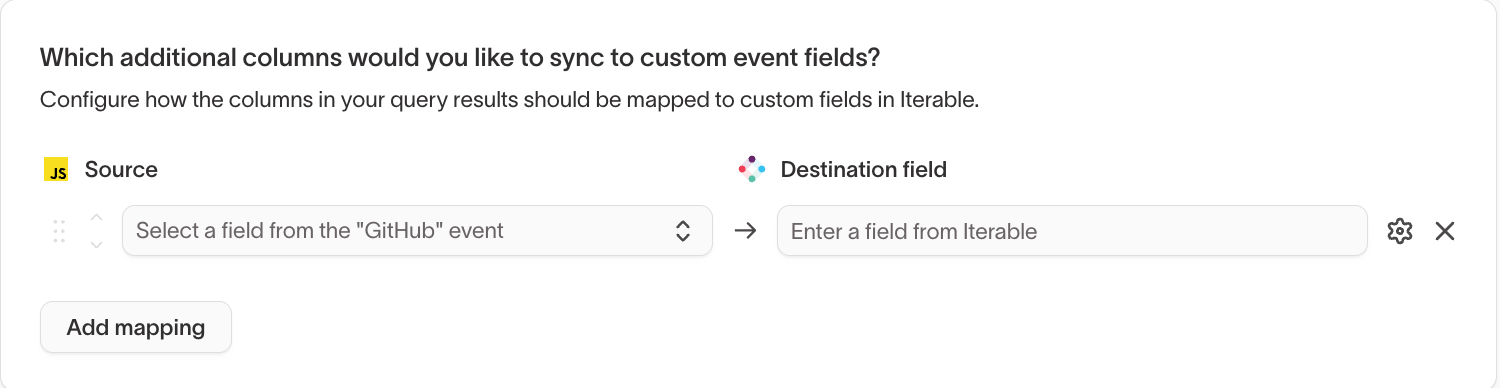
Sync custom event fields (optional)
This section controls which event-specific details are included beyond required fields. For custom events, we recommend sending the entireproperties object so downstream tools receive full context.
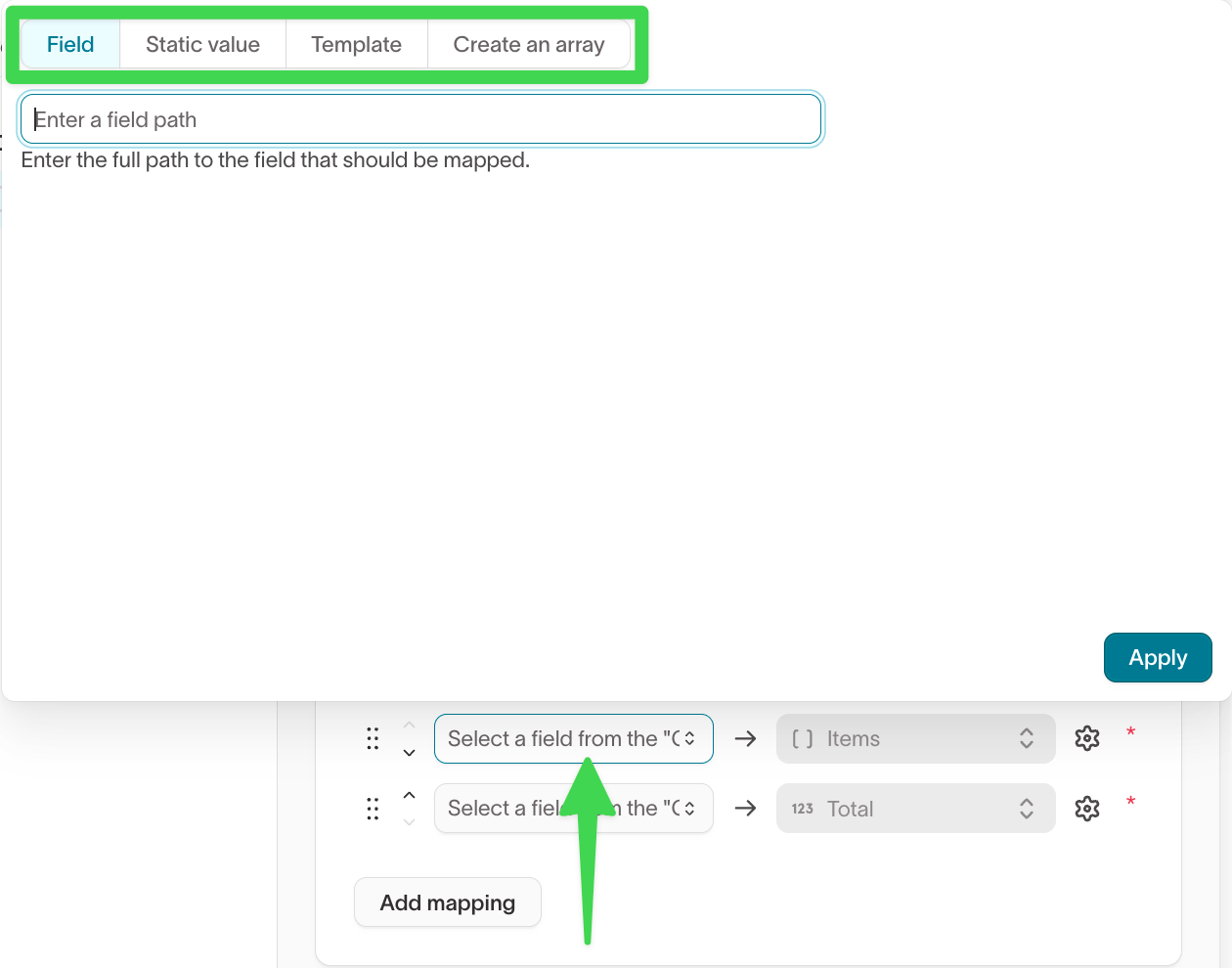
Choosing source values
When mapping fields or creating filters, you choose where each value comes from. You can use:- Field – Pull a value directly from the event payload (for example,
properties.total) - Static value – Send the same value for every event
- Template – Format or transform values
- Create an array – Combine one or more fields into an array
(Advanced) Edit JSON mode
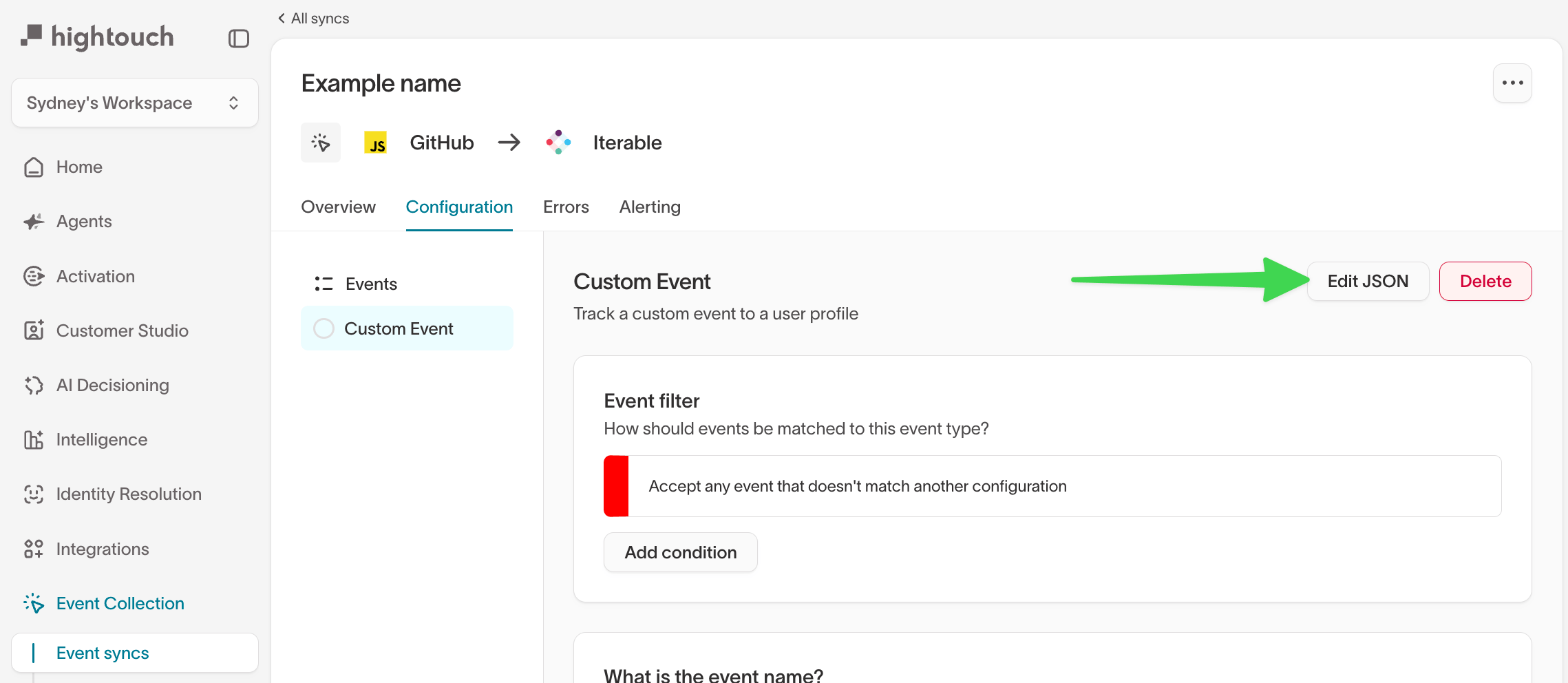
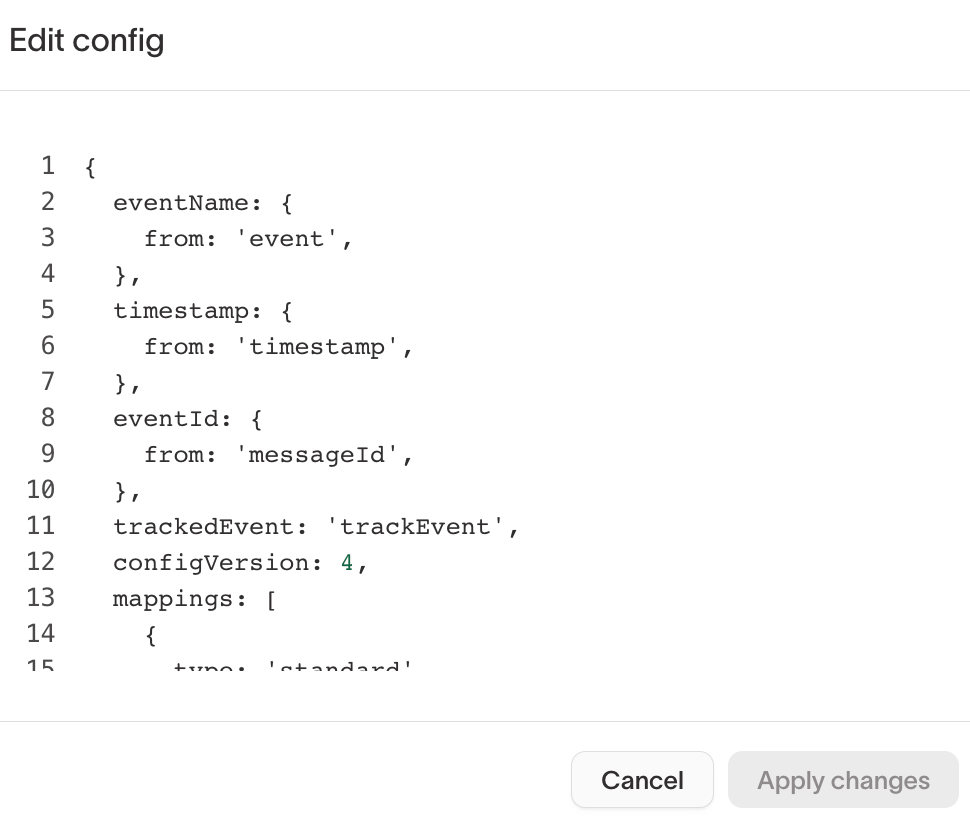
Within a sync’sConfiguration tab, you also have the option to modify the underlying sync configuration directly. This mode is intended for advanced use cases where the standard UI does not provide enough flexibility.
Use Edit JSON mode when you need to:
- Make bulk or highly repetitive field mappings
- Reference fields or structures not exposed in the UI
- Apply destination-specific configuration that can’t be expressed visually
Errors
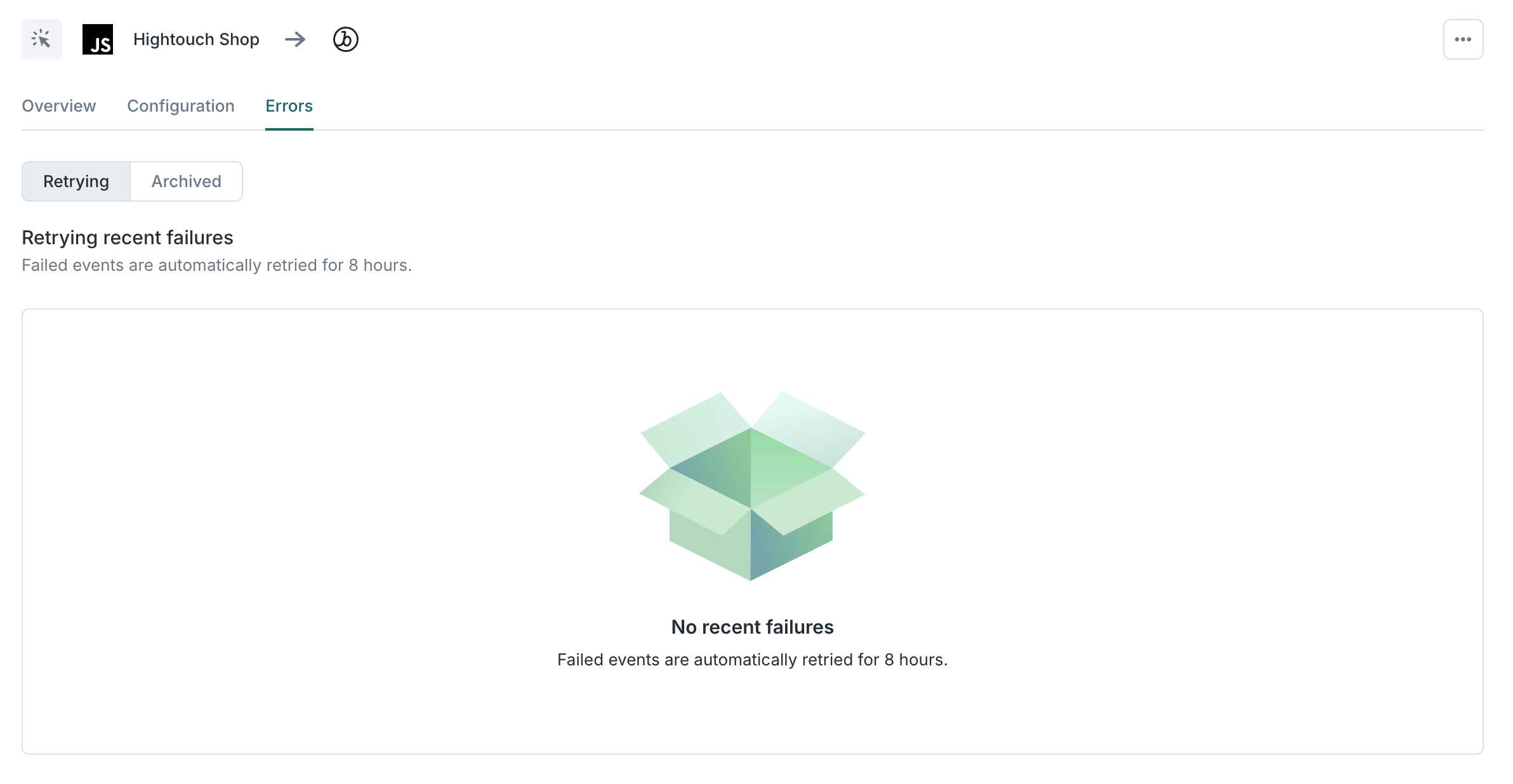
Each event sync includes built-in visibility and controls:- Overview: event volume and delivery status
- Errors: failed and retried events
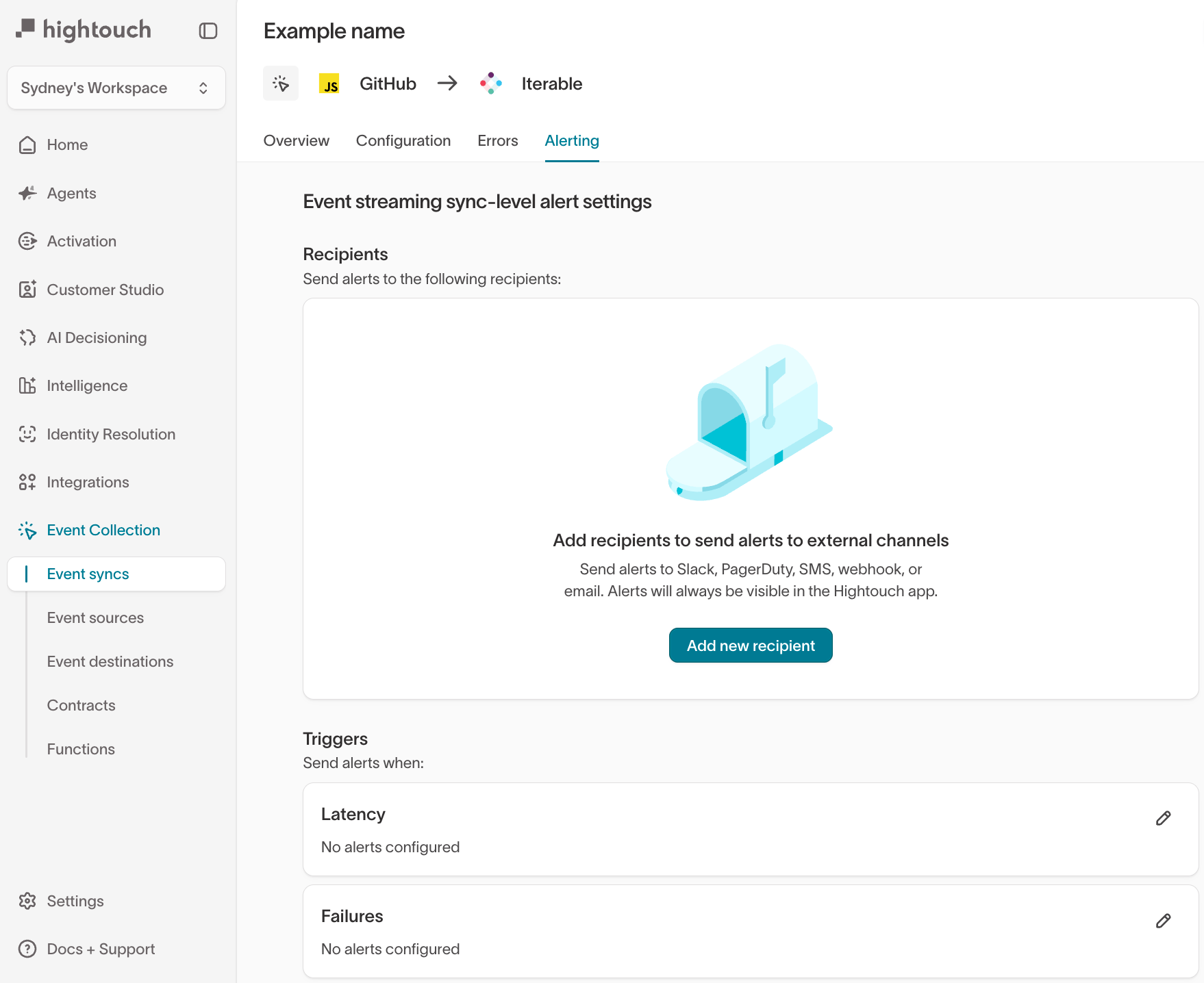
- Alerting: notifications for failures or latency issues
- Filters (events may be excluded before mapping)
- Required mappings (missing required fields)
- Destination credentials and rate limits
- Any Event Functions attached to the sync
Alerting
Alerting helps you proactively monitor event streaming health. You can configure alerts to notify your team when:- Event delivery fails or error rates increase
- Retry thresholds are exceeded
- Latency increases beyond acceptable limits
Supported destinations
Any destination in the Hightouch catalog that supports event forwarding can be used with event streaming. Check each destination’s documentation for:- Supported event types
- Required fields
- Rate limits and identity requirements