

Before you begin
- A configured Customer Studio schema with a parent model that has a primary key
- An event source sending events to Hightouch (Hightouch Events, Segment, RudderStack, or Snowplow)
- A realtime event related to the parent model
- For traits that look back more than 24 hours, warehouse data that covers the same history: a precomputed column, or a warehouse event model related to the parent model
Overview
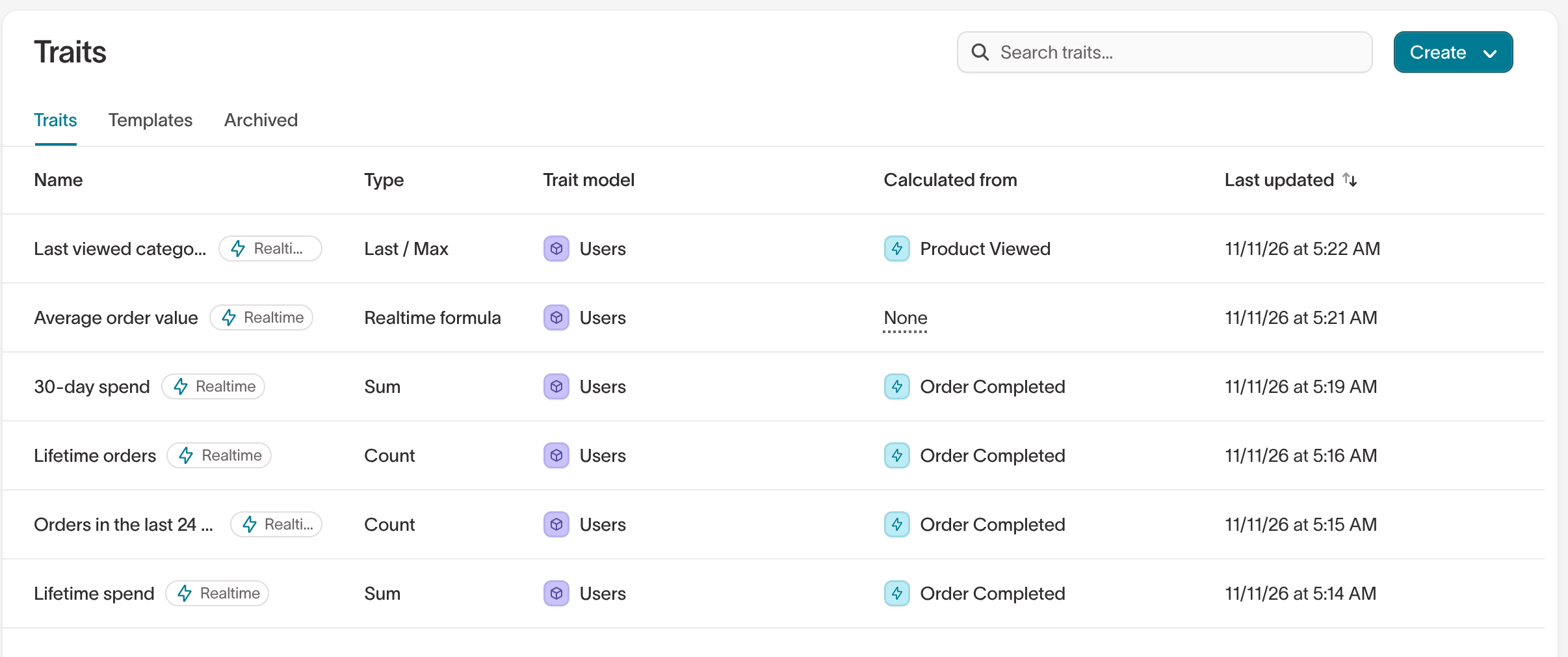
Traits calculate values that aren’t already columns in your customer data. A realtime trait is a trait calculated from a realtime event instead of a warehouse model. Hightouch updates the value as each event arrives, so the trait reflects what a customer did seconds ago. For example,Orders in the last 24 hours counts Order Completed events as they stream in. A realtime audience can use it to stop showing a promotion right after a customer’s second purchase.
Where a realtime trait gets its data depends on how far back it looks:
- The last 24 hours or less — Hightouch calculates the trait from the event stream alone.
- More than 24 hours, or all time — Hightouch combines history from your warehouse with the event stream. You choose the warehouse data when you create the trait.
- Choose a calculation method
- Choose the realtime event
- Set the time window
- Back the trait with warehouse data, if the window is longer than 24 hours
- Name and save the trait
Choose a calculation method
- Go to Customer Studio > Traits.
- Select Create > New trait.
- Select the parent model the trait belongs to.
- Select a calculation method that works with realtime events:
- Click Continue.
Choose the realtime event
In Related or event model, select a realtime event. Realtime events have a lightning icon. A warehouse event model in the same list creates a standard trait, which updates when your warehouse data does.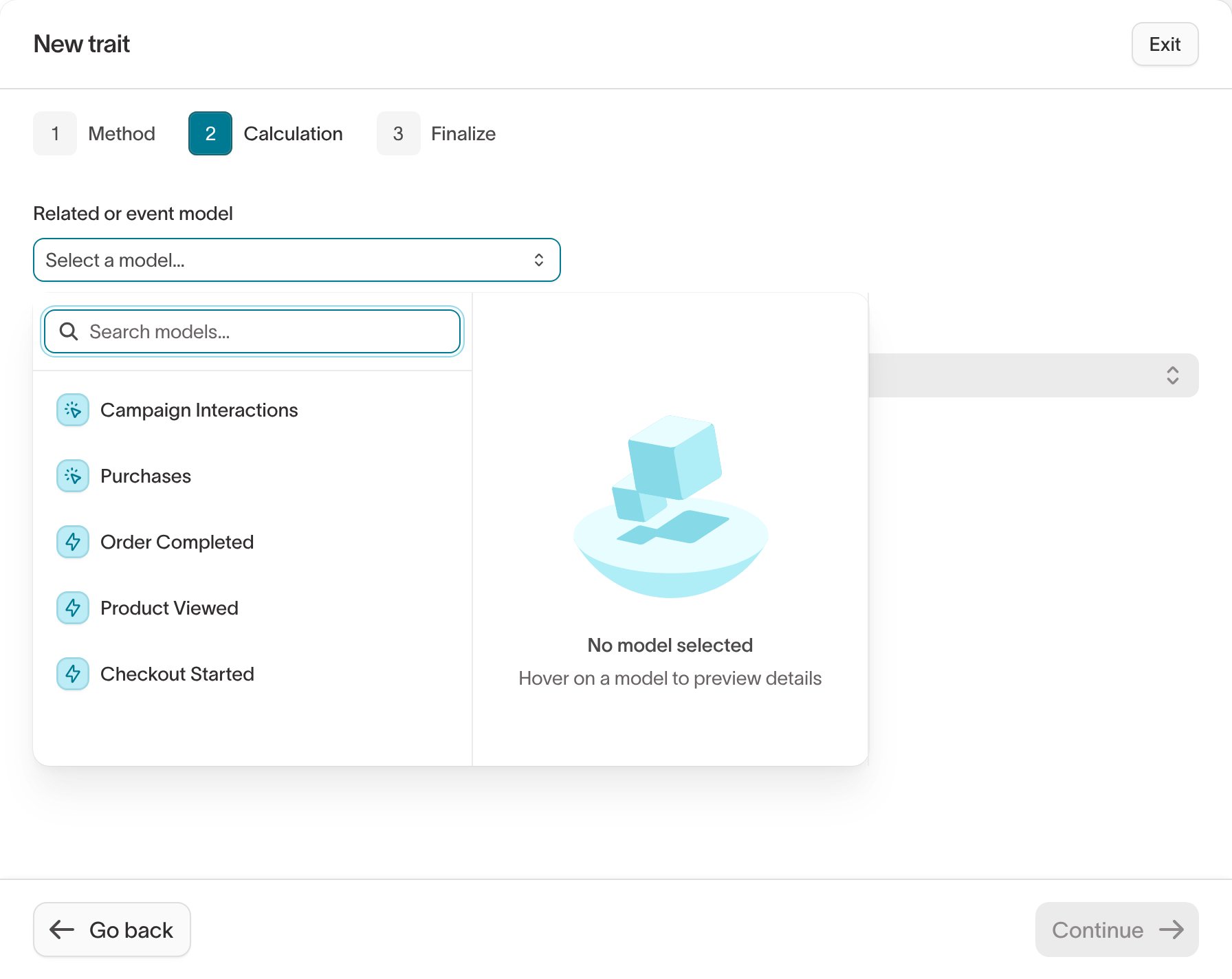
- Add filter — Count only the events that match conditions on event properties, such as
categoryequalsshoes. - Aggregation type — For Aggregation, select Sum or Average, then select the numeric property to aggregate.
- Occurrence type — For Occurrence, select First / Min or Last / Max. Select the property to return in Trait value and the property that orders the events in Order by.
Preview results isn’t available for realtime traits.
Set the time window
Time window controls how far back events count toward the trait.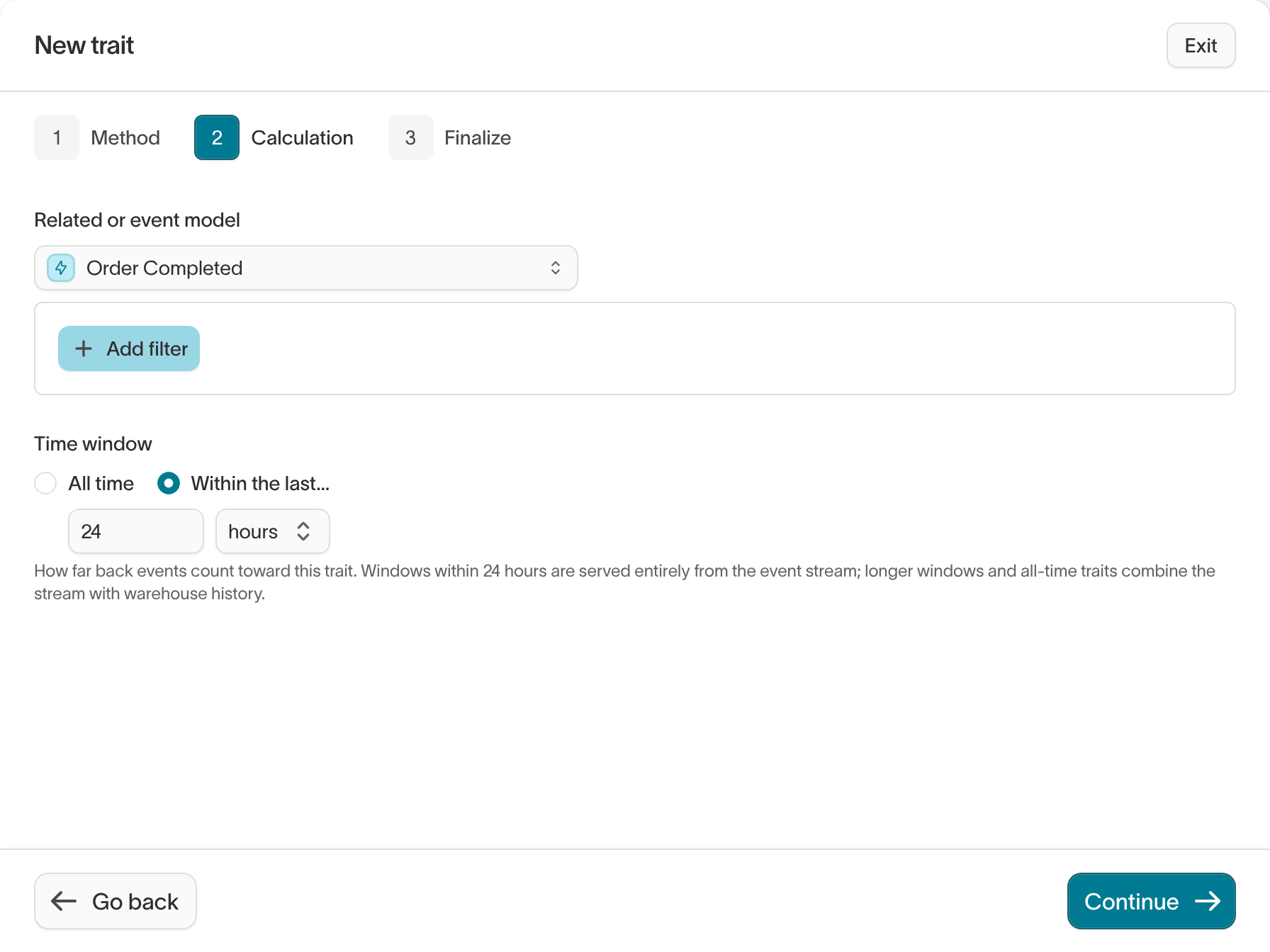
Back the trait with warehouse data
Hightouch calculates the last 24 hours of a realtime trait from the event stream. A trait that looks further back also needs history from your warehouse. The backing model is the warehouse data that holds that history.Hightouch reads the warehouse value for each customer, then adds the events that arrive afterward. The trait stays current between warehouse updates without querying your warehouse for every event.In Backing model, select where the history comes from: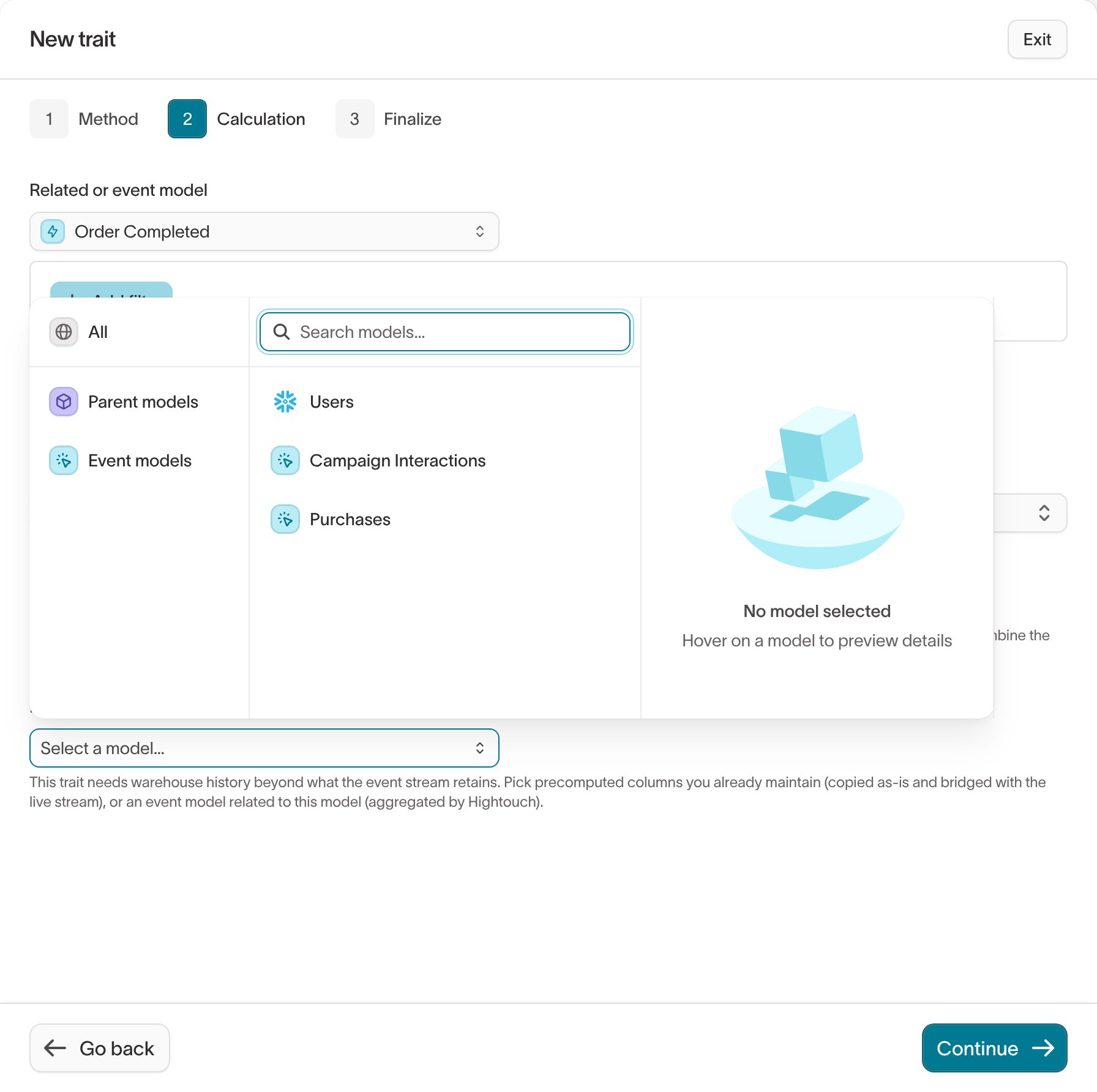
Use a precomputed column
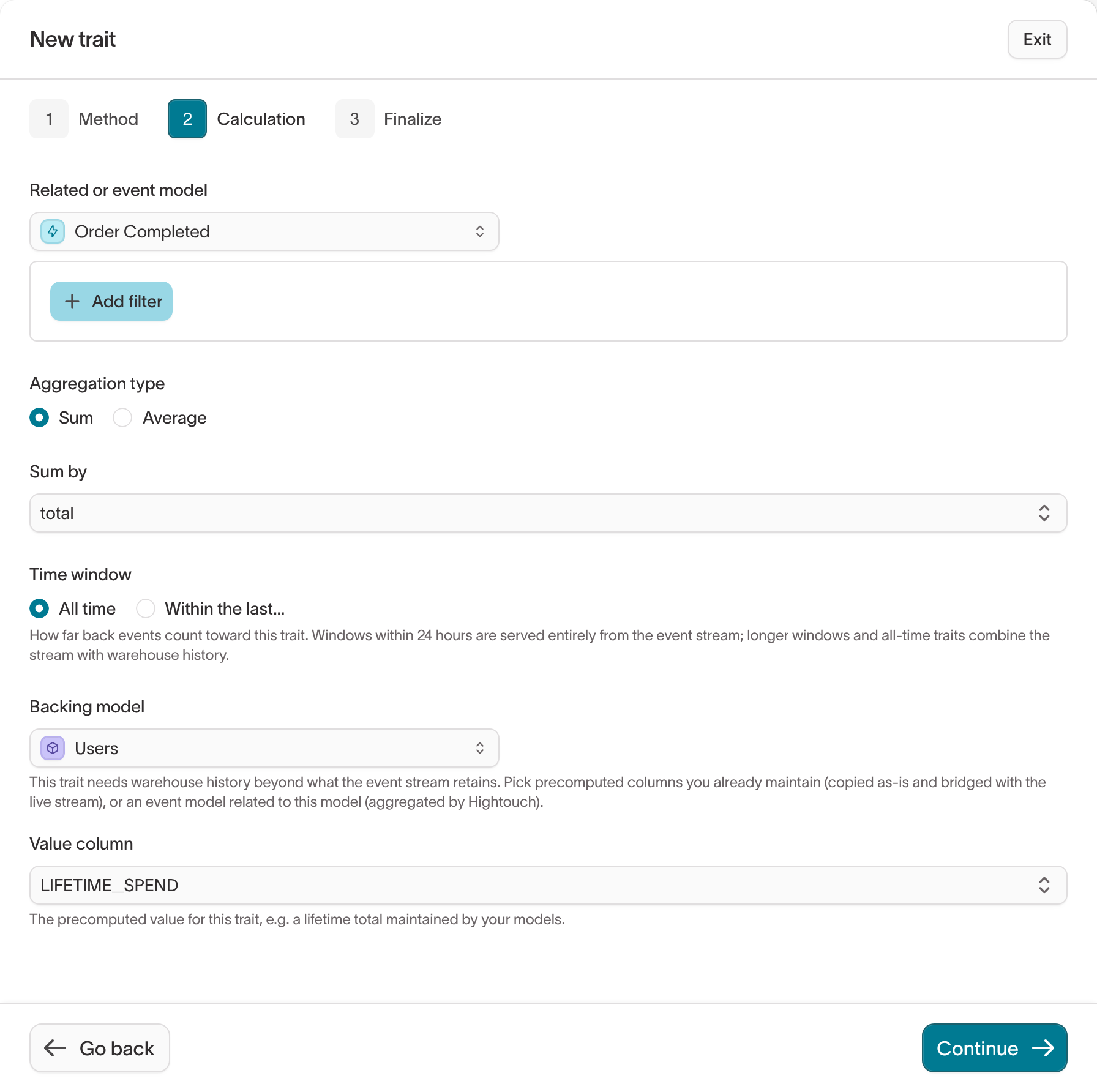
Select the parent model, or a model merged into it, when your warehouse already holds the value. For example, your data team maintains aLIFETIME_SPEND column on the Users table.- Value column — The column that holds the precomputed value.
-
Order-by column — For Occurrence traits only. The column that holds the ordering value for the precomputed value, such as the timestamp stored next to a “most recent value” column. Hightouch compares it with incoming events to decide whether the warehouse value or a newer event wins.
Use a warehouse event model
Select a warehouse event model when the history lives as event rows, such as aPurchases table. Hightouch calculates the trait from those rows over the trait’s time window.- Value column — For Sum and Average, the numeric column to aggregate. For Occurrence, the column whose value the trait returns. Count traits don’t need one.
- Order-by column — For Occurrence traits only. The column that decides which row comes first or last, such as the event timestamp.
-
Filter events — Optional conditions on the warehouse event model’s columns.
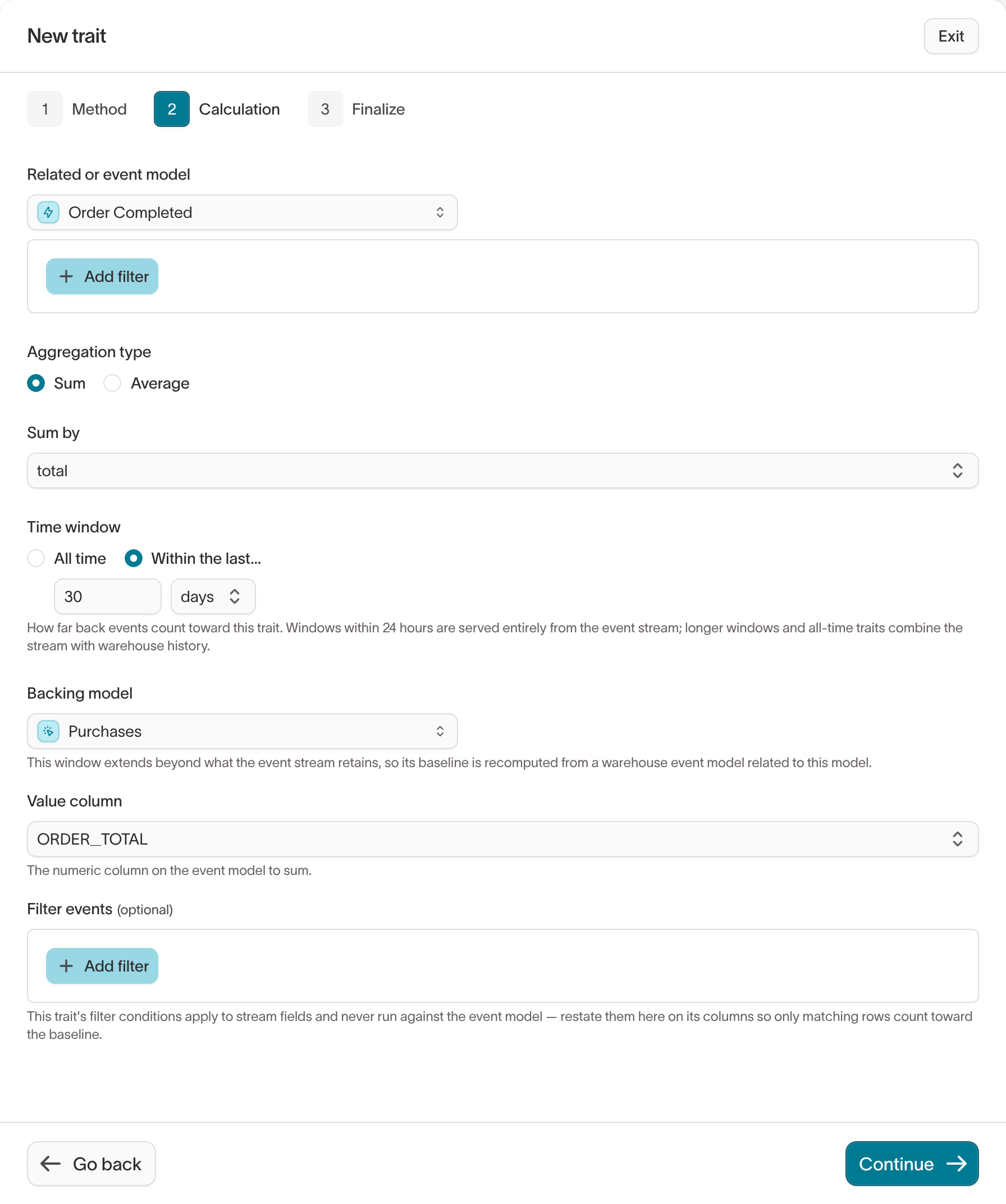
Filters on the trait apply to the realtime event’s properties. They don’t run
against the warehouse event model. If the trait has filters, add the same
conditions in Filter events so the warehouse history counts the same
events.
Name and save the trait
- Click Continue.
- Enter a Name and an optional Description. See Name and describe the trait for naming guidance.
- Click Create trait.
Combine realtime traits with a formula
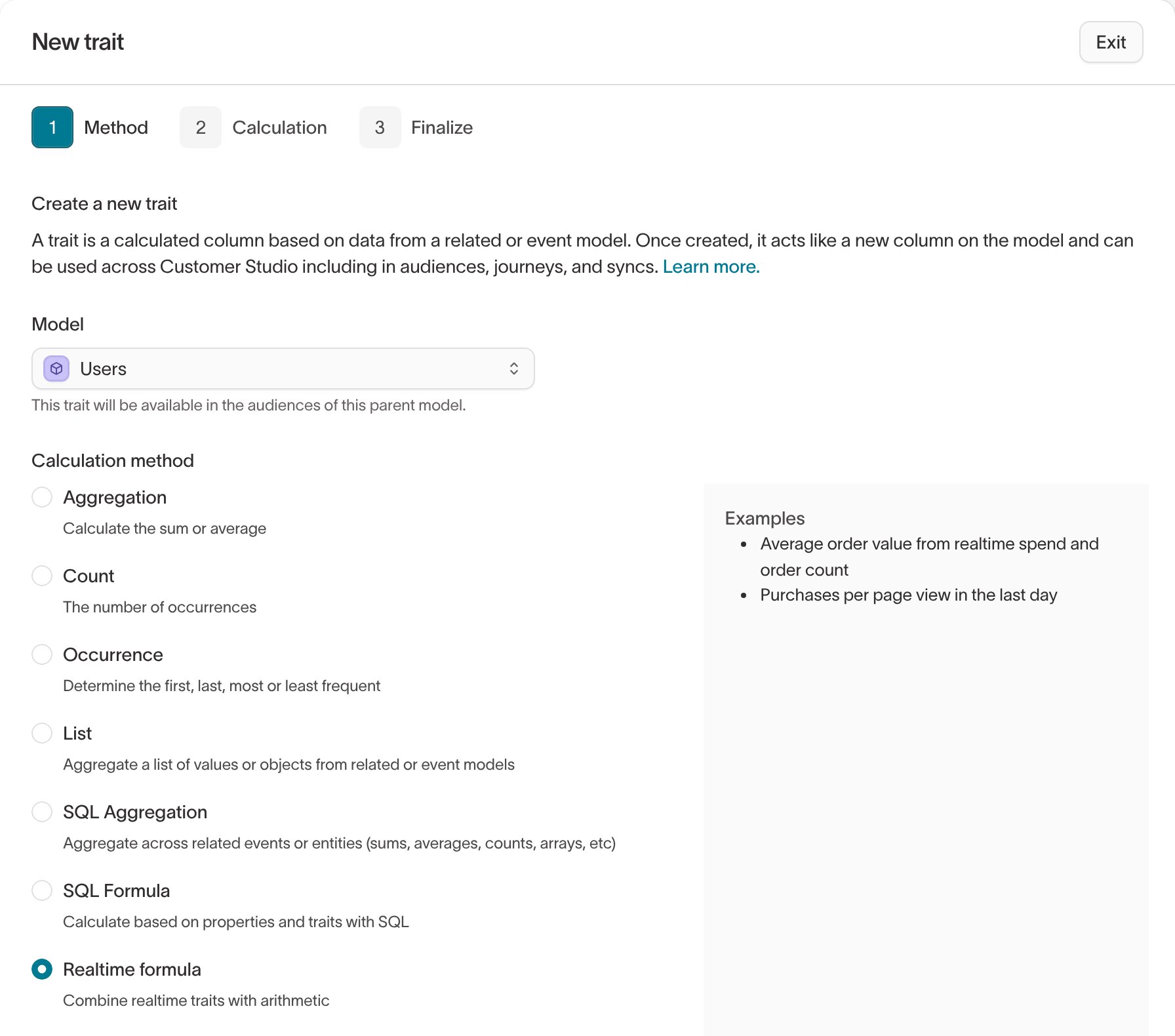
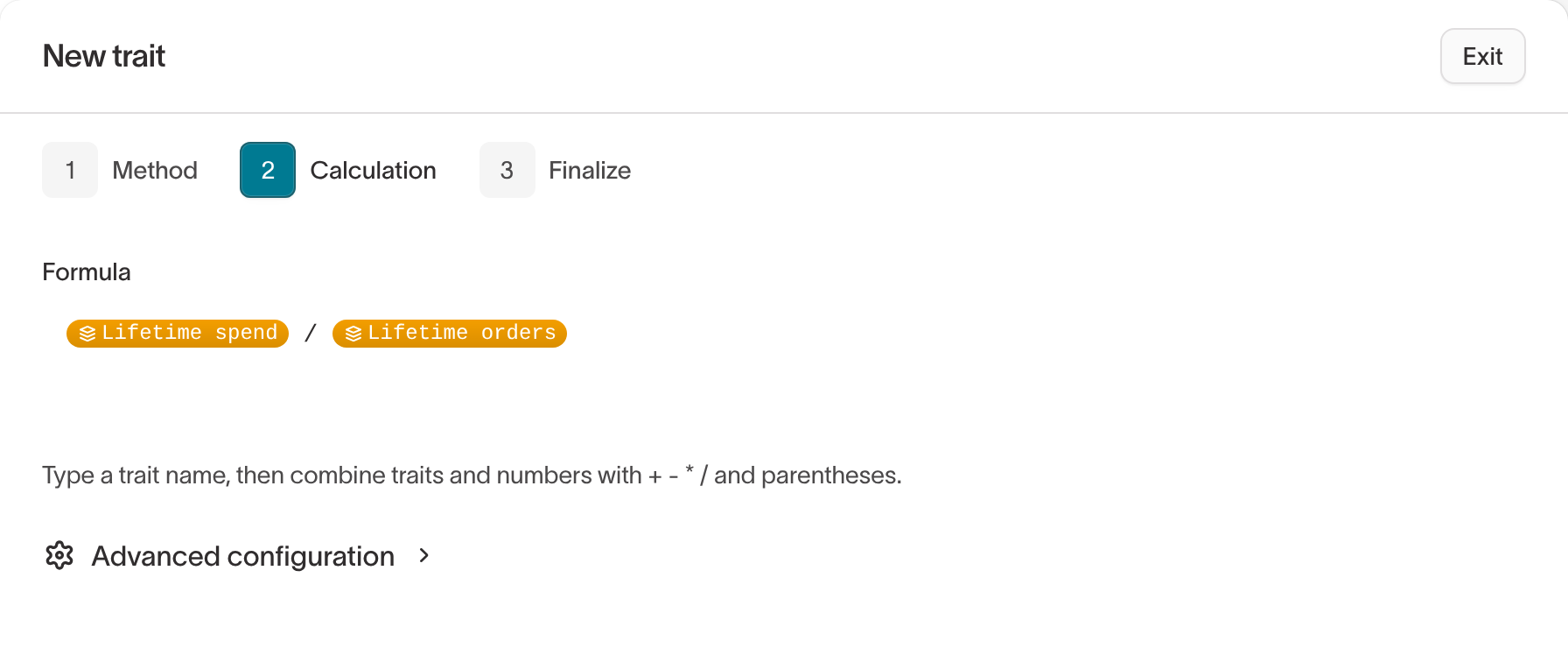
Use the Realtime formula method to calculate a value from other realtime traits. For example, divideLifetime spend by Lifetime orders to get Average order value.
Realtime formula appears in the method list after the parent model has at least one numeric realtime trait.
- Create the realtime traits the formula uses.
- Select Create > New trait, select the parent model, and select Realtime formula.
- In Formula, type a trait name and select it from the suggestions. Combine traits and numbers with
+,-,*,/, and parentheses. - Optional: Expand Advanced configuration and set a Default value. Hightouch uses it when the formula has no result, for example when it divides by zero or one of its traits has no value yet.
- Name and save the trait.
Use realtime traits
Filter realtime audiences and journeys
Realtime traits appear with your other traits when you add a filter in a realtime audience or a realtime journey. For example:- An audience of customers where
Orders in the last 24 hoursis at least 2 - A journey Segment tile that routes customers where
30-day spendis greater than 500 - A journey Hold until tile that releases a customer when
Lifetime ordersreaches 1
Send trait values to destinations
Map realtime traits to destination fields in a realtime sync, or in a Send to destination tile in a realtime journey. Hightouch sends the value the trait has when the sync or tile sends.Read trait values from your app
Your app can request a customer’s current realtime trait values over HTTP. The endpoint is on the Personalization API host and takes a standard Hightouch API key.
A request looks like this:
404 when Hightouch has no events or warehouse data for the user.
Warehouse values refresh daily
When you save a trait with a backing model, Hightouch creates a sync for the parent model and runs it once a day. The sync reads each customer’s warehouse value for every backed trait. Hightouch manages this sync, so you don’t configure or schedule it. Between runs, Hightouch adds each new event to the last warehouse value. For example, withLifetime spend backed by a LIFETIME_SPEND column:
- The daily sync reads
LIFETIME_SPEND = 480for a customer. - The customer completes a $40 order. The trait updates to
520when the event arrives. - The next daily sync reads the new warehouse value. Hightouch adds only the events that arrive after that read.
Constraints
Keep the following limitations in mind when designing realtime traits:- Occurrence traits support First / Min and Last / Max only. Most frequent and Least frequent need a warehouse model.
- Without warehouse values, conditions on a trait with a backing model don’t match.
- For Occurrence traits with a Within the last… window, Order by must be a number or a timestamp. By default, Hightouch skips events whose trait value is larger than 32 bytes, such as long URLs.
- Trait value suggestions aren’t available for realtime traits.
- SQL Formula traits can’t reference realtime traits.