

Before you begin
- A role with the
Access Agentsgrant. See Agent settings and access. - To export messages, an Iterable or Klaviyo destination. You don’t need one to create and review messages.
Overview
A campaign often needs a text or a push notification alongside its emails: a sale announcement, a last-chance reminder, or a back-in-stock notice. Ask the agent for them on the campaign’s canvas, next to the brief and the emails, so the messages use the same offer, dates, and tone. The agent keeps each message within the channel’s limits, and usually well under them:- SMS — A body of up to 160 characters.
- Push — A title of up to 50 characters and a body of up to 150 characters.
Create messages
- In Content, open your campaign’s canvas, or create one with Create file > Canvas.
- Ask the agent for the messages. Name the audience, the goal, and the channel. For example:
- “Write an SMS for members announcing early access to the sale, using the offer from the brief.”
- “Create three push notification variants for the last day of the sale, each with a link to the sale page.”
- Review the messages. Each one appears on the canvas as a phone preview.
Edit a message
Open a message from the canvas or the Library.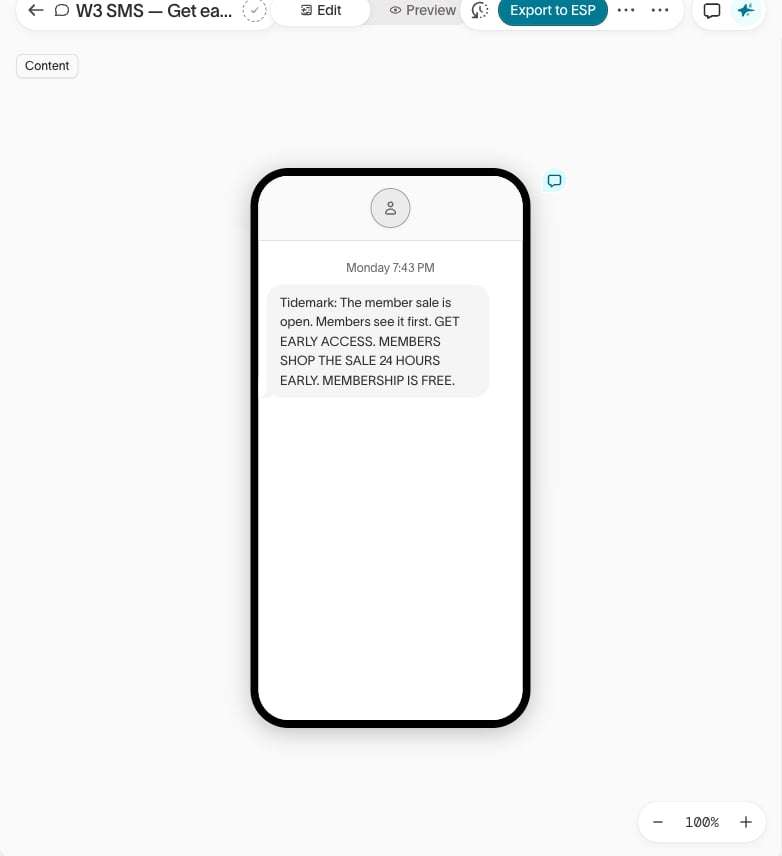
- SMS content — Edit the Body.
- Push content — Edit the Title and Body. Under Interactions, set the Notification click behavior to Open app, Open URL, or Custom action, and click Add action button to add up to three buttons. Switch the phone frame between iOS preview, Android preview, and Web preview.
Send a message for review
When a message is ready, hover over its card on the canvas and click Mark as ready. Hightouch creates a review task, and your reviewers approve it or request changes. See Review and approval.Export to your ESP
Exporting creates or updates a campaign in Iterable or Klaviyo. If your team reviews messages, get the message approved before you export it.1
Open the export dialog
Open the message and click Export to Iterable or Export to Klaviyo in the editor’s header. The button reads Export to ESP when no provider is set.
2
Choose the destination and campaign
Select the Destination. Under Export Mode, choose Create new campaign and enter a Campaign Name, or choose Update existing campaign and select the Campaign to Update.
3
Check the message
If the dialog shows the Title (push only) and Message, check them.
4
Export
Click Create Campaign or Update Campaign.
Common errors
No supported messaging destinations
Next steps
- Create emails to create the campaign’s emails on the same canvas.
- Lifecycle marketing to take a campaign from a brief to a send.