

Before you begin
- A role that includes the
Access Agentsgrant. See Roles. - At least one connector for the tool you want to change. An admin adds connectors in Settings > Connectors. See Connectors.
Overview
Some campaign work ends in another tool: launching ads in Meta, building an email in your ESP, uploading assets to your digital asset manager, or creating a task in Asana. Instead of doing each step by hand, describe the change to the agent in a chat. The agent proposes a plan that lists every change it makes, in order. You review the plan, and the agent makes the changes only after someone approves it. A plan can also include changes in Hightouch, such as saving an audience, when they’re part of the same request. Every plan your workspace’s agents propose is listed on the Actions page, so you can see what’s waiting for approval and what already ran.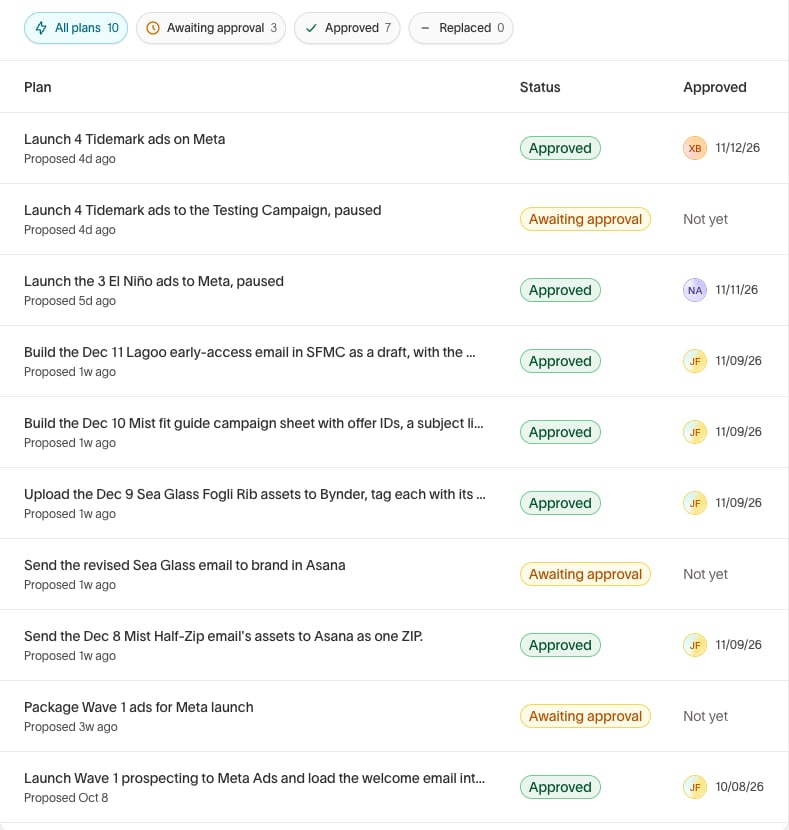
Have the agent make a change
1
Describe the change
Open Automations in the sidebar and select Actions, then describe the change in the agent panel. You can also ask for the change in any chat.Name the tool and what should change in it. For example: “Launch the four approved spring ads to the Testing Campaign in Meta, paused.”
2
Review the plan
The agent replies with a plan. Each step shows the tool it uses and the changes it makes, and which steps it waits for under Runs after. Open a step to see its Arguments.To change the plan, reply in the chat. The agent proposes a new version, and the earlier version is marked Replaced. Only the latest version can be approved.
3
Approve the plan
Click Approve plan. Plans for some tools have their own button, such as Launch 4 ads for a Meta launch or Create campaign draft for Delivery.The agent then runs the plan. Each step shows whether it Succeeded, Failed, or was Skipped, and the plan shows Completed when it’s done.
Choose what needs approval
Admins set what the agent can do with each connected tool. In Settings > Connectors, open a connector and set each of its tools to one of these:- Always allow — The agent uses the tool without asking.
- Needs approval — The agent uses the tool only as part of a plan someone approves.
- Blocked — The agent can’t use the tool.
Configure Agents grant.
Track plans
The Actions page lists every plan in the workspace. Filter it by Awaiting approval, Approved, or Replaced, or search with Search plans…. Each row shows the tools the plan uses, the task it belongs to, and who approved it and when. Click a plan to open it. From the plan, click Open chat to continue the conversation with the agent, or Open task or Open project when the plan belongs to a project or task.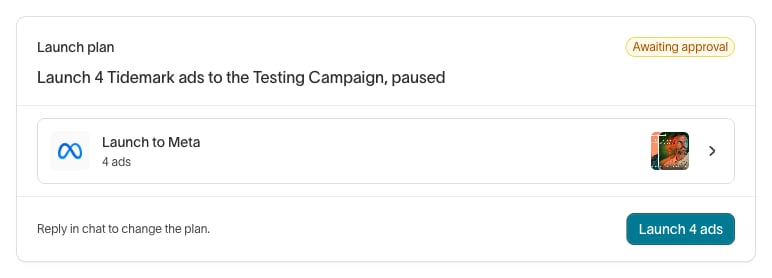
Next steps
- Launch ads for the details of launching approved ads to Meta with the agent.
- Connectors to add the tools you want the agent to change.