

Before you begin
- A product catalog in Context that syncs from a product feed. You can design and preview templates with an uploaded catalog, but exporting the finished feed needs a catalog that syncs from a feed.
Overview
Catalog and dynamic product ads show each shopper a product from your catalog, using the images in your product feed. To give those ads your brand’s look, design a template with the agent, such as a product photo on a seasonal background with your logo and the price. Hightouch renders the template for every product in your catalog, using your brand fonts. Hightouch adds the rendered images to a copy of your product feed. Point your ad platform’s catalog at that feed’s URL, and your catalog ads use the branded images. You can add more than one template to a feed and limit each to some of your products, such as one design for sale items and another for new arrivals.Create a product feed
A product feed connects a catalog to the templates you design for it.- In the sidebar, open Content and select Catalog ads.
- Click Create product feed.
- Enter a Name, and under Catalog, select the product catalog the feed reads from.
- Click Create.
Design a template
1
Create the template
In the product feed, click Create template. Enter a Name, and under Products, add filters to choose which products use this template, such as products with a sale tag. Leave Products empty to use the template for the whole catalog.
2
Describe the design
On the Edit tab, describe the template in the prompt box: the layout, the mood, and which product fields it should show, such as the title and price. The agent designs the template against your catalog. Keep refining it in the prompt box, or click Edit manually to change it yourself.
3
Preview it with your products
Open the Preview tab to see the template rendered for a sample of 10 products. To check specific products, such as ones with long titles or unusual images, click Choose products and pick up to 10.
4
Activate the template
Click Activate. Only active templates render when you run enrichment. To stop a template from rendering, click Pause, and click Resume to turn it back on.
Render your catalog
Rendering is called enrichment. A run renders each product with every active template that covers it, and skips products whose images are already up to date. Open the Run enrichment menu in the product feed: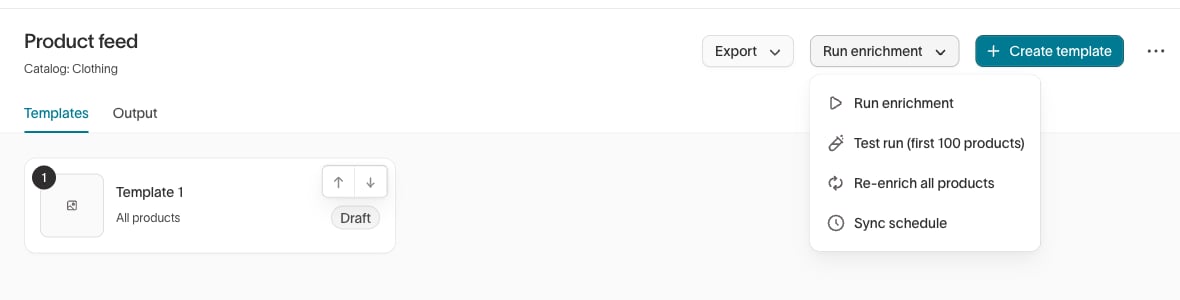
- Run enrichment — Render the products that need new images.
- Test run (first 100 products) — Render the first 100 products. Use it to check the results before you render the whole catalog.
- Re-enrich all products — Render every product again, including ones that are already up to date. A full run can take a while, and it runs the generative steps again.
Keep the feed up to date
To render new and changed products automatically, open the Run enrichment menu and select Sync schedule. Choose Manual, Interval, Custom, or Cron. A product feed runs one enrichment at a time.Send the feed to your ad platforms
Open the Export menu in the product feed:- Copy feed URL — Copy a URL for the enriched feed. Add it to your ad platform’s product catalog as a data source, so the platform reads the feed from that URL.
- Download CSV — Download the enriched feed as a file.
additional_image_link column with links to the rendered images. Products without a rendered image keep the additional_image_link from your source feed.
Next steps
- Ad templates to keep one-off ads on an approved layout.
- Create ads to create campaign ads around a single product.